


For many people, mobile phones have replaced computers as the source of relevant information, so they also read various news, newspapers, and e-books on their mobile phones. Unfortunately, some websites cannot adjust the font size, but it doesn’t matter. In this generation of iOS 15, these small problems can be easily overcome. You know you can adjust the system font size, but did you know you can set the font size for specific applications? It doesn’t matter, I’ll teach you!
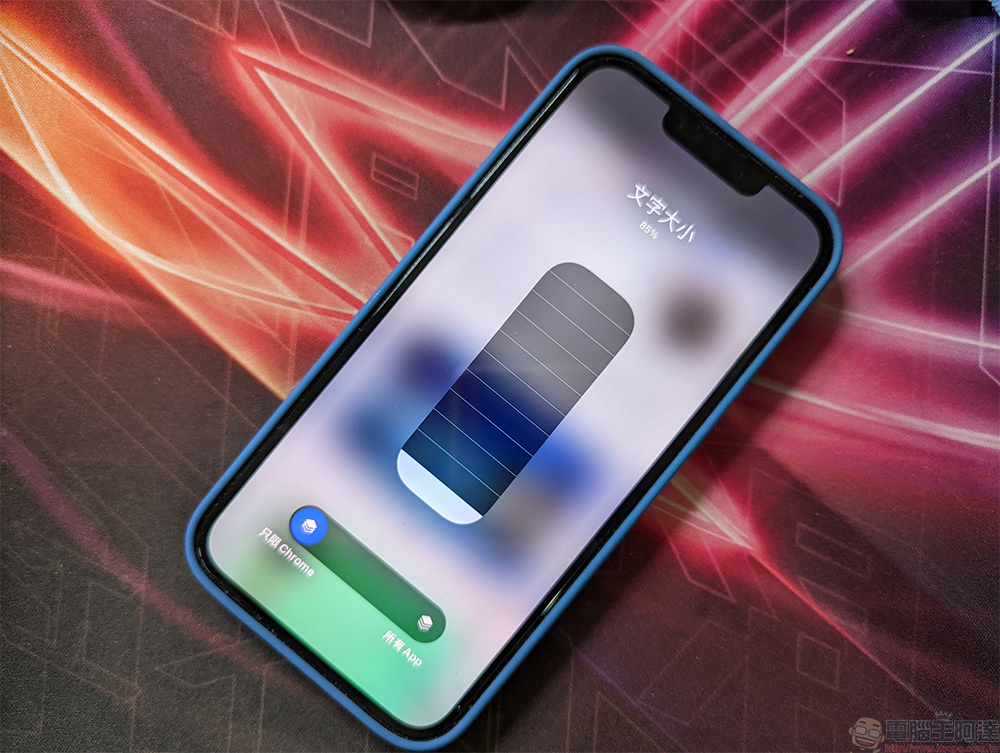
To overcome the reading difficulty of small fonts, how to change the font display size of a specified APP in iOS 15?
It has been known before that you can change the text size of the entire mobile operating system to suit your preferences and habits, but in iOS 15 there is a relatively unknown tool that allows you to change the font on an application-by-application basis. This means that you can use different font sizes in text-heavy reading applications or applications such as mail.
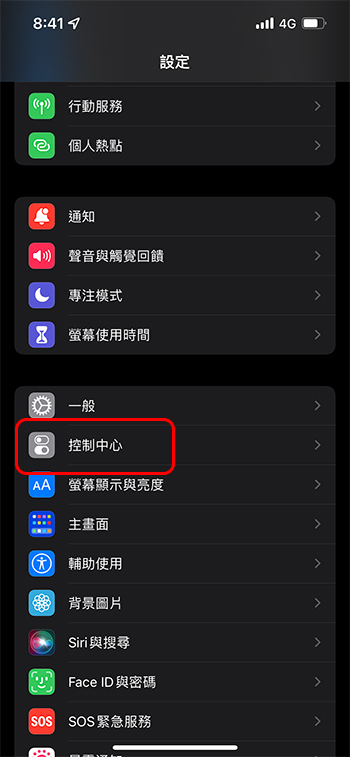
- First, open the Settings app and find Control Center.
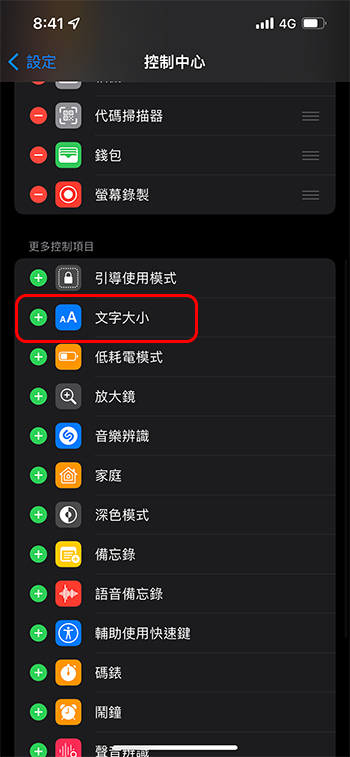
- In the control center page, scroll down to find “Text Size” and click the green “+” in front to add it to the quick control panel.
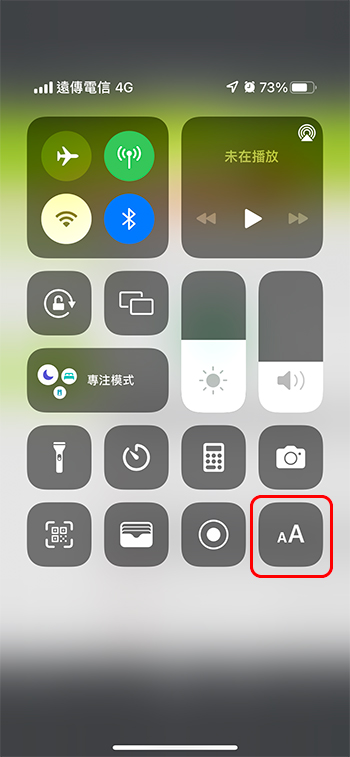
- Next, open the application you want to use, then slide out the quick control interface and click the “A” icon.
- Slide the slider at the bottom of the font adjustment interface over the application name to adjust the font of the specified application, and then drag from the grid pattern above to adjust the font size. If you want to adjust the fonts for all apps at once, slide the slider to the other end.
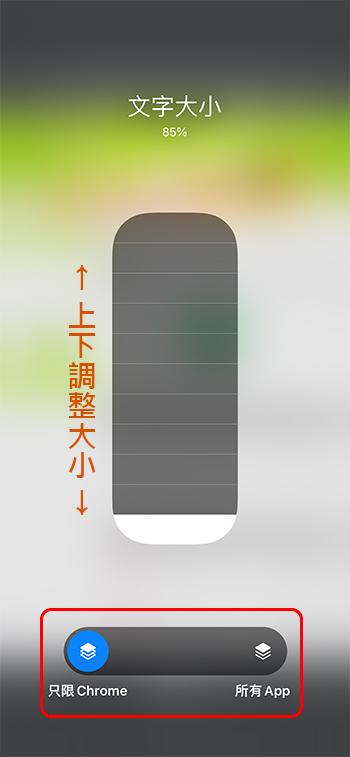
This adjustment method has many advantages. It can adjust the appropriate fonts for each application without affecting the entire system and other applications. Instead of forcing the entire system to make the fonts larger in order to adjust a certain application, after all, not every application needs or is suitable for reading in large fonts. It should be noted here that if the text displayed in the application is actually a picture, there will be no change whether it is adjusted globally or one by one.
Source: KOCPC Chinese