


Apple has added a new feature called “Quick Memo” in the latest macOS 12 Monterey and iPadOS 15. It was originally intended to allow users to quickly open memos from the lower right corner of the screen to record important matters, but some users have encountered problems that cannot be opened. In addition, many people who do not need this feature are troubled by the quick memo enabled by default. Continue reading this article to learn how to open, adjust the position, and close Quick Notes on Mac or iPad!
Tutorial on how to open, adjust the position, and close the “Quick Memo” on Mac and iPad
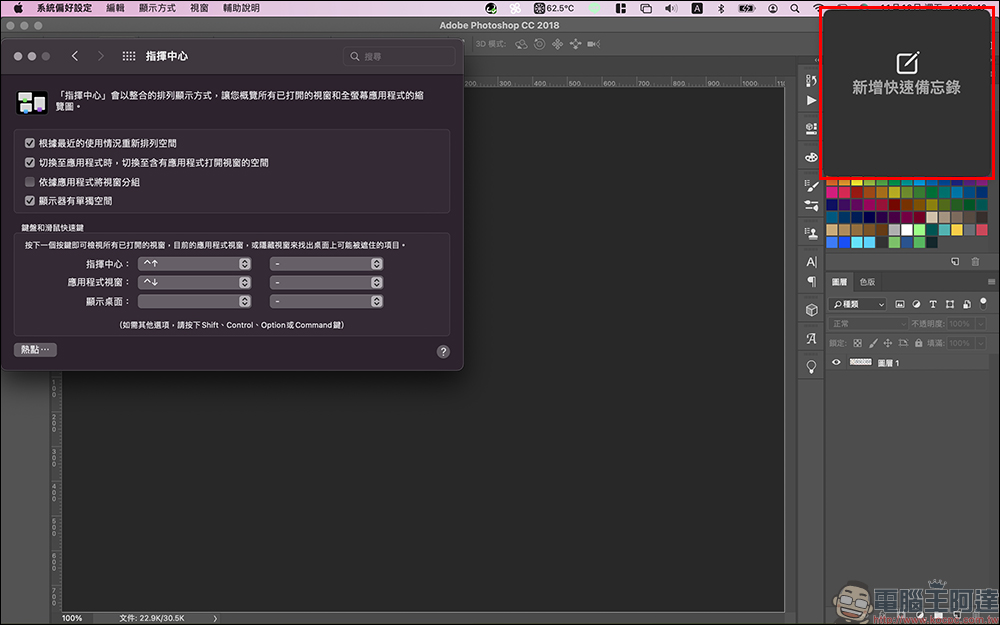
Generally, after updating your Mac to macOS 12, Quick Notes will be turned on by default. Users only need to move the mouse cursor to the lower right corner of the screen, and a square will appear on the screen. Just drag or click to quickly open the quick memo. Once turned on, you can record various notes as you normally would in a memo.
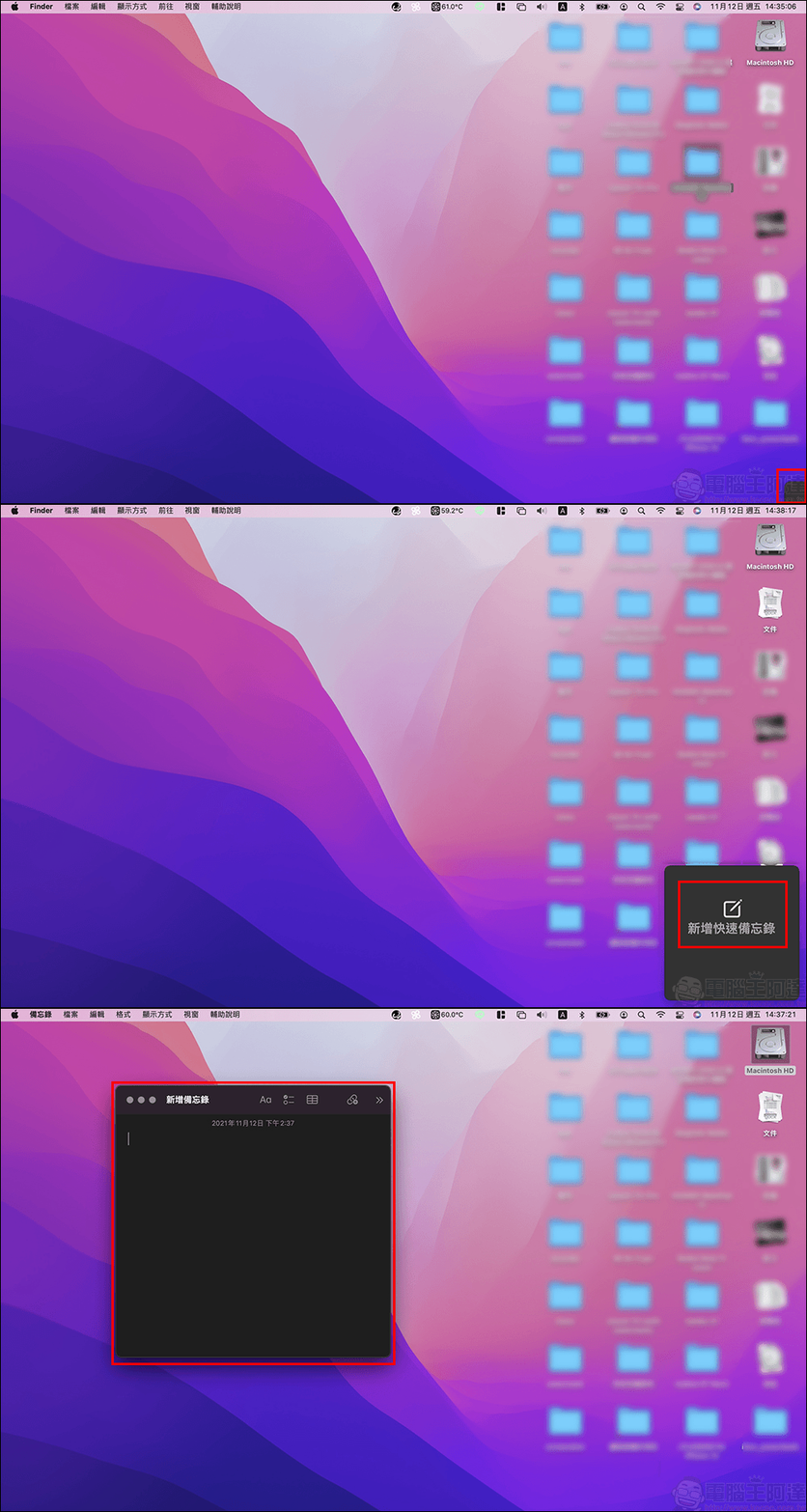
How to adjust and close quick memo?
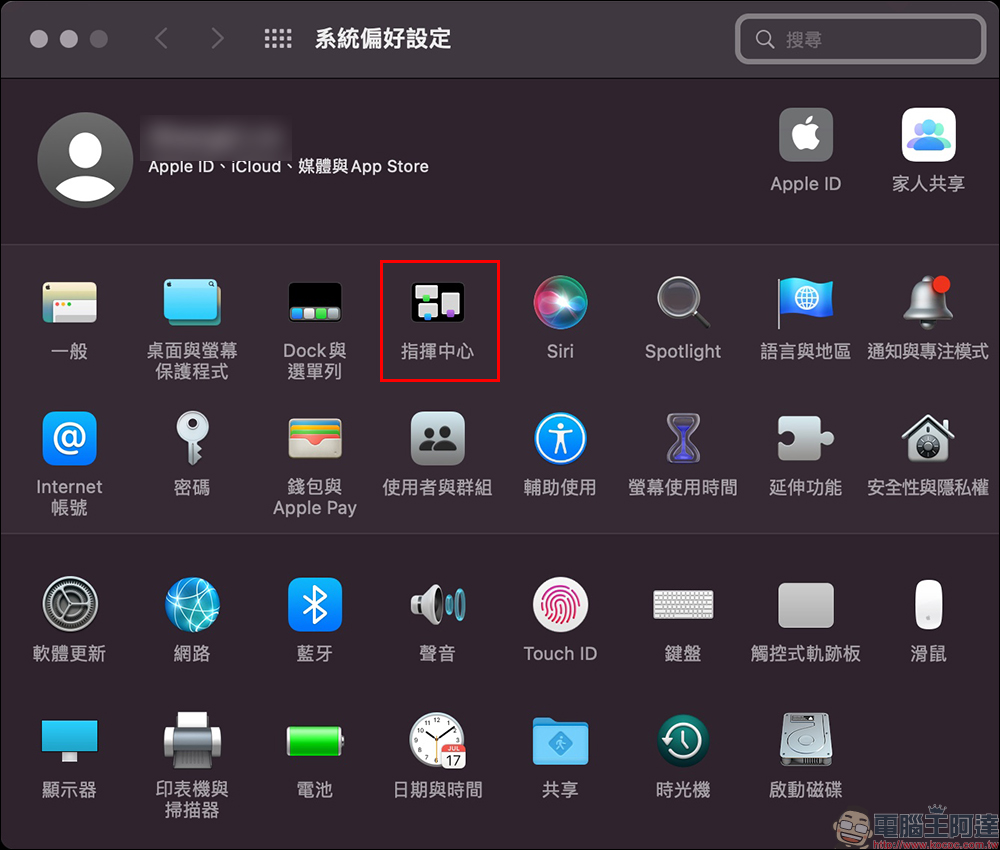
Depending on user habits, not everyone likes Quick Memos to be displayed in the lower right corner of the screen, and some people don’t want to accidentally open Quick Memos when operating their Mac on a daily basis. If you want to adjust the opening, closing, or positioning of Quick Memos, just open System Preferences and select Command Center:
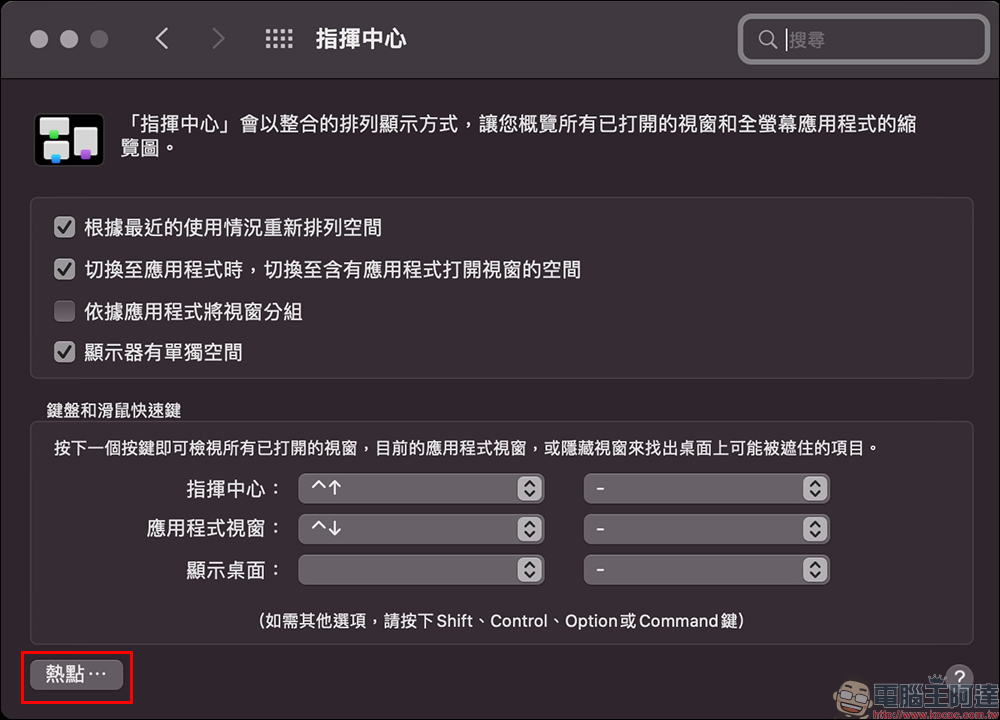
Then click “Hotspots…” in the lower left corner of the command center:
At this time, you can find that the command in the lower right corner of the default screen hotspot is “Quick Memo”. We can open the menu to close it:
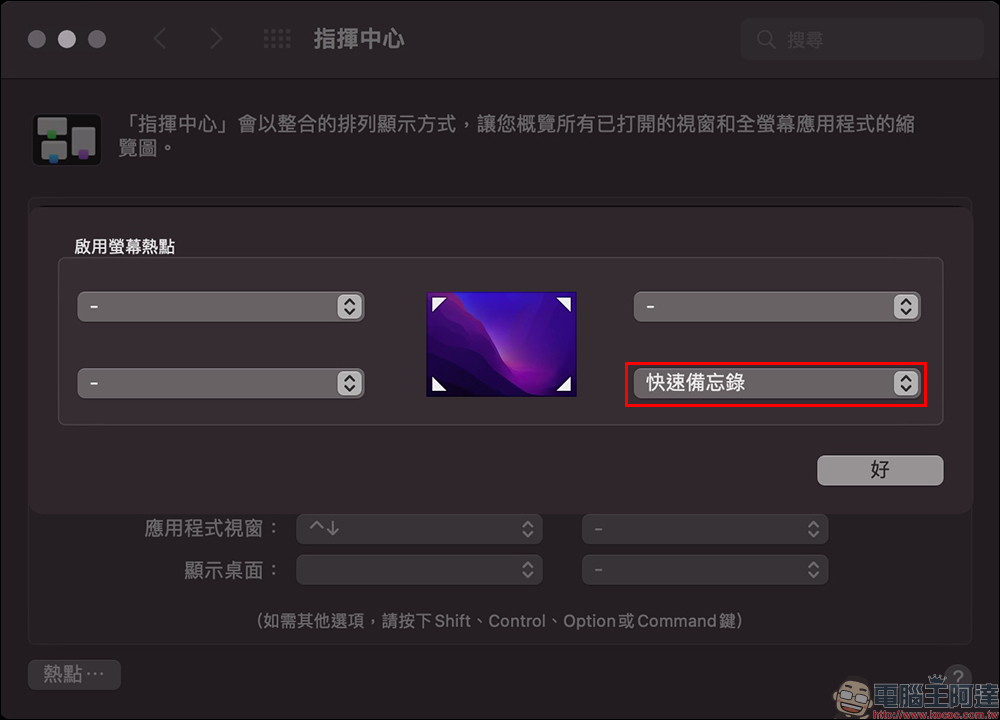
To turn off Quick Memo, just change the setting to “—”.
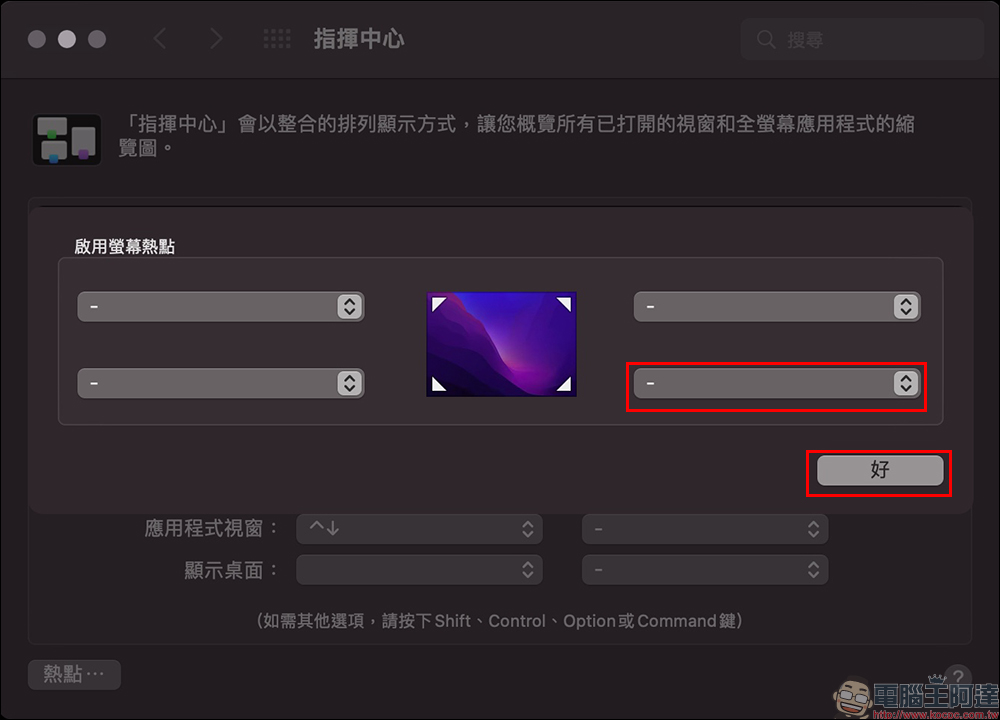
If you want to adjust the quick memo to other corners of the screen, you can adjust it directly in this setting.
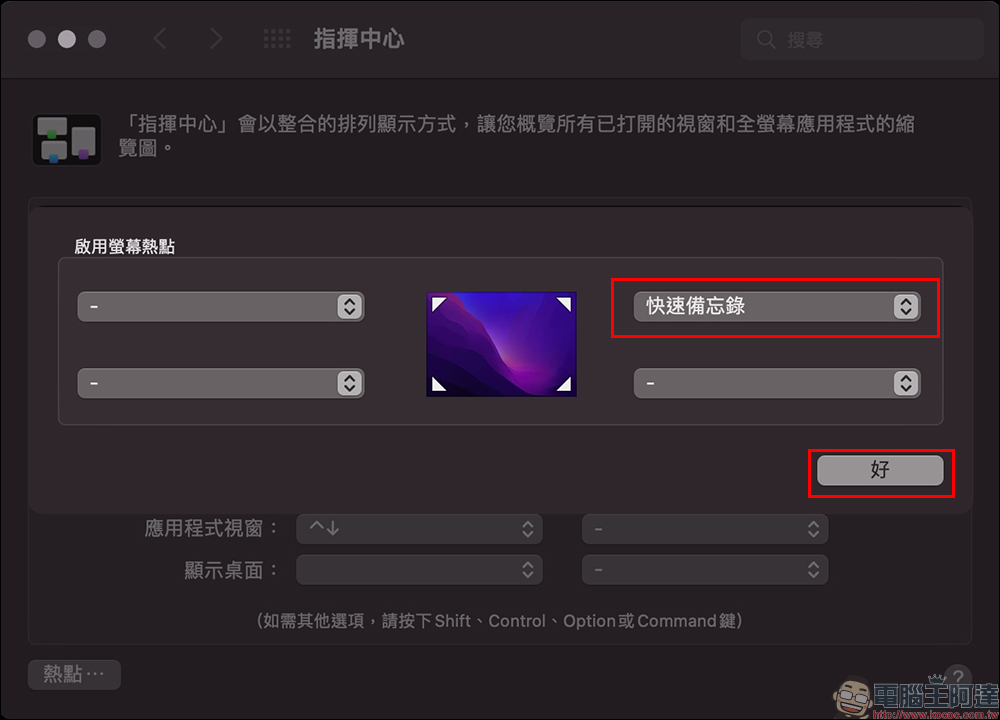
For example, adjust the quick memo to the upper right corner of the screen:
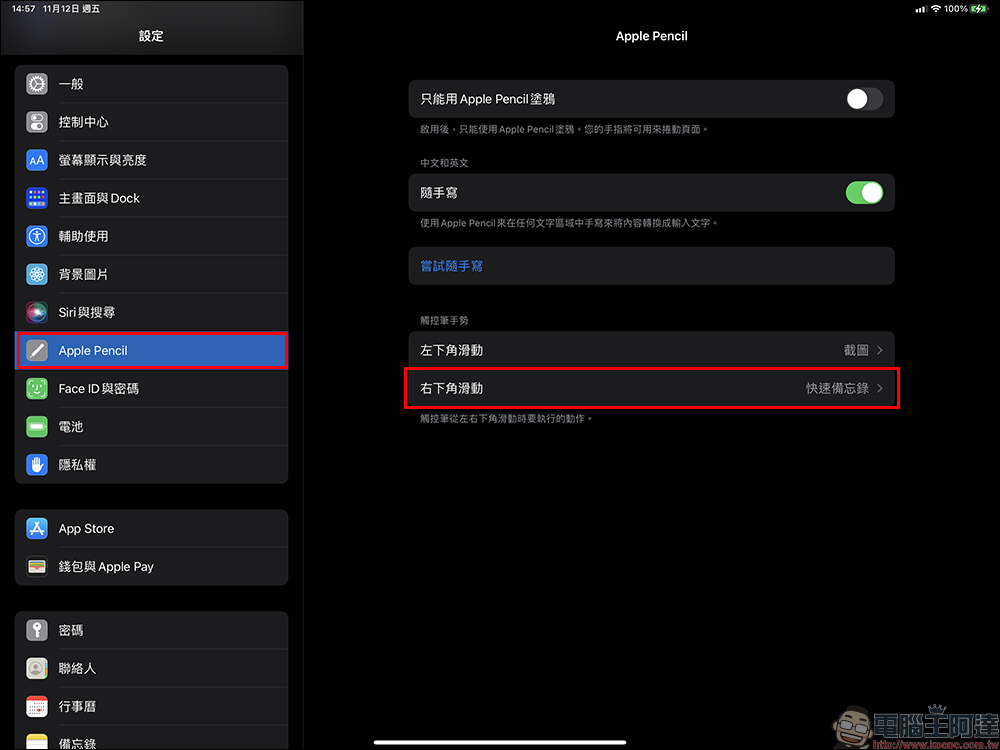
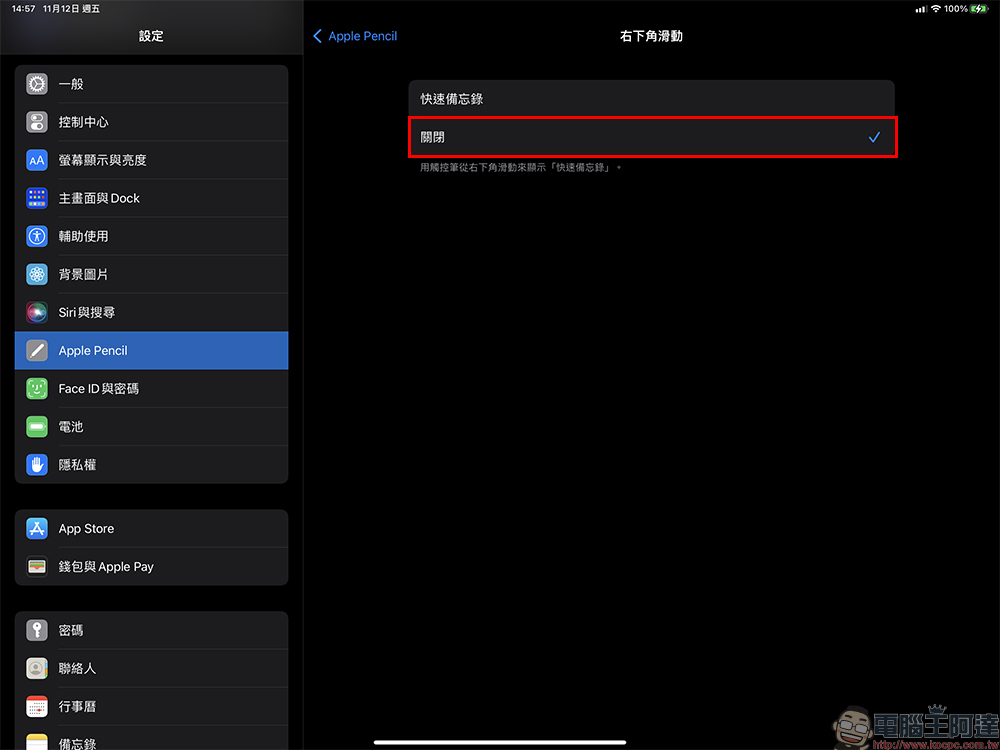
As for iPadOS 15, it actually has a preset Quick Memo function. However, due to system limitations, currently, the only way to turn off Quick Memo is to turn off the stylus gesture of Apple Penceil. Select “Apple Pencil” in “Settings”, then click on the stylus gesture settings and slide the lower right corner of the default quick memo:
Finally, change the setting to “Off”.
Further reading:
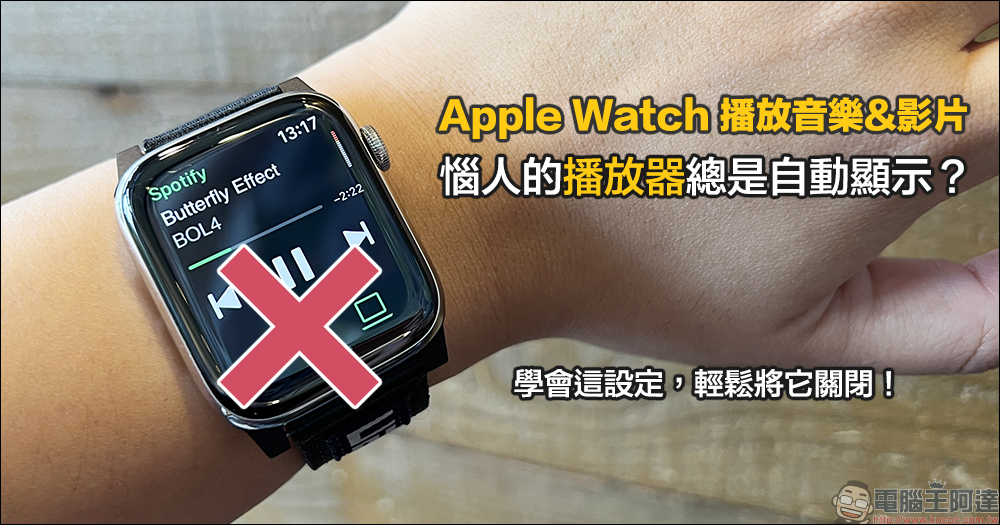
Annoying player always displays automatically when playing music videos on Apple Watch? Learn this setting and turn it off easily!
LINE 11.19 version update released, LINE Pay’s new version adds “separate verification” mechanism

Source: KOCPC Chinese