


The list of LINE friends continues to increase as you study, work, and make friends. However, if you think about it carefully, you will find that in fact, how many “friends” in the LINE friend list have not been in contact for a long time, and you can’t even remember who they are? If the list of friends has been delayed and not sorted out, it is easy for the message to be sent to the wrong person when there is something important to contact. Therefore, regularly sorting out your friend list has become a way to make your daily use of LINE easier. In addition to keeping friends, if you want to reorganize the LINE friend list, you can choose to hide, block or delete them. Today I will share the LINE friend organization technique and teach you how to quickly understand the differences between these three settings in a short time.
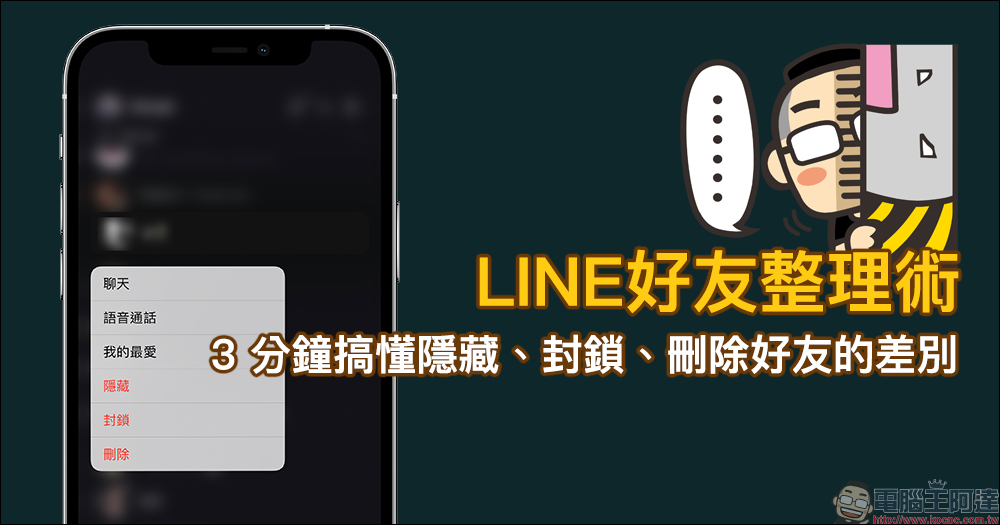
LINE friends organization technique! Quickly understand the difference between hiding, blocking, and deleting friends in 3 minutes
How many people does each LINE user currently have on their friend list? Sometimes we just become friends through casual acquaintances or work contacts, but after adding friends, we haven’t actually contacted each other a few times. In the LINE friend settings, the three processing methods of “hide”, “block” and “delete” are also issues that many netizens have been confused about. LINE officials have also compiled a clear table so that you can quickly distinguish the differences between the three by looking at the picture.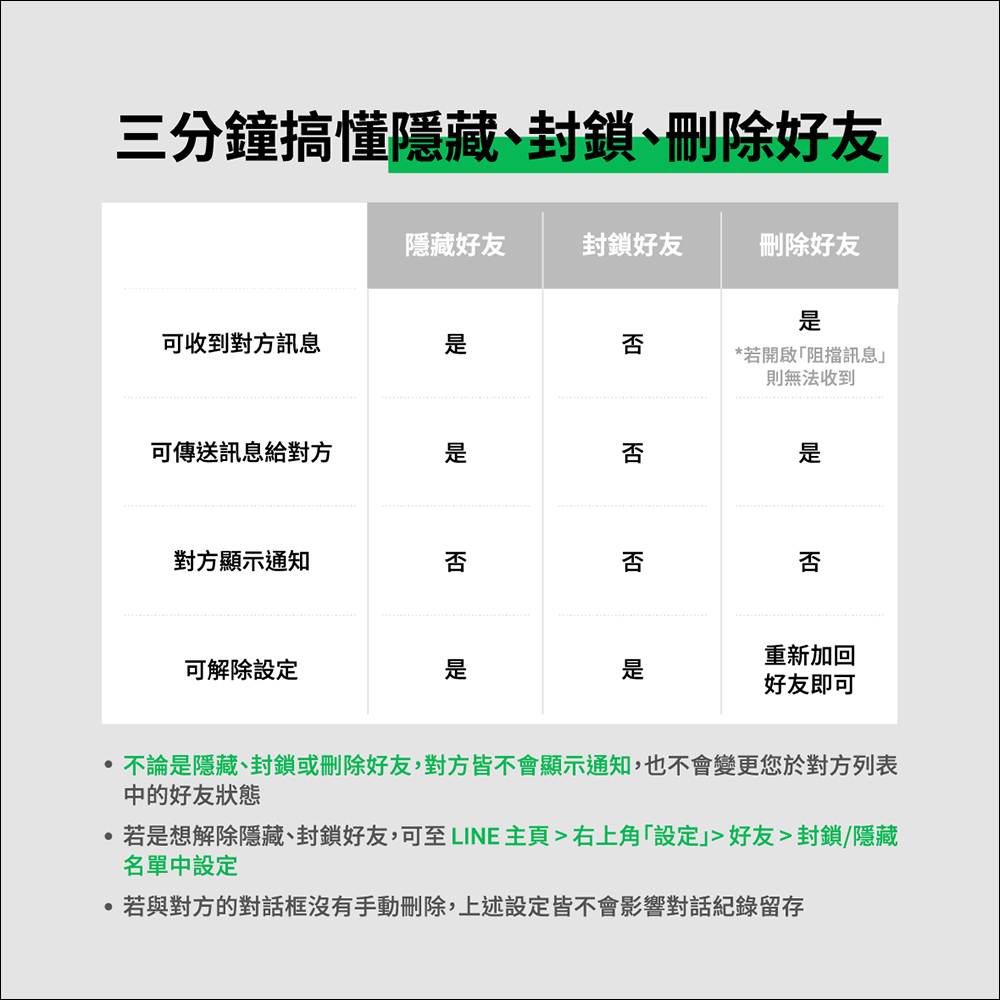
How to set up hiding friends, blocking friends or deleting friends? Then refer to the following arrangement!
Hide friends: Hide friends from the friend list
After hiding a friend, the friend status with the other party remains unchanged. For example, the chat messages with the other party are all normal, but the friend will not appear in the user’s own friend list.
- To hide a friend, the path is as follows: LINE homepage > Friends list Find the friend you want to hide > Long press the friend and select “Hide” (iOS users can swipe left on the friend in the friend list and select “Hide”)
- If you want to re-shuffle the good friends list after hiding a friend, the path is as follows: LINE homepage > “Settings” in the upper right corner > Friends > Hide list settings, select “Unhide” to restore the friend to the friend list, or select “Delete” to delete the friend.
Block friend: Suitable for use when you no longer want to receive messages from that friend
After blocking a friend, the friend will not appear in your friend list and will not receive messages from the other party.
- To block a friend, the path is as follows: LINE home page > Friend list Find the friend you want to block > Long press the friend and select “Block” (iOS users can swipe left on the friend in the friend list and select “Block”)
- To unblock or delete this friend, go back to: LINE home page > “Settings” in the upper right corner > Friends > Block list settings.
Delete friend: cancel the friend relationship and remove the friend from the friend list
Deleting a friend means removing the other person from the friend list. If the other party sends another message, the user’s LINE will pop up a window showing “Confirm whether to add this person as a friend.” At this time, the user can choose to add this person as a friend or block it. If you don’t want to receive messages from the other party after deleting your friend, you can set up settings to block messages from non-friends.
The path to block messages from non-friends is as follows: LINE homepage > “Settings” in the upper right corner > Privacy Settings > Turn on “Block Messages”.
Picture/Source:LINE Taiwan official BLOG
Further reading:
LINE PC version 7.3 update: 4 updates including chat room emoticons, LINE hotspots, and video call function optimization

Source: KOCPC Chinese