


As I wrote in Windows 10, putMoving the toolbar to the top of the screen is a very important thing, but the toolbar of Windows 11 cannot be dragged to the top of the screen with the mouse. Although it’s a bit more troublesome, there’s a way to do it and it takes about 3 minutes to complete.
1. Edit machine code
press “Win key + R key”, open the execution window, enter “regedit” (no quotation marks required).
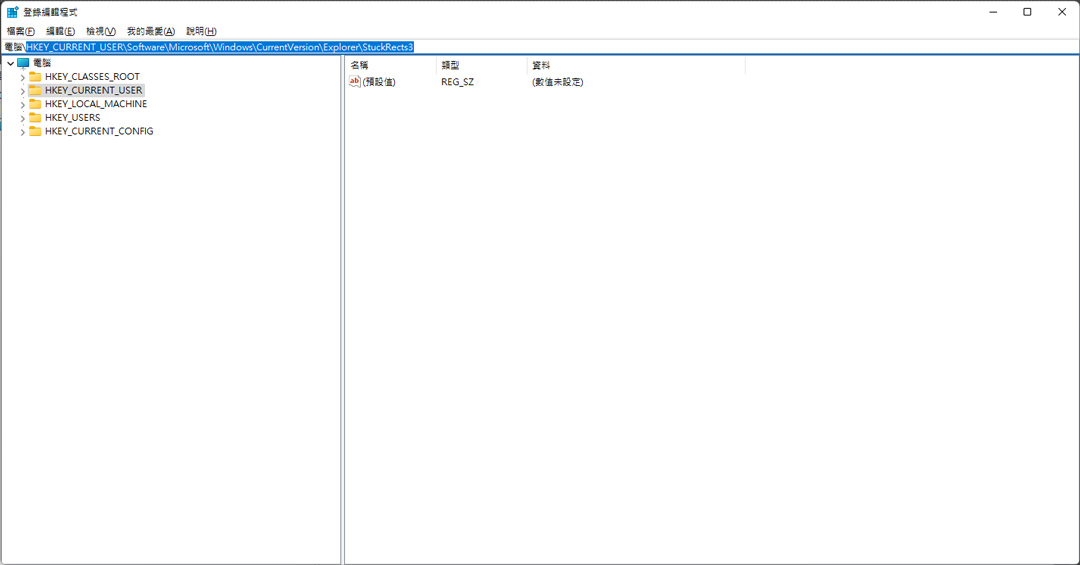
After opening the machine code editing window, please open the folders one by one in the following order, or directly copy and paste this paragraph above.
“HKEY_CURRENT_USER\Software\Microsoft\Windows\CurrentVersion\Explorer\StuckRects3″ (No quotation marks required)。
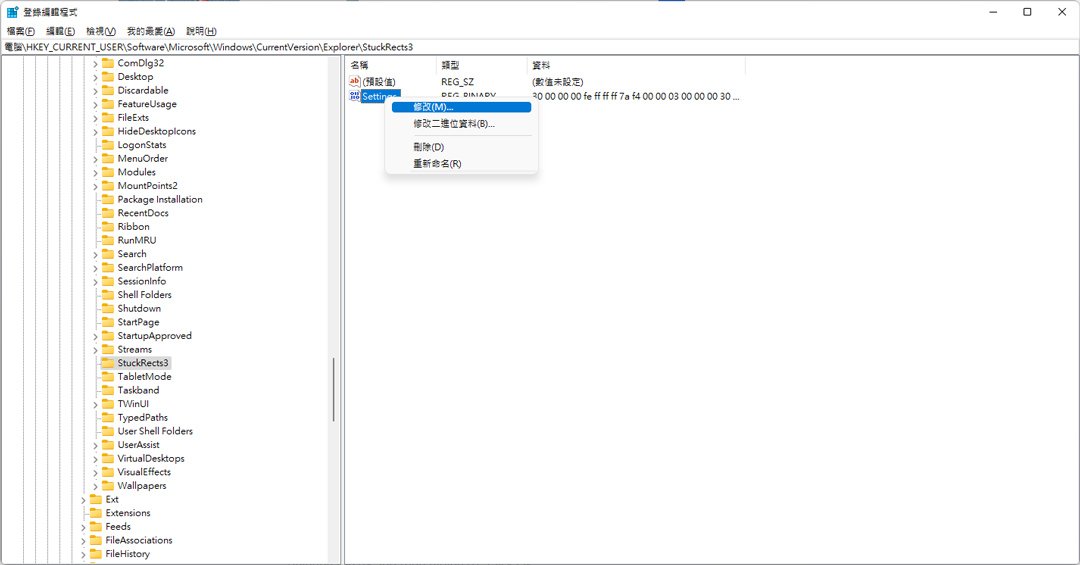
Next in “Setting“Right-click and select”Revise“。
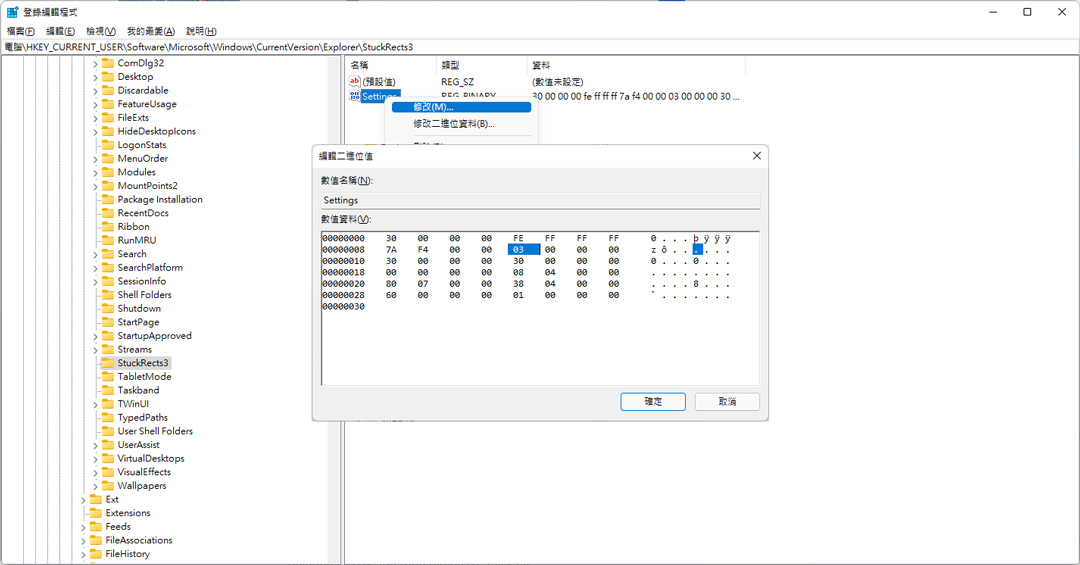
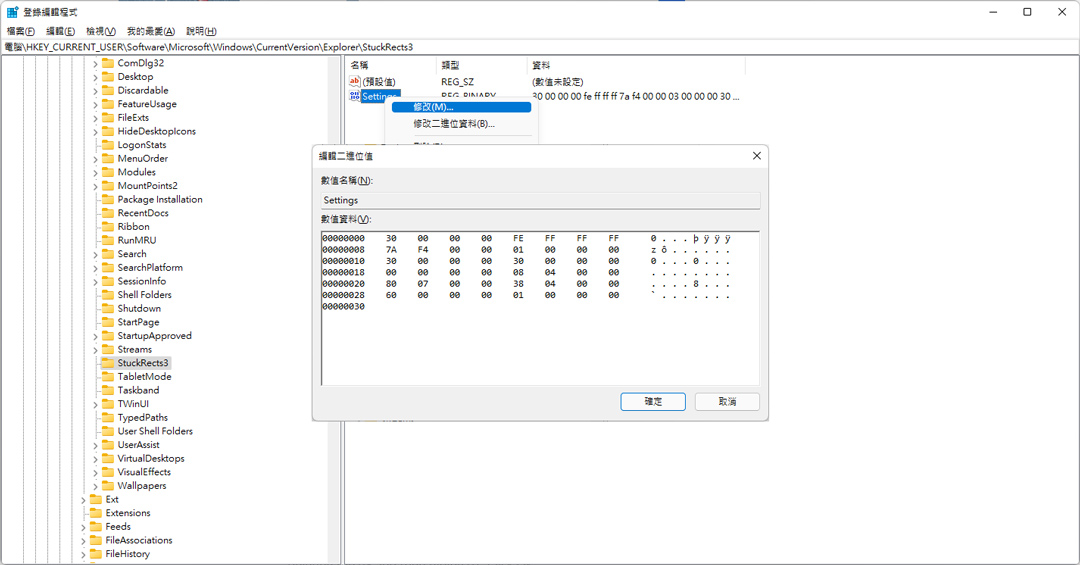
Please change the corresponding position on the screen “03“ value changed to “01“ value pressed“Sure“。
You can close the window for editing machine code.
▼After opening Regedit, you can directly copy the above location, or open it layer by layer.
▼After finding the Setting, start modifying it
▼Change the corresponding position code 03 to 01, 01 is the top, 03 is the bottom, you can try where 02 is
▼After making changes, please press OK
2. Execute CMD as system administrator
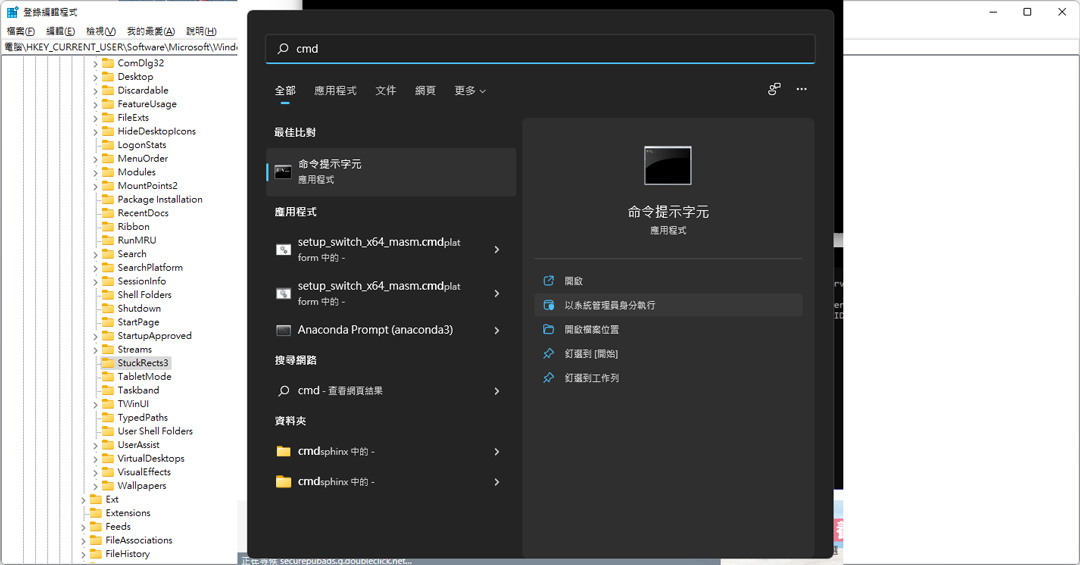
press Win key, hit ” in the search position abovecmd“。
Appear”Command prompt characters“After that, please press “Execute as system administrator”.
▼Execute as system administrator
3. Disable and then enable Explore to complete
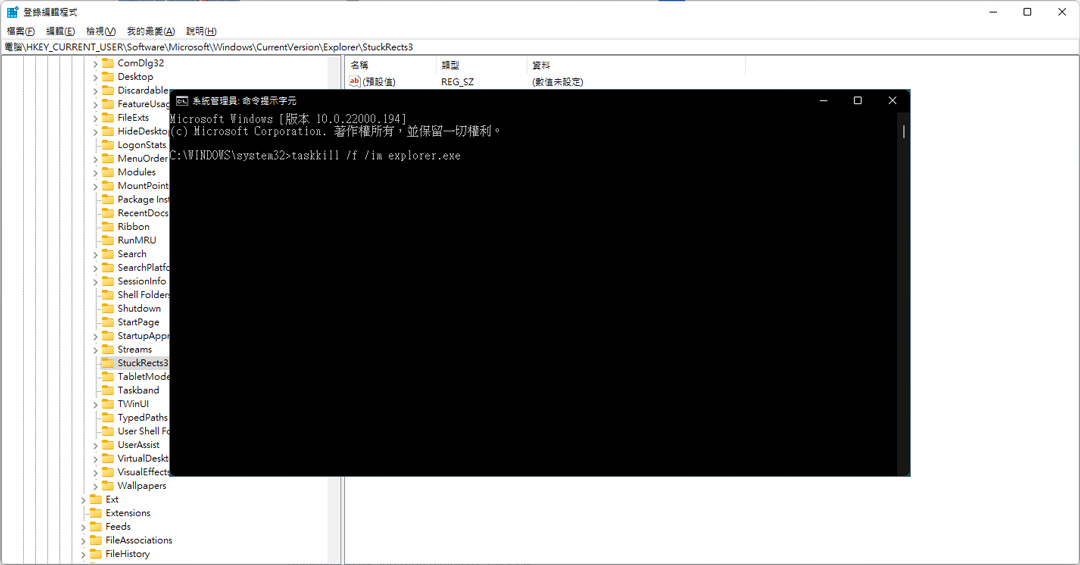
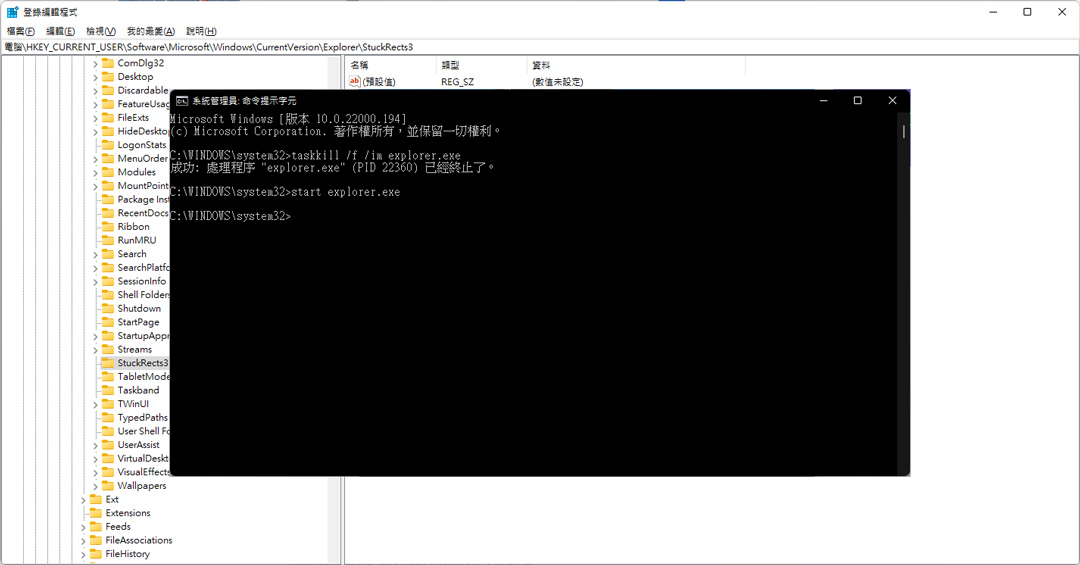
Then enter 2 strings of instructions in sequence, you can copy them directly
“taskkill /f /im explorer.exe” Press Enter (no quotes required)
“start explorer.exe.” Press Enter (no quotes needed)
▼The first command is to disable Explorer.exe
▼The second command is to enable Explorer.exe
▼Then it’s done, I wish you all the best!

Mikabook will continue to write documents related to Windows 11 in the future. Welcome to come often Mikabook
Source: KOCPC Chinese