


In addition to friends, significant other, family, and colleagues, there are also many official account messages on LINE. Some of the large number of new messages every day are not actually important, but it is easy to shuffle the LINE chat room into pages and forget the more important messages. Today I’m going to share a few tips on LINE sorting and organizing, so that everyone will no longer miss important chat partners who need to reply immediately!
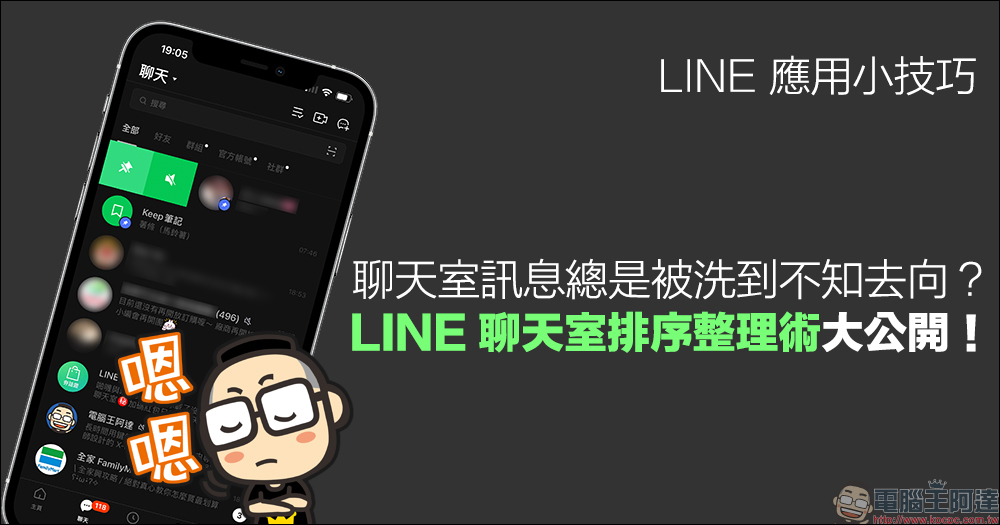
LINE application tips: Chat room messages are always washed and disappeared? LINE chat room sorting and sorting technique revealed!
In daily life, everyone likes to use LINE to communicate whether it is work or private circle of friends. Because of this, there are hundreds or even thousands of unread messages waiting to be read every day. We face different work project groups, department colleagues, and clients at work. We also receive messages from friends, family, and significant others after get off work. Even the official LINE account that we often follow will send promotional messages from time to time. Just receiving messages every day is enough.
Faced with such a large number of LINE messages, learning how to sort and classify chat rooms can help you find the person you want to reply to more quickly! Next, I will share with you some tips on how to sort LINE chat rooms so that you don’t miss any important messages.
Pin selection function
First of all, the “Pin” function is definitely the highest priority function to set up the LINE chat room tab. The pinned chat room will be placed at the top of the chat room tab, which is very suitable for setting people who need immediate reply most, or who don’t want to miss any new messages. There is no upper limit on the number of people to pin, so when the user selects more than one person to pin, the order will be based on the time the message was received.
The pinning function is suitable for people you chat with frequently, such as your significant other, best friends, or family groups. When there are new messages, you can see them immediately without fear of being washed by other messages.
In addition, it is also very suitable for use at work. For example, KEEP notes are very suitable for pinning. Any to-do items and notes can be quickly transferred to KEEP notes for temporary storage. If you no longer want to pin the selection, you can cancel it at any time.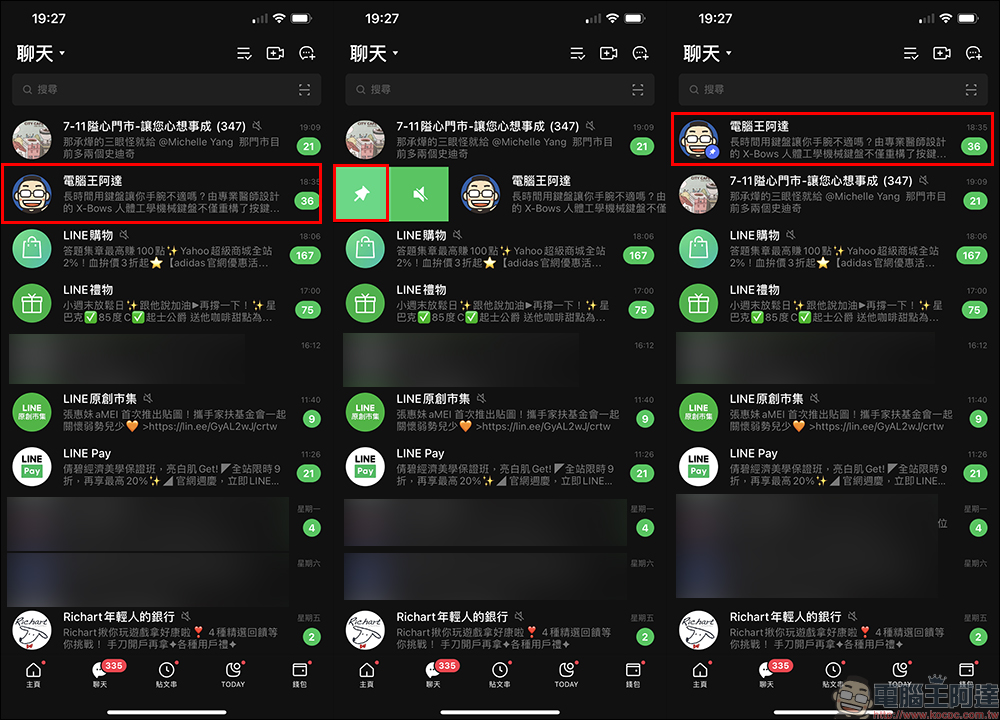
How to pin?
On the LINE chat page, iOS users can swipe right on the chat dialog box they want to pin and select the first small pin icon. Android users can long press on the dialog box and select “Pin”.
my favorite
It is somewhat different from the pinning setting method. Users can set important LINE friends such as significant other, best friends, family members, etc. as “My Favorites”. In addition to being able to find each other faster on the watch, it is also easier to miss them when chatting.
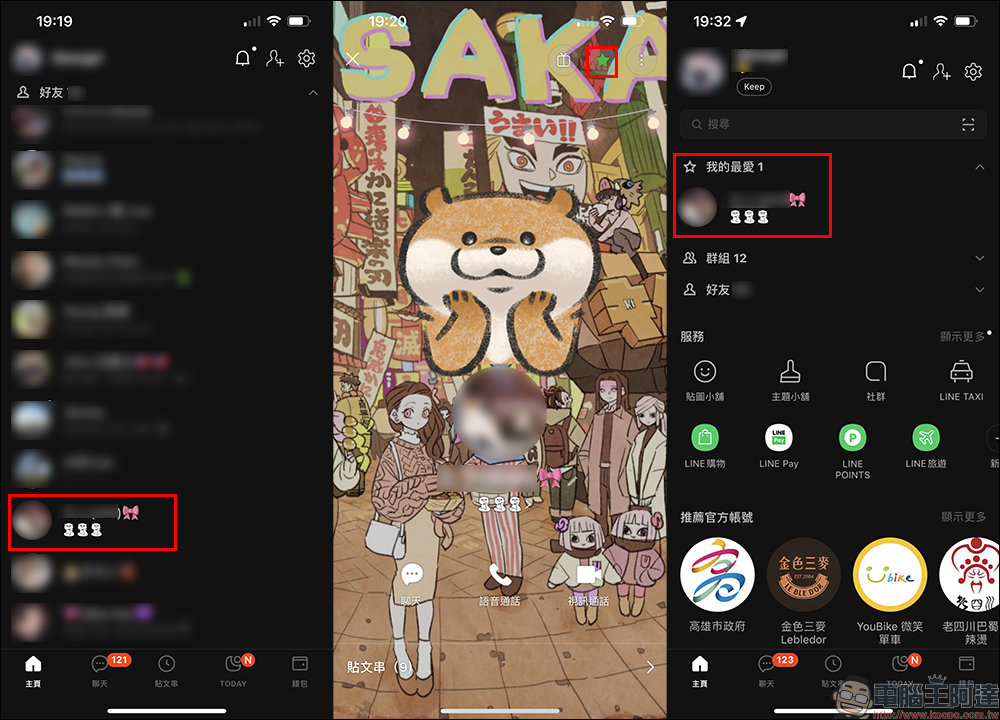
LINE How to set a friend as “My Favorite”?
Click on the friend you want to set as “My Favorite” on the LINE homepage, and then click the ☆ (star) icon in the upper right corner of the other person’s personal page. When the star turns green, it means you have added it successfully!
Chat room sorting
Sometimes when the other party sends a message, I don’t have time to read it, but the message is also overwhelmed by other new messages. At this time, it is easy for the tragedy of “unread and unanswered” friendships to occur. Therefore, we can click “Chat” in the upper left corner of the chat page to expand the chat room sorting settings. We can choose to sort by “received time”, “unread messages” or “my favorites” according to our needs. However, no matter which setting is set, it will not affect the “pinned” object, which will always be at the top of the chat page. For example, if you set “My Favorites” to sort chat rooms, you can see that the sorting is still below the pinned selection.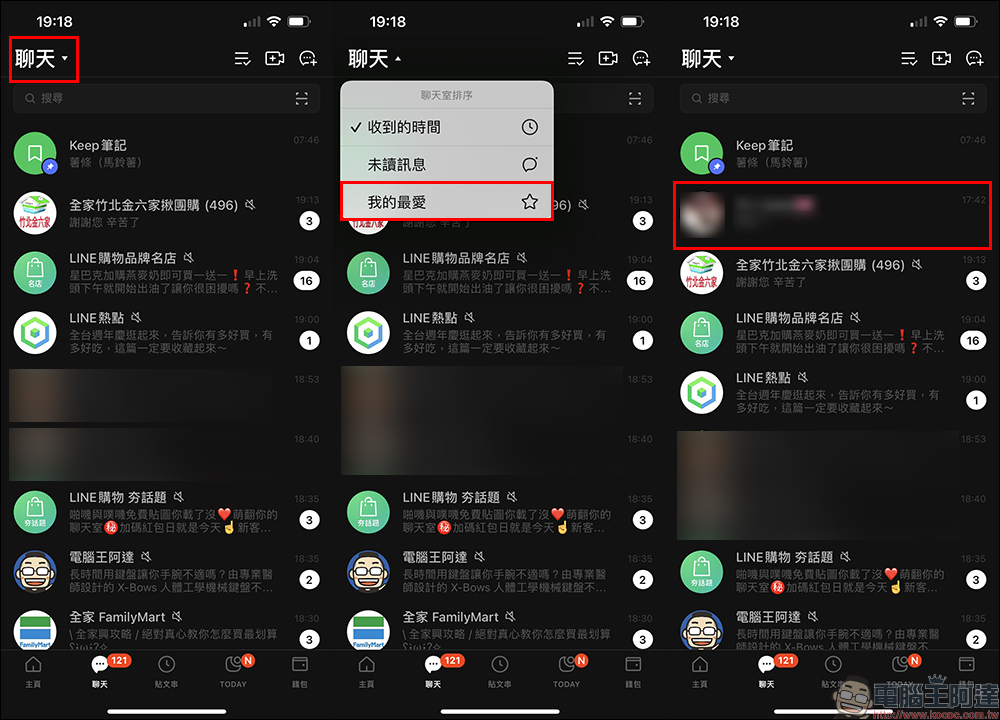
Chat room sorting instructions
- choose“Time received”: Chat rooms will be sorted according to the time when messages are received, which is also our general chat room sorting method.
- choose“Unread messages”: The chat room will sort the unanswered messages to the top, and search for unanswered messages without using one.
- choose“My favorite”: Friends set as “My Favorites” are listed at the top of the chat room, but second only to the “Pinned” objects.
mute
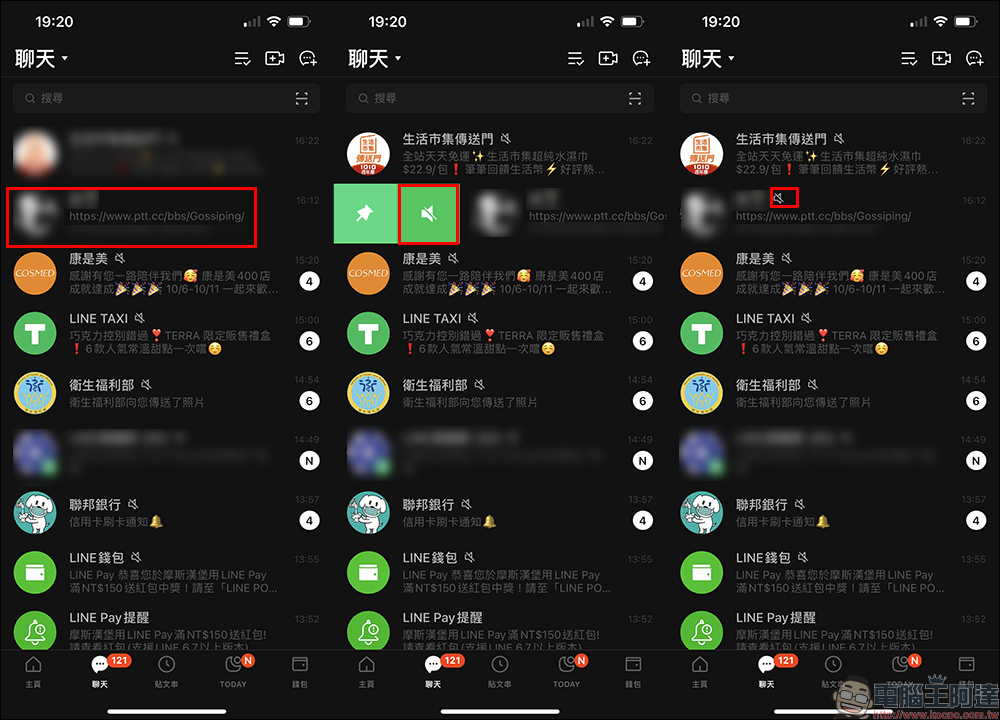
Next, if there are a large number of advertising messages from official accounts every day, or the person you are chatting with does not need to receive reminders of his new messages, you can set it to “Mute” in the chat tab and wait for a convenient reply before sending messages.
Chat room classification (LINE Labs beta feature)
This last feature is not actually a feature officially launched by LINE, but a LINE Labs test feature that LINE lets users experience before the new feature is officially launched. Users who want to experience it in advance can just select “LINE Labs” in “Settings” and turn on the “Chat Room Classification” test function. In the chat room tab, they can see that all messages have been automatically classified, such as friend chat rooms, groups, official accounts and communities, making it easier to view messages.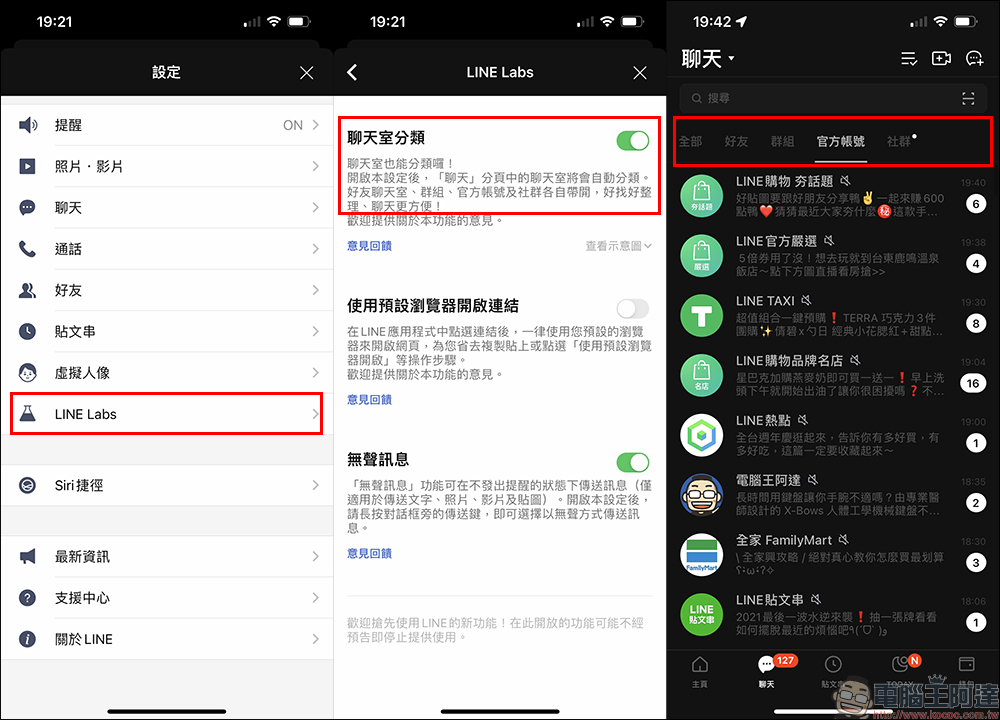
However, the “Chat Room Classification” is still in the testing stage after all, and the function may stop supporting it at any time. We still hope that this function can be officially opened soon!
Source:LINE Taiwan official BLOG
Further reading:
Tips for using LINE: Tips for organizing LINE stickers. If you are a big fan of stickers, read this article!

Tips on hiding apps in iOS 15’s Safari browser

Source: KOCPC Chinese