


In addition to the many LINE free activity stickers we organize and update from time to time, and after the LINE sticker value plan was launched in Taiwan a few months ago, LINE users have more stickers to use. People who have too many stickers must have the same trouble, that is, they have a lot of stickers, but they often forget which stickers they have, and they always use the new stickers they have just downloaded recently or the stickers they used most in the past. Today I will share the secrets of organizing LINE stickers to make daily sticker management better!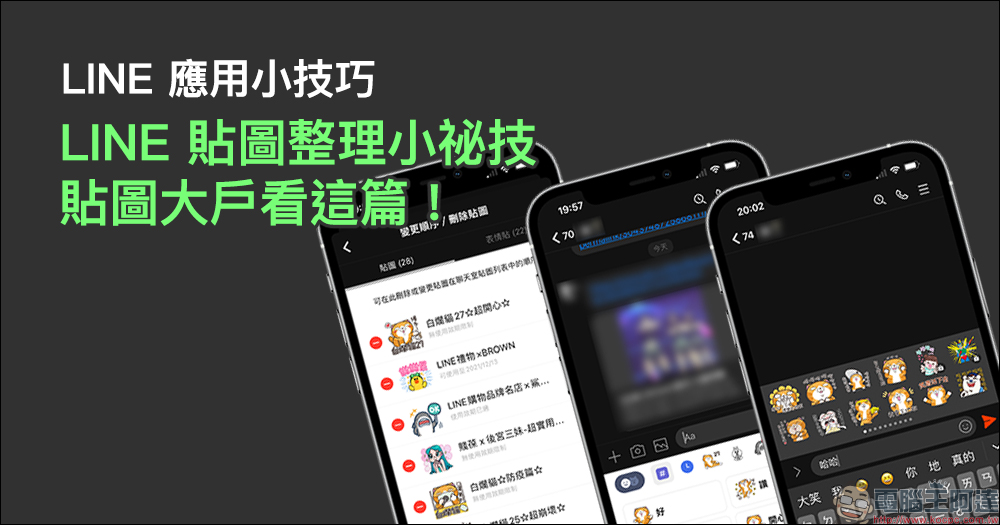
Tips for using LINE: Tips for organizing LINE stickers. If you are a big fan of stickers, read this article!
Picture keyboard classification
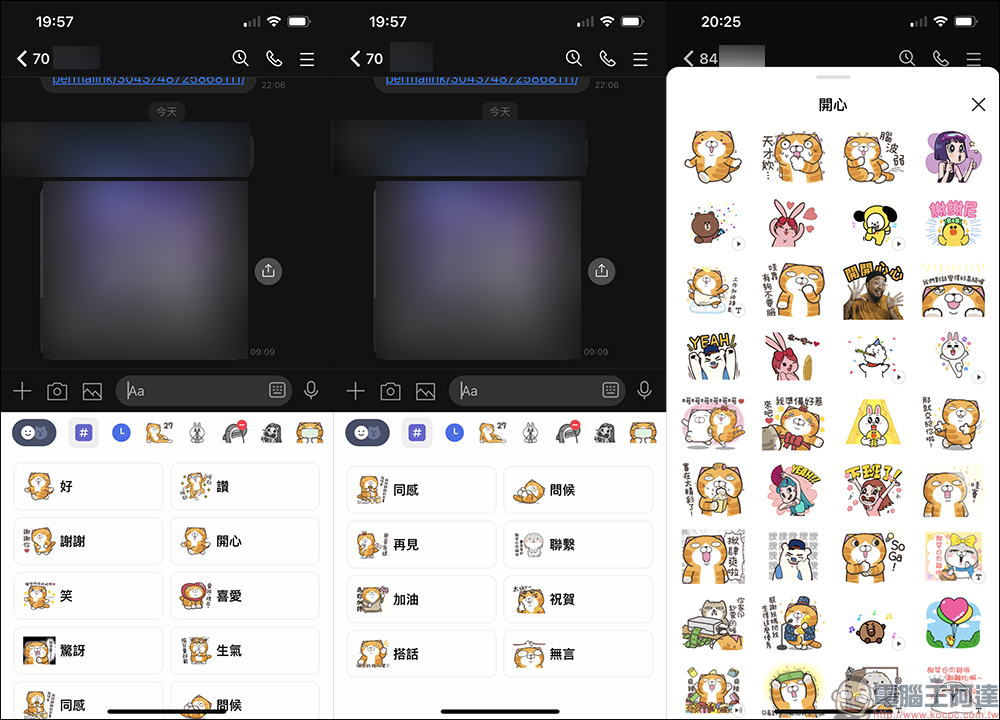
When we usually communicate with friends on LINE, we always click on the stickers we like in the sticker keyboard to send them. At this time, if you can make good use of the “Sticker Keyboard Classification” function, you can quickly filter out the stickers that suit the situation from your own sticker library! You will see a “#” icon on the left side of the sticker menu. This is the sticker keyboard classification function!
Change order/delete stickers
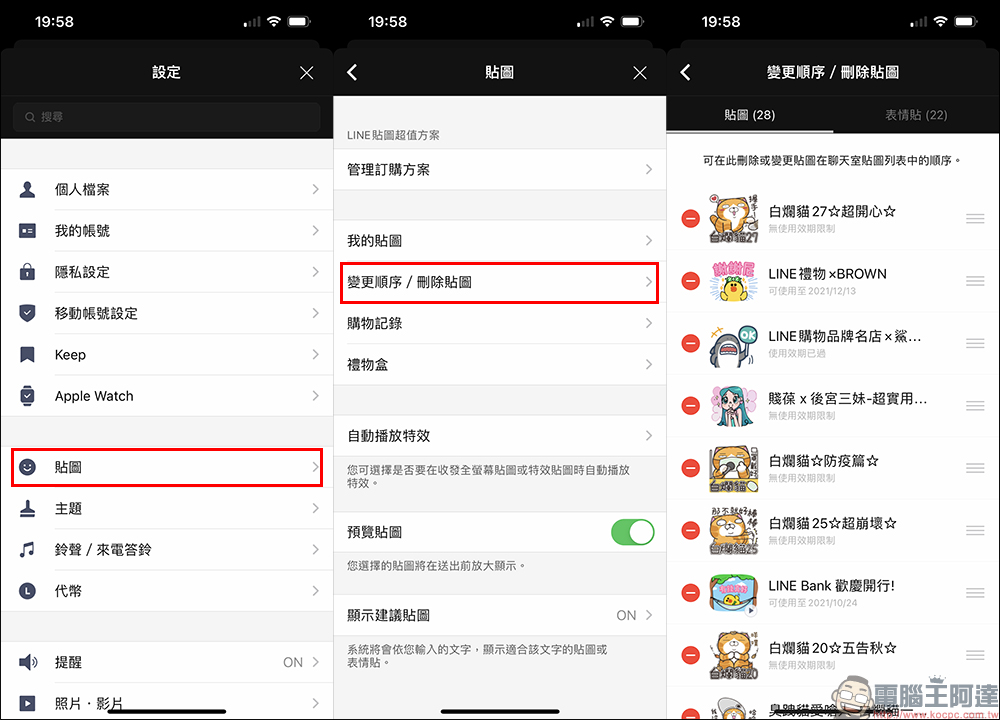
Newly downloaded LINE stickers will always be displayed at the front, but if you have a bunch of stickers, it is inevitable that the order of the stickers will be quite confusing, which will also cause the stickers you owned before to be often forgotten in the corner. For example, if you have multiple LINE stickers of white rotten cats, you can click “Settings” > “Stickers” > and then select “Change Order/Delete Stickers” to delete or change the order of the stickers in the chat room sticker list!
Quickly delete stickers (Limited to LINE sticker value plan)
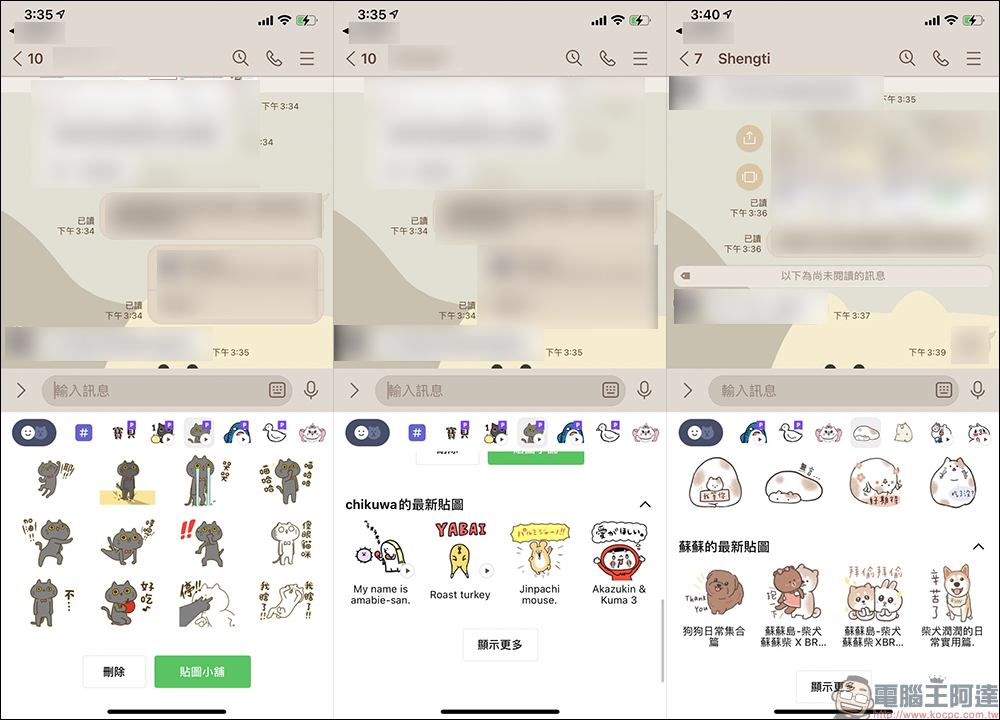
LINE sticker value planIt is really cost-effective to allow users to use millions of sets of stickers from Sticker Shop at a cheap price! If you are a LINE user who is also using this plan, if you usually download too many LINE stickers from the value plan and want to clean them up regularly, you can actually quickly delete the stickers on the sticker keyboard.
For stickers that belong to the “Super Value Plan”, there will be a “Delete” button at the bottom of the sticker keyboard, where users can delete stickers with one click. Compared with stickers purchased through normal methods, there is no delete option in the sticker keyboard.
Show suggested stickers
In addition to using the “Sticker Keyboard Classification” to quickly find LINE stickers suitable for the current situation, users can also turn on the “Show Suggested Stickers” function so that they only need to type keywords related to the situation when entering text in the LINE chat room, and the system will automatically detect and display stickers or emoticons suitable for the text. The setting path is “Settings” > “Stickers” > Turn on “Show Suggested Stickers”. Users can also turn on, off or add various languages to enable sticker usage suggestions.
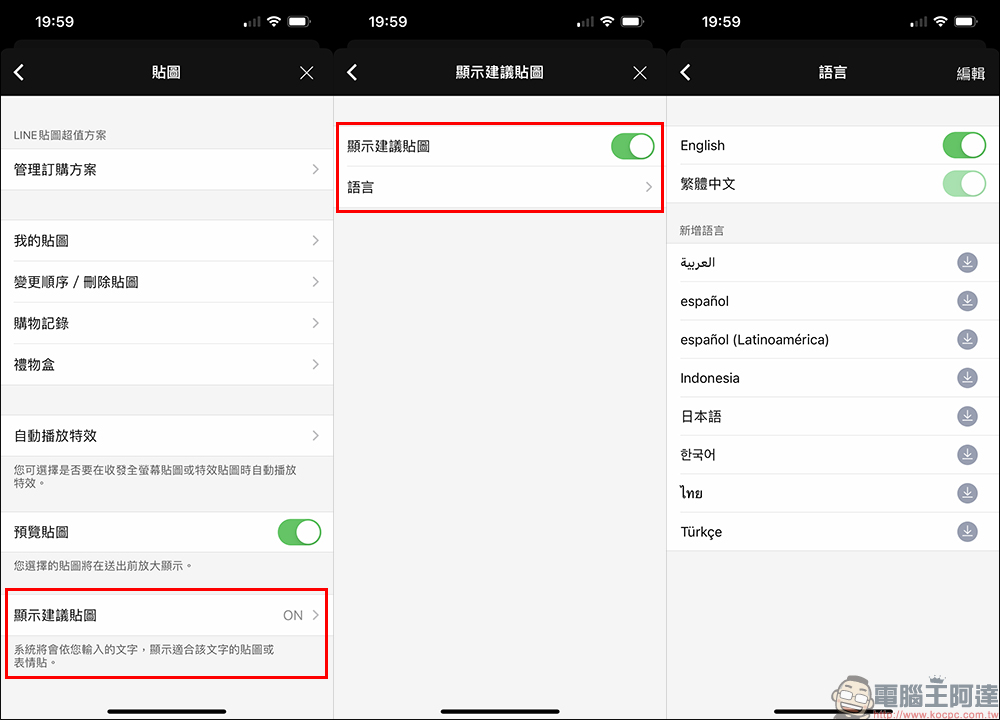
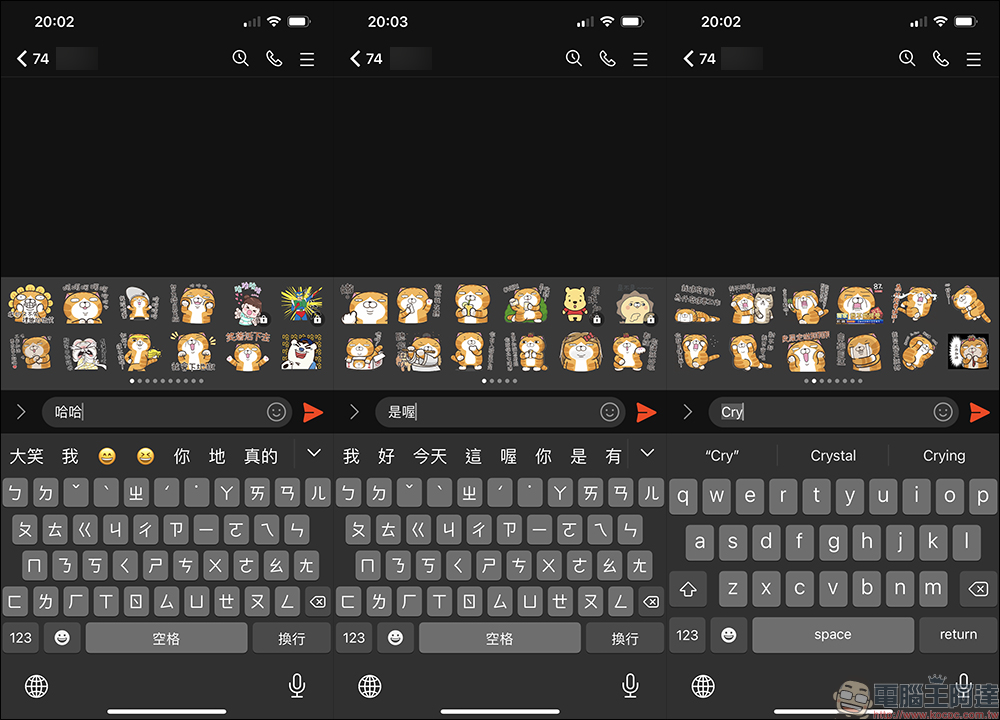
For example, the author has turned on Chinese and English, and when some keywords are entered in the chat room text, the system will detect and provide stickers suitable for the current situation.
Source:LINE Taiwan official BLOG
Further reading:
LINE free sticker collection: 22 free stickers including Pokémon are available for download for a limited time!
Source: KOCPC Chinese