


Tongyi is an AI service launched by Alibaba in China. Recently, they introduced a brand-new “Tongyi PPT” feature, which I find quite handy. You just need to enter the topic of the PPT you want to create, and all the content will be generated automatically. It can also be applied to a variety of high-quality templates, and if you’re not satisfied, you can switch to other templates at any time. You don’t have to worry about PPT layout or design—you only need to edit the content you want.
However, since it’s a model developed in China, it only supports Simplified Chinese. So if you find the content acceptable, you’ll need to manually convert it to Traditional Chinese or modify it to suit your needs.
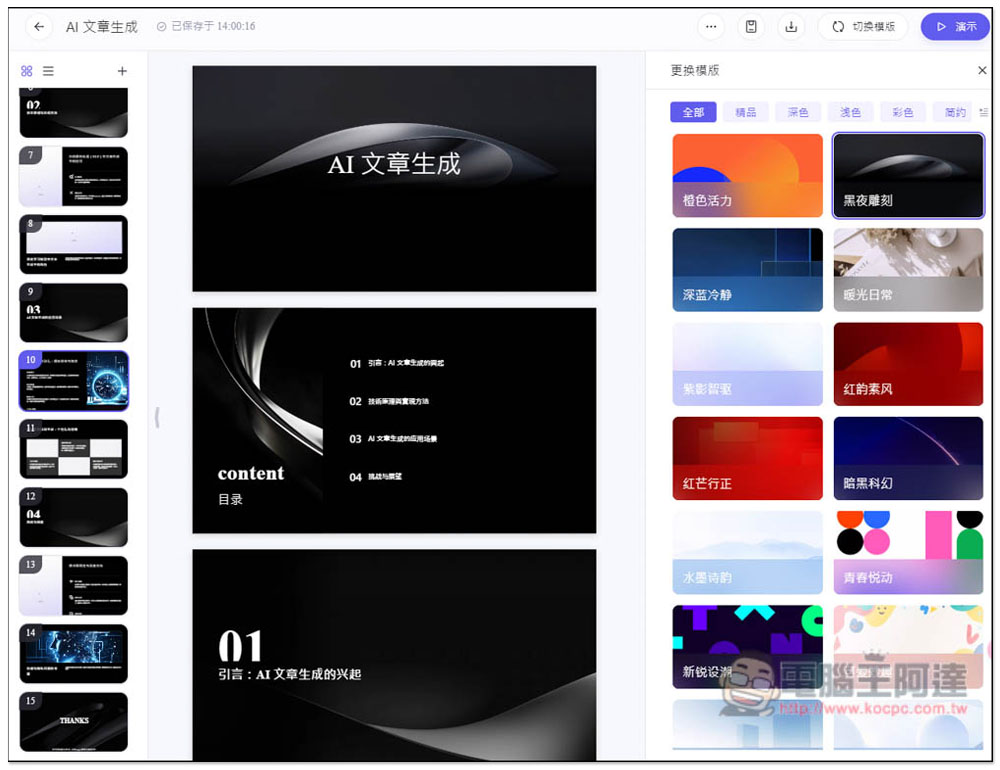
Tongyi PPT uses AI to generate high-quality presentations and offers a wide range of templates and layouts.
You need to register before using Tongyi AI services. Just enter your phone number and get a verification code. Phone numbers from many countries are accepted, not just China.
Tongyi PPT is one of the AI tools, and it’s very easy to use. Just enter the topic you want, and all the content will be generated by AI. You can also add or modify other content as needed. Once generated, the PPT can not only be edited online but also downloaded, with support for multiple formats like PPT and PDF, which is quite nice.
After clicking the link above to enter the Tongyi AI service, in the productivity menu on the left side -> Toolbox, you can find PPT creation. Tongyi also offers many AI features; if you have time, you can try them all:
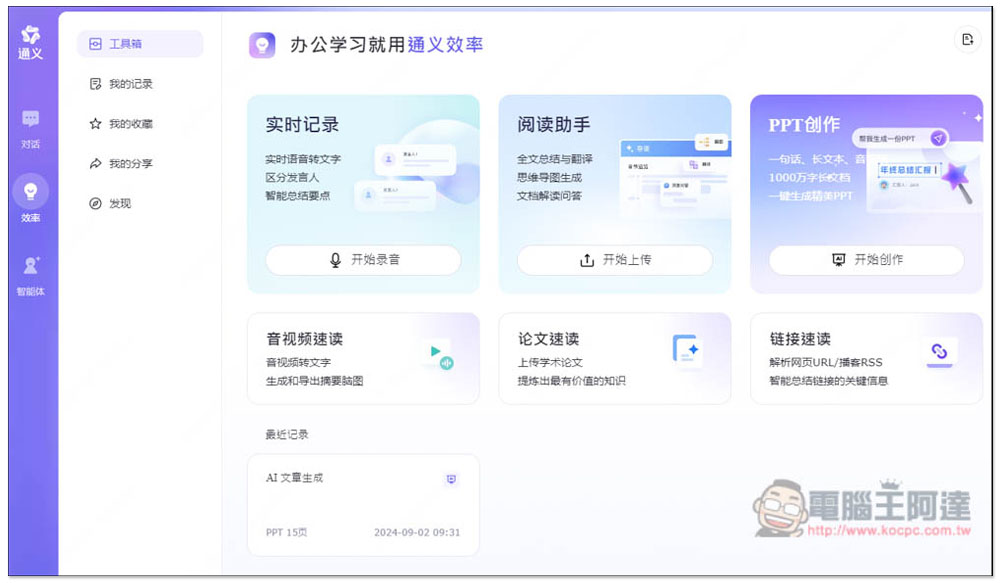
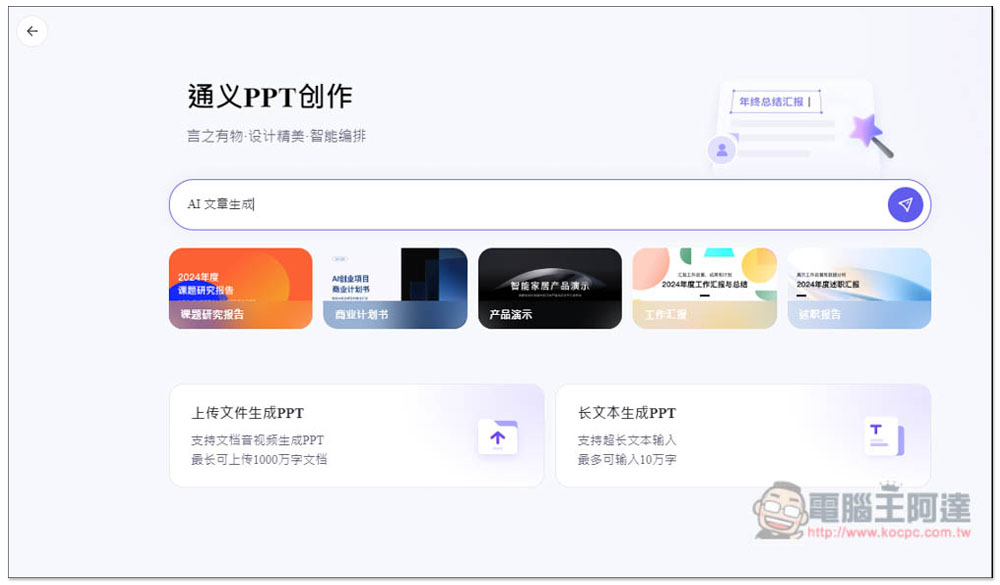
Once you enter PPT creation, just type the PPT topic you want to generate into the field. It also supports uploading files and generating PPT from long text. I haven’t tried those two, so I’m not sure how well they work. Interested readers can try them out for themselves. The file upload feature also supports audio and video files, which is pretty impressive:
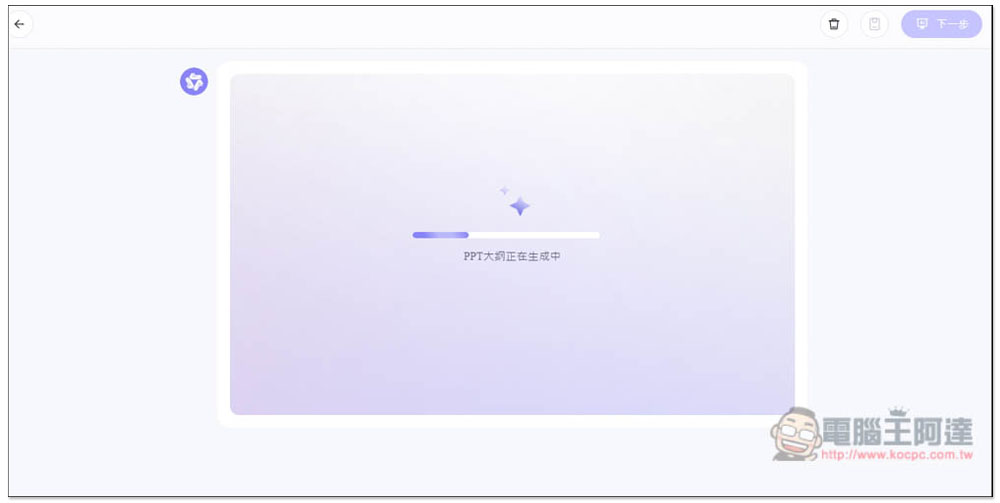
At first, a topic outline is generated, which takes just a few seconds to complete:
Once the outline is ready, it will let you review it. If you’re satisfied, you can directly click Next; if not, you can modify it yourself. At the bottom, you can also specify the presentation scenario for this PPT, which will affect the style of the generated text content:
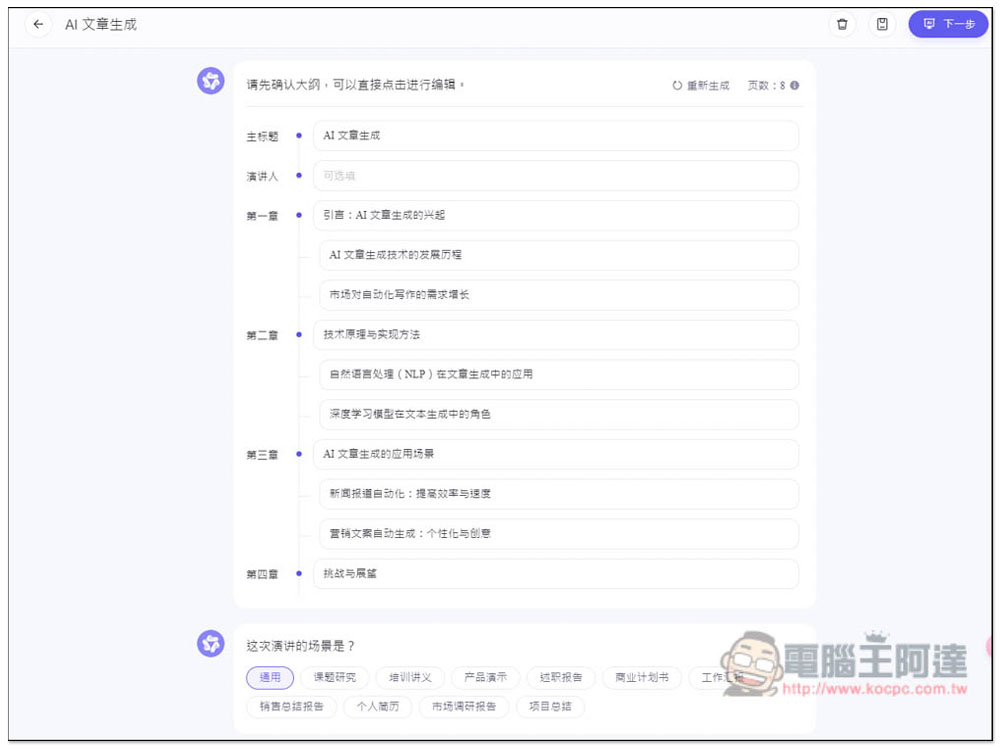
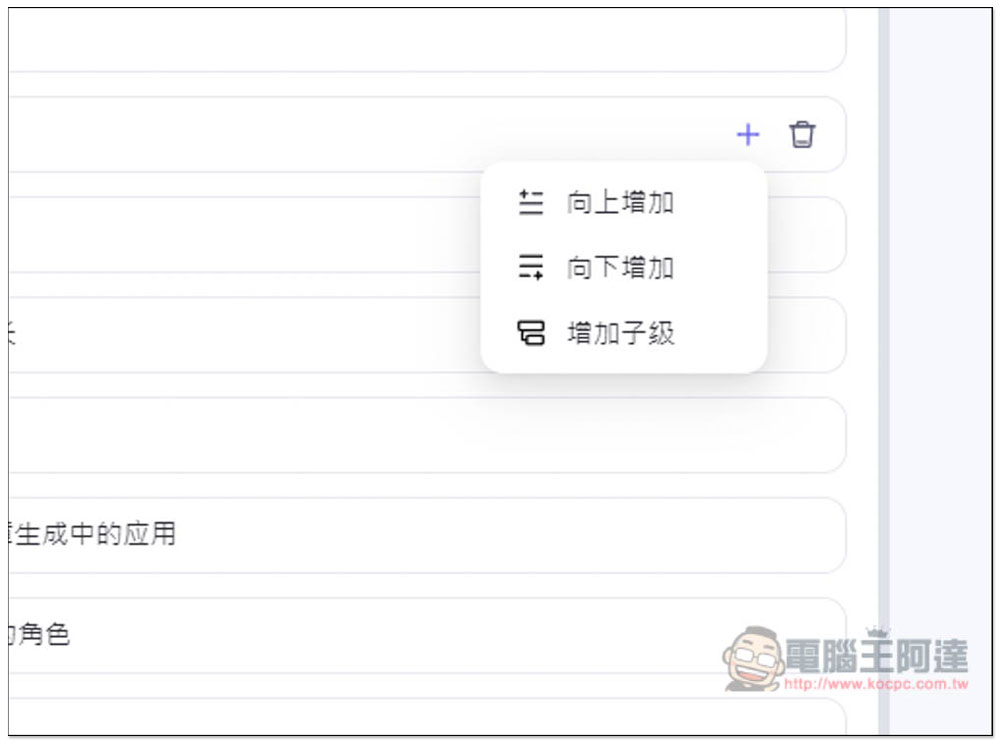
In addition to modifying the generated outline, you can also add more items yourself or rearrange the order:
Next, choose the template style you want to use—there are quite a few options. You can just pick one that looks good to you, and if you’re not satisfied later, you can switch it anytime with one click without having to regenerate or recreate it.
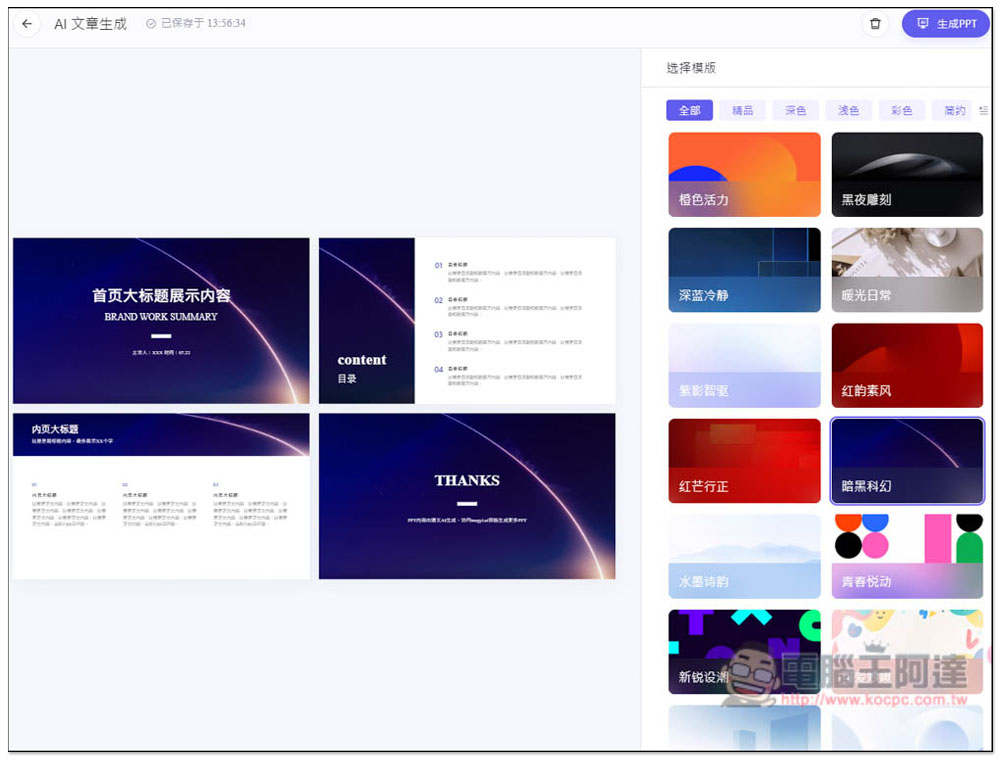
After pressing the Generate PPT button, it will jump to the PPT page and start generating content. The speed here is also very fast, completing in just a few seconds:
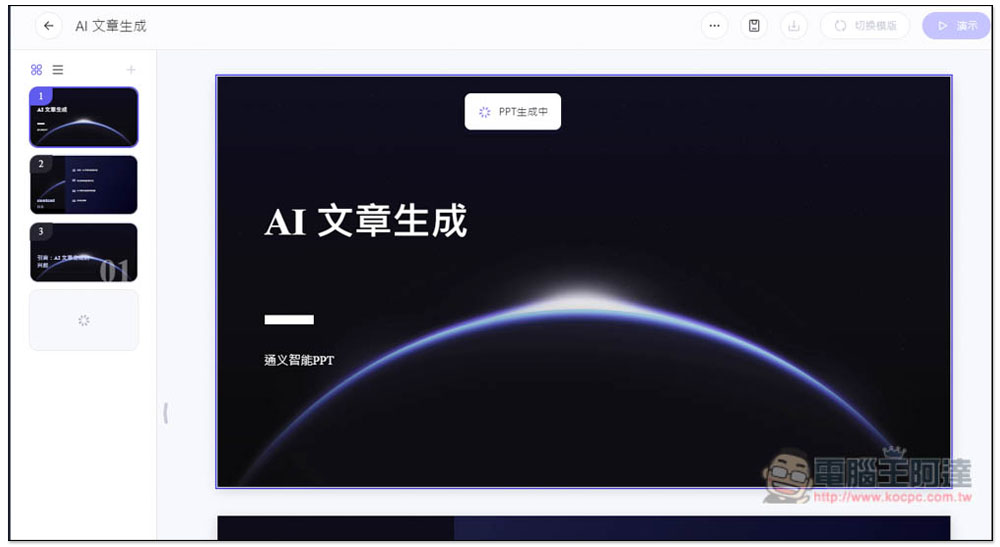
Once completed, you’ll see a complete PPT presentation has already been put together, with the text content on every page neatly arranged and quite polished:
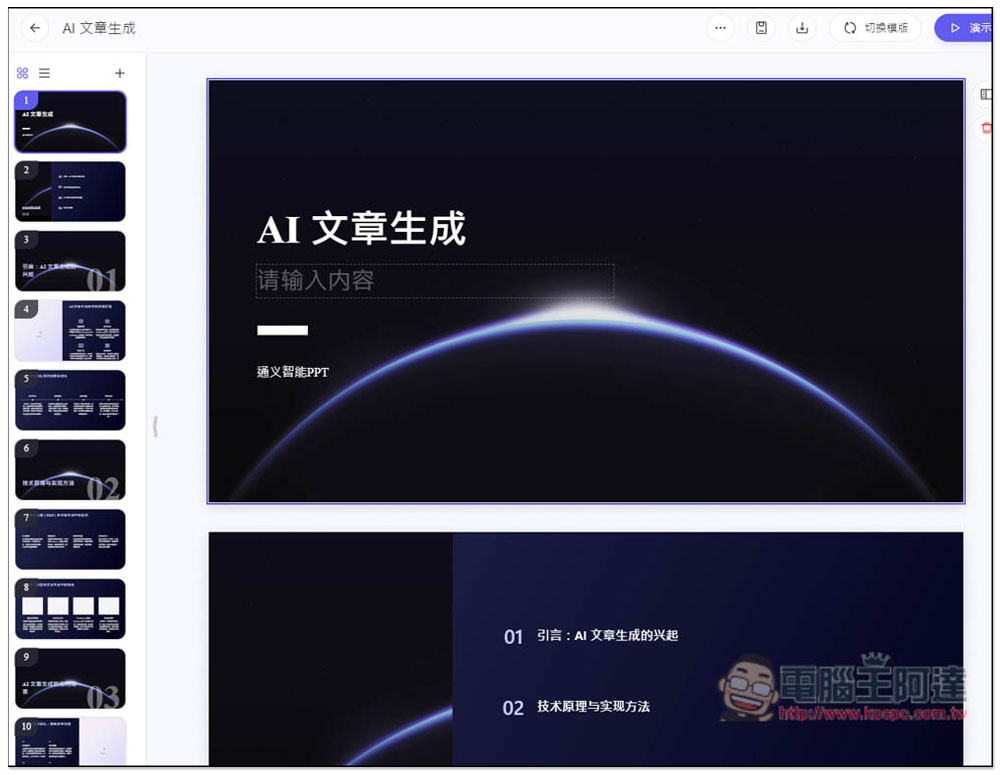
So all content can be edited directly online; you can delete what you don’t want, or add new content:
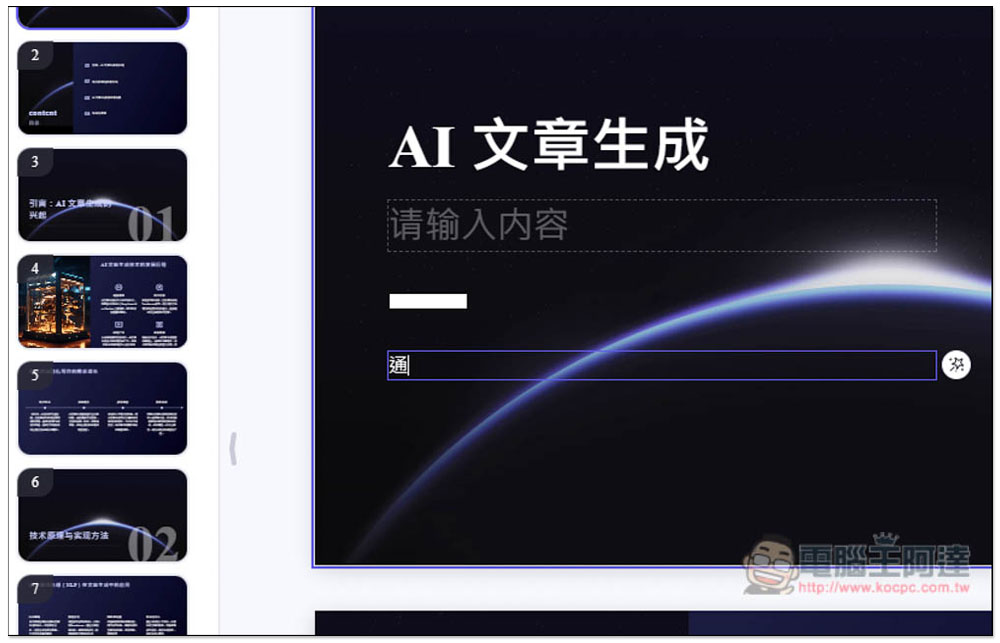
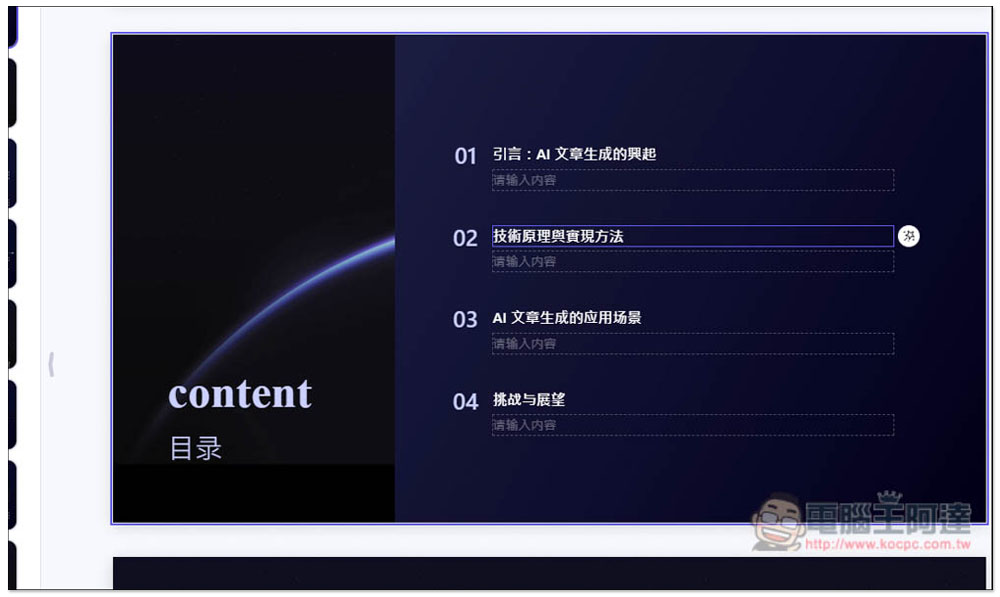
The content is all in Simplified Chinese, remember to manually convert it to Traditional Chinese. Also, you might notice that on the right side there is a small icon button:
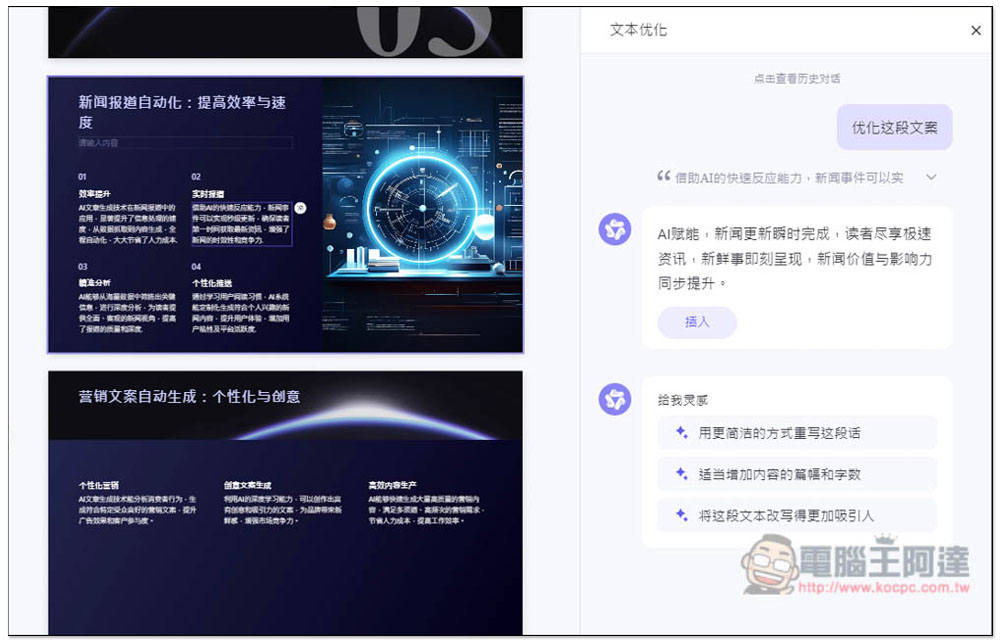
Pressing this button will ask the AI to re-optimize the copy. If you’re satisfied, clicking Insert will replace the original content.
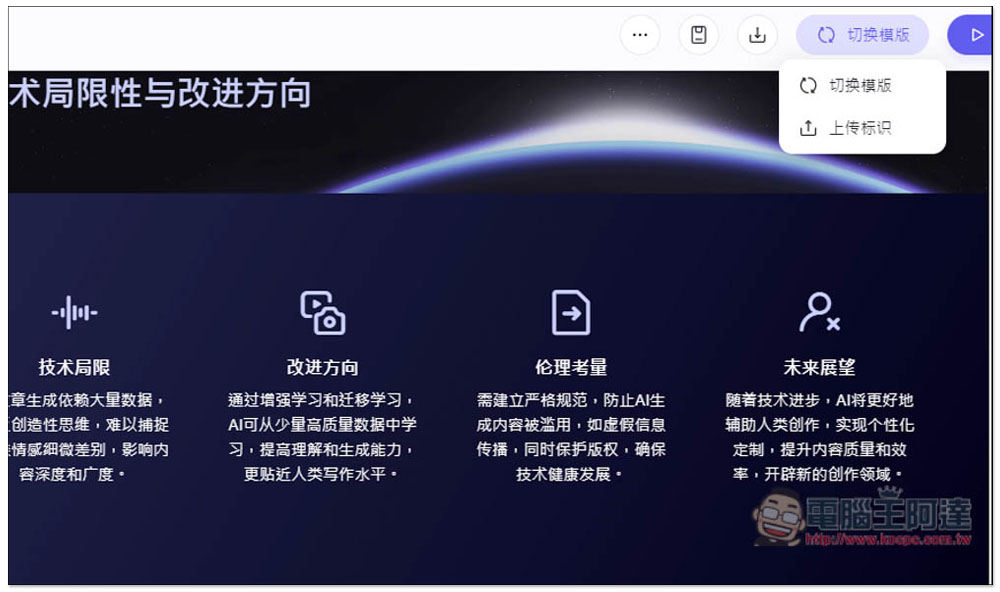
If you’re not satisfied with the template layout you chose before, there’s a template switching function in the top right corner:
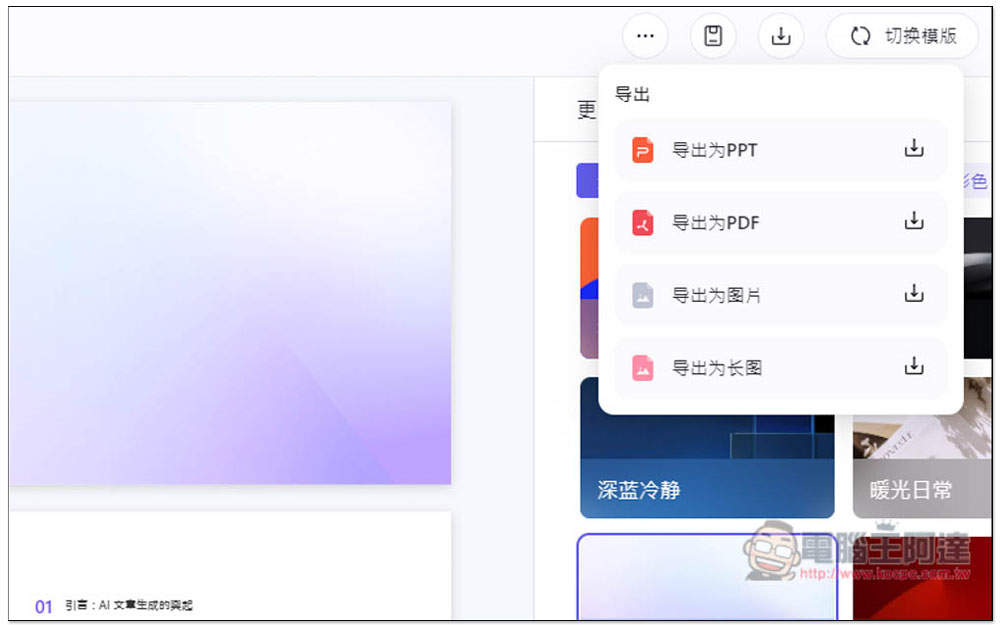
Once everything is edited, click the download icon at the top right to download it as PPT, PDF, image, or long image. The PPT format can be opened directly with Microsoft PowerPoint:
Source: KOCPC Chinese