


Windows 11 PreviewIt is already flying everywhere, but compatibility is bound to be a big challenge in the future. Facing the old programs of some enterprises, Windows 10 is becoming more and more mature and stable, and it can be said to be the most favored system at present. However, how to make the system more efficient is also a topic. Generally, systems will have a power management mechanism, especially laptops, which are more important because the power mode will affect the efficiency of work performed on the computer. How to choose a suitable power mode to obtain performance, usage time, or a balance between the two? If you have a desktop computer, don’t worry about it. Of course it’s high performance. Let me tell you a trick. In fact, Windows 10 also has a hidden ultimate performance (power plan)!

用 Telegram 訂閱【挨踢路人甲】最新文章:https://t.me/itwshare
Windows 10 has three power modes by default: power saving, balanced, and high performance. Enter “Power & Sleep” from the Settings application, and scroll to the right to see “Other Power Settings.”

The power saving mode is mainly for laptops, while the balanced mode is a balance between performance and power consumption. It is also the default value for desktop computers. Personally, I feel that desktop computers should not need to sacrifice power at the expense of performance. Unless your computer does not shut down and is often not in the same location, it is recommended to use high performance mode.

When using balanced mode, the system will automatically reduce the CPU clock speed when no programs are running.

Using high-performance mode, the system will operate at a high-end clock regardless of the applications currently running on the system. You can try adjusting the balanced or high-performance mode to experience the changes.

In fact, Windows 10 also has a hidden Ultimate Performance (power plan), but you need to use a command to open it. Click the Start button, find “Windows PowerShell” in the menu, click and select “More” → “Run as administrator”.

When you see the command window screen, enter “powercfg -duplicatescheme e9a42b02-d5df-448d-aa00-03f14749eb61」Press [Enter].
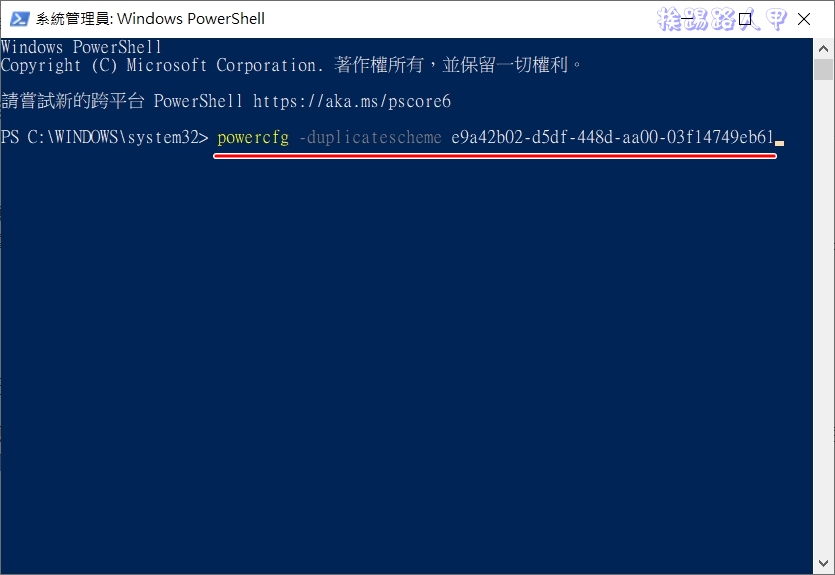
Seeing the text display of ultimate performance means activation.

Returning to the power selection, you can already see more options for ultimate performance. To be honest, I have not measured the difference between high performance and ultimate performance, but I am sure it consumes more power. After using it for about 4 hours, I could vaguely hear the CPU fan speed getting louder and louder. It is said on the Internet that it is about 10% faster. If you like to squeeze the CPU in every possible way, you can turn it on and give it a try!

Further reading:
Source: KOCPC Chinese