


Although there are some photo album apps in the App Store that support locking functions, they are not from Apple after all. Some people may not like them because they are worried about security and privacy issues, and most of them have to pay to download. For friends who don’t want their iPhone photo albums to be viewed randomly by others, in fact, through the iPhone’s shortcut technique, you can achieve the same purpose as locking the photo album. You must enter the correct password to open it. Let’s teach you how to set it up.
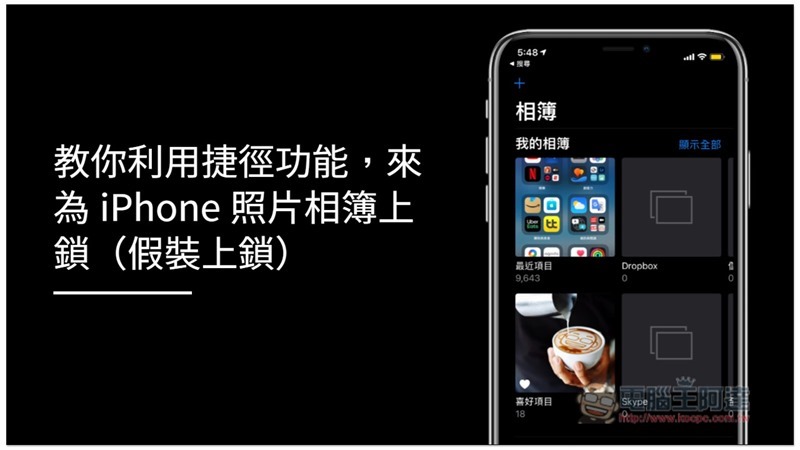
Lock your iPhone photo album with a shortcut
First, you must download the Shortcut App. For those who have not downloaded and installed it, please click the link below to jump to the App Store. Shortcut is an app launched by Apple, so you can use it with confidence.
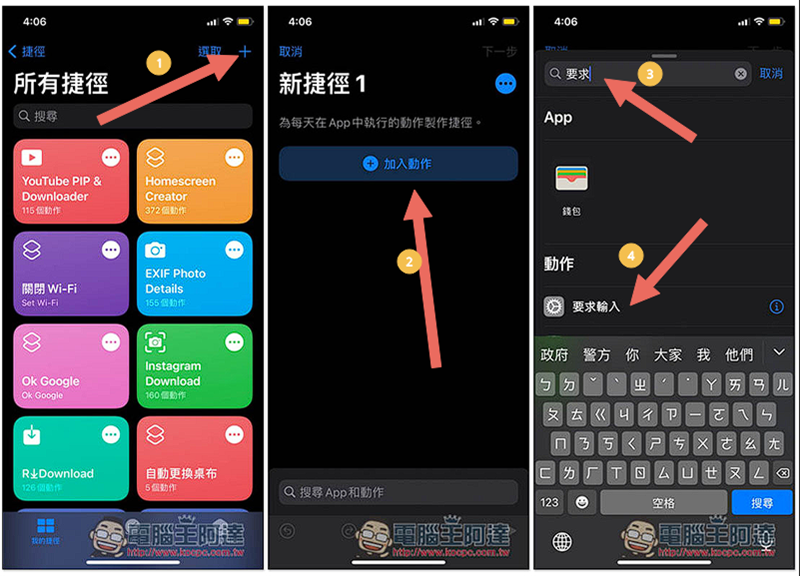
After opening the Shortcuts App, press + in the upper right corner to create a new shortcut, click “Add Action”, enter “Require” in the pop-up menu, and then press the “Require input” option:
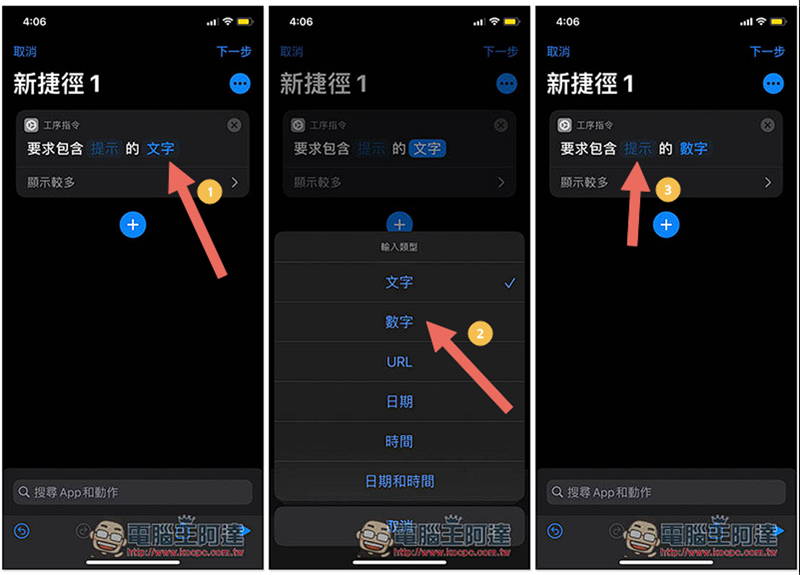
Then click “Text” and change it to “Number”. In the front “prompt” input, what words do you want to be displayed when opening the app, such as: Please enter the unlock password, enter the album password:
Like I type “Please enter password”, and after completion, add another action with the + below. Find the “If” one and click “Status”:
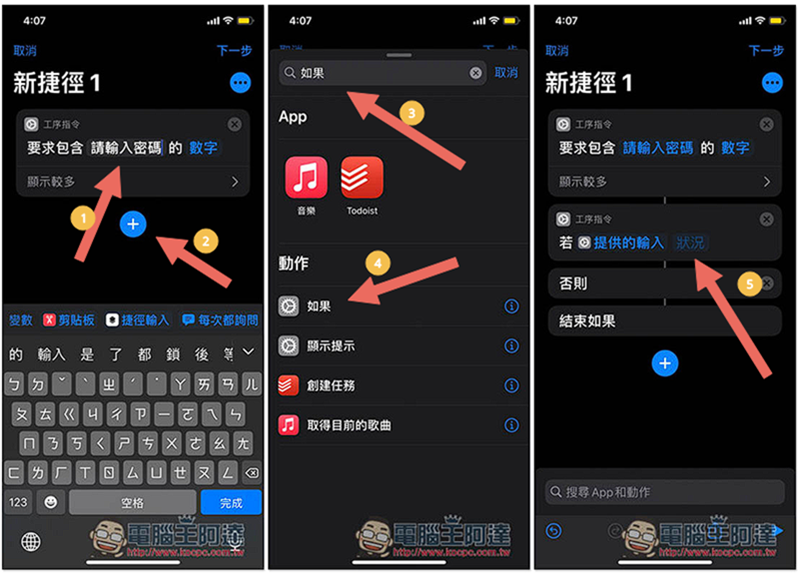
Change it to “Yes” and click in the back field to set the “Album Unlock Password”, I entered 1128″, and then click Add + Action:
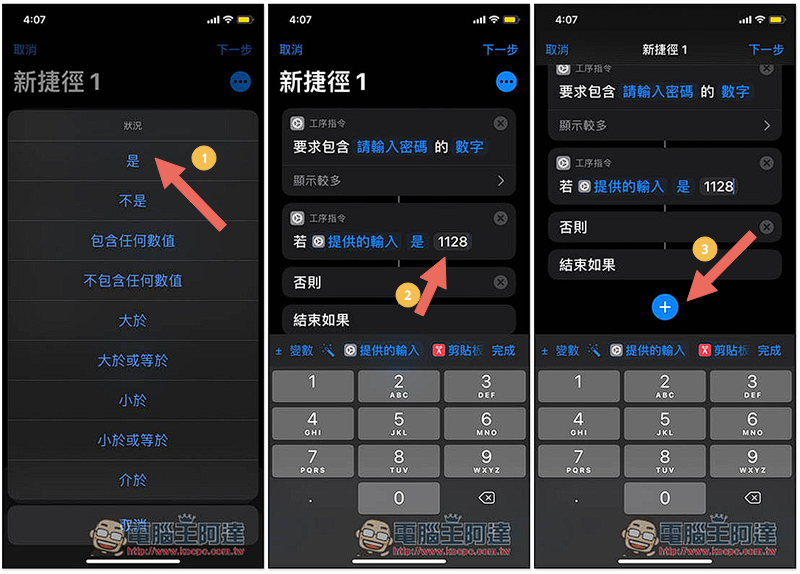
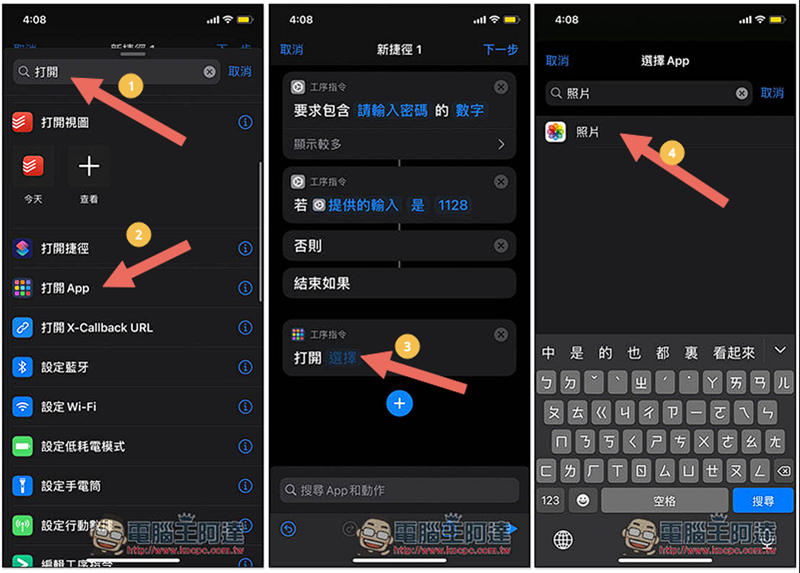
Type open in the search field to quickly find “Open Shortcut” and then select “Photos App”:
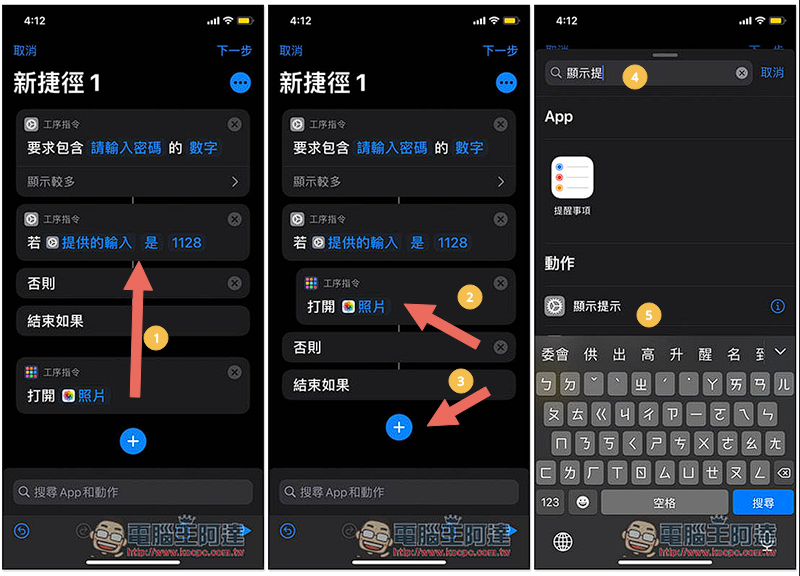
Next, you need to move the action of opening the photo to “Provided input” and “Otherwise between”, as shown in the figure below. After completion, add a new + action and find “Show prompt”
Click “Do you want to continue?” and change it here to what text should be displayed when the wrong password is entered. I entered “You entered the wrong password!”. After completion, expand the bottom to display more, and turn off “Show Cancel Button”, which means it becomes gray:
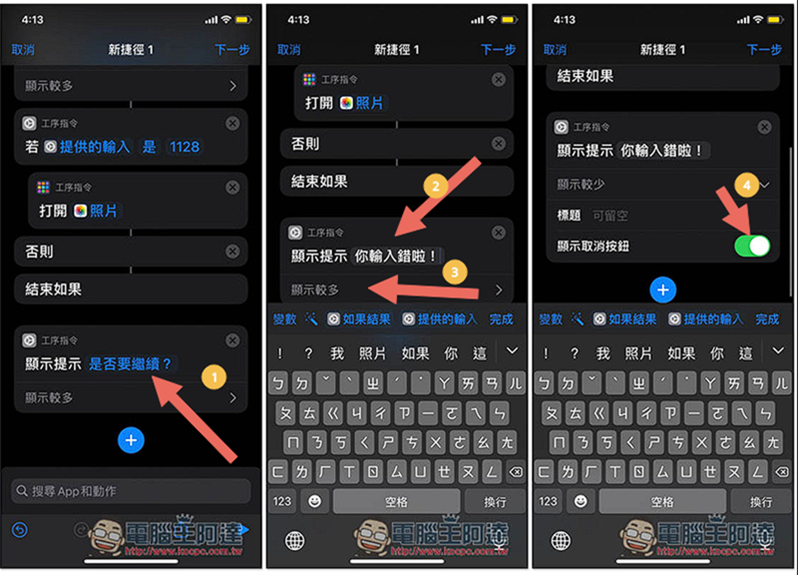
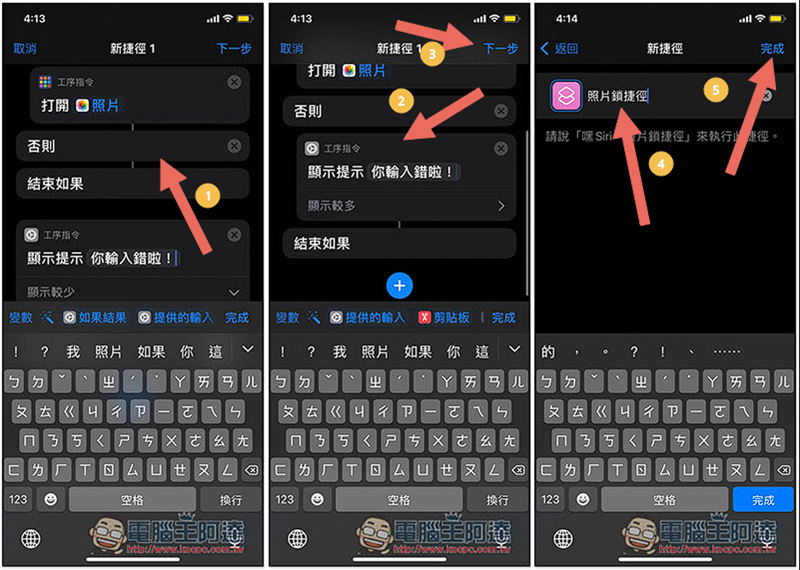
Then move the action of displaying prompts to the middle of “otherwise” and “end if”. When completed, click Next on the upper right. You can name it as you like. It will be displayed when you open the album and unlock it:
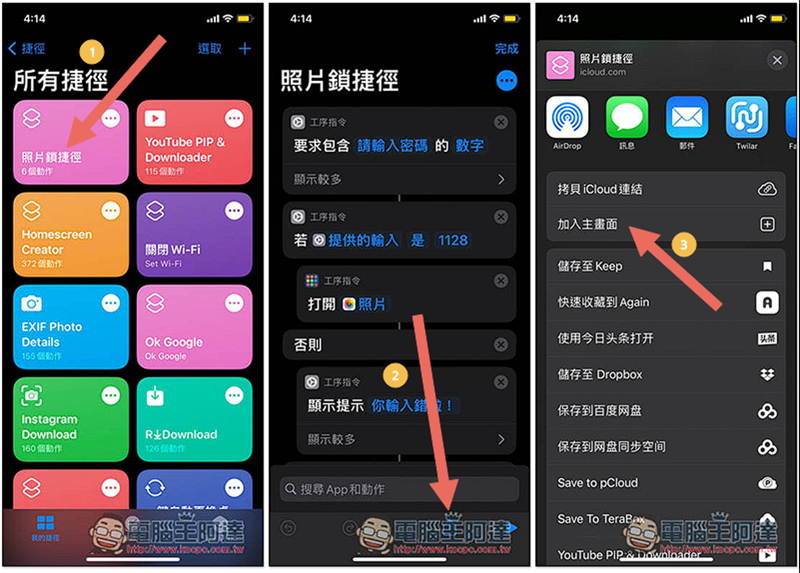
After the shortcut is created, it will appear in all shortcut menus. Please click it, then click below to share the image, and click “Add to main screen”:
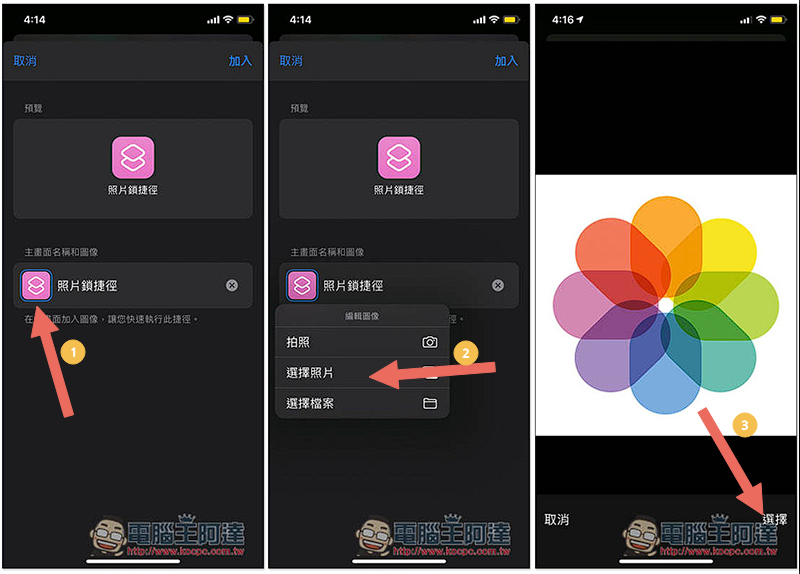
Change the icon logo to be the same as the iPhone photo. For those who don’t have a picture, you can download the next one:

After changing the icon, change the name to “Photos”, then click Add, you will see two photo apps on the main screen, one is the original iPhone, and the other is the shortcut you just added:
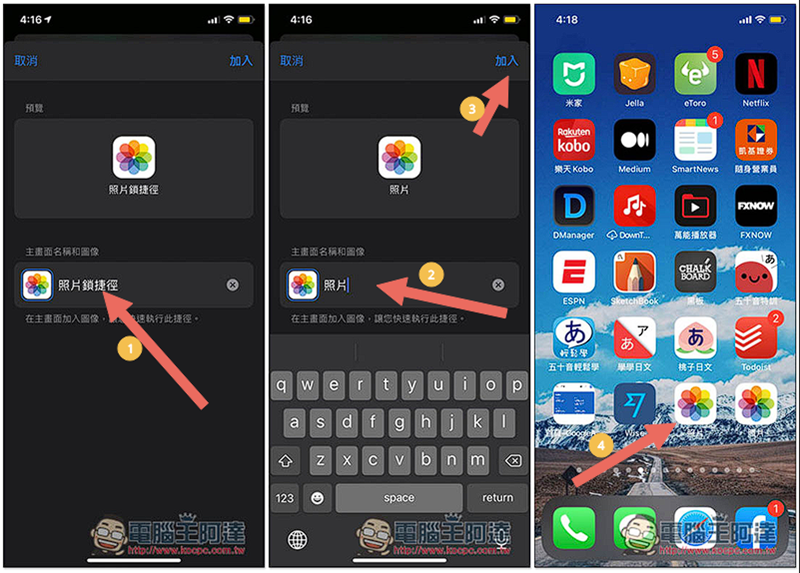
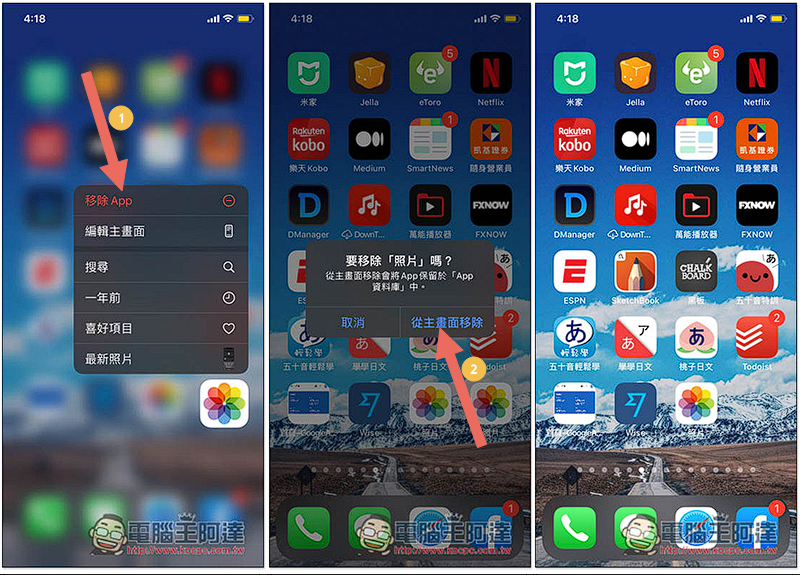
At this time, hide the iPhone Photos App and use shortcuts to open the photo album in the future, so that the fake lock function can be achieved. After long pressing the Photos App, a menu will pop up. Click on the first “Remove App” and select “Remove from Home Screen”, and you are done:
When you open photos (shortcuts) in the future, you will be asked to enter a password. If you enter it correctly, the iPhone photo album will be opened. If it is incorrect, a message such as “You entered it wrong” will be displayed:
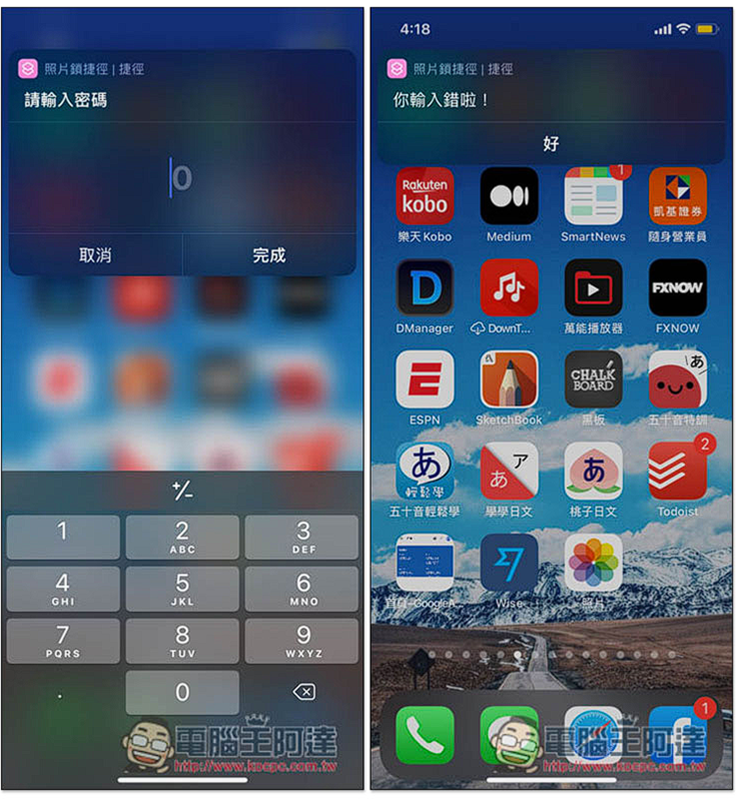
To put it simply, this method is to use shortcuts to disguise yourself as an iPhone photo album, making others think that your photo album is locked.
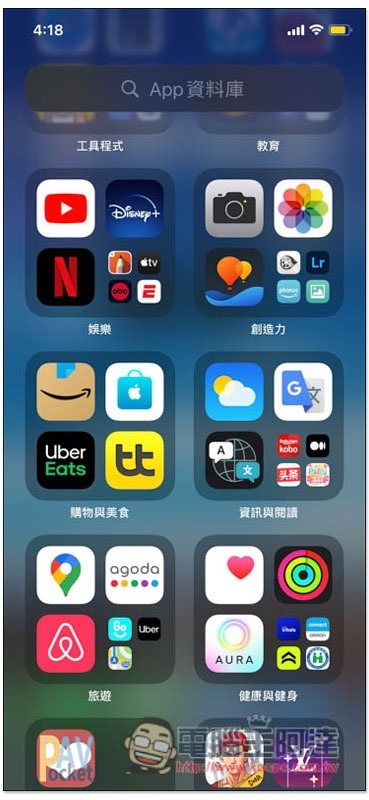
Since it is disguised, of course it may be discovered. The other party can still find the iPhone Photos App from the App Library on the far right of the home screen and open it, or ask Siri to open it:
Apple Watch 使用小技巧:充滿電 iPhone 自動推播通知設定教學(同場加映:利用自動化操作,設定 iPhone 充滿電通知)
Source: KOCPC Chinese