


In order to make the document content richer and more lively, or when certain images must be displayed in it, many people will insert pictures into Microsoft Word files to make the picture more intuitive. However, sometimes the photos posted are not so ideal and need to be edited or beautified to avoid covering up the focus of the text. Unfortunately, not everyone can retouch photos. Word actually has a built-in simple image editing tool that can directly help you with beautification work. How to use it?

Make good use of the “Format Picture” function in Word to beautify your photos and make your documents more exciting even if you don’t know how to retouch them.
Most of the time, you just insert the image into the document. In fact, you can also use the built-in “Format Image” function to make the photo look better. This time, the author will introduce to you this practical but little-known picture beautification function in Microsoft Word. If the picture itself does not require any major changes (such as removing pedestrians is considered a major change), the built-in tool can solve the problem at once.
How to call up the “Set Picture Format” function?
There are two ways to turn on the option to set the picture format in Word. Here we will tell you:
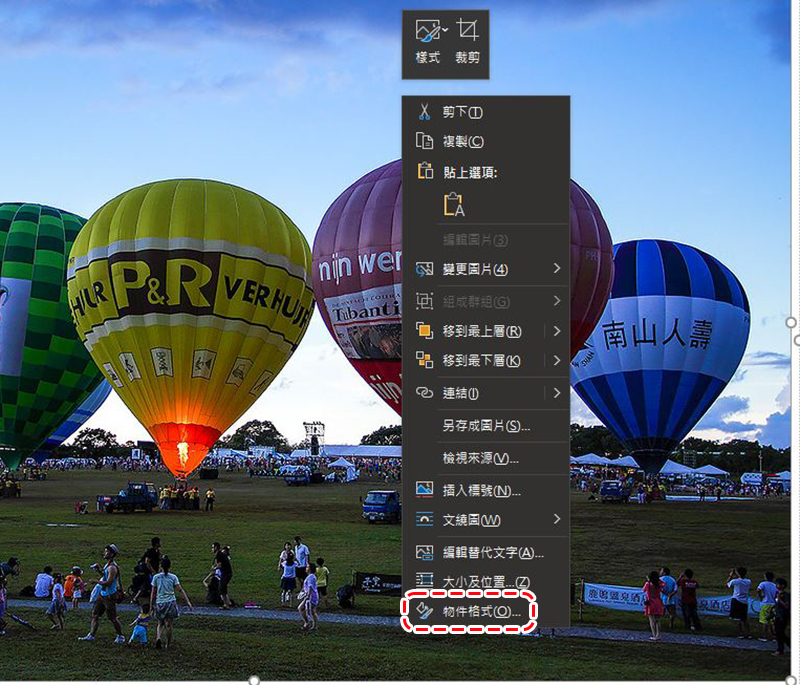
- First insert the image into the document, right-click on the image, and select “Object Format” to open the option to set the image format in the sidebar.
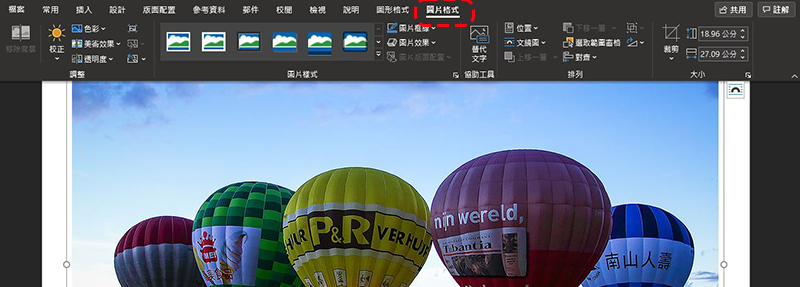
- Insert a picture, click on the picture, the “Picture Format” tab will appear on the top toolbar, and various picture editing items will be displayed.
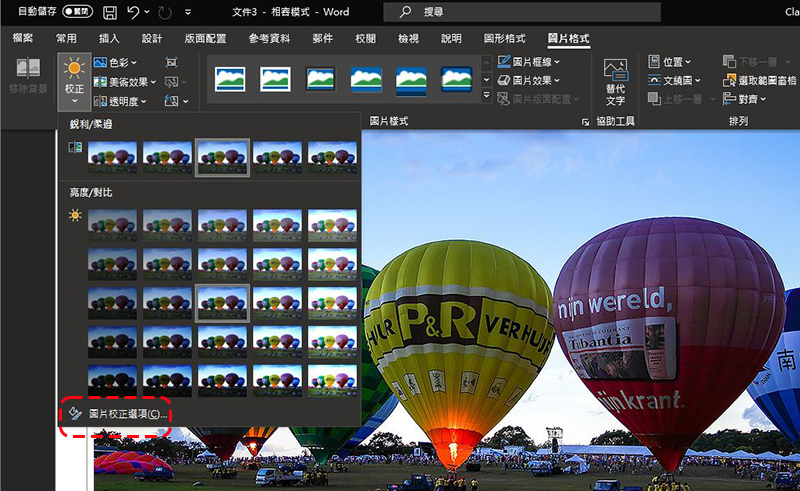
Because the content displayed on the toolbar above is displayed in a graphical format, it is more fancy and allows for more intuitive picture settings. If you want to enter a simpler and more convenient sidebar for setting image formats, click “Correction” and then select “Image Correction Options” to open the sidebar.
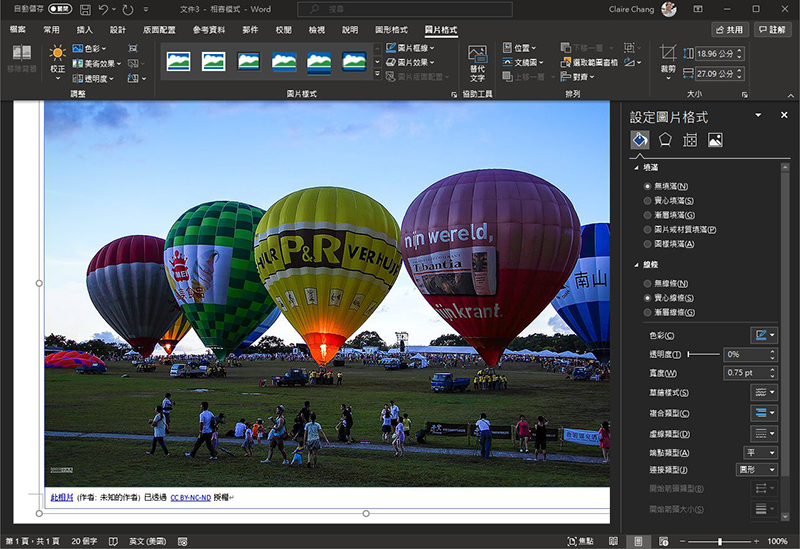
The intuitive graphical options will not be mentioned this time, only for image format settings. There are a total of 4 tabs in the picture format settings, including fill and lines, effects, layout and content, and pictures. When this setting sidebar is opened, the file area will become a preview window, and the editing results can be seen immediately.
- fills and lines
Here you can set the border of the picture, the color of the copyright field (which will appear when inserting an Internet picture pulled by Microsoft), etc. You can also choose the line thickness, style, color, material, etc. you want to fill in.
- Effect
In this tab, you can set the shadow, reflection, halo, soft edge, three-dimensional format, three-dimensional rotation and artistic effects of the photo. In the preset section of each setting item, you can clearly see the effect of each style from the icon. After selection, you can also fine-tune the values. For example, the color, transparency, size, angle, and distance of the shadow can be fine-tuned directly from the lever.
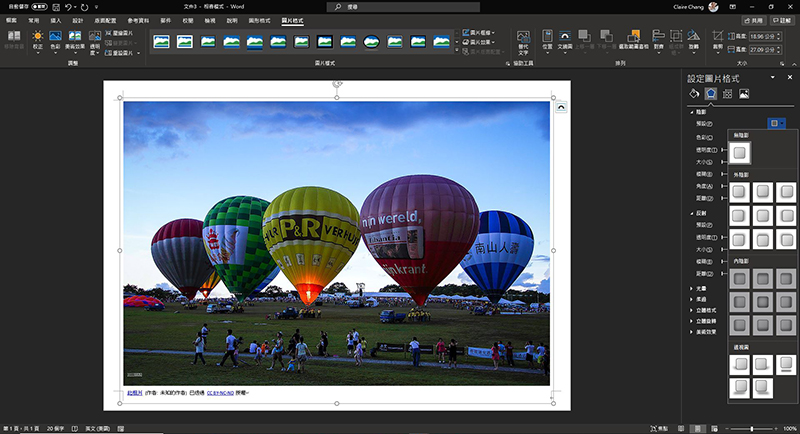
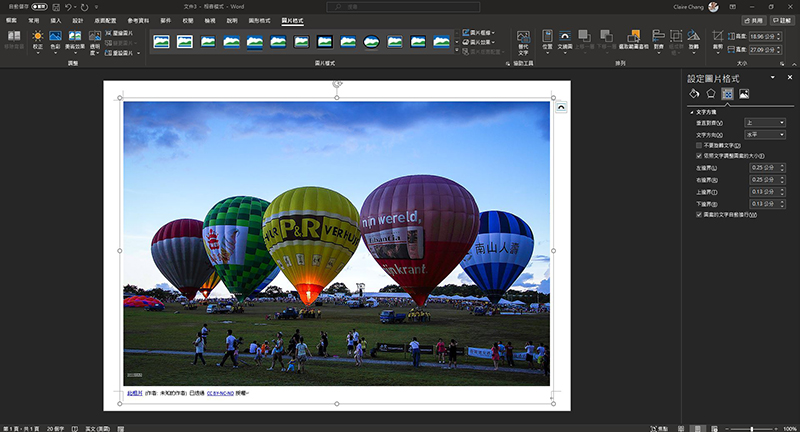
- Layout and content
This section mainly focuses on the interactive configuration between text boxes and pictures, such as whether the picture adjusts to the size, border, text direction, etc. of the text, which can reduce the feeling that many texts and pictures are as out of place as the enemy. Because the main topic is the layout, I won’t go into details this time. You can play and have a look.
- picture
Please mark this item with an asterisk, it’s super convenient! Must learn!
In this page, you can adjust the brightness, contrast, sharpness (these three items are included in picture correction), color saturation, hue, transparency and crop pictures of the photo, which is very practical.
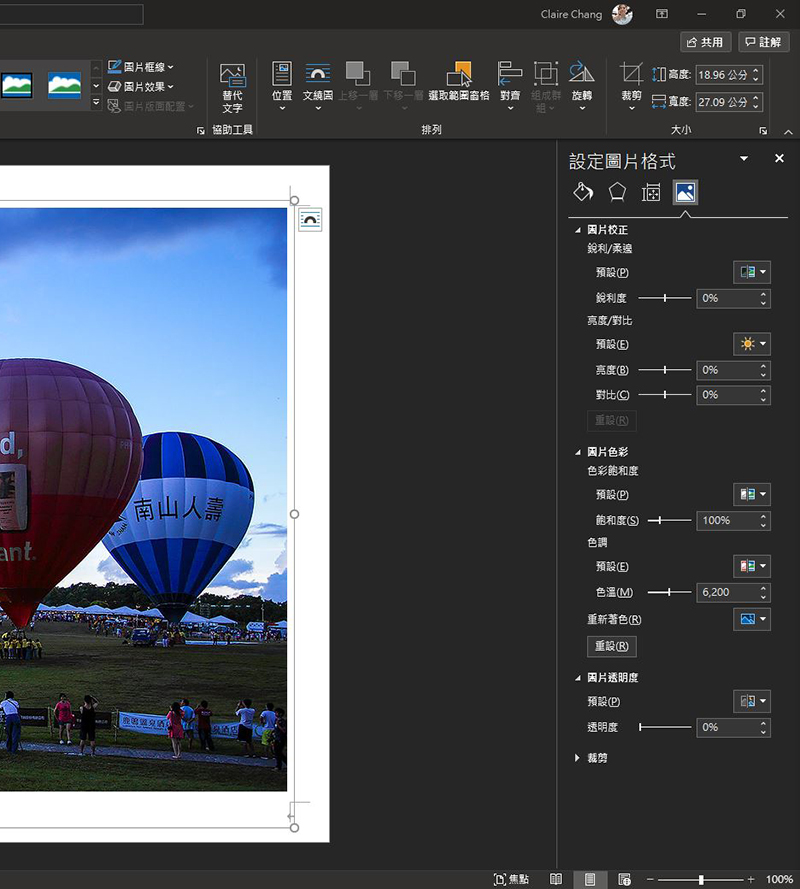
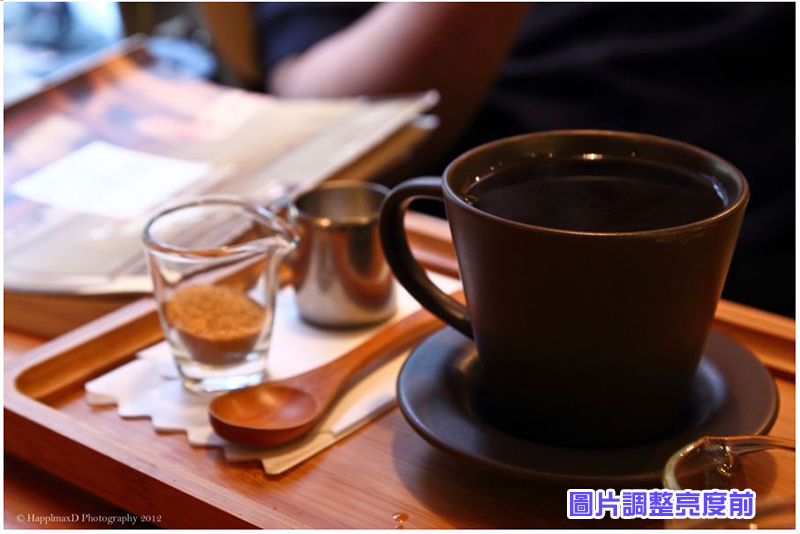
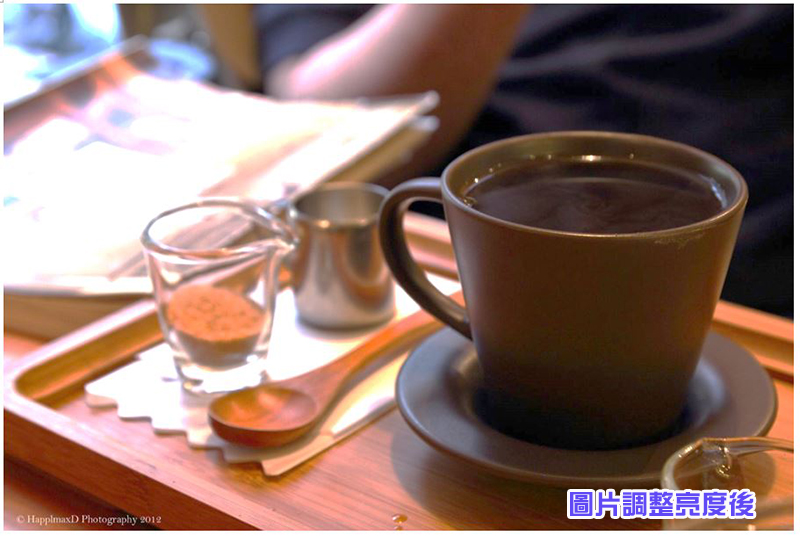
For example, if you want to adjust the brightness of a photo, just go to “Brightness/Contrast” in Image Correction. In the default setting, you can select the built-in value from the preview image. After selecting, you can also fine-tune it on the lever. If you are not satisfied and want to start over, just press “Reset” to restore the original state.
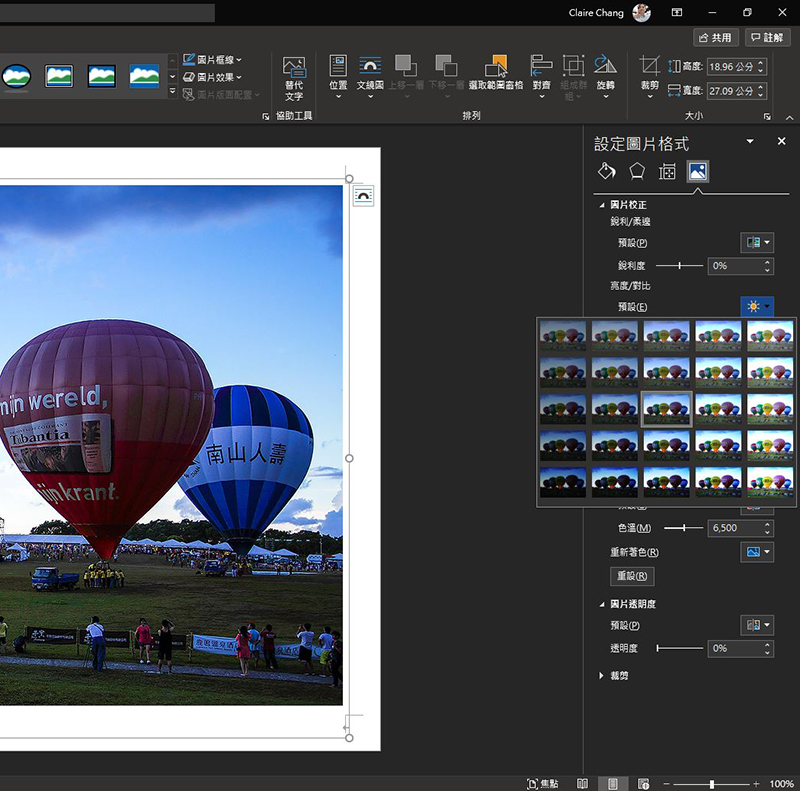
Below, I use two pictures to show you the difference after adjusting the brightness. Does it feel very different?
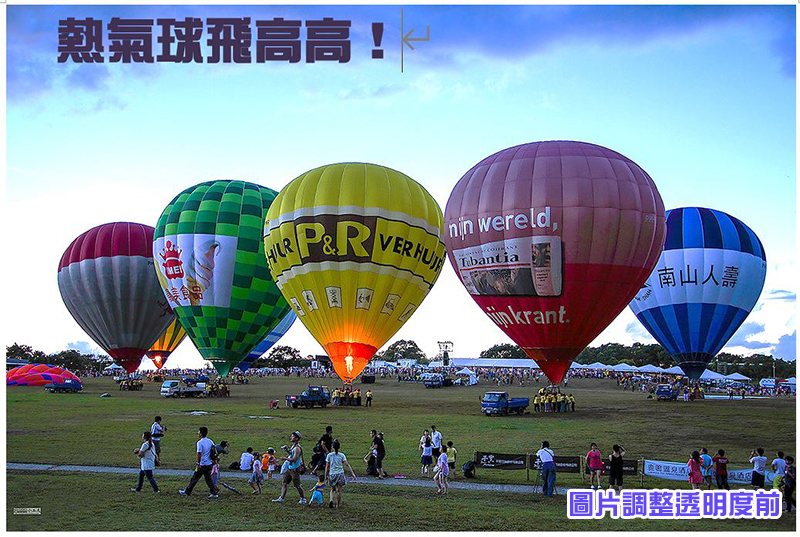
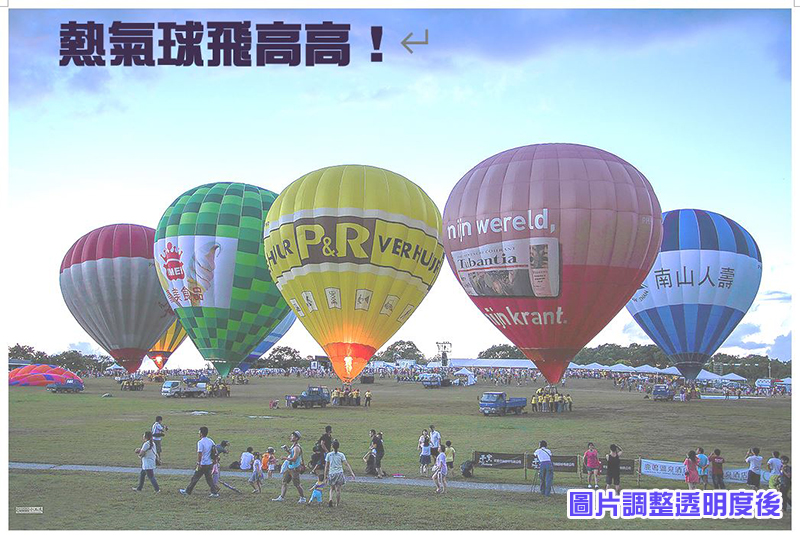
If you are worried that the picture will steal the show, you can adjust the transparency option to make the image less conspicuous, especially when you want to put text on the image. In order not to interfere with each other, you can use this option to dilute the image. Below, the author uses two photos before and after adjusting the transparency for comparison. After the image is faded, the text will naturally stand out!
You can play around with these built-in image beautification and editing functions in Word. Making simple edits is not a problem. Even if you don’t know how to use image editing software, you can still modify and add beauty to the images in the document.
Source: KOCPC Chinese