


There are many free wallpaper websites on the Internet, but for some Windows users, they still have a soft spot for “Microsoft Design”. To this end, Microsoft has created a Microsoft Design wallpaper collection library, providing high-quality wallpapers for various Microsoft products for everyone to download and use for free, ranging from the familiar Solitaire, Little Painter, Paperclip Helper, to wallpapers for Surface series products.
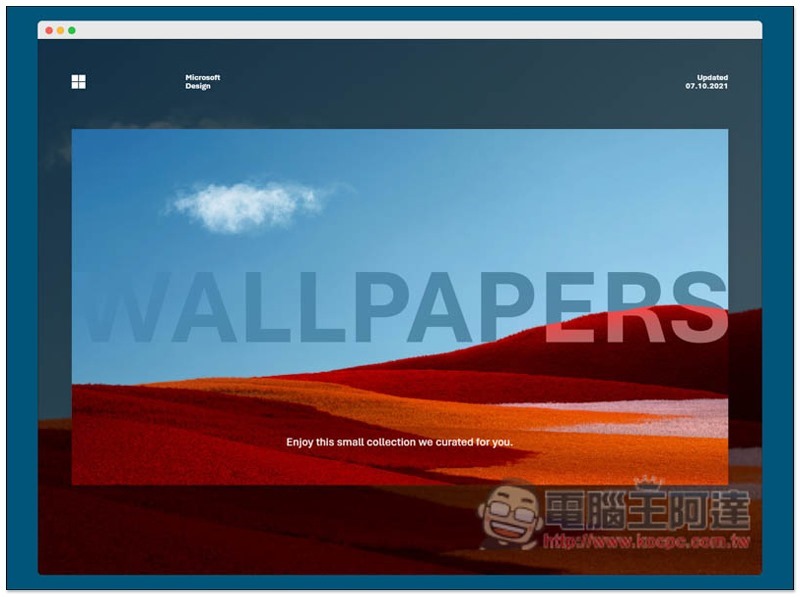
Microsoft Design provides a website introduction to various Microsoft official designs of high-quality wallpapers
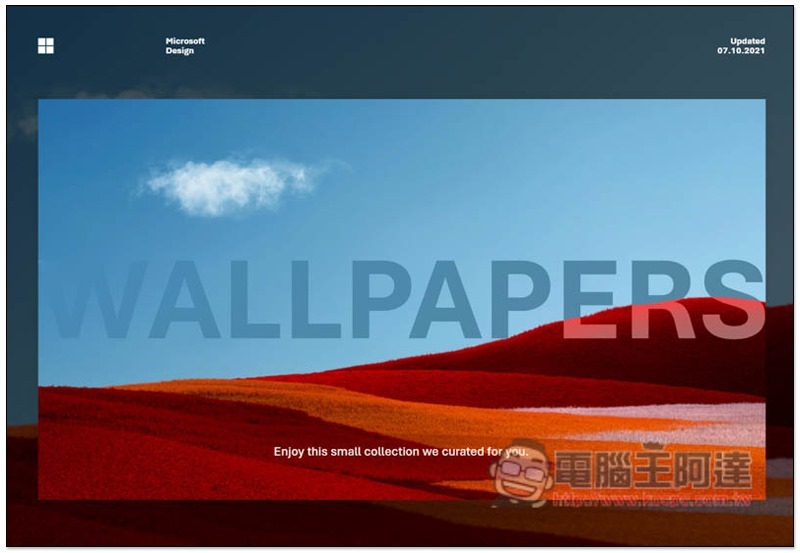
After entering the Microsoft Design website, scroll down to browse all wallpapers. In addition, if there are new Microsoft wallpapers in the future, they will be updated on this page. The latest update date is 07.10.2021:
A while ago, netizens gathered their strength to hope for the return of the Paperclip Helper:

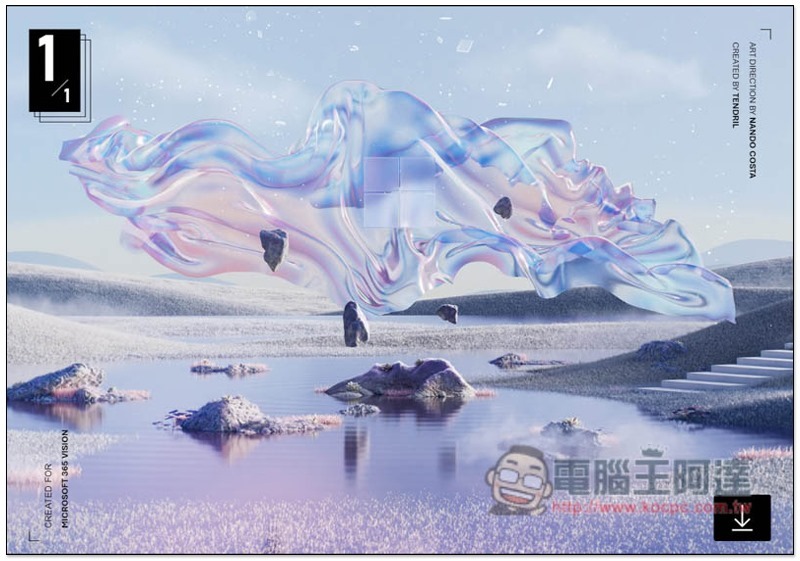
This one is very nice, with the Windows logo in the middle. In addition, wallpapers like this one shown in large pictures have a download function in the lower right corner, which can be downloaded with one click:
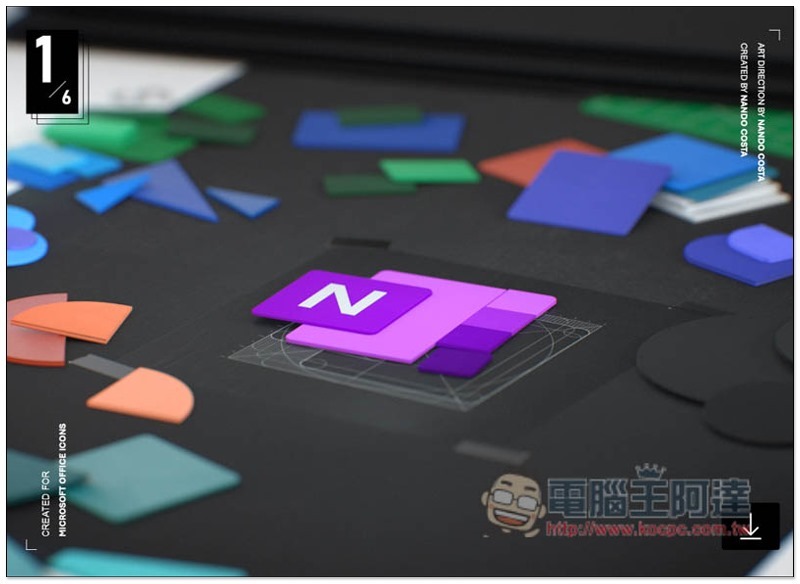
There are also Office series, which document lovers will definitely like. There are other options at the bottom of this page:
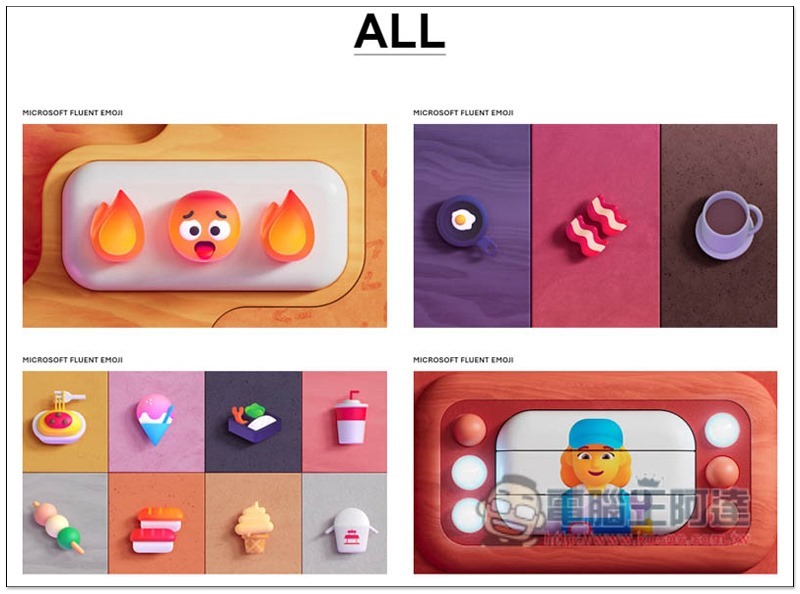
Scroll down to view all tablecloths. The cute EMOJI designs are also quite nice:
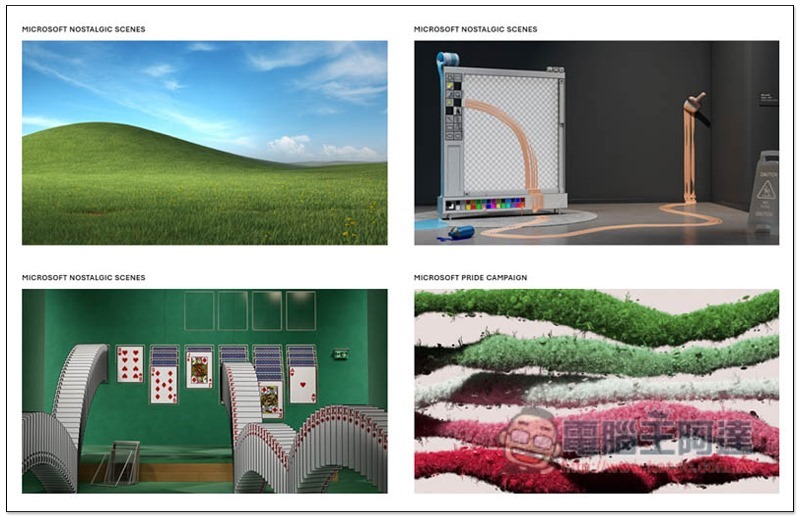
A very nostalgic little painter and solitaire game:
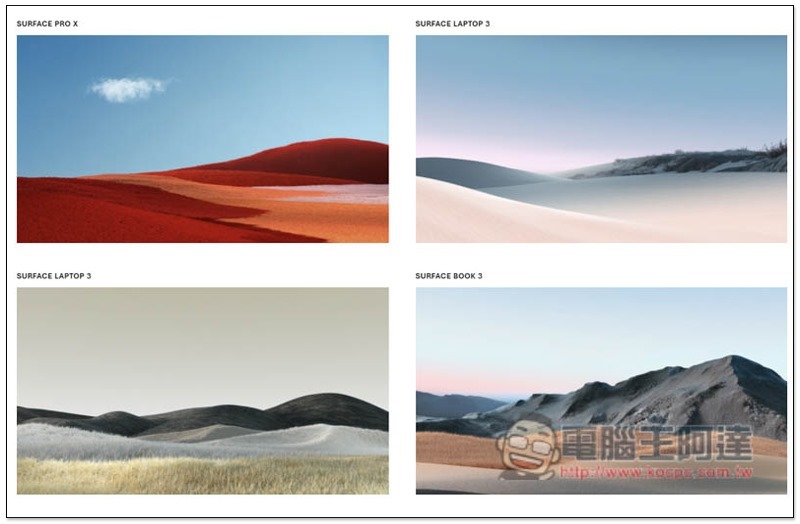
Tablecloths dedicated to Surface series products can also be found here:
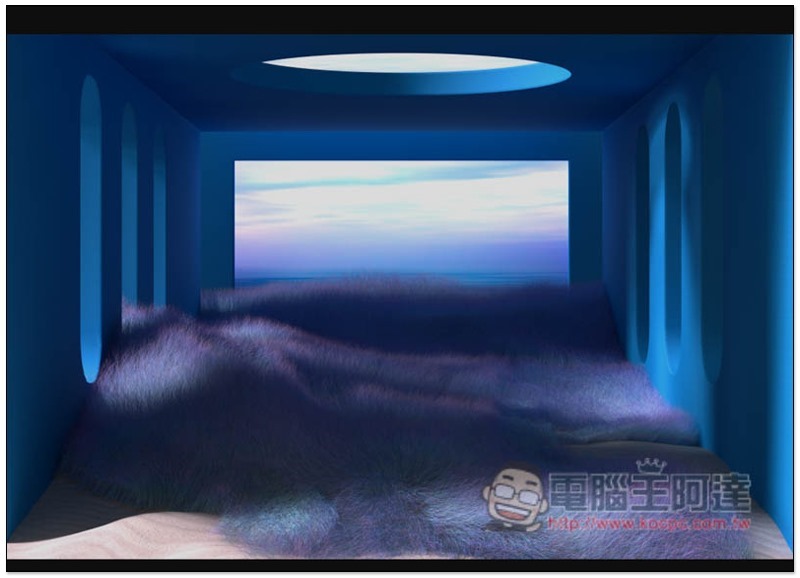
The small picture wallpaper at the bottom can be clicked to enlarge the display. If you like it, open the right-click menu to download:
There is also a “DOWNLOAD ALL” function at the bottom of the page to download all wallpapers with one click. People who want to collect all Microsoft wallpapers can click this function.
How to change the wallpaper in Windows 10
After downloading, changing the wallpaper of Windows 10 is also very simple. There are two ways. The first one is easier. Just open the right-click menu directly above the wallpaper image and find the “Set as wallpaper background” function:
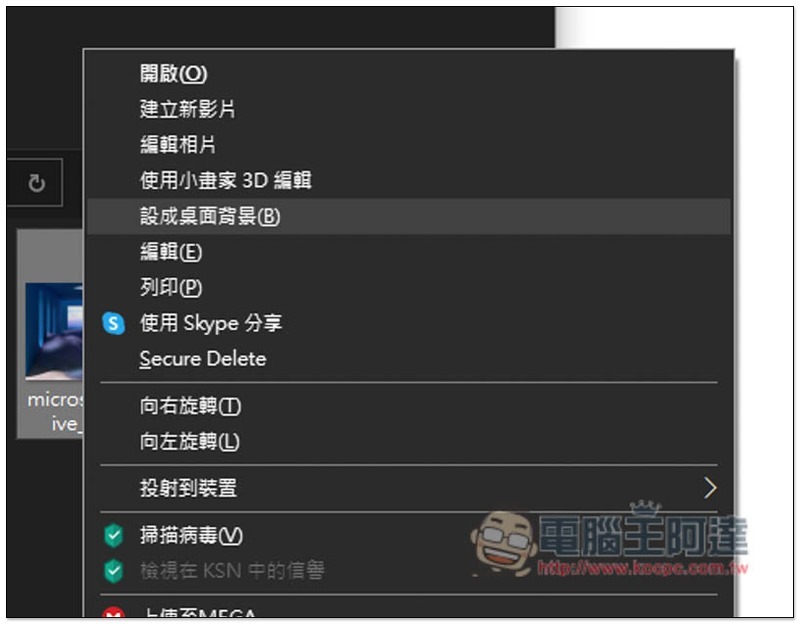
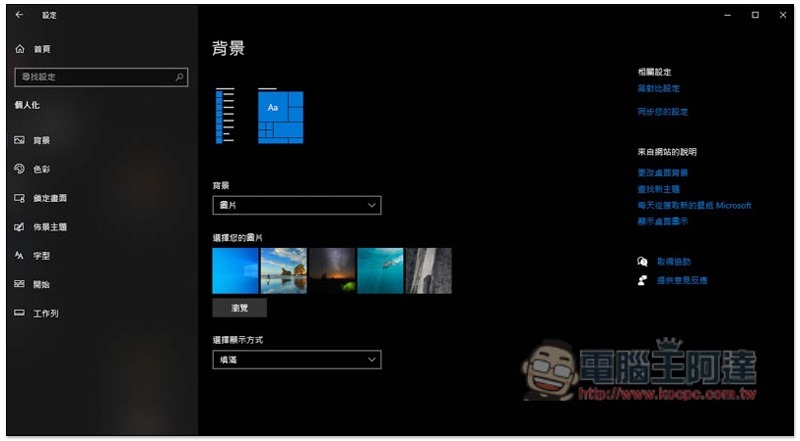
For the second method, please open Windows 10 Settings, enter Personalization, click the Background menu, change the background option to Picture, click Browse to select the picture you want to set the background, and you are done:
Source: KOCPC Chinese