


Recently, after opening Spotify, the screen suddenly turned completely black, even if I reinstalled it. I originally thought it was related to my own operating system (it would be fine if I used another computer). When I was considering whether to reinstall the entire operating system, I went online and found out that it was not just me, but many people had this problem. It seemed to be a bug in the Traditional Chinese language of Spotify. The good news is that there are now simple fixes. If you also encounter this problem, you can solve it through the method below.

Photo by Alexander Shatov on Unsplash
Spotify music download software recommendation: TuneFab Spotify Music Converter

TuneFab Spotify is a software that can download Spotify music and playlists. It is available in WIndows and Mac versions. It has built-in Spotify web player directly, which means you don’t need to install another Spotify application. Downloading only requires one click, and the conversion speed starts from 5 times at the lowest and reaches 10 times at the highest. There is no need to wait for too long. MP3, M4A, WAV, and FLAC formats are all supported, and ID3 tags will be retained. You do not need to edit manually after downloading. The highest sound quality supports 48,000Hz and 320Kbps.
TuneFab Spotify official website
Solve the problem of black screen in Spotify on Windows/Mac version
Before the repair, even if I reloaded Spotify, the screen would still be completely black when I opened it. Therefore, the method that someone shared on the Internet, which can be improved by “login to a foreign account and then log in again”, was not feasible for me, because I couldn’t even see the login screen, and I couldn’t log in by clicking on the upper left corner…

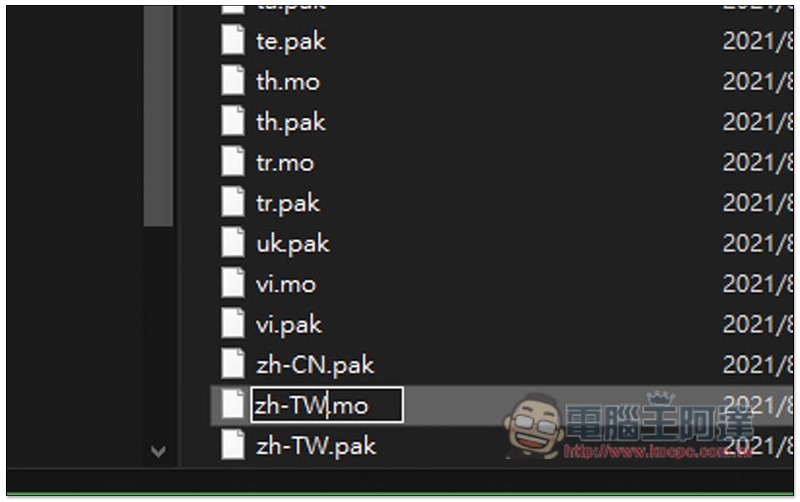
Now the easiest way to fix the Spotify black screen is to change the name of the Traditional Chinese language file in the Spotify folder to “zh-tw.mo”, regardless of Windows or Mac.
For Windows, open the Spotify folder and go to the “locales” folder. If you don’t know where the Spotify folder is, you can right-click the Spotify shortcut and click “Open File Location” to automatically open the Spotify folder:
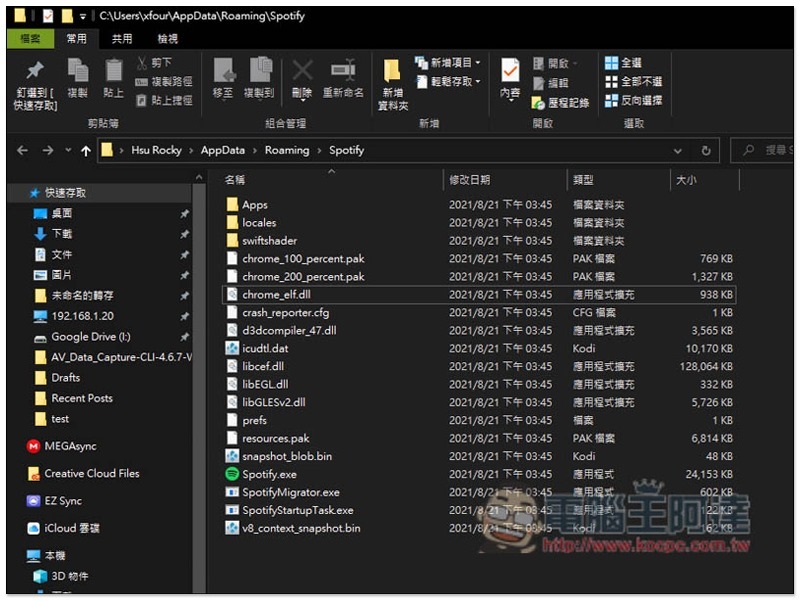
Spotify folder default path:
- Windows –> C:\Users\xfour\AppData\Roaming\Spotify\
- Mac –> ~/Library/Application Support/Spotify/contents/Resources/locales/
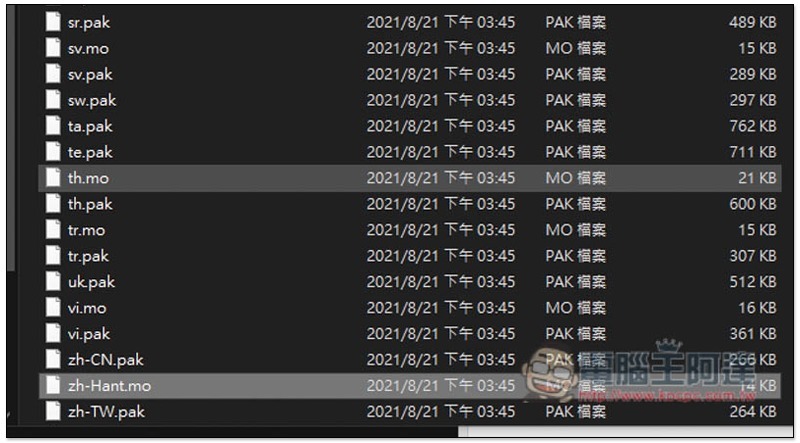
Find the file “zh-Hant.mo”:
Change the file name to “zh-TW.mo” and press Enter to save:
Reopen Spotify and the screen will be normal:

You can also log in normally and listen to music:

The above is the solution to the black screen on Spotify. If you have tried but still can’t solve it, some people have also shared that changing the Windows or Mac system language to English, reopening Spotify normally, and then changing it back to Traditional Chinese can also fix it. You can also try it.
Windows steps to change system language
- Open settings
- Enter “Time and Language”
- In the language menu, the first choice is “English (United States)”
- Open Spotify
- If it is normal, go back to the language menu again and change the first one back to Chinese (Traditional, Taiwan)
How to change the system language on Mac
- Open system preferences
- Among the preferred languages on the left, drag English to the first one. If you don’t see English, click + in the lower left corner to join it.
- Open Spotify
- If normal, change the preferred language number one back to Traditional Chinese
Source: KOCPC Chinese