


Superimpose In the past, this app was priced at US$4.99. Earlier, it suddenly launched a 2-day limited free event. The previous limited free was already 3 years ago. Those in need should quickly collect it. I don’t know how long you will have to wait next time.
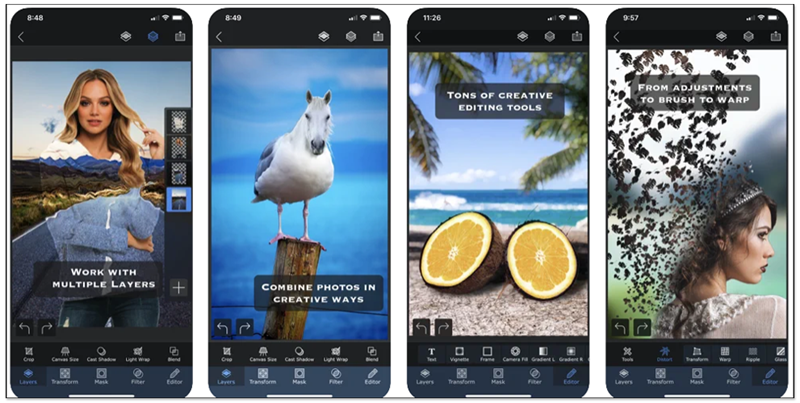
A quick introduction to Superimpose X
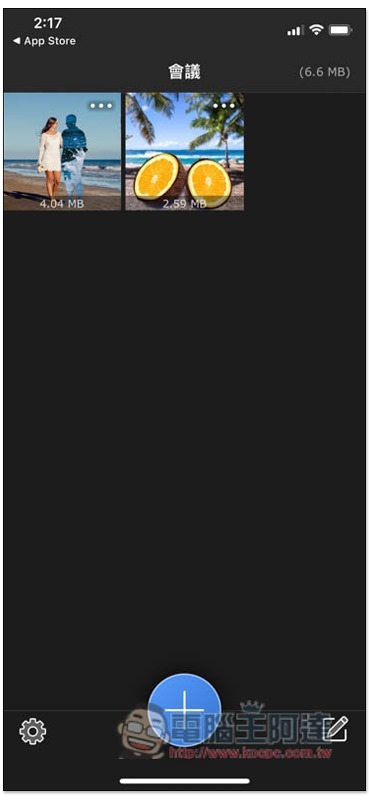
Superimpose X has a Traditional Chinese interface, so you don’t have to worry about not being able to understand it. After opening, there will be two demonstration pictures for your reference. Those who want to play around can also use these two pictures first:
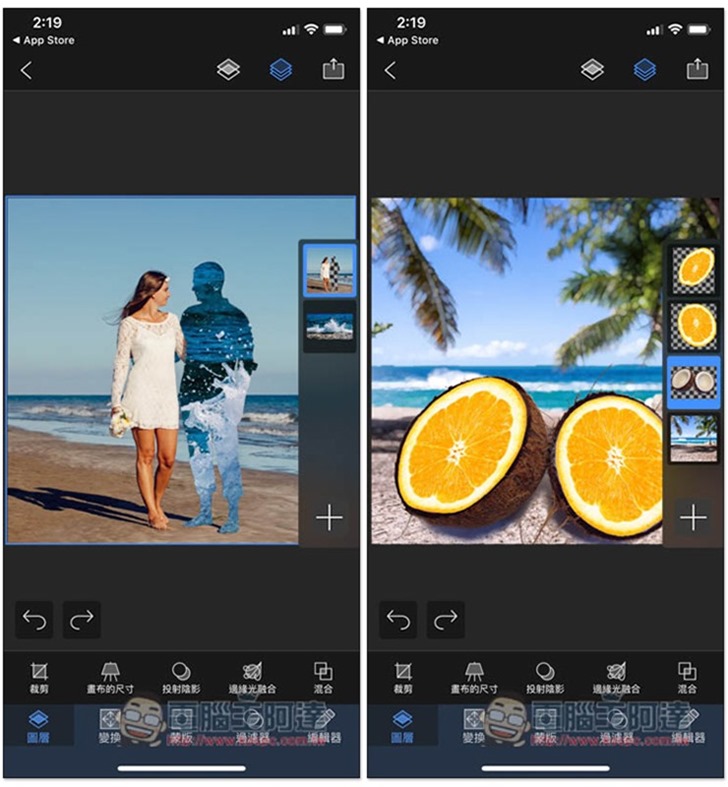
Both of these are already made backless composite photos. The right side of the editing screen is layer management. Here you can add (+), move or delete the layer objects you want. The main menu is at the bottom, including “Layer”, “Transform”, “Mask”, “Filter” and “Editor”. There are a lot of sub-menus, and there are many professional functions:
This App has many functions. I will attach several official YouTube teaching videos at the end of the article. Here I will only give a simple demonstration to memorize them. The back removal tool is located in the “Mask” function. I take this photo as an example:
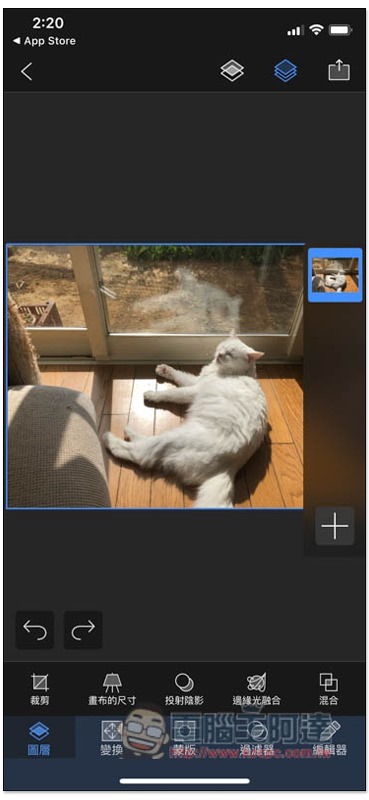
After clicking on the mask, you can start to remove the back and slide the areas you don’t want:
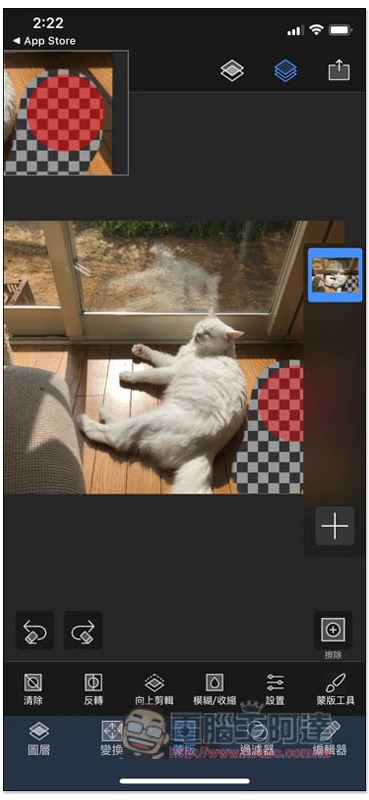
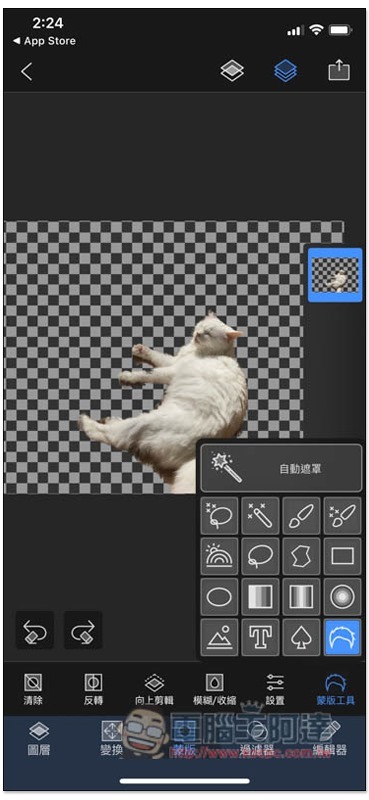
Open the mask tool to switch to other modes. It also provides an automatic back removal function (automatic masking). Just click and the process will start. In the following method, I used automatic masking to remove the back. The effect is not bad in terms of organization:
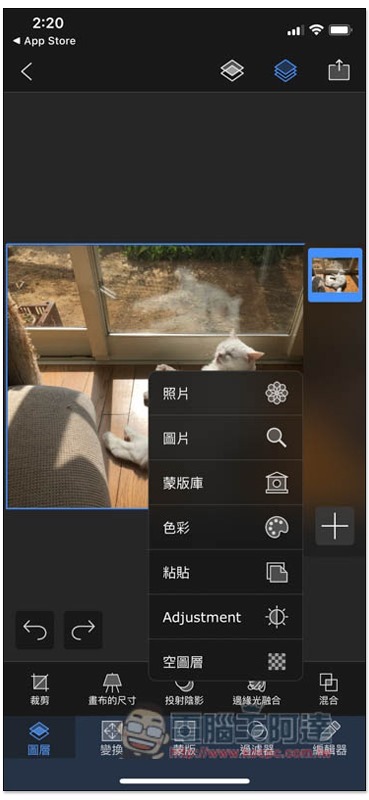
Click the + below the layer to add other photos or pages. Searching for “Pictures” will open Pixabay:
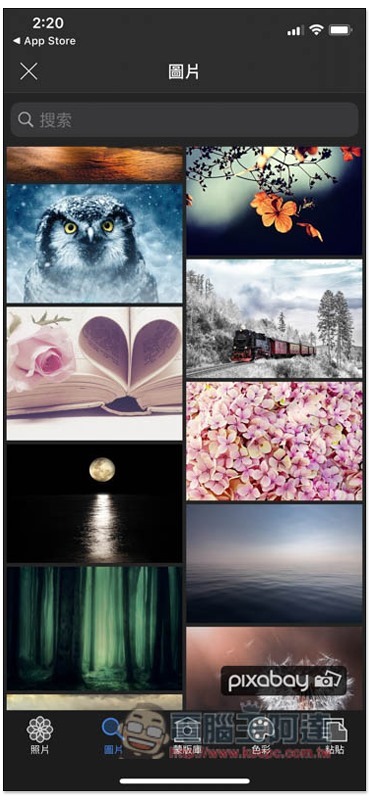
As shown in the picture below, if you suddenly can’t find the right photo when making a picture, you can find it here. The materials here are completely free:
I selected a picture at random and placed the layer below the original cat, and the synthesis was completed:
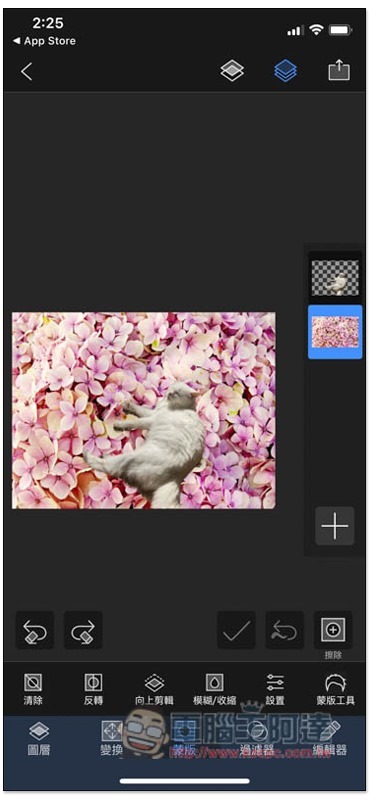
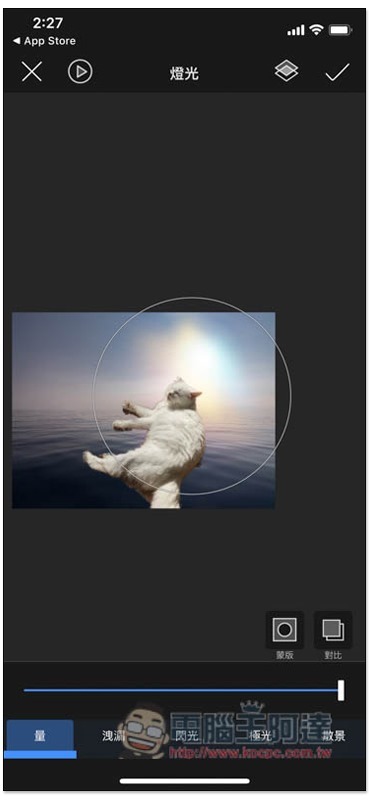
There are also some special effects, lighting and other functions available:
Tutorial video on using layer management:
Teach you how to create movie-level special effects photos:
Composite other background photos:
Tutorial on how to use brushes, more videos are availableClick me to go to the official YouTube channel:
Source: KOCPC Chinese