


In the past, we’ve introduced quite a few browser extensions that can summarize web articles and help you save reading time. However, most of them require a ChatGPT account and the OpenAI API, making them somewhat cumbersome and even potentially costly. In this post, we’d like to recommend another useful free extension called Elmo. It uses the Mixtral 8x7B model and requires no account or API. Once installed, it can extract article summaries, organize key points, and even translate and rewrite content. It also replies in your browser’s default language—for example, since most of us use Traditional Chinese, it will respond in Traditional Chinese, even for foreign articles, with no setup needed. That’s a really nice touch.
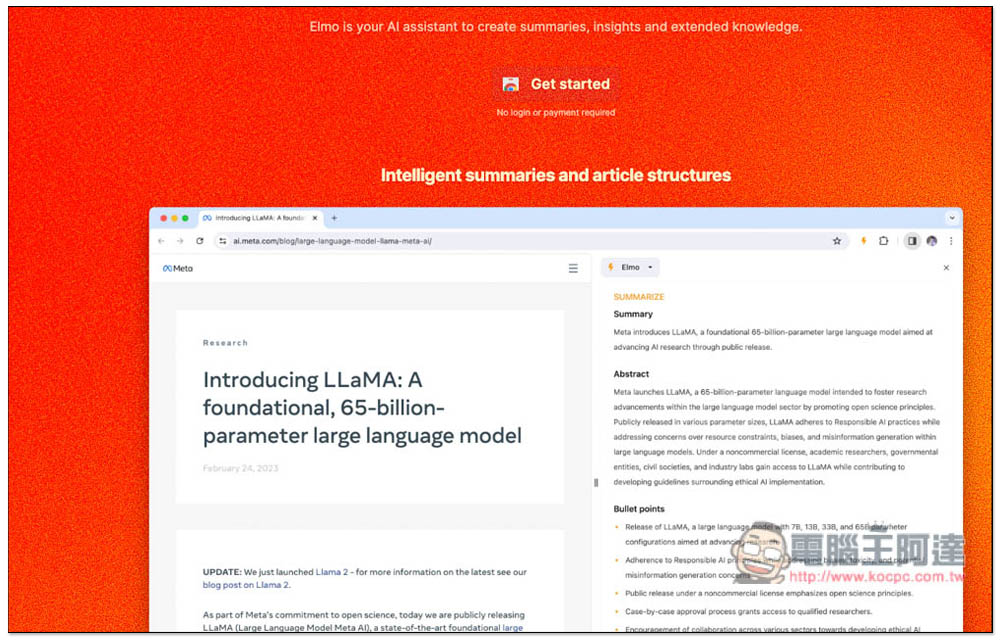
Elmo: One-click AI article summaries, key points, translation, and rewriting – no OpenAI account or API required.
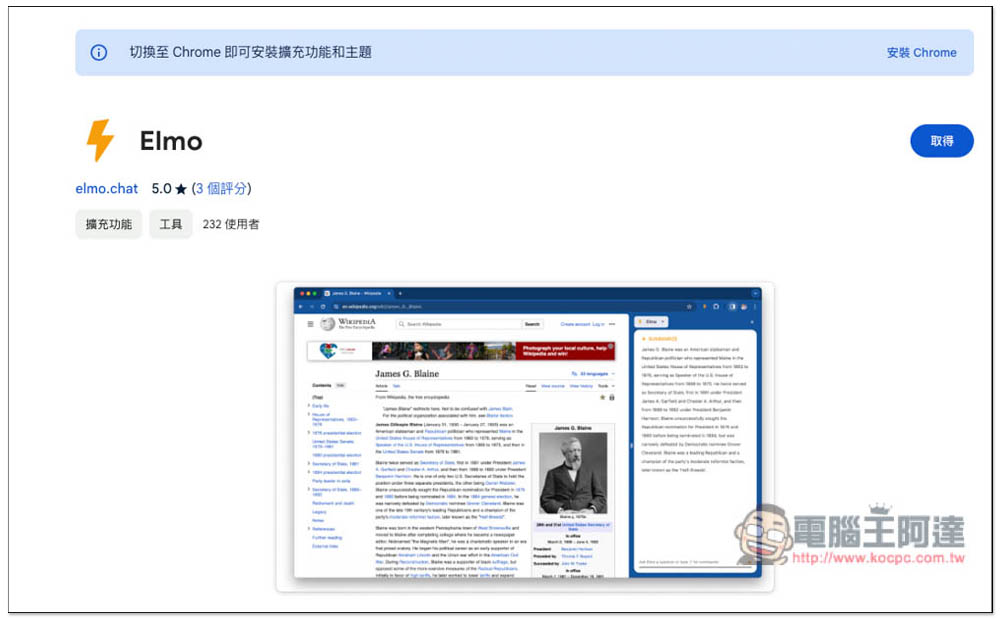
Currently, Elmo is only available in the Chrome Web Store, but you can also install and use it on Microsoft Edge. Once you’re in the Chrome Web Store, click “Get” in the top-right corner:
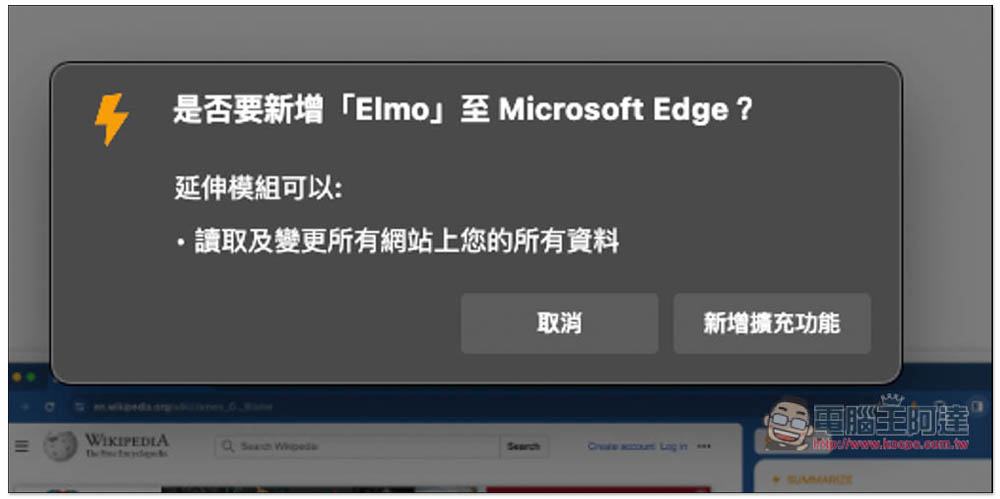
This message will appear at the top; click “Add extension”:
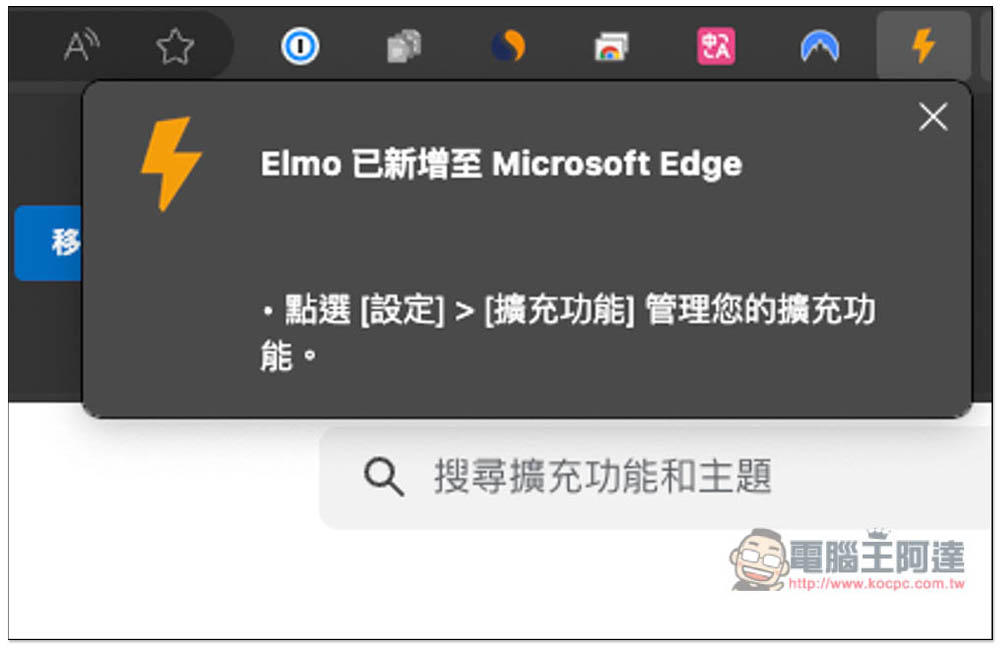
Displaying this message means the acquisition is complete. The default extension icon will be hidden; you don’t necessarily have to open it, depending on your needs.
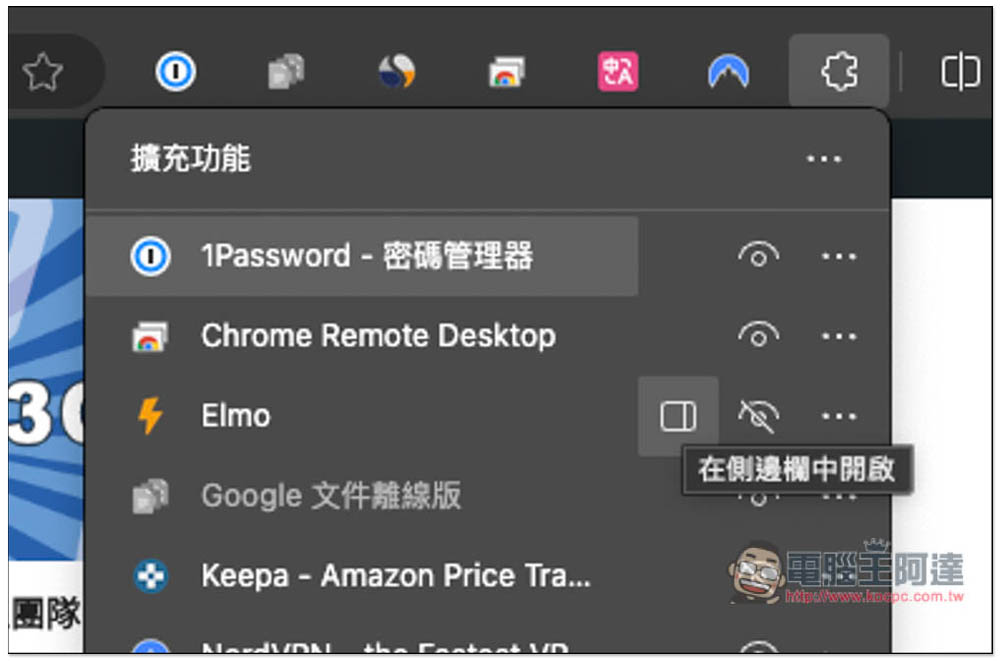
For future use, you can click “Open in sidebar” next to Elmo in the top-right corner, or open the right-click menu to find this feature as well.
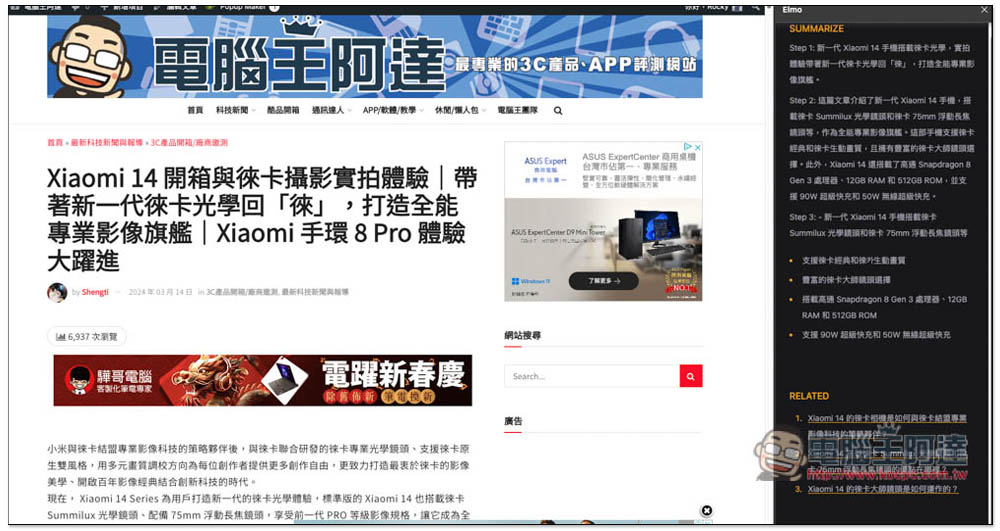
After opening it in the sidebar, it will summarize the content of the current webpage. Although the Mixtral 8x7B model is certainly not as powerful as OpenAI GPT-4, it does a very good job when it comes to summarizing article content, and the response is fast, handling even long articles without issue. At the very bottom, it also shows links to other related content:
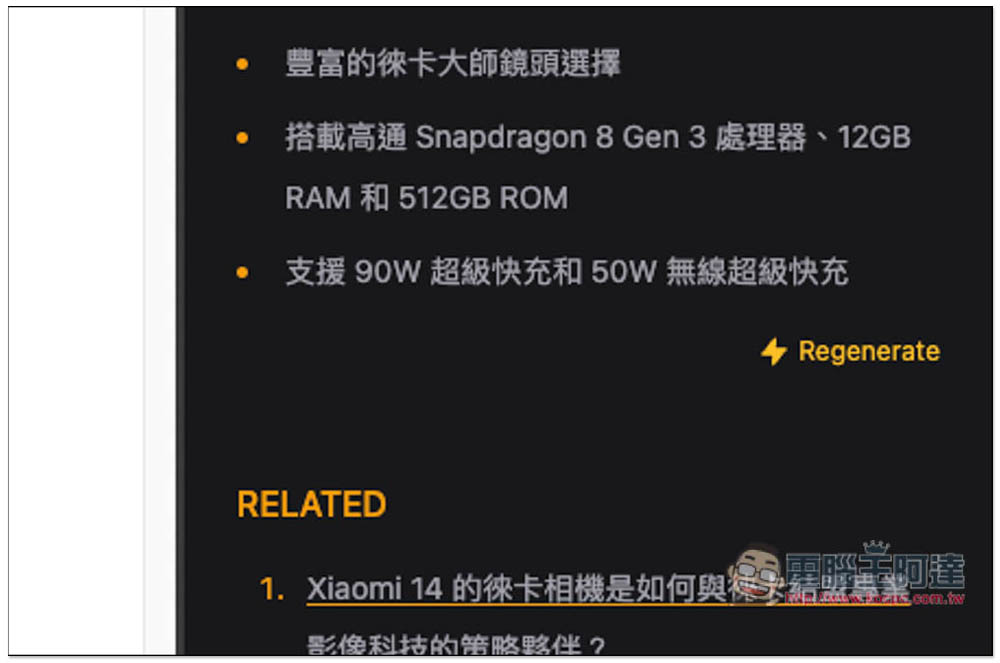
If you’re not satisfied with the summary content provided by the AI, you can click Regenerate to have it recreated. It’s completely free, so you can generate it as many times as you want.
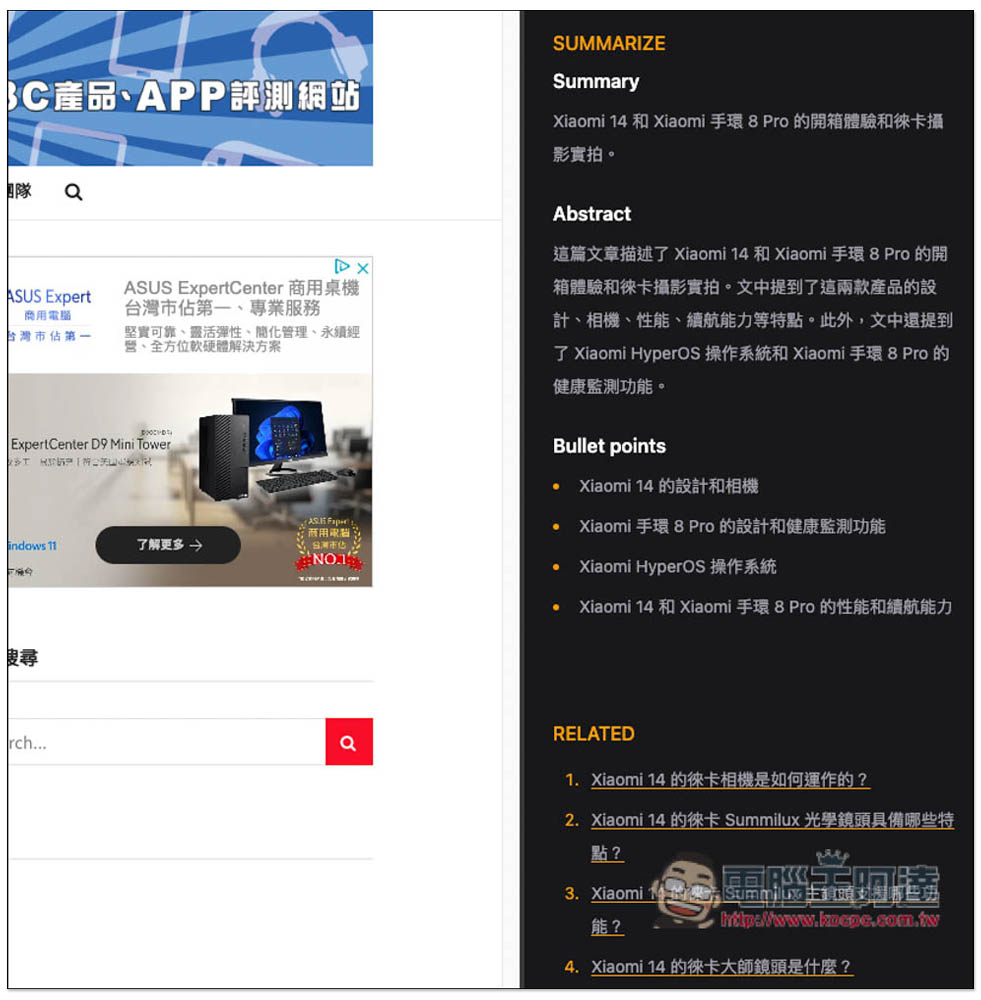
After I press regenerate, the reply content becomes somewhat different:
If Click to Summarize appears on the right, it means you need to click once to start the summarization:

This article happens to be written by me. I have to say the summary is quite good, all the key points are there, especially the bullet points below; the important features are all listed:
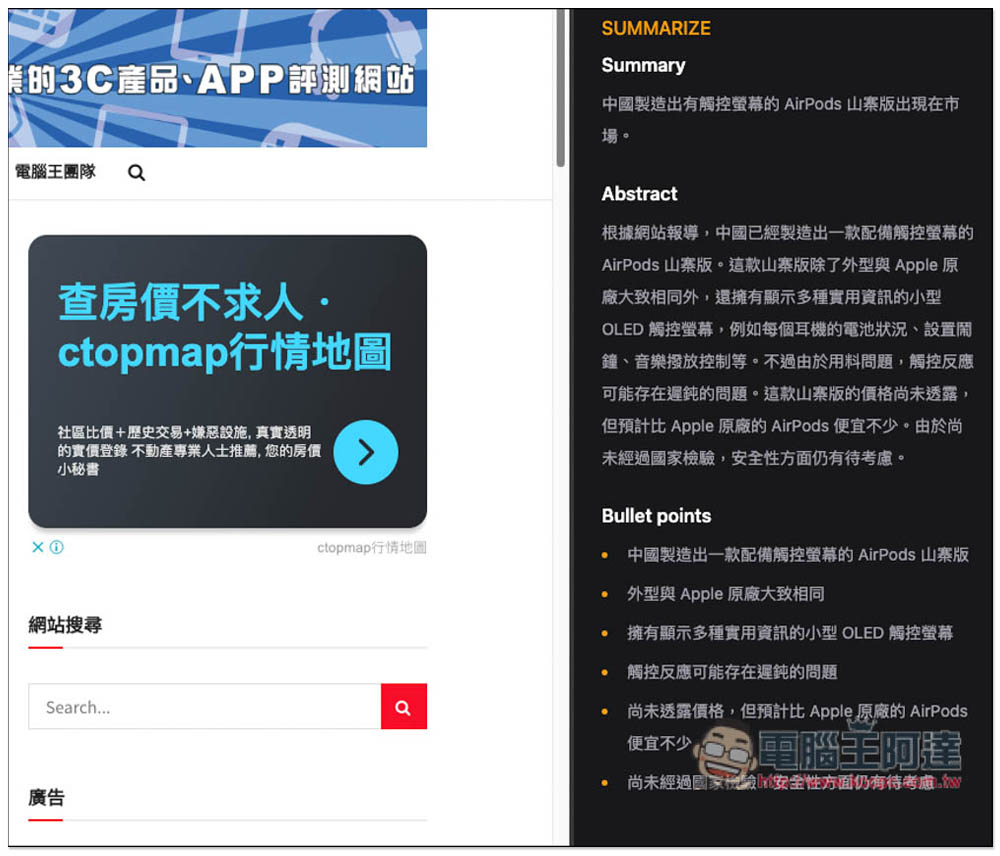
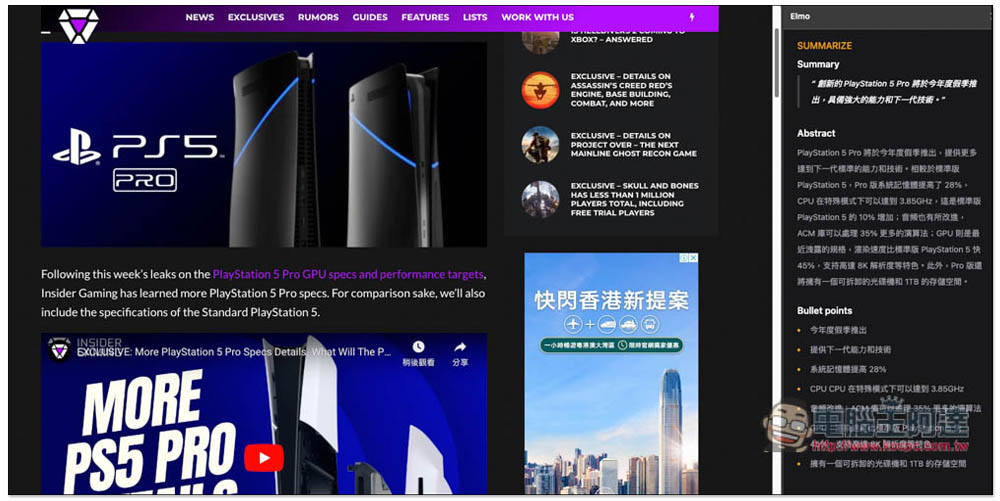
When I tested it for reading foreign articles, it really does summarize them in Traditional Chinese. It’s genuinely convenient, unlike other tools where I have to explicitly ask them to respond in Traditional Chinese every time.
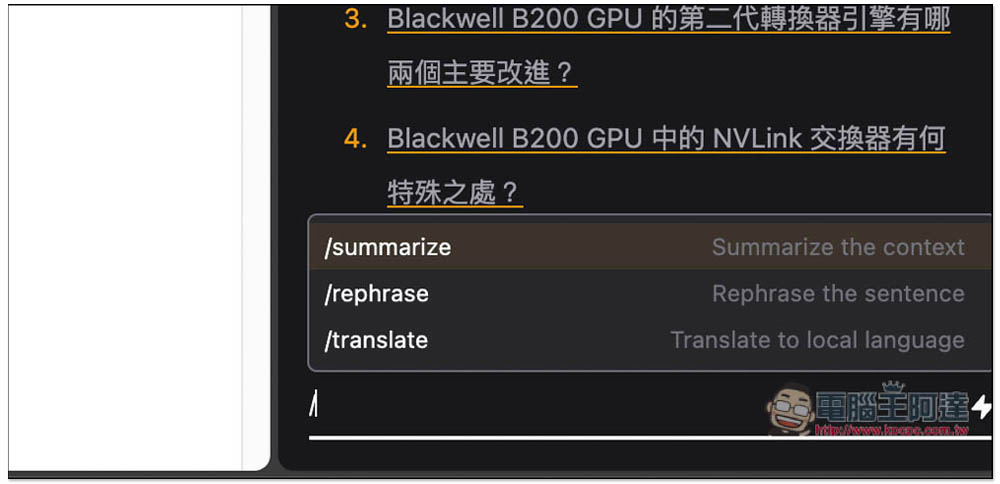
In addition to article summaries, it also supports chat conversations and some commands. There are three commands: /summarize for summarizing, /rephrase for rewriting, and /translate for translation.
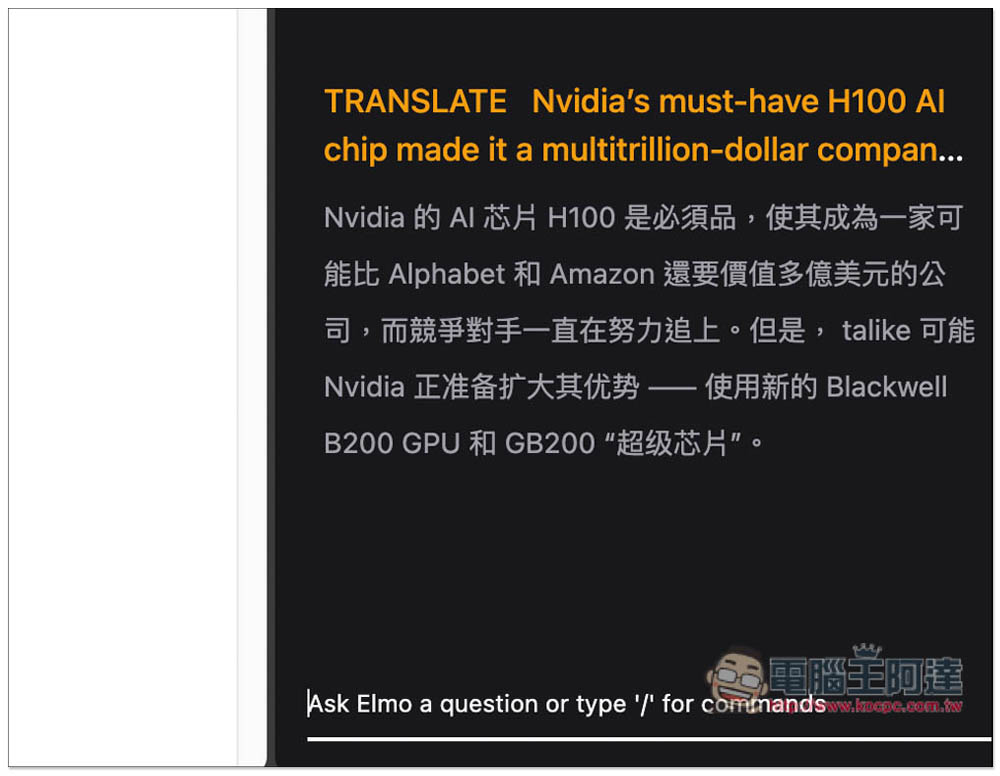
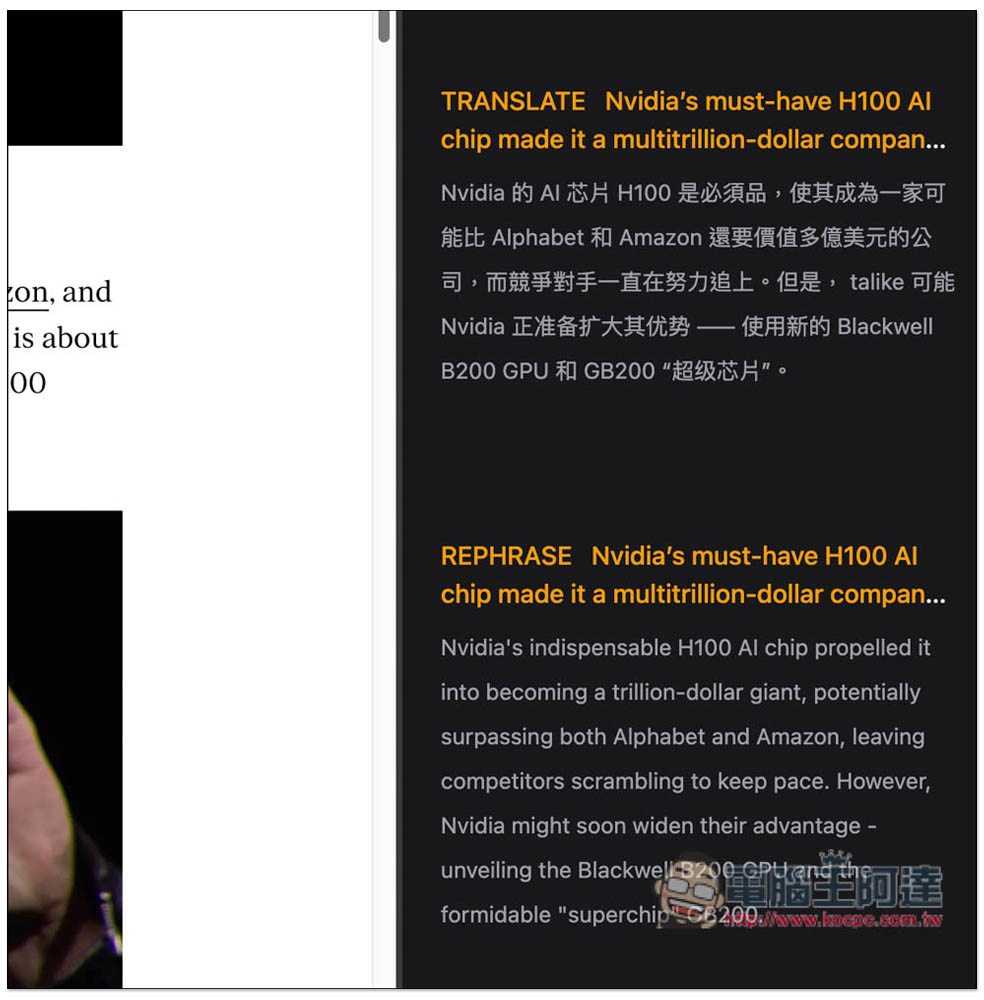
The usage is also very simple: just type the command first and then add the content. For example, if I want to translate a passage in an article, I type ‘/translate Nvidia’s must-have H100…..’ and it will translate it into Traditional Chinese:
Rewriting is the same—enter the content you want to rewrite after /rephrase:
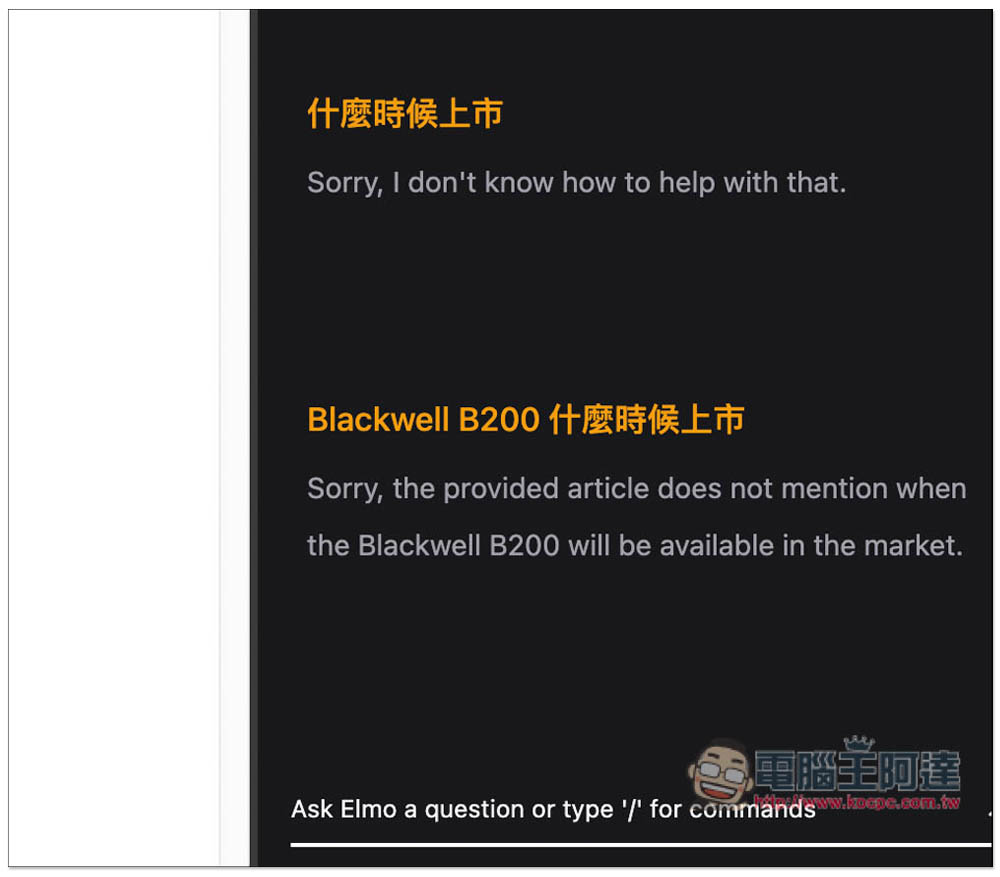
The chat part is pretty dumb—you have to fully spell out what you’re asking. For example, this article is about NVIDIA’s newly released B200. If I type in “when will it launch,” it doesn’t know how to help. But if I change it to “when will the Blackwell N200 launch,” it gives a clear answer:
One thing that’s a bit regrettable is that the translation feature can’t be changed to another language. For example, I want to translate Traditional Chinese into English, but that won’t work—it will always reply in Traditional Chinese.
Source: KOCPC Chinese