


Although it is very common to use text recognition applications on smartphones, and even similar functions built directly into the system. However, if you use the Live Text text recognition function that was recently announced at WWDC and can support the Live Text text recognition function launched in iOS 15 for iPhone XS and later models, then I believe you will be as amazed as I am! Because the depth of Apple’s integration of such functions into the system is really beyond expectations. The best thing is that even handwriting can be recognized (as shown below). Our Computer King Ada team also tried this feature first in this iOS 15 Public Beta, and we would like to share our experience with it here! Continue reading How to use the camera/picture to recognize text “iOS 15 original text” to teach you the content of the report.
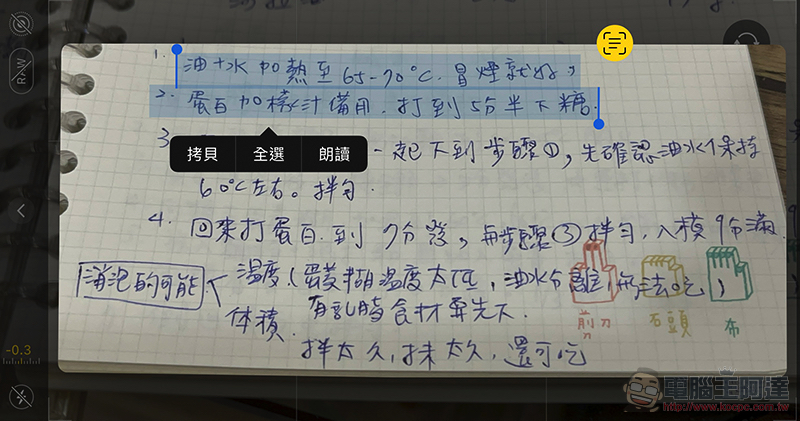
This article will teach you how to use the camera/picture to recognize text “iOS 15 original text”
As mentioned in the previous paragraph, although this OCR text recognition function is also available on Android, there are a lot of similar applications. However, the original text in the iOS 15 import system function personally feels that it is not only intuitive and easy to use. The integration that can be used in different corners of the system is really good.
The first and simplest one is similar to the QR Code scanning function. Open the Camera app in iOS 15 and turn the camera to text on a billboard or flyer, or even handwritten text. Just click the text button on the edge of the interface (it will only appear when there is text in the screen), you can see the scanned text range, and you can copy the content directly:
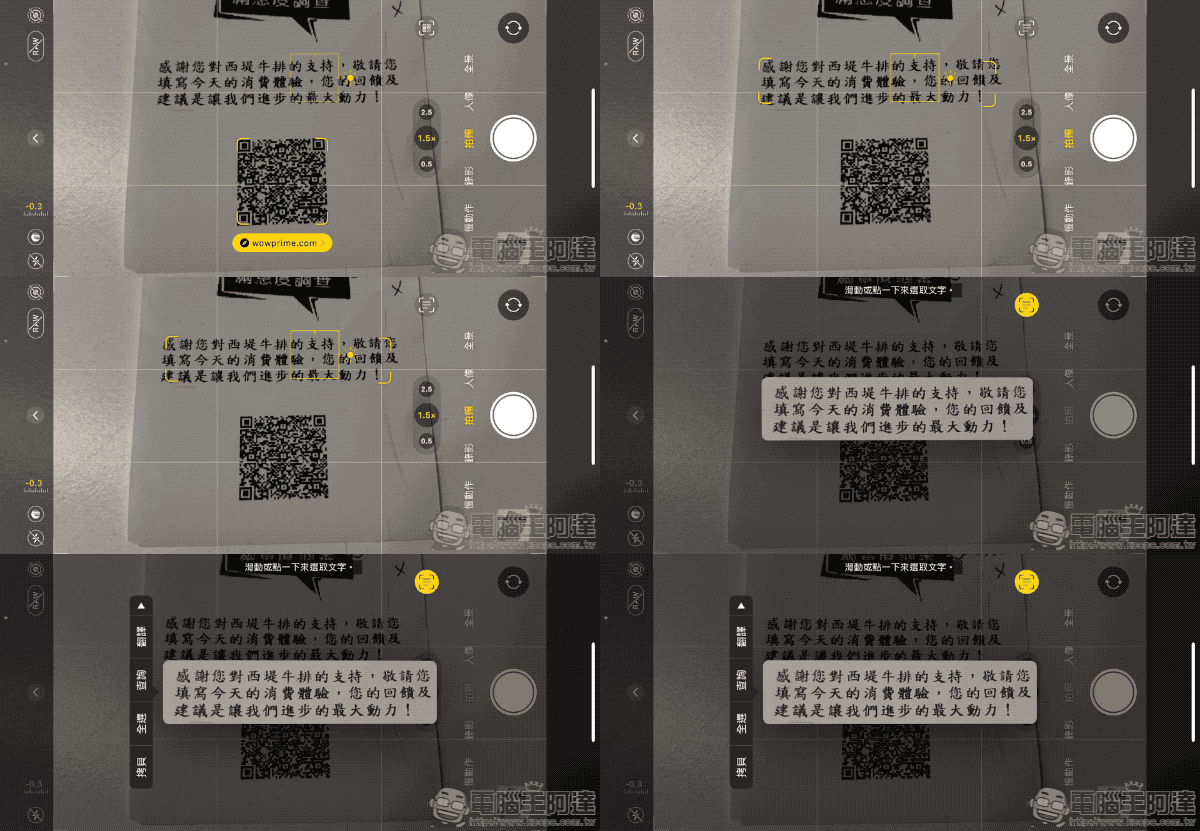
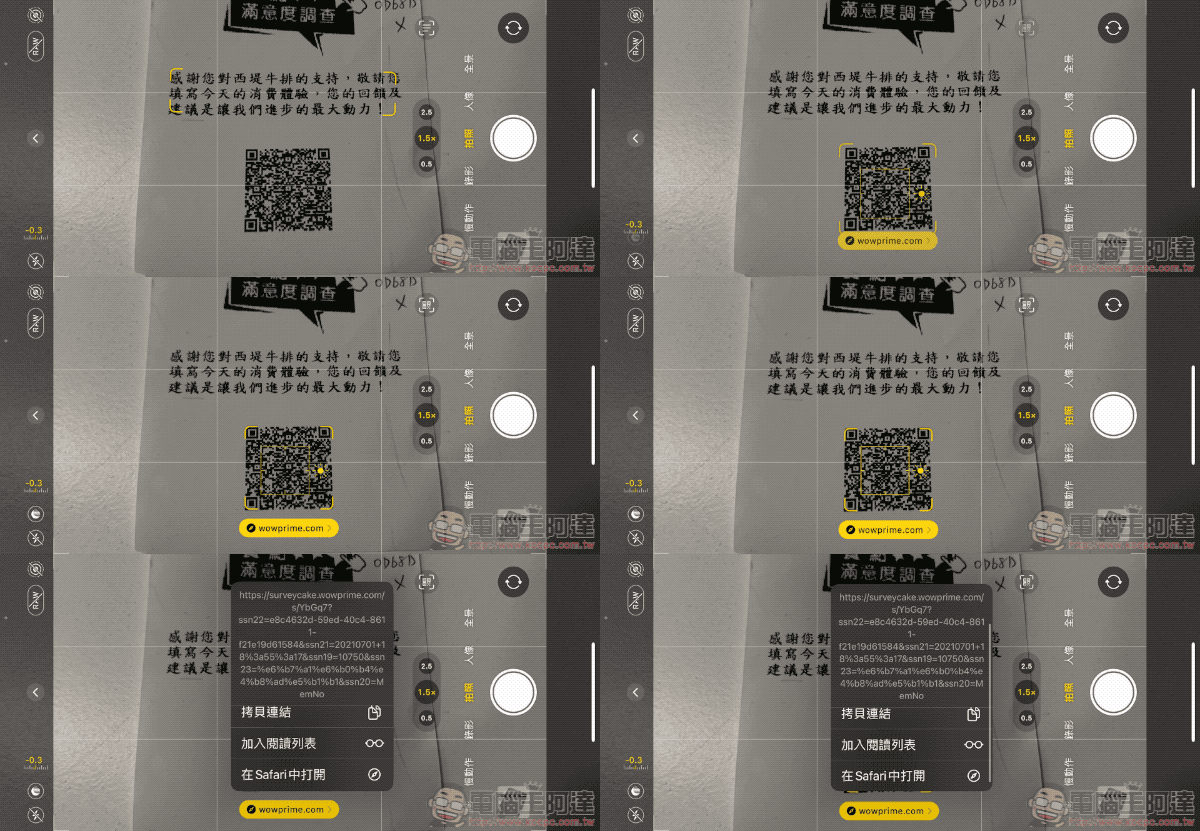
Off topic – the new interface has also been revised for QR Code scanning. Not only will the URL be displayed directly, but you can also directly open the submenu by clicking on it – this is very useful in today’s life where you often need to scan codes or even face a bunch of barcodes:
For photos or even screenshots that have been taken before, when you re-view them, the recognition button will be displayed on the picture after the text is recognized – Traditional Chinese is also available, and you can directly click to select it as long as it is recognized:
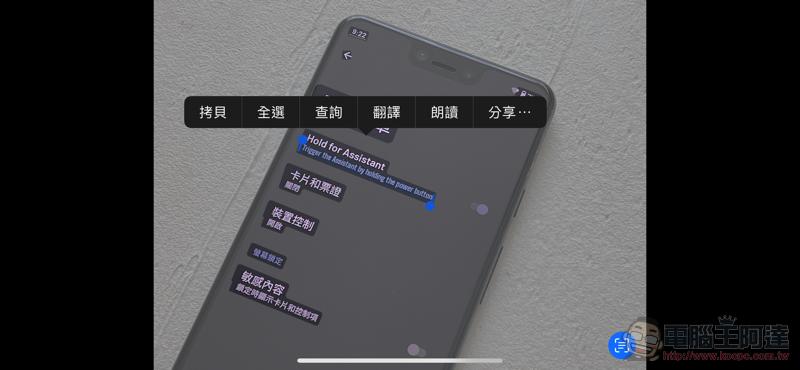
What’s more convenient is that you can also translate it directly:
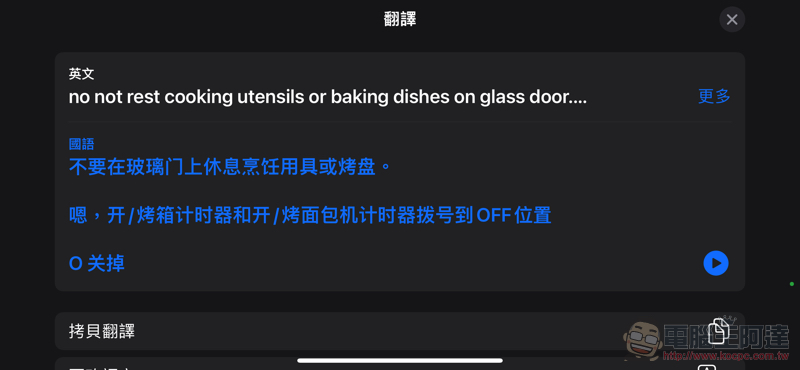
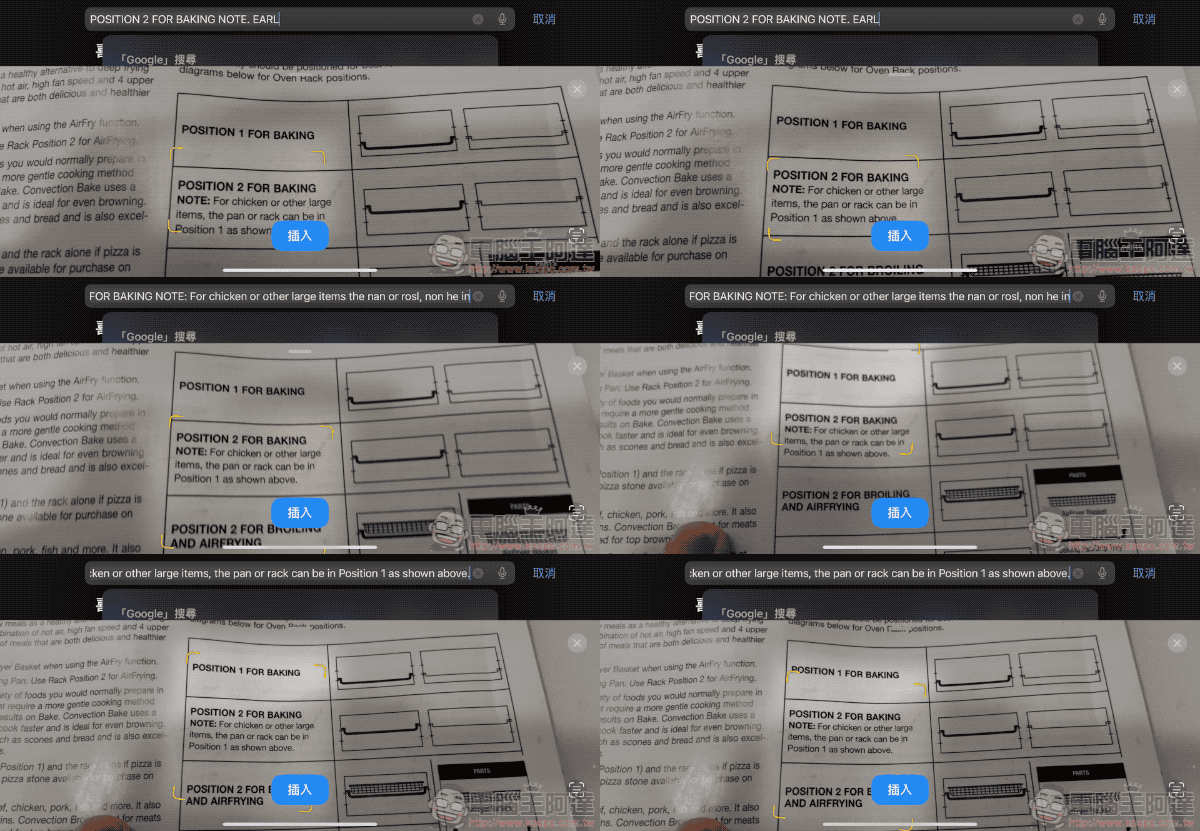
There is also a super magical feature. That is, you can let iPhone help you recognize text in real time (as shown below).
Just select “Text from camera” in the text input box to activate the real-time recognition mechanism and input text through “Insert” – isn’t it cool to see the range of real-time recognition! :
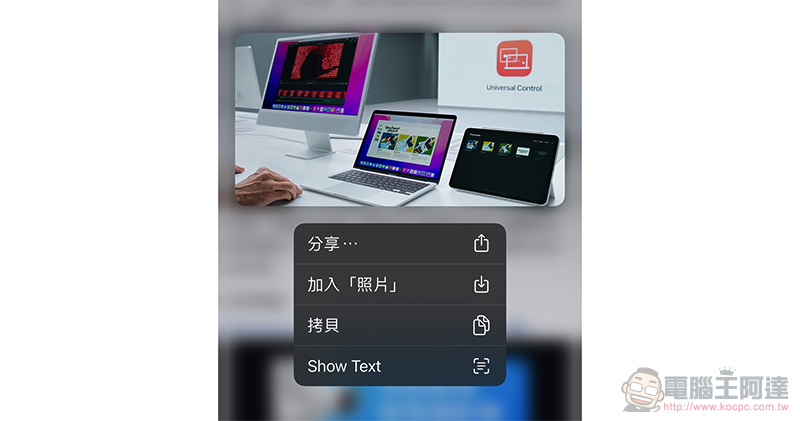
The last feature I dug out after trying out the iOS 15 Public Beta. You can directly press and hold the image to call up the “Show Text” text recognition function while browsing the web. In the picture below, you can easily identify the Universal Control text on the rear screen:
Overall, with the continuous evolution of the iOS 15 beta version, I believe that not only the recognition capabilities will be further improved through machine learning, but similar functions will be more deeply integrated in every corner of the system, right? I wonder if you have found more application functions for original text? You can share it.
Further reading:
macOS Monterey is open for public beta, but the most anticipated feature hasn’t arrived yet

Source: KOCPC Chinese