


We have previously shared with you a series of root-free prerequisites that allow Android Auto toWatch YouTube videos、Browse the webandAegis speed cameraThe teaching has also received enthusiastic responses from many netizens. Many of them are also curious about how the author took screenshots of Android Auto to create teaching articles? Compared with Apple’s Apple CarPlay, you only need to take a screenshot through the iPhone while it is connected to synchronize the screenshots on the iPhone and CarPlay. Screenshots on Android Auto require a little more trouble, but it is quite simple after the setting is completed!
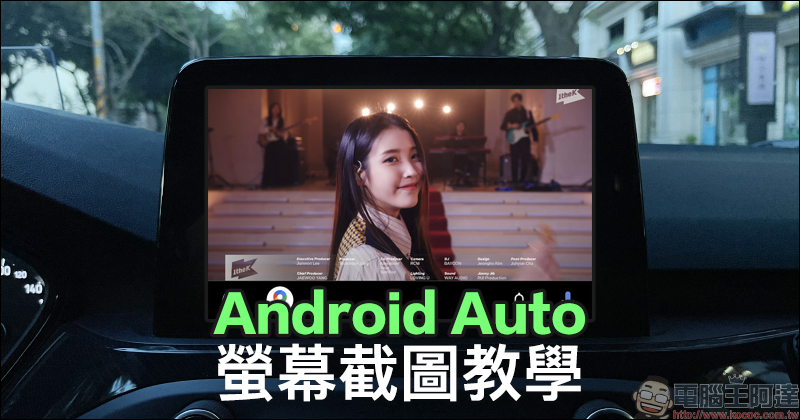
Android Auto screenshot tutorial released! Perfect access to car and machine screens
After the Android Auto connection is completed, what should I do if I want to access the Android Auto screen on the car? If you press the “power key + volume key (-)” directly on the phone to take a screenshot like an iPhone, the Android phone will still only take a screenshot of the phone screen. But if you want to share Android Auto screenshots, this next article will teach you how to do it!
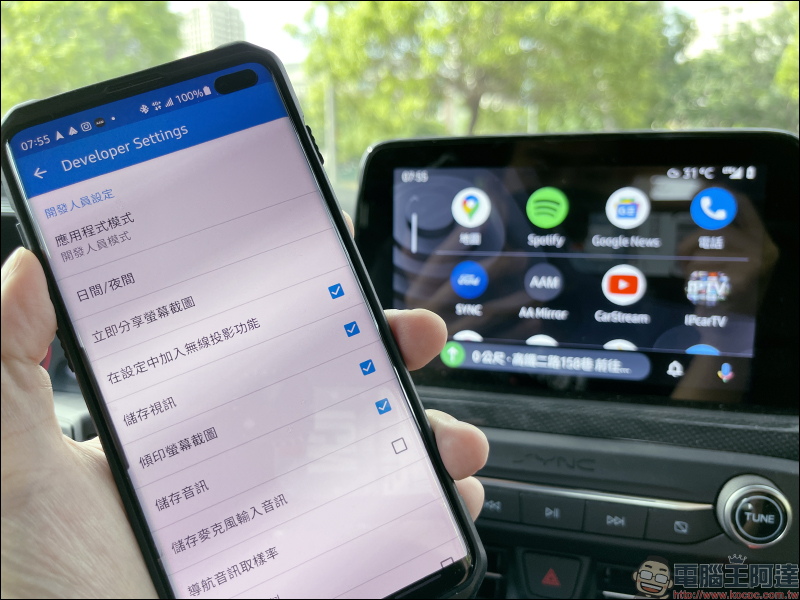
First, go to the phone system settings to find “Android Auto”, and then find the version information at the bottom of the About category.
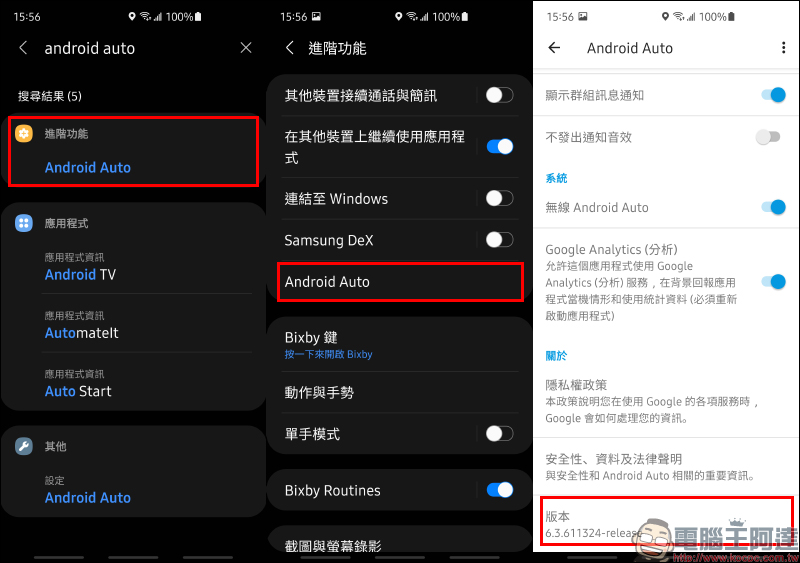
Click 7 times in a row to activate developer mode:
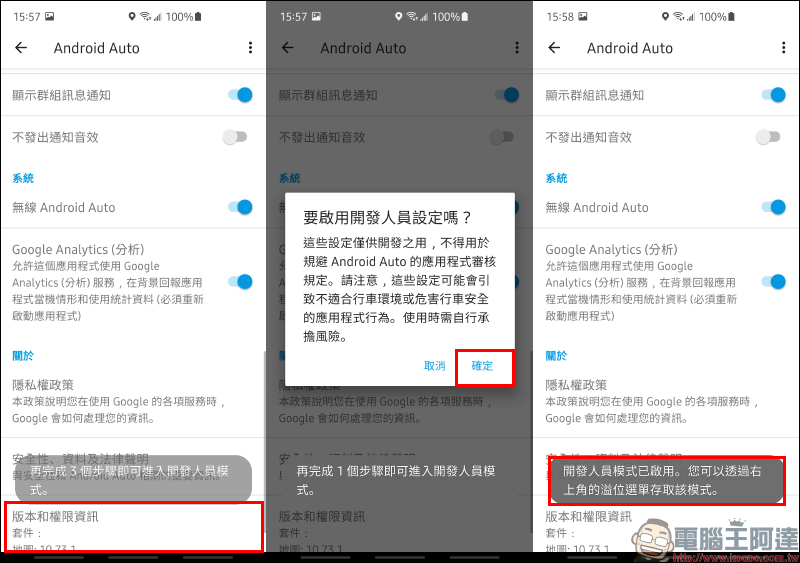
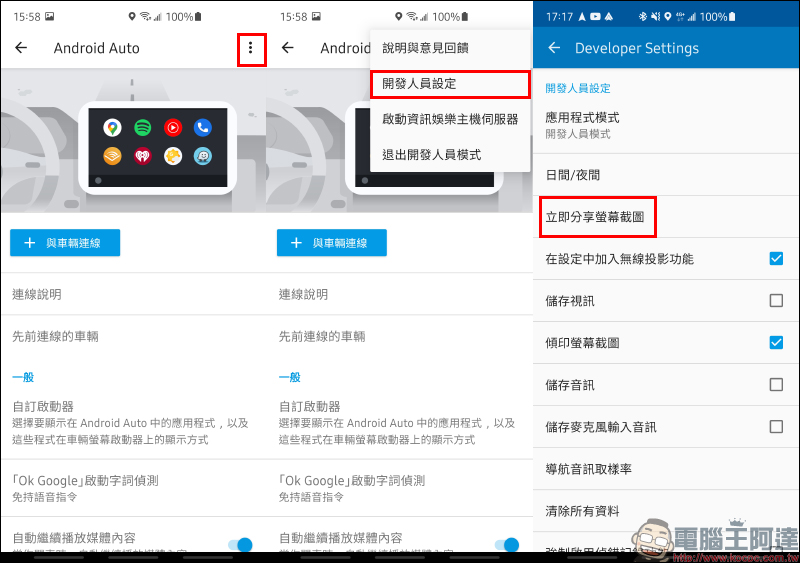
After the developer mode is enabled, click the menu in the upper right corner and select “Developer Settings”, and then you can find the “Share Screenshot Now” function in the developer settings.
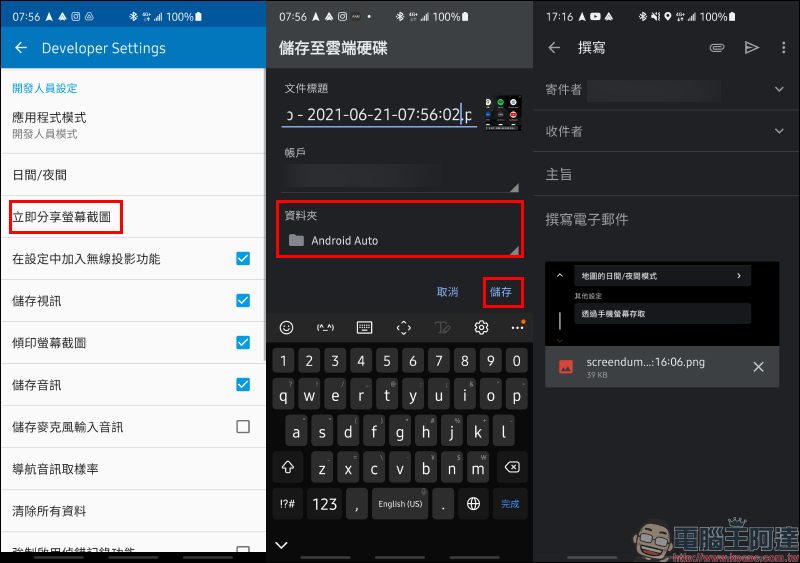
After clicking the “Share Screenshot Now” button for the first time, the system will ask the user which method to use to open (access), and then the user can choose a method such as Google Drive, Gmail, etc. for access. Although it is also possible to directly send Android Auto screenshots as attachments to emails through Gmail, but based on my actual use, it is recommended that you directly save the image files in Google Drive to create a dedicated folder, and choose to use this method for access all the time. After that, just click “Share Screenshot Now” to automatically complete the screenshot and upload it to the specified folder.
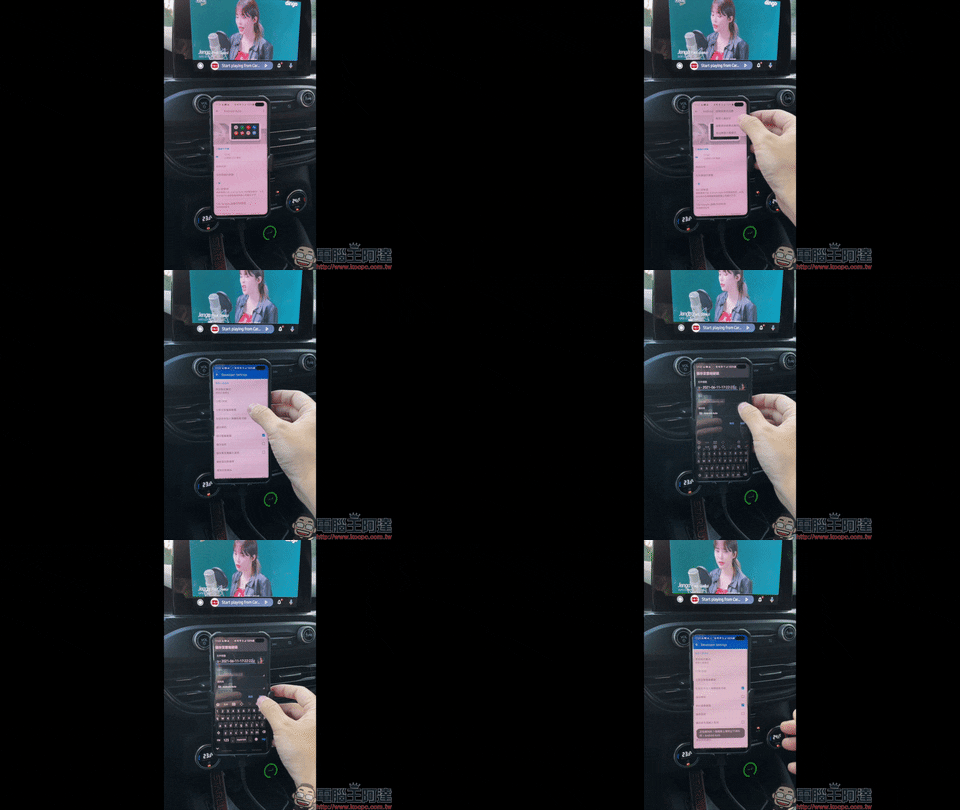
The actual operation process is as follows. Just press Send to upload the screenshot.
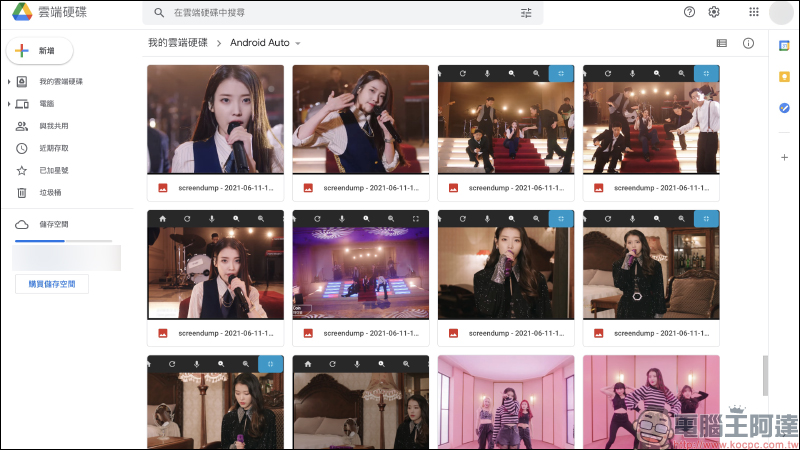
Unified storage in one Google Drive folder also has many benefits. In addition to making it easier for users to manage all Android Auto screenshots, they can also be accessed at any time on computers or mobile devices such as phones and tablets.
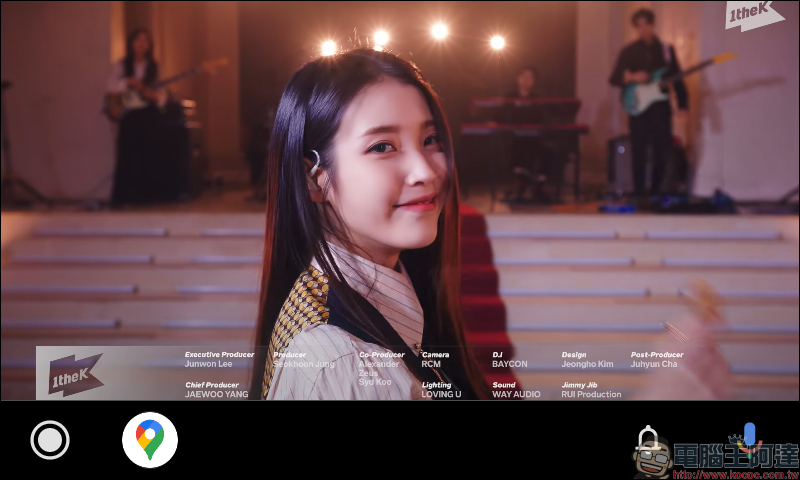
The resolution of the screenshot of Android Auto taken from the author’s vehicle is 800*480 pixels, which is actually quite sufficient for daily use.
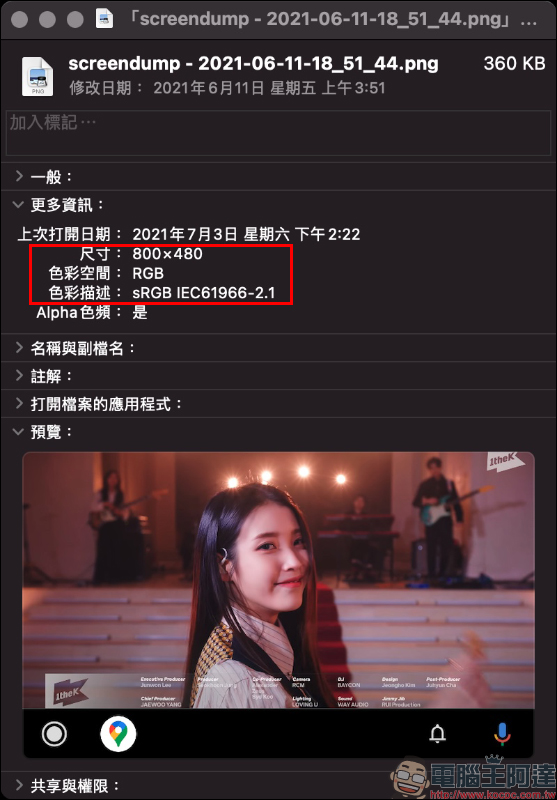
The complete picture reference is as follows:
Further reading:
Android Auto cars can not only watch YouTube, but also mobile videos, online videos, and browse the web! (Root free)
Source: KOCPC Chinese