


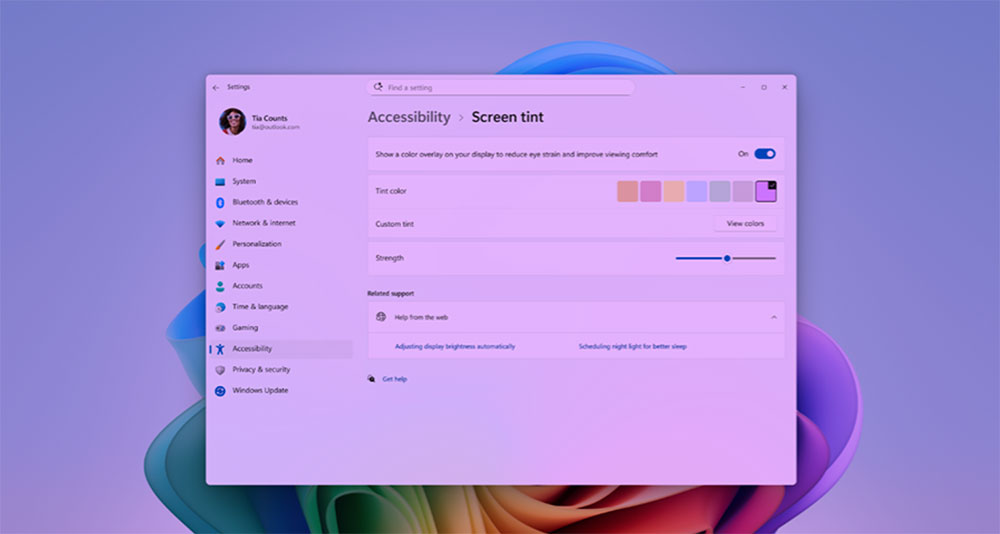
Microsoft recently added a new accessibility feature called “Screen Tint” to the Insider beta version of Windows 11. At first glance, it may not be as eye-catching as a major update, but after actual experience, you will find that this is a detailed adjustment that can quietly improve the comfort of daily use. Different from the familiar “Night Mode” (Night Light), “Screen Tone” does not adjust the color temperature, but directly covers the entire screen with a customizable color filter layer, thereby reducing visual stimulation and reducing eye fatigue caused by long-term work or gaming.
Windows 11 is about to launch a new screen coloring mode, which is kinder to your eyes
This feature is currently available in the latest Windows Insider Preview v29617.1000. Users can choose from six preset shades, or set their own favorite color, and then adjust the filter intensity through the slider. The entire setting path is located in “Settings >> Accessibility >> Visual Effects”. The location is quite intuitive, allowing users to quickly activate it when they feel that their eyes are tight or tired.
Microsoft mentioned in the description, “Screen Tone” is mainly designed for users who are more sensitive to high brightness, strong contrast or high saturation images. Unlike “Night Mode” which tends to reduce blue light and is suitable for nighttime use, “Screen Tone” has a more direct purpose. It is used to reduce the overall brightness and excitement and make the picture softer. What’s more interesting is that both can be enabled at the same time, allowing users to adjust the visual environment that best suits them according to different situations. However, it should be noted that after enabling “Screen Tone”, the existing “Color Filter” of Windows will be deactivated, so users who rely on color filters for identification or assistance may need to make a choice between the two.
This kind of function is often the type of “I don’t know I need it until I use it, but I find I can’t live without it after using it.” Whether you are an office worker who stares at bright white documents all day, a creator who edits photos late at night, or a player who plays high-brightness games for a long time, a layer of customizable soft tones can make the picture more durable and less glaring. It’s not the kind of update that will wow people, but it continues to work in daily use, making the overall experience more relevant to personal needs.
Additionally, Magnifier now gives you more precise control over how you zoom. You can enter the exact zoom percentage directly into the Magnifier toolbar to adjust to the exact level you want. Microsoft has also added preset increment percentages (5%, 10%, 25%, 50%, 100%, 150%, 200% and 400%) in the “Settings” drop-down menu, allowing you to jump to commonly used levels with one click. Whether you need a slight magnification or an intense close-up, Magnifier can adjust to your zoom needs.
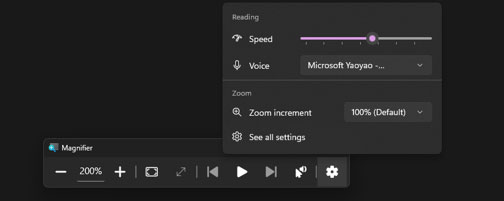
Source: KOCPC Chinese