


Recently, from time to time, many Android phone users have encountered warning notifications that “Google has stopped working repeatedly” pop-up on their phones. Earlier today (22nd), many users reported that they encountered the same situation, but could not find a complete solution. According to past cases, this time it is likely to be caused by another problem encountered in the Android System WebView update of Chrome’s core. Here we also quickly put together a few temporary solutions to this problem for you to try.

Temporary solution for Android phone “Google stops working repeatedly”
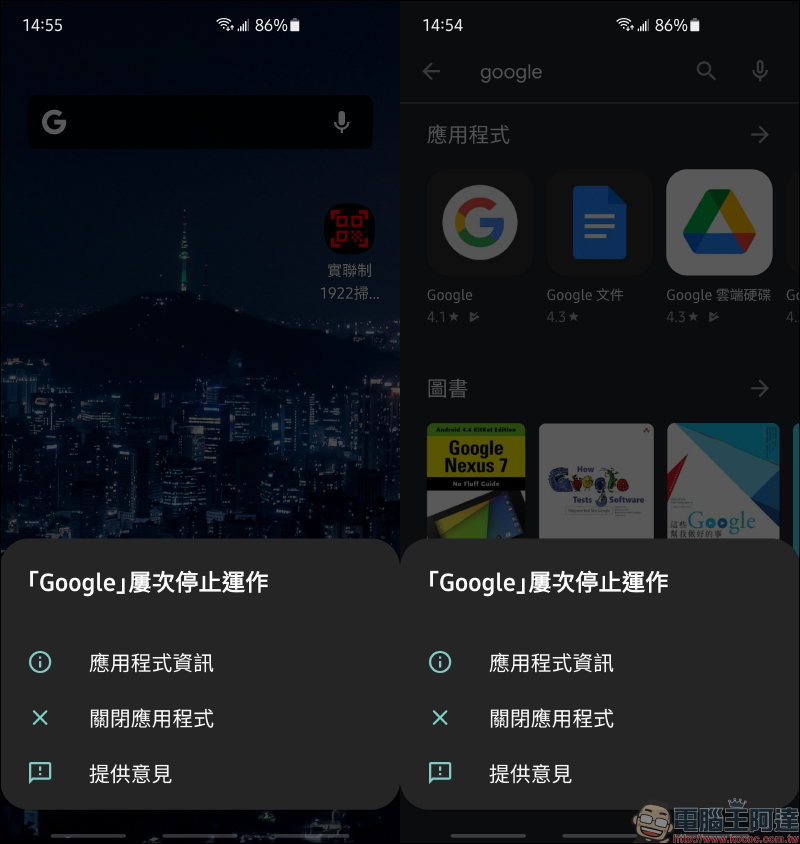
Earlier today, many Android users must have encountered the following screen popping up on their mobile phones. No matter if they clicked it off, the “Google has stopped working repeatedly” screen would still pop up. Everyone must be quite frustrated by this problem, right? Here we also share a few tested methods that can temporarily solve this problem, so that everyone can test it step by step according to their personal conditions until this warning message does not appear for the time being.
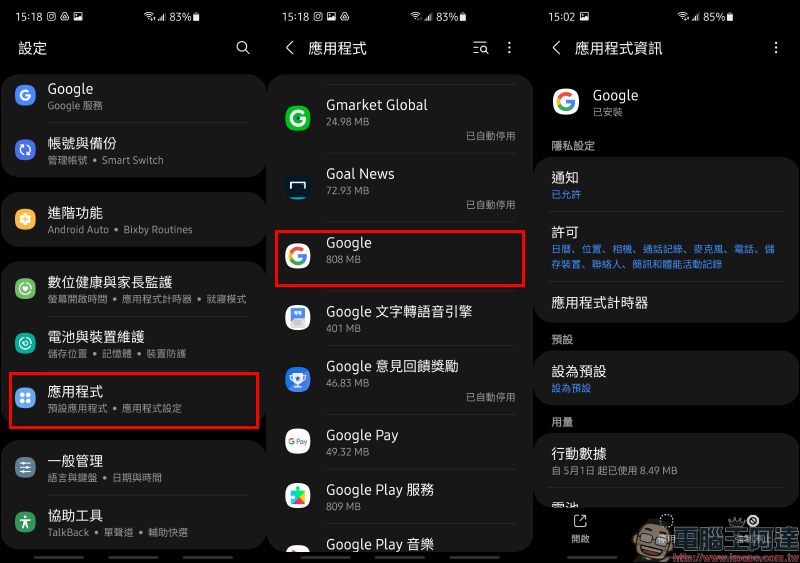
Step 1. Disable Google applications
The first method is for the author to test a method that can temporarily solve this warning message. First, open “Applications” in the “Settings” menu, and then select “Google” to open the application information.
Click “Disable” the application, and you will be reminded that “Deactivating this application may cause other applications to not function properly.” Still click “Disable Application”. When a Google application is deactivated, application information is updated immediately.
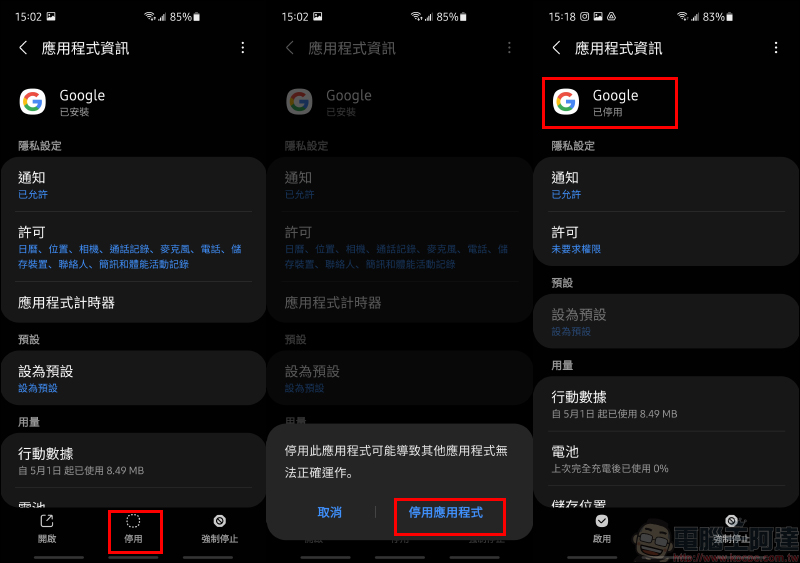
The author personally deactivated the Google App at this stage and the “Google has stopped working repeatedly” message no longer appeared.
Step 2. Uninstall Google applications
If the first method of disabling Google App still does not solve the problem, you can go to the Google App Store, search “Google” to find the Google App, and then click “Uninstall”.
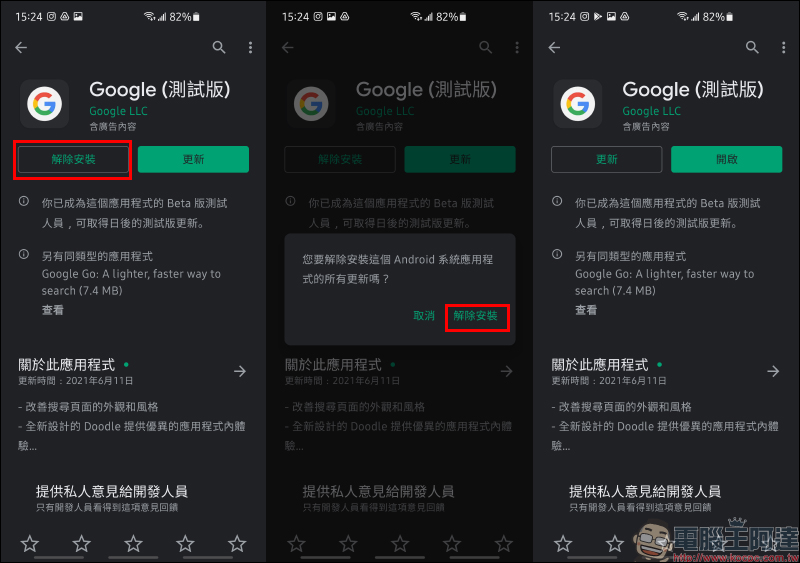
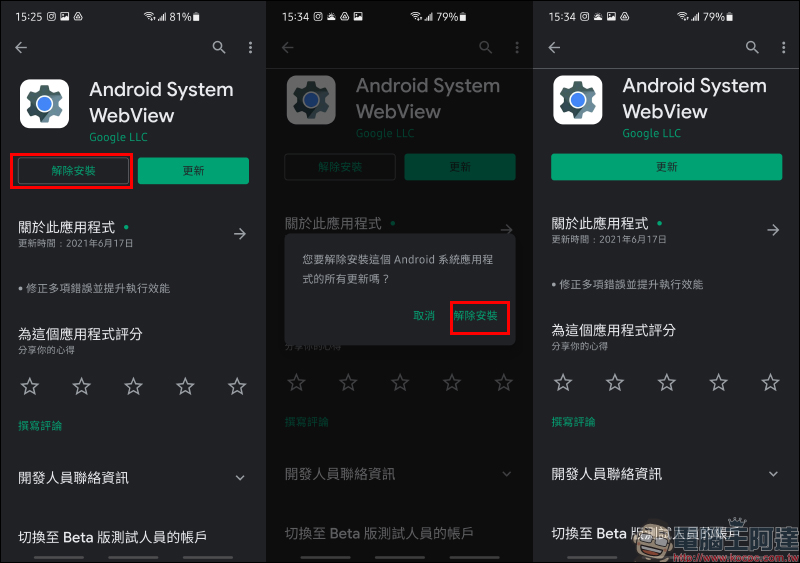
Step 3. Uninstall the Android System WebView application
If uninstalling the Google App using the previous method still does not resolve the issue, then search for Android System WebView to uninstall it.
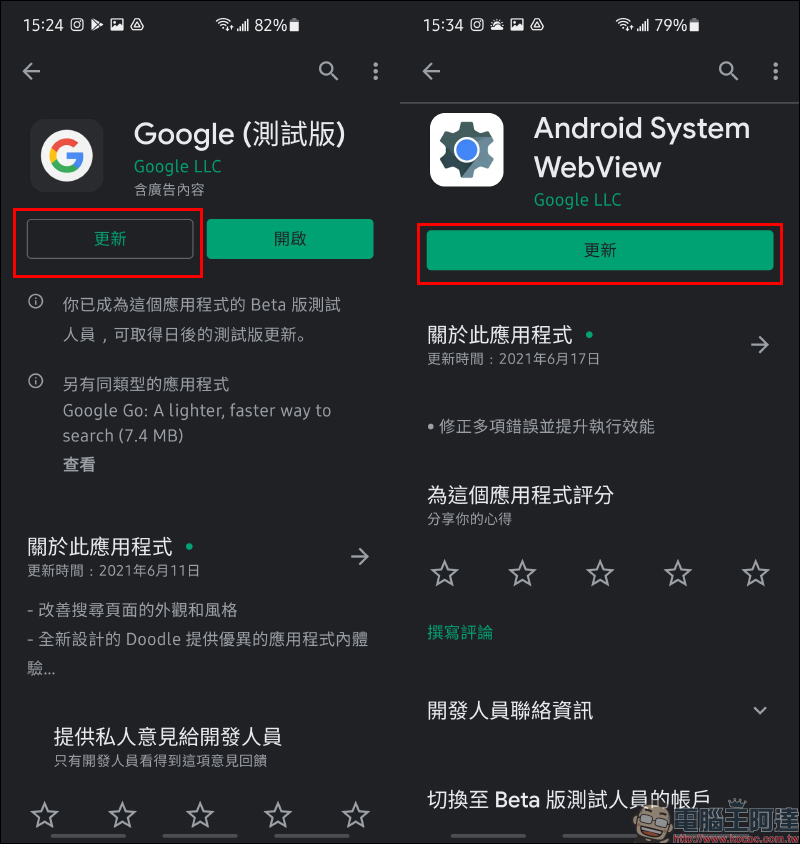
Step 4. Update Google App and Android System WebView
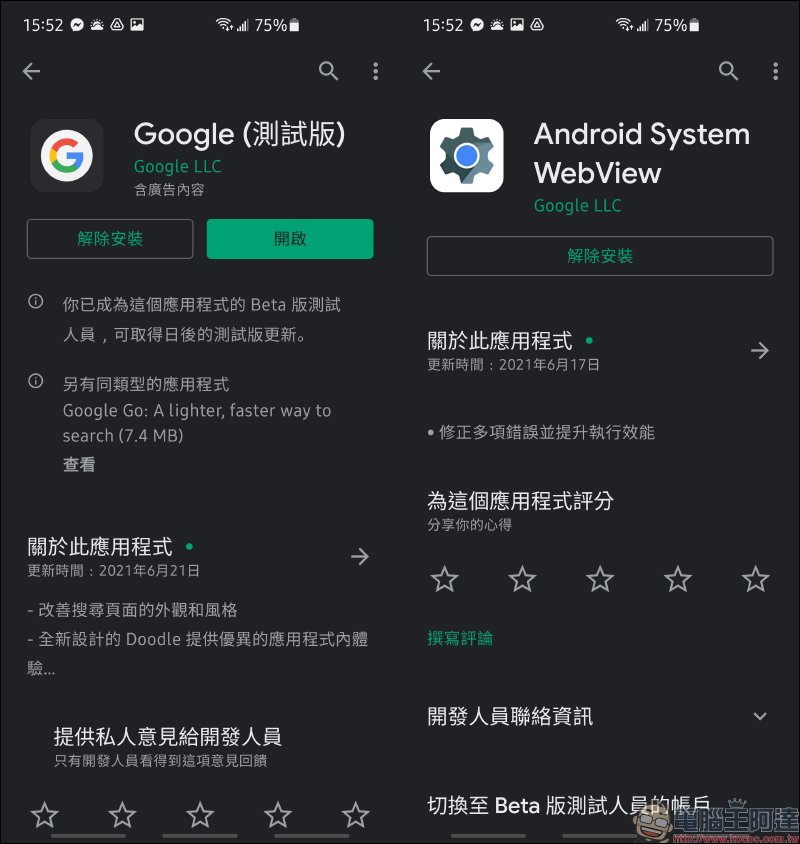
The author actually tested and uninstalled the Google and Android System WebView Apps, and then clicked to update them in the Google Play Store respectively. Currently, the “Google has stopped working repeatedly” screen no longer appears.
Further reading:
Android Auto cars can not only watch YouTube, but also mobile videos, online videos, and browse the web! (Root free)


Source: KOCPC Chinese