


Starting this month, Google Photos will no longer have unlimited backup benefits.Although there are currently some alternatives, but all have capacity limitations. If you have a computer at home, you can actually consider backing it up to your computer. With the Resilio Sync free software recommended in this article, you will feel that it is so simple to back up your mobile phone photos and videos to your computer. Android, iOS, Windows, and macOS all support it. It can be automatically backed up over the Internet without connecting to any transmission lines or being limited to the same Wi-Fi. It is very convenient.
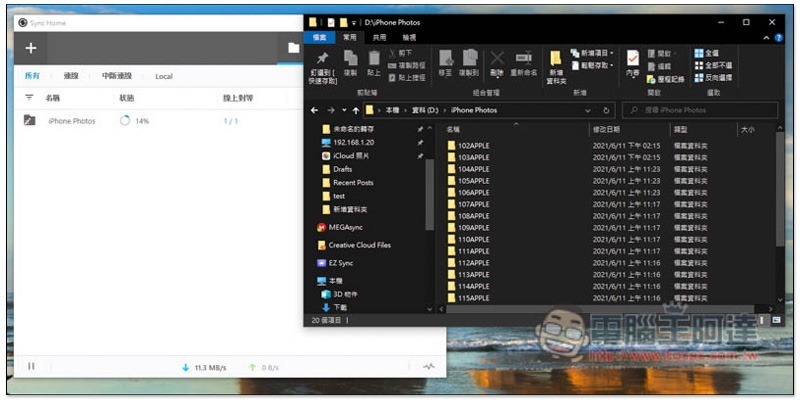
Resilio Sync enables automatic backup of mobile phone photos and videos via the Internet.
Resilio Sync supports many operating systems. This article uses iPhone to automatically back up photos and videos to Windows computers as an example. First of all, for Windows, go to the official website to download the software, the free version is fine.
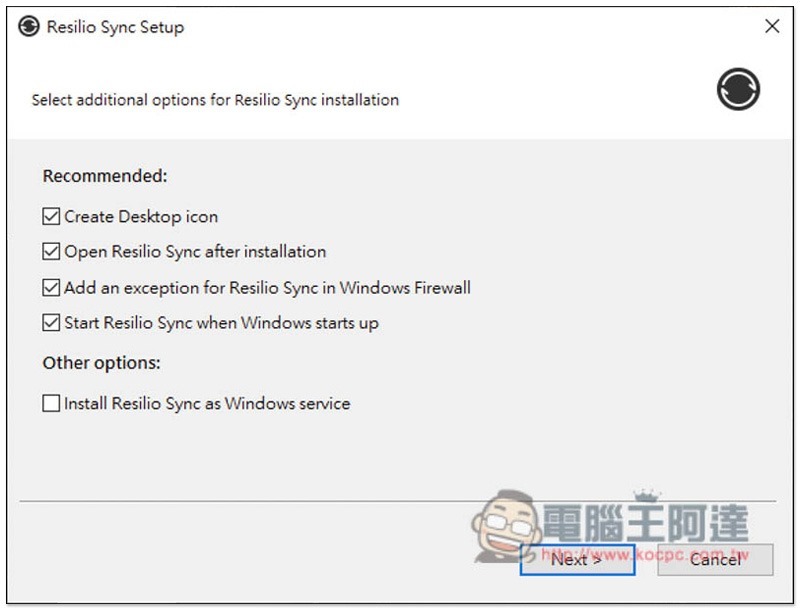
If there are no special requirements during the installation process, just keep pressing Next. In addition, this product has a Traditional Chinese interface, so you don’t have to worry about not understanding it when using it:
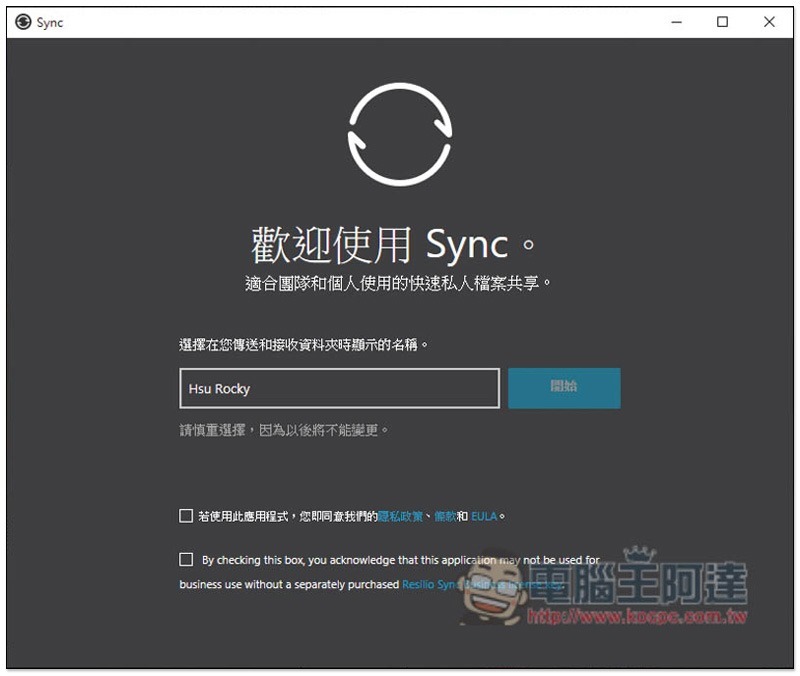
Then set your display name, which defaults to your computer name:
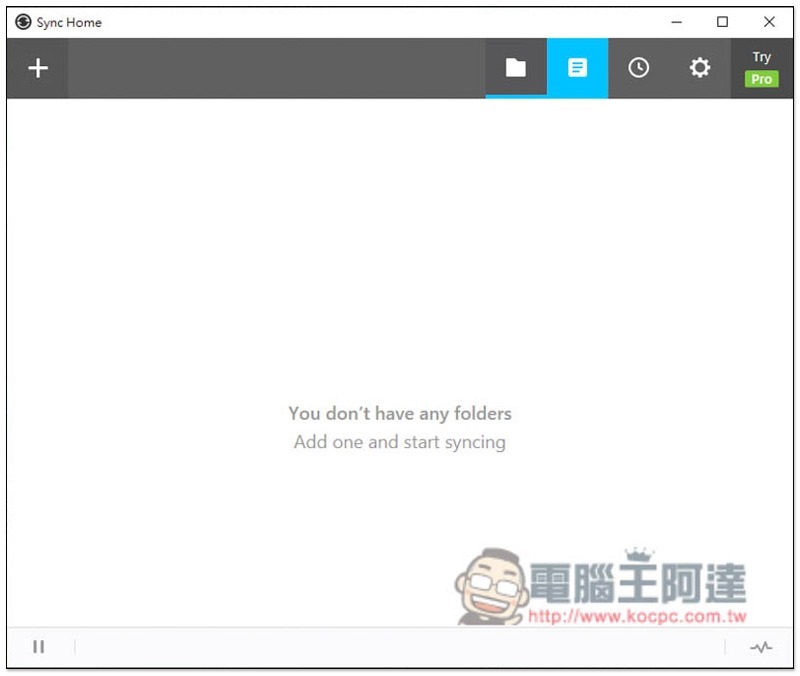
After entering this screen, please open your phone to download the Resilio Sync App. The download link is provided above:
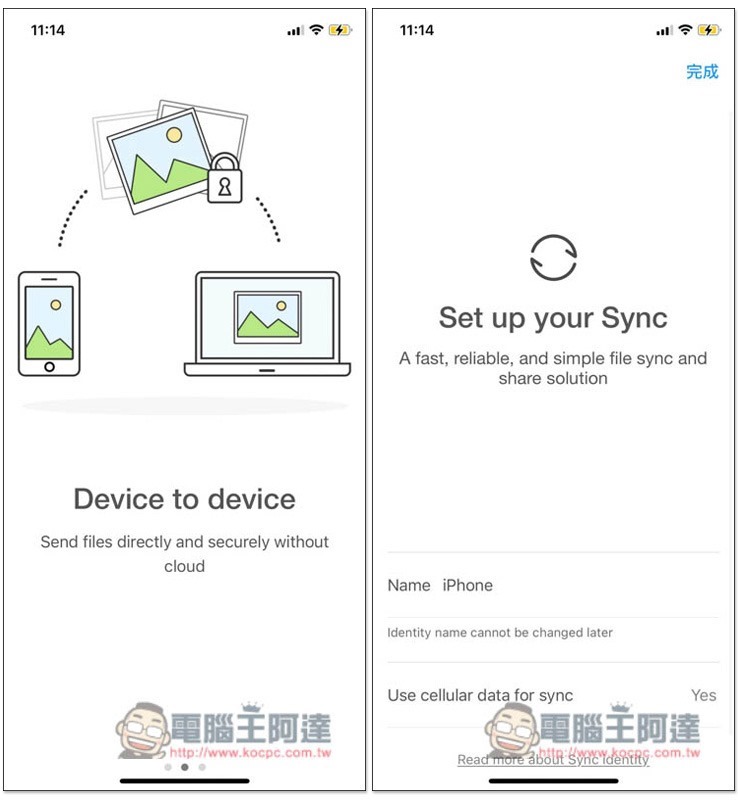
There will be an introduction at the beginning, and you will also be asked to set the device name and whether you want to use the mobile network to synchronize data:
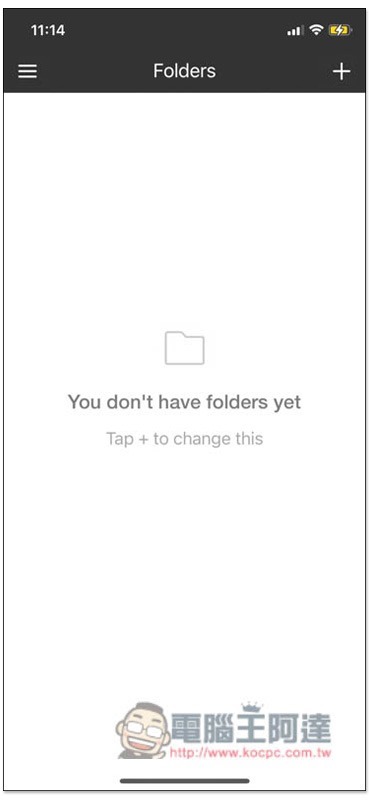
After entering the main screen, press the upper right + function:
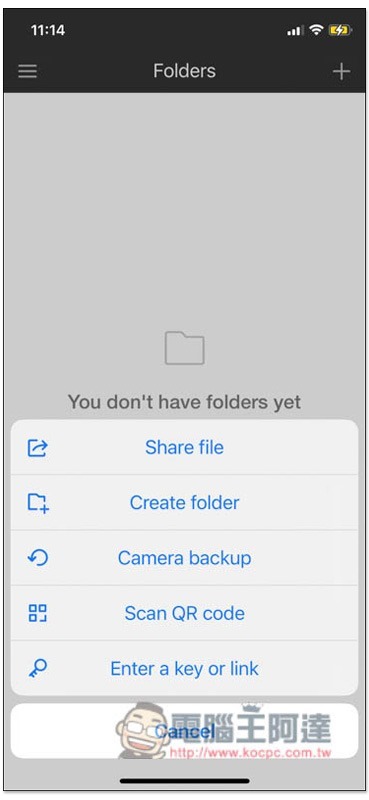
A menu will pop up, please select the Camera backup function:
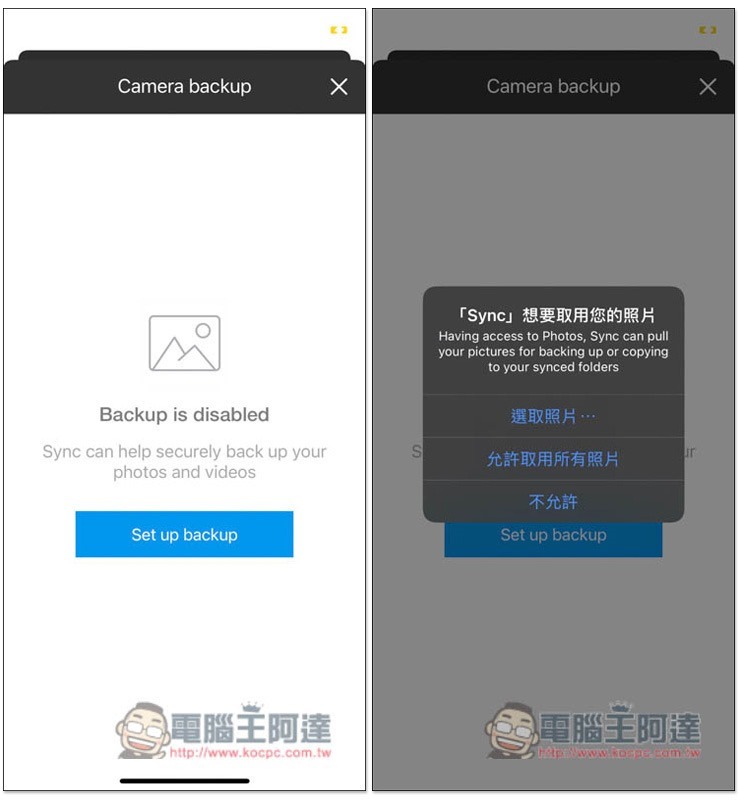
Click Set up backup and allow access to all photos:
Then you will get a unique link. This is very important. Copy it or email it to your mailbox. Click this link using your computer instead:

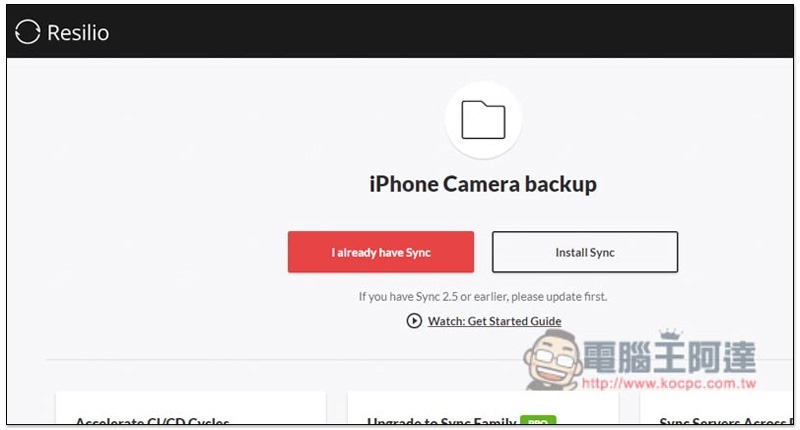
The computer browser will open this page. The computer version has just been installed, so just press I already have Sync:
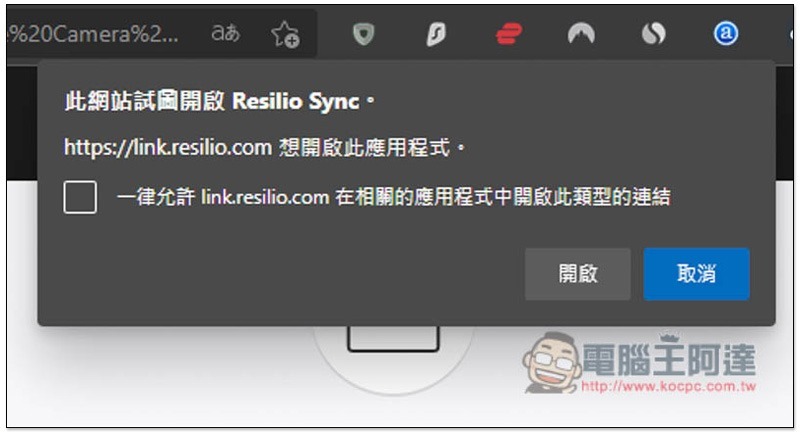
This message will be displayed, click “Open”:
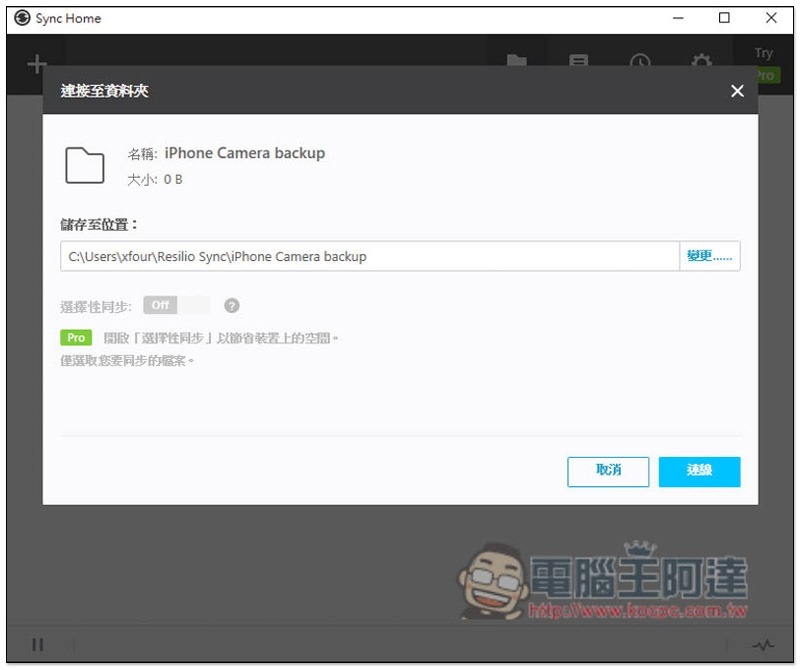
Select the folder to back up iPhone photos and videos. The selective synchronization below is only for the Pro paid version:
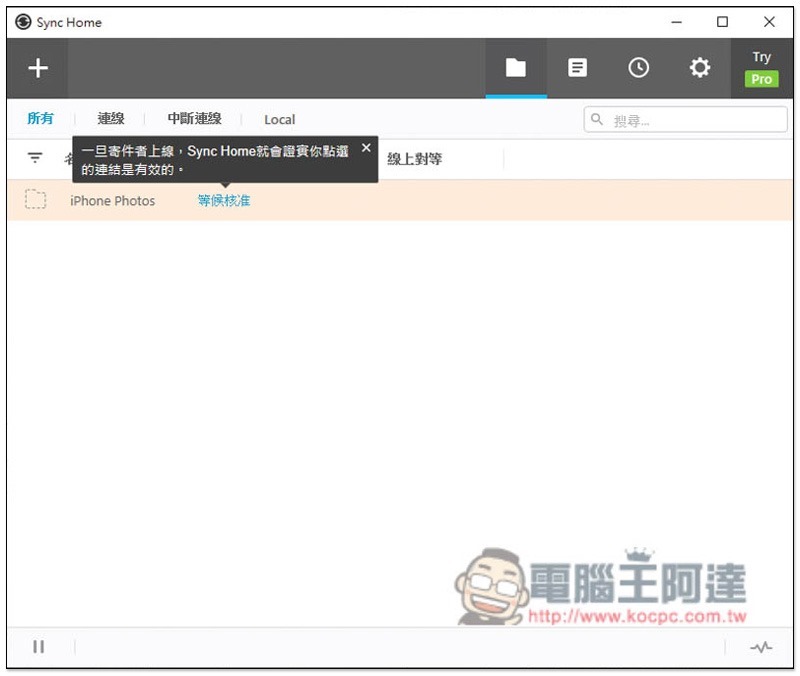
After waiting for approval appears, please open the mobile app:
Click the blue check mark below to successfully connect:
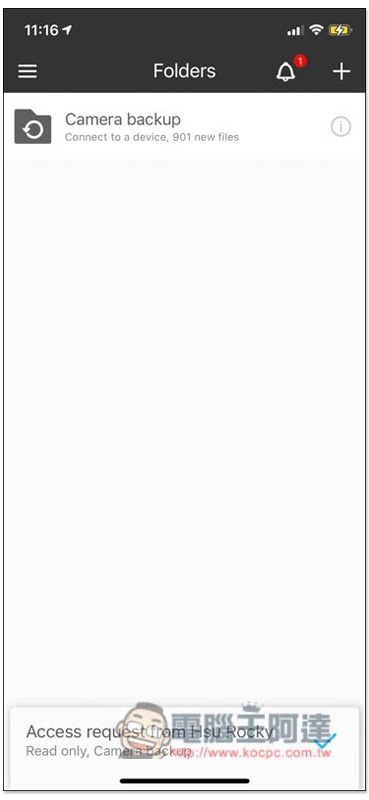
The status on the computer side will change to successful:
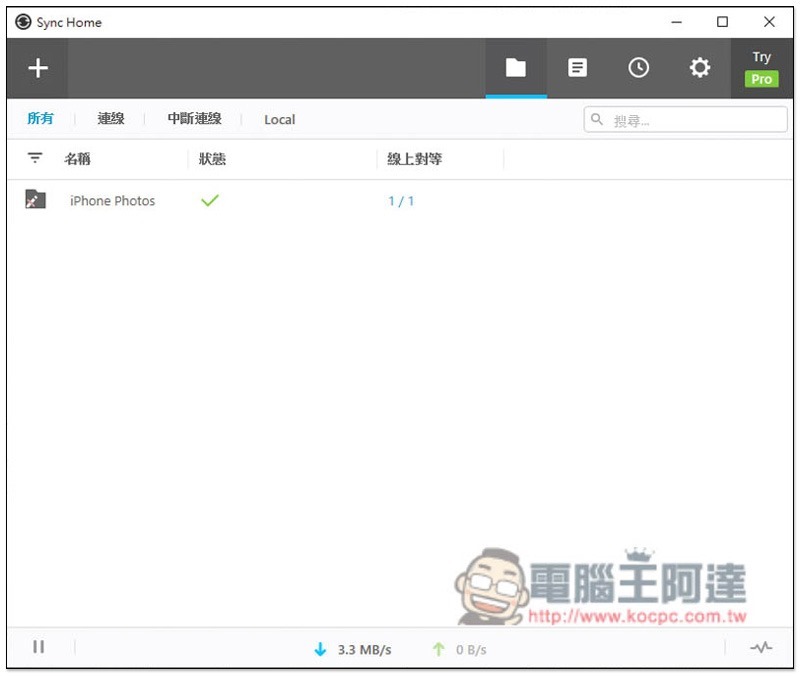
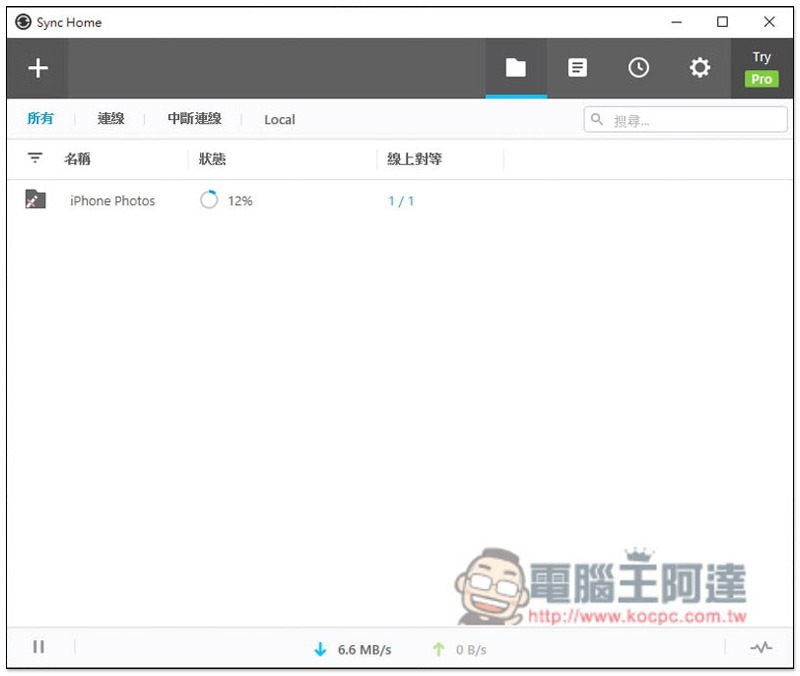
Then it will start automatically backing up photos and videos! Another thing to remember is that the mobile app must be open during backup (this is the case for iPhone, I am not sure about Android). If it is closed, it will be paused. This set actually has many synchronization functions, and the rest is left to the readers to play with:
Source: KOCPC Chinese