


Although the iPhone home screen itself is pretty good-looking, if Apps and Widgets can add shadows to add a three-dimensional effect, the sophistication will be better. This article will recommend a free shortcut Homescreen Creator to achieve this effect. With just a few clicks, you can create a wallpaper with the same layout as your current iPhone home screen, but with shadows for Apps and Widgets.
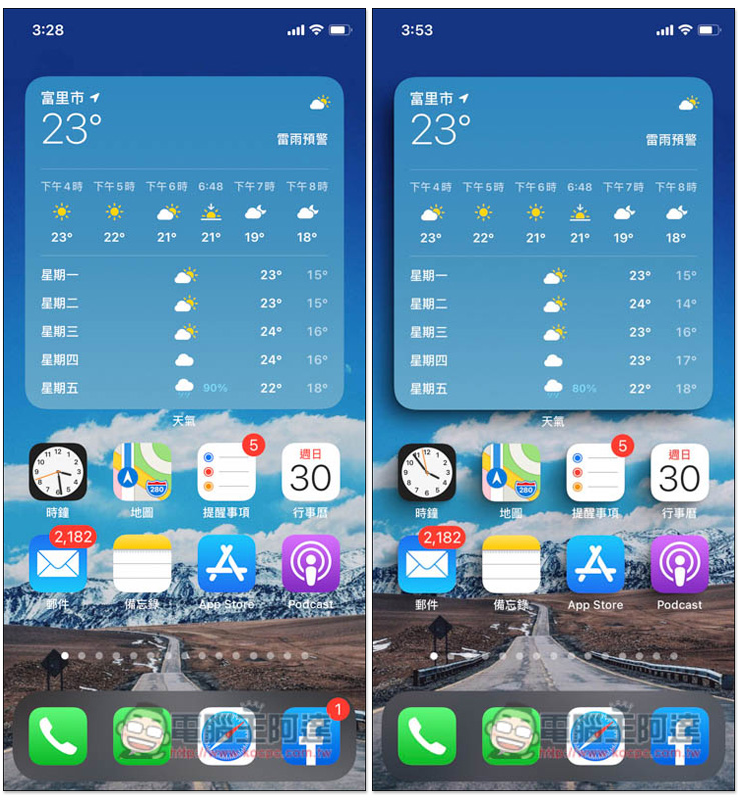
Homescreen Creator shortcut script introduction
This Homescreen Creator shortcut script needs to be used with the iOS Shortcut App. If you haven’t installed it on your iPhone, please click on the installation download point below. In addition, Homescreen Creator only supports some iPhone models, not every one.
iPhone models supported by Homescreen Creator:
- iPhone X、iPhone XS、iPhone XS Max
- iPhone 11、iPhone 11 Pro、iPhone XR
- iPhone 12、12 Pro、12 Pro Max、12 Mini
First, after entering the official website, download the Shadow Pack and Card Pack. Those who only want App and Widget shadows can download the Shadow Pack. These two files are picture packages of various layouts of the iPhone home screen. After clicking, the loading points for each iPhone model will be listed below. Select your iPhone model:
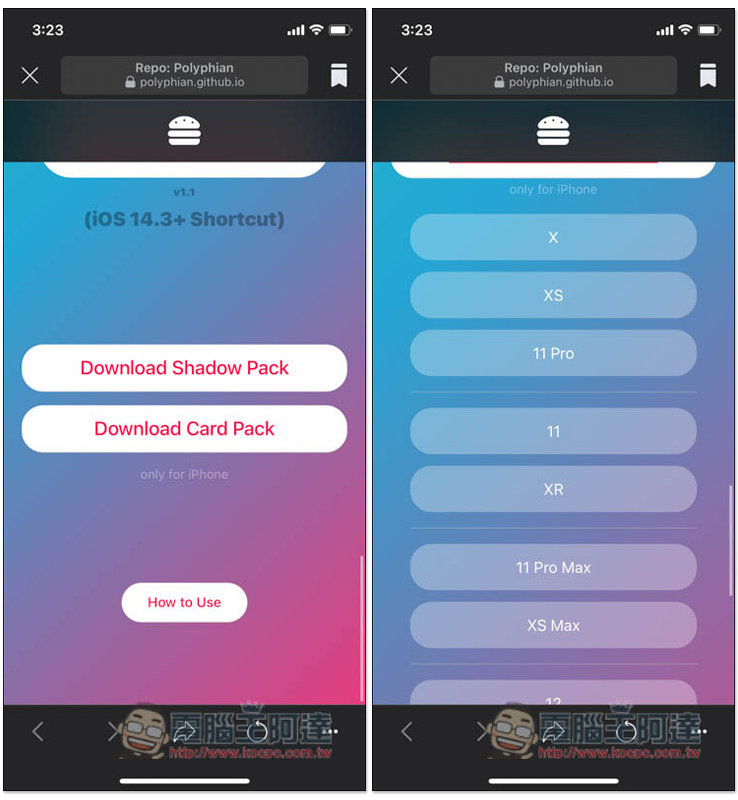
Remember to use the Browser App to download normally, and it will be stored in the “File” App. After the download is complete, open the Files App and you will find the following in the “Download Items” of iCloud Drive:
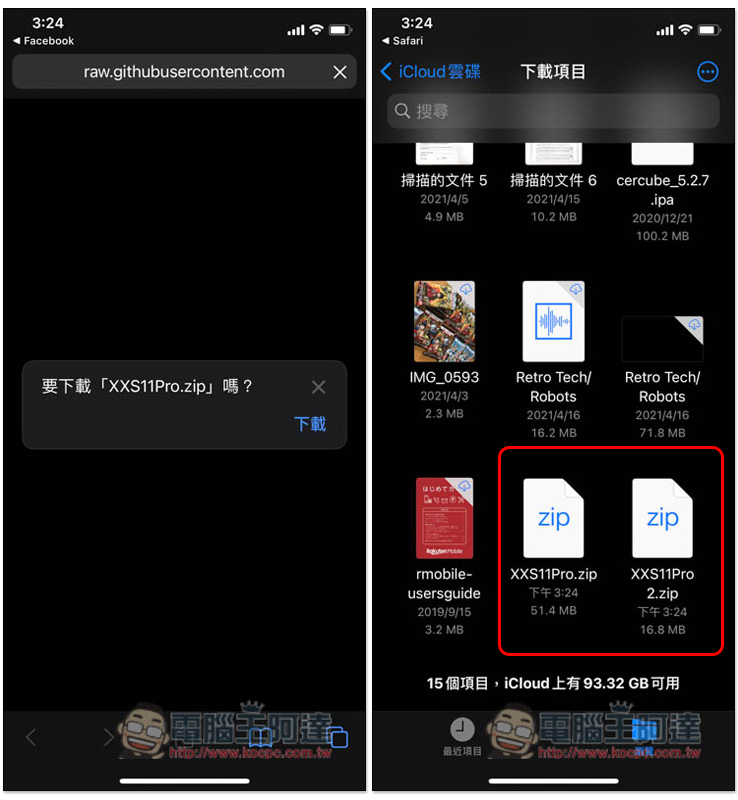
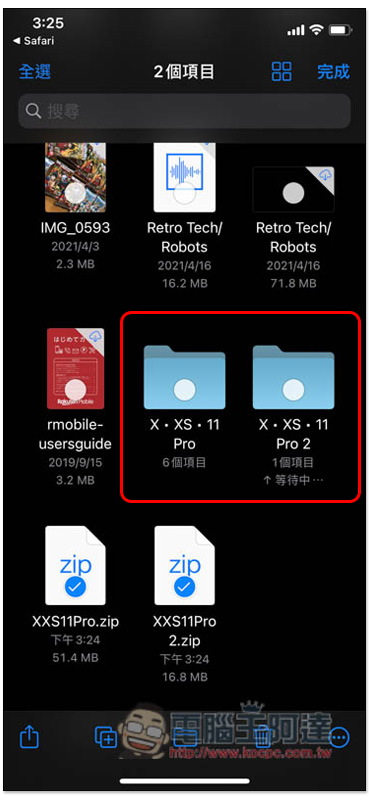
Click it and it will automatically decompress. After the compression is completed, you can delete the ZIP file:
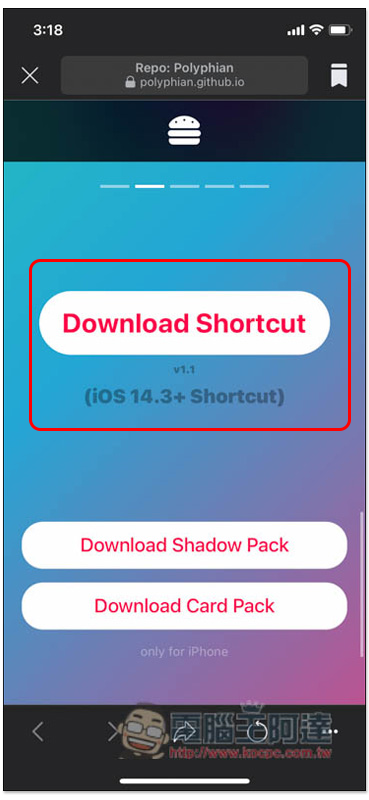
Then download the Homescreen Creator shortcut and click “Download Shortcut” on the screen:
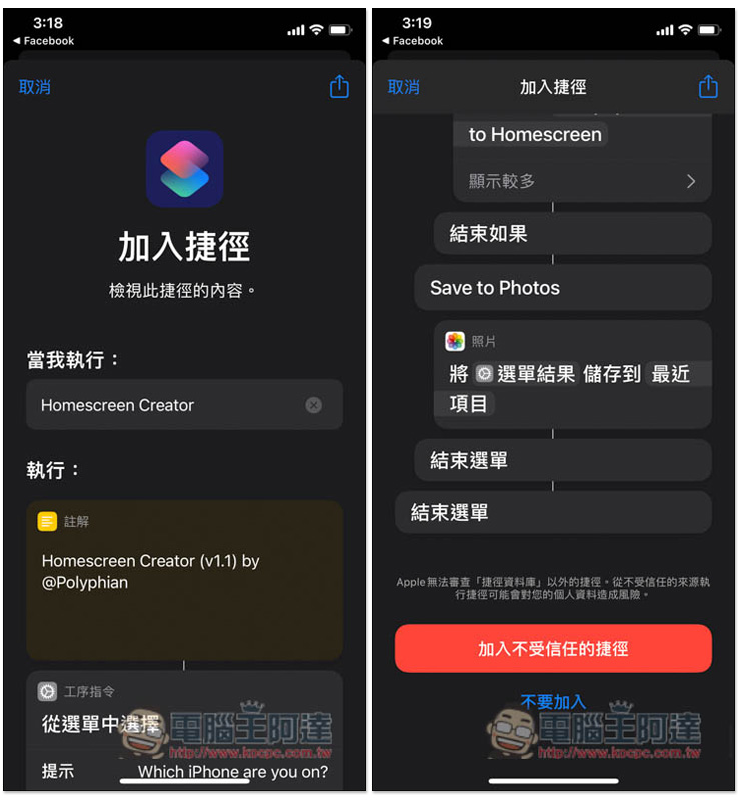
It will jump to the Add Shortcut page, scroll down and click “Add Untrusted Shortcut”:
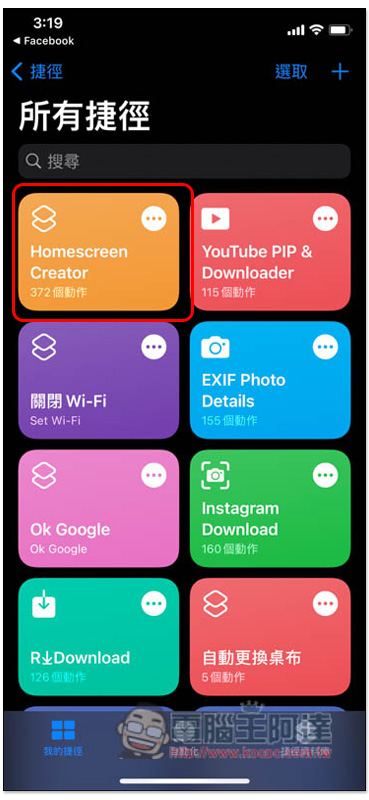
This shortcut will appear in your shortcut list:
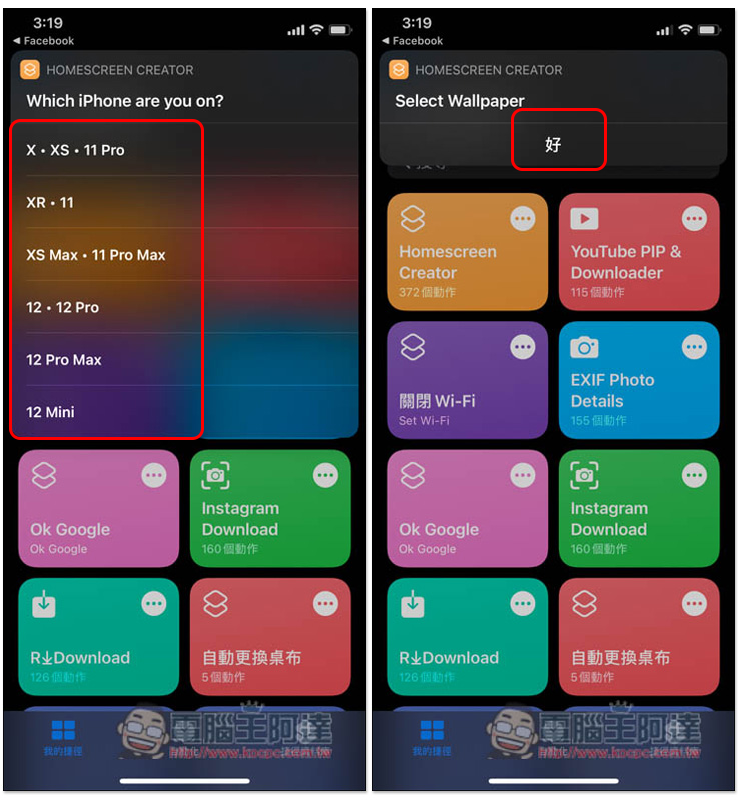
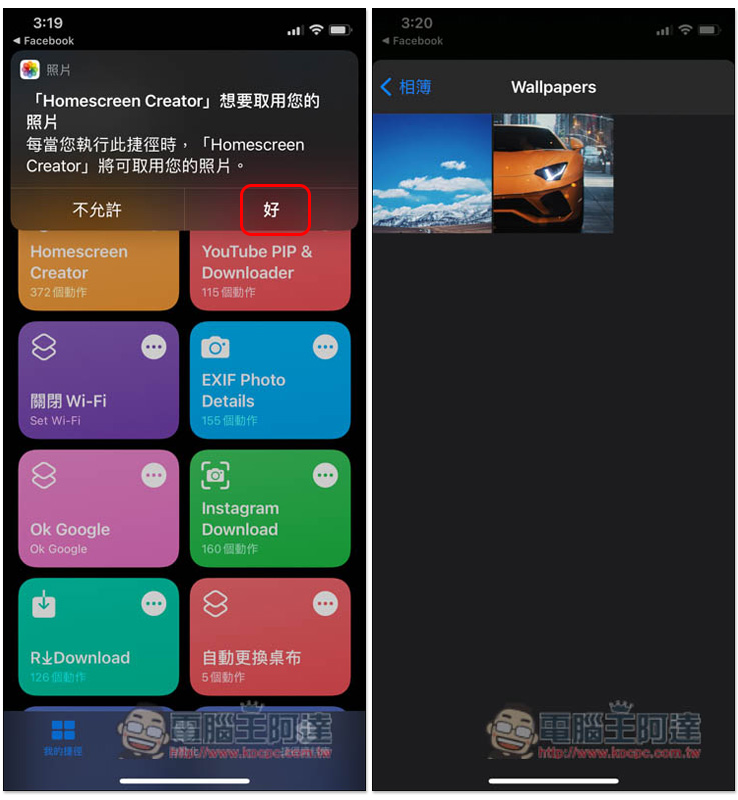
After opening it, you will first be asked which iPhone you are using. I will take iPhone X as an example, and then you will be asked to select the wallpaper you are currently using:
When you use it for the first time, you will be asked for permission to access photos. After clicking it, the iPhone photo album will open and you will find the wallpaper image you are currently using:
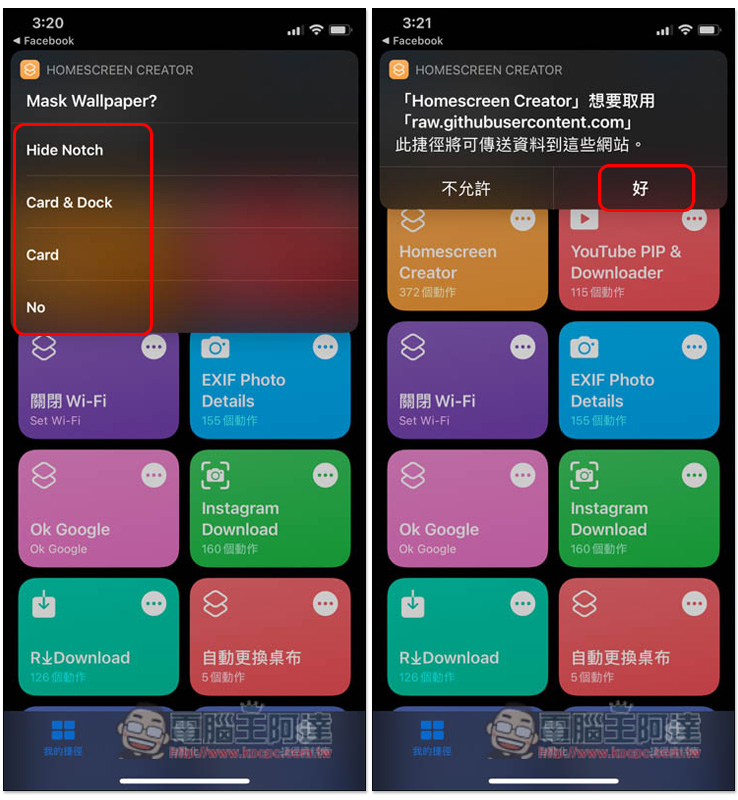
Then you will be asked if you want to add a color mask. I will use No as an example:
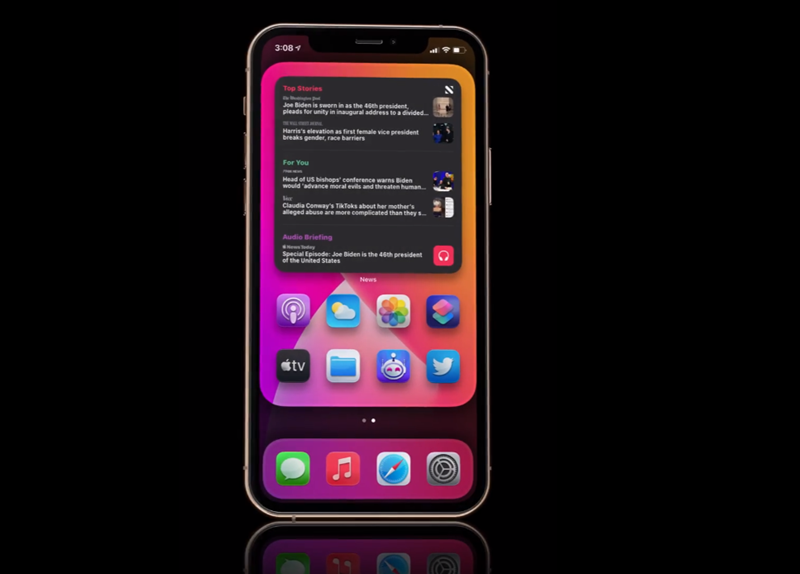
Adding a mask can create the following effect:
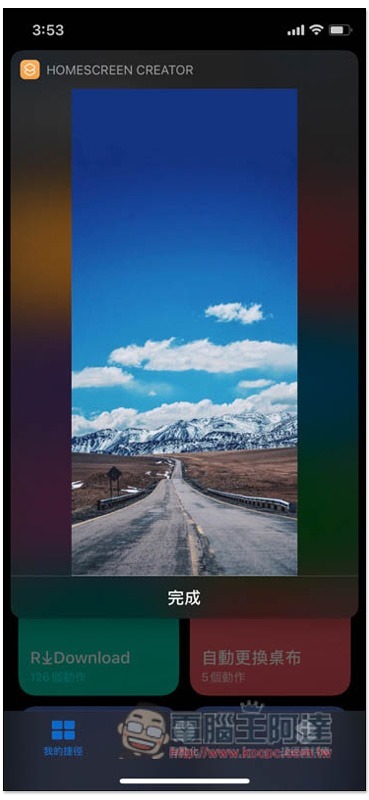
If no mask is added, the tablecloth will use the original image:
Then select the shadow effect you want, open the File App, and go into the folder you just downloaded. You will see 5 options, which one you like:
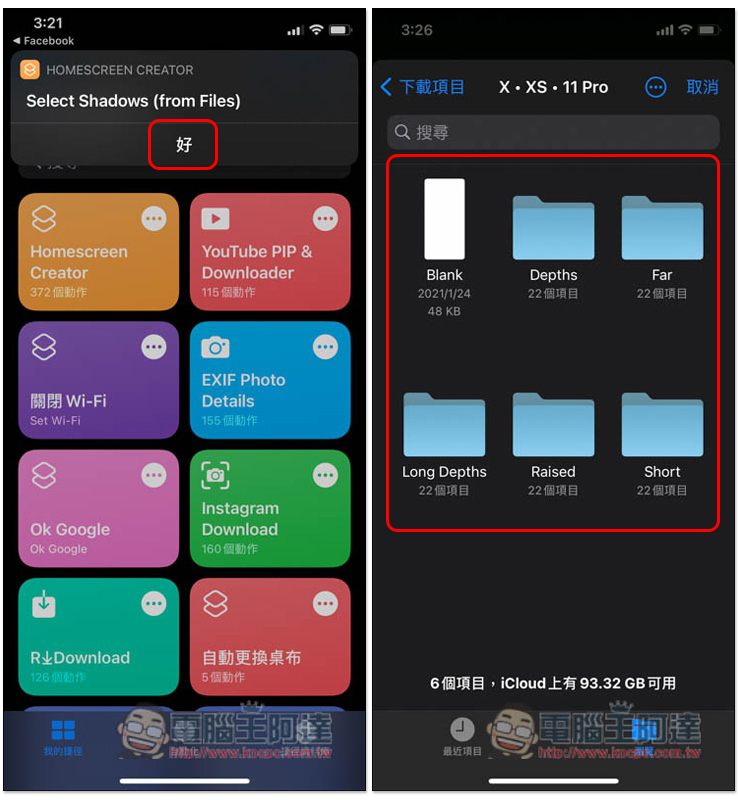
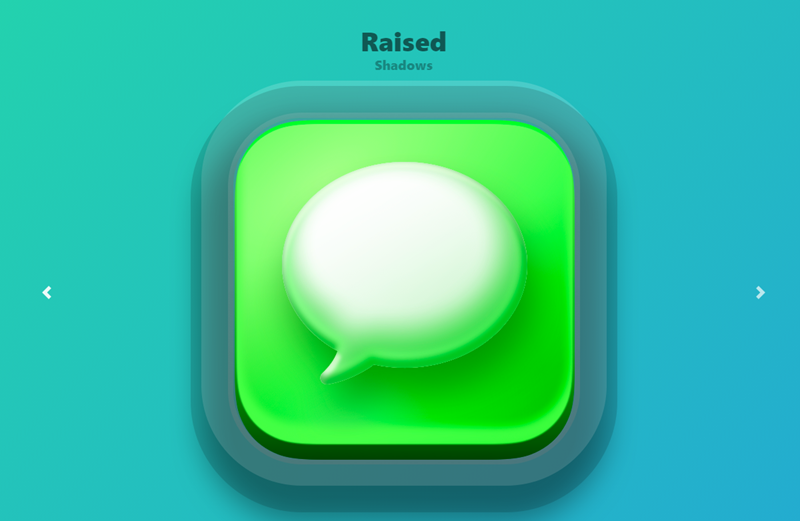
You can click to see it, or the official website also has related display pictures, as shown below:
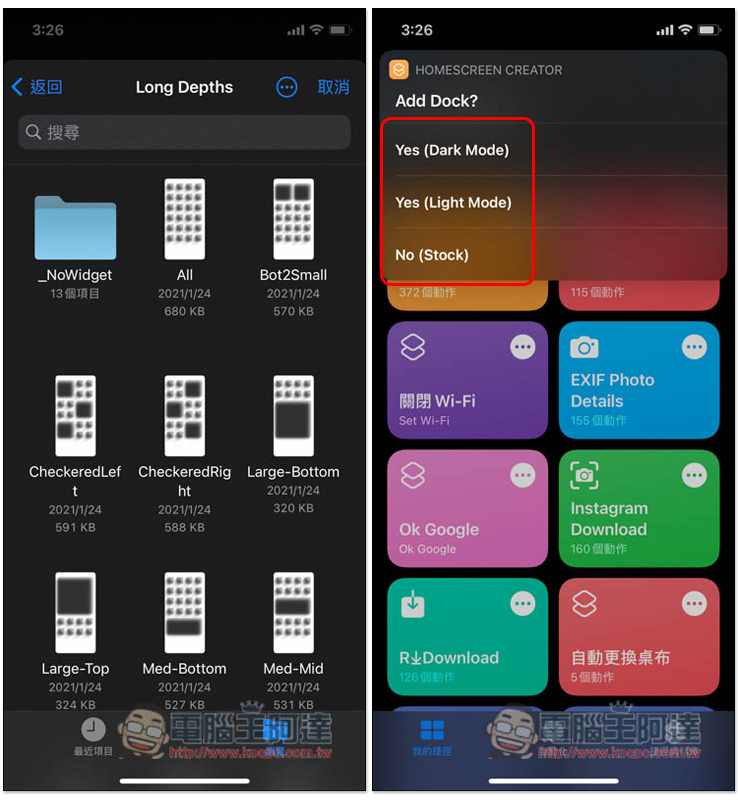
Find a shadow picture that is the same as the layout on your iPhone, and then choose whether to add the effect to the Dock. I will use No as an example:
After the production is completed, you will be given a preview:
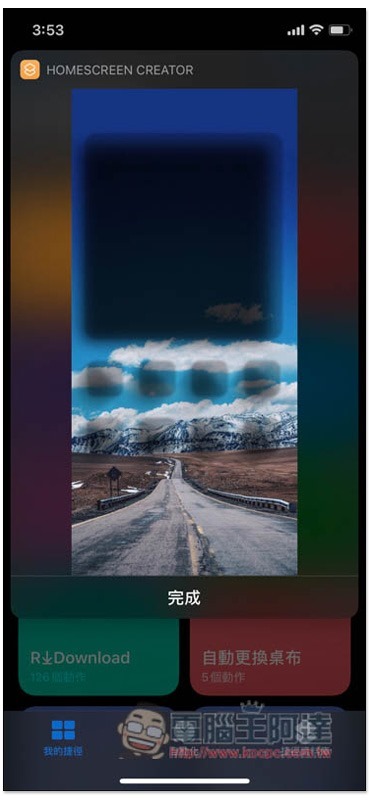
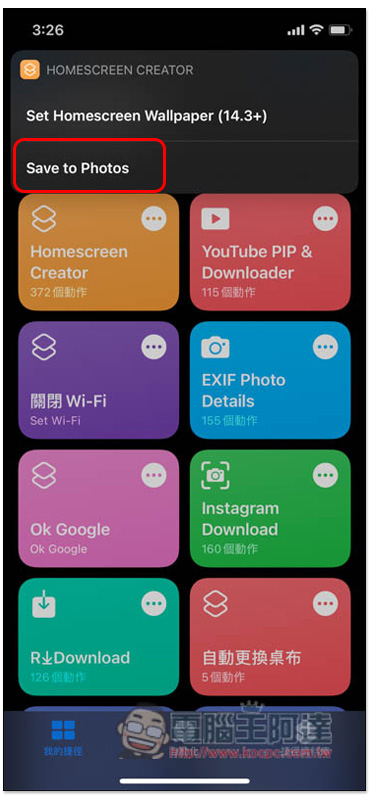
Remember to select Save to Photos to save to iPhone photos in this step, because if you set it as wallpaper directly through the built-in function, the shadow position will be lost:
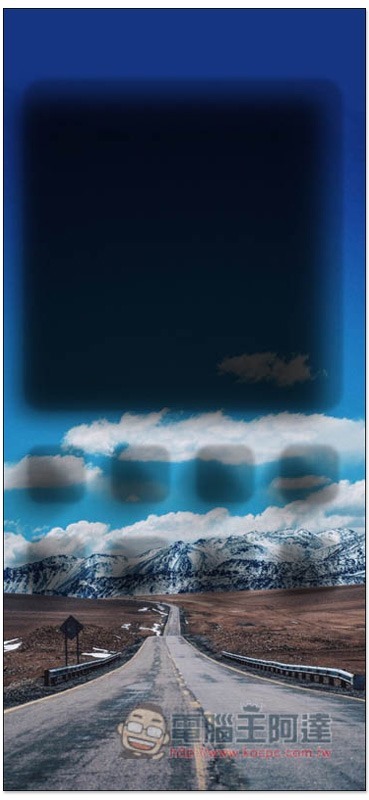
After opening the iPhone photo, you can find the shadow picture you just made:
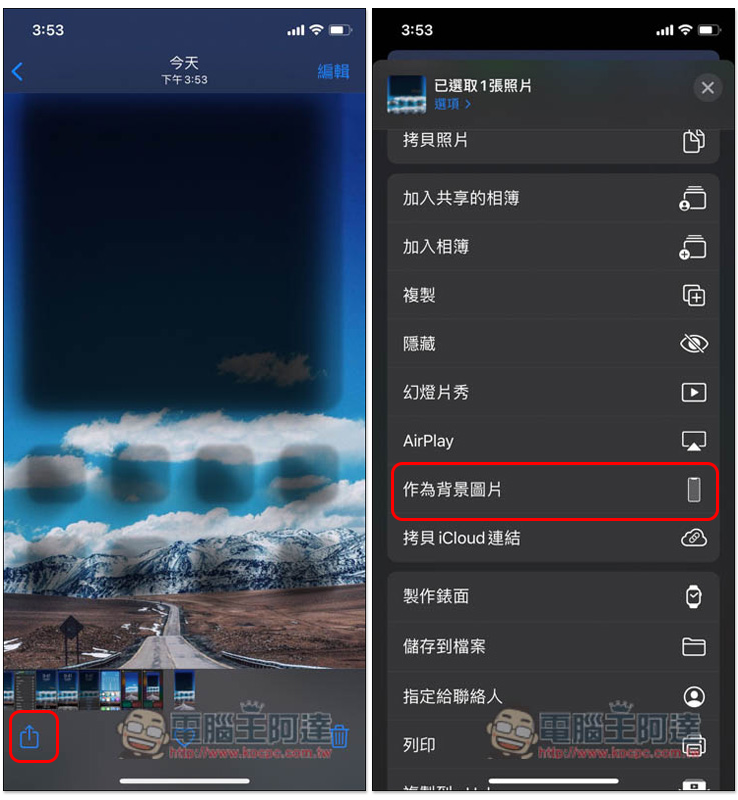
Click the share icon in the lower left corner and find “As background image”:
When entering the preview screen, please slide in with two fingers to make the screen fit the iPhone screen, which is exceeded by default. Then click Settings in the lower right corner:
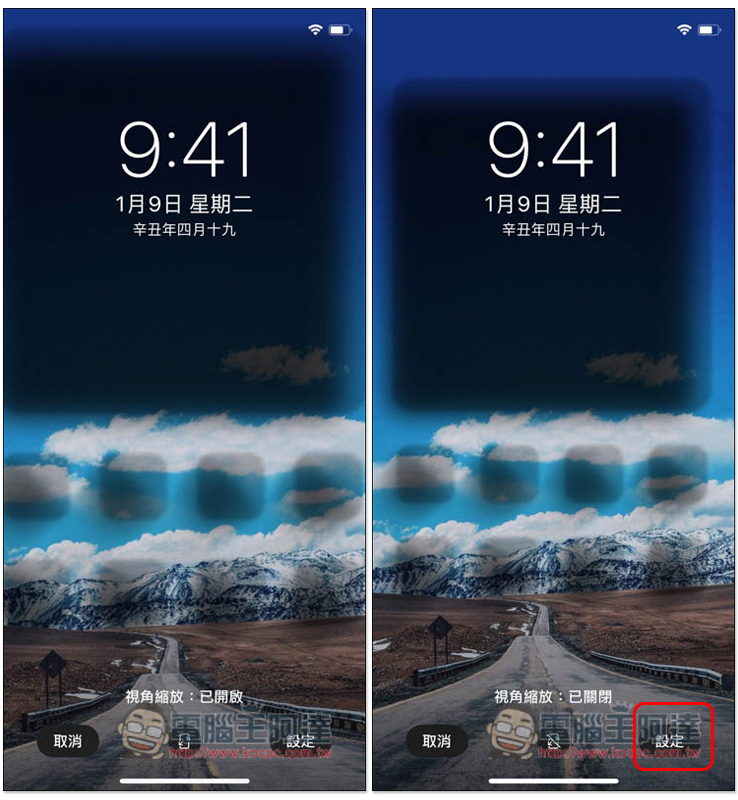
Select “Set Home Screen”:
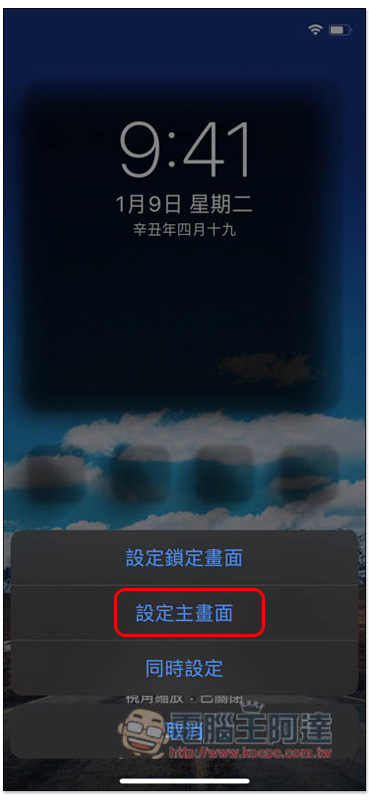
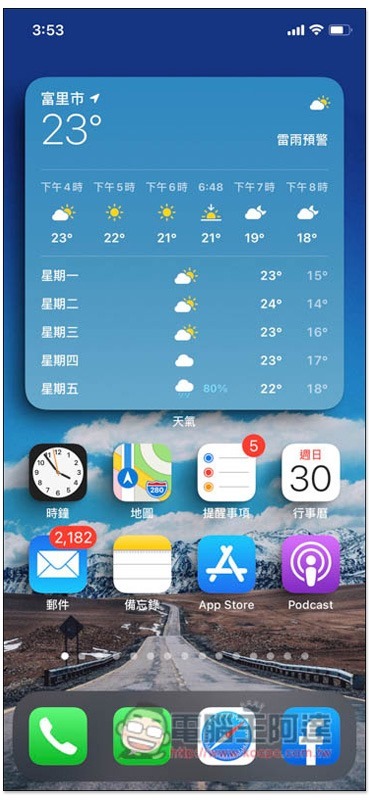
After returning to the iPhone home screen, you will see that Widgets and Apps have been shadowed. For the before and after comparison, please refer to the first picture of the article:
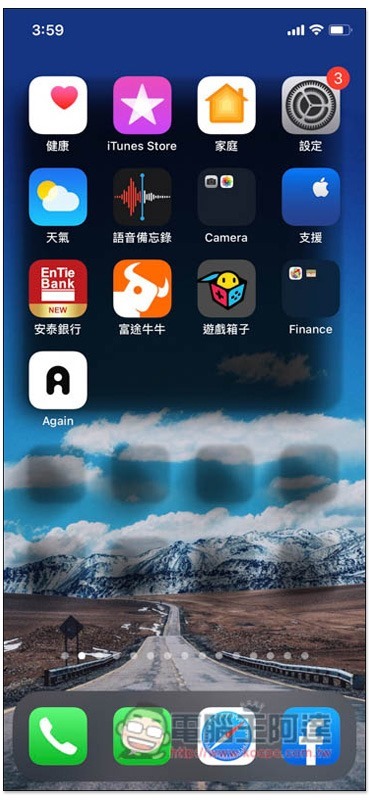
In addition, the current home screen of iPhone cannot set the wallpaper individually, so remember that every screen must use the same arrangement, otherwise the following situation will occur:
Source: KOCPC Chinese