


You finally manage to take a great photo at a tourist spot, but there are a bunch of strangers in the background, and you’re worried they’ll steal the spotlight when you post it. Want to edit them out but think removing people is too complicated? Today we’re recommending an app – “SnapEdit” – which can remove unwanted strangers from your photos with one tap, so you no longer need to hunt for the perfect crowd-free angle when taking pictures.
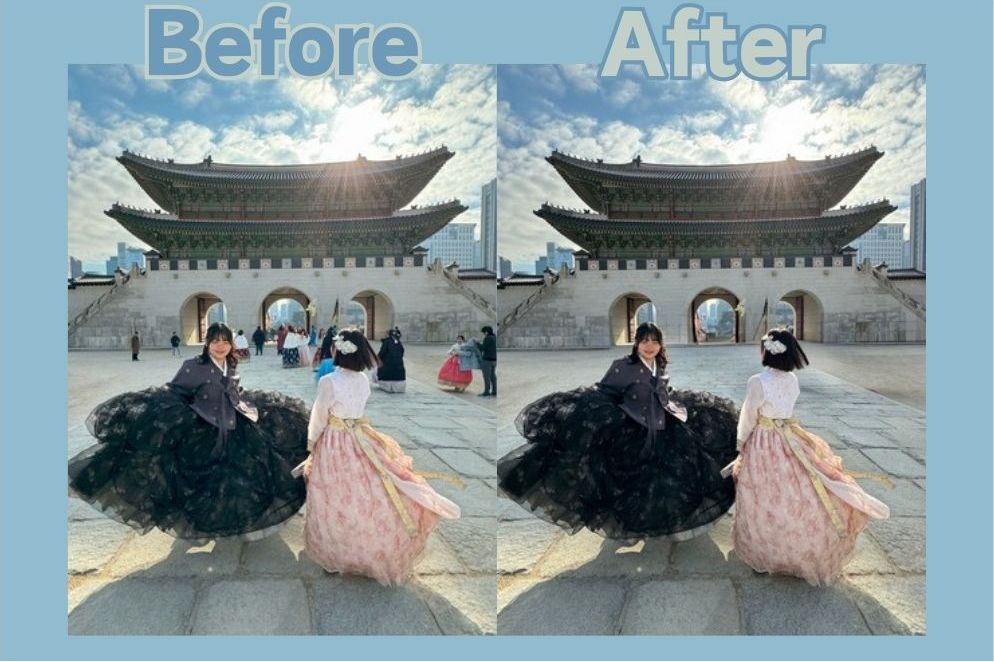
Travel photos always end up with a bunch of tourists in them? SnapEdit lets you remove pedestrians from your photos with just one tap.
Previously we introduced SnapEdit, which removes people and objects from photos for free.Online toolsToday, let me introduce the mobile app version of SnapEdit. SnapEdit now has an “Object Eraser” feature that uses AI to remove unwanted people from the background with just one tap, leaving only the beautiful you in your photos.
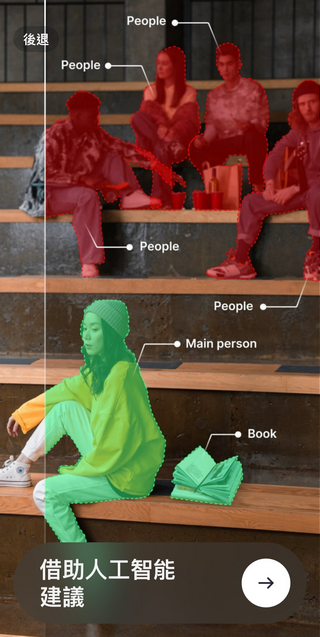
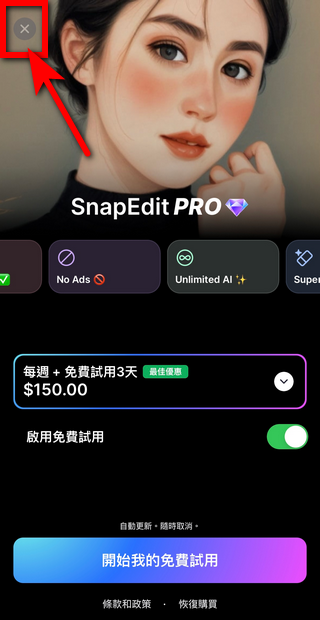
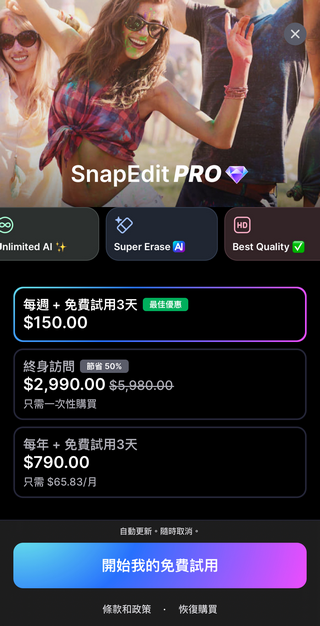
First, you need to download the “SnapEdit” mobile app. Apple users clickhere, Android users taphereAfter downloading, a screen to activate SnapEdit Pro will appear. Just click the X in the upper left corner. There’s no need to purchase a membership—just watch a video that’s about 30 seconds each time, and you’ll get three free image saves per day.
Delete target
Next, tap “Remove Object” and select the photo you want to edit. I’ll use photos from my recent trip to Gyeongbokgung Palace in Korea as an example. Tourist spots always have crowds of visitors, and no matter how hard you try to avoid them, unrelated people still end up in your shots. That’s when you can use SnapEdit’s Remove Object feature to quickly eliminate tourists from your photos.

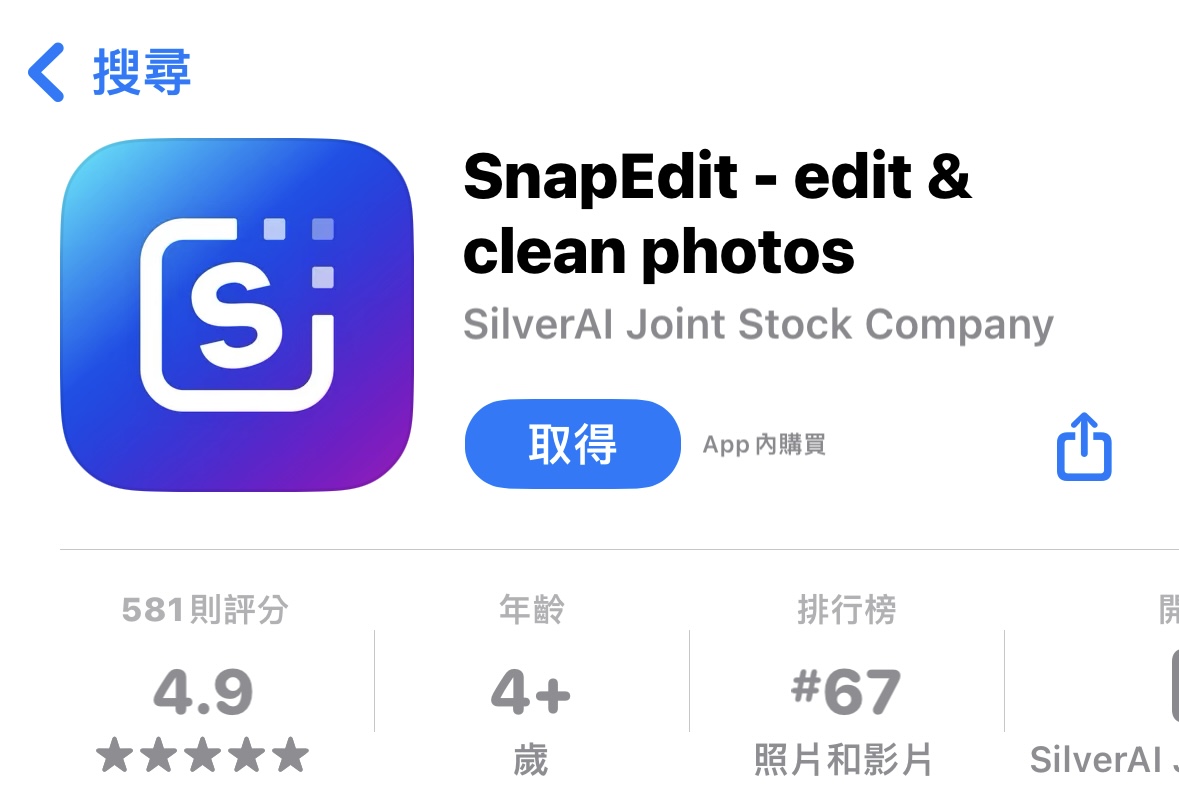
The object removal feature offers two modes: manual mode and AI-powered automatic mode. In manual mode, you can select the items or objects you want to remove yourself. In automatic mode, AI quickly outlines all objects in the background, and you just need to click on the items you want to delete.

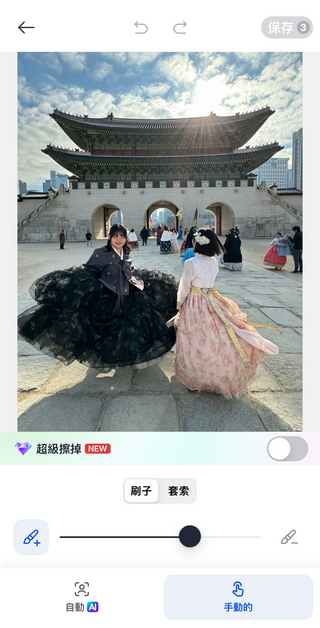
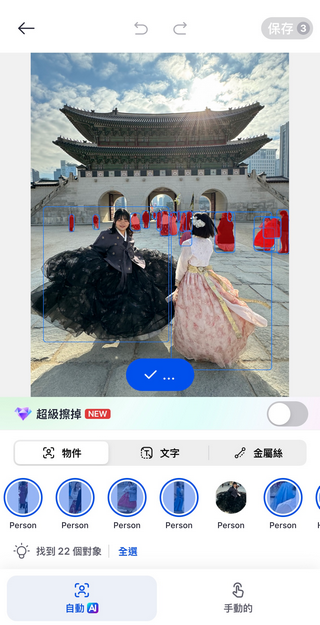
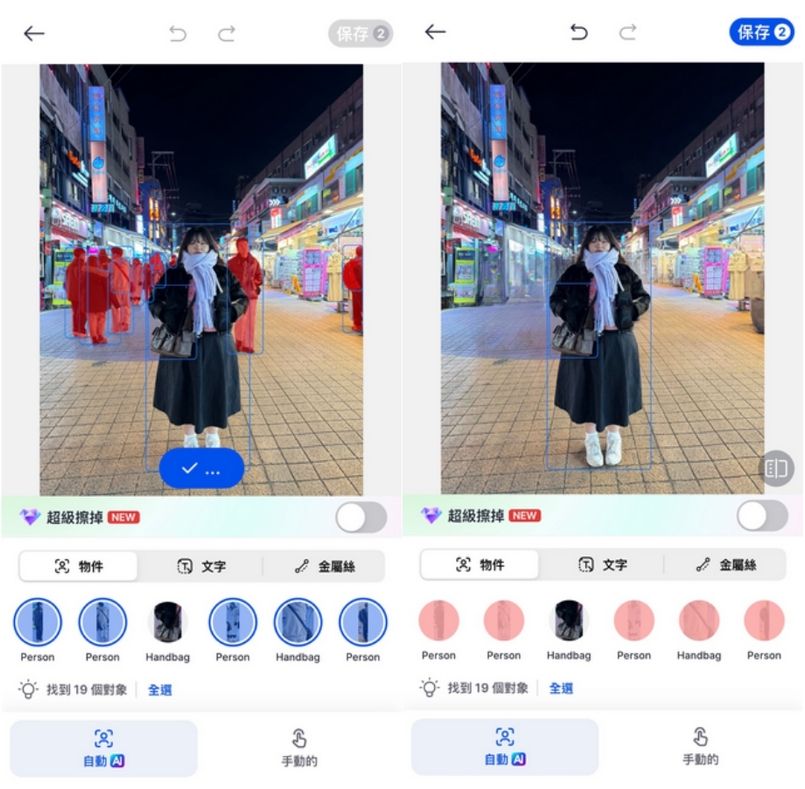
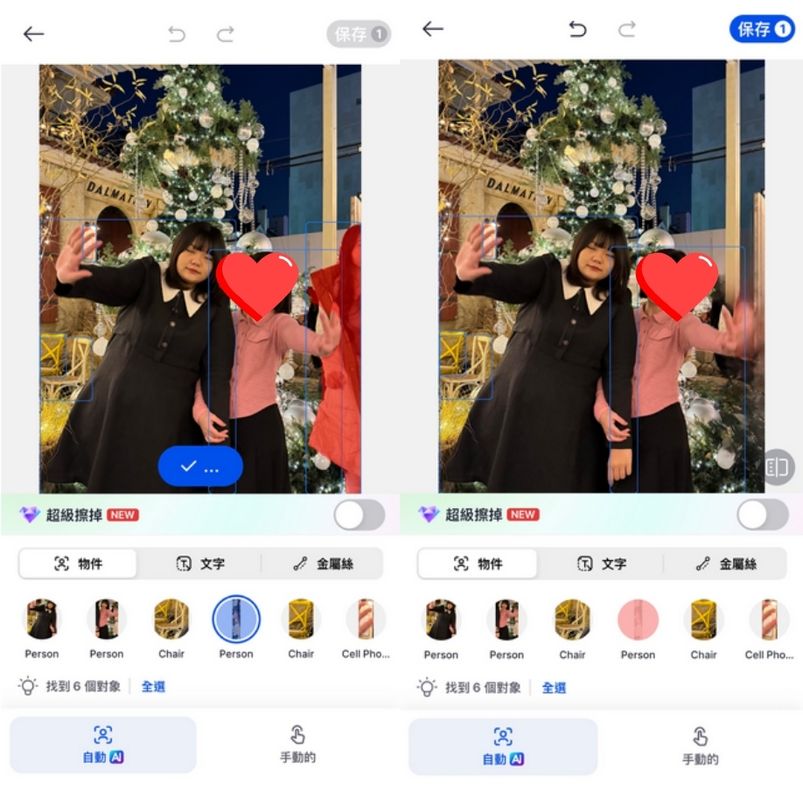
Generally, just use the auto mode and the AI will circle all the items and objects in your photos. It will also automatically select things that don’t need to be in the picture. The only thing you need to do is click the checkmark to remove people from the photo background. It’s very convenient—you don’t need to manually edit each one. After removing them, you can hardly tell there were so many tourists in the background. This way, you can easily get great shots!

Of course, AI isn’t always 100% perfect—there are still some weird spots left after removal—but since it’s free, it’s still acceptable.
artistic effect
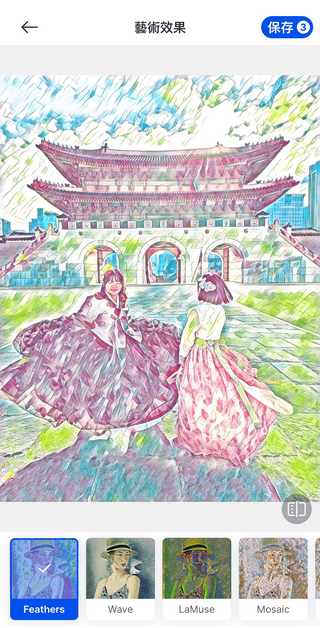
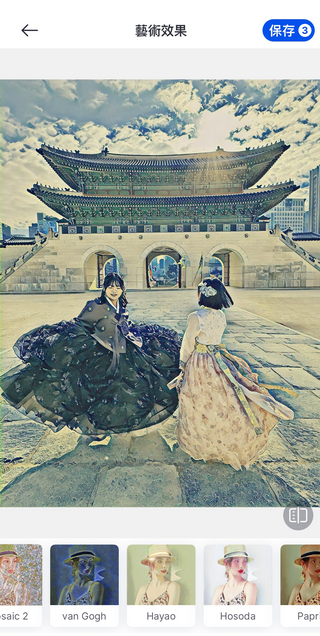
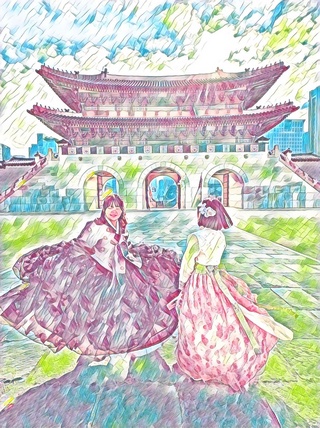
SnapEdit’s art effects feature can present your photos in various styles. Using this photo of Gyeongbokgung Palace as an example, there are many art effect options to choose from, such as Feathers, Wave, LaMuse, and more. You can select your favorite effects to decorate your photos.
sky
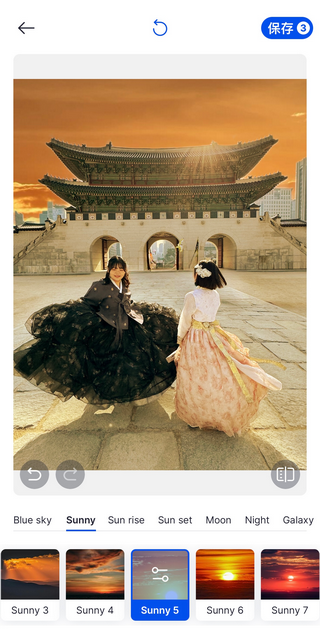
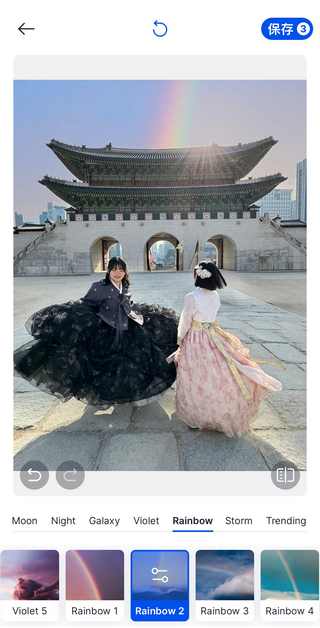
We previously introduced SnapEdit AI Sky’s one-click sky replacement feature for the desktop version, and now you can easily do the same on your phone! Just like the desktop version, the mobile version of SnapEdit also offers options like Blue Sky, Sunny, Sun Set, Moon, and more. A bright sky can be transformed using Sunny to create a twilight atmosphere, giving the photo a hazy sunset-like quality. Alternatively, you can use Rainbow to paint a rainbow across the sky—even without rain, you can achieve a beautiful rainbow through AI.
Attention:
Everyone, note that the mobile version of SnapEdit only allows 3 free photo saves per day, so make sure to pick your three best-looking photos! Of course, if you have the budget or really need the background removal feature, you can also purchase a SnapEdit membership—weekly, yearly, or lifetime options are available. But I think 3 saves per day is more than enough, since I only edit my first photo anyway.

Source: KOCPC Chinese