


Unless you are a frequent user of LINE’s various function settings, I believe that most people usually spend a long time looking for adjustments to settings when operating LINE. However, LINE has finally improved this in the recent version updates for iOS and Android! From now on, as long as you update the LINE App to the latest version, a new “Search” setting menu on the dedicated setting page will be added at the top of the setting field. Just enter keywords for which settings you want to use!

LINE App version update: Added “Search Setting Menu” function in the setting screen to complete setting requirements faster
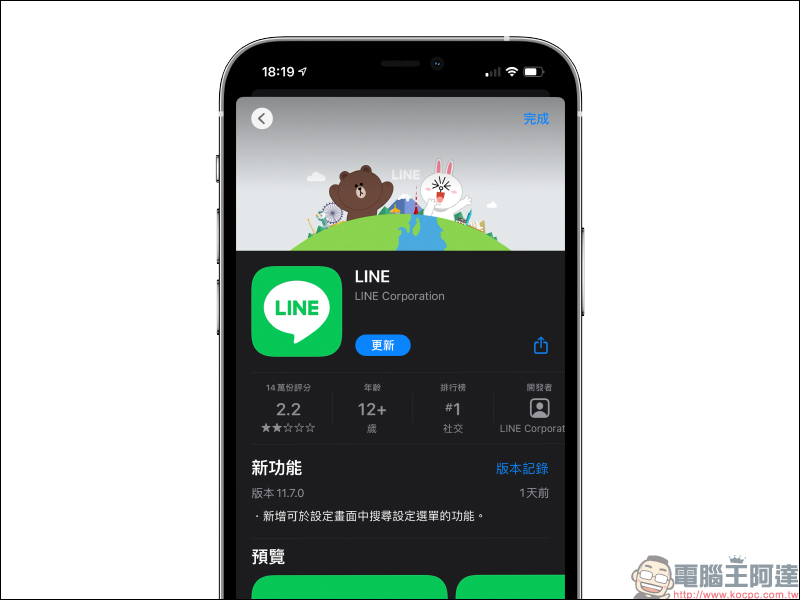
A few days ago, LINE quietly released app updates for iOS 11.7.0 and Android 11.7.2. It optimizes the user experience in “Settings” and adds a dedicated settings menu to the settings page, allowing users to directly find the required setting functions by searching for keywords.
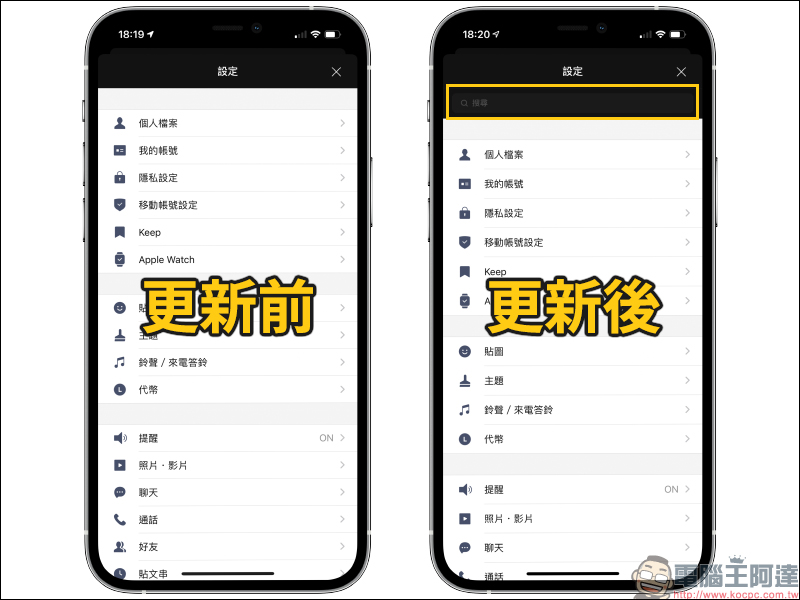
Let’s first compare the differences in the settings screen before and after the LINE App update! You can see that there is a settings menu at the top of the page after the update. However, unlike other pages of the LINE App where you can search for news and products, the search field here is limited to the various settings in the “Settings” menu.
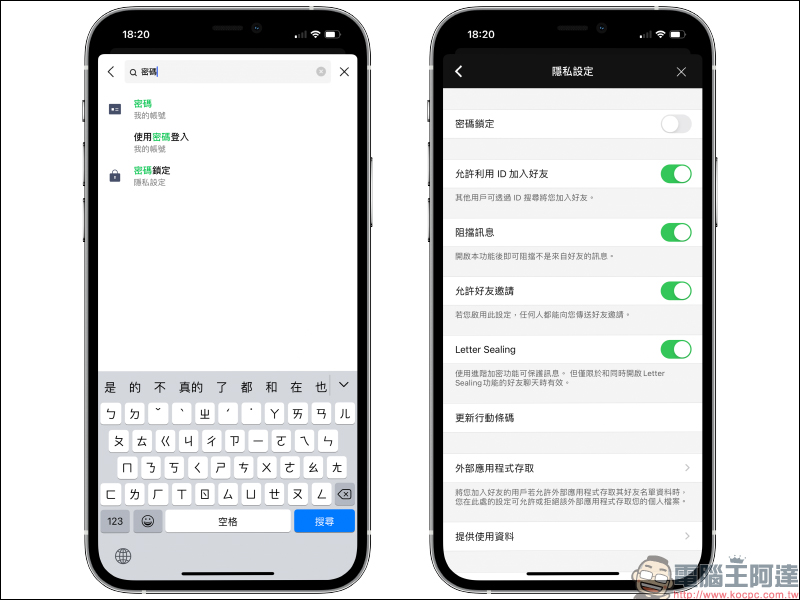
In the past, in order to change account passwords, password locks and other settings operations, users had to slowly explore the relevant options in the settings menu. But now you only need to enter keywords, and various related search results will be automatically displayed below. With the relevant positions of the keywords, users can find the required setting functions faster.
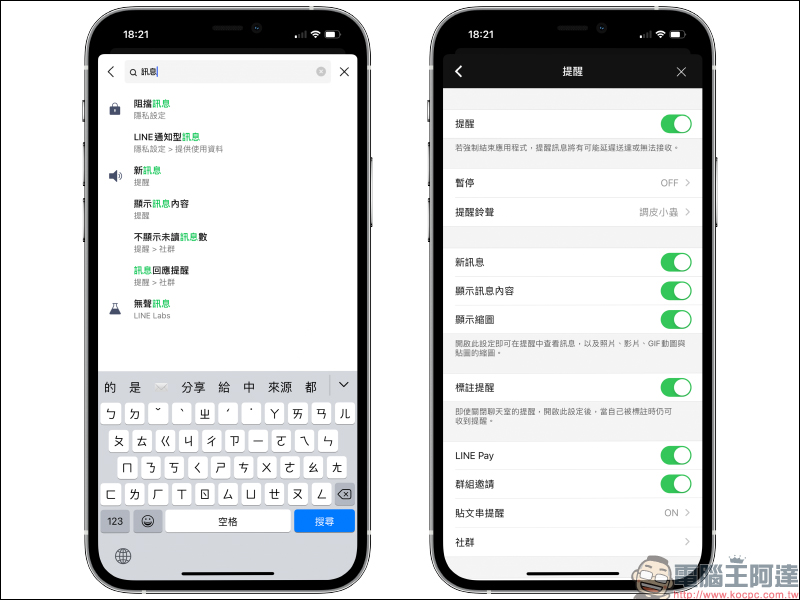
For example, when typing “message”, settings such as blocking messages, new message reminders, and even the test functions of LINE Labs will be displayed in the search results. Users can quickly go to the page by clicking on the required settings.
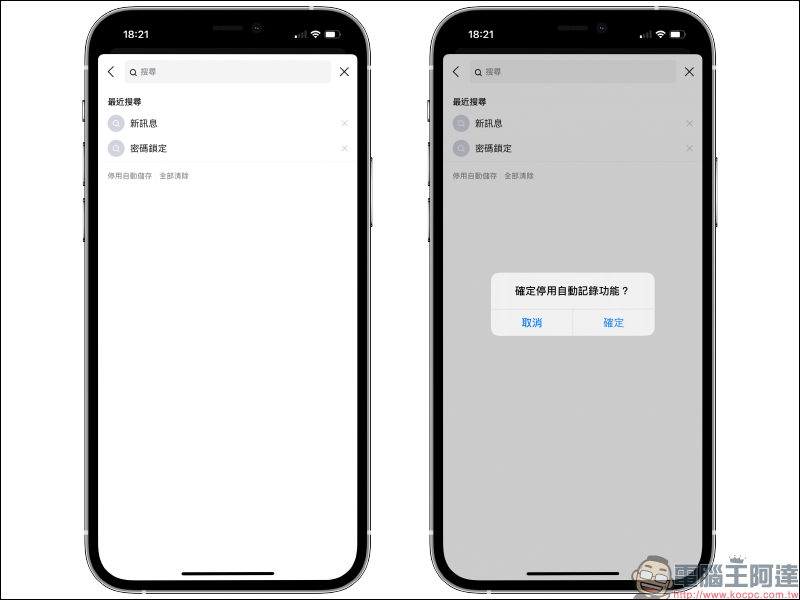
By default, LINE will store the user’s most recent search content below. If you do not want it to be automatically saved, you can click “Disable automatic storage” so that it will not be automatically recorded in the future. You can also click the “X” on the right side of the search result to delete the search content, or directly click “Clear All” to clear all recent search results at once.
Further reading:
Apple official shooting demonstration with iPhone 12: How to shoot creative and professional stop-motion animation, slow-motion and time-lapse photography (tutorial)


Source: KOCPC Chinese