


Does it take a long time to shoot dozens or hundreds of photos to shoot stop-motion animation? What should I do if I generally just want to create a stop-motion animation effect, but don’t want to slowly take multiple photos? In fact, there is a very simple method that can even be said to be a bit sneaky! Today I will use iPhone to demonstrate how to shoot and create a “lazy version” of stop-motion animation. I believe everyone can learn it after watching this, and it is applicable to every smart phone!

iPhone “lazy version” stop-motion animation shooting tutorial, everyone can learn it! (Applicable to all mobile phones)
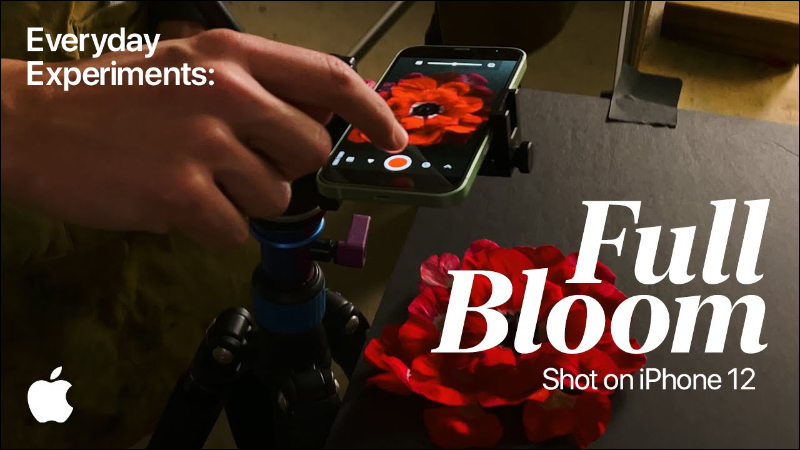
a few days ago,We have shared Apple’s official demonstration of using iPhone 12 to shoot various creative videos such as stop-motion animation.. However, for ordinary people, if they want to shoot stop-motion animation by themselves, the biggest difficulty is not the technical problem, but the need to spend a long time shooting a large number of photos, and finally make multiple continuous action photos into a movie.
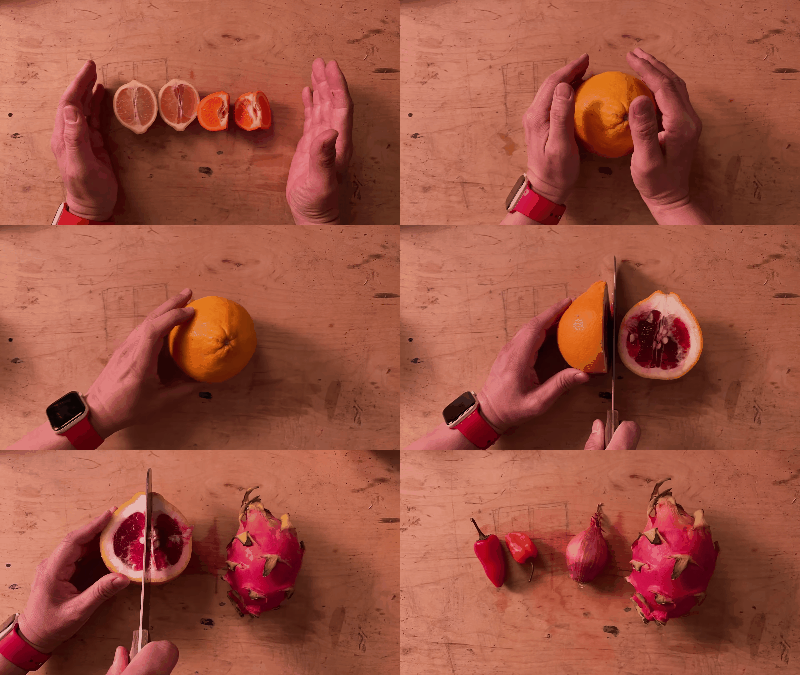
▲Picture source:Apple
Traditionally, when shooting stop-motion animation, the key is to place the mobile phone (camera) in a fixed position, and then after each photo is taken, move the position of the subject a small amount before taking the next photo, continue to follow this pattern step by step, and finally play back the photos continuously to complete.
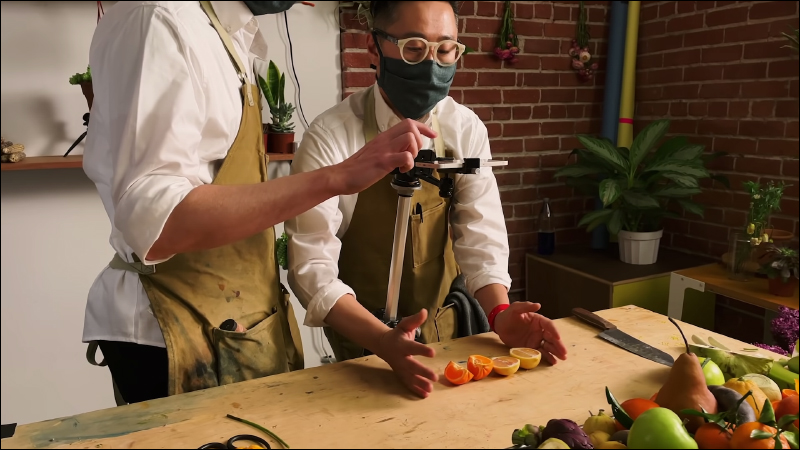
▲Picture source:Apple
Preparation before shooting (settings)
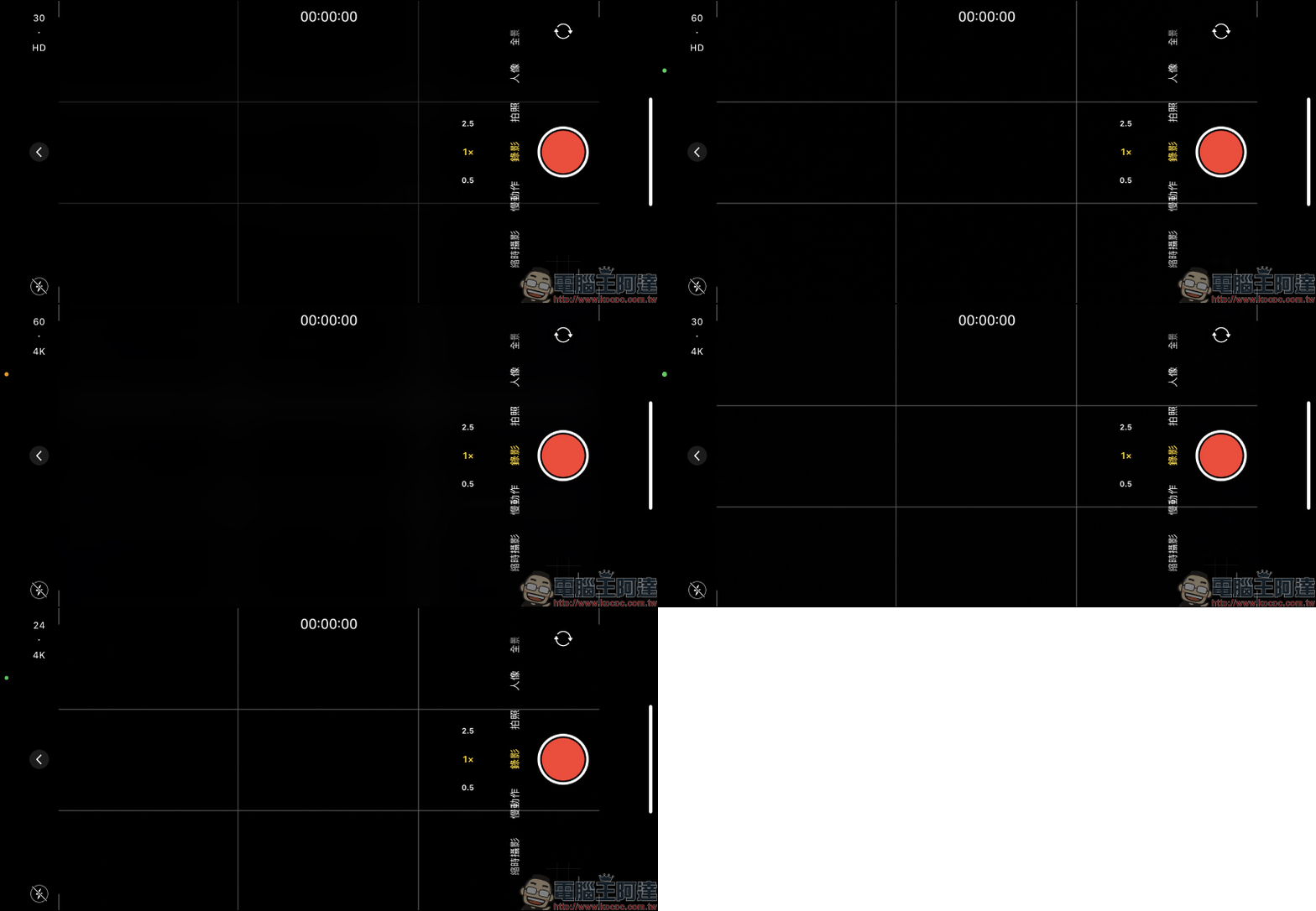
At present, many smartphones can already shoot high-definition videos at 4K 60fps or even 8K 30fps. However, for daily video recording or the need to shoot stop-motion animation videos, it is not necessary to set such high-definition specifications. For example, the iPhone’s built-in camera app allows you to quickly switch between different image qualities and frame rates by clicking on the top of the video recording interface.
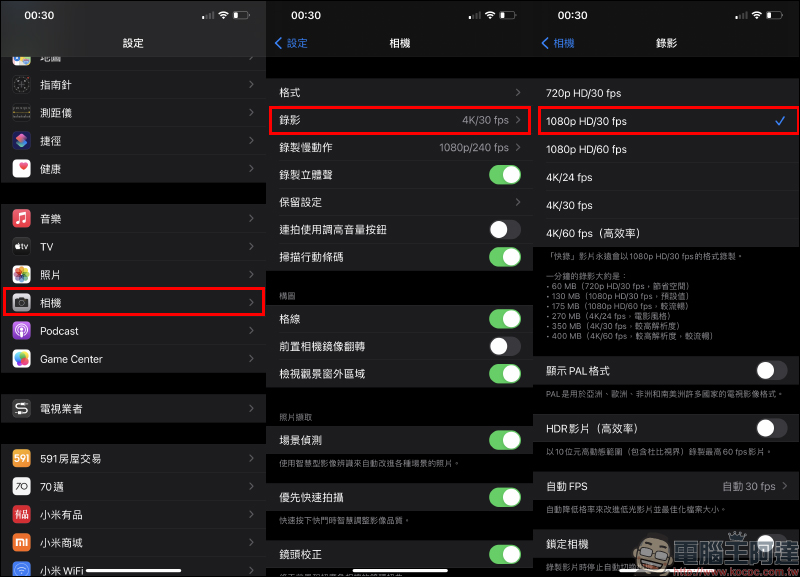
You can also go to the “Camera” of settings to set the recording specifications. For this time, if you want to make a stop-motion video recording, only 1080p HD 30fps is enough. After the settings are completed, you can shoot a video by yourself!
Create a stop-motion video
When the video recording is completed, then enter the editing step! Open a web browser and go to ezgif.com We have previously introduced this very useful online free video to GIF website. For how to use this website, please refer to our previous introduction (Click me to review)。
Directly select the “Video to GIF” function on the mobile phone, then click “Select File” to select the video file in the album that you want to make a stop-motion animation video:
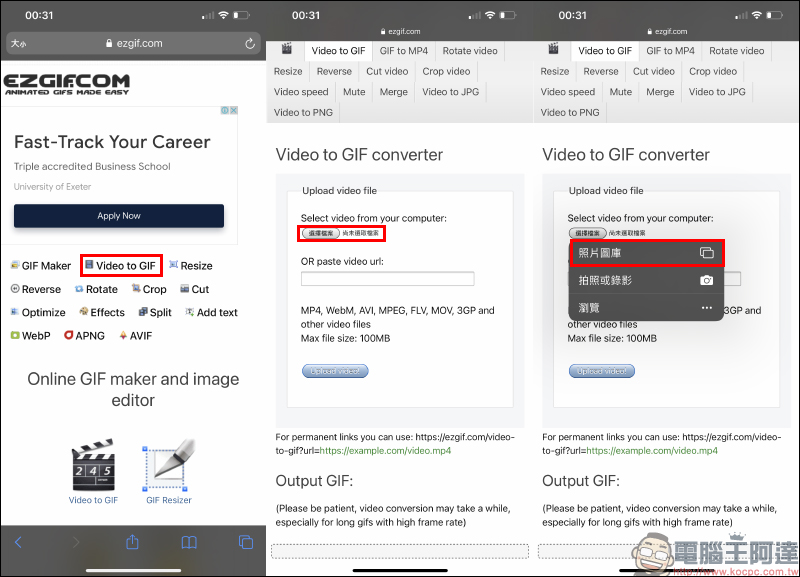
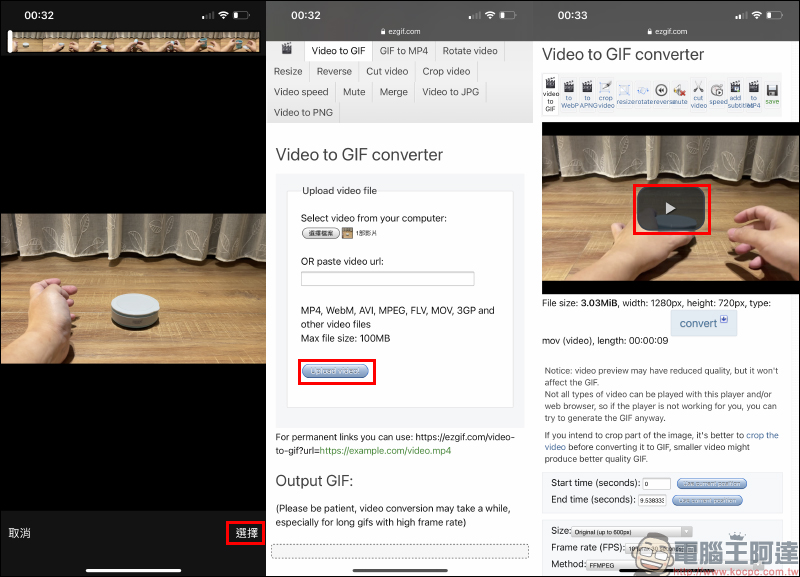
After completing the selection, you can click “Upload Video”. Then after the upload is completed, the user can click on the player to preview the video. This step can help you check the video segments you want to access, and can also quickly filter out the unwanted scenes at the beginning and end of the video.
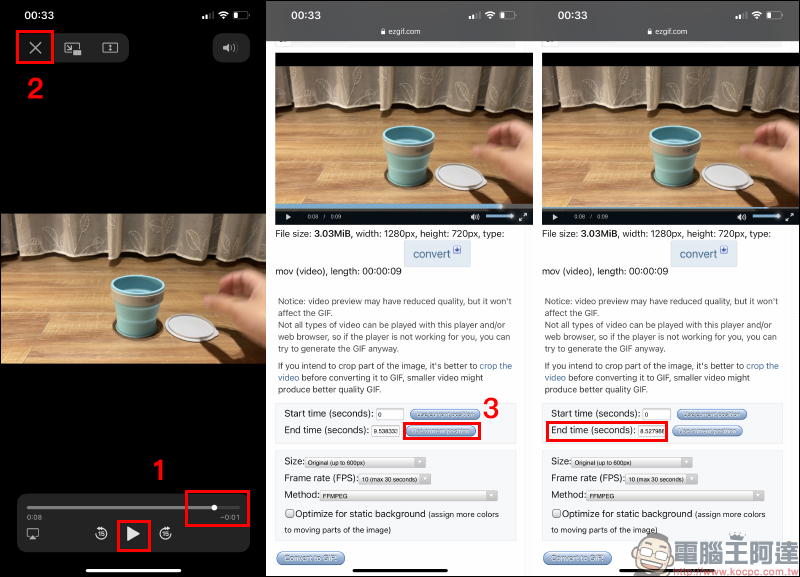
If you want to remove the paragraph at the end of the video, taking this video as an example, you only need to click the play button to play it, click “Pause” at the end of the video, and then click “×” to return to the original screen. Then, click “Use current position” on the right side of the End time on the screen, and the time will be set to the paragraph that was paused earlier.
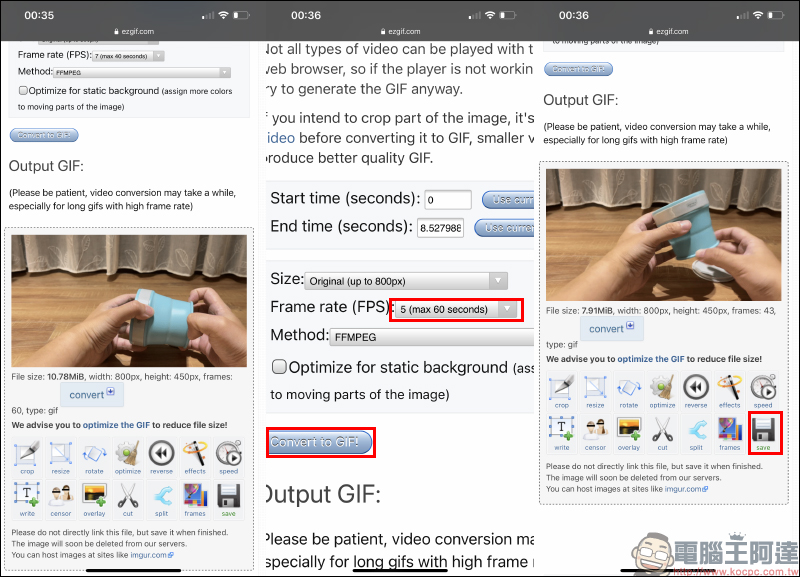
Click Size to select the resolution size of the GIF. It is recommended to select “Original (original, up to 800px)” for the size here. In addition, you can also set the number of frames. This step is also used to create stop-motion animation this time.The most critical step, in order to make the stop-motion animation made from video look more like the traditional effect of splicing multiple photos, so the video frame number will be lower and more similar. If you are not sure how many frames to set, you can first set 7fps and then click “Convert to GIF”:
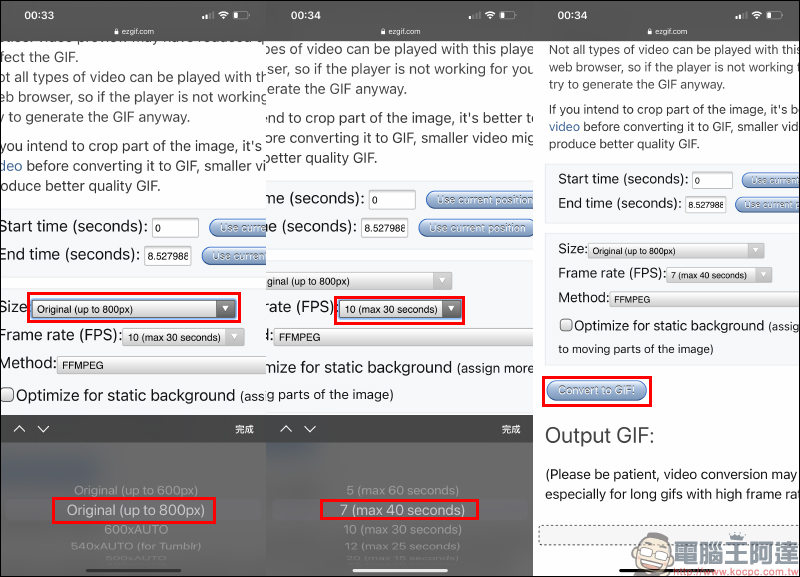
After successfully converting to a GIF file, a preview screen will be displayed at the bottom of the screen. If you are not satisfied with the current effect, you can slide to the top of the screen to reset the frame number (such as adjusting to the lowest 5fps), and then click “Convert to GIF” again to convert again. Once completed, click “Save” to download the GIF file to your device.
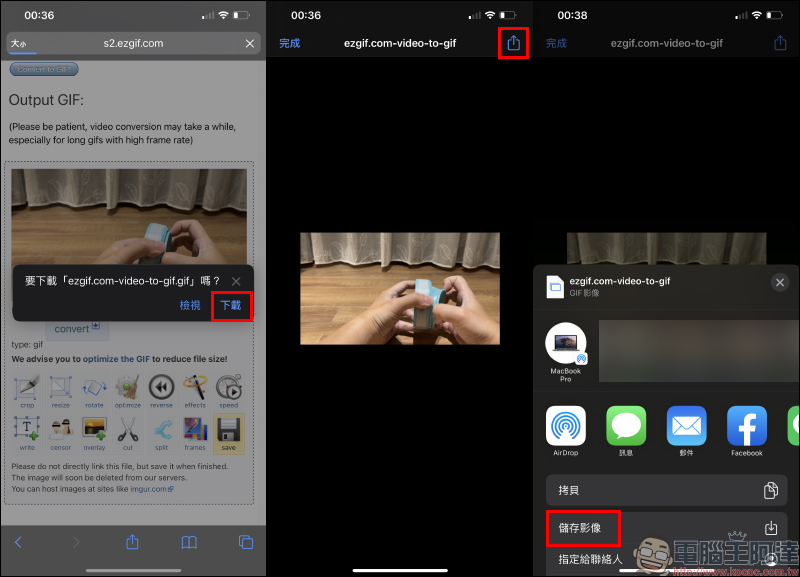
After clicking “Download”, the file will be temporarily saved in the File App. You can click the share button in the upper right corner of the screen and then select “Save Image” to save the file to the album (photos).
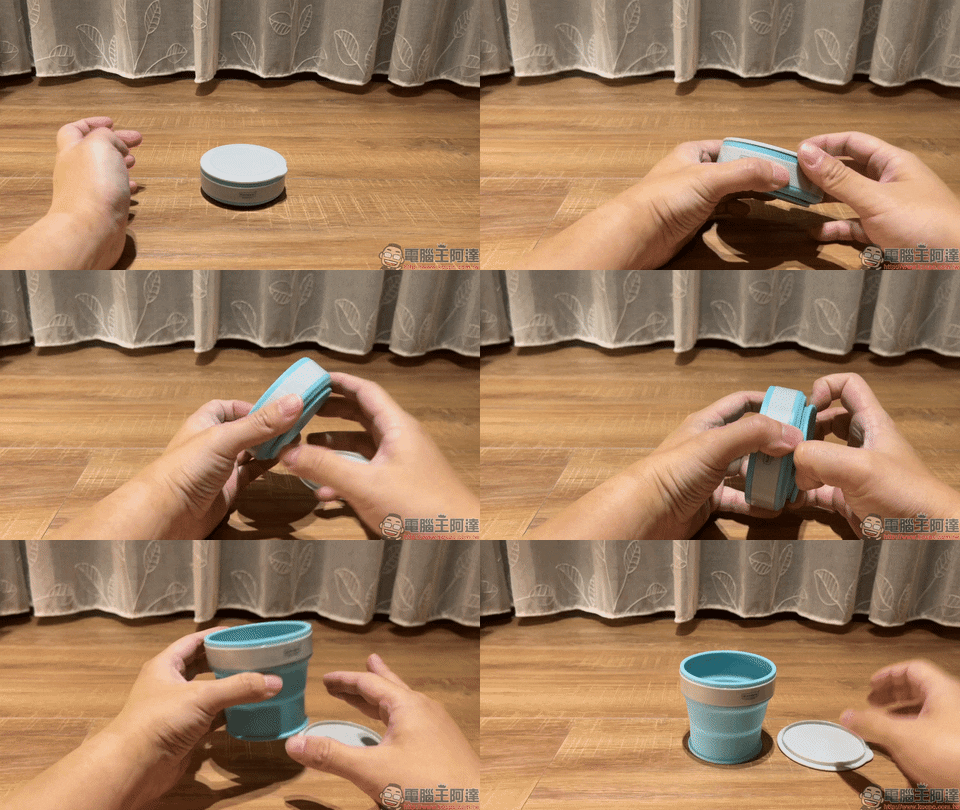
The final effect is as follows. Compared with using the original video file to convert directly to GIF, the ezgif.com website can reduce the video frame rate during conversion, which can produce an effect more similar to a stop-motion animation shot with multiple photos. Moreover, this trick is not limited to iPhone, in fact it is applicable to all kinds of smart phones!
Further reading:
The iPhone barcode carrier is a super simple way to store it in the “Wallet” App, and you can check out directly with Apple Pay after scanning (tutorial)

Source: KOCPC Chinese