


In recent years, AirPods can be said to be one of the must-buy peripherals for more and more iPhone users. In fact, the actual price of AirPods or AirPods Pro currently sold through channels such as Apple’s authorized dealers is no longer as high as it was originally priced. In addition, after the previous launch of AirPods Pro, its active noise reduction function can meet various occasions such as daily commuting that require immersion in personal audio-visual entertainment, and it has also made more users more willing to buy AirPods headphones.
However, some people are still not used to the sound quality of AirPods, but they don’t know how to adjust it to make it more suitable for their listening habits. This time I would like to share with you some tips on how to improve the sound quality of AirPods and make the sound clearer. Maybe you will have a new understanding of AirPods after setting it up.

Tips for using AirPods: How to improve the sound quality of AirPods and make the sound clearer in AirPods Pro | Max Transparency Mode?
At the end of April, Apple finally pushed the 3E751 firmware update for AirPods 2 and AirPods Pro. However, every time Apple pushes an update for a long time, what most users care about is not whether the problems have been corrected? It’s about whether the listening sound quality and noise reduction effect are better. After all, if the sound quality can be continuously improved after buying headphones, it is what the majority of AirPods users look forward to.
However, in fact, AirPods can also adjust the audio according to the preferences of different users. This time I will also share with you the setting tips on how to improve the sound quality of AirPods, as well as the transparency mode clarity adjustment skills that are more needed for AirPods Pro or AirPods Max users. Please put on AirPods and take a look!
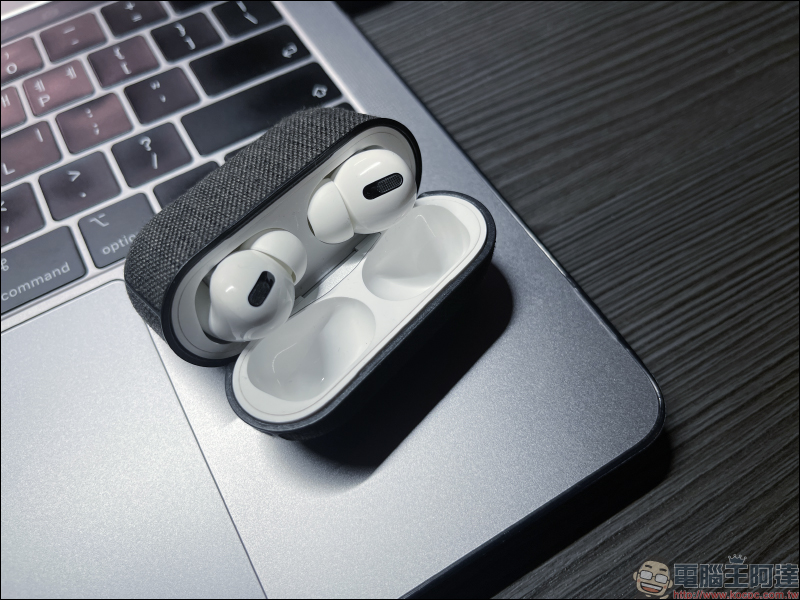
How to improve the sound quality of AirPods?
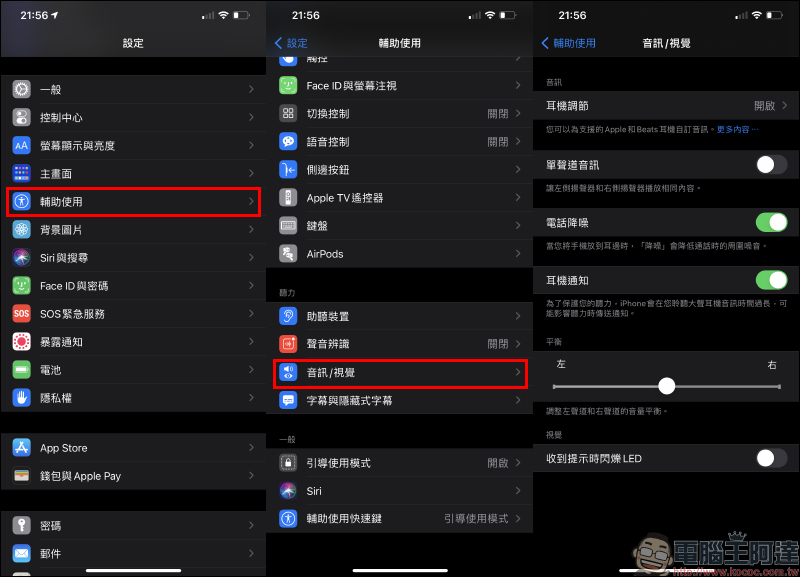
Open the “Settings” app on your iOS device and select the “Accessibility” feature, then click the “Audio/Visual” option below the hearing field:
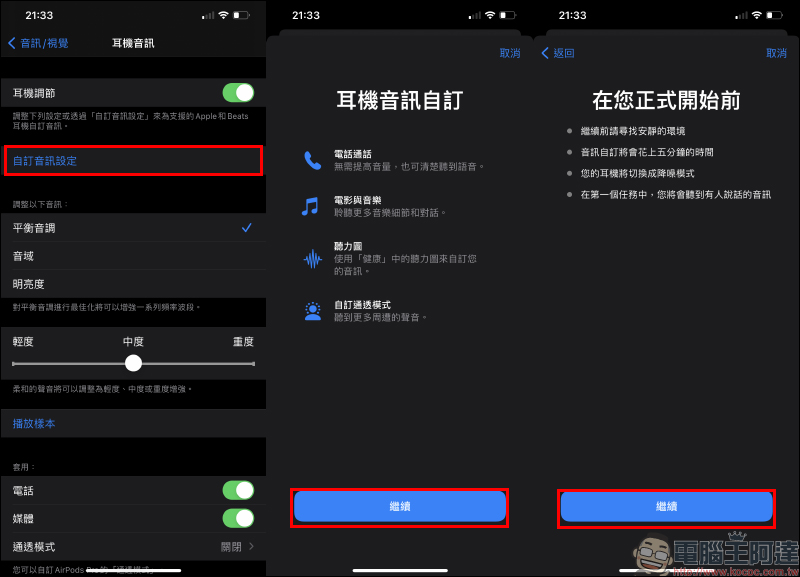
Headphone audio customization
Everyone has different preferences for listening to headphones. If you want to create a headphone sound that is more in line with your preferences, you can choose the “Customized Audio Settings” function. The customized audio function will adjust settings more suitable for personal preferences for several headphone usage scenarios such as phone calls, movies and music, audiograms, and transparency mode.
In order to make the setting results more consistent, before starting, it is recommended that you find a quiet environment and then click “Continue” to start the setting:
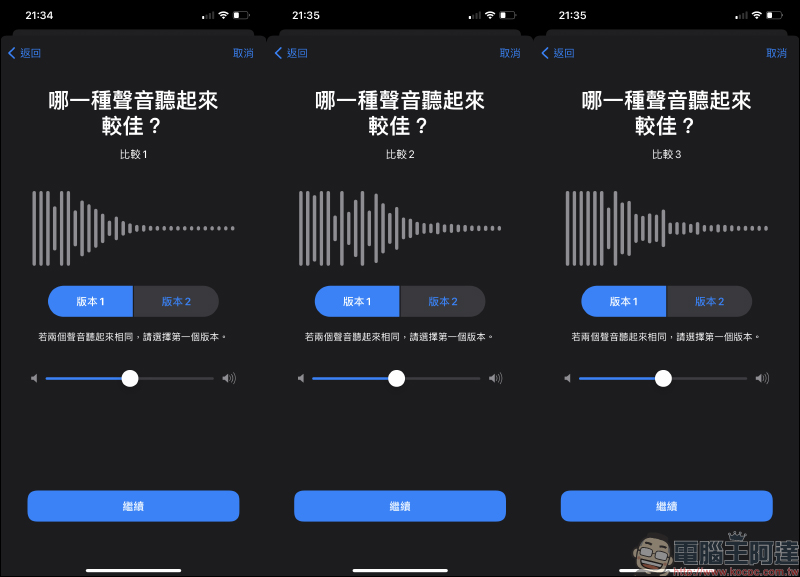
The customized audio settings will allow the user to listen to three sound comparisons in sequence. The user only needs to select “Version 1” or “Version 2” according to their preference:
The system will then slightly enhance the horizontal and horizontal tones according to the user’s choice. The user only needs to click “Custom” or “Standard” to listen. Then if you use AirPods Pro or AirPods Max with “Transparency Mode”, you can also adjust the customized transparency mode in an advanced way.
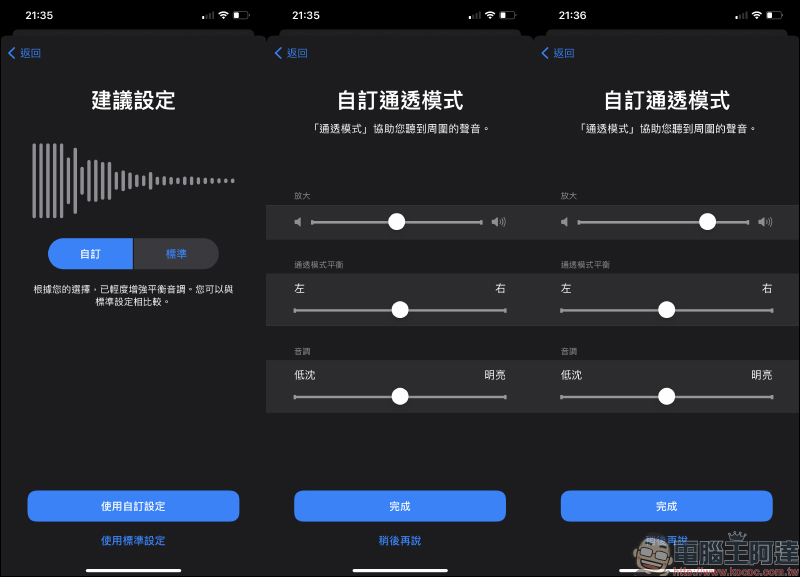
Audio mode adjustment
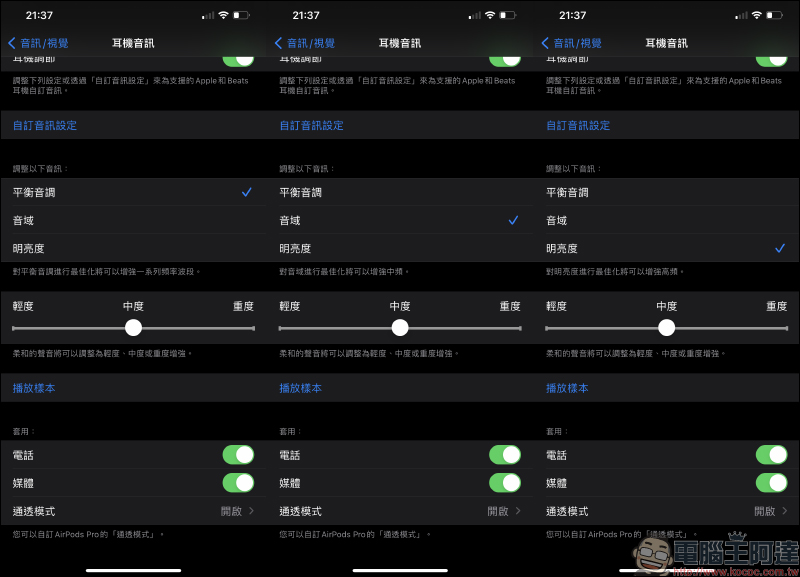
If you feel that the steps to customize the audio settings are too cumbersome, or you may change your listening preferences from time to time, you can also directly click on the audio at the bottom of the “Headphone Audio” page to make direct adjustments. Don’t forget to click on “Play Sample” below for listening comparison before adjusting the settings.
“Balance” will enhance a range of frequency bands, “Range” will enhance mid-frequency, and “Brightness” will enhance high-frequency.
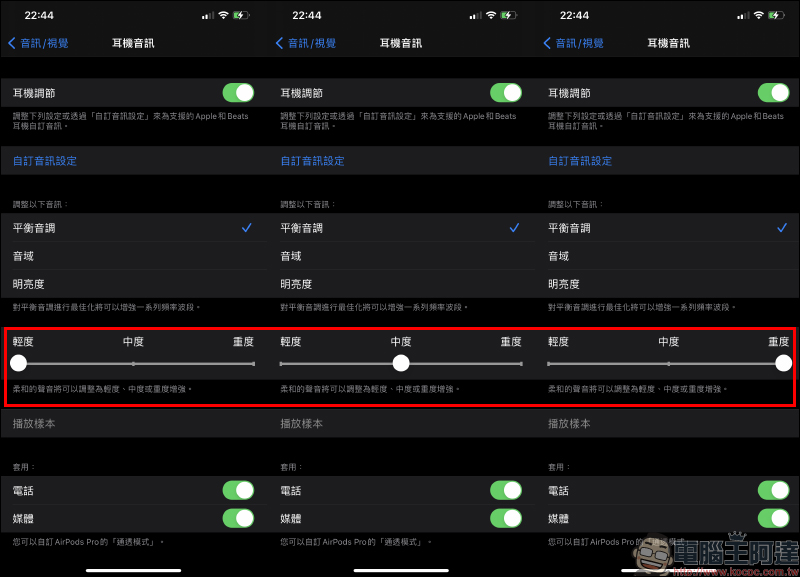
In addition, you can also choose “light”, “medium” and “heavy” enhancement for the intensity of the sound, which can also be compared with playback samples:
How to make the sound in Transparency Mode clearer? Noise reduction effect is better? (Applicable to AirPods Pro and AirPods Max)
There are currently three noise control modes in AirPods Pro and AirPods Max, which are “noise reduction”, “transparency mode” and “off”. According to Apple’s official explanation,
In Noise Cancellation mode, an outward-facing microphone or mics detect outside sounds, and AirPods Pro or AirPods Max cancel them out with anti-noise waves. In this way, external noise can be eliminated first without reaching the user’s ears. Inward-facing microphones will pick up noise in the ear, and AirPods Pro or AirPods Max will cancel it out with anti-noise waves. As for the “transparency mode”, outside sounds can be transmitted in, so users can directly hear the sounds of the surrounding environment without taking off the headphones.
However, probably the vast majority of users of AirPods Pro or AirPods Max have only directly adjusted the noise control modes of “noise reduction” and “transparency mode” since they bought it, right? In fact, different users’ ear shapes and wearing conditions will directly affect the processing effect and sound quality performance of the noise mode. Next, let’s learn how to adjust it in an advanced way!
How to improve noise reduction effect? Earplug cover fit test (applicable to AirPods Pro)
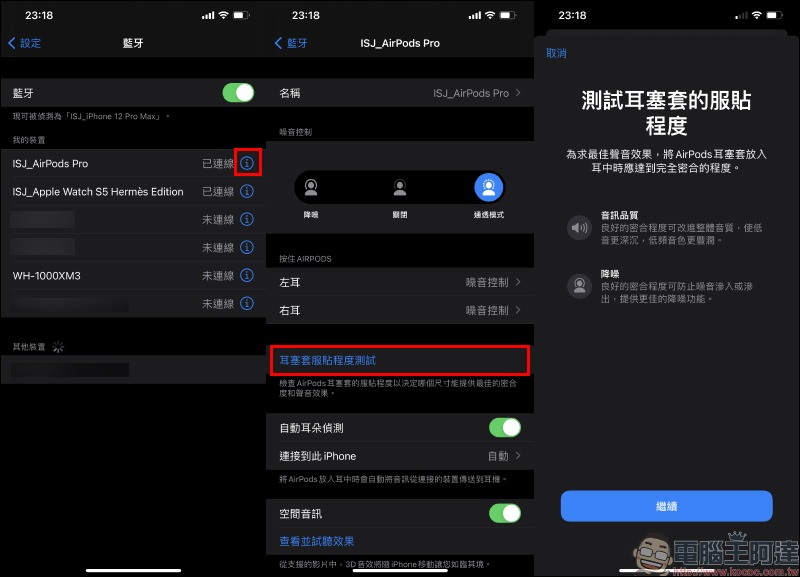
Many AirPods Pro users should also know how to adjust for better noise reduction effect. If you are not sure whether you are enjoying the best sound quality and noise reduction effect, it is recommended to use the “Earplug Cover Fit Test” to confirm.
First, put AirPods Pro in your ears, then go to “Settings” > “Bluetooth” on your iOS device, click the information button with “i” next to AirPods in the device list, and then click “Earbud Cover Fit Test”. At this time, the fit of the AirPods earbud covers will be checked, and suggestions will be given to adjust the tightness of the earphones or try other suitable earbud covers.
How to improve clarity in transparency mode? Customized transparency mode (applicable to AirPods Pro and AirPods Max)
Select “Transparency Mode” at the bottom of the “Headphone Audio” page in the previous section, and then turn on “Customize Transparency Mode” to choose the size of the ambient sound in transparency mode, the left and right balance, or whether the tone should be deeper or brighter. These can be adjusted according to the user’s personal listening habits. If you used to feel that the surrounding environment still sounded a bit too quiet and unclear when AirPods Pro or AirPods Max were in Transparency Mode, adjusting from here will be quite useful.
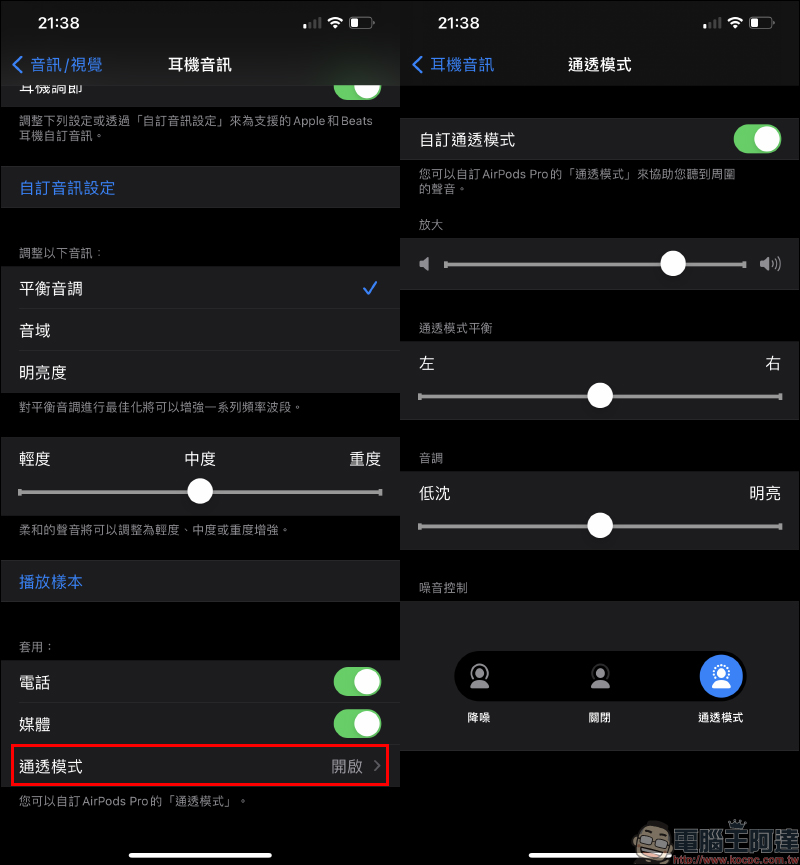
If you perform the “Customize Audio Settings” step in the previous section of this article, the last stage will also provide users with the option to customize the transparency mode (only for AirPods Pro or AirPods Max that support transparency mode).
Further reading:
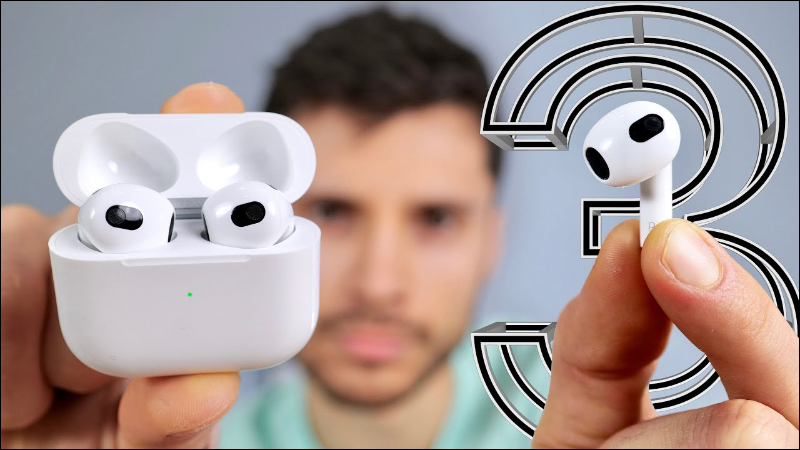
Well-known foreign YouTuber unboxes AirPods 3 first and compares the design differences with multiple AirPods
Source: KOCPC Chinese