


iPhone users will more or less download some Apps that they don’t want to be discovered by others, especially the Gentleman series. You may hide it deep in a folder, or change its name to something that is not easily suspected. In fact, after iOS 14, the iPhone has a hidden function. It can not only remove the App from the home screen (not remove and install it), but also hide the entire home screen page. This article will teach you how to operate.

Before reading the tutorial, remember to upgrade your iPhone to iOS 14 first. If you are not sure what version it is now, you can open Settings -> General -> Software Update to check.
How to hide specified Apps on iPhone
The steps to hide specified Apps on iPhone are somewhat similar to removing Apps, except that you need to select “Remove from Home Screen” in the menu instead of uninstalling the entire app.
After finding the Apps you want to hide on the iPhone home screen, long press it, and a menu will pop up, select “Remove App”:
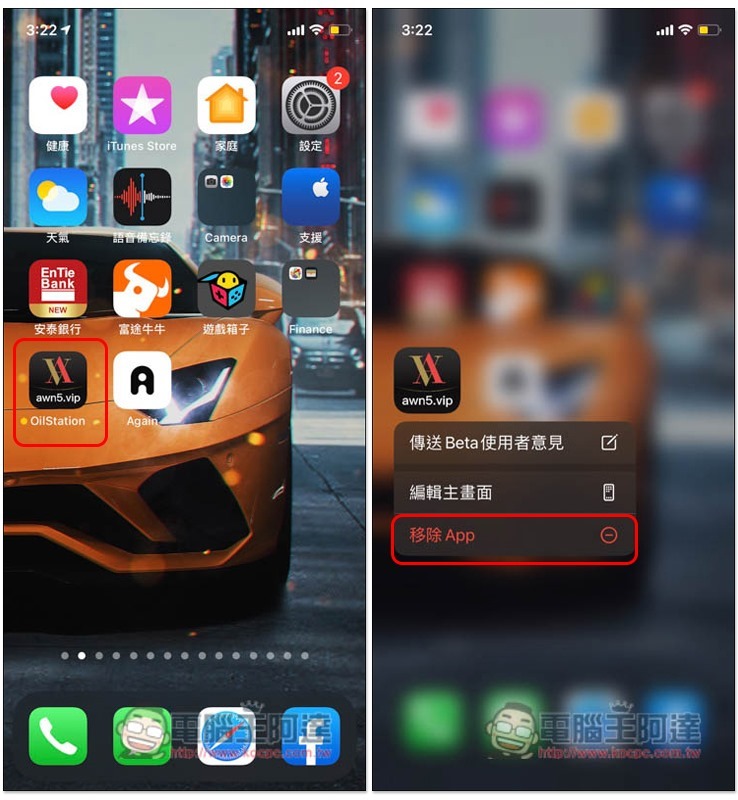
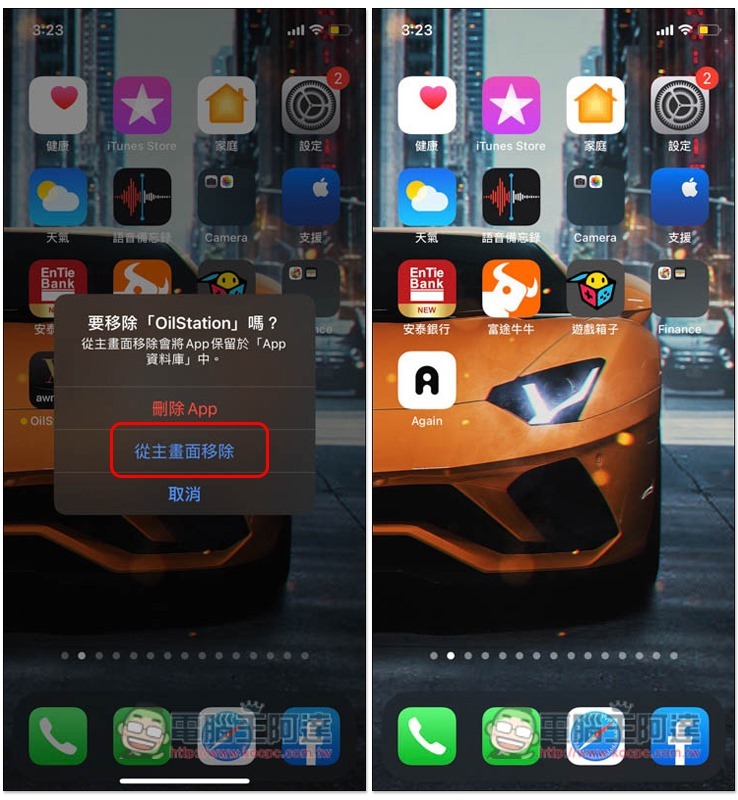
This menu will pop up after iOS 14. Please select the second “Remove from Home Screen” so that the App icon will disappear, but the installation will not be uninstalled. You can continue to use it:
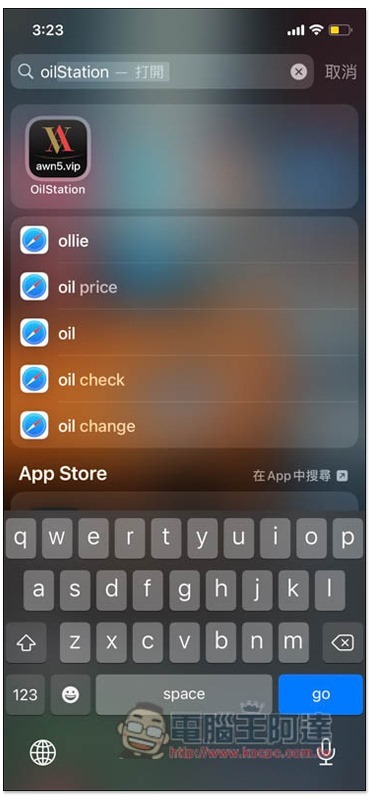
There are two ways to find this App. The first is through the Spotlight search function. After entering the keyword of this App, the matching results will be displayed below:
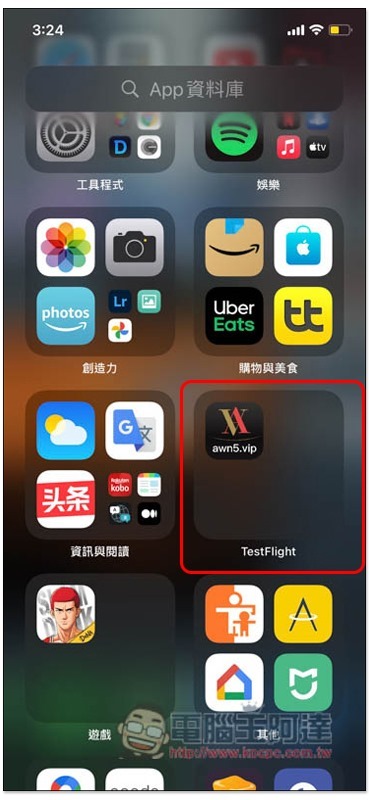
The second one is to slide all the way to the right on the main screen to enter the “App Database”. There is also a search function at the top. Enter keywords to find:
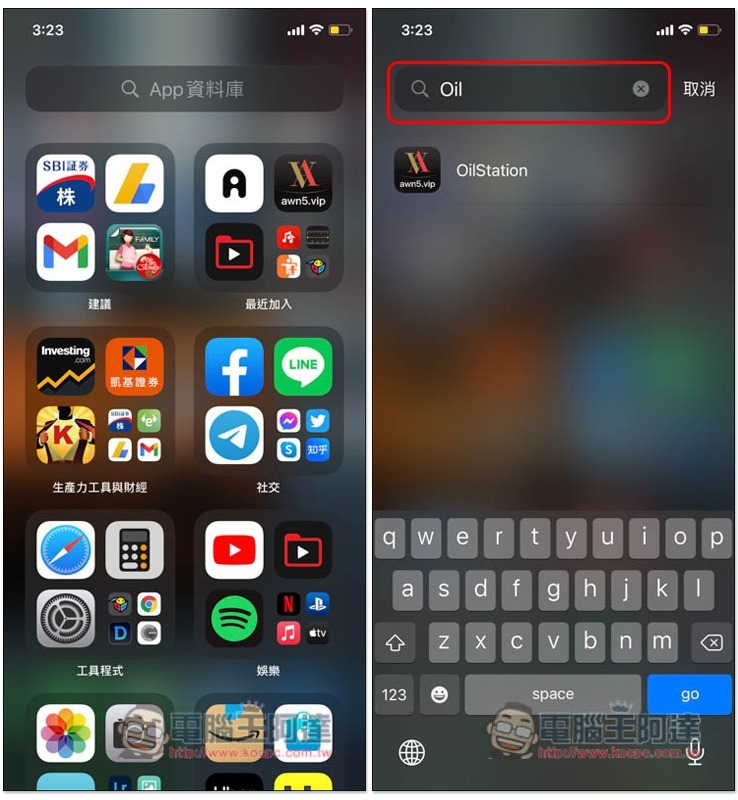
It doesn’t matter if you accidentally forget the name. There are many categories in the App database. Just guess what type of app you want to use, and then go to the folder to find it. In addition, if you want to add the app back to the home screen or remove the installation, you can also click here. After long pressing it, you will see the function options:
How to hide the home screen page on iPhone
If you have a lot of apps you want to hide, it might be easier to just group those apps on one page and hide the entire page.
After long-pressing any part of the main screen to enter the jumping screen, press the horizontal bar above the bottom Dock to enter the main screen page editing menu. Uncheck the bottom of the page you want to hide, and then press the upper right corner to complete. This is successful:
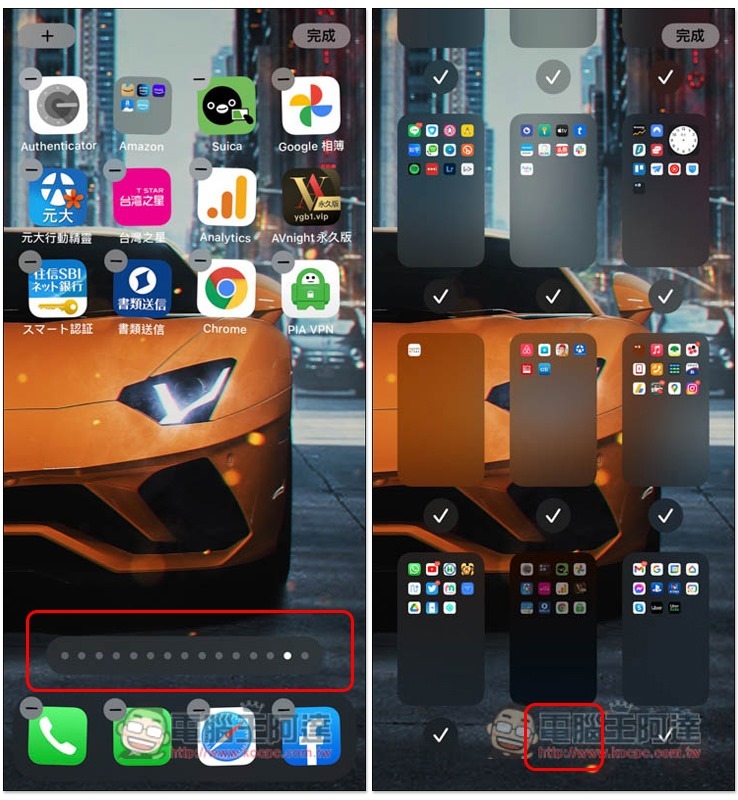
To display the same edit screen again, just re-tick it. This method does not remove Apps from the home screen, so it is easier to restore.
Source: KOCPC Chinese