


A few days ago, Apple officially released iOS 14.5/iPadOS 14.5、watchOS 7.4 As well as the system update of macOS Big Sur 11.3, firmware version updates were also quietly officially pushed for AirPods Pro and AirPods 2 earlier. The firmware version of this update is 3E751, which is also the successor toLast September’s 3A283 firmware update for AirPods Pro’s “spatial audio” featureLater, a new firmware update was released again.

Apple officially pushes firmware update 3E751 for AirPods Pro and AirPods 2
Earlier, Apple quietly released firmware update 3E751 for AirPods Pro and AirPods 2. Taking AirPods Pro as an example, the previous version was 3A283. Although Apple did not officially explain the update content of AirPods in this update, looking back at the update content of Apple’s macOS 11.3 in the past few days, it mentioned the following two corrections:
- The AirPods audio path is sent to the incorrect device for automatic switching.
- AirPods auto-switching notifications may be missing or duplicated.
Since this update is targeted at headphones that support “auto switching” such as AirPods Pro and AirPods 2, which allow users to switch playback between iPhones and other devices such as Mac computers and iPads, it is speculated that this 3E751 firmware update should also correct the above two points. If you are an AirPods Max user, you might as well check whether you have also received the 3E751 firmware update!

How to check AirPods firmware version?
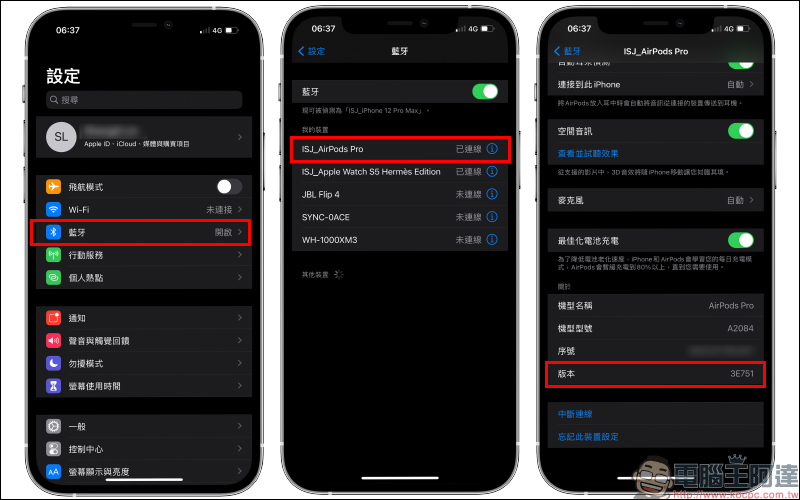
View from “Bluetooth”
First open “Settings” and select “Bluetooth” and then click the “i” next to the AirPods device to view more information. Then in the “Version” field under the “About” category at the bottom, you can see the current AirPods firmware version.
View from “About This Mac”
Another way is to first confirm that the AirPods are connected to the iPhone, then go to “Settings” but this time select “General” > “About This Mac”: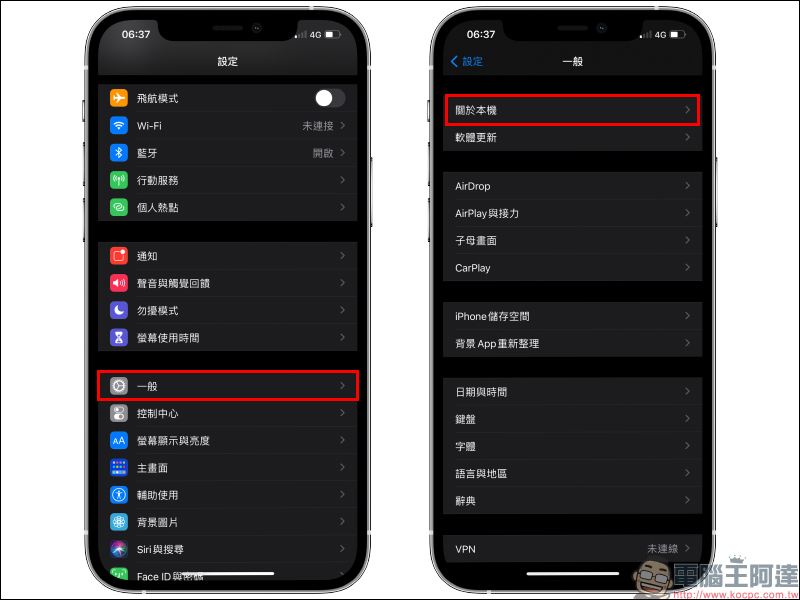
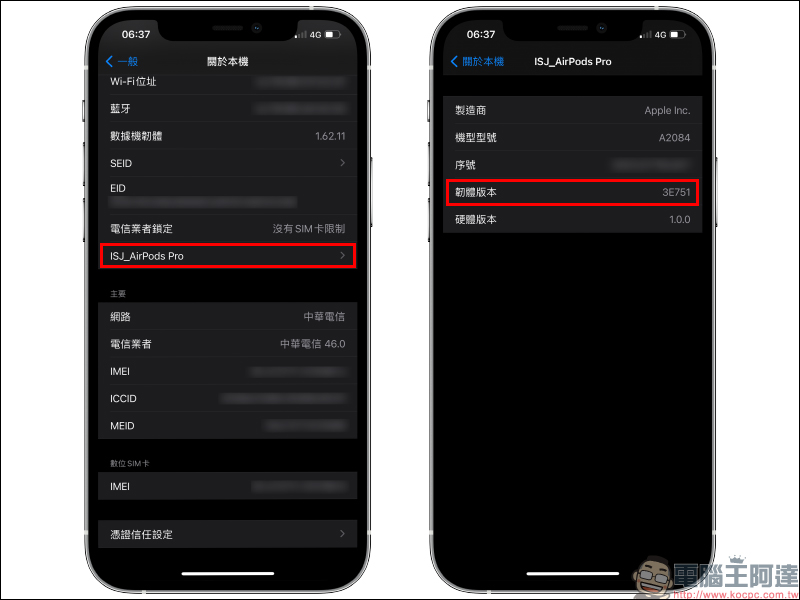
In “About This Mac”, in addition to viewing the local information of the iPhone, if the AirPods are currently in the “Connected” state, you can see the local information of the AirPods. You can also view the current firmware version:
How to update AirPods?
- Put the AirPods back into the AirPods charging case
- Complete the connection between AirPods and iPhone/iPad
- Connect the AirPods charging box to the power source (either Lightning wired charging or wireless charging)
- Place your iPhone/iPad connected to the Internet close to the AirPods and make sure it is connected
- Make sure the AirPods and charging case are fully charged and wait for a while for the update to complete automatically.
Further reading:
ASUS officially hints that ZenFone 8 will use a 120Hz refresh rate punch-hole screen and launches 4 ZenFone 8 series models


Source: KOCPC Chinese