


In order to make the Apps introduction text richer, I sometimes insert screenshots into the device frame to make the pictures look better and more textured. In the past, I used Photoshop to combine. It was okay if I only had one, but multiple photos were a bit tiring. Sometimes I even needed screenshots from different devices, which took a lot of time to process. But recently I discovered this very easy-to-use free online tool “Device Shots”, which provides a lot of common devices, from iPhones, Android phones, tablets, laptops, monitors, to smart watches. Each one only needs to upload screenshots to complete the synthesis process, which is very easy. It also provides modification functions for modifying the background, setting commonly used sizes, etc.
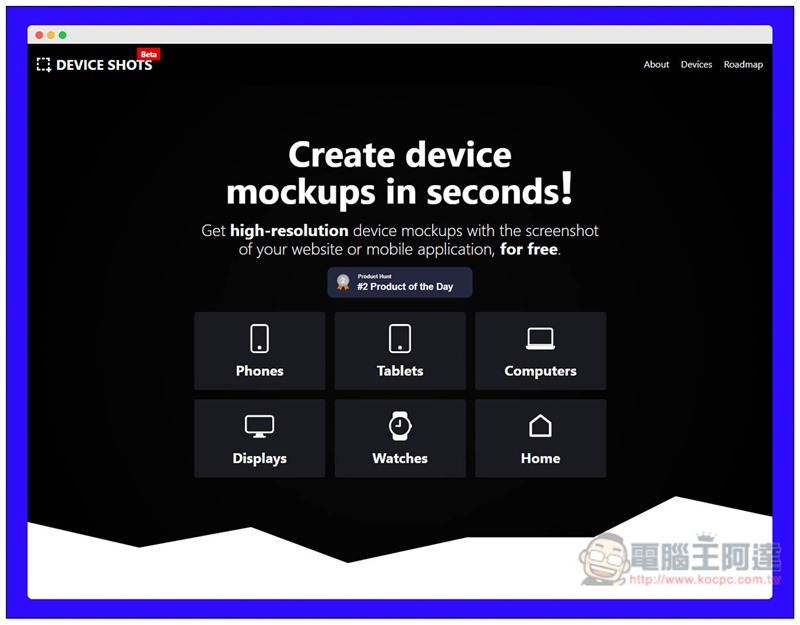
Introduction to Device Shots
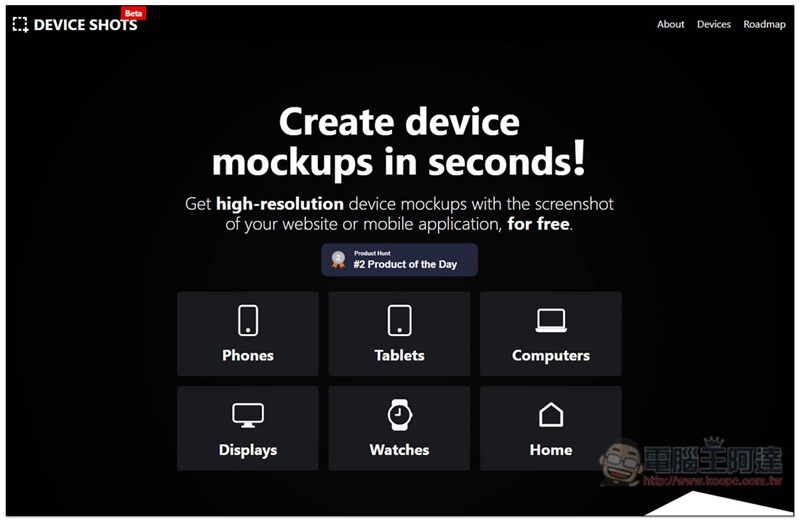
After clicking me to enter the Device Shots website, select the device screenshot you want to synthesize. There are six categories: “Phones”, “Tablets”, “Computers”, “Displays”, “Watches” and “Home”:
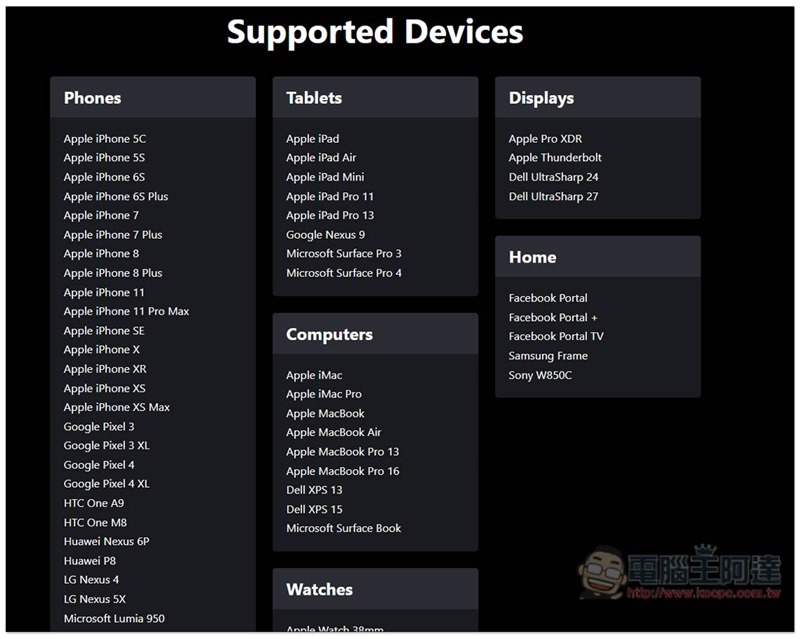
You can also scroll down first to see what devices are provided in each category. Basically, the common ones are available, including the iPhone and even the 5C from several years ago, all the way to the latest iPhone 11. The display section also includes the recently launched Apple Pro XDR:
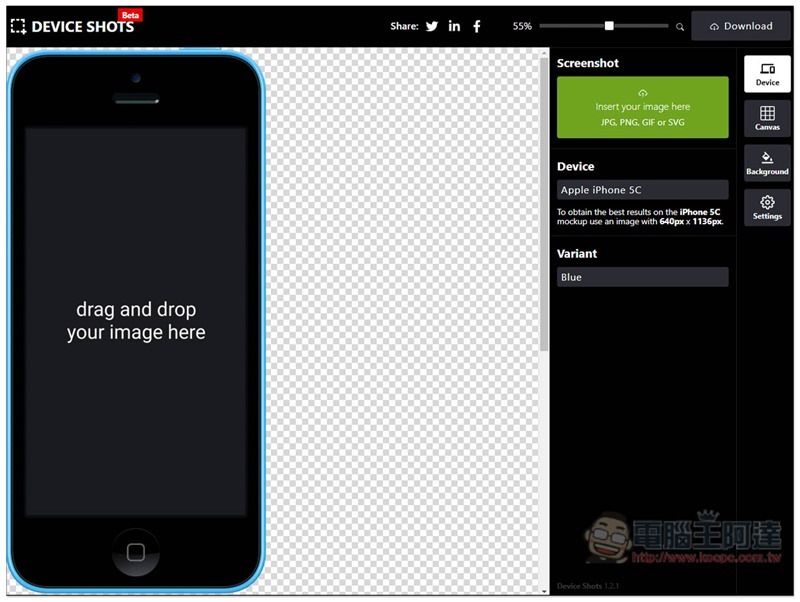
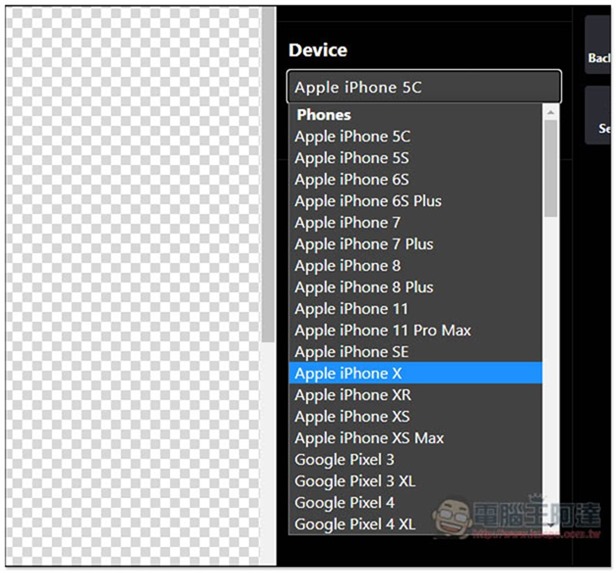
I’ll take a mobile phone as an example. After clicking it, the default is iPhone 5C. Click Device on the right to select the phone you want:
As shown below, I choose iPhone X:
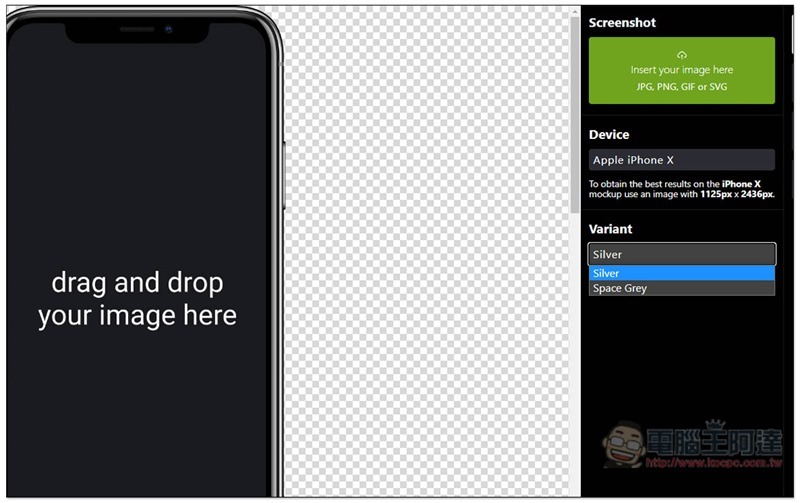
Variant is the color, just like the actual machine. It depends on which colors were originally launched. This tool basically provides them. Then click Insert Your image… in the upper right corner and choose to upload the screenshot, or drag the screenshot directly to the phone screen::
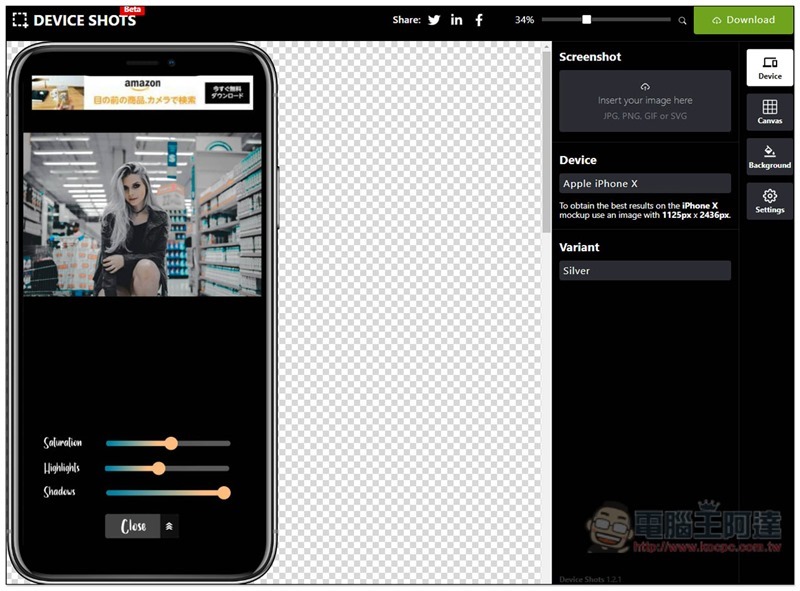
Like this, the synthesis of device screenshots is completed. The default background is transparent. If you want to use it to synthesize other pictures, you can directly click Download in the upper right corner to download:
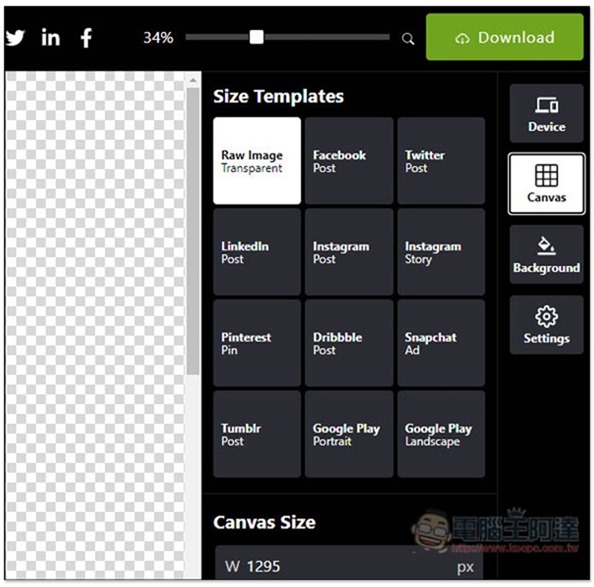
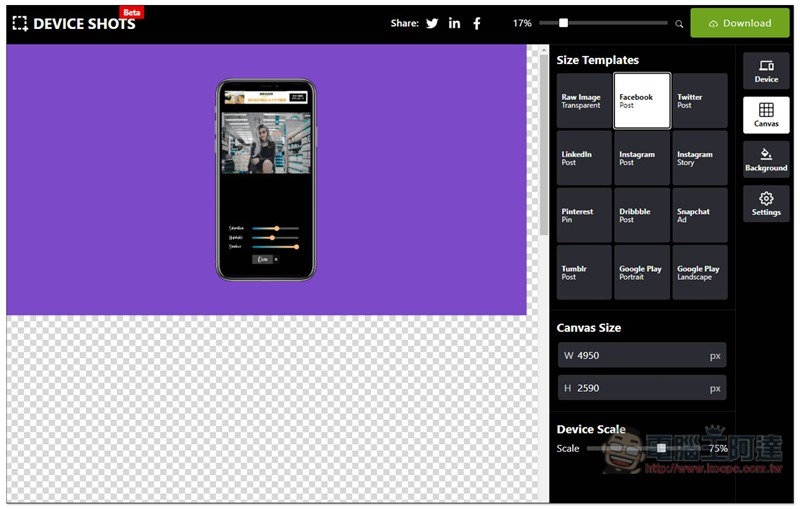
The Canvas function on the right provides commonly used templates, such as Facebook or Twitter posts, Instagram stories, Google Play display images, etc. After clicking, the background size of the device will be automatically modified:
As shown in the Facebook post below, click Background on the right to modify the background:
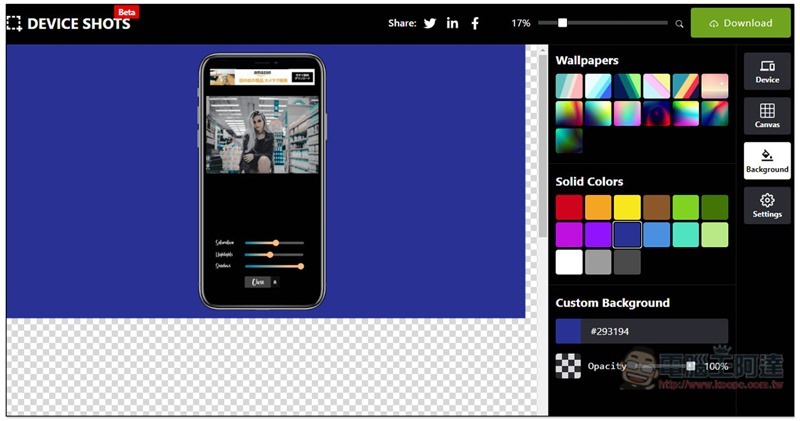
It provides multiple single color and wallpaper options. Unfortunately, it seems that you cannot upload your own background image currently. If you have such needs, you still need to rely on other software to synthesize it:
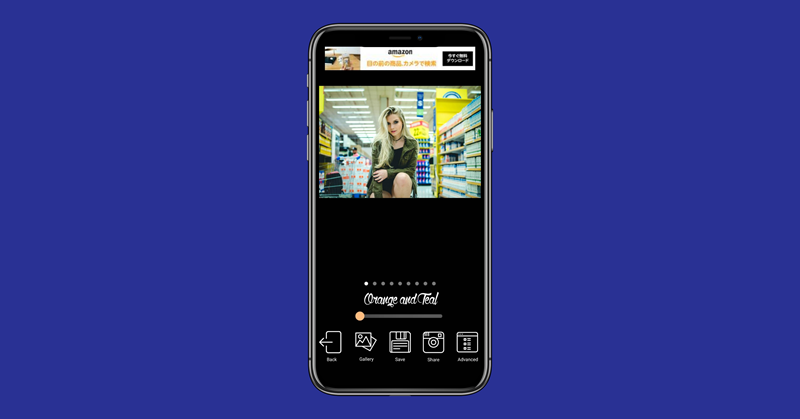
It takes less than a minute to easily create this screenshot with the frame of the iPhone X device. It is much easier than using Photoshop:
Supplementary information
- Tool name: Device Shots
- Nature: Free
- URL:Click here to go
Source: KOCPC Chinese