


FluentlyApp is a very powerful multi-national translation online document editor that supports multiple languages, such as English, Japanese, Korean, German, French, etc. Unlike ordinary translators, it has complete text tools, such as: H1, H2, bold, italics, and even list numbers, etc., allowing you to type the entire article directly in this editor and translate it into foreign languages, eliminating the need to copy and paste to Google You can also download files during translation, and all common formats are supported.
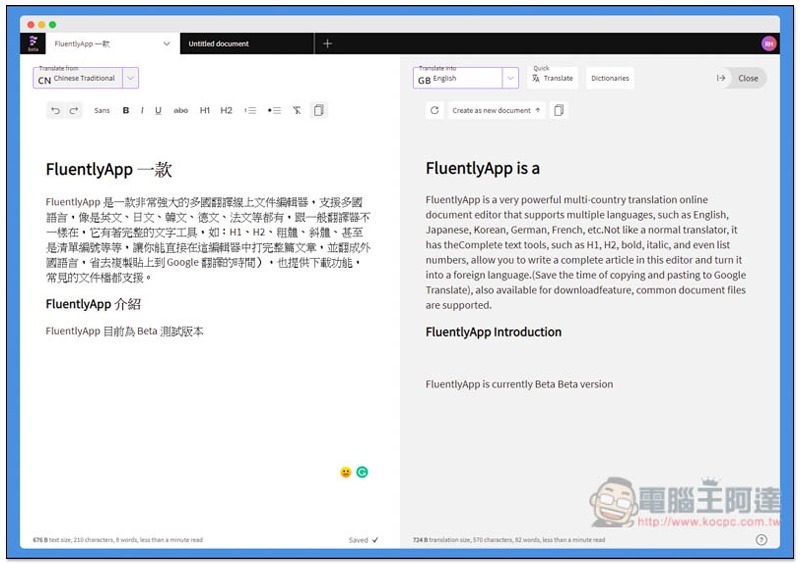
FluentlyApp operation tutorial and introduction
FluentlyApp is still in the beta testing stage, so some functions may not be available, but everyone can try it for free (there is a limit on the number of files). I am not sure whether there will be a free version when it is launched. Those in need are recommended to try it now. It is really good.
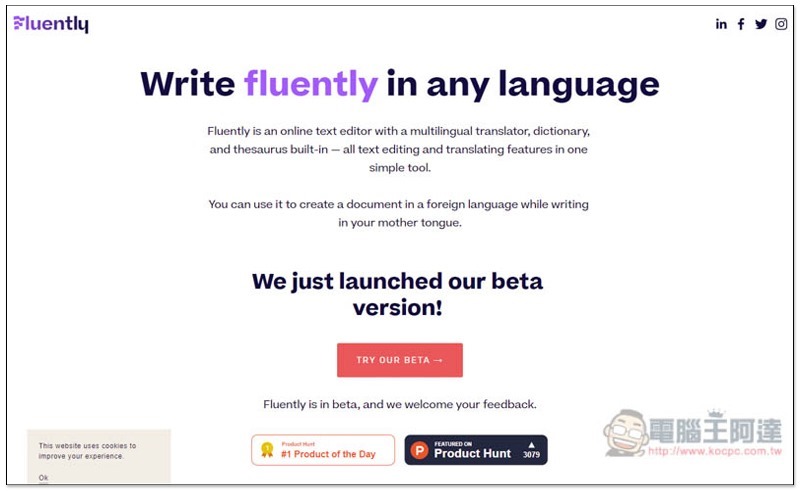
After clicking me to enter the Fluently website, click TRY OUR BETA to try it out:
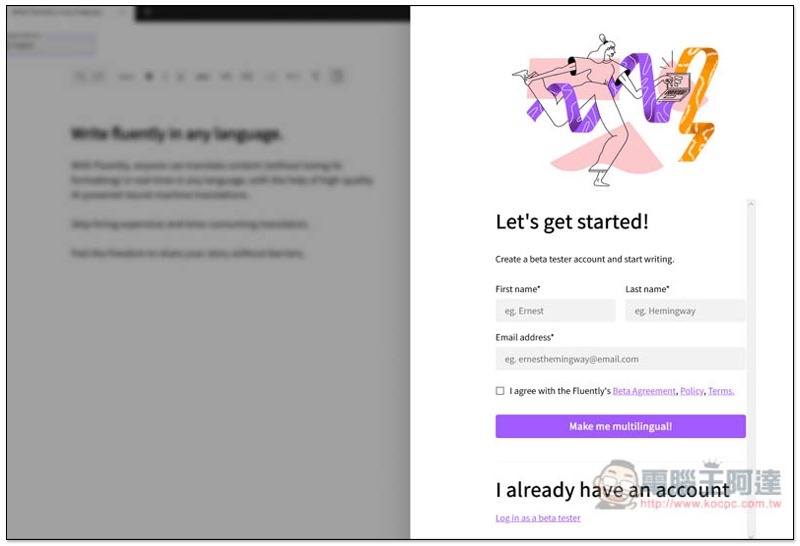
You need to create an account before using it, enter your name and email, and then click Make me multilingual! below. Each account can create two files:
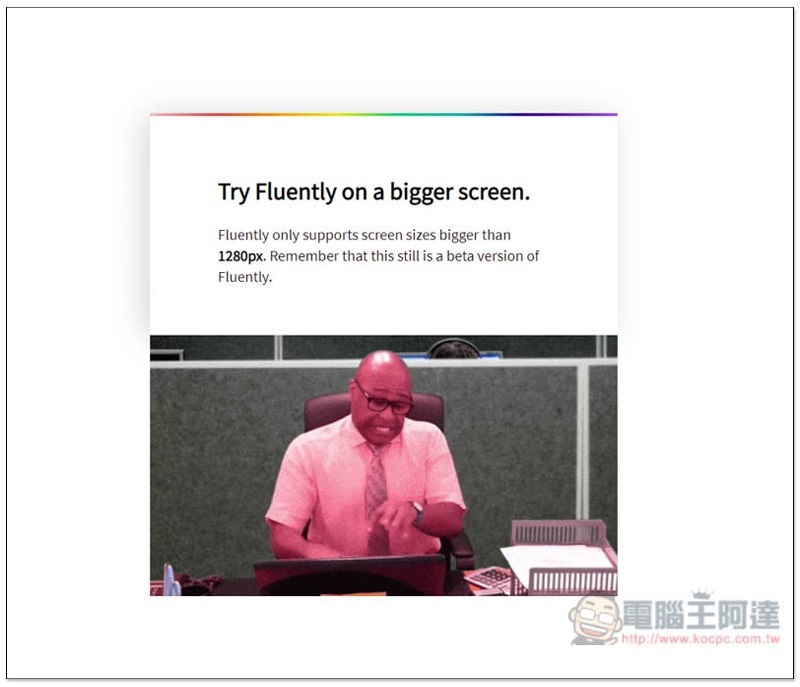
After logging in, if you see this screen, it means that the browser window is too small and you must make it larger to use it, at least 1280px:
The picture below is the editor screen, which is similar to most editors. The text tools are at the top, and the title and content are at the bottom. The only difference is that there are translation functions in the upper left and upper right:
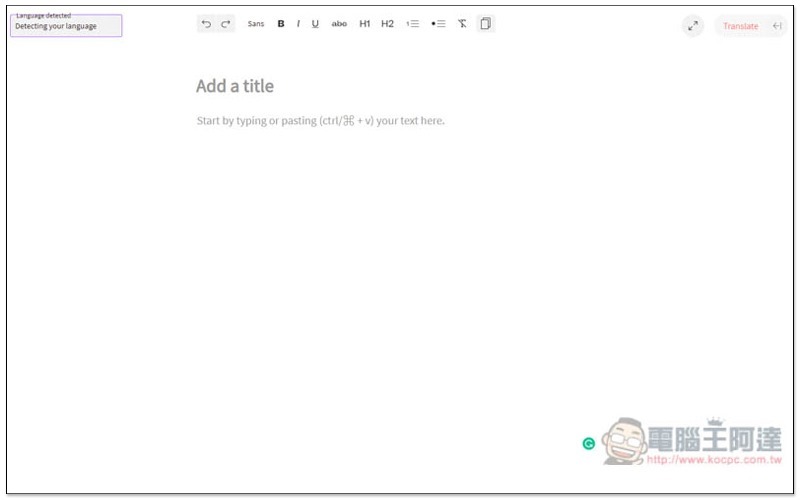
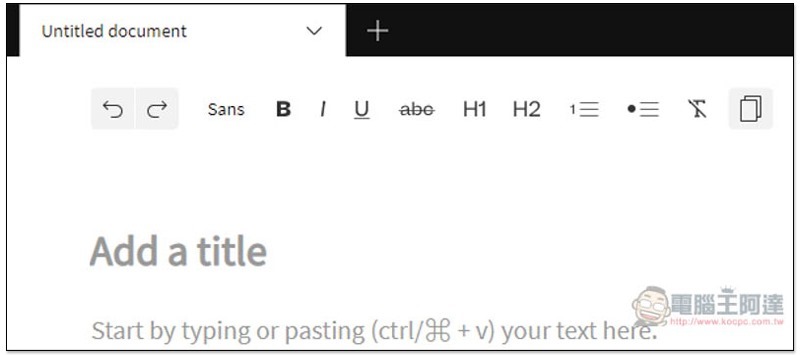
There are almost all commonly used text tools, such as: bold, italics, underline, strikethrough, H1 and H2, lists, etc.:
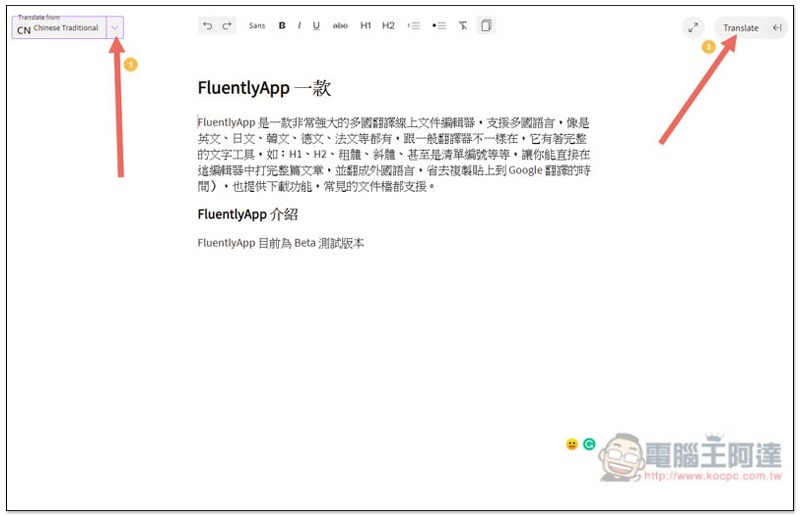
Generally speaking, after entering text, the translation source in the upper left will be automatically detected. I tested English with no problem, but it seems that there is no way to do it with Chinese. I have to select it manually. If you also encounter this situation, please click the inverted triangle, select Chinese Traditional (if your text is also Traditional Chinese), and then click Translate in the upper right:
The translation results will be displayed on the right side. I have to say that the quality is quite good. There are only some small places that need to be modified:
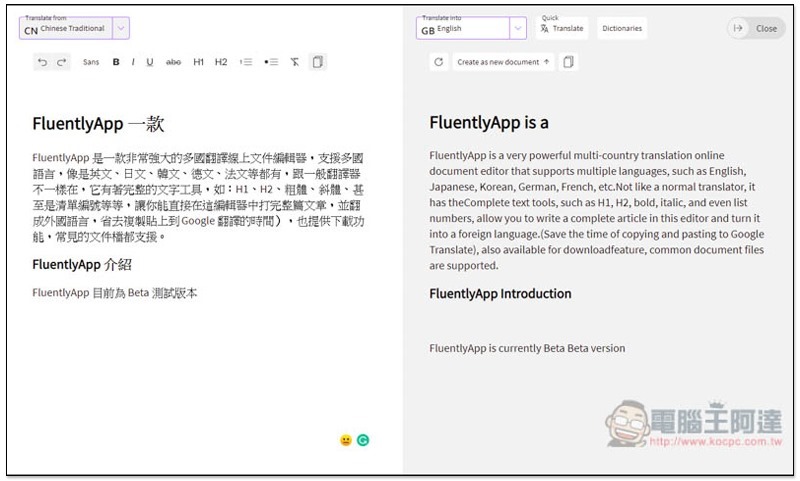
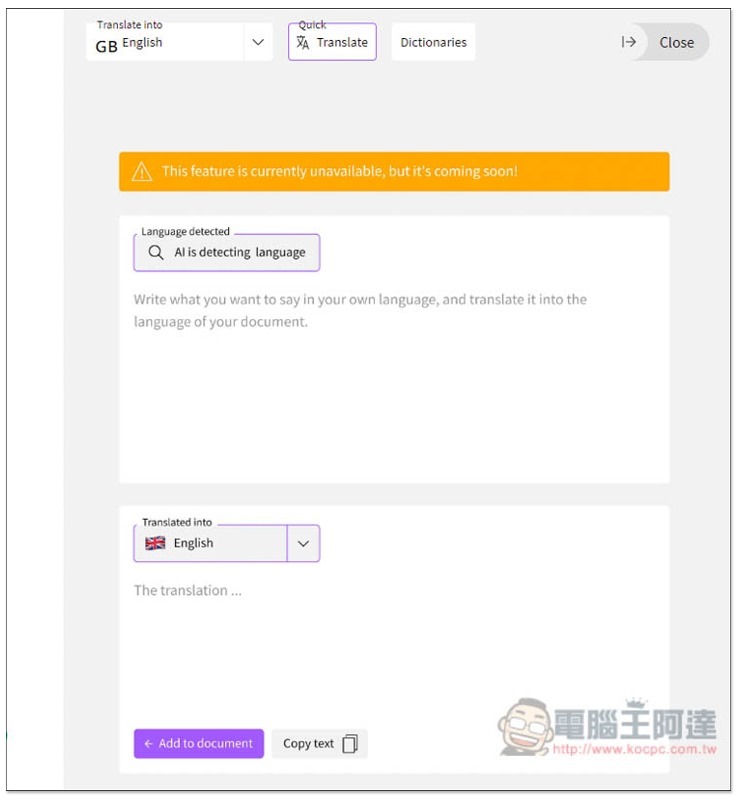
In addition to full-page translation, there are actually simple translation and dictionary tools on the upper right, but they are currently in beta, so they are not yet open:
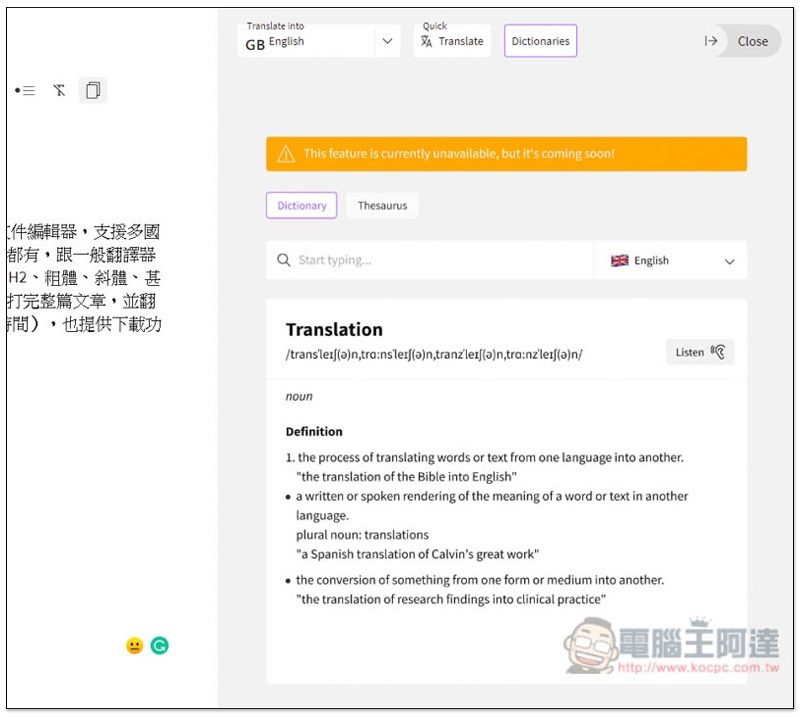
The same goes for dictionary tools:
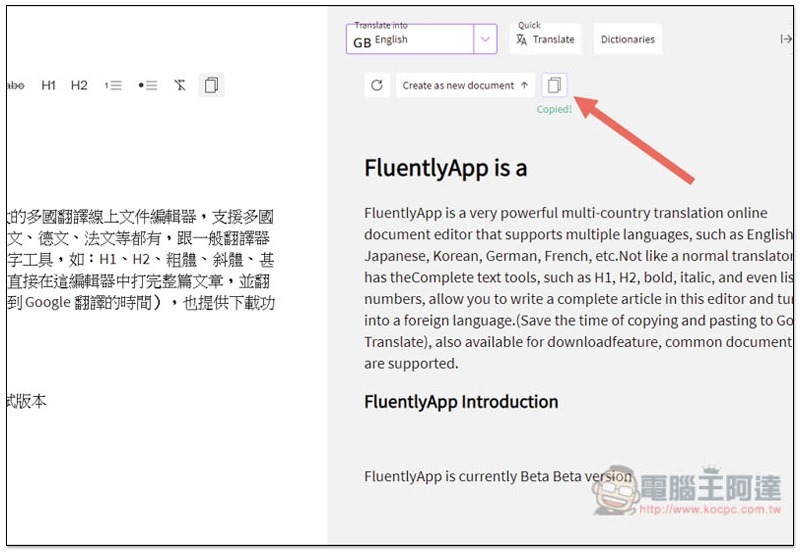
There is a copy function on the upper right side of the files on both sides. Clicking it will copy the entire page:
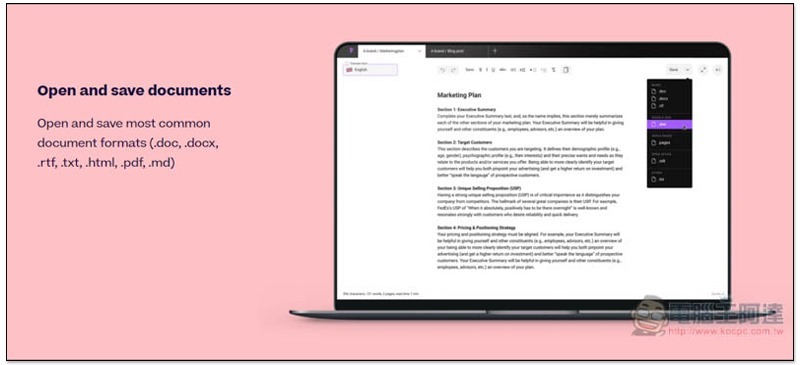
It can also be downloaded into file formats such as doc, docx, rtf, txt, html, pdf, .md, etc. However, this function does not seem to be open yet and I cannot find it, so for the time being I can only copy the entire page:
Supplementary information
- Tool name: FluentlyApp
- Nature: Currently in beta version
- URL:Click here to go
Source: KOCPC Chinese