


Recently, the latest version of Chrome, Chrome 90, has not only improved some performance and technology, but also added several new useful functions, such as “naming windows” and “copying links to highlighted text.” The former is very convenient for people who often open a lot of Chrome windows and can quickly find the window you want to use. The latter is suitable for sharing online articles, allowing the other party to immediately know the key points you want to share with them. Let me teach you how to use it below.
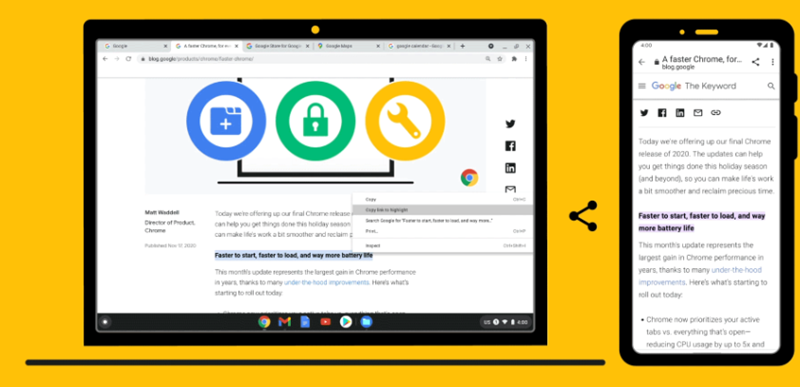
Confirm if your Chrome is updated to Chrome 90
The two functions to be taught below are newly added in Chrome 90 version, so if you haven’t updated yet, you won’t see it, so please check first.
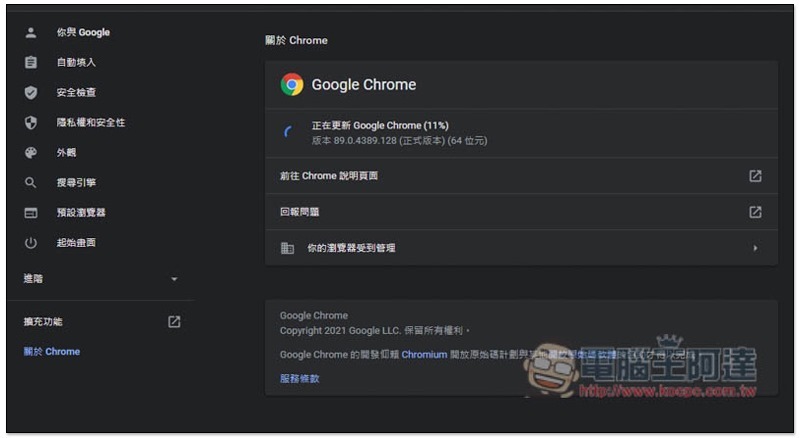
Open the … menu in the upper right corner of the Chrome browser, go to Help –> About Google Chrome, and then you will see your current version of Chrome. If it is not the latest, Chrome will automatically enable the update, just wait for it to finish:
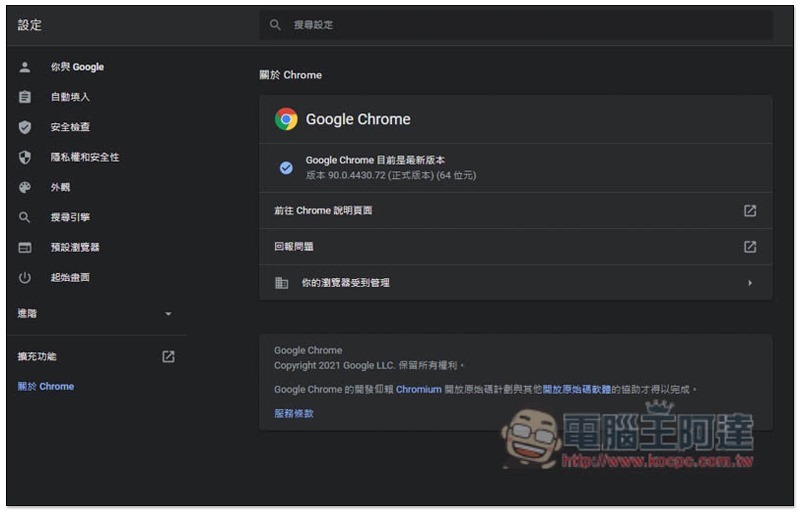
After running, you need to restart, and version 90 will be displayed:
Chrome 90 tutorial on new features of named windows
Chrome currently has a paging group function, but not everyone likes to squeeze all the paging into one window. For example, I will open multiple Chrome windows according to needs, such as writing articles, checking information, relaxing, etc.
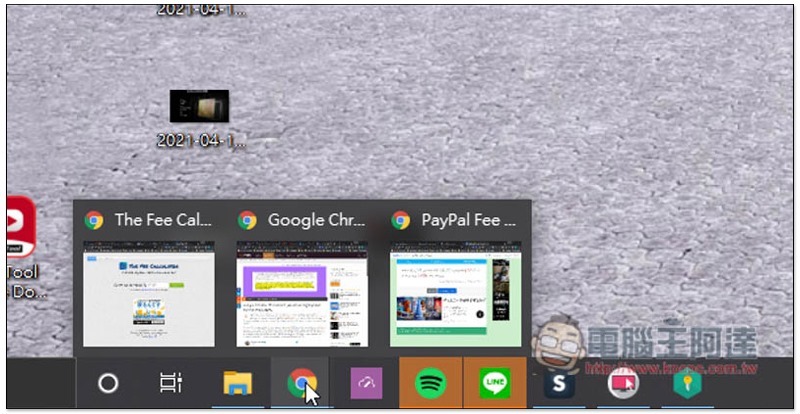
Generally speaking, the name of each Chrome window shows the currently opened tabbed web page. Unless you have a super memory, otherwise the wrong choice will often occur when switching. It is obvious that you want to open the Chrome window for writing articles, but it opens into the Chrome window for relaxing:
After opening the Chrome window you want to name, go to… Menu -> More Tools to see the newly added “Name Window” function:
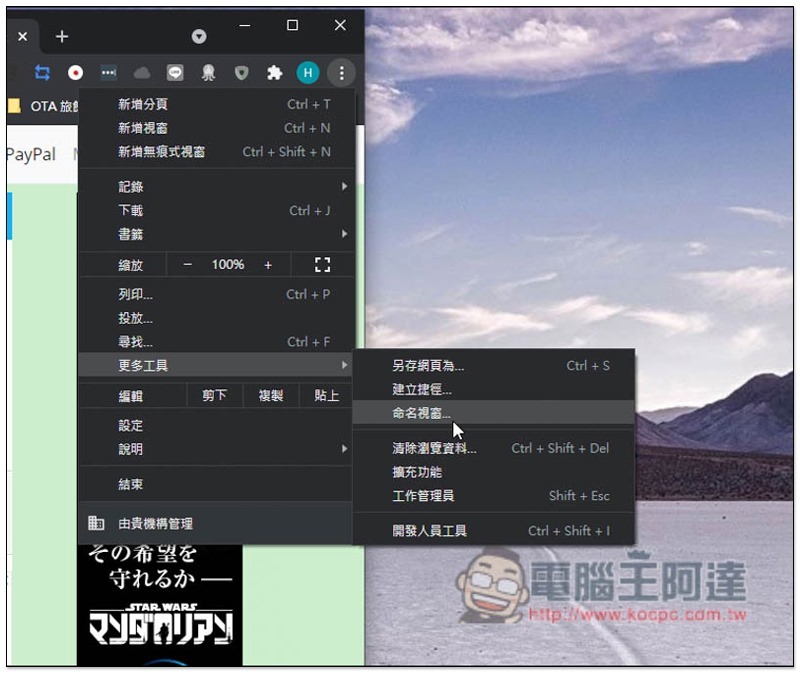
Enter what you want to name this window and click OK:
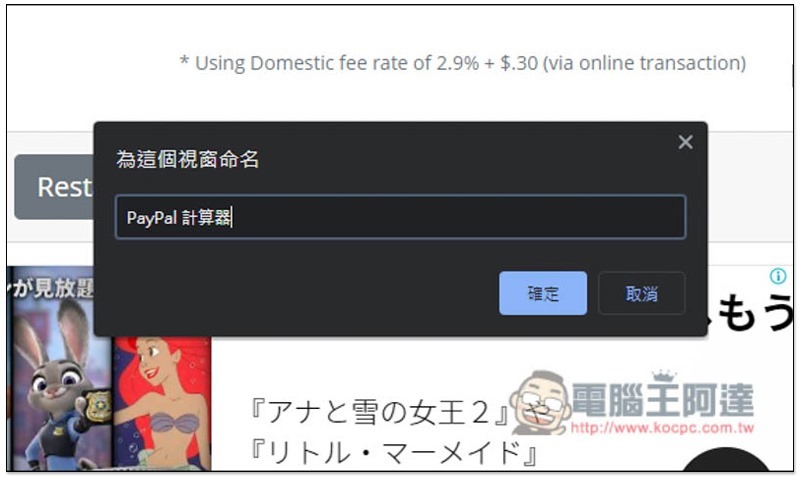
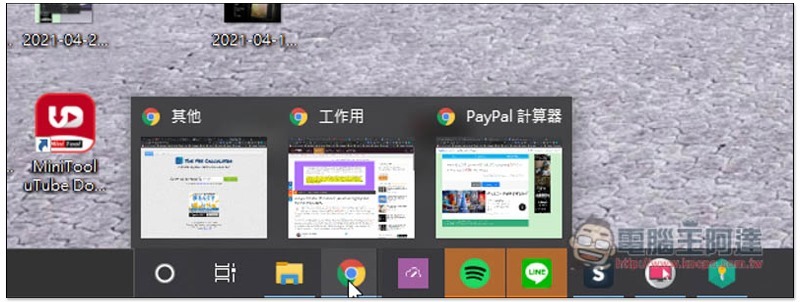
As shown in the picture below, I have named each Chrome window. When switching in the future, I can find the Chrome window I am currently using at a glance, and I will not make the wrong switch:
Chrome 90 tutorial on copying links with highlighted text
Simply put, the new function of copying links with highlighted text is to mark a certain text in a web article with hilight and automatically copy the exclusive URL. When someone opens the URL you shared, the screen will automatically jump to that hilight text, letting him/her immediately know the key points you want to share with him/her.
However, according to the official statement, this feature is not yet fully open at this stage and will be pushed to every user one after another. However, there are ways to open it on your own first.
Like mine, this function does not appear when opening the right-click menu:
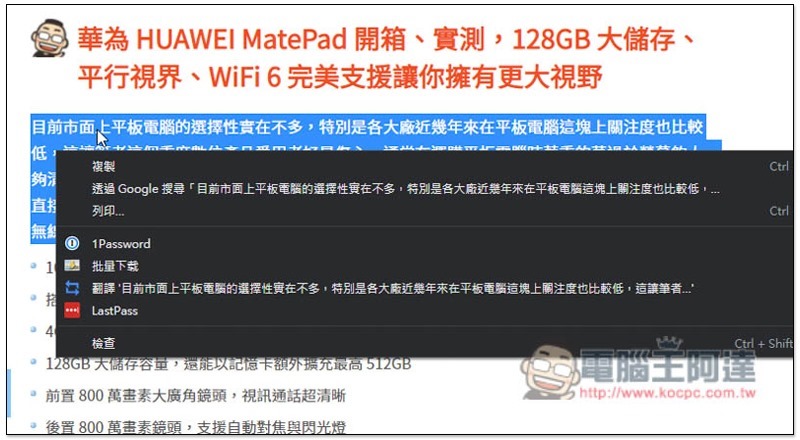
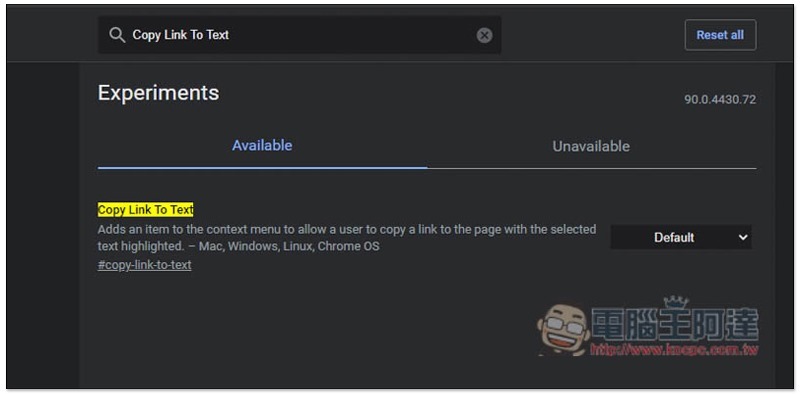
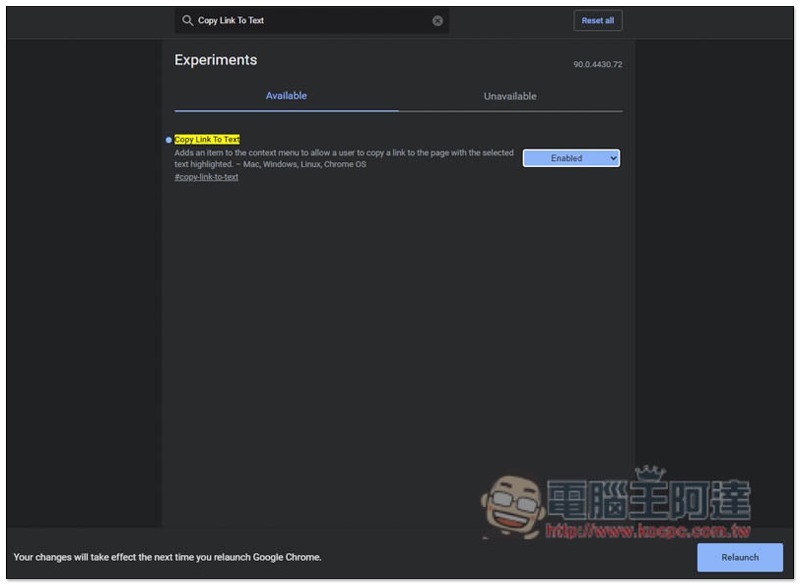
If you are like me, please go to the chrome://flags/copy-link-to-text page and change the Default on the right to Enabled:
You need to restart Chrome for it to take effect:
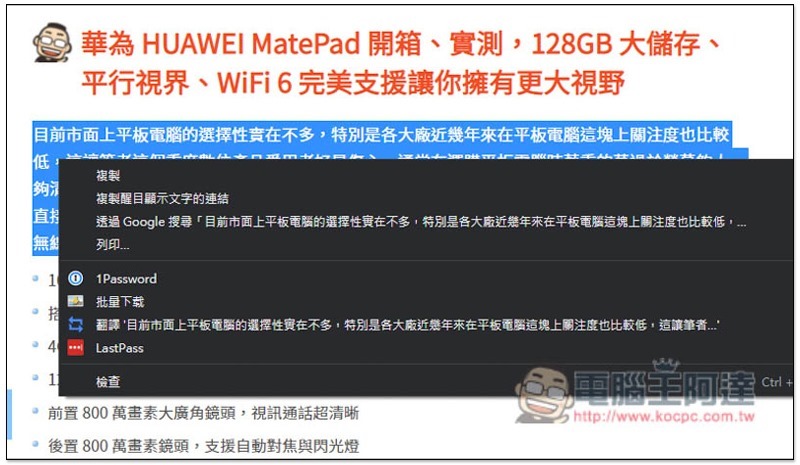
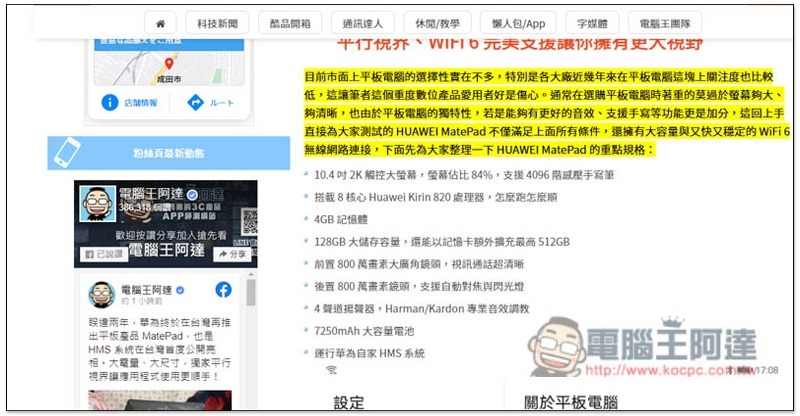
Open the right-click menu again and you will see “Copy link of highlighted text”. After clicking, this text will be hilighted and the URL will be automatically copied to the clipboard. You don’t have to copy it manually. In other words, you can directly click Paste to share with others:
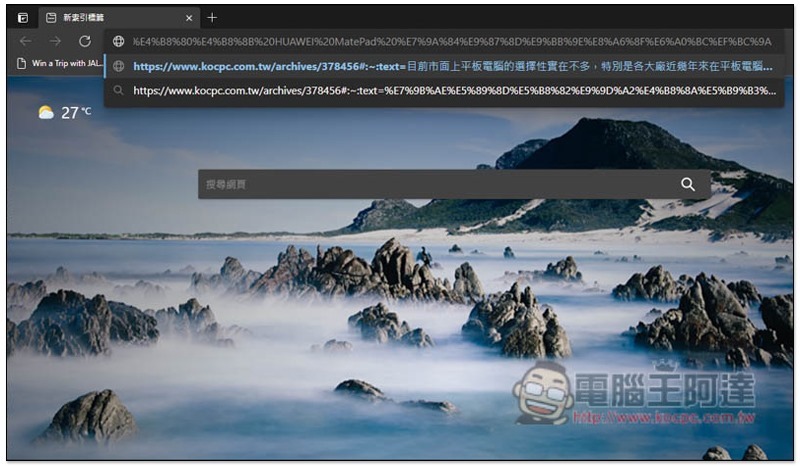
The URL will look like this, followed by the hilight text:
After entering, the screen will automatically slide to this hilight text paragraph, and most browsers support it, not limited to Chrome:
Source: KOCPC Chinese