


A few years ago, we introduced you to the step-by-step tutorial on LINE phone replacement. A few years later, although the phone replacement process has “no” changes, LINE has also brought a brand new 2021 version of the LINE phone replacement process official lazy package, so that everyone can follow the step-by-step process during the replacement process and feel more at ease when comparing the process.
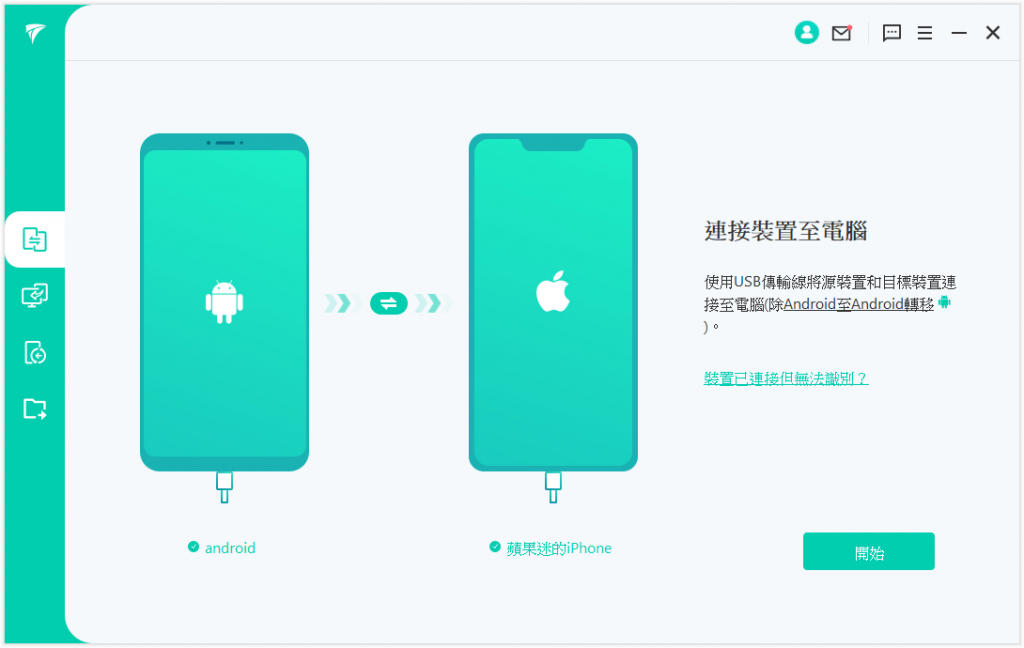
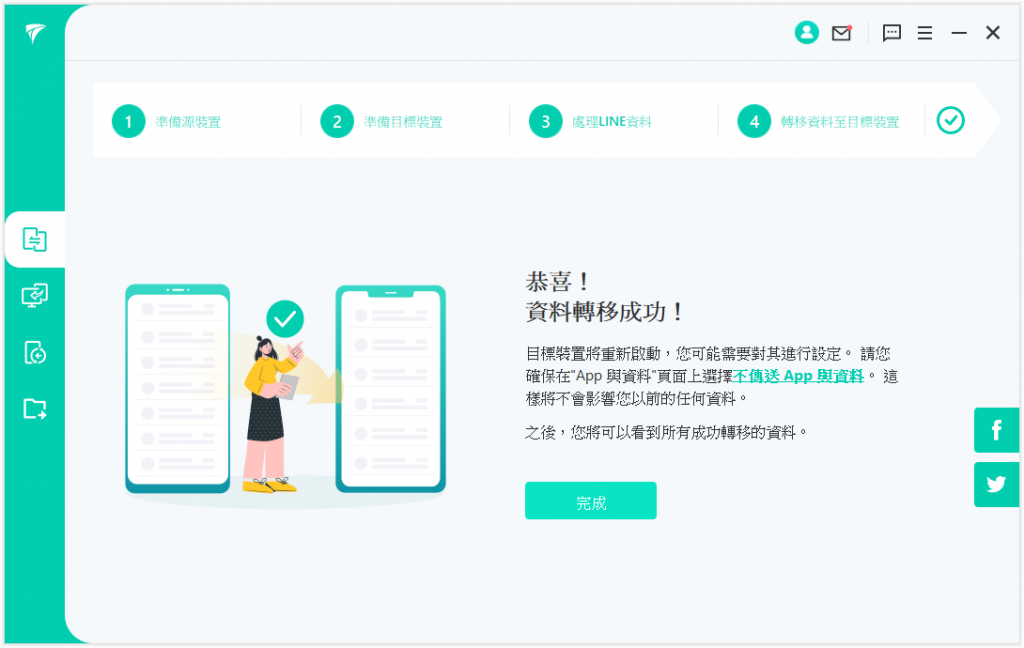
Steps to import LINE data from Android/iPhone to iPhone with one click
LINE official lazy package for device replacement process 2021 new version
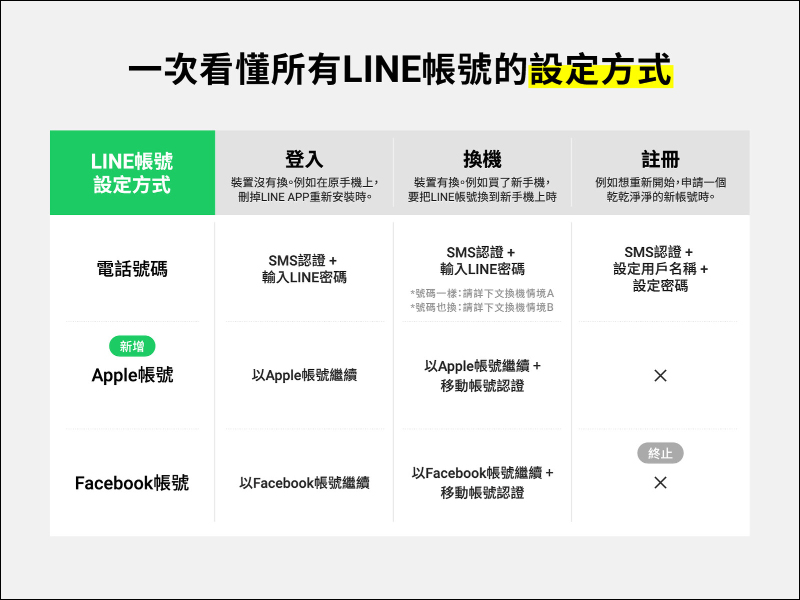
Before switching LINE devices, take a look at the table below to quickly understand how to set up all LINE accounts!
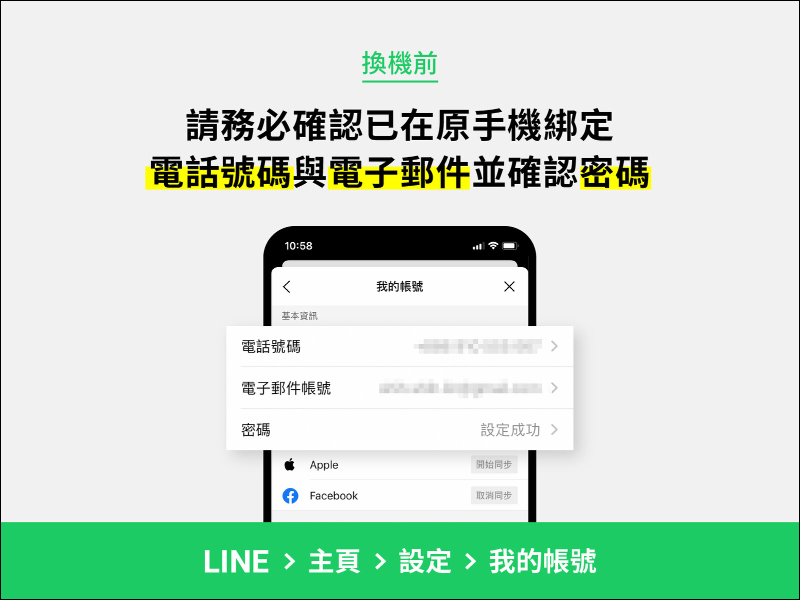
For this LINE replacement, it is recommended to first update the LINE application to LINE version 9.2.0 (inclusive) or above. Before switching phones, it is recommended to confirm again that the phone number, email and password have been bound to the LINE App of the original phone:
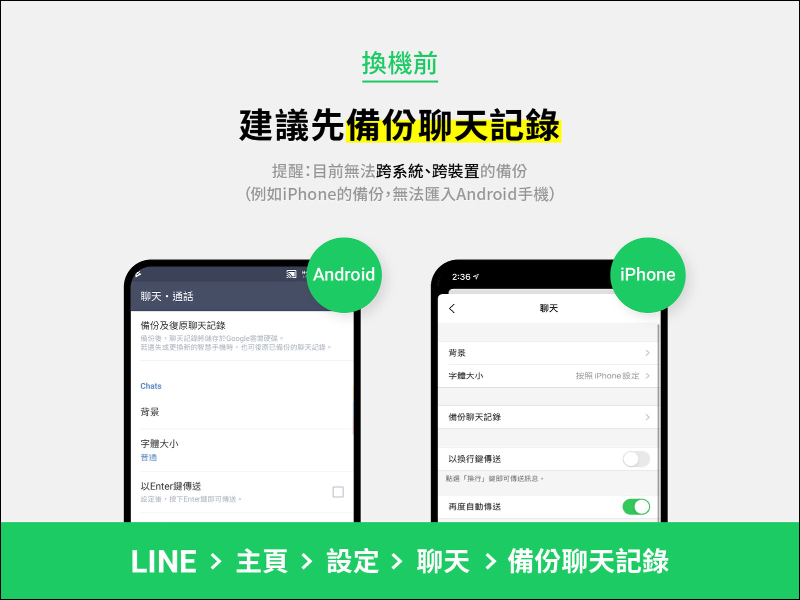
It is also recommended to back up LINE chat history first. First go to “Home”, then select “Settings” > “Chat” > “Backup Chat History”. However, LINE is currently unable to perform “cross-system, cross-device” backup. For example, iPhone’s LINE chat history cannot be imported to Android phones after backup.
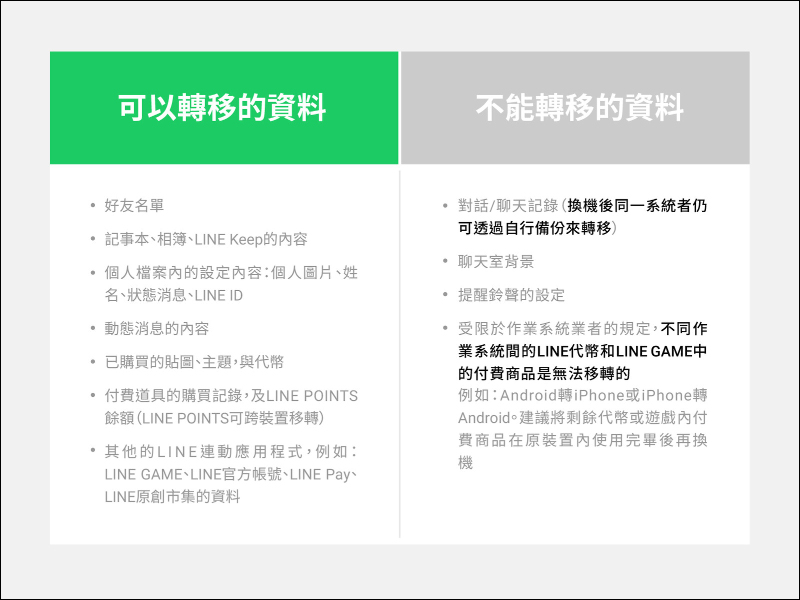
The following table can help you quickly understand which LINE account data can be transferred and which cannot be transferred, including friend list, notepad, photo album, LINE Keep, paid stickers and themes, LINE POINTS, etc. can be transferred:
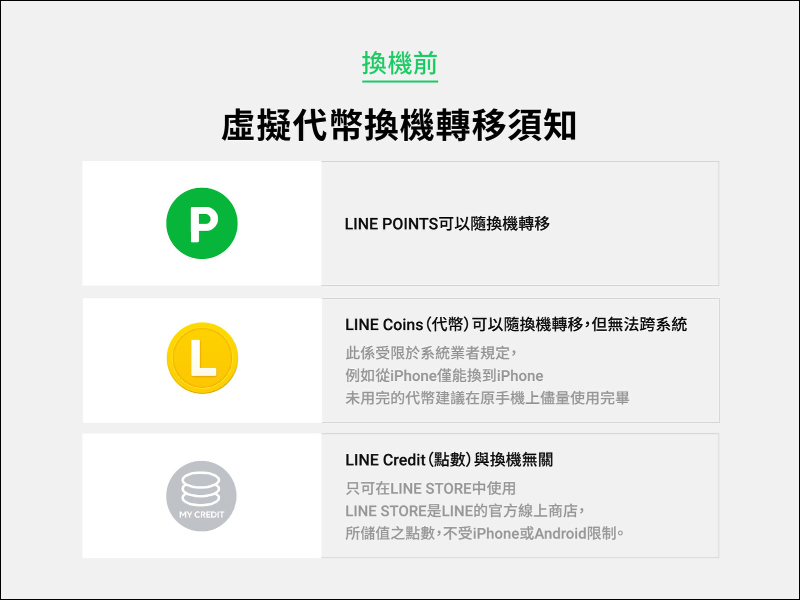
Regarding virtual tokens, LINE POINTS can be transferred when changing devices. However, although LINE Coins can be transferred when changing devices, they cannot be transferred across systems.
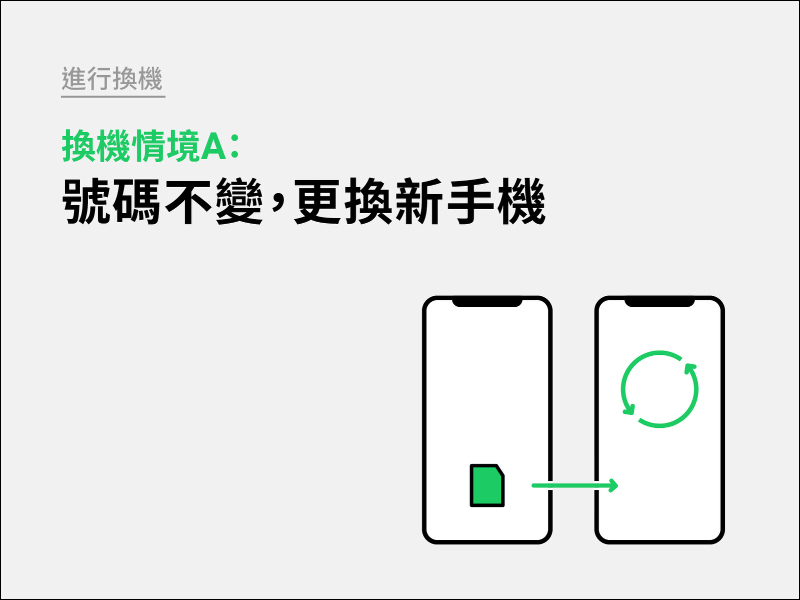
Phone changing scenario A: Number remains unchanged, change to a new phone
First of all, the first and most common situation is that users buy a new mobile phone and want to transfer LINE to the new phone but the number remains the same.
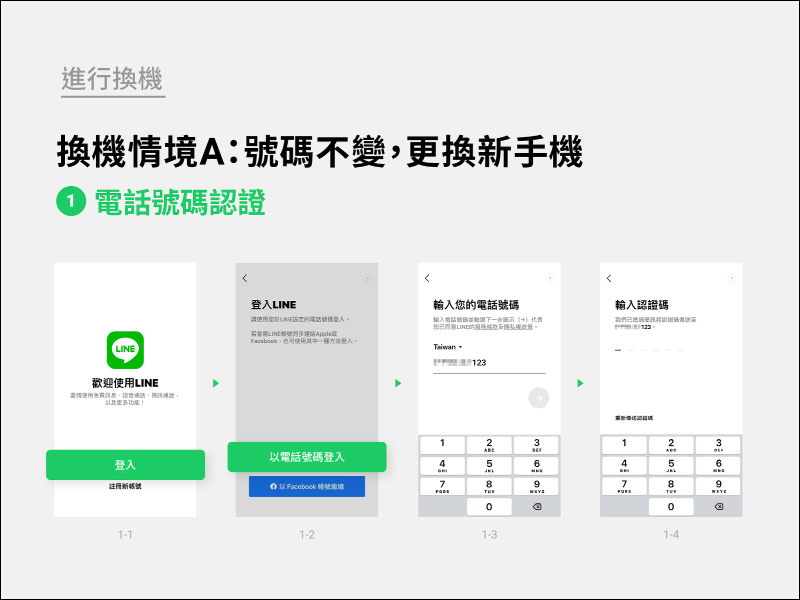
Step 1. Telephone authentication
- First install the LINE App on your new phone and click “Log In”
- Click “Log in with phone number”
- Enter the phone number bound to your LINE account for verification
- Enter the verification code sent by SMS message
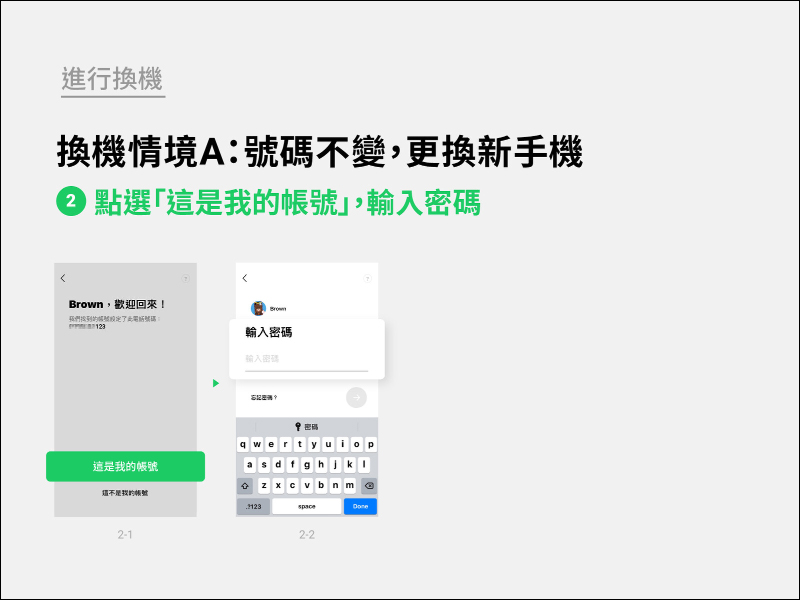
Step 2: Click “This is my account” and enter the password
- Click “This is my account”
- Enter the login “password” of your LINE account
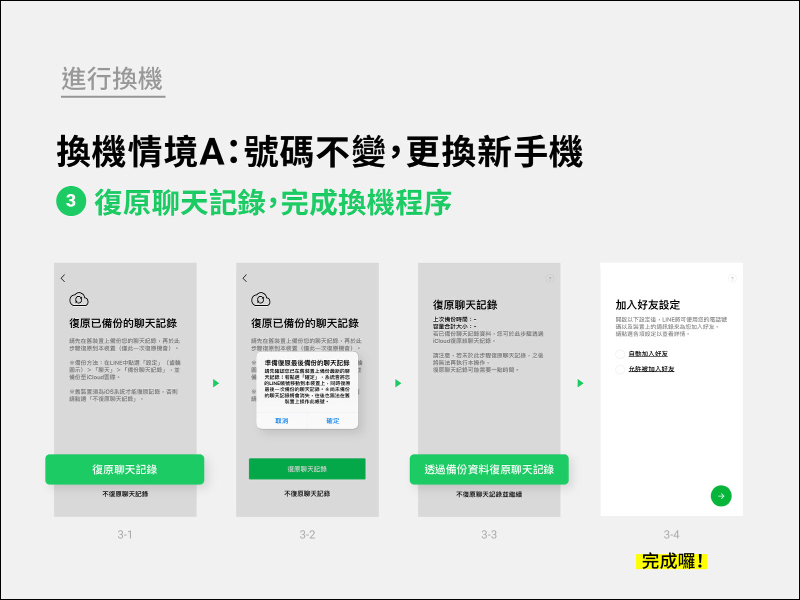
Step 3: Restore chat history and complete the phone replacement process
- Click “Restore Chat History”
- Read carefully and click “OK”. Please note that after pressing “OK”, the system will move your LINE account to the new phone. If LINE on the old phone has not been backed up, the chat history will be lost and the account will not be able to be operated on the old device in the future.
- Click “Restore chat history from backup data”
- Click the green button to complete the replacement!
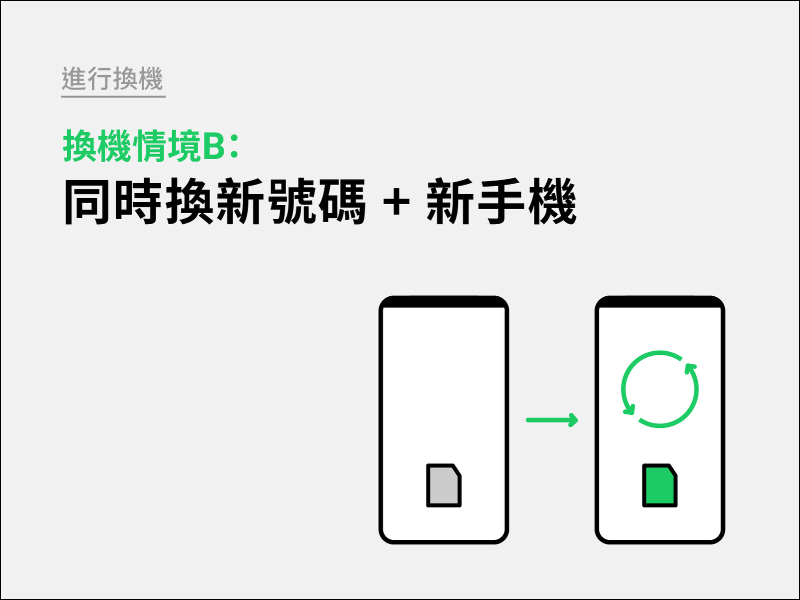
Phone changing scenario B: Change to new number + new mobile phone at the same time
Then the method of switching in scenario B is like changing to a new phone number and new mobile phone, but you still need to use the same LINE account.
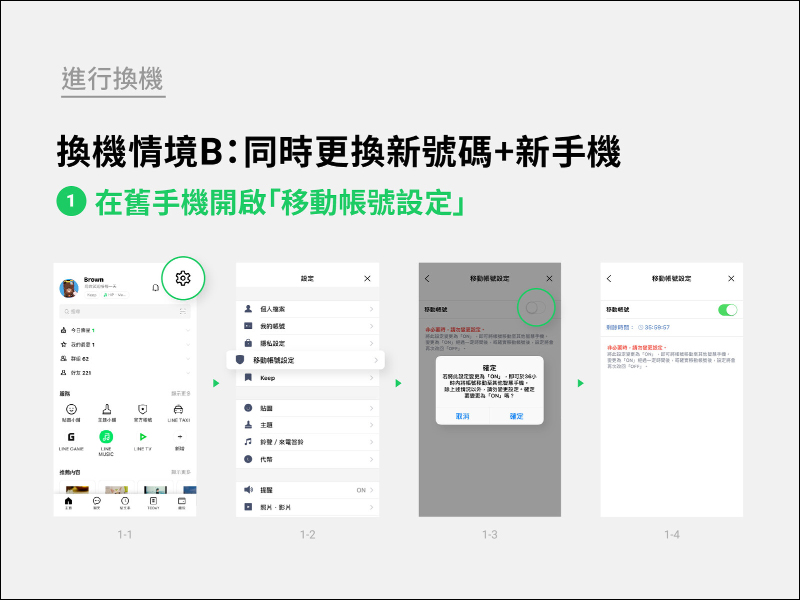
Step 1. Open “Mobile Account Settings” on the old phone
- Click “Settings” on the home page
- Click “Mobile Account Settings”
- After reading carefully, click “OK”.
- The “Mobile Account Settings” screen has been opened
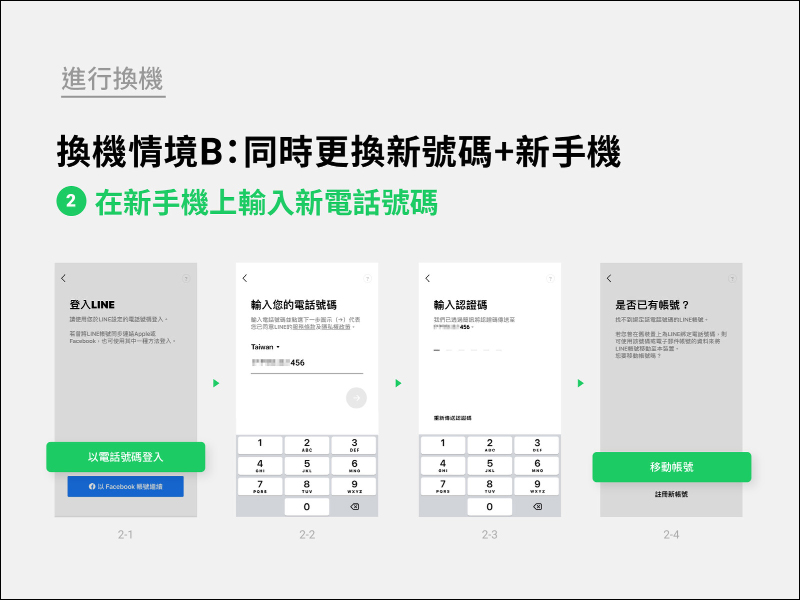
Step 2. Enter the new phone number on the new phone
- Install the LINE App on your new phone and click “Log in with phone number”.
- Enter new phone number
- Enter the verification code sent by SMS message
- Click “Mobile Account”
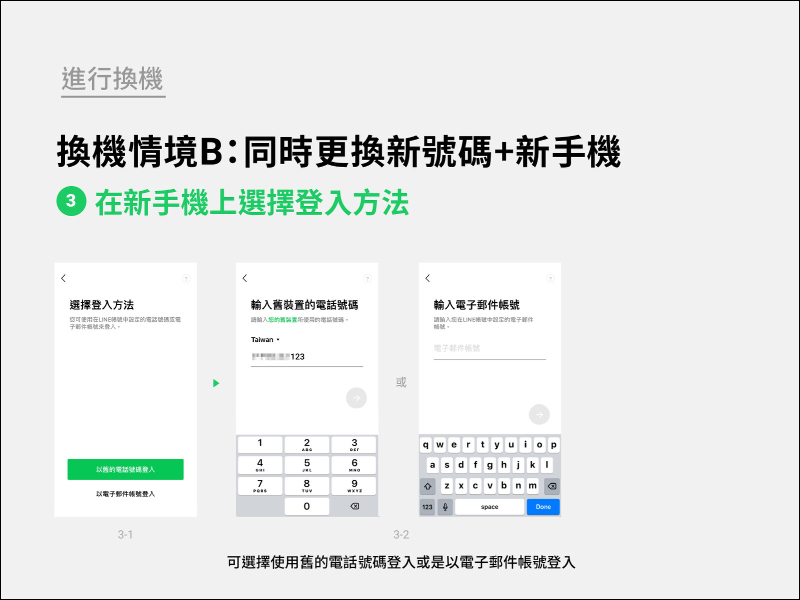
Step 3. Select the login method on the new phone
You can choose to use your “old phone number” or “email” to log in:
Step 4. Enter the password and mobile account verification code on the new phone
- Enter the login “password” of your LINE account
- Click “Continue”
- Receive SMS text messages on your old phone and enter the “Mobile Account Verification Code”
- Click “Login”
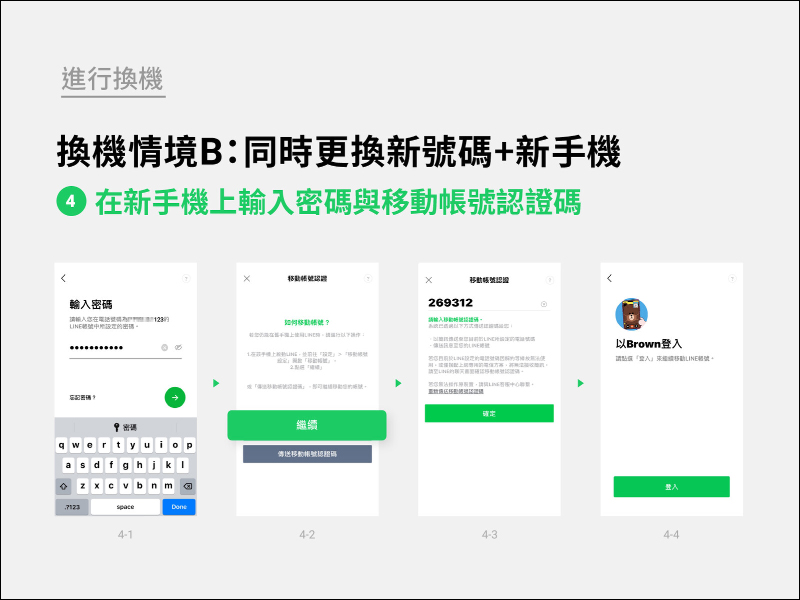
Step 5. Restore chat history on the new phone and complete the phone replacement process.
- Click “Restore Chat History”
- Read carefully and click “OK”. Please note that after pressing “OK”, the system will move your LINE account to the new phone. If LINE on the old phone has not been backed up, the chat history will be lost and the account will not be able to be operated on the old device in the future.
- Click “Restore chat history from backup data”
- Click the green button to complete the replacement!
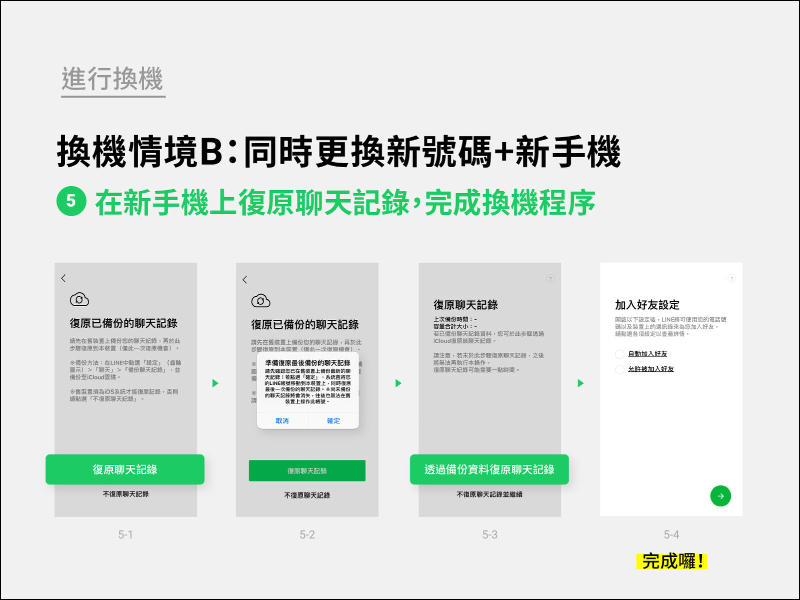
For other LINE usage issues, you can fill out the LINE customer service form (Click here to go) and let the LINE customer service team assist you.
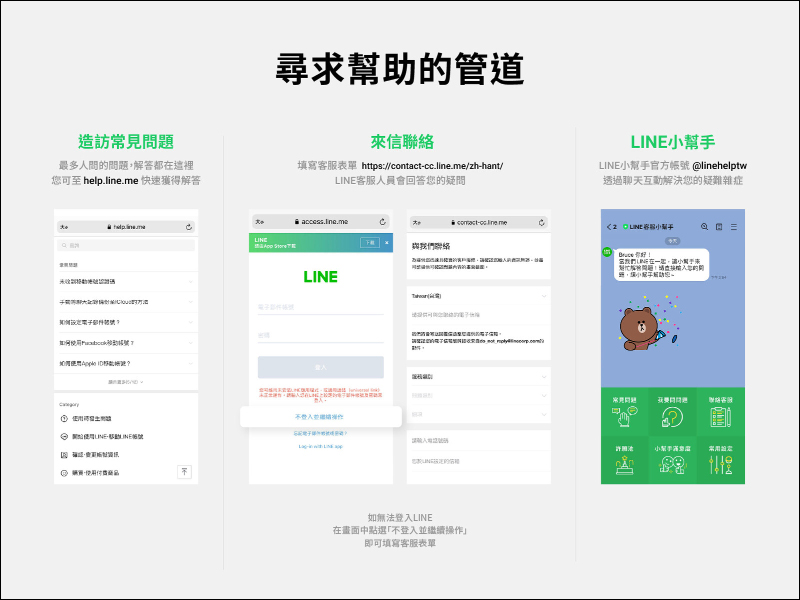
Picture/Source:LINE Taiwan BLOG
Further reading:
LINE community’s new “automatic response” function is launched, making community management more convenient!

Source: KOCPC Chinese