


In the past, we have introduced many shortcut scripts for downloading YouTube videos and music, but as time has passed, many of them have become ineffective. This YouTube PIP&Downloader shortcut is what I recently discovered and is still feasible. It is not only downloading, but also supports the PIP picture-in-picture function (the window can be reduced to the left and right sides of the screen), which means that even if you do not have a YouTube Premium member, you can still play it in the background.

YouTube PIP&Downloader shortcut script operation introduction
This YouTube PIP&Downloader script needs to be paired with the iOS Shortcut App. For those who haven’t downloaded it yetPlease click me to install on App Store。
After clicking the link above, you will jump to this screen. Just slide to the bottom and click “Add Untrusted Shortcut”:

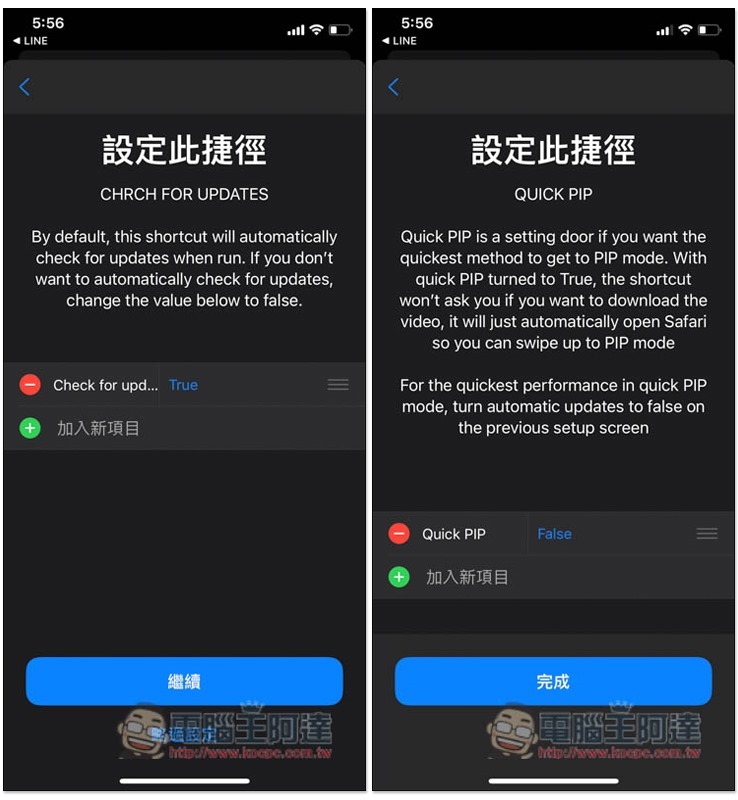
These two options basically don’t need to be touched, just press Continue and Finish:
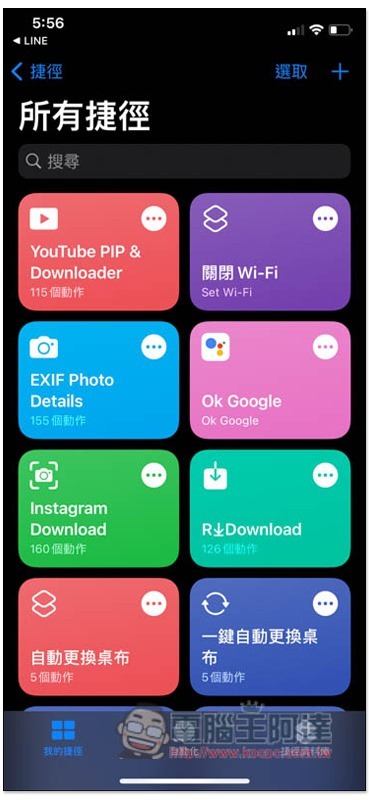
Then in all shortcut menus, you will see this script:
YouTube Picture-in-Picture Operation Steps
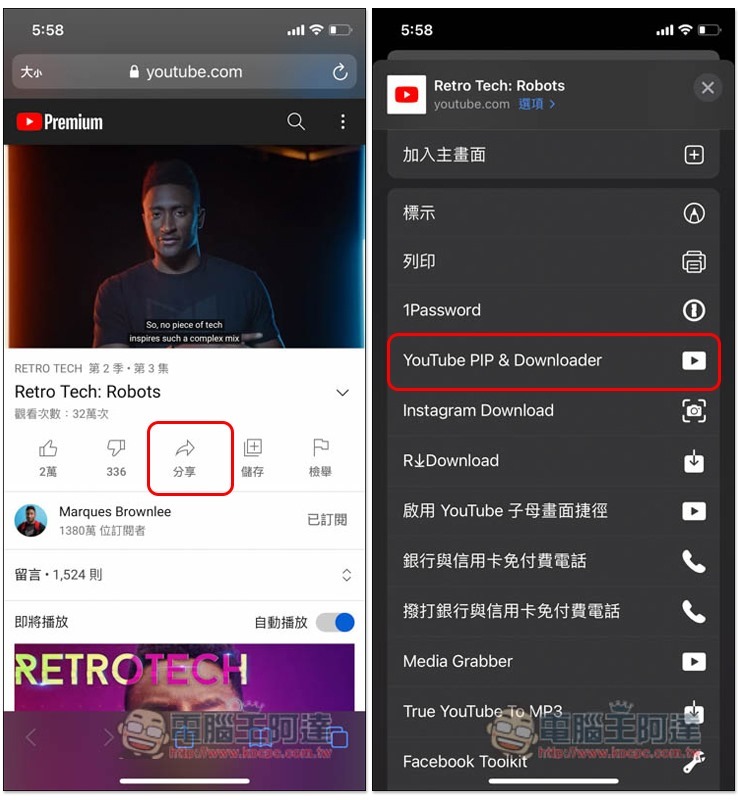
This shortcut script currently only supports the YouTube website, not the App version. After finding the video you want to play picture-in-picture and background on the YouTube website, click the share icon below, and then click this script:
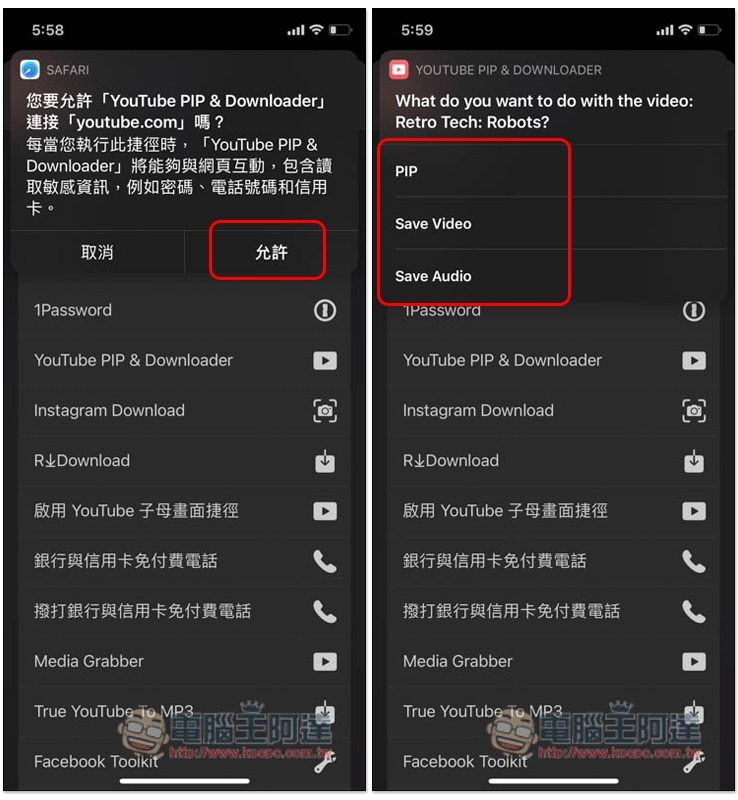
Some messages will pop up at the top. Click Allow first. The next menu is to select the mode you want to use. PIP is Picture-in-Picture, Save Video to store videos, and Save Audio to store music. Click PIP:
Then this screen will pop up, click on the icon in the upper middle:
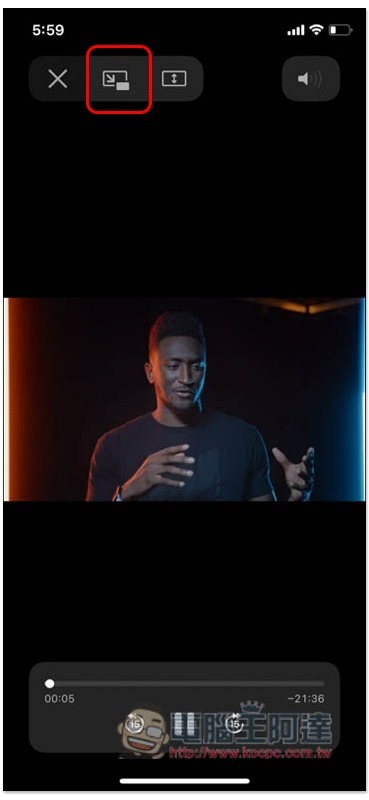
It will turn into picture-in-picture playback mode:
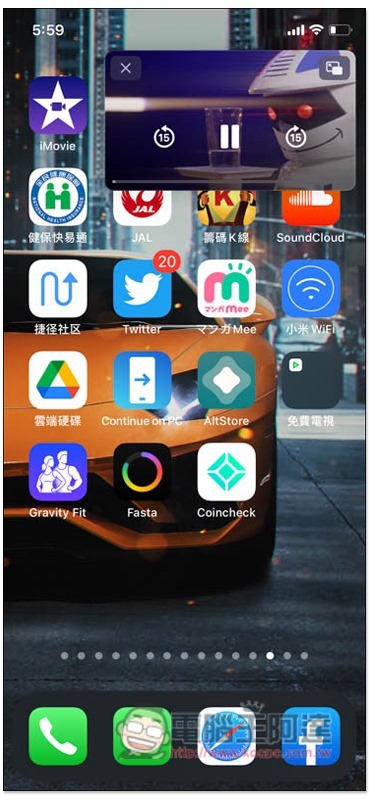
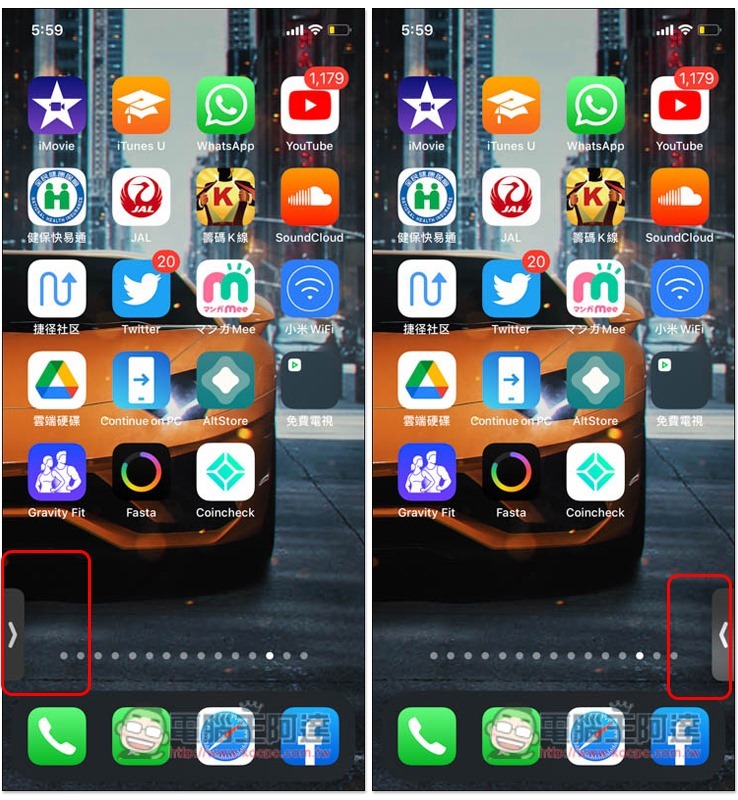
At this time, move the video screen to the left or right side of the iPhone screen, and the PIP will immediately shrink, no longer affecting your use of other apps:
YouTube video download steps
Next is to download the video. The operation is the same as before. When the menu pops up, please select Save Video to save the video. Then select “OK” for the pop-up notifications. This will only appear for the first download:
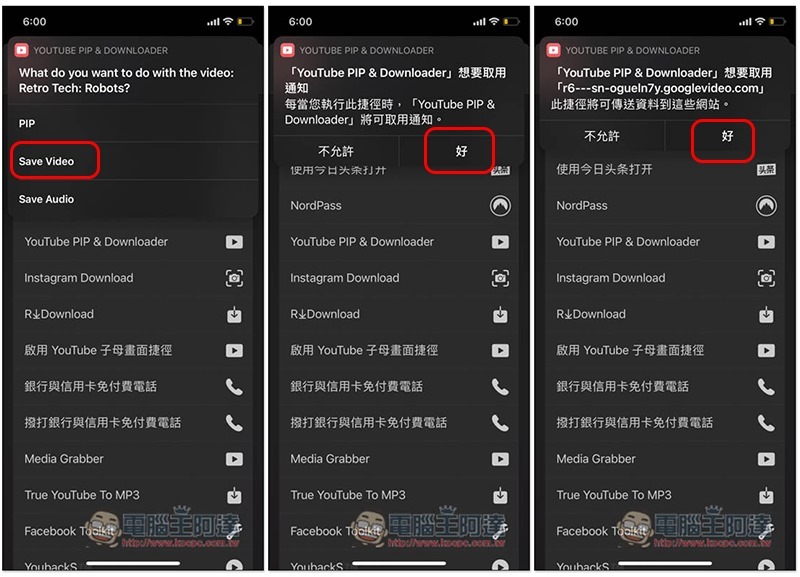
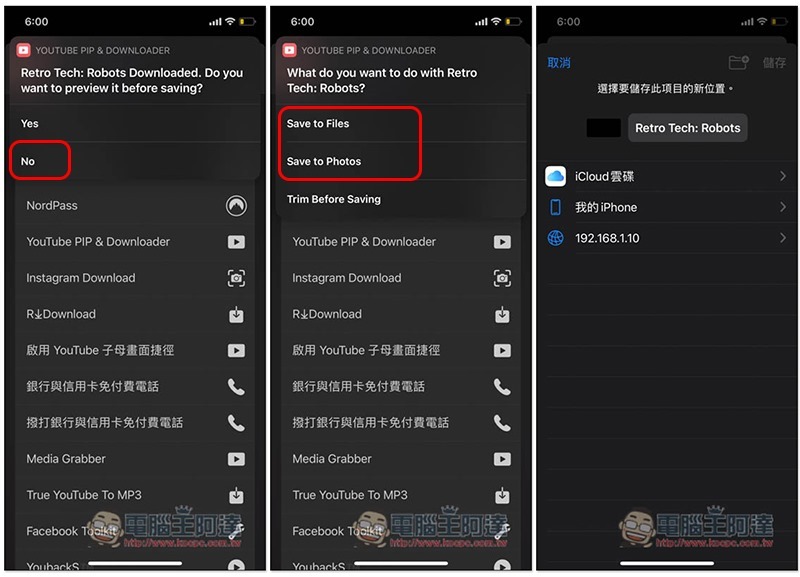
After the download is complete, you will be asked if you want to preview before saving. If not, press No. The next menu is the storage location. You can choose to save to File or Photos. I will save to File as an example:
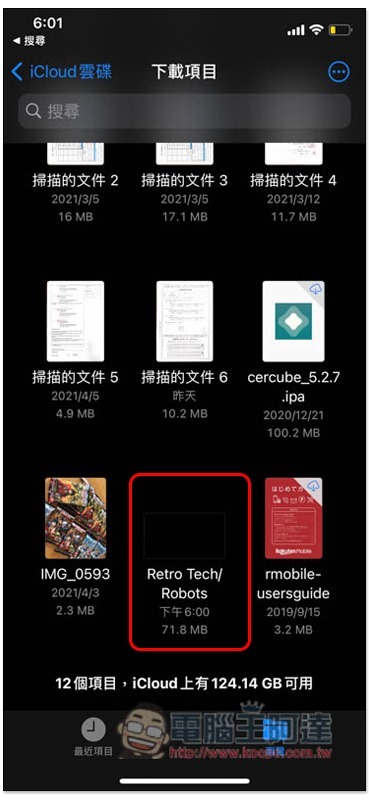
Open the Files app and go into your saved folders, and you’ll see this YouTube video:
Steps to download YouTube music
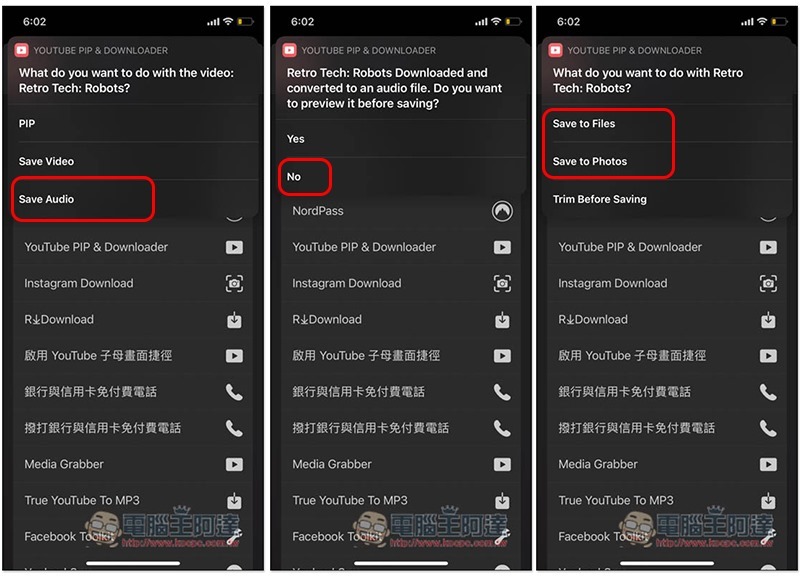
The steps for downloading YouTube music are similar. Select Save Audio. After downloading, you will be asked if you want to preview it, and then select the storage location:
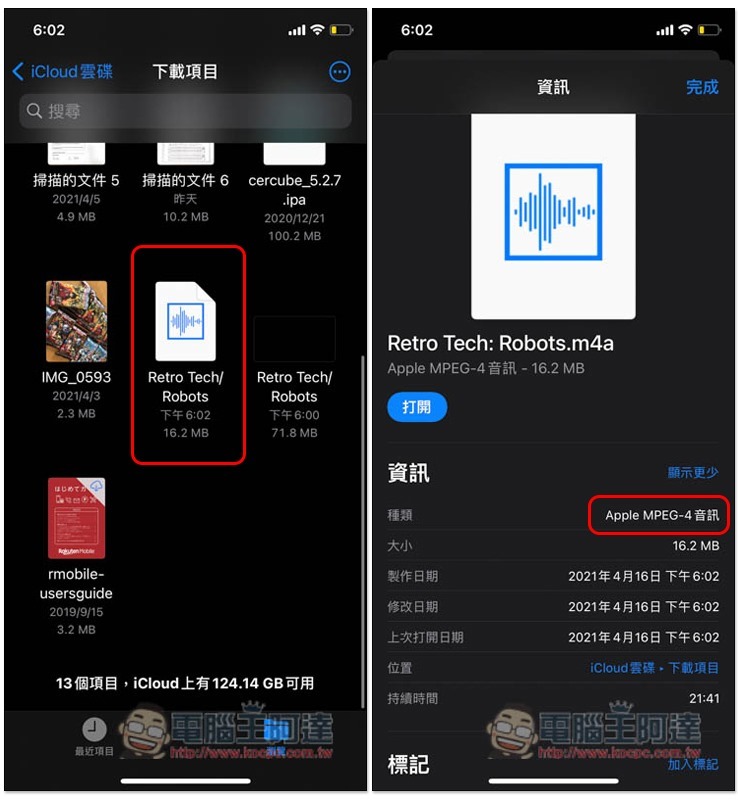
It is a pity that the extension name of the music is .m4a, not .mp3, so those who want the mp3 format need to convert it themselves:
Source: KOCPC Chinese