


In the era of working from home, sometimes you really need a video camera to handle online meetings or video chats. But after all, the frequency of use is not high, and not everyone has these devices at home. If you want to use them temporarily, do you have to rush out and buy them, only to leave them covered in dust after you buy them and use them? Today I’m going to introduce you to a useful tool called DroidCam, which can turn your Android smartphone into a video camera for your Windows 10 computer. Save money if you can!
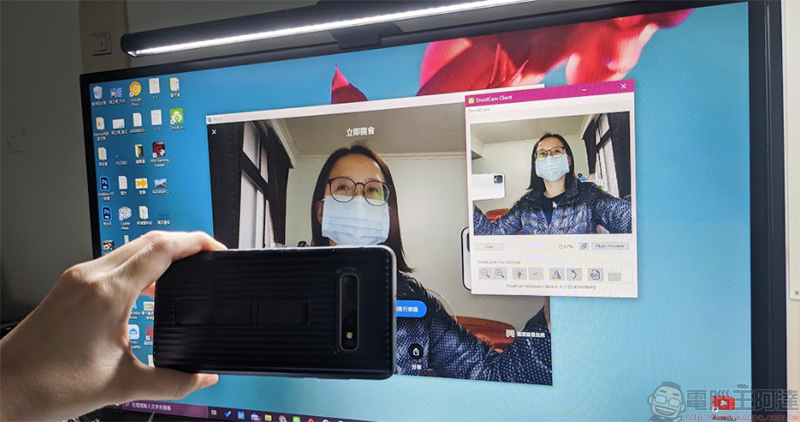
DroidCam turns your Android phone into a Windows 10 computer video camera
If you are looking for a high-quality lens that can be connected to a Windows 10 laptop or computer, you don’t need to buy one specially. Mobile phone lenses are great these days. Why not make the most of your strong Android phone and turn it directly into a computer video lens? DroidCam is a small tool that can do this. Please follow the steps to get started immediately!
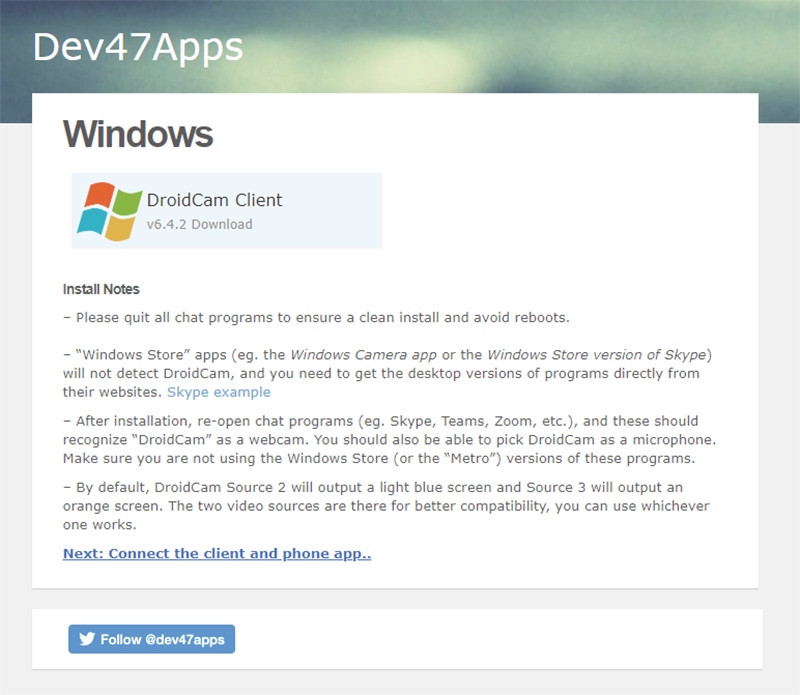
- Install the DroidCam tool software on your Windows 10 computer. This tool software is applicable to various versions of the Windows 10 operating system.
【Download click here】
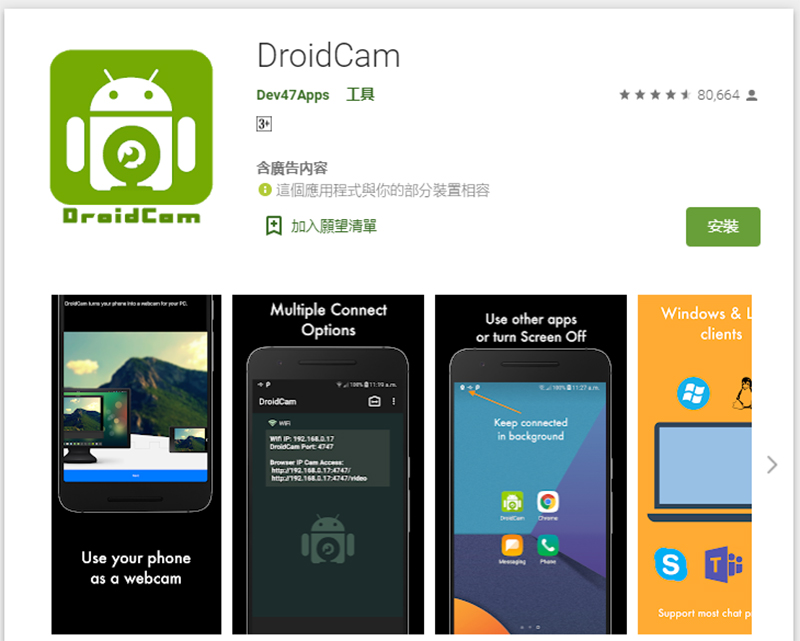
- Download and install the DroidCam app on your Android phone.
【Download click here】
- After everything is installed, first close all running communication applications on your computer, such as Skype, Teams, Zoom, etc. First, make sure your phone and computer device are connected to the same network environment, then open the DroidCam application on your phone and grant permissions to the application. Next, you will receive a set of IP-related data on your phone. The video default setting is the rear lens. If you want to use the front lens, you can also click the camera swap icon in the upper right corner of this page and select the lens you want to use for video. This must be selected before starting the connection.
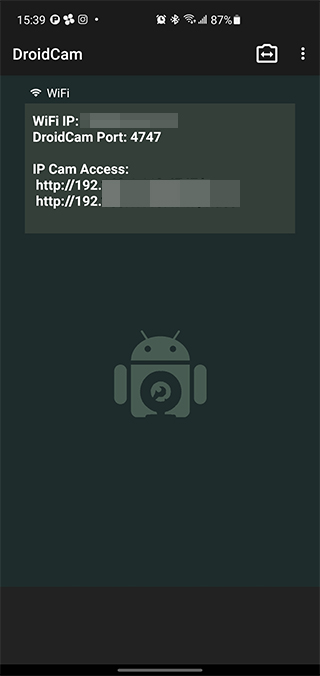
- Open the DroidCam tool software on your computer, and then fill in the WiFi IP and DroidCam Port received in the previous step into the computer fields. Video is already checked by default. If you want to use your phone as a microphone, check Audio as well.
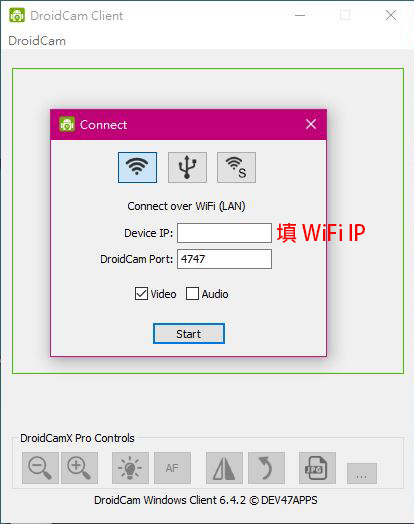
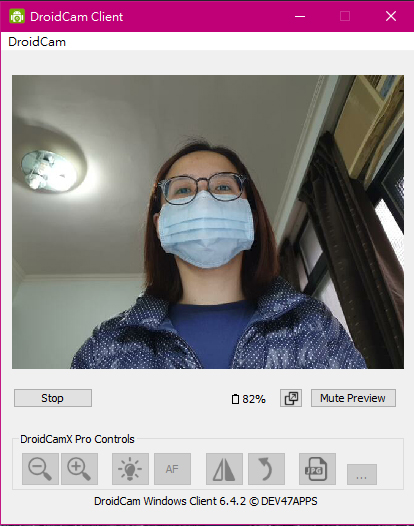
- After setting, press Start to see the preview inside the frame. Although there are various functions below, they are only available in the paid version. However, the free version is very sincere, there is no watermark, and the image is clear and smooth enough. Unless you have further detailed needs such as sharpness and contrast, it is actually sufficient for ordinary people.
- Then, open the communication application on your computer and start a video conversation! I would like to remind everyone that your communication application must be an exe version or a web service installed on your computer. If you get the application version from the Microsoft Store, DroidCam will not be detected. At present, the author has tested that Skype, Zoom, Chatwork, Facebook Messenger, LINE and other applications can be captured, which is very convenient!
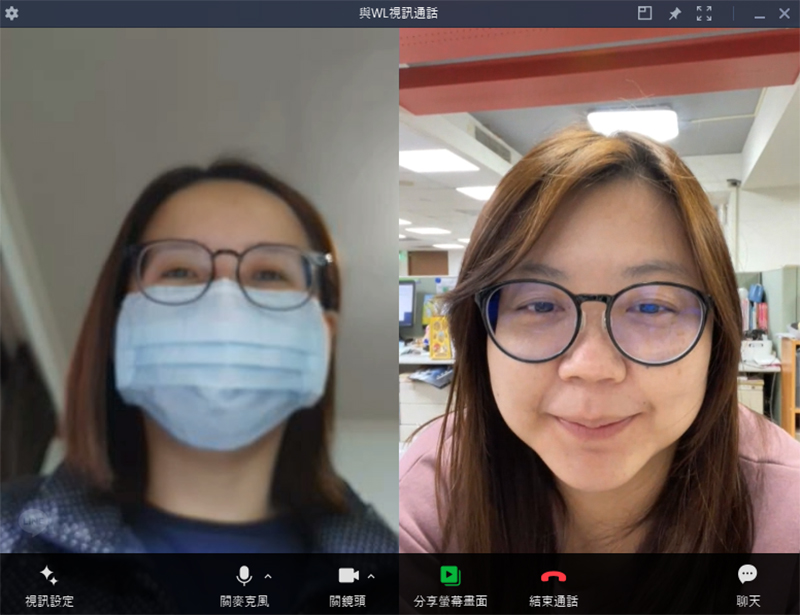
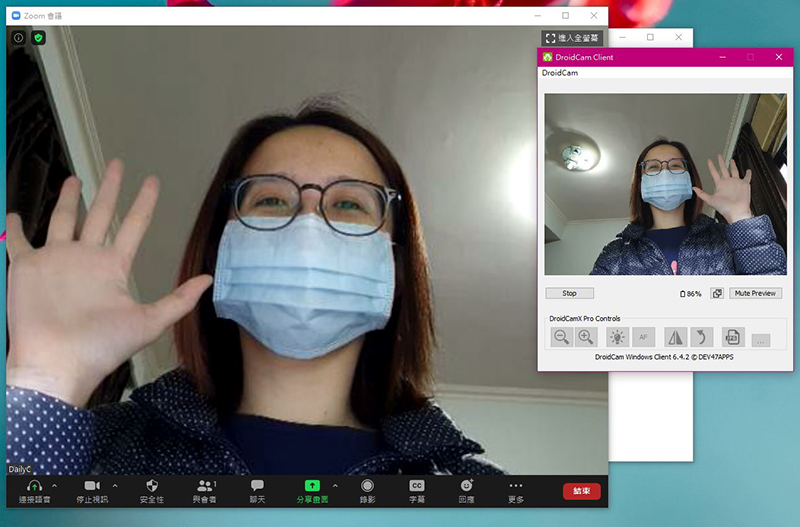
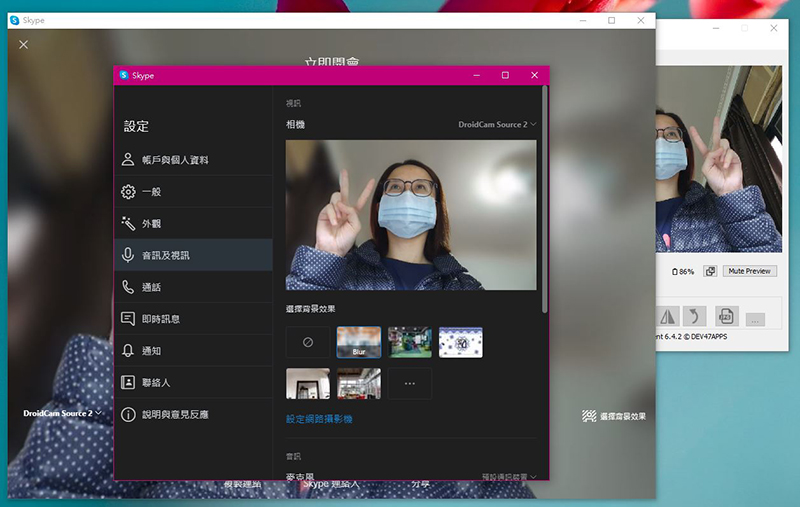
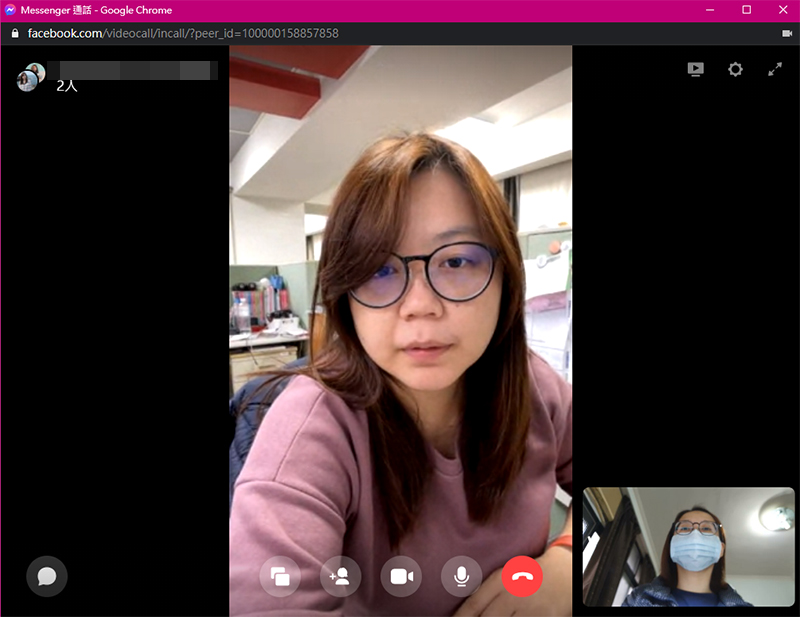
The free version of this app is really easy to use. Although you may see ads on Android, it does not affect the use of functions. It can also give your old mobile phone a new life as a dedicated video machine. If you want higher-resolution images and more functional controls, you can directly purchase the paid version DroidCamX. The one-time purchase of 150 yuan is still more cost-effective than buying a video lens.
【Click here for paid version】
Source: KOCPC Chinese