


Basically, as long as you are a user of Apple products, you will definitely use iCloud, whether you have deliberately turned on backup or not. After long-term use, iCloud has also stored a lot of your data. In addition to photos, cloud files, and emails, there are also some service information that you may not know that iCloud also records, such as the App Store, iTunes Store, Podcast activity records, etc. Although there should be no problem in putting it on iCloud, sometimes you may want to back it up yourself. After all, it is your data. The iCloud data and privacy page provides a “one-click backup” function, which can download all your iCloud data at once. It is very convenient. Let’s teach you how to use it.
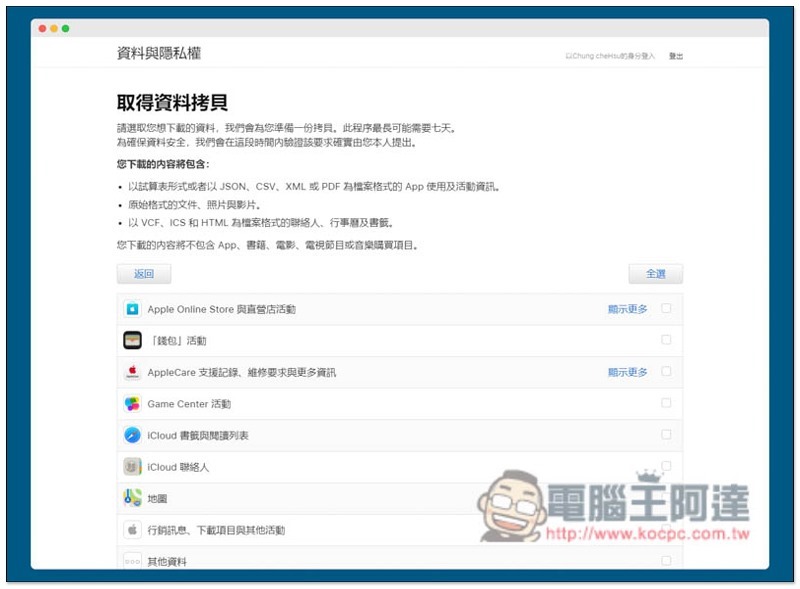
Easily back up all your Apple data with the data copy feature of iCloud Data and Privacy
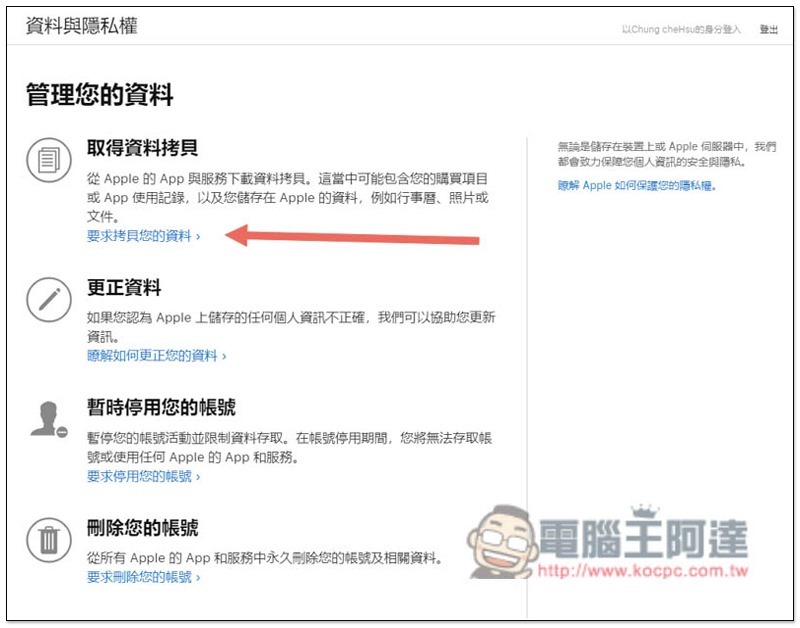
Click me to enter the iCloud data and privacy page, log in to your Apple ID, and then the first option will see “Get a copy of data”, where you can download all your iCloud data, including purchases, App usage records, and data stored in Apple:
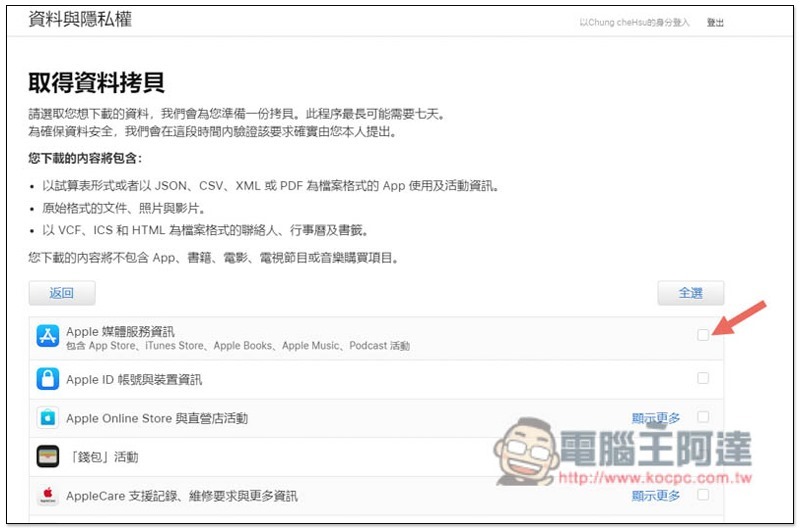
After entering, all content that can be backed up will be listed below, just check the ones you want to back up:
- Apple media services information
- Apple ID account and device reminders
- Apple Online Store Direct Store Activities
- “Wallet” activity
- AppleCare support records, repair requests, and more information
- Game Center Activities
- iCloud Bookmarks and Reading List
- iCloud Contacts
- iCloud Notes
- map
- Marketing messages, downloads and other activities
- Other information
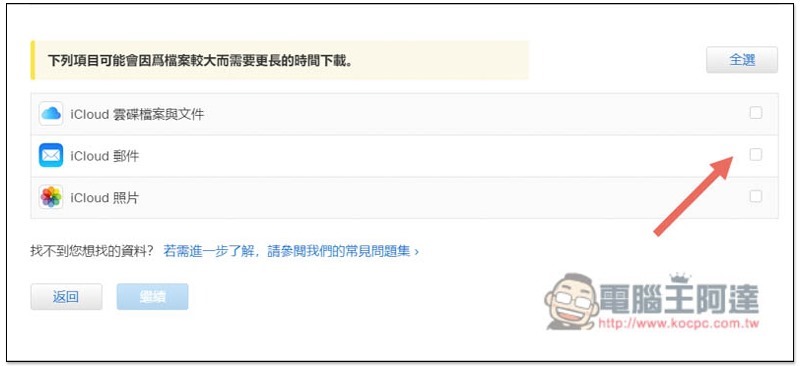
Scroll down and there are three options. These three files may be larger. If checked, it will take longer to download:
- iCloud Drive and Files
- iCloud Mail
- iCloud Photos
After checking, click below to continue. You will be asked to select the upper limit of the file size. The default is 1GB. There are also 2GB, 5GB, 10GB, and 25GB options. If your backup data exceeds this upper limit, it will be automatically divided to facilitate your downloading:
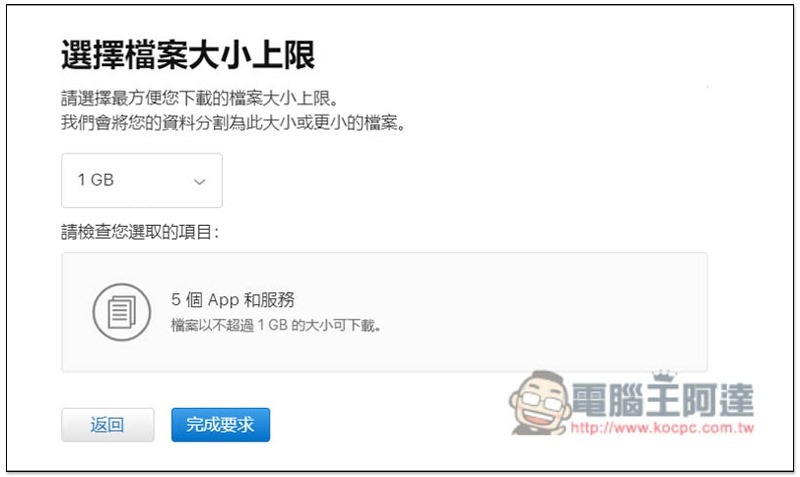
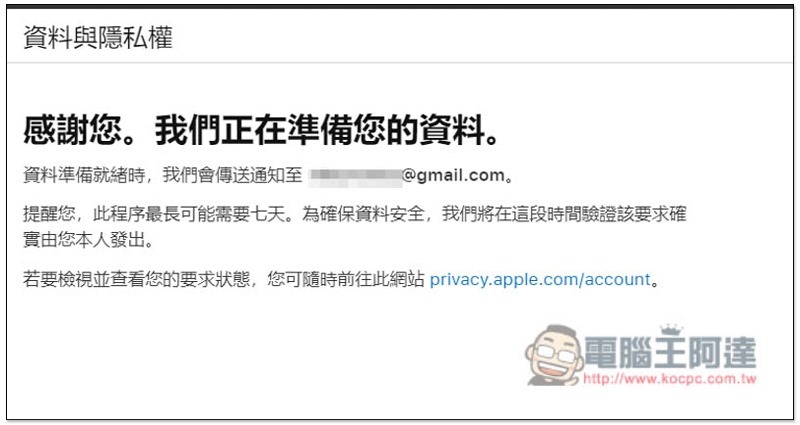
After completing the request, Apple will start to organize your data. If you choose iCloud, Photos or Mail, if there are too many files, it may take up to 7 days to sort out before you receive the download point. Therefore, it is recommended to request in batches, for example: first request content with smaller files, and then change to request data with larger files below:
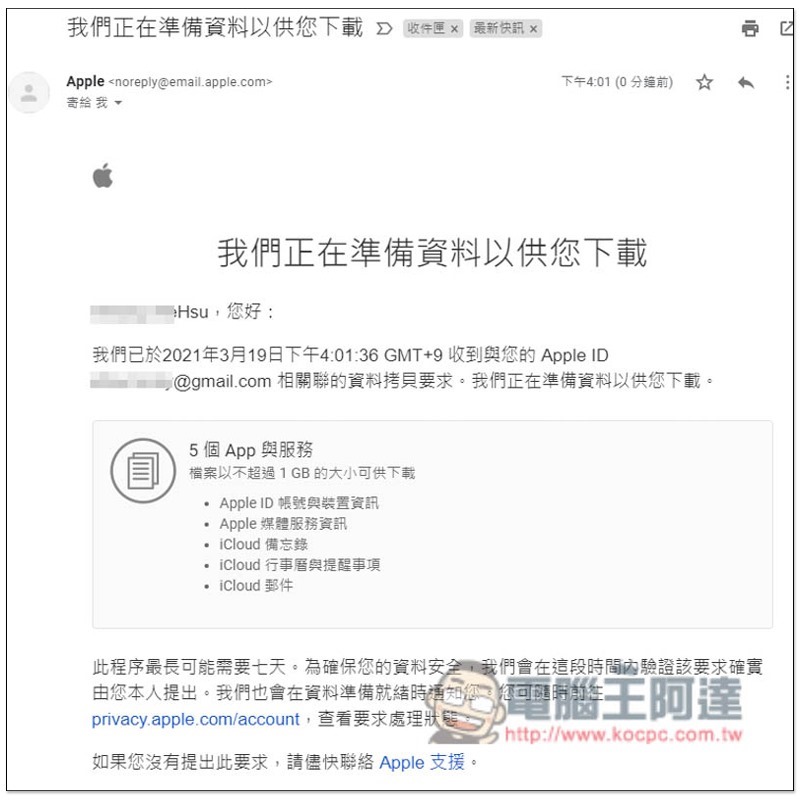
You will also receive this notification in your mailbox:
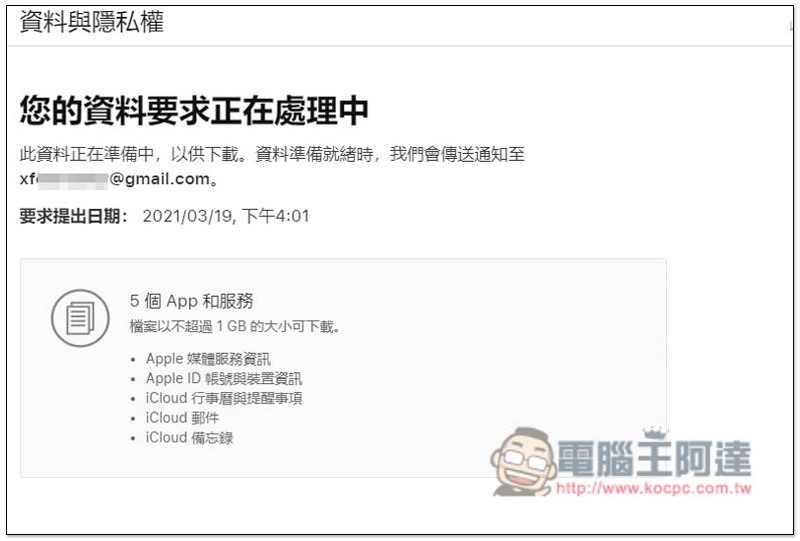
You can also view the detailed information you requested on the right side of the iCloud Data and Privacy homepage:
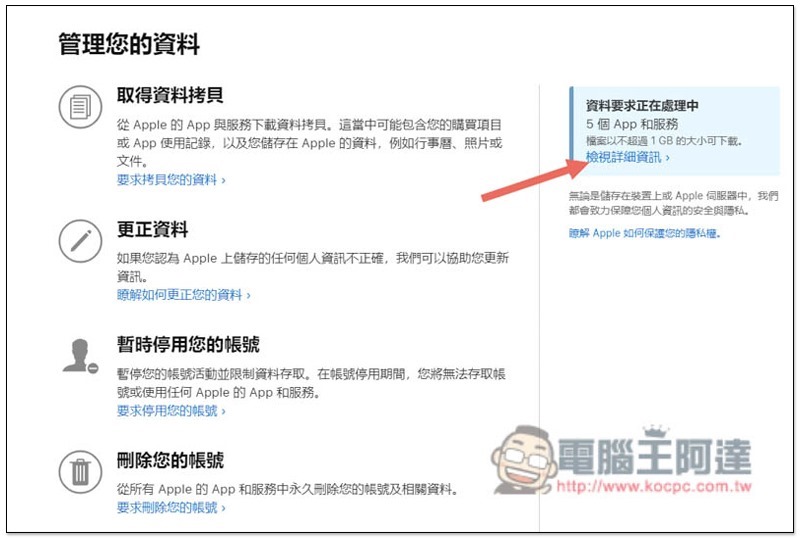
Unfortunately, it does not show how much time is needed. It only records the date of submission and what content is requested:
For those who pay attention to their personal data, it is highly recommended to manually back up their data every once in a while. In addition, if you want to back up iCloud photos or emails, you can also request it separately through this page.
Supplementary information
- iCloud Profile and Privacy Page:Click here to go
Source: KOCPC Chinese