


With the launch of new versions of iOS, many new features have been added to the iPhone. You may already know some of the more commonly used and well-known ones, but the iPhone actually has some hidden and practical features that few people know about. This article will help you sort out 7 of them, ranging from music recognition, Do Not Disturb mode to echoing ringtones and vibrations for incoming calls, boot mode, and voice-activated photography. Please continue reading.
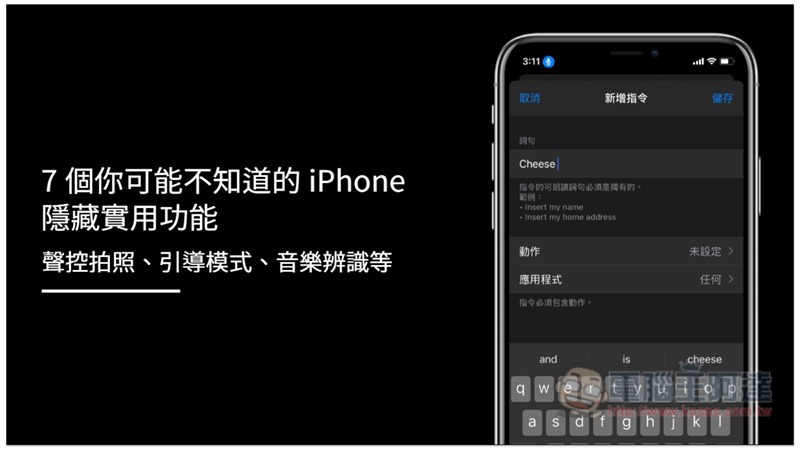
7 Hidden and Useful iPhone Features You May Not Know
1. No need to install any App to identify music
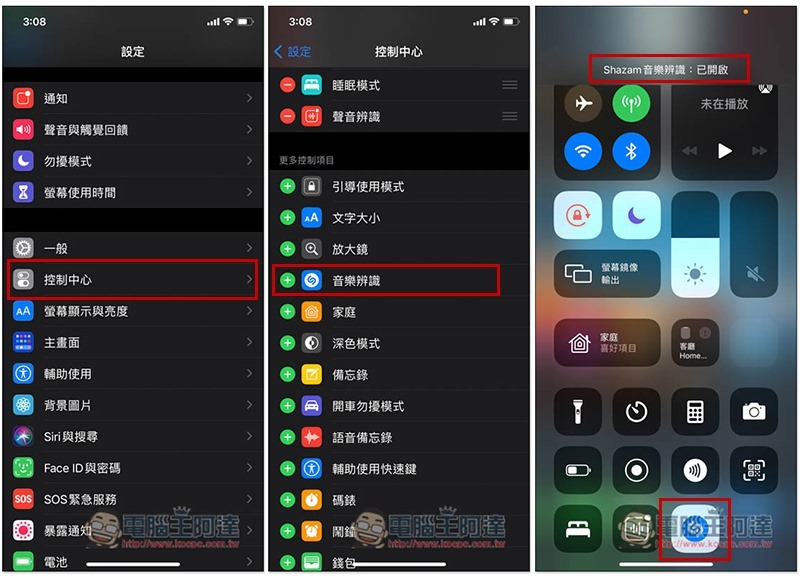
After the iOS 14 version, the iPhone has introduced the music recognition function (Shazam), which means that it can recognize the name of the music you want to know without downloading any app, and the recognition can be enabled with one click by opening the control center.
After opening the settings, enter the control center, find “Music Recognition” in more items, and add it. In this way, when you listen to some songs whose names you don’t know in the future, just slide your hand to open the control center and enable this music recognition icon:
2. When Do Not Disturb mode is enabled, calls from specific contacts will still sound ringtones and vibrations.
In order to avoid being disturbed, many people turn on the Do Not Disturb mode when working, or even leave it on all day long. However, this will cause all incoming calls to be silent and vibrate. However, you may still want the ring to still ring when certain people call, so as to avoid accidentally missing important calls.
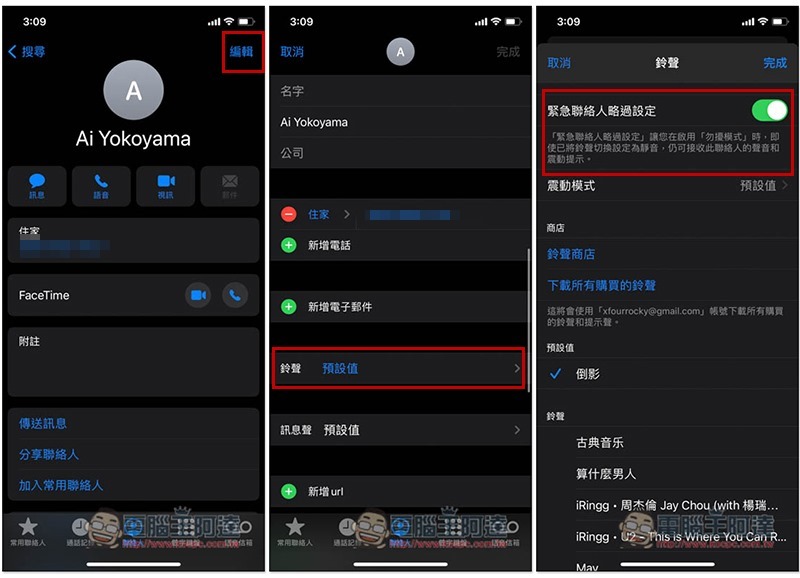
In fact, this function is available in the iPhone’s contact settings. You only need to turn on the “Emergency Contact Skip Settings” to achieve it.
After opening the contact you want to still ring and vibrate for calls in Do Not Disturb mode, click “Edit” on the upper right, then enter “Ringtone”, you will see the “Emergency Contact Skip Settings” function, turn it on:
3. Say the specified words to take voice-activated photos.
Although the iPhone does not have a direct built-in voice-activated camera function, there are still ways to achieve it, and it only needs to be set up once. When you speak the words you set when taking a picture in the future, it will automatically take a picture, without having to manually press the shutter button.
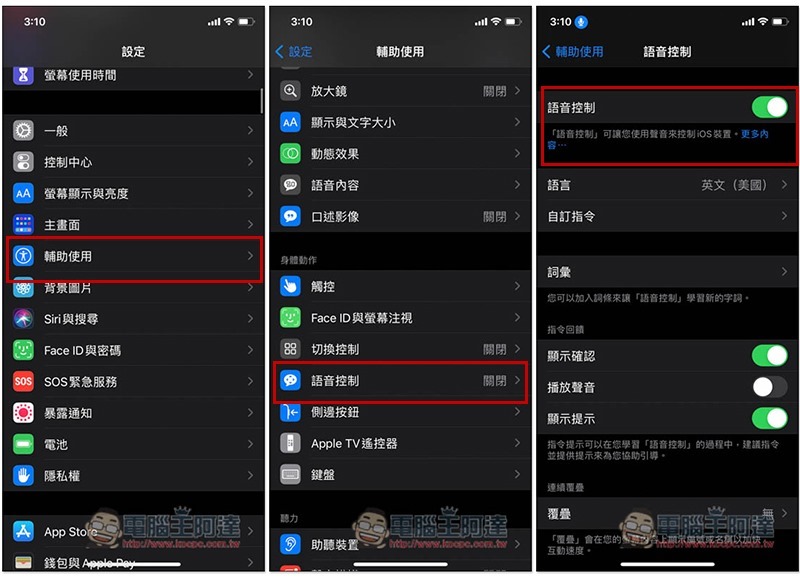
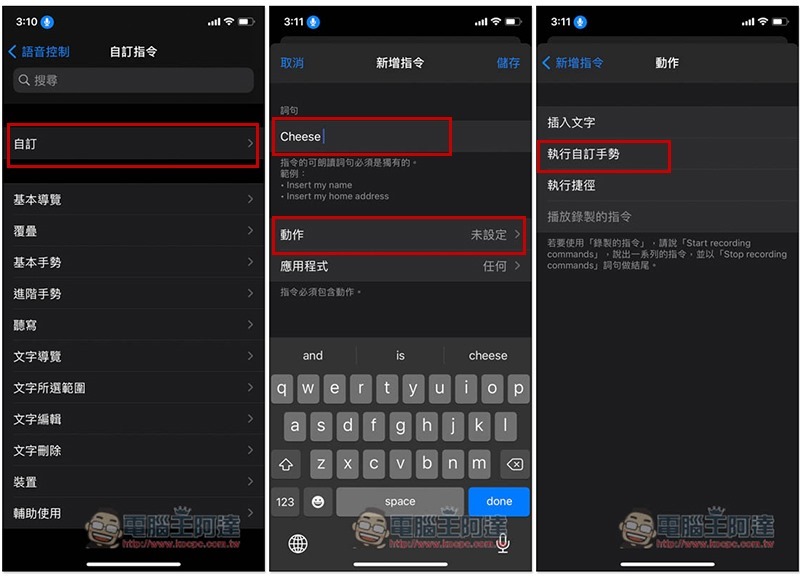
Open Settings and go to Accessibility -> Voice Control. First turn on the voice control at the top. After turning it on, a small blue microphone icon will appear on the upper left. Currently it only supports English, but don’t worry too much about that because any English word will work, so just set what you know. Then click “Customize Commands” below:
Select Customize, enter the English word you want to voice-activate the photo in the sentence, I used Cheese as an example, and then press Action –> Click “Perform Custom Gesture”:
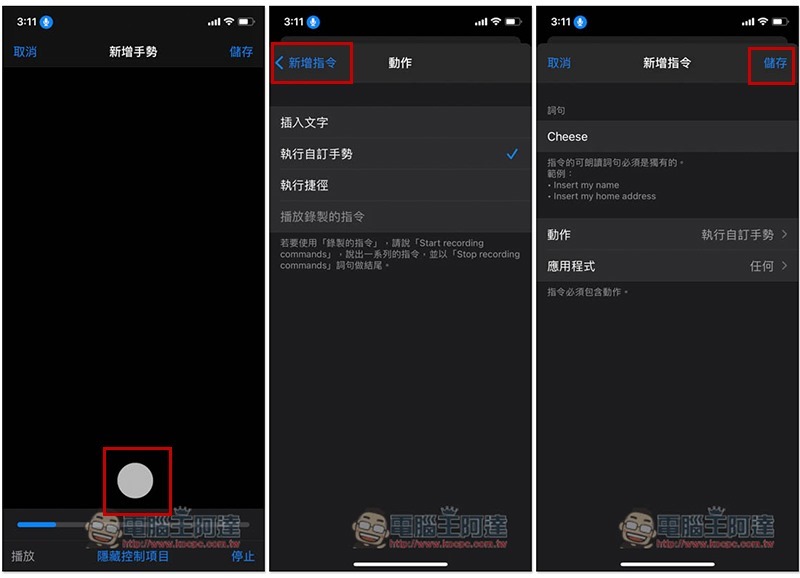
Use your finger to click the shutter position of the camera, such as the left 1 screenshot, and then press the lower right button to stop and save it. Then return to the new command page and click Save in the upper right corner:
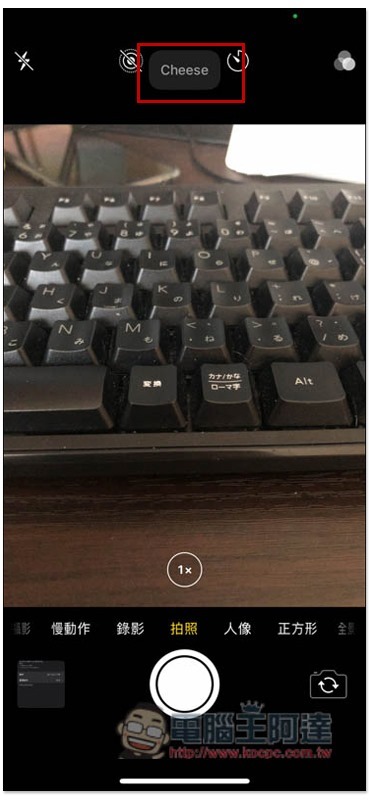
After turning on the camera and saying the English words you set, the action of pressing the shutter button to take pictures will be automatically enabled. If there is no response, it means your pronunciation may not be standard. You can practice it:
In addition, when you don’t need to use voice control to take photos, I recommend turning off voice control so as not to consume too much power and take up the iPhone’s processing performance.
The settings taught above are limited to vertical photography. If you want horizontal photography to also have a voice control effect, just set an additional command for horizontal photography. The steps are the same, except that the shutter position changes to the horizontal position.
4. Shake to restore, quickly delete and restore the sentence you just entered
I believe many people have experienced that after shaking their iPhone a few times, the screen pops up to restore the input selection window. If you click Restore, the content you just entered will be automatically deleted, allowing you to quickly delete the entire paragraph:
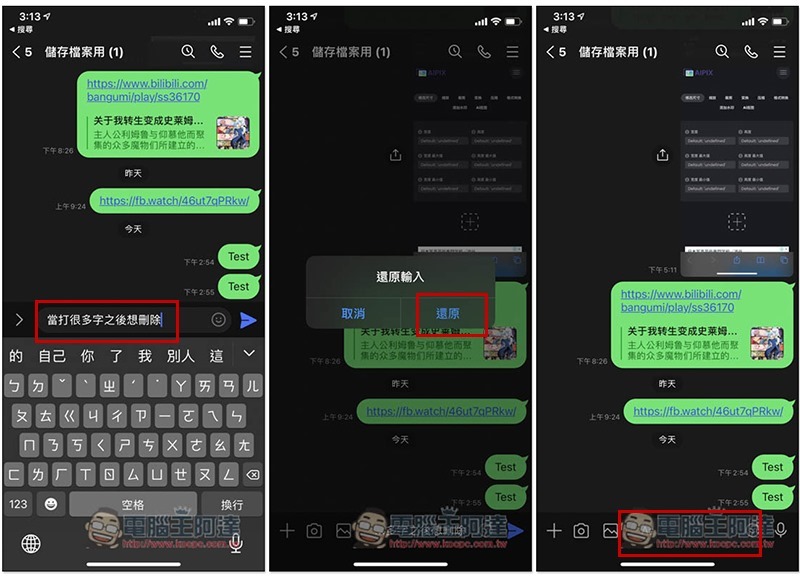
But if you clicked restore by mistake and don’t want to delete it, you can actually shake your iPhone a few more times, and the redo option will appear on the screen. After clicking it, the originally deleted words will be restored without re-entering:
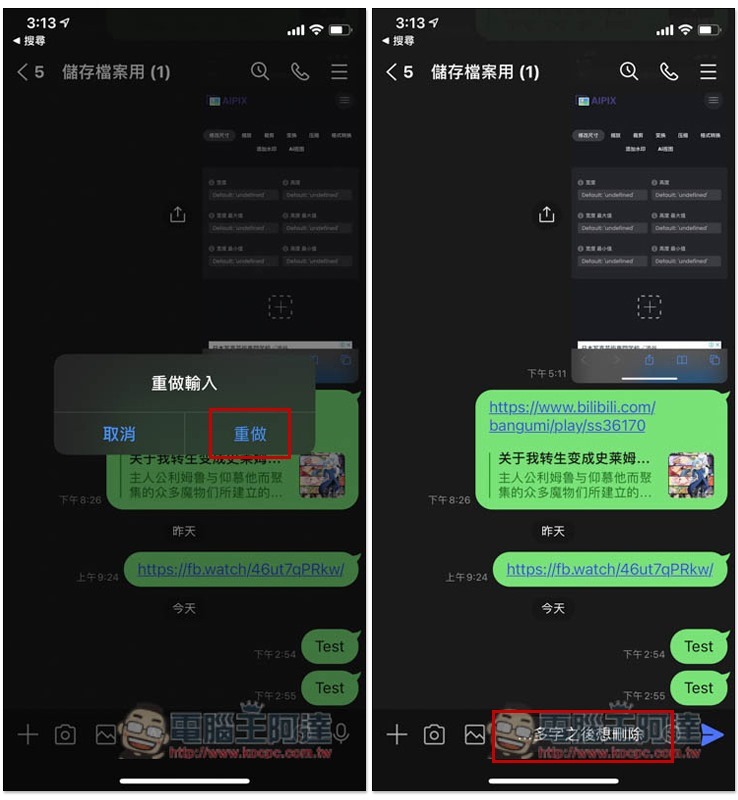
Friends who find this feature annoying can also turn it off, which can be found in the touch menu in Accessibility:
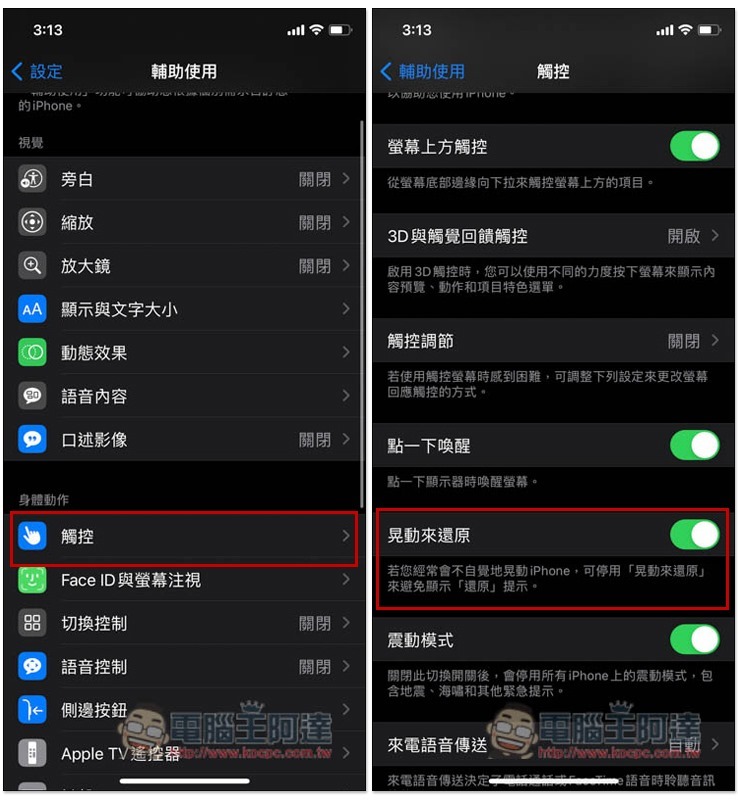
5. Don’t be afraid to borrow someone else’s iPhone! Ensure privacy and security through guided usage patterns
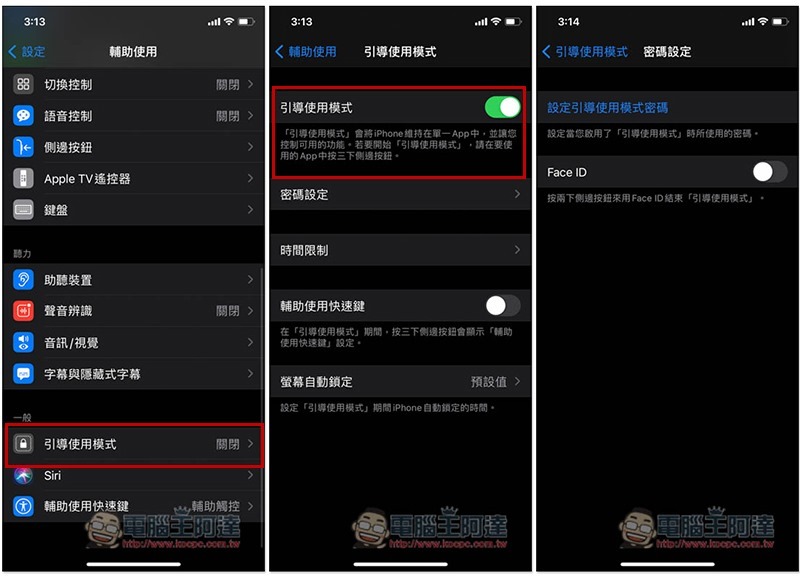
For people who value privacy very much, they definitely don’t want to lend their iPhone to others, but sometimes they still encounter unavoidable situations. At this time, they can enable the “Guided Usage Mode” function to restrict the other party to only use designated apps and cannot exit.
You can find the “Guided Usage Mode” at the bottom of the auxiliary usage menu. After turning it on, you can set an additional password to ensure security. You must enter the password to unlock it when exiting:
After entering the app where you want to enable guided usage mode, press the power side button three times, and the enable option will pop up:
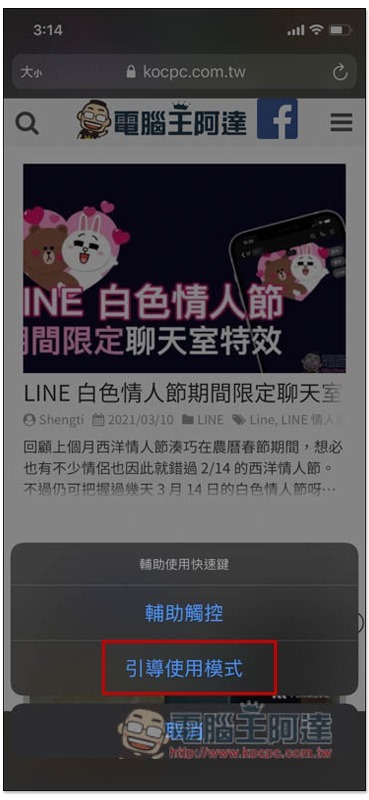
After entering boot mode, no one can exit the app to use other functions unless you allow it. (provided you have set a password)
In addition, the boot mode also provides the function of disabling operations in specified areas of the iPhone screen. People who need it can also try it.
6. Easily enlarge the specified App icon or position on the screen without professional editing software
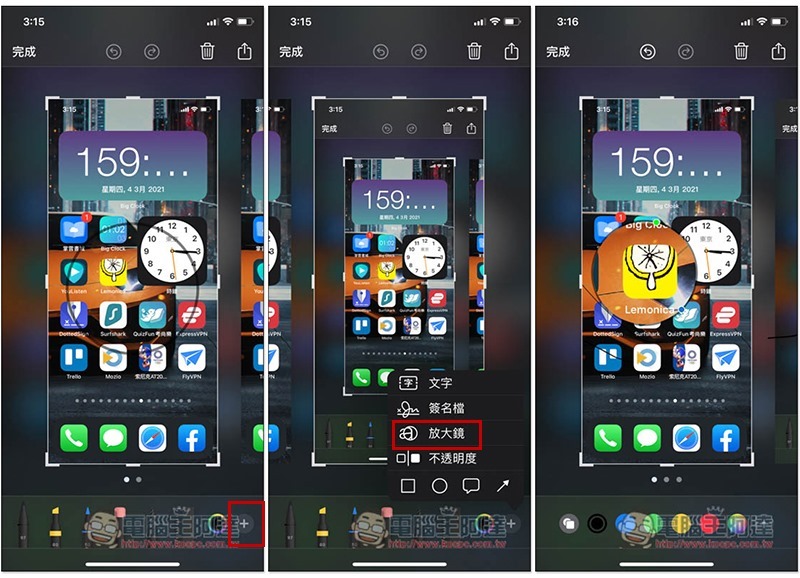
For friends who often need to make iOS teaching screenshots, or who like me can write App introduction articles, the iPhone’s screenshot editing function provides a magnifying glass function, which can magnify the specified location or App icon to highlight the key points. There is no need to use other professional picture editing software, so that others can know at a glance what the screenshot is describing.
After taking the screenshot, enter the editing screen and open the function menu in the lower right corner to see the magnifying glass function. Then you can move the position you want in the screen. The magnification and circle size can be adjusted:
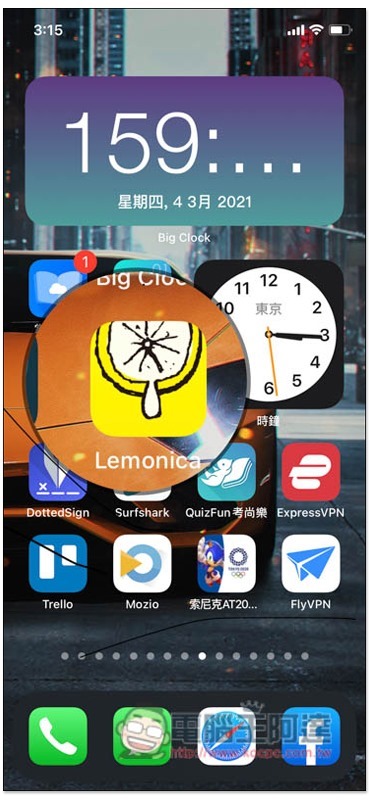
With the enlarged effect of the App icon, you can tell at a glance that this picture is talking about Lemonica App:
7. Quickly search text on web pages
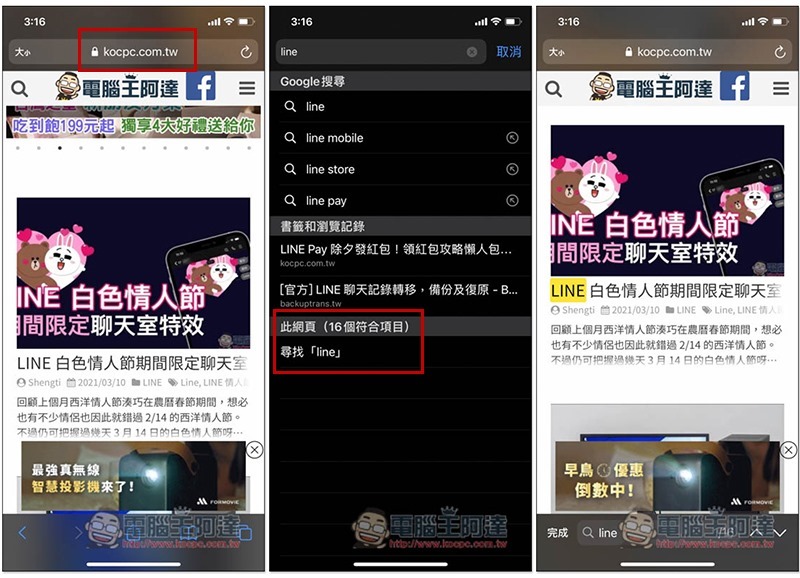
When you want to search for text on a web page, you may already know that you can open the share icon menu below and find a “Search in the web page” function. Although this operation is not troublesome, there is actually a faster way, which is to search directly from the address bar.
Now directly enter the text you are looking for in the address bar above, and there will be an additional “this web page” at the bottom of the results page. After clicking, the matching text in the web page will be highlighted. Press the arrow function on the lower right to search up or down:
Summarize
The above are the hidden and useful functions of iPhone 7 this time. Of course, there must be more than these. If we find other useful functions in the future, we will also sort them out and share them with you.
Source: KOCPC Chinese