


Now many people use NotebookLM to makepresentationexcept that this presentation is through NanoBanana Pro Therefore, each slide is generated as an image, making it impossible to edit the text, which causes a lot of inconvenience. Although we previously introduced a method…Using Gemini to fix typos and resolution issues in NotebookLM presentationsbut the operation would be slightly more complex, while also Gemini The free version has a very limited daily allowance, so it’s not ideal for free users.
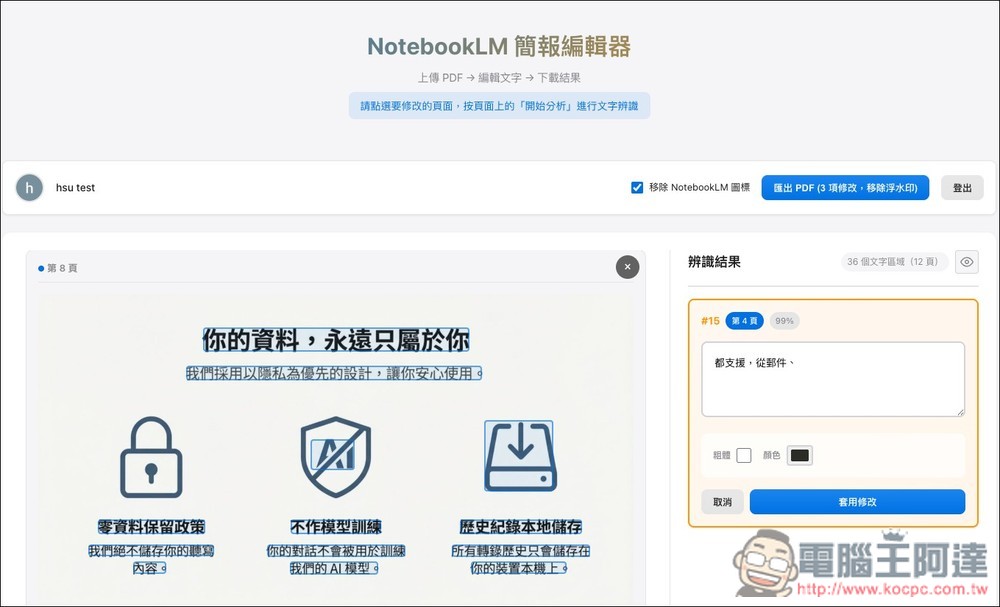
I recently discovered this tool called “NotebookLM Slide Editor” developed by a Taiwanese netizen online. Just upload a presentation PDF file and analyze it, and you can edit the text in each slide. It’s completely free to use, so I’m recommending it to everyone.
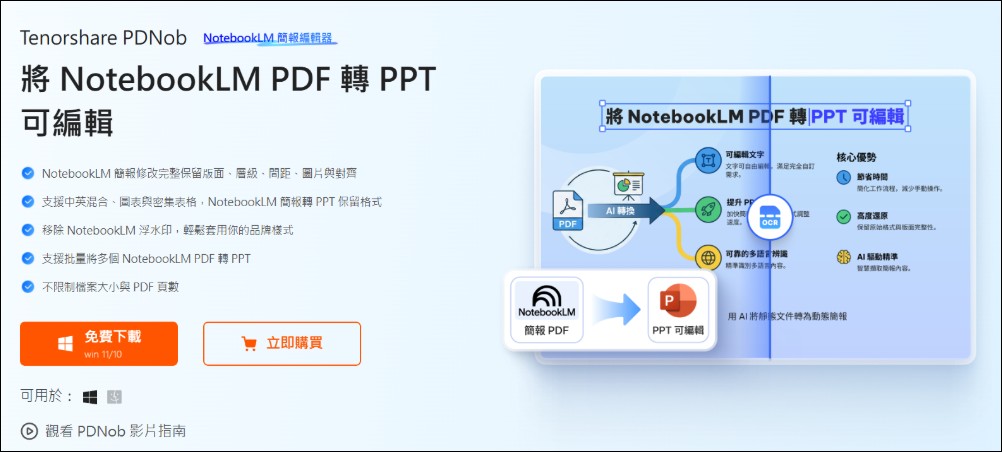
Before we begin, there’s another NotebookLM presentation editing software with more powerful features. However, it’s not a free software.For efficiency-driven professionals, time is money. If you need aTruly professional, freely editablethe presentationPDNob Provided a more perfect alternative solution.
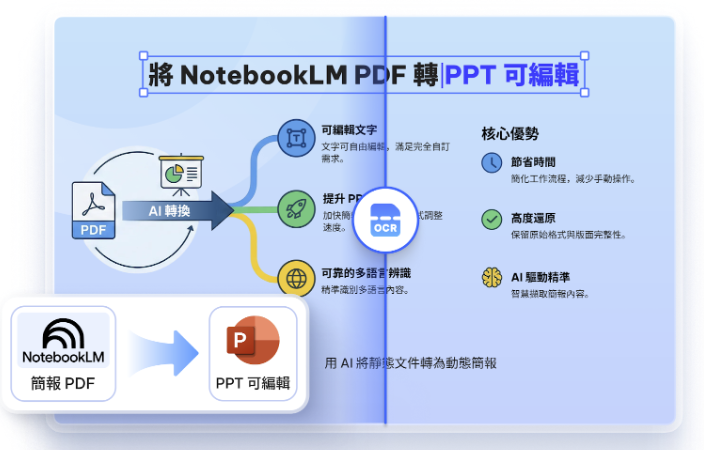
Core Advantages of Tenorshare PDNob:
- One-Click Image to PowerPointPDNob features ABBYY OCR text recognition technology, which can precisely extract static images generated by NotebookLM and directly convert them into editable PowerPoint files, allowing you to freely drag and drop text blocks and change backgrounds.
- Fonts and typography perfectly restoredAfter selecting the correct language setting for document OCR, you can better maintain visual consistency and improve Chinese and English recognition rates, avoiding the awkwardness of uneven or misaligned text after editing.
- Even beginners can pick it upNo complex prompts or instructions needed—just drag in your PDF, click to convert, and let PDNob handle the rest. The time saved on proofreading and formatting lets you focus on the content logic of your presentation.
How to use PDNob to convert NotebookLM presentations into editable PPT:
go to PDNob Official Website Download the tool. This software supports Windows and Mac. Compared to web-based tools, it offers more consistent recognition speed. The paid version supports batch processing of large numbers of presentation slides.
After opening PDNob, simply drag the presentation PDF you downloaded from NotebookLM into the software interface. It will automatically launch the high-precision OCR engine to separate the text and images in the slides.
NotebookLM Presentation Editor: A free tool for editing and adding text in presentations
To use this NotebookLM presentation editor, you need to sign in with your Google account. As for the technology behind it, the developers haven’t elaborated, but it appears to be related to OCR recognition as well.
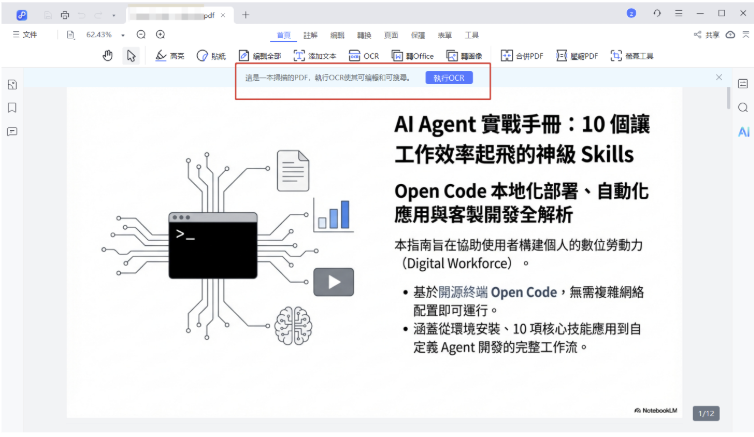
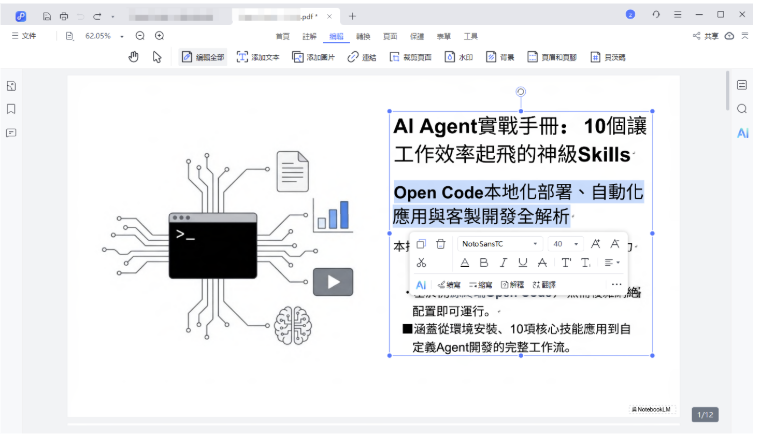
or directly convert to「PPTX」The strength of PDNob lies in not just modifying text, but reconstructing the presentation structure.
After clicking “Start Conversion,” it will transform the originally static images into text boxes and image objects that can be freely scaled and moved.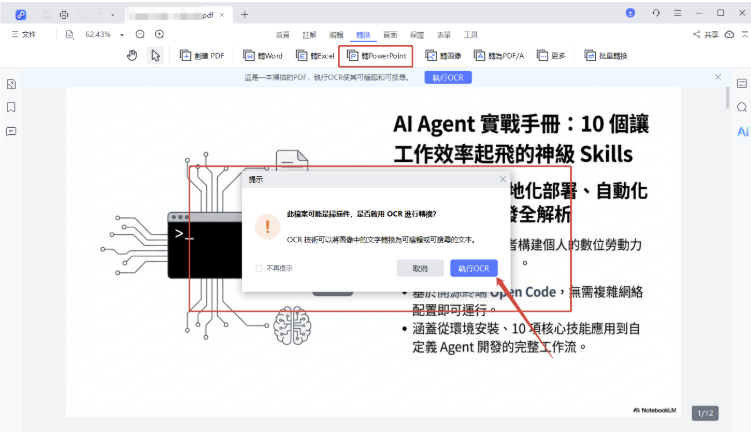
After the conversion is complete, open the file directly in PowerPoint or Keynote. You’ll find:
- Text can be moved freelyNo longer limited to its original location – place it wherever you want.
- Font ReplacementUse fonts directly from your computer to avoid font distortion issues.
- Accurate Bilingual Editing and Compilationtargeting, aiming at, regarding, concerning, in response to NotebookLM Presentation Editor Requirement: PDNob handles complex bilingual layouts perfectly.
Special notice:
The fonts generated by NotebookLM are often uncommon artistic fonts. If the user’s computer doesn’t have these fonts installed, PDNob OCR may default to replacing them with system fonts, resulting in text overflow or layout misalignment.
2. Complex charts generated by AI (such as gradient colors, semi-transparent shadows, and dense coordinate axes) may be recognized as “background image + scattered text” during OCR processing, causing the background to appear slightly blurred.
No OCR tool can achieve 100% pixel-perfect replication, especially when dealing with highly randomized layouts like those generated by AI.
When using NotebookLM to generate presentations, it’s recommended to use prompts upfront to set constraints on the PPT style, background images, and other elements, so you don’t end up spending even more time trying to make changes later.
Introduction to NotebookLM Presentation Editor
After clicking the link above to access the NotebookLM presentation editor, first log in to your Google account.
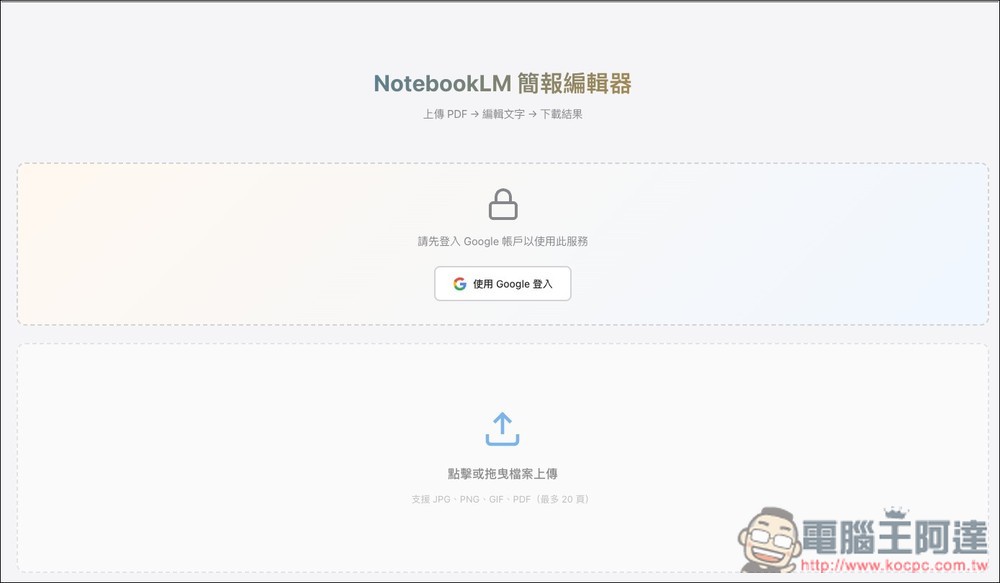
Go to NotebookLM presentation editor
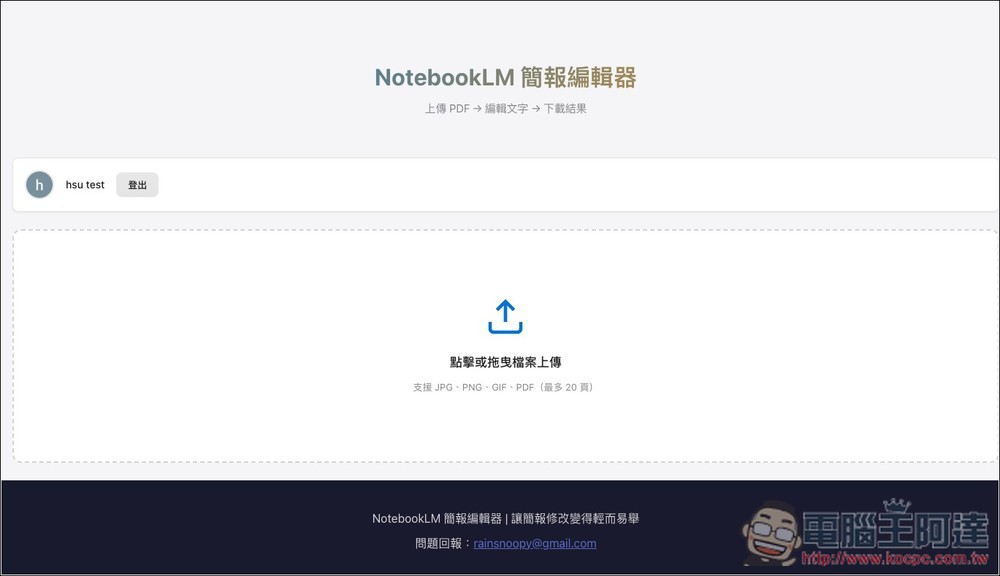
After logging in, you can upload your NotebookLM presentation PDF file, supporting up to 20 pages. It also supports JPG, PNG, and GIF file formats, which means if you want to edit the text in images generated by NotebookLM, you can also use this tool to do so:
Once the upload is complete, you’ll see each slide of your presentation PDF below. They haven’t been converted to editable text yet, which means you can simply select the pages you want to modify:
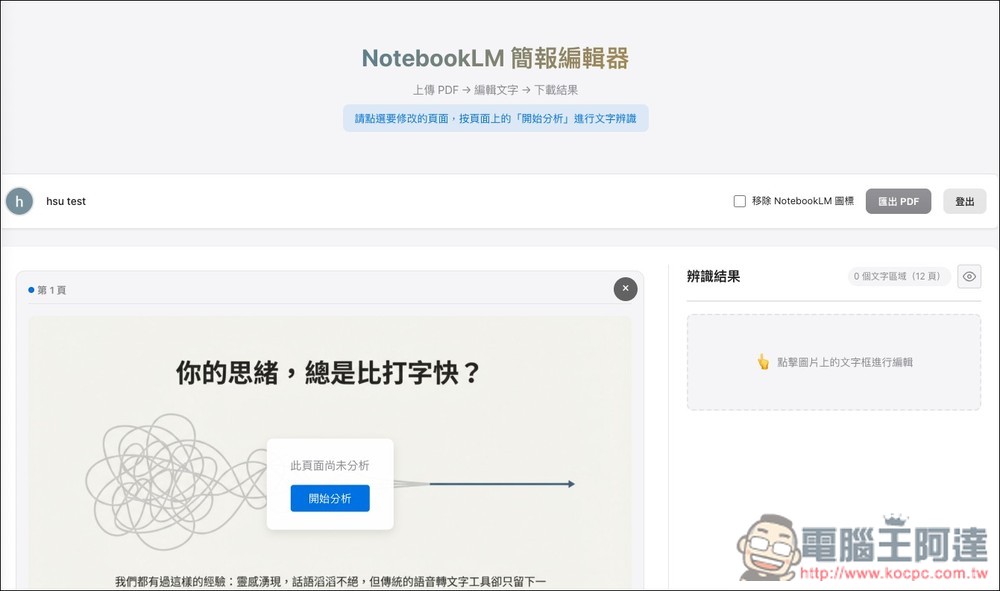
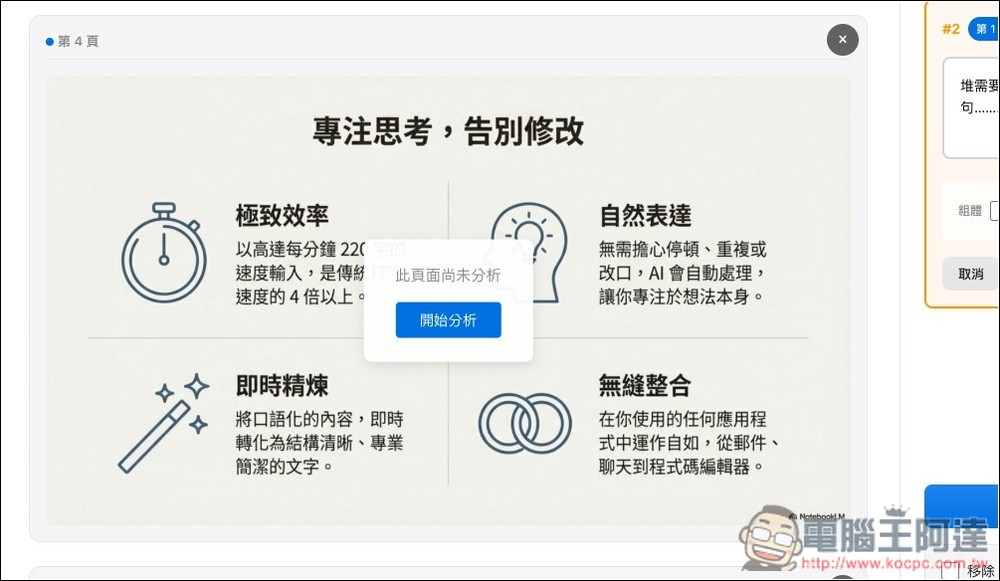
After finding the slide image you need to edit, click “Start Analysis” on the screen:
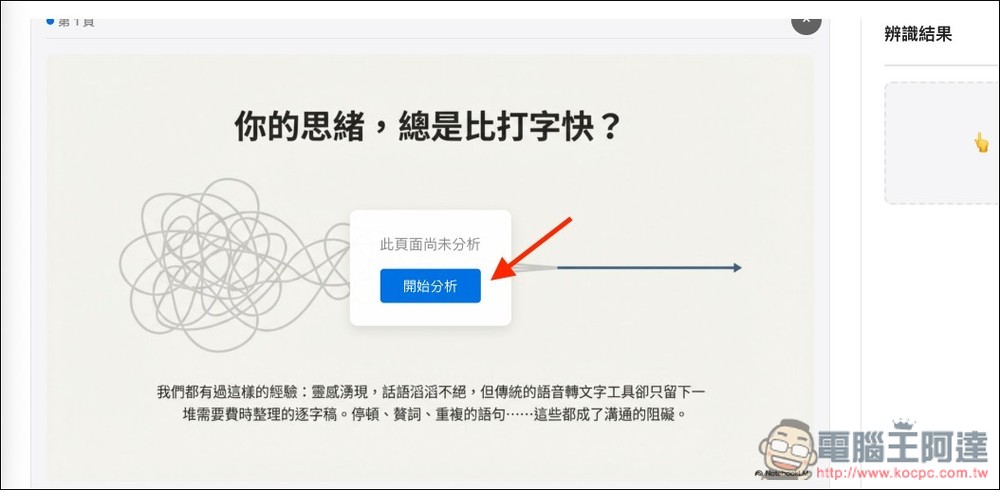
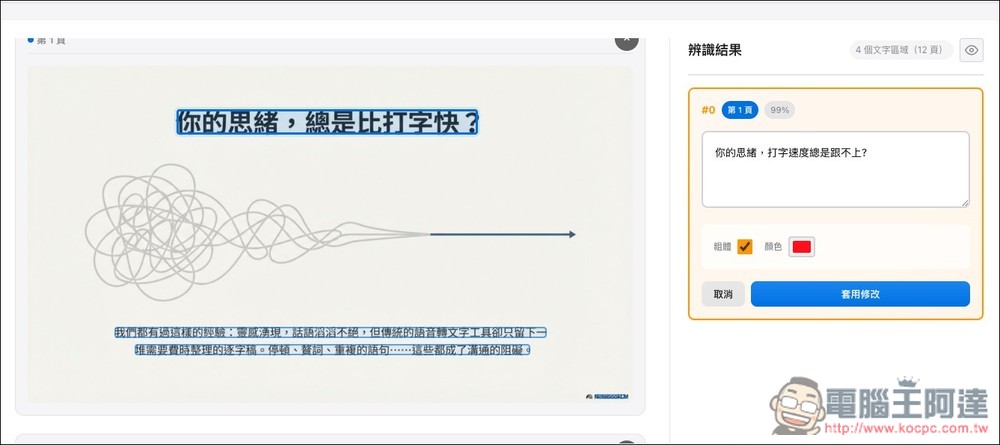
You will see that the text on the image is converted into individual blocks, and then you can directly click on the text block you want to modify to edit it:
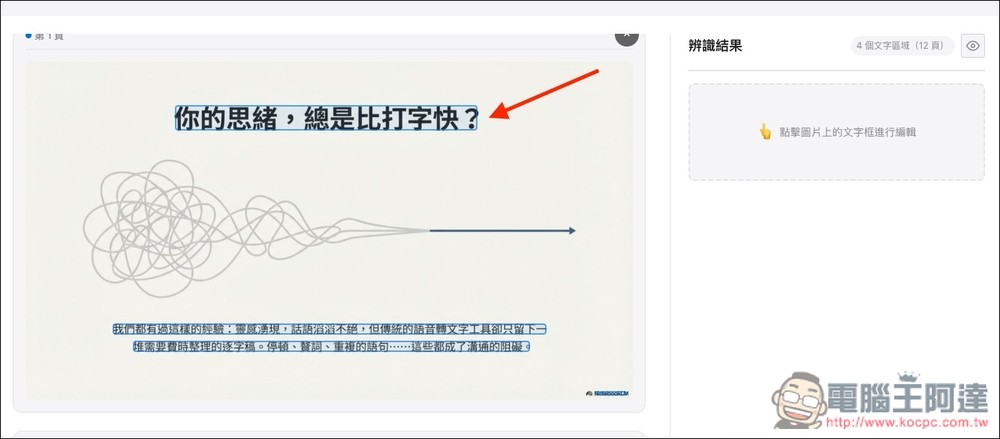
As shown in the figure below, when I click on “Your thoughts are always faster than typing” at the top, this text will appear in the recognition results section on the right:
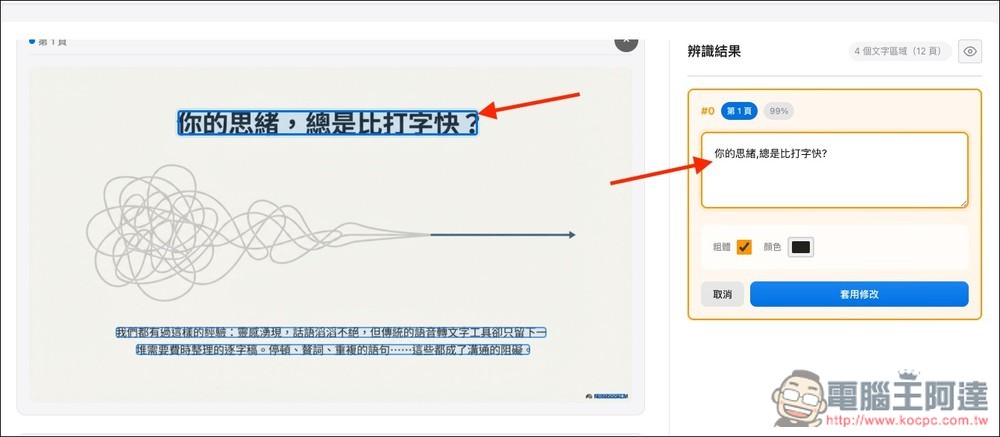
I changed it to “Your thoughts, your typing speed just can’t keep up?” Below that, you can also adjust whether to keep it bold and the text color (I changed it to red). Once you’re done, click “Apply Changes” below:
Then you will see the original text change to the content you modified. One thing to note here: you can only modify the text content and cannot move where the text is placed.
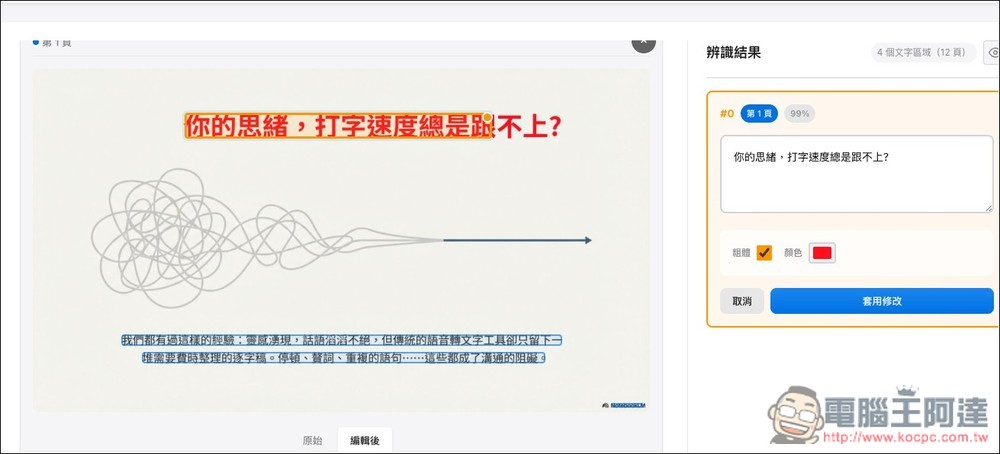
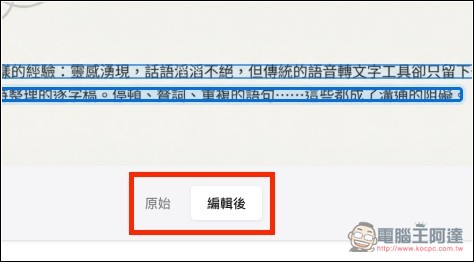
Below is a toggle button for switching between “Original” and “Edited,” making it easy to compare the differences.
Next, let’s analyze the other slide images you need to modify:
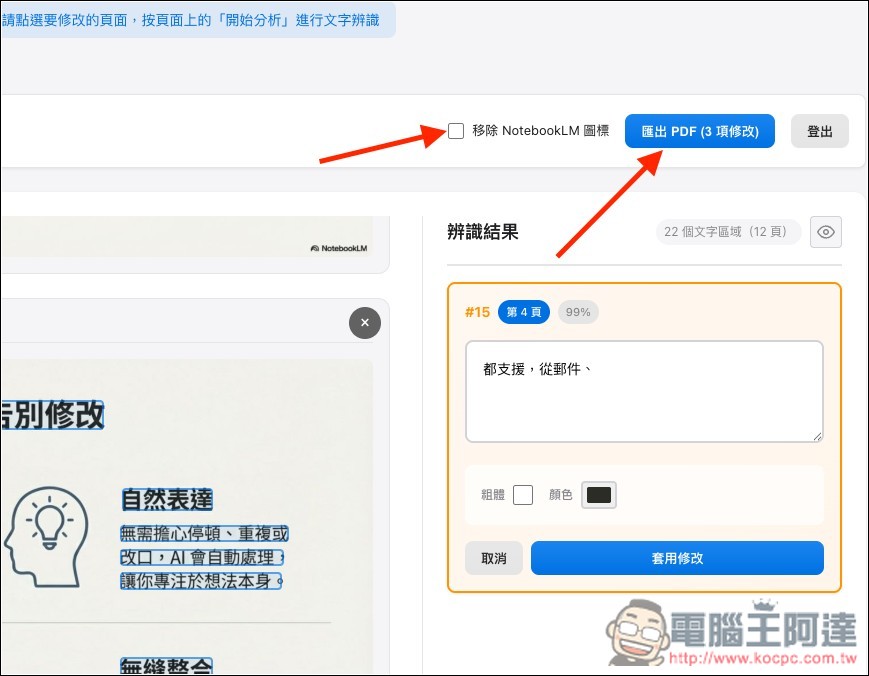
Once you’ve finished editing, you can click “Export PDF” at the top to get your newly modified presentation PDF. It also supports removing the NotebookLM watermark, though in my testing, this feature still has room for optimization—for example, some screens may cause the images in the slides to become blurry, and images that have been analyzed won’t have their watermarks removed.
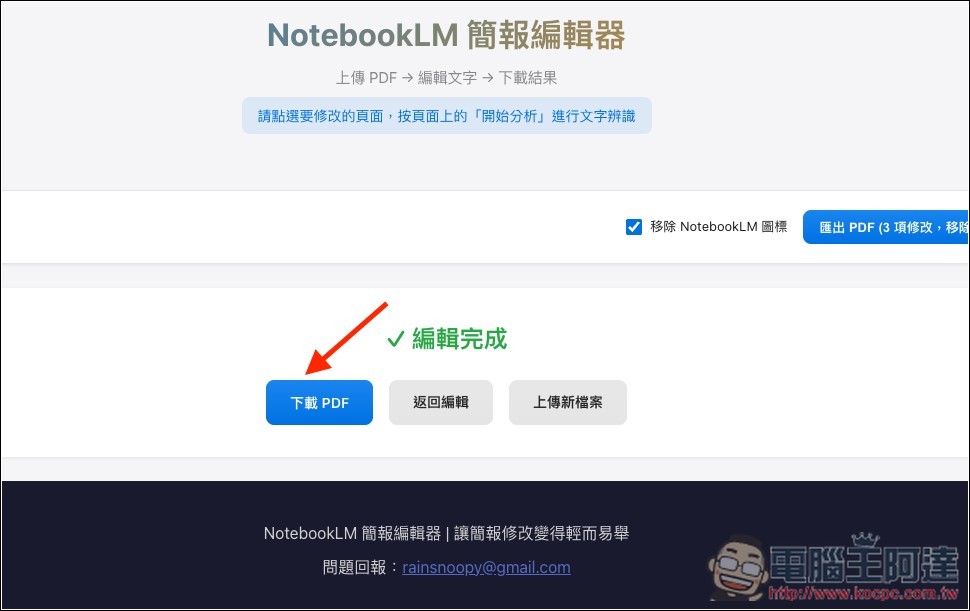
After the export is complete, a “Download PDF” button will appear. Click it to download.
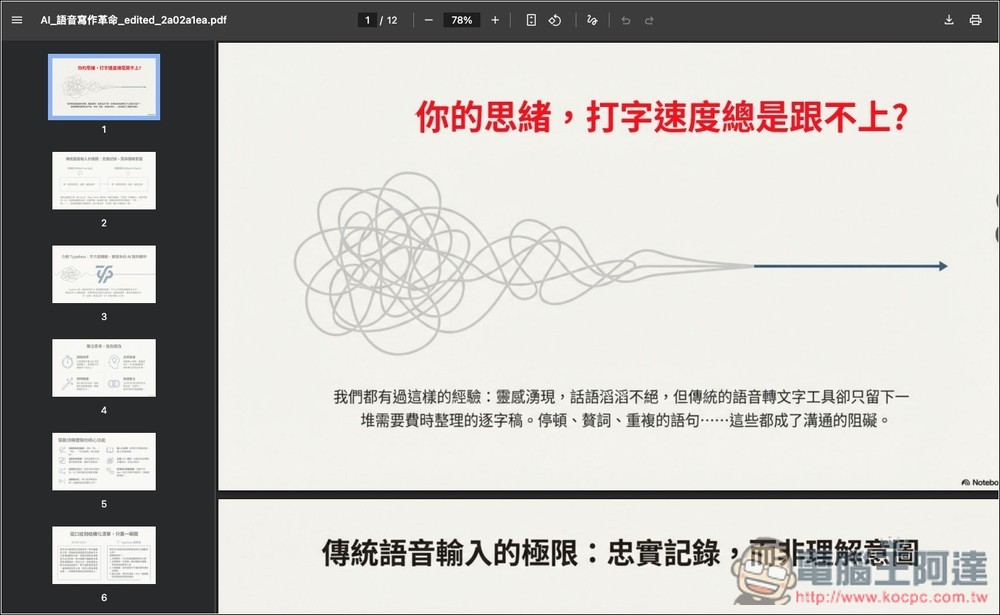
After downloading, remember to check if the content shows “modified” status.
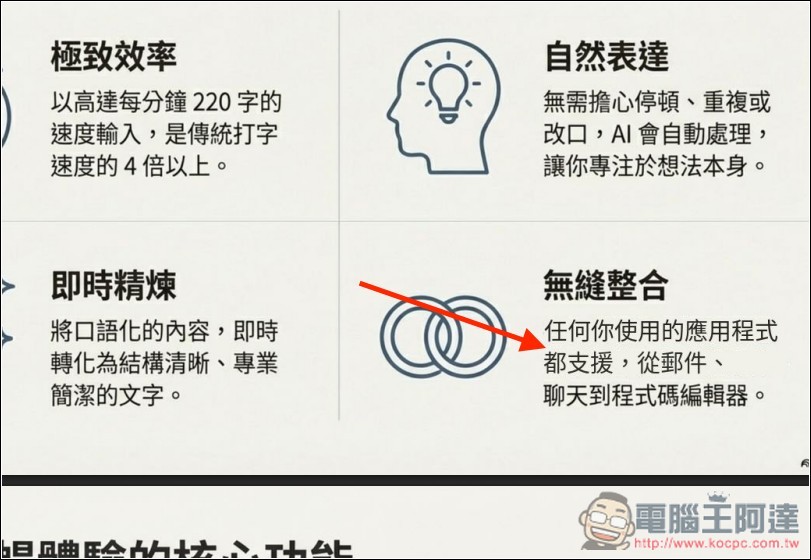
Additionally, the font of edited text may differ slightly from the original font. Take this sentence in the image below: “Any applications you use are supported, from mail,” which I edited, while the next part “chat to code editors” I didn’t modify, so you can clearly see these two fonts look quite different:
Source: KOCPC Chinese