


As Mac can play more and more games (much better than before), and it also supports Xbox and PS series game controllers, I believe some players must have thought about it, is it possible to directly control Mac with game controllers? Although Mac itself does not provide this function, the good news is that Controlly, which can implement this application, has recently appeared on the Mac App Store, and the operation and settings are very simple. I will quickly introduce it to you below.
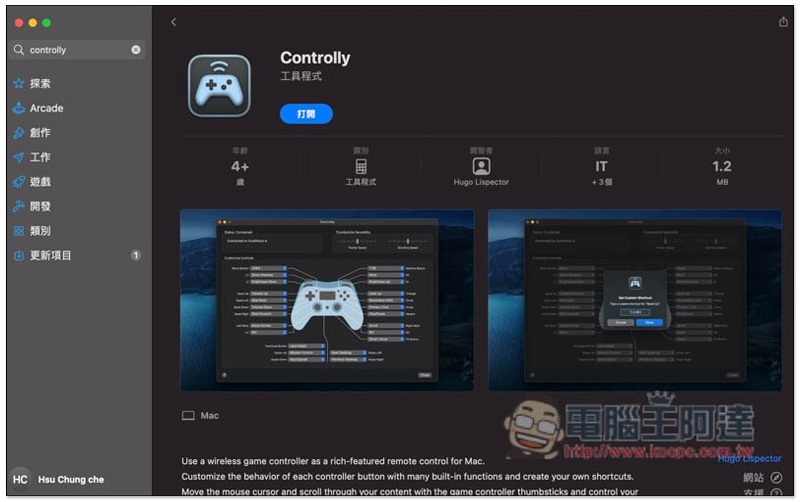
Controlly is an app that enables you to control your Mac with a Bluetooth gaming controller.
This app is available on the Mac App Store.Click me to go to the installation page。
After installation, open it. The handle icon in the upper right corner is the App. You need to set some authorizations at the beginning. Click Get Started:
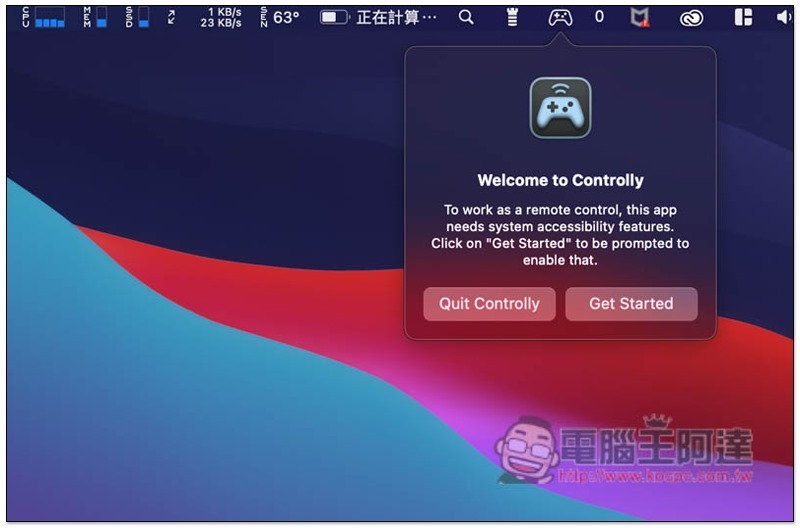
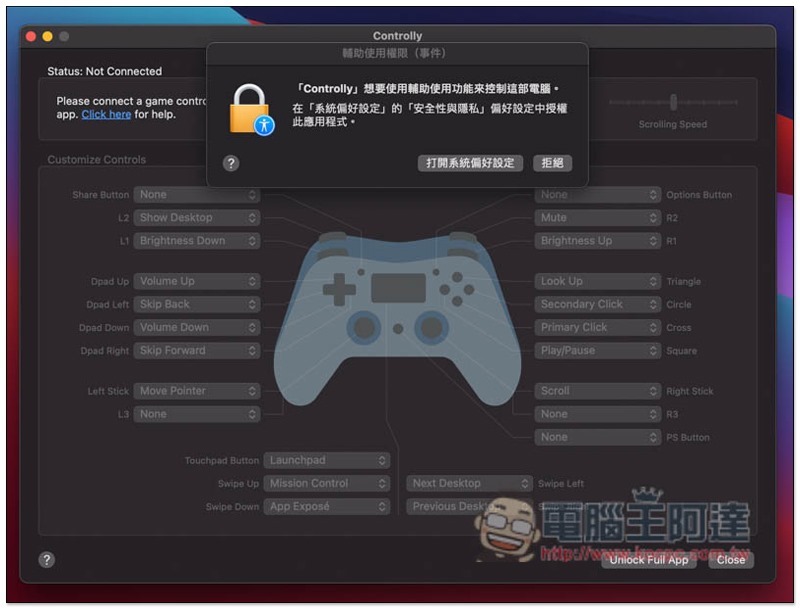
Then this screen will pop up, click “Open System Preferences”:
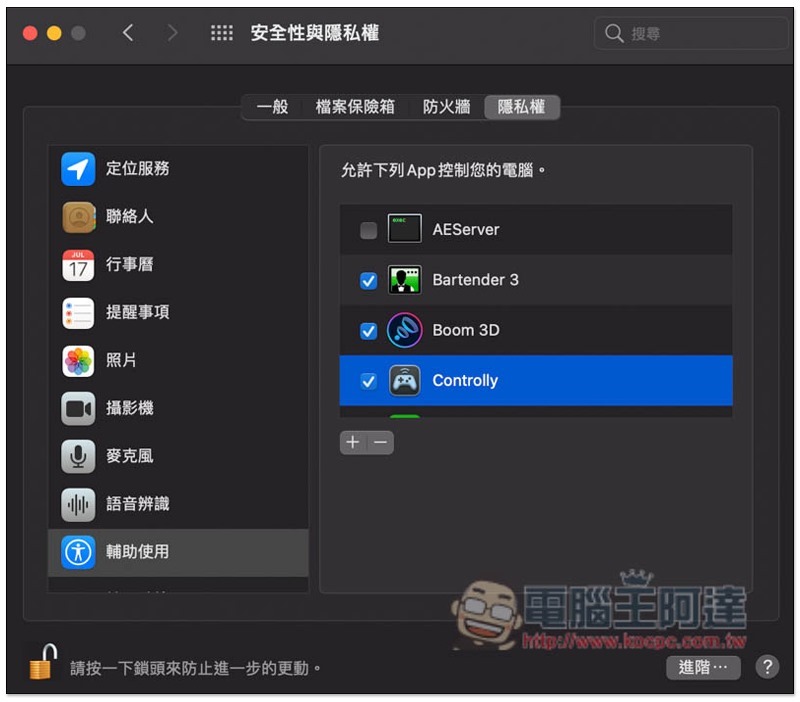
After opening the Security and Privacy window, you need to check Controlly on the right. However, it is locked by default. Please press the lock in the lower left corner to unlock:
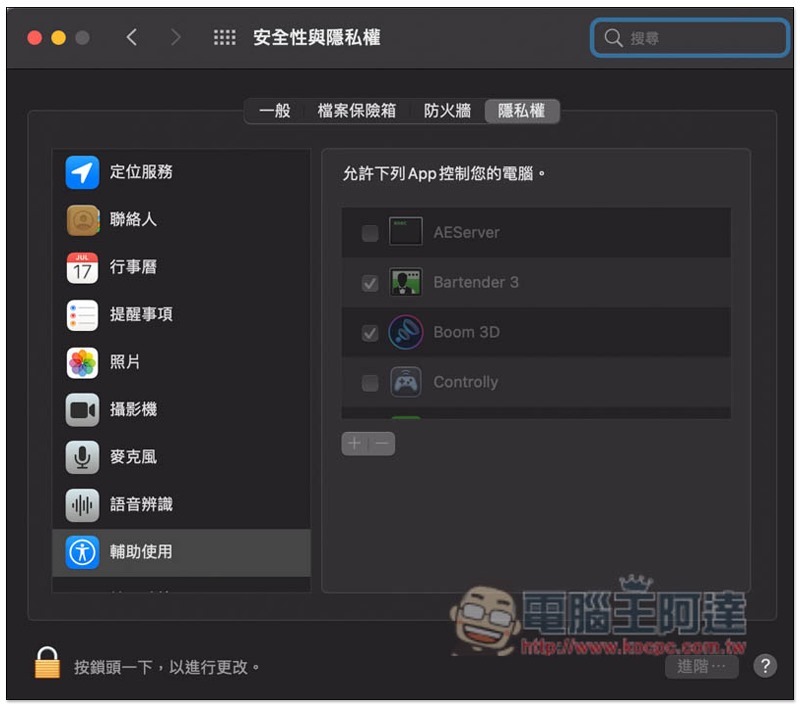
As shown in the figure below, after checking the box on the left side of Controlly, the setting is completed:
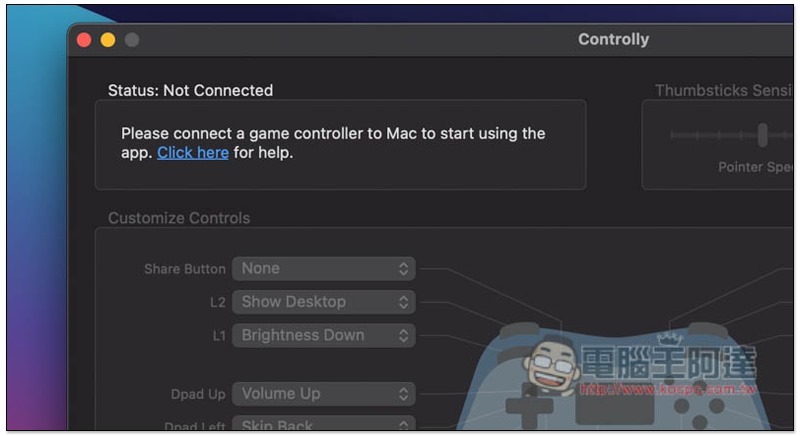
If you have not turned on the power of the game controller, or the pairing is completed, a status of Not Connected (Status: Not Connected) will appear in the upper left corner:
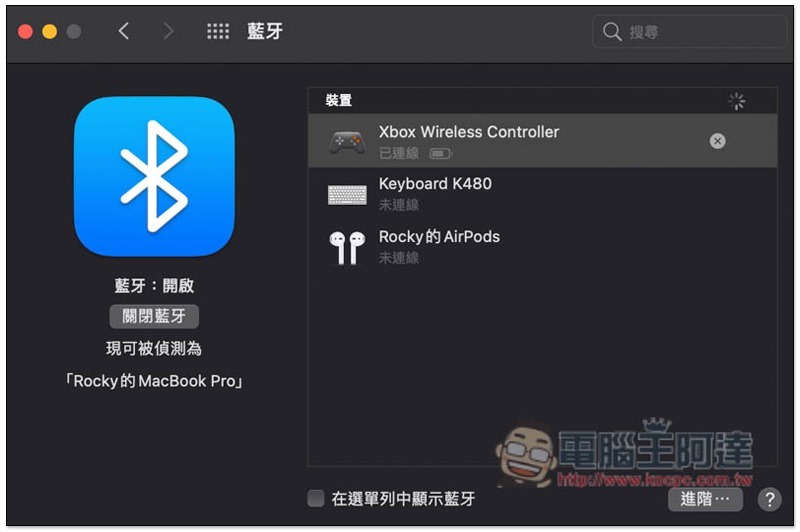
I’ll take the Xbox controller as an example:
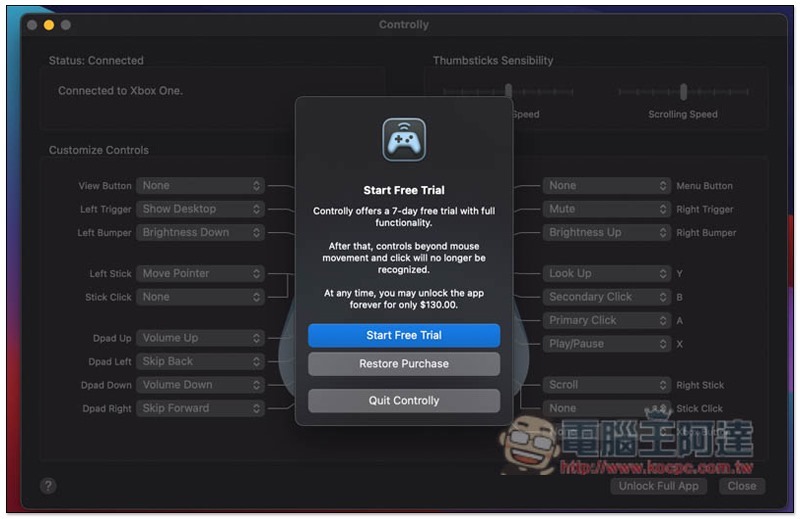
In addition, although this app is free to download, the free version can only preview the function settings, which means that each button has no effect temporarily. If you want to use it normally, there is a 7-day free trial, and the paid purchase is a one-time fee (NT$130). Press Start Free Trail to enable a 7-day free trial. Friends who only want to preview the function can click Restore Purchase:
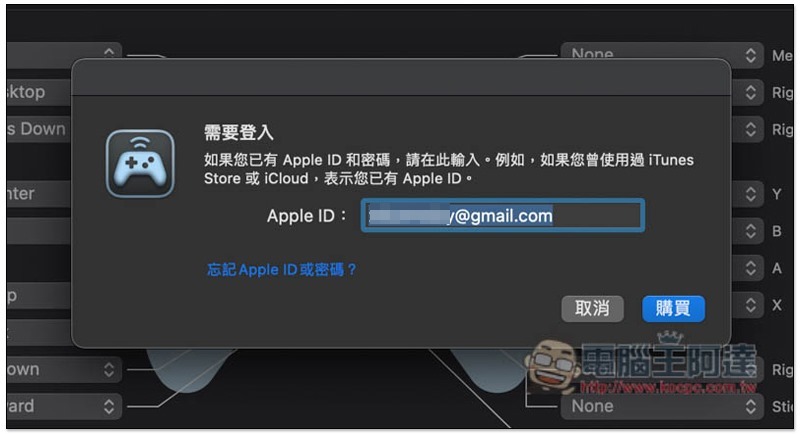
The free trial requires logging in with your Apple ID and password:
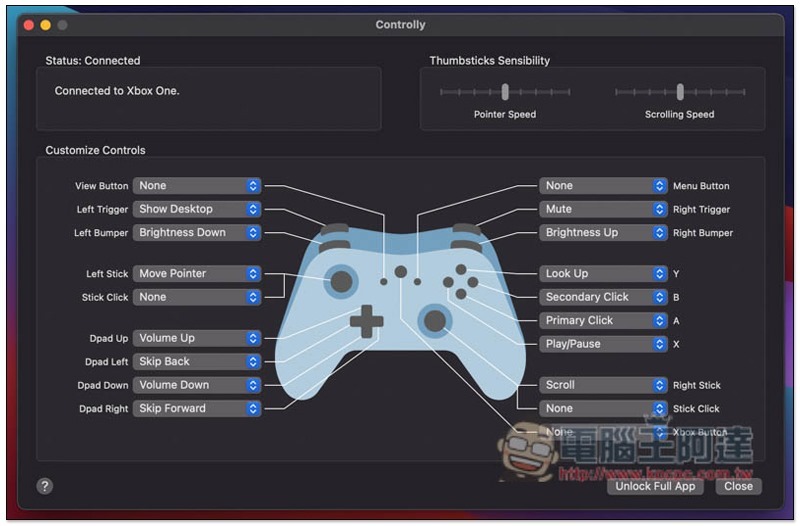
Those who click Restore Purchase will enter this screen after the circle is completed and can preview all function settings. This app will automatically identify the game controller you are currently using. For example, mine is Xbox. The settings icon below will change to Xbox. The sensitivity can be adjusted in the upper right corner:
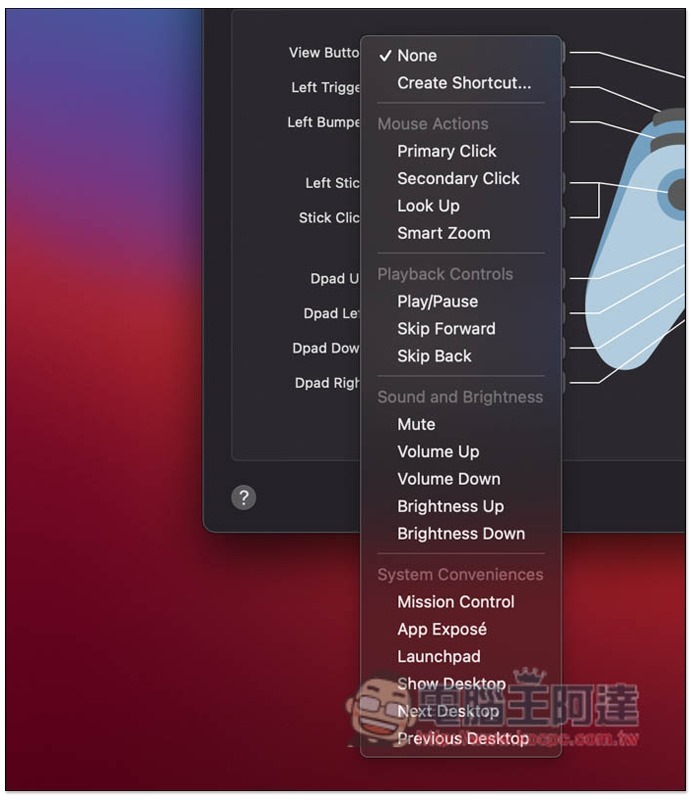
Each button can change the action you want. Currently, there are several options:
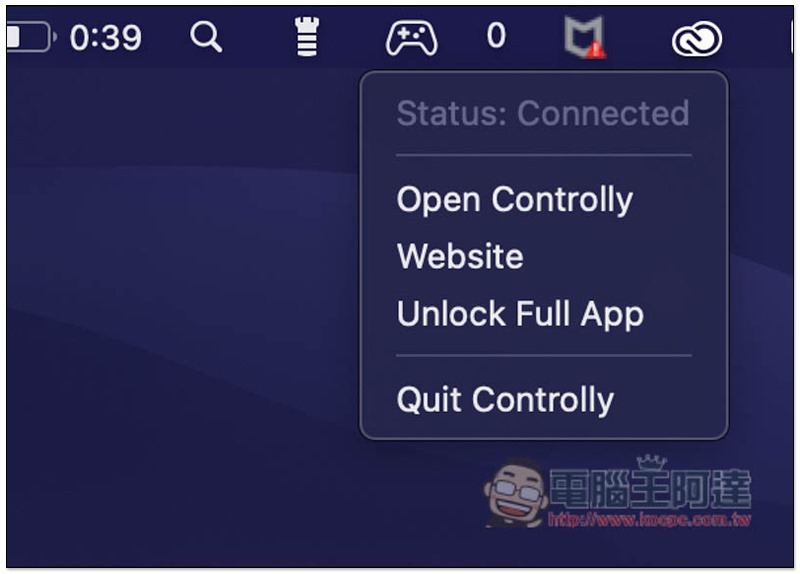
The small icon will also be permanently located in the upper right corner. After closing the window in the future, you can click this icon to open it:
For detailed operation procedures, please watch the video below:
I wanted to use a game controller as a remote for Mac, but I couldn’t find an app for that. So I’ve built one myself and it’s now available on the App Store 🎮🥳: https://t.co/HEkFXUtMeL
Special thanks to @siracusa for finding an interesting bug just before launch! pic.twitter.com/2QVwvZjjvI
— Hugo Lispector (@hugolispector) February 8, 2021
Supplementary information
- Controlly installation page:Mac App Store
筆電醫生 NB Doctor 不用任何技術知識,一鍵輕鬆檢測 MacBook 近 30 項硬體有沒有問題,還內建回收比價、查詢保固功能
Source: KOCPC Chinese