


A few days ago, we introduced a “NotebookLM Presentation Editorcan make modifications Nano Banana Pro A tool for text in presentations, but after editing and downloading it, it still… PDF Files, some people might want to directly convert to PPTX format. Earlier, GitHub Found this free open-source tool NBLM2PPTX above, which can also convert NotebookLM Convert the presentation to an editable format, and directly convert it to PPT The file. From my testing, the recognition accuracy isn’t as good as the previous model, but it’s still worth trying. I’ll share it with everyone here too.
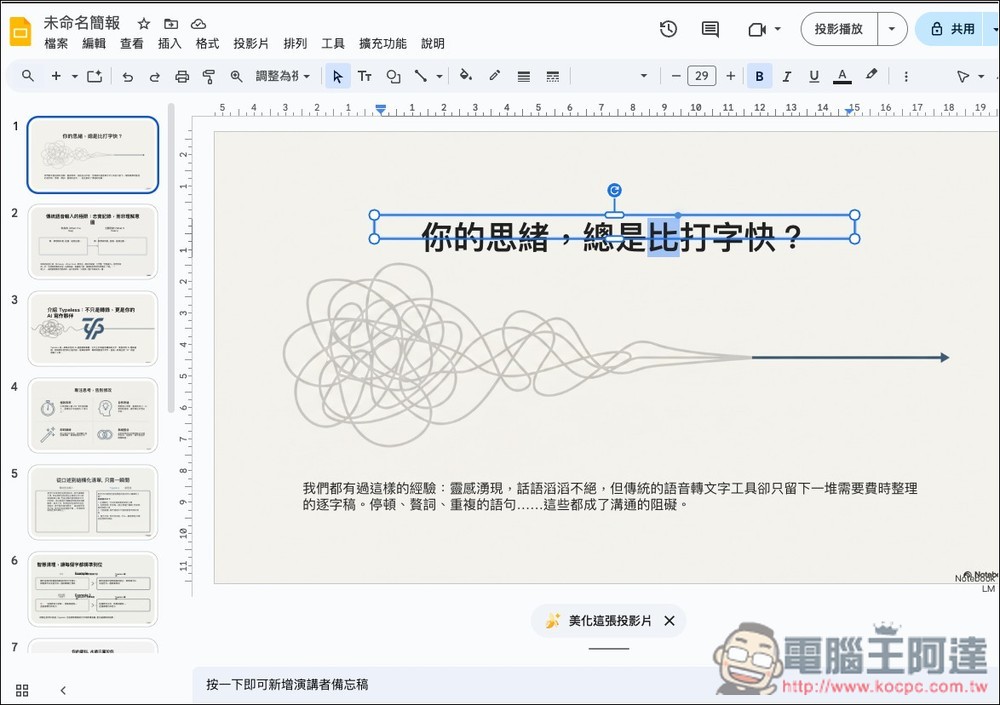
NBLM2PPTX: A free open-source tool that converts NotebookLM presentations to editable PPTX, running on Gemini Canvas
NBLM2PPTX is an open-source tool that converts NotebookLM-exported PDFs into editable PPTX presentations, ideal for users who frequently generate AI presentations with NotebookLM and need to post-edit them. Its core principle is to “separate the background from the text,” which transforms the output from image-based slides into slides with a bottom background layer and independent text boxes on top, enabling subsequent text editing.
On the technical side, it uses PDF.js for text extraction combined with Google Gemini AI, running on Gemini Canvas so no API key is required—completely free to use (I’ll show you how below). The process is simple: upload your NotebookLM PDF, select the pages you want to process, wait for AI to finish, and export the PPTX in 16:9, 9:16, or 4:3 format.
Before I get into how to use it, let me share some of the drawbacks I found.
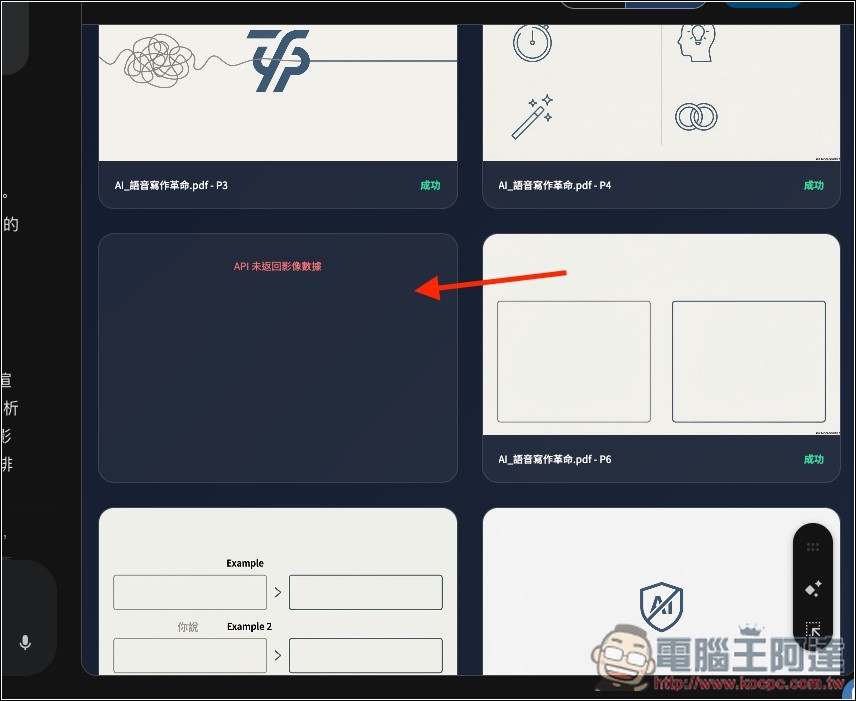
First, presentation images may not be recognized properly, displaying the error “API did not return image data.” Additionally, if non-text elements in the image have very light colors, they may also fail to be recognized correctly.
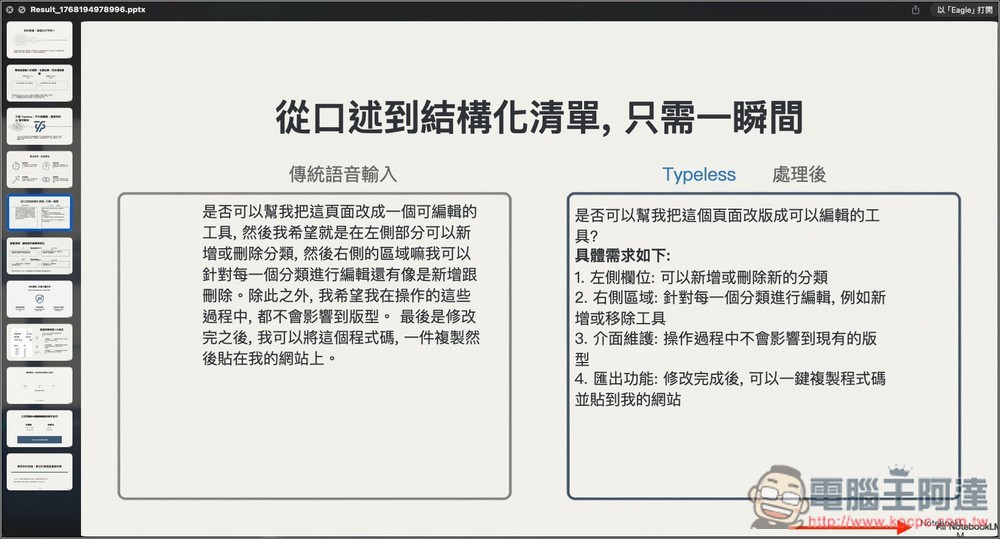
Issues may also occur with the text, such as incorrect recognition, missing characters, and layout problems:
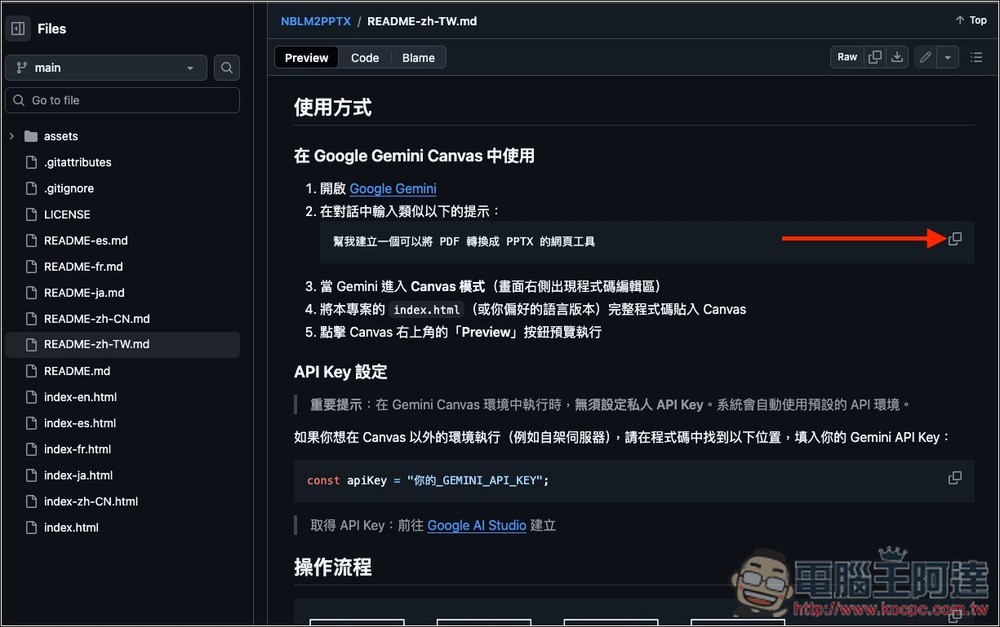
Click the link above to enter NBLM2PPTX After opening the open source project page, first copy the Google Gemini Canvas prompt under the “Usage” section. This prompt will be used in Gemini later to have it create a program that converts PDF to PPTX; then paste the project’s code over it, so you can use it for free in Gemini.
After opening Gemini, paste the prompt you just used, then enable Canvas mode and send it.
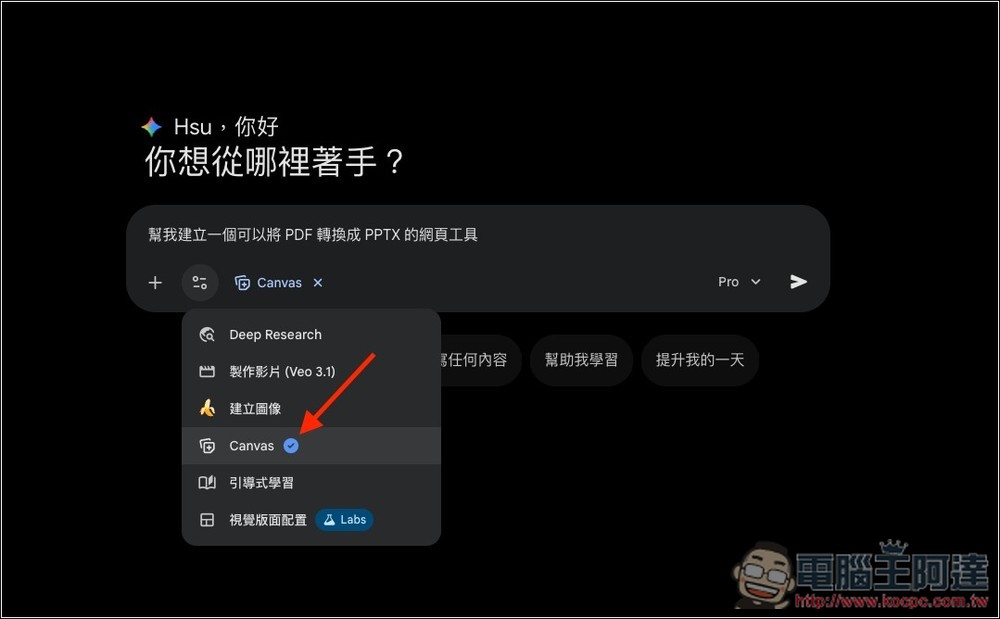
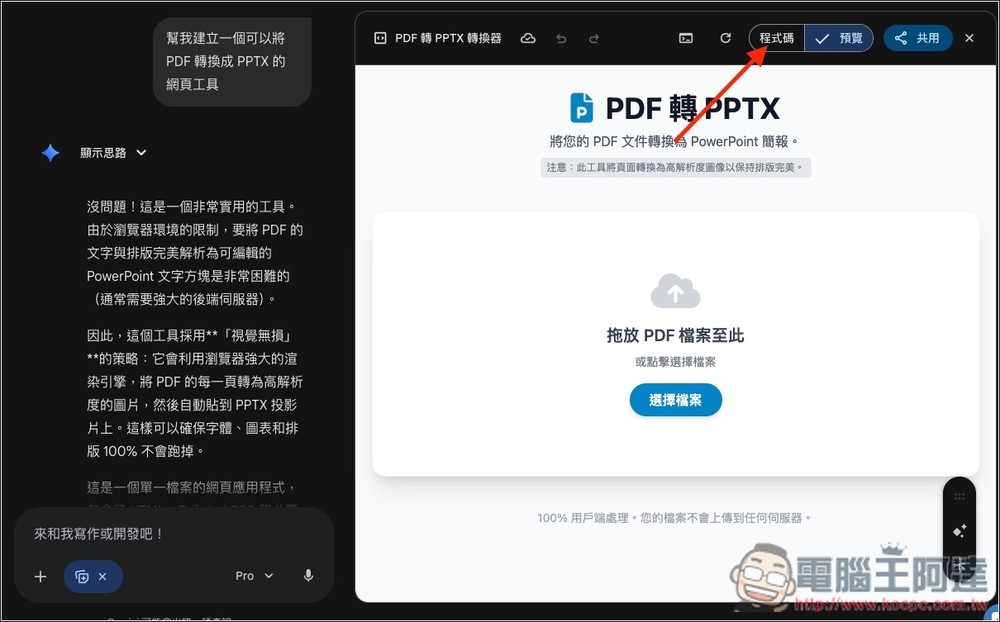
Then wait for Gemini to finish designing this program, and you’ll see a beautiful preview screen. Don’t worry about how Gemini designed it, please switch to code mode:
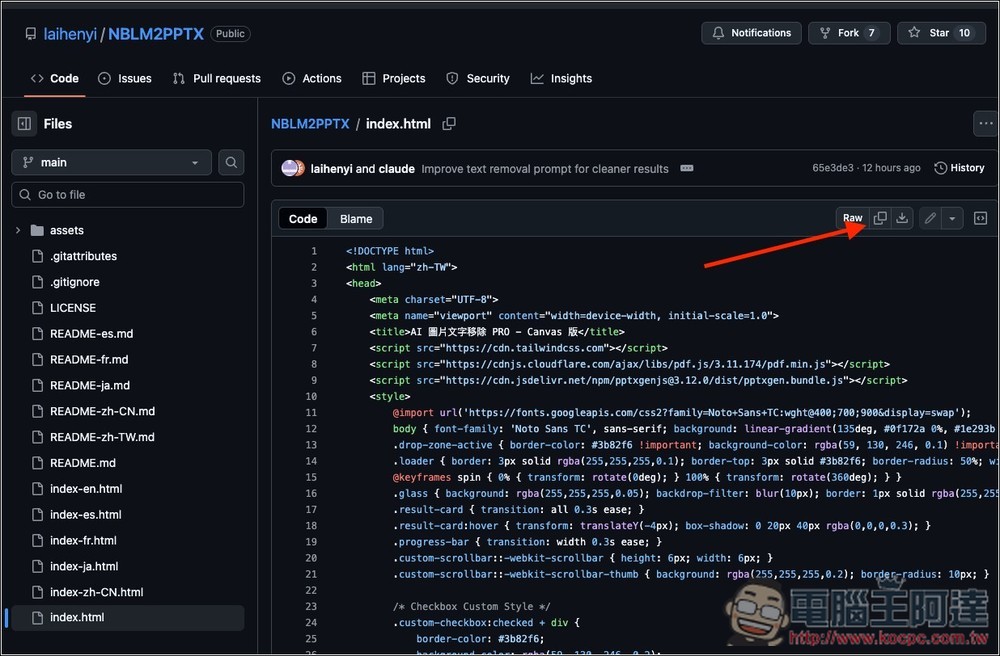
Please go to The NBLM2PPTX projectHere, copy the HTML code for the language you want to use. I’m demonstrating with Traditional Chinese here. Click the copy icon next to Raw in the upper right corner to copy all the code with one click:
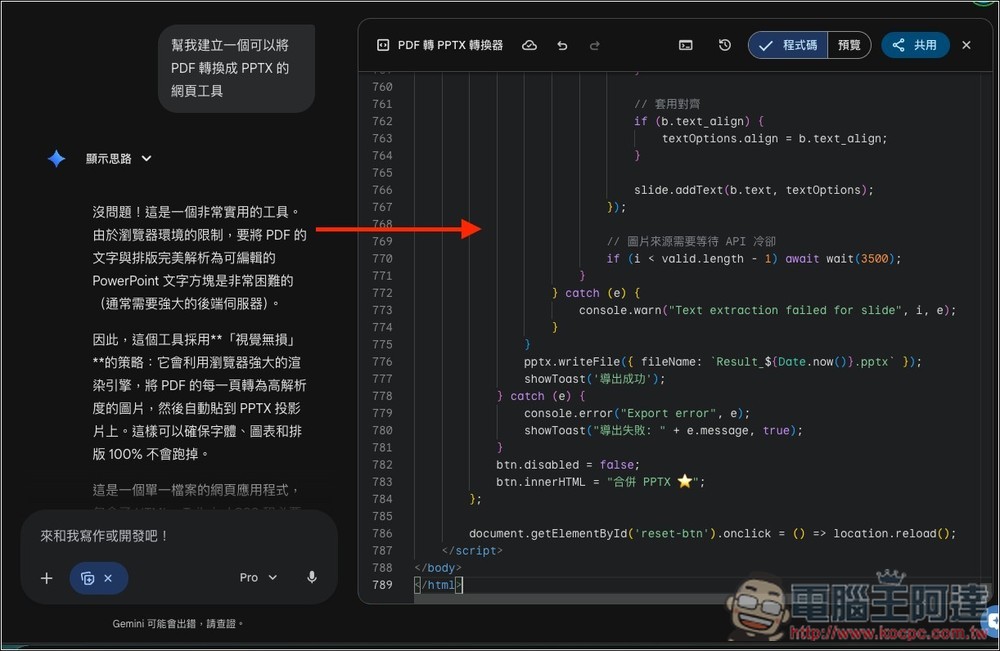
Switch to the Gemini code page you just had open, then click inside it and select all, and paste the code you just copied to overwrite it.
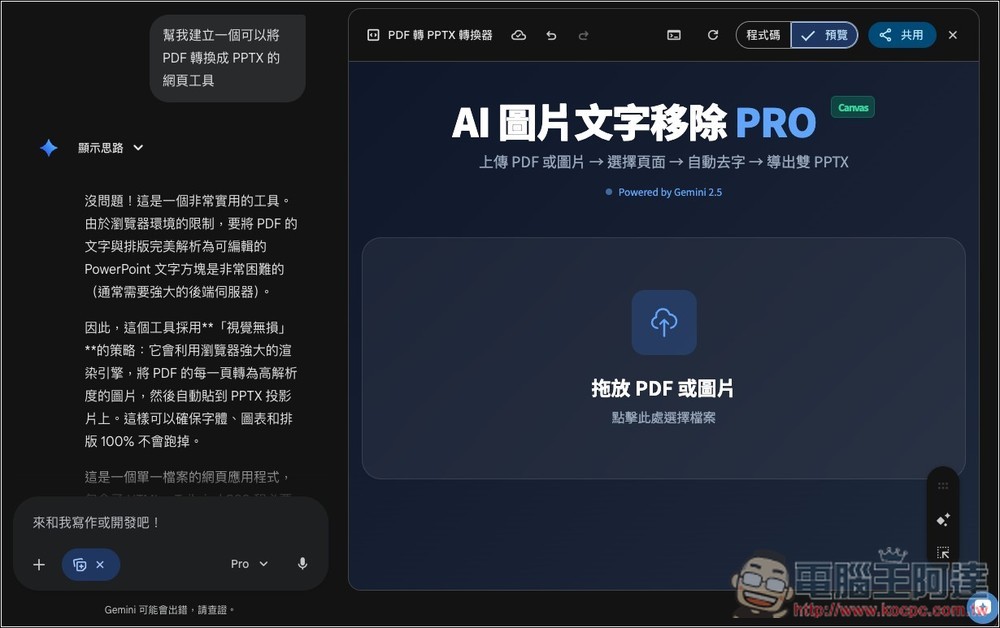
Switch to preview mode, and you’ll see the interface of this tool. Drag your NotebookLM PDF file into it:
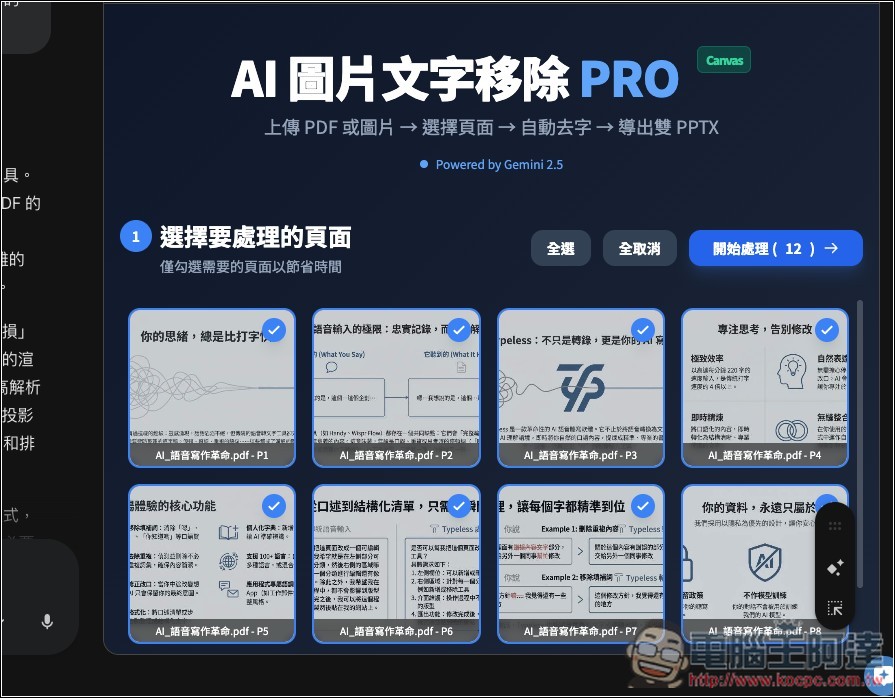
The screen will display all pages from the presentation file, with all of them checked by default. If there are pages you don’t need to process, you can uncheck them. If everything looks good, click “Start Processing”:
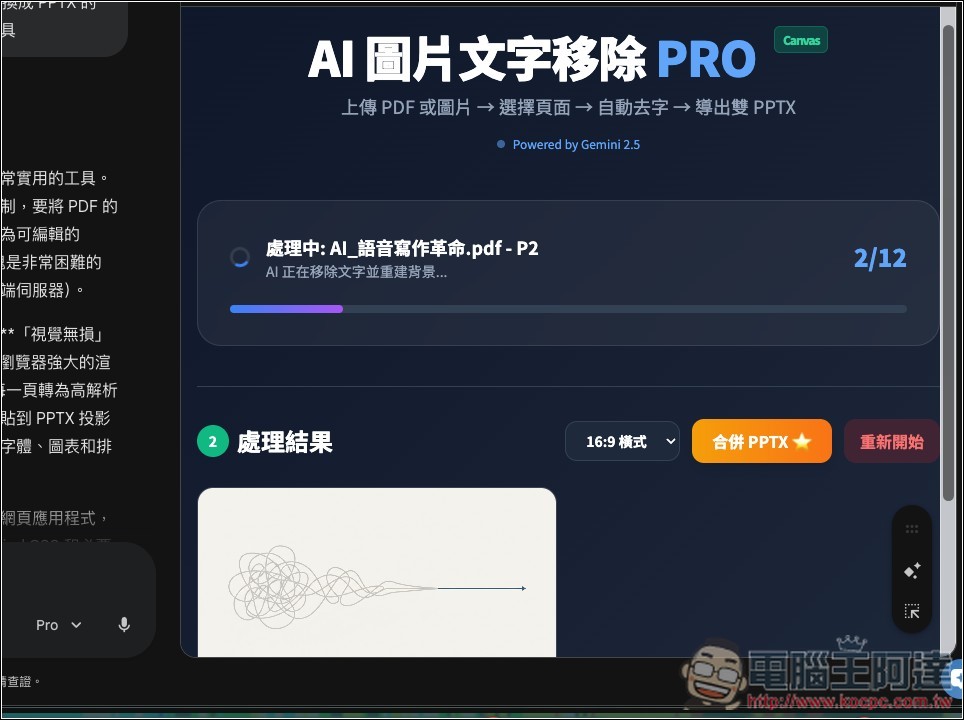
AI will then start separating the background from each presentation image:
After all the images have been analyzed, click “Merge PPTX” at the top:
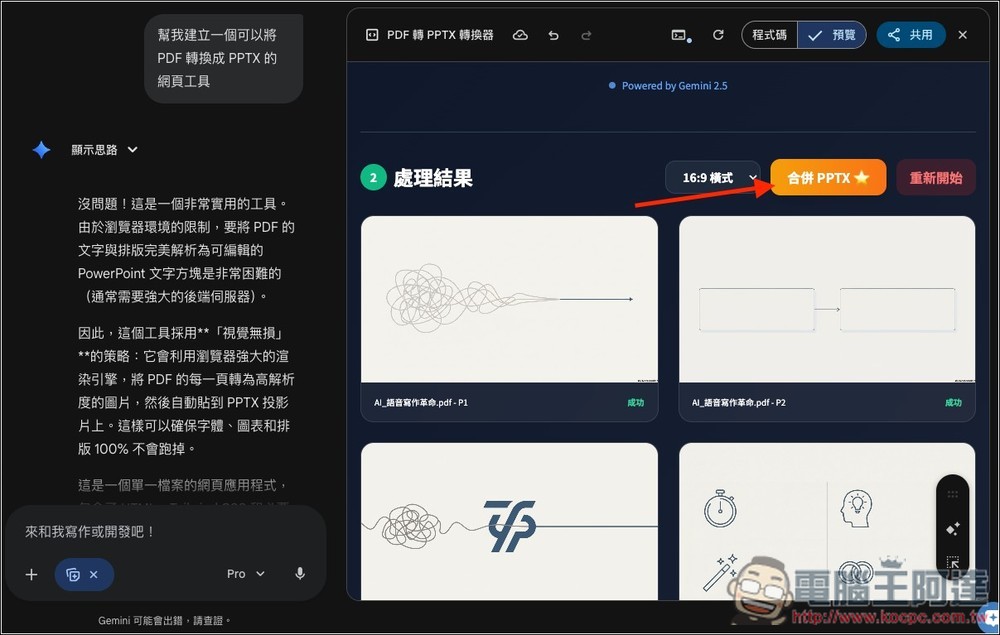
AI will start recognizing text in the images, and below it will show which image is currently being processed, but it will only display for a few seconds before disappearing. The status will only appear again once the current image is finished processing and the next one starts:
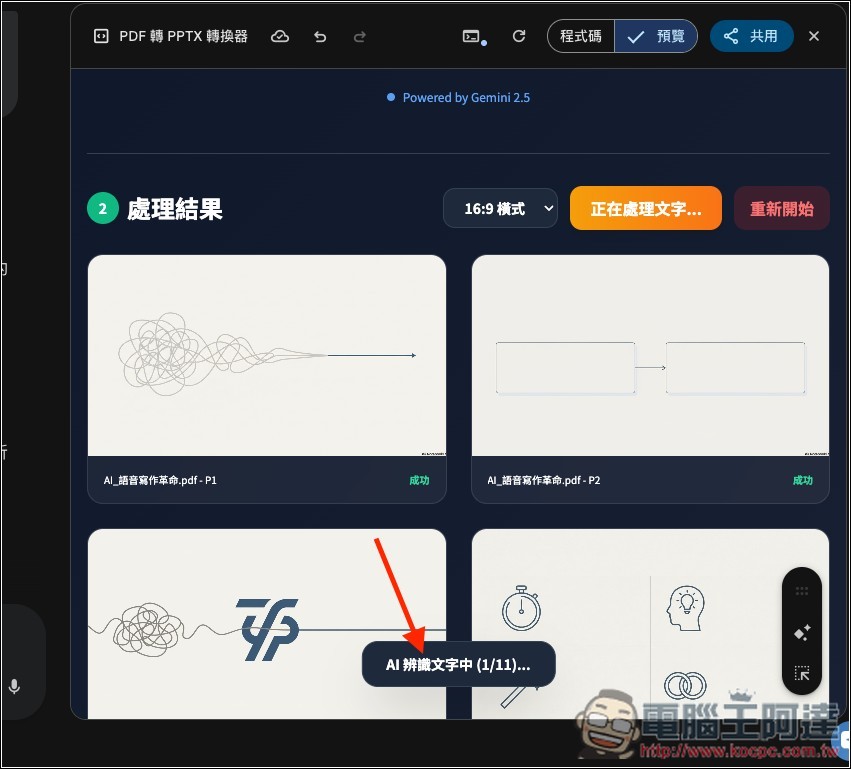
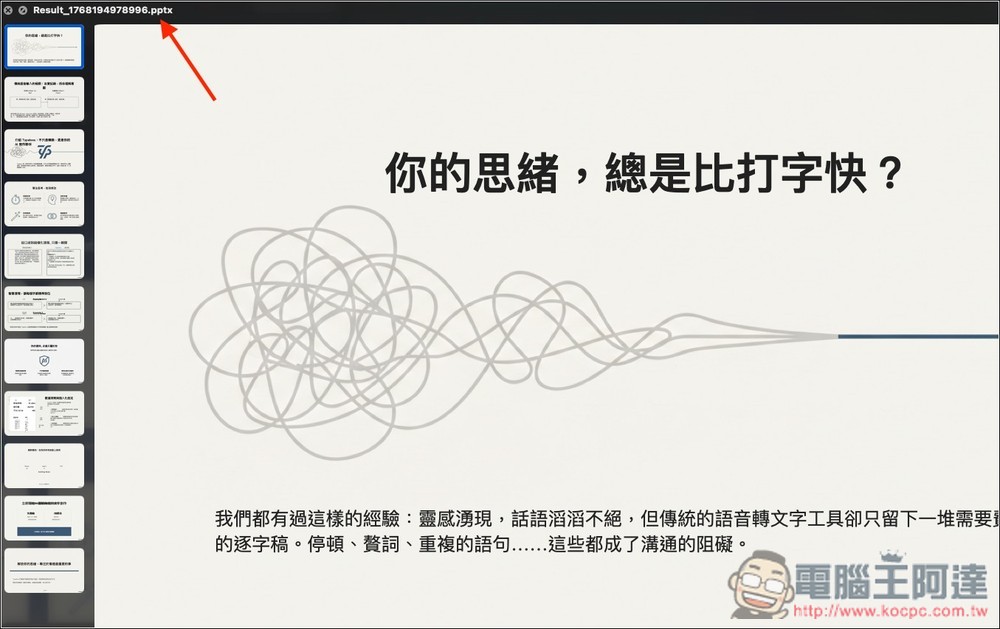
The system will automatically merge and convert to PPTX format and download:
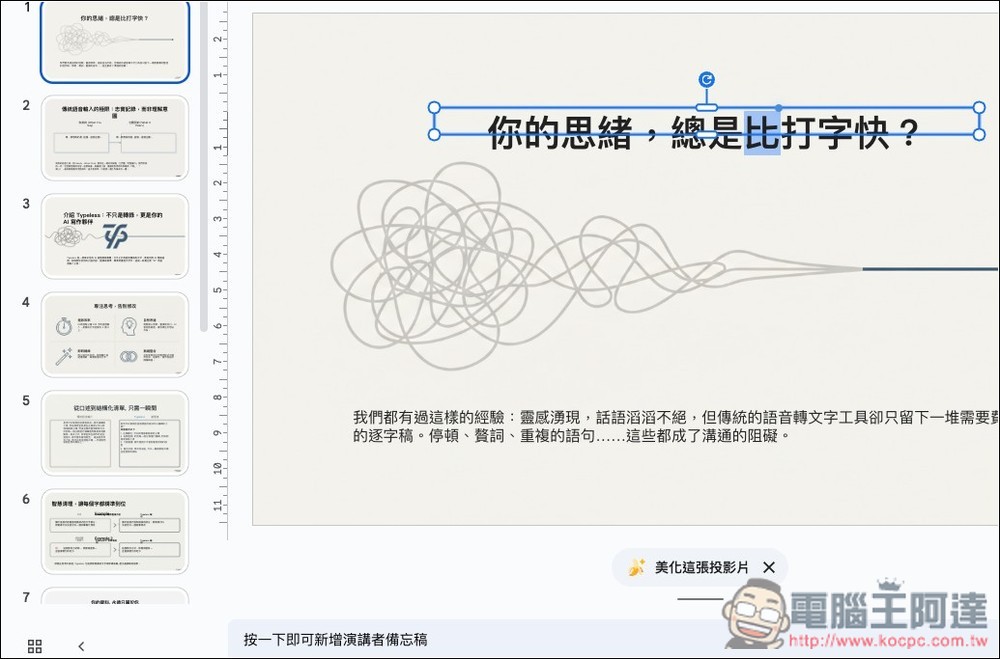
Next, you can use your usual PPT tool to edit it:
Source: KOCPC Chinese