


Many people use LINE to chat and even communicate work matters on a daily basis. In addition to using text to send messages, more and more people choose to use “voice” to send messages to each other for convenience. But if you want to back up these voice messages, how to save them? Today I will share some tips on how to save these voice messages to your device. If you want to save voice messages to your phone’s storage space, or even share them with other devices, learn it quickly!

LINE application tips: How to download voice messages to mobile devices?
There are many ways to communicate with friends through LINE. In addition to free voice/video calls and text messages, many people also choose to send voice messages to each other. For example, supervisors in many companies like to use LINE voice messages to communicate work content. If employees do not save the voice messages first, they may forget the work tasks assigned by their supervisors later.
Faced with these common needs in daily life, what should we do when we want to back up and save LINE voice messages? In fact, as long as you long press the voice message to expand the function bar and select “Keep”, you can save the voice message in the Keep space first:
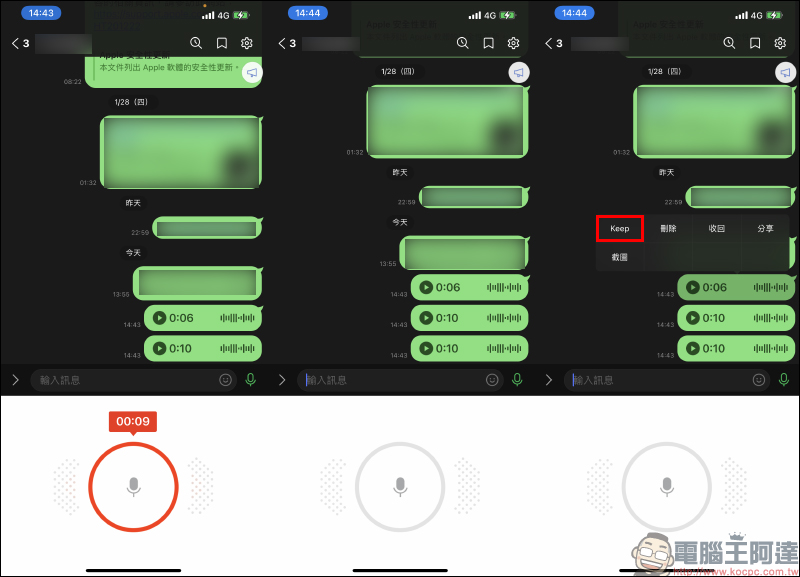
At this time, the voice message has been saved to Keep, the “free 1GB cloud space” built into LINE! If you want to access it on different devices, just go to Keep to access it.
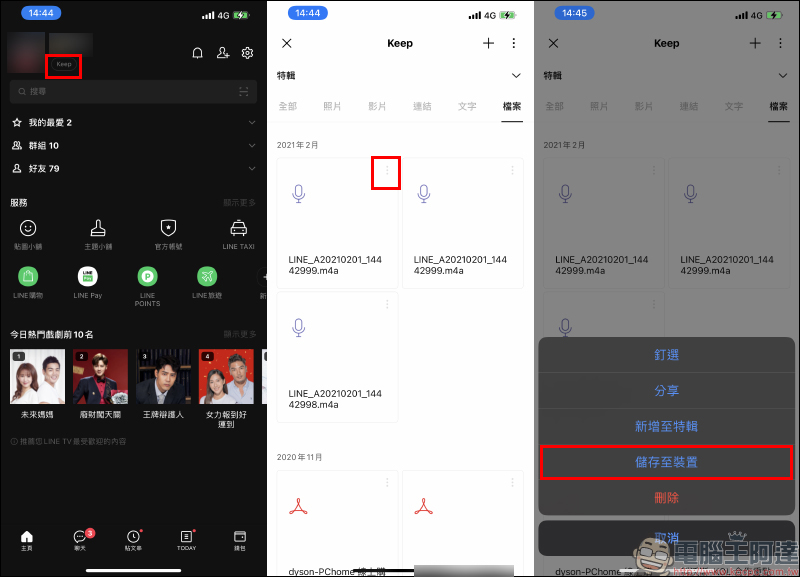
However, if you want to save the voice message file to your device or keep meeting minutes, you only need to click the button next to the recording file on the Keep page to expand the function bar, and then select “Save to Device”:
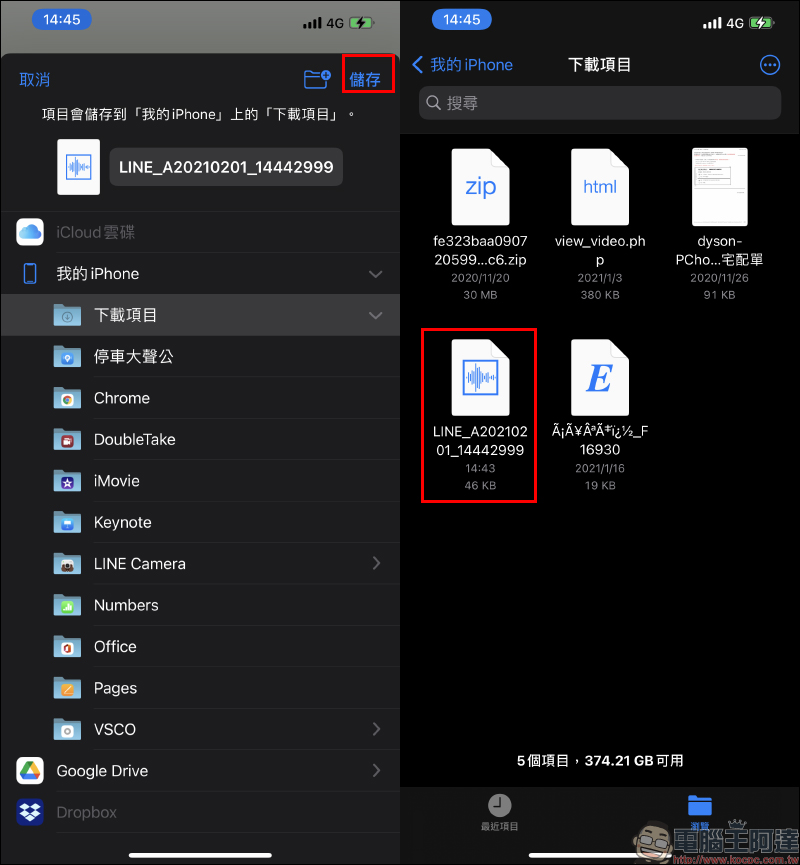
Taking iOS as an example, the page will jump to open the file app. The user can save the recording file to the iPhone by just pressing “Save”:
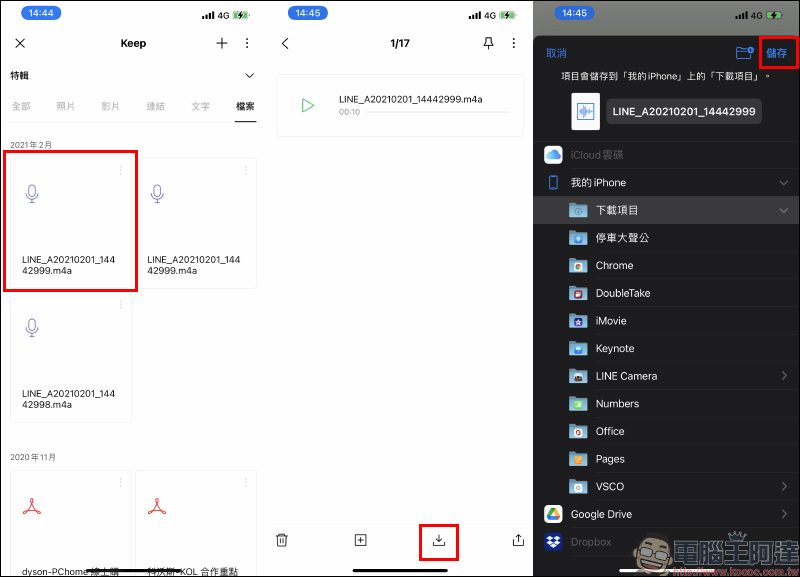
Users can also click on the recording file on the Keep page, and after listening to confirm that the recording content is the file to be saved, click the download button at the bottom of the page to save it:
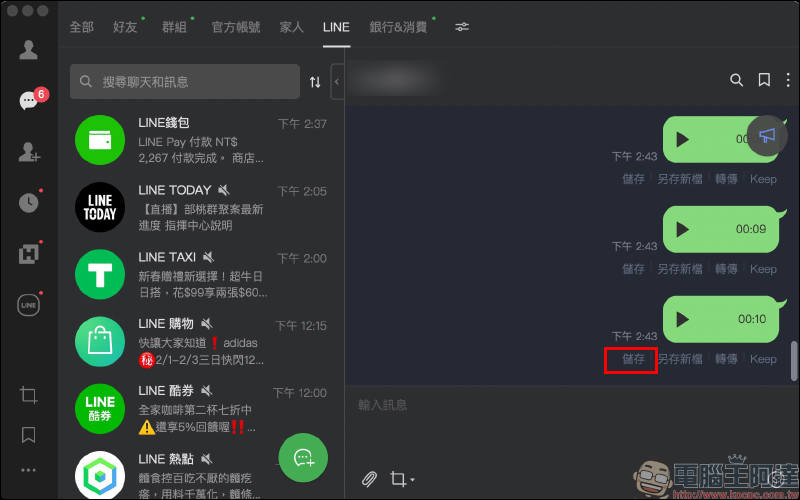
Except for mobile devices such as smartphones, the storage method in the computer version of LINE is relatively simple. Users using the PC version of LINE can directly click the “Save” button of the voice message to save the recording file:
Further reading:
LINE application tips: 10 practical tips for organizing your LINE account

Tutorial on how to use LINE online dialogue generator “Fake Details”

Source: KOCPC Chinese