


We often see that many Facebook editors use social chat conversations such as LINE to promote events, but most of the conversations are not really generated through one-on-one chats, but are produced using some online conversation generator tools. If you also want to create your own LINE chat conversations and share them with friends, you might as well try the LINE online conversation generator “Fake Details” shared today. Of course, this tool is not limited to LINE. It can create pictures for Facebook, Instagram, YouTube and other platforms that you can imagine.
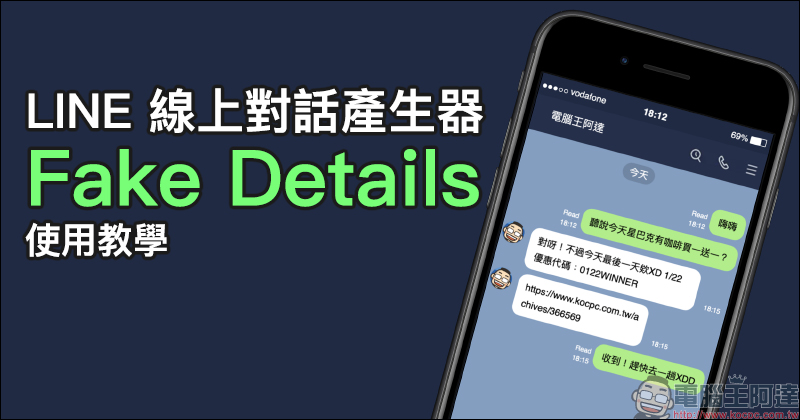
Tutorial on how to use LINE online dialogue generator “Fake Details”
The online tool Fake Details introduced today can be used to create chat messages from various communication software, social posts, and even screenshots from YouTube channels. You can use it to produce images that meet your expectations. This time we will use LINE, which everyone comes into contact with every day, as a demonstration and share how to use Fake Ditails to generate LINE. Chat conversations!
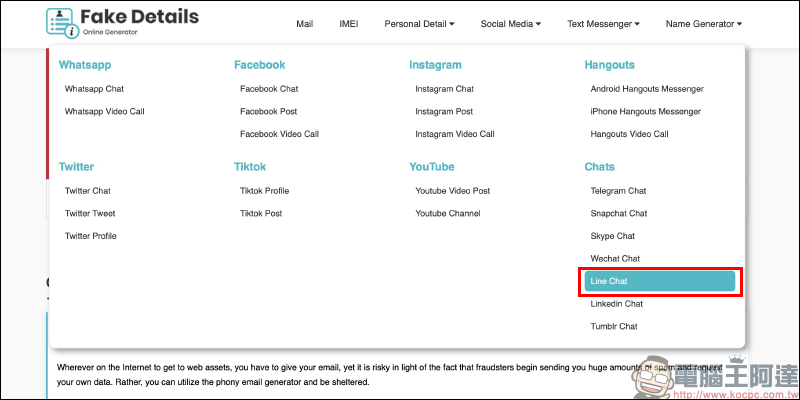
Fake Details:Click here to go
How to create a LINE chat conversation?
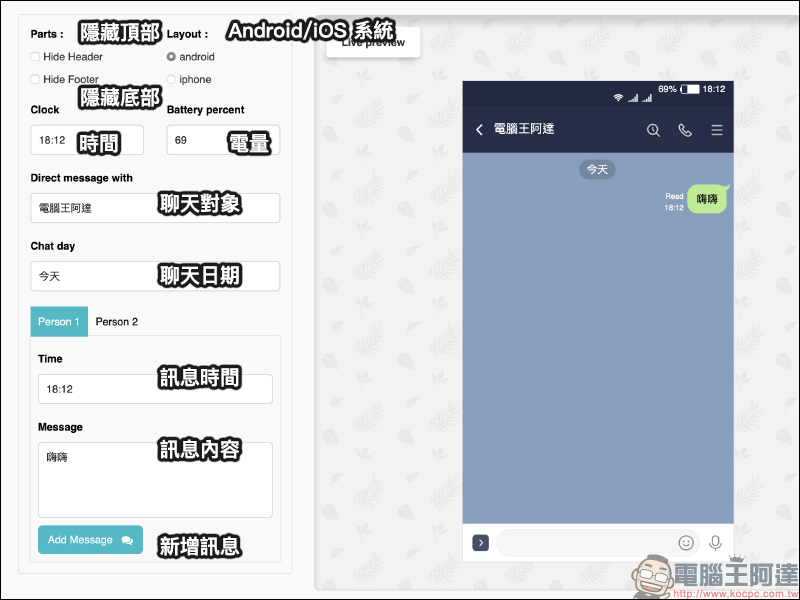
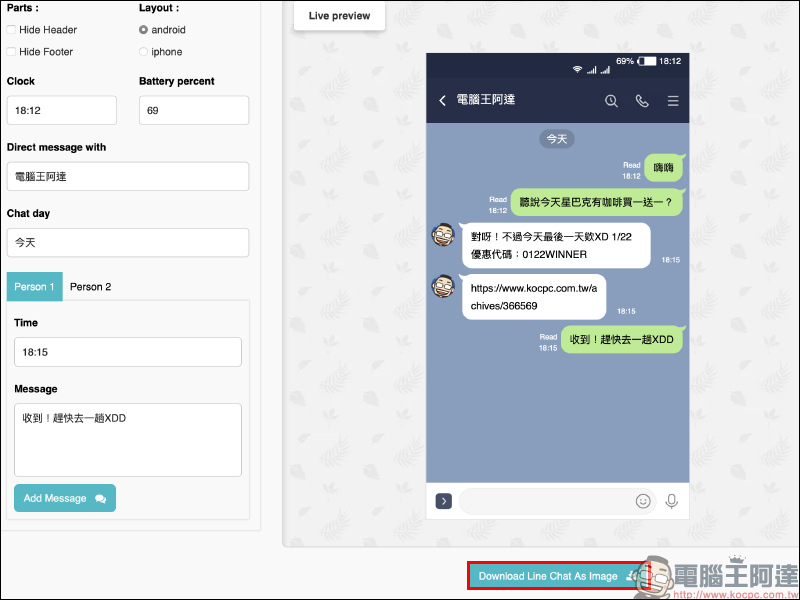
After selecting “LINE Chat” on the Fake Details homepage, the screen will jump to the following editing page. Although the interface is in English, the functions are generally easy to understand. In addition to adding new messages, other settings will be displayed in the preview screen on the right immediately after the user edits. Users can choose whether to display the columns at the top and bottom of the screen according to their own needs, and can also choose whether to display the screen on Android or iOS systems. The editing page can also further edit information such as remaining power, time, etc. What is interesting is that the battery icon will actually change according to the numbers entered by the user.
In the new message field, it is divided into Person 1 (self) and Person 2 (other party). You can edit the message time and content and then click “Add Message” to send the message. The author below also simply marks the purpose of each function for you:
When editing the message of Person 2 (the other party), the user can also upload a picture as the chat partner’s photo, making the entire chat conversation look more real:
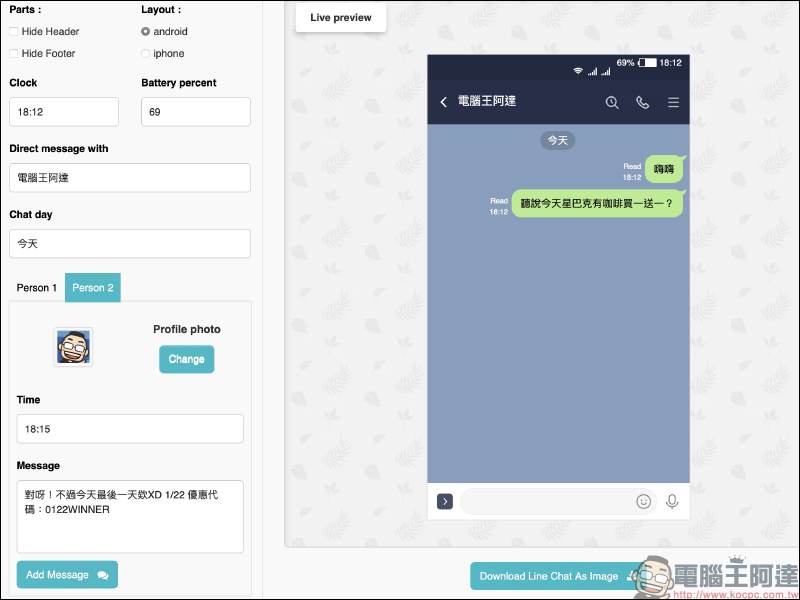
After editing is completed, you can click the “Download Line Chat As Image” button to download the screenshot of the chat conversation to your device!
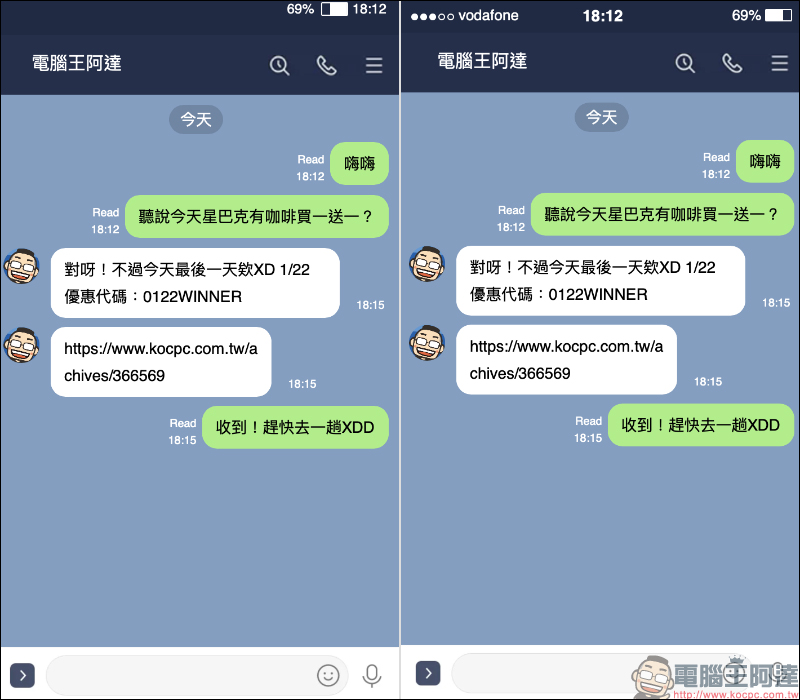
Below we also share the differences in screenshots between the Android and iOS versions:
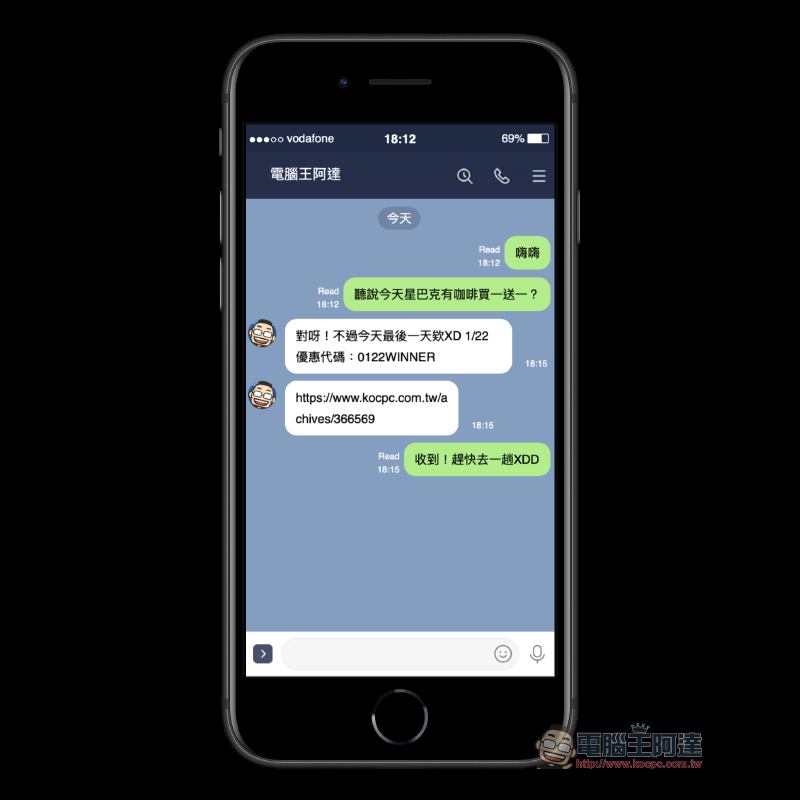
If you really want to make the picture look more realistic, you can also find some free tools on the Internet to apply a mobile phone model to the screenshot:
Fake Details:Click here to go
Further reading:
LINE Pay membership card setting & payment tutorial
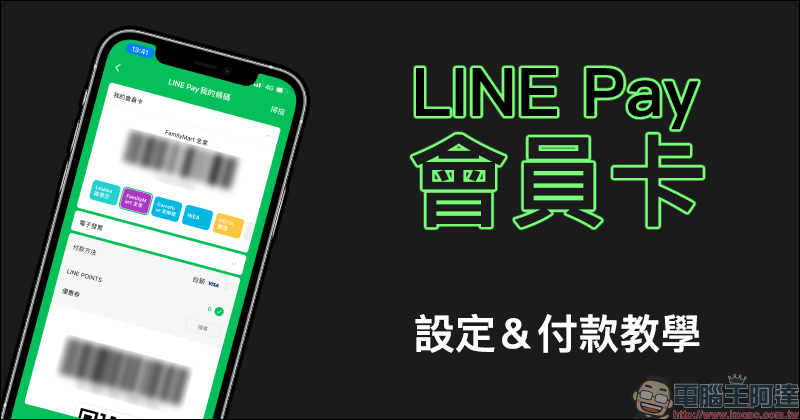
LINE Pay’s “My Membership Card” function adds more commonly used membership card options
Source: KOCPC Chinese