


For a system that is stably updated over a long period of time, many functions or screens in the system will usually change over time. For Windows 10, this is probably the part where the old version of the console screen is completely replaced by the new version. However, although the new version looks very comfortable, sometimes it is not as good as the old version. After all, the console screen has rarely changed since Windows XP, and the longevity of Windows 7 has made everyone prefer the old interface to the new one. Nowadays, in Windows 10, even the system information page of the old console has been replaced by the new version, which is always a pity for nostalgic gamers. However, in fact, these pages are just hidden. As long as you use the right method, these old screens will still appear again:
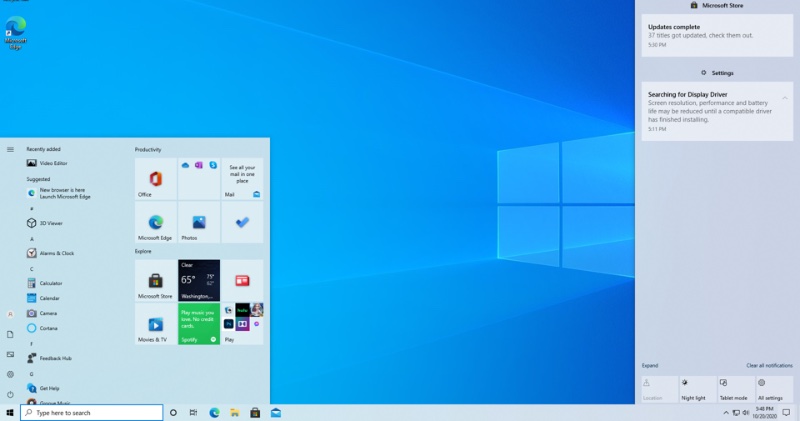
▲Windows 10 updates many system features that were useful in the past to new versions, but users who are accustomed to the old interface will find it difficult to be happy.
When talking about WIndows 10, I think of countless new functions and features, and of course there are also many bugs that unfortunately appear with the update. With every update, Microsoft tries to make the Windows 10 operating system better. but. Some old functions that everyone thinks must be eliminated often gradually disappear with the iterative updates of the system. For example, the traditional version of the console is almost hidden, and the system information screen is almost completely replaced by the new version of the console screen. But since there is a way to call out the traditional version of the console, there is a way to make the old version of the system information visible.
The old one is more accustomed to it. Two tricks can help you summon the old version system information page.
To make the old version of the console or system information appear, first you can refer toThe method in this article, so that the console shortcut appears on the desktop. This shortcut will directly help you open an older version of the console. Alternatively, you can open File Explorer and select Console in the Path column. If you don’t know where to point in the path column, you can take a look at the picture below:
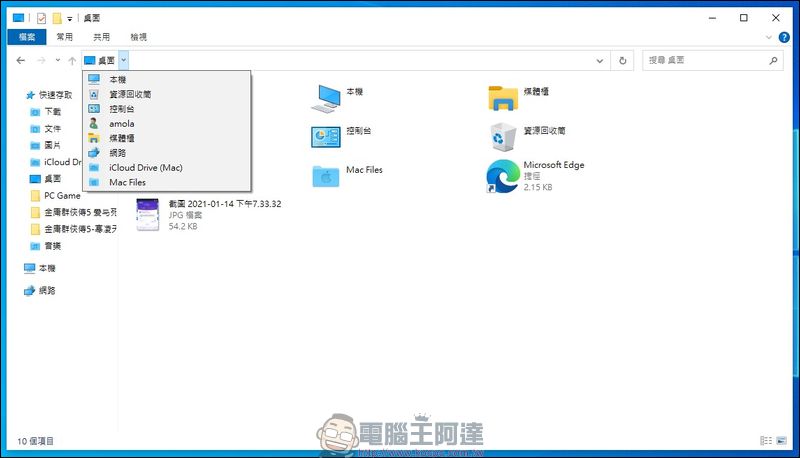
▲The arrows in the path column can help users choose the path to the next level. Here you can find the path to the old console
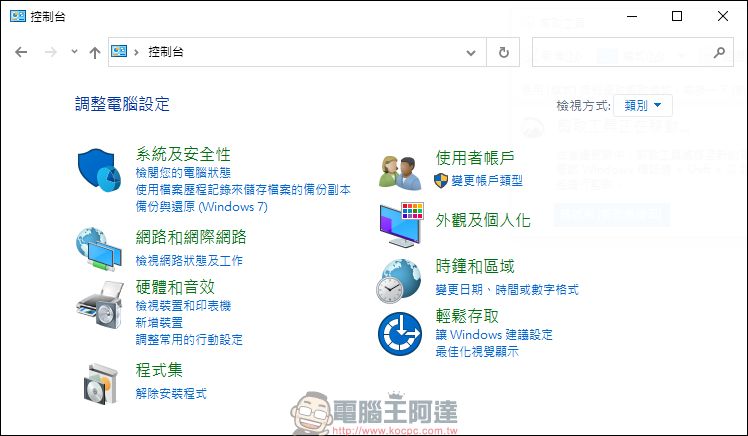
▲Seeing this screen means that you have entered the old version of the console screen.
Next we will try to call up the old version of the system information screen. Generally speaking, after clicking “System and Security” on this screen, you will see the word “system” in a row of icons and text. But when I clicked on “System”, the new version of the system information screen came out instead of the system information screen of the old version of the console:
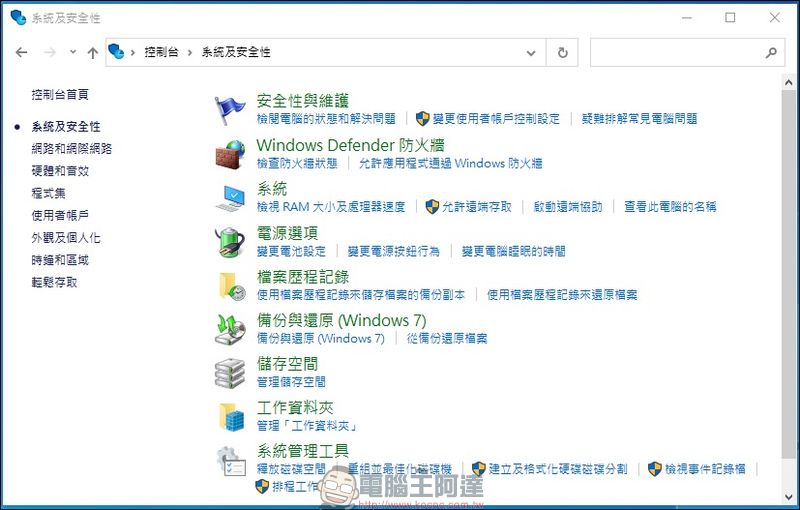
▲You can see this screen after clicking into System and Security.
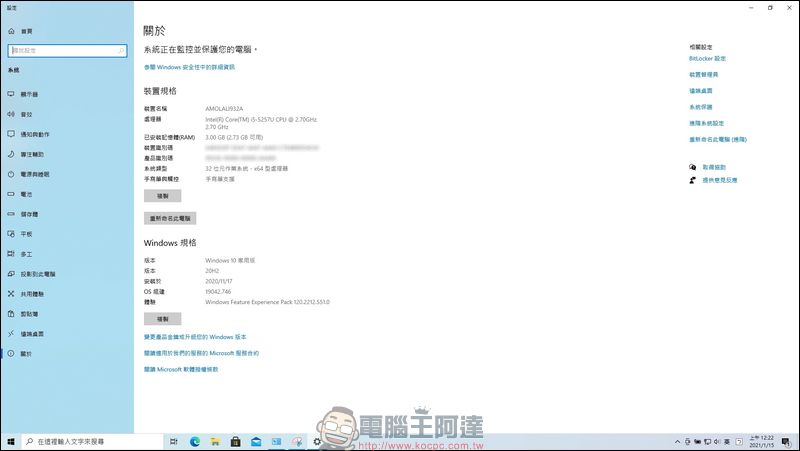
▲But after clicking into the system, a new version of the screen appeared. It is obvious that the old version of the screen has either been deleted or disappeared.
At this time, we have two ways to call the old version of the system screen. Let’s not close the old console screen yet, move the mouse to the console icon on the taskbar, and then right-click. At this time we can see a menu pop up with options such as “System”, “Taskbar and Browsing” and so on. At this time, click the “System” option, and when the screen changes, you will naturally see the old version of the system screen:
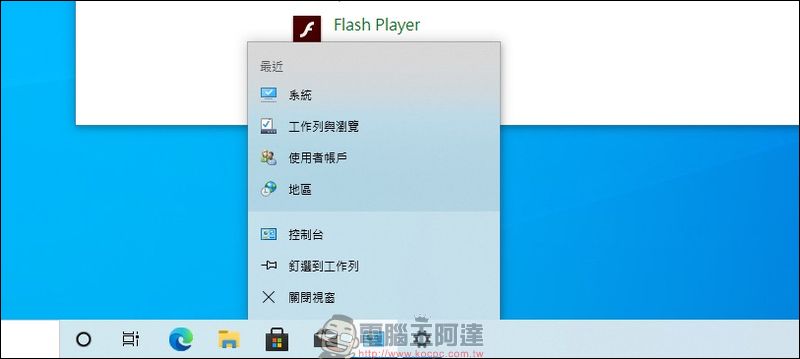
▲First, right-click on the console icon and you will see this menu.
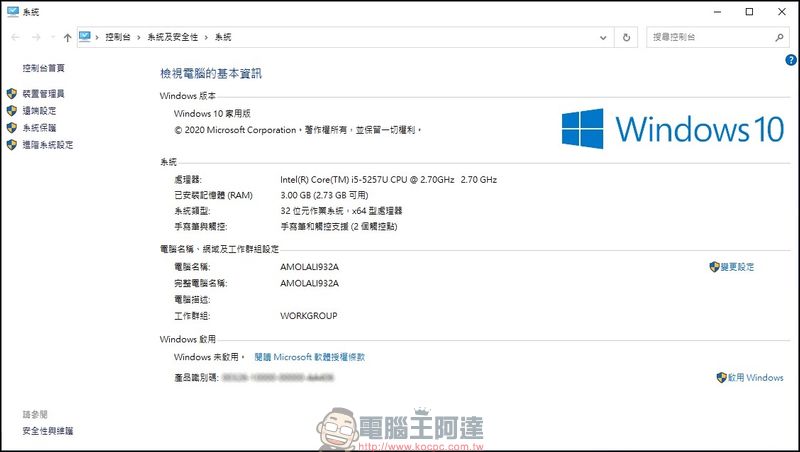
▲Then click the system option, and you will see the familiar system information screen of the old console.
The second method is a bit simpler. Although the old version of the console will directly skip the system if you click on it, there is still a trick that can directly bypass this system setting and directly open the old version of the screen. Just right-click on “System” and select Open to directly open the old system screen. on the other hand. You can also use the path column to click on the arrow behind System and Security and select “System” to enter the old system screen:
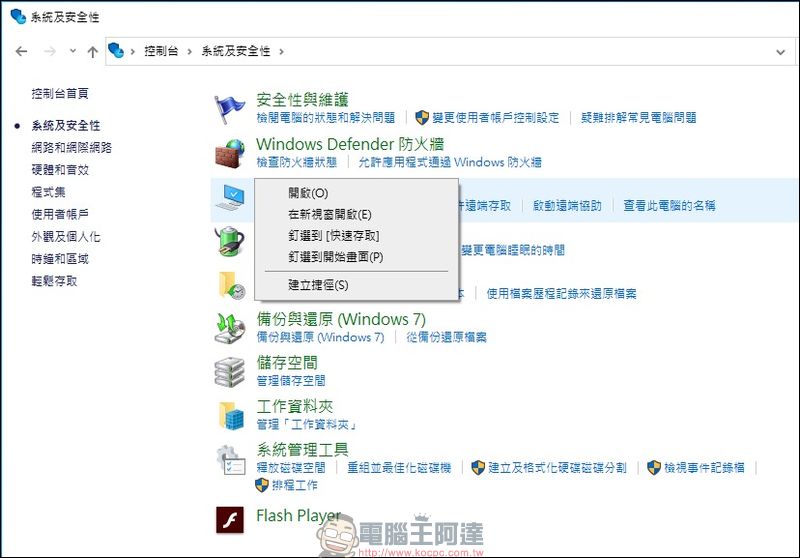
▲Right-click on the system to see this menu
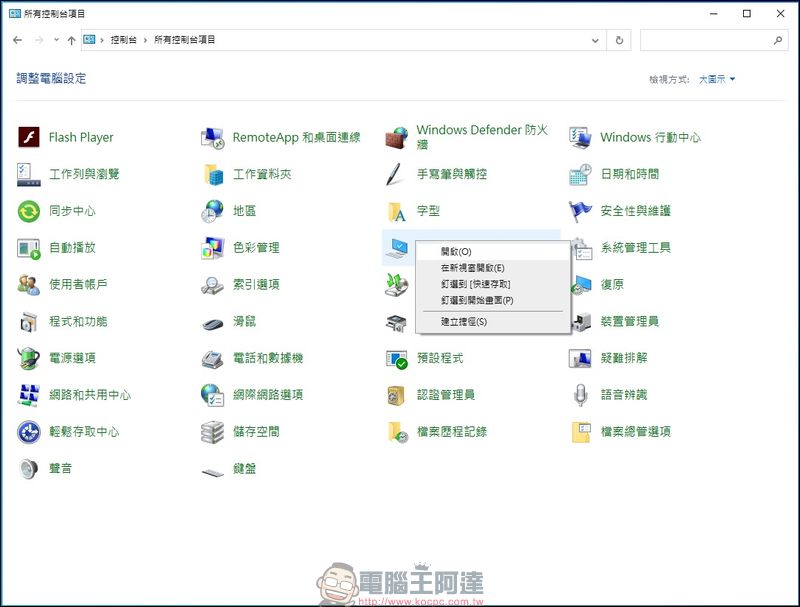
▲Or you can modify the view options of the console. You can also right-click on the system icon to pop up the menu.
▲After clicking Open, you can see the old version of the system screen.
Source: KOCPC Chinese