


When reinstalling the Windows 10 operating system on your computer, if you want a completely clean state, you must remove the entire system, which means that the files and installed applications stored in it will be lost. The files can be solved by backing up. Many people may write down the installed applications one by one with pen and paper or cloud notes. In fact, it does not have to be so troublesome. This article will teach you 5 ways to quickly record, and one of them can even find out the serial number of your software registration.

5 ways to record the names of applications and software currently installed on your computer
1. The simplest method is to take a screenshot of the installed application from the settings.
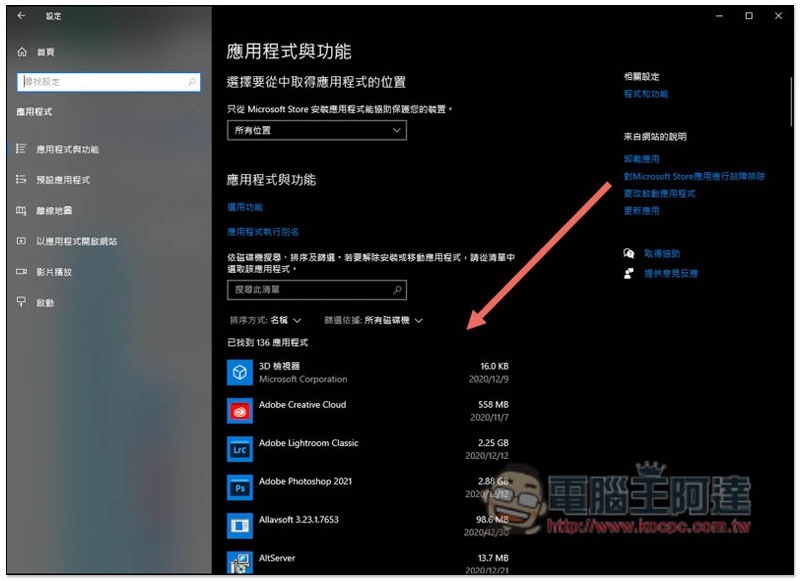
For those who do not want to use any third-party tools or perform complicated steps, it is easiest to take screenshots of applications and functions in Windows 10 settings, that is, the screen where the application can be dismissed.
Open Windows 10 Settings, click “Applications”, and on the first “Apps & Features” page, you will see all the applications installed on your computer. Although the operation is simple, if you install too many applications, you will need to take a lot of screenshots, which I find quite tiring:
2. Use CMD command prompt characters to quickly export the text file of the application name
For those who don’t mind copying and pasting, I recommend the command prompt method. You only need to paste the command and press Enter to get the names of all installed applications on your computer, including their versions.
First, open the command prompt (you can enter CMD in the Windows search in the lower left corner), and then enter the following three lines of commands in sequence:
- wmic
- /output:C:\list.txt product get name, version
- After running, type exit to exit.
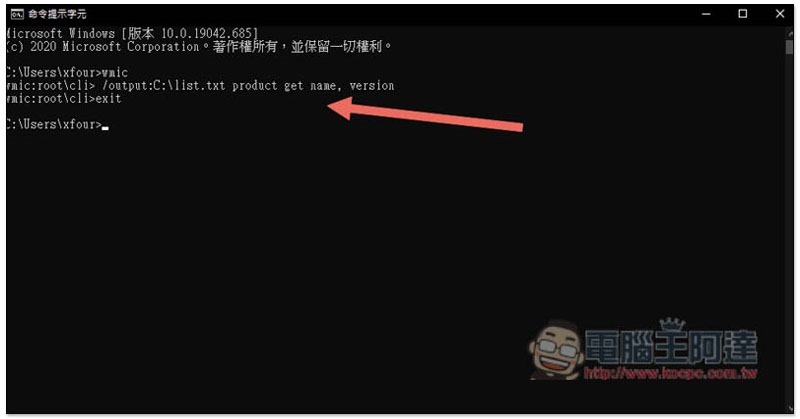
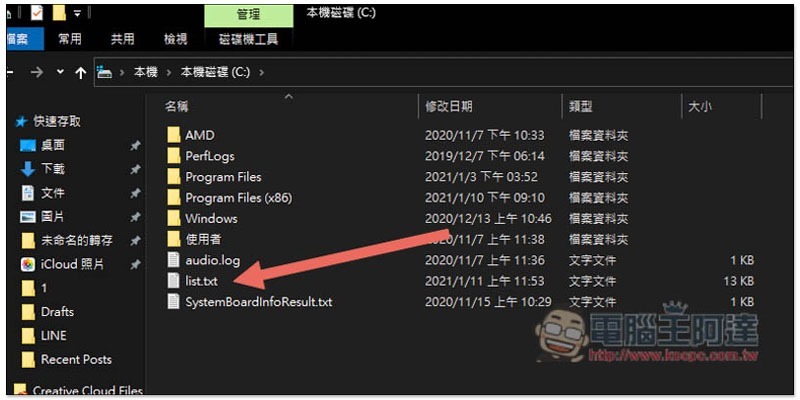
I set the storage location of the text file to be the C slot, and the name is list. You can see it by entering this location. If you want to change other storage locations or names, please modify the second command above:
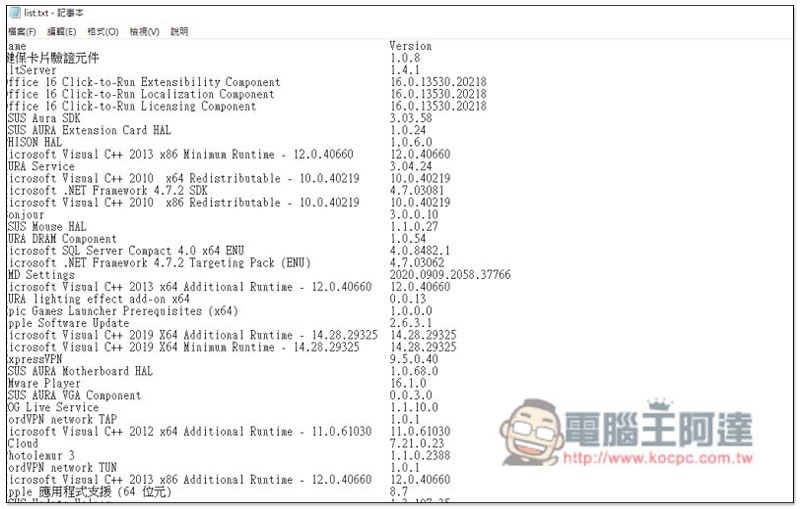
After opening it, you can see the names and versions of all applications installed on your computer:
3. Via NirSoft UninstallView free app
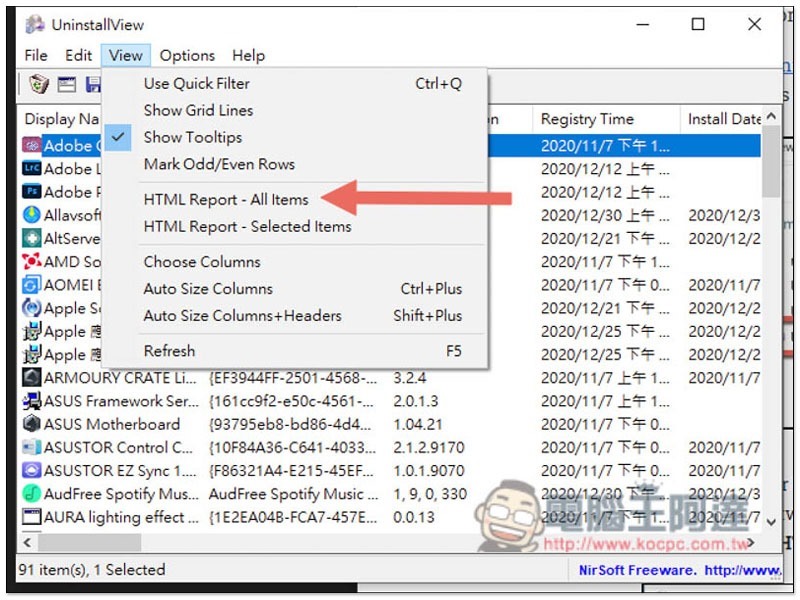
For those who find entering commands cumbersome or don’t like the layout of text files, third-party applications are a good choice. The first is this NirSoft UninstallView. Its main function is to remove applications, but it also provides the function of exporting the list into HTML. With this function, you can record the applications installed on your computer.
Click here to enter the NirSoft websiteThen scroll down to find the download point to see if you are 32-bit or 64-bit:
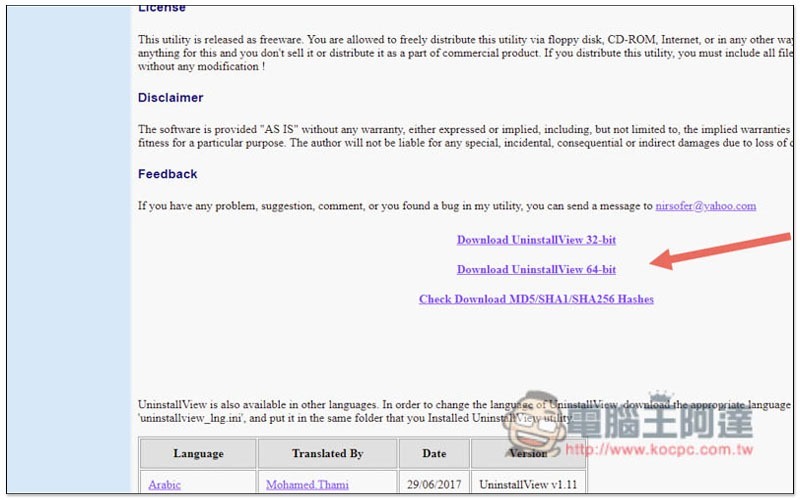
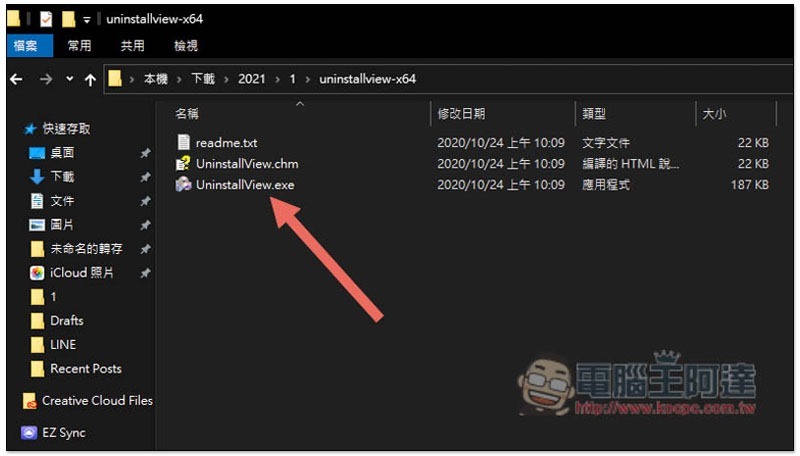
After downloading, unzip it into an installation-free file and click UninstallView.exe twice:
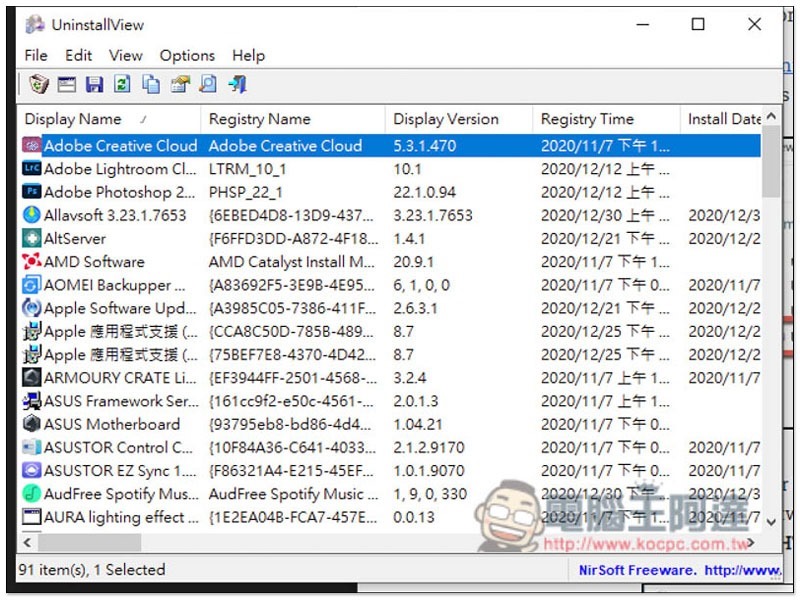
The screen will list all the applications installed on your computer, including version, installation time and other information:
Please open the View menu above and use the “HTML Report – All Items” function:
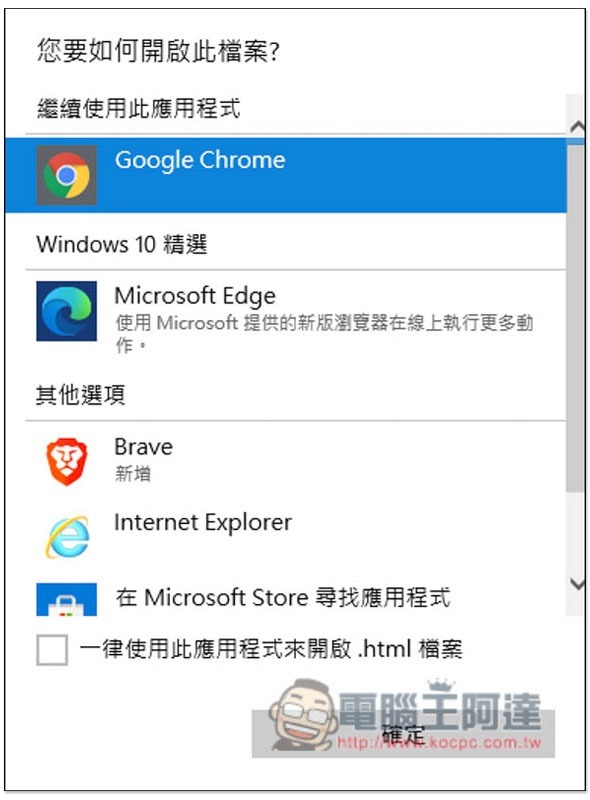
A browser option will pop up, whichever one you want to use:
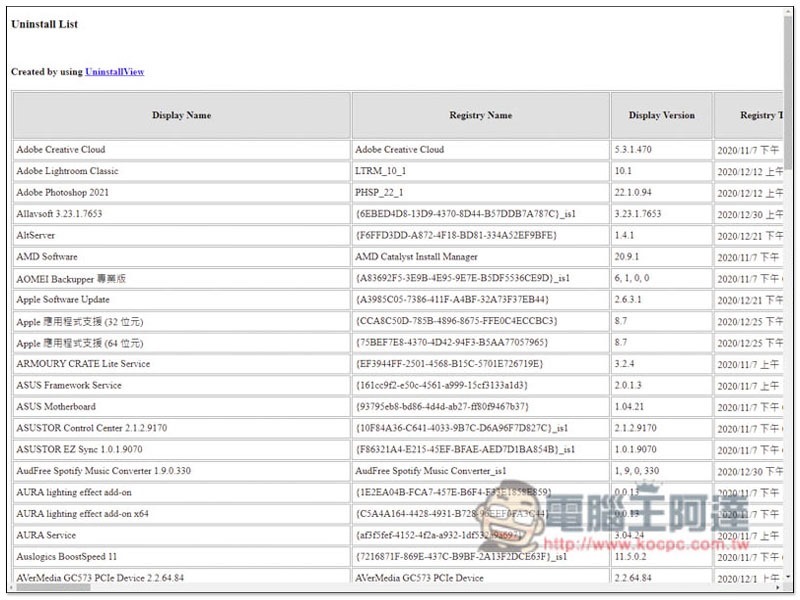
Then this page will be opened in the browser, and you can record it by saving it as HTML or PDF. The layout is neater than a text file:
4. Use Geek Uninstaller third-party application
Like the previous set, the main function of Geek Uninstaller is to remove applications, but it also has an export function, and this one saves HTML directly, without requiring additional operations like the previous set.
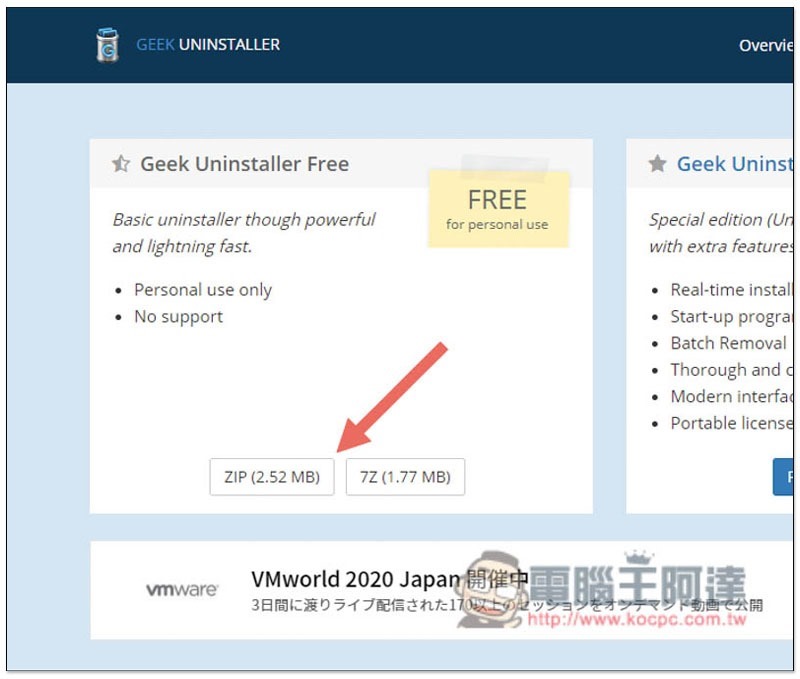
Click me to go to the download page of Geek Uninstaller, it depends on whether you want to download in ZIP or 7Z format:
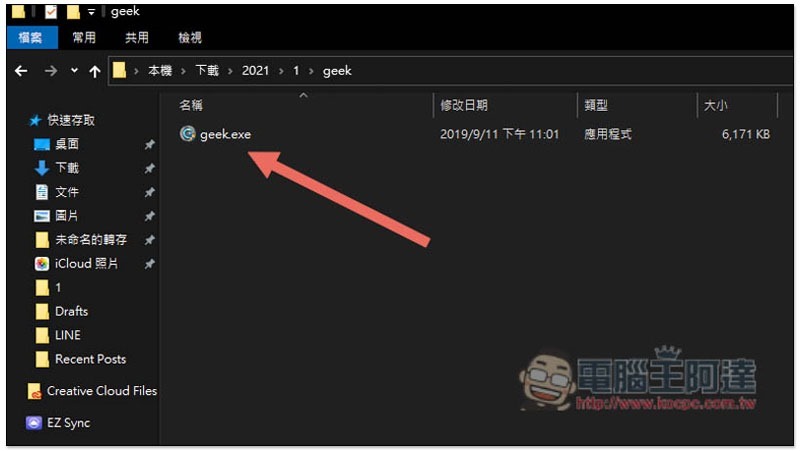
It is also a free installation file. Click geek.exe twice to open it:
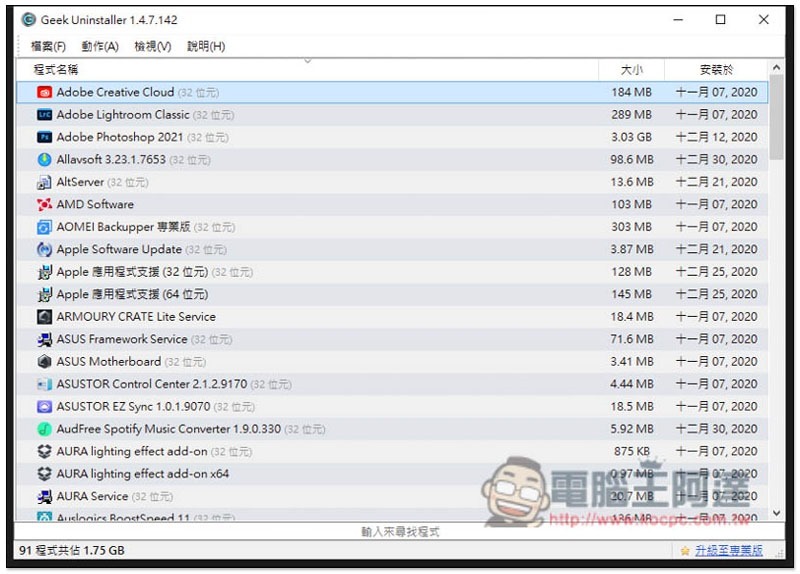
The interface is more refined than the previous one and supports Traditional Chinese interface:
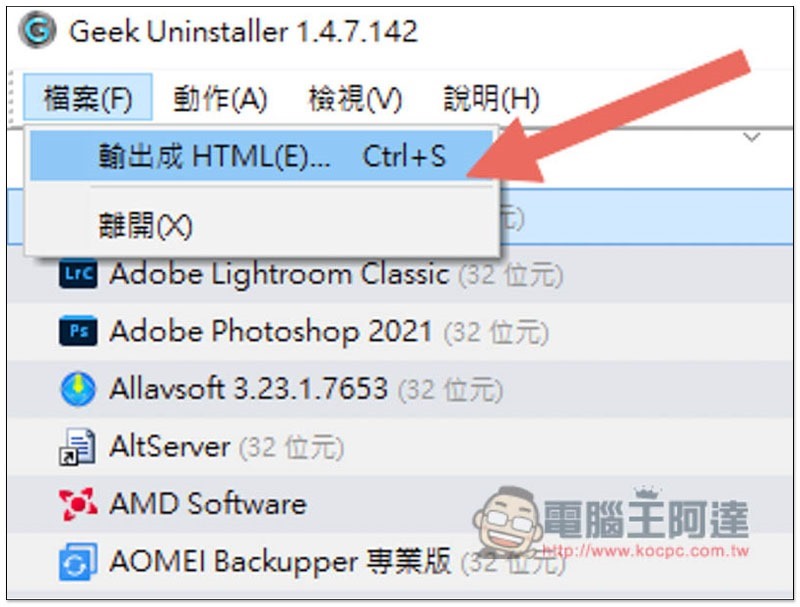
Open the file menu above and click “Export to HTML(E)…”:
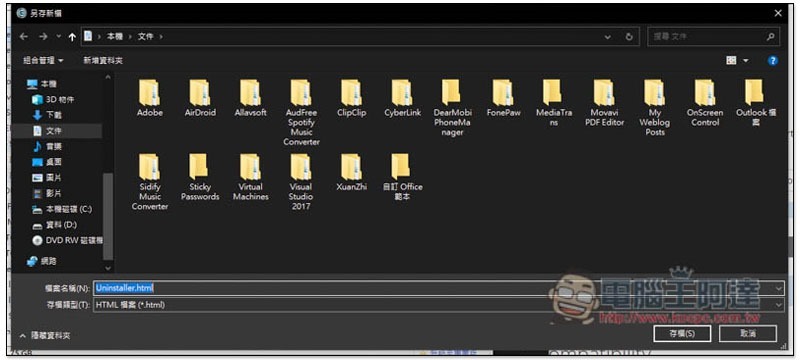
You can choose the location you want to save:
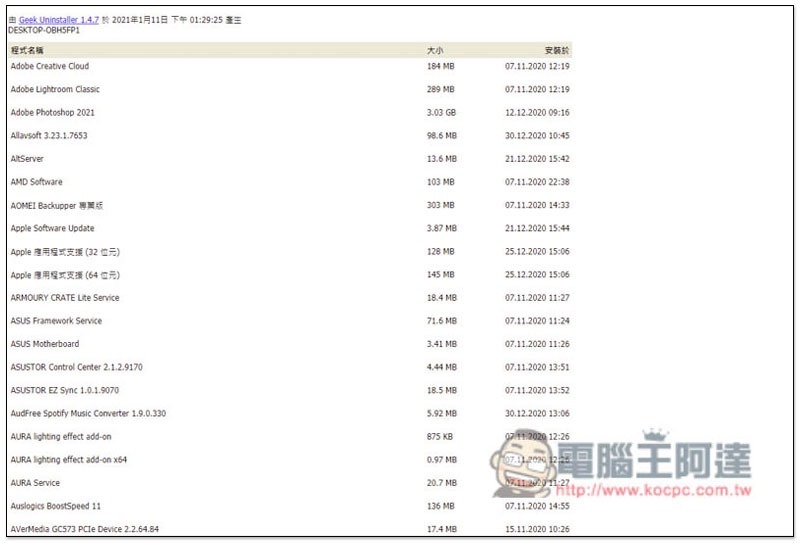
After opening, it will look like this, and the layout is much better than a plain text file:
5. Use the Belarc Advisor third-party application
Belarc Advisor is different from the above two sets. This is a free computer health check tool. It will automatically detect your hardware and software configuration. It includes a list of all applications and even the registration serial number. It is quite powerful.
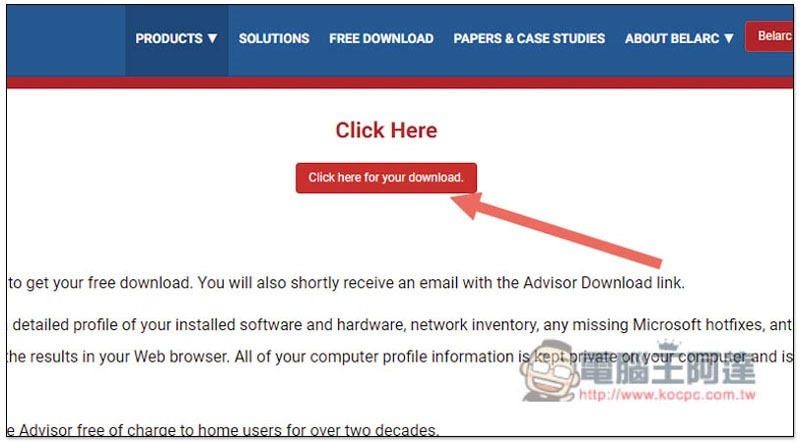
Click here to enter the Belarc Advisor websiteAfter that, click Click here for your download to download:
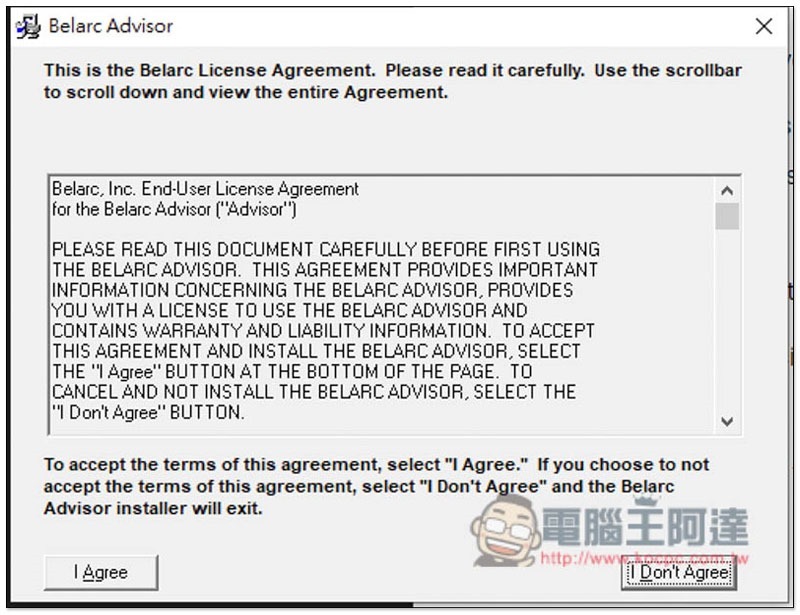
This requires installation, just keep pressing Next and Agree:
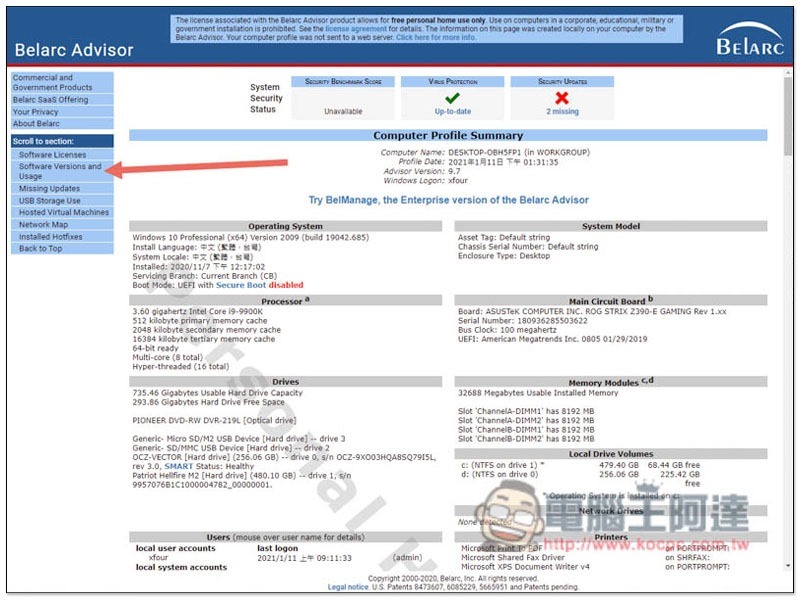
After everything is run, this report will pop up, which details your current operating system, processor, motherboard, driver, memory and other computer hardware and software information. The Software Versions and Usage on the left is the application list, and the Software Licenses is the serial number list:
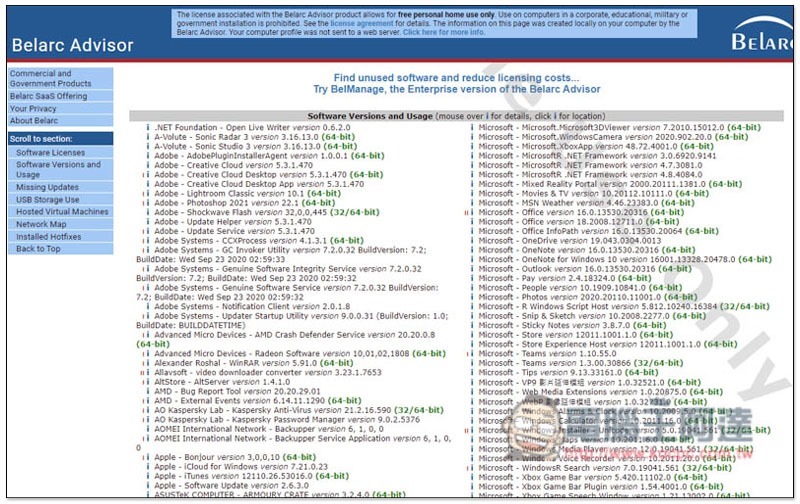
As shown in the figure below, this report will be saved in HTML format and can be found in “C:\Program Files (x86)\Belarc\BelarcAdvisor\System\tmp”, named after your computer name:
Summarize
Therefore, if you want to record the applications you are currently using before reinstalling your computer in the future, you can easily do so through the above five methods. In addition, for the application installation part, I quite recommend a website, which gathers nearly a hundred free applications and allows you to download and install them with one click without having to search for them one by one.
Source: KOCPC Chinese