


Many people pick up their iPhones to play videos and music to pass the time when they have free time. Even before going to bed, they still spend some time scrolling on their phones or letting videos/music accompany them to sleep. However, when they fall asleep in the middle of playing, their phones may have consumed a lot of power in the morning. Although applications such as YouTube and Spotify currently have built-in automatic playback functions, many people don’t know that iOS has already built-in it. It is the most freely adjustable time and the fastest setting, and is applicable to various audio and video playback applications!
iOS application tips: Automatically stop playing videos/music, a must-learn for anyone who likes to scroll on their phones before going to bed!
I believe that many people, like me, are used to watching YouTube videos or listening to podcasts to accompany them to sleep before going to bed. But sometimes when playing some long audio and video content and turning on the auto-play function to allow it to play automatically indefinitely, it may still be playing when you wake up in the morning. In addition to power consumption, this may affect sleep quality.
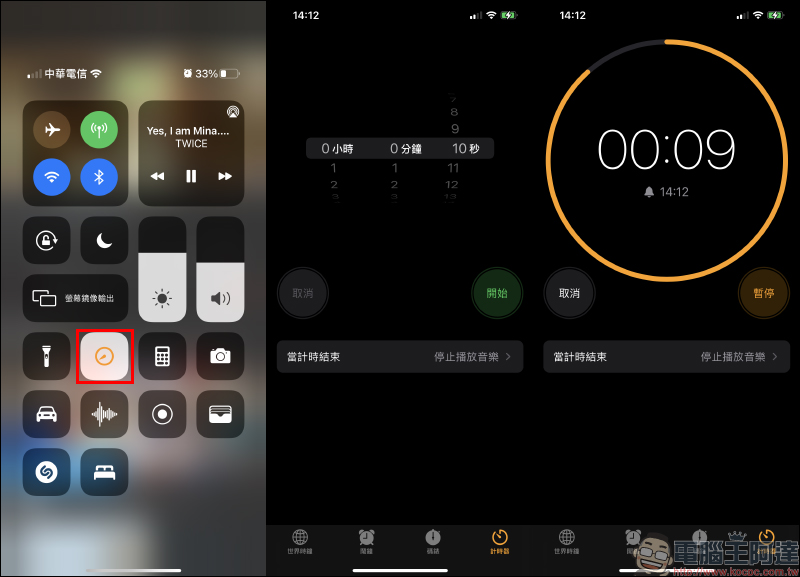
In fact, the built-in “timer” function in the iOS Clock App can not only sound a reminder sound when the set countdown ends, but can also be used to stop music playback:
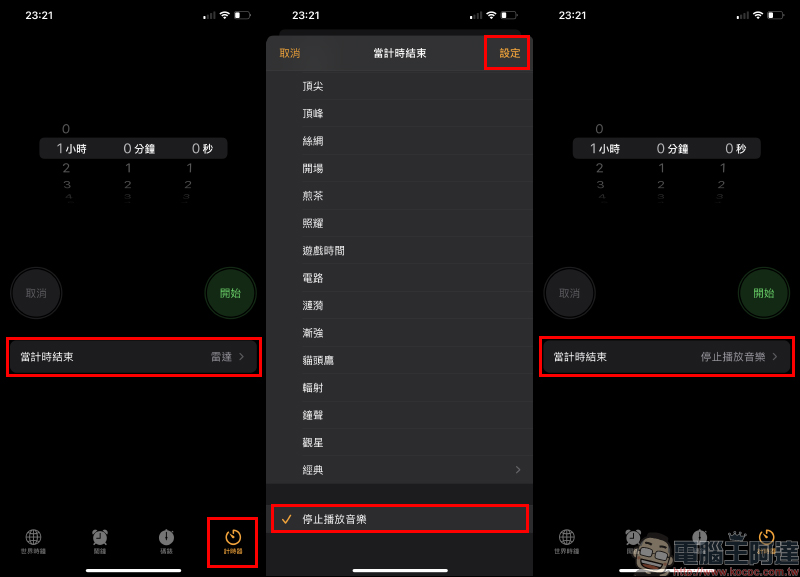
Usually users who have not adjusted the settings will use the default “radar” sound effect as a reminder of the end of the timer function in the “When timer expires”. However, if you want to use it to stop the playback of any audio and video playback app, just change the setting to “Stop playing music” and press Set.
The range of timing intervals that users can set is more precise than other apps, and can be accurately set from 1 second to 23 hours, 59 minutes and 59 seconds:
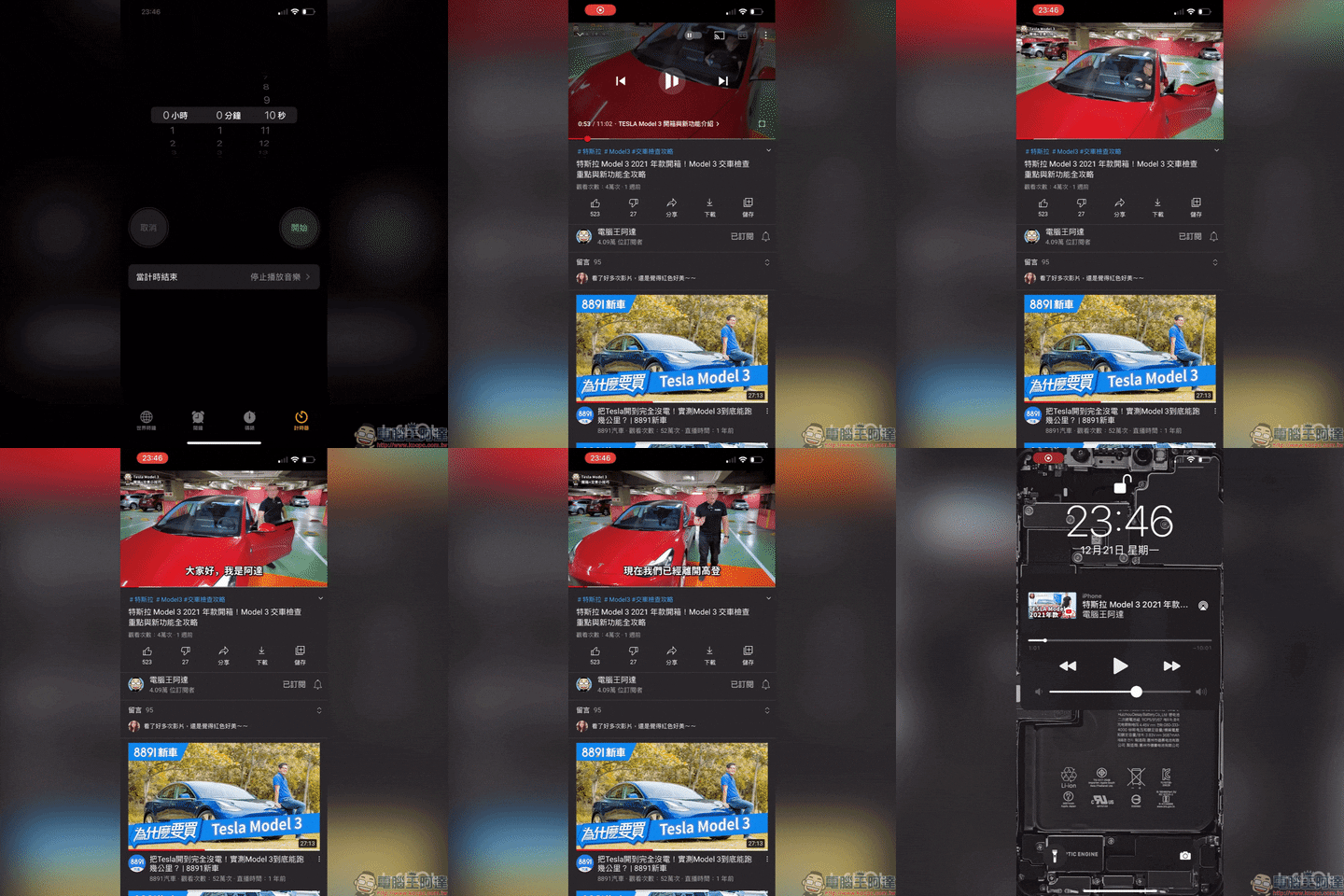
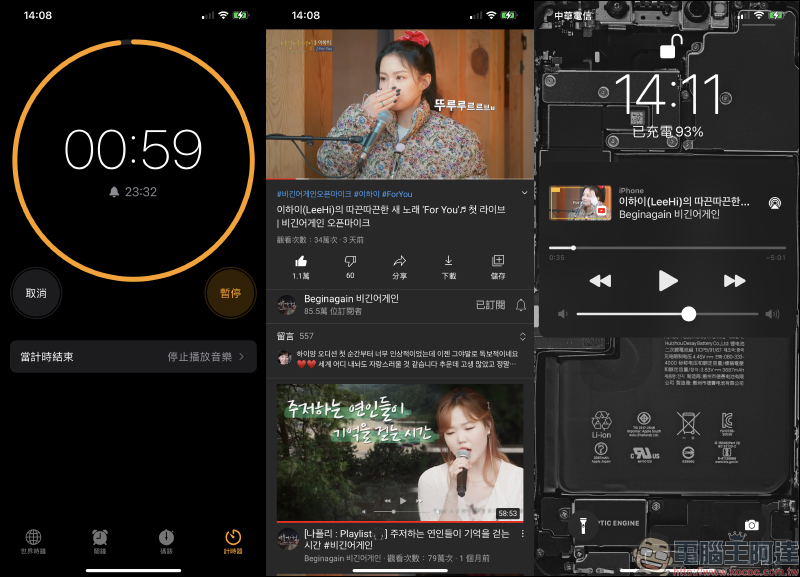
After the timer starts, you can continue to play the original video or music. When the timer expires, it will automatically pause the playback and enter the lock screen. If the user does not continue to operate the phone, the screen will sleep. Therefore, as long as the user sets the specified time, he can rest assured to put the phone aside to play, and it will automatically pause when the time is up, no longer afraid of endless playback and power consumption. Users can estimate how long it will take for them to fall asleep and set it as a timer in seconds, which is very useful for users who are used to playing videos and music before going to bed.
In addition, if you don’t want to go to the Clock App to start the timer every time, you can also set it in the Control Center to quickly start it.
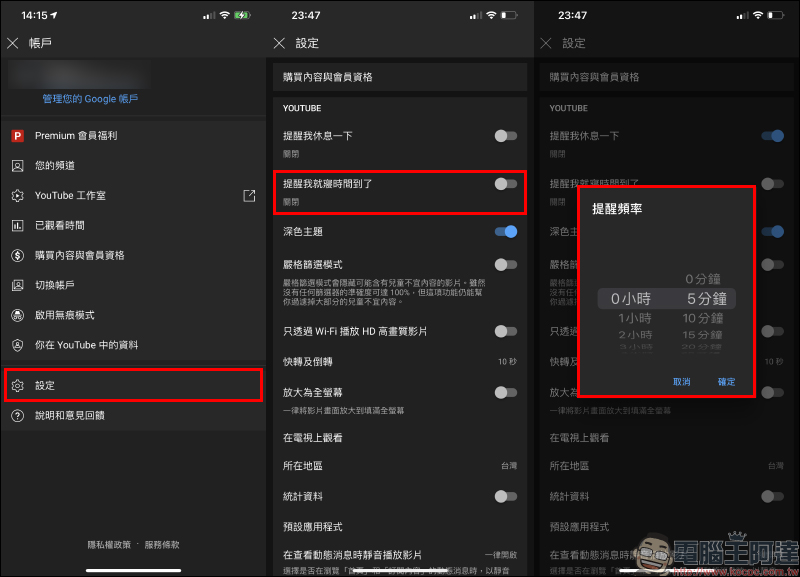
Since YouTube is mentioned, let’s take a look at how to set a bedtime reminder on the YouTube App! Select settings on the YouTube App account page, then turn on “Remind me it’s bedtime” and set the reminder frequency. However, the set frequency is at least 5 minutes, which is not as flexible as the timer of the iOS Clock App.
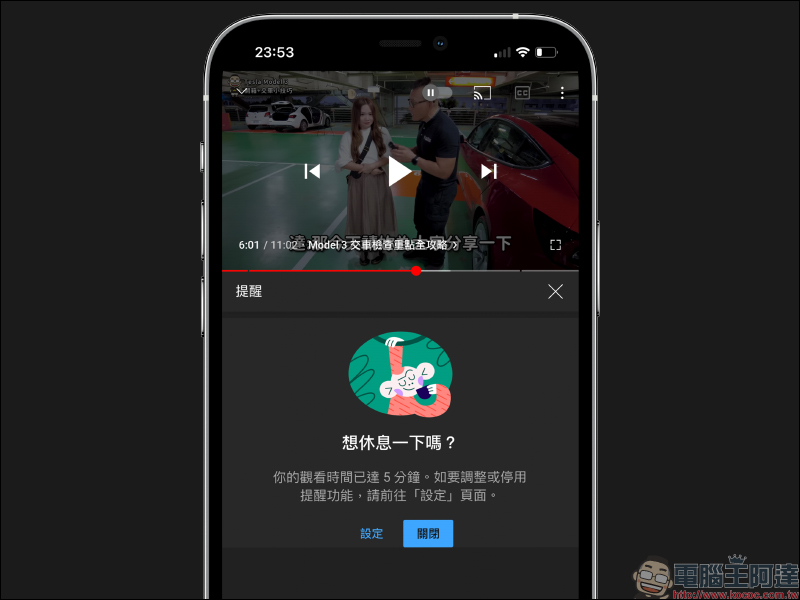
The YouTube bedtime reminder function will also pause playback after the set viewing time is reached, but unlike iOS’s built-in timer function, it will immediately enter the lock state and have to wait for the screen’s set sleep time before entering sleep.
Further reading:
LINE personal account URL generation techniques, in addition to QR Code and LINE ID, it is more convenient to share account links
Source: KOCPC Chinese