


Screenshotting is a highly used action. Windows 10 has been updated to now, and the built-in screenshot function has been quite perfect. There is no need to download and install any other programs, and you can have a fast, efficient and flexible screenshot function. I will introduce it to you below.
Windows 10 screenshot shortcut key: Win + Shift + S
Compared with earlier years, the screenshot shortcut key of Windows 10 has one more Shift key, changed to Win + Shift + S, to avoid duplication with another very commonly used shortcut key: “Search Win + S”, but at the same time, the shortcut key for full-screen screenshot Win + Prt Sc (Print Screen) is still retained.
Windows 10’s built-in screenshot feature has 4 modes:
-
Full screen screenshot: Full screen screenshot, the effect is the same as Win + Prt Sc (Print Screen).
-
Rectangular screenshot: Select a rectangular screen area to take a screenshot.
-
Hand-drawn polygon screenshot: Circle the desired range to take a screenshot.
-
Window screenshot: Take a screenshot of a specific window.
Full screen capture
▼After pressing Win + Shift + S, the icon on the far right is a full-screen screenshot. (Because the full-screen screenshot does not capture the icon, it cannot be seen in this picture)
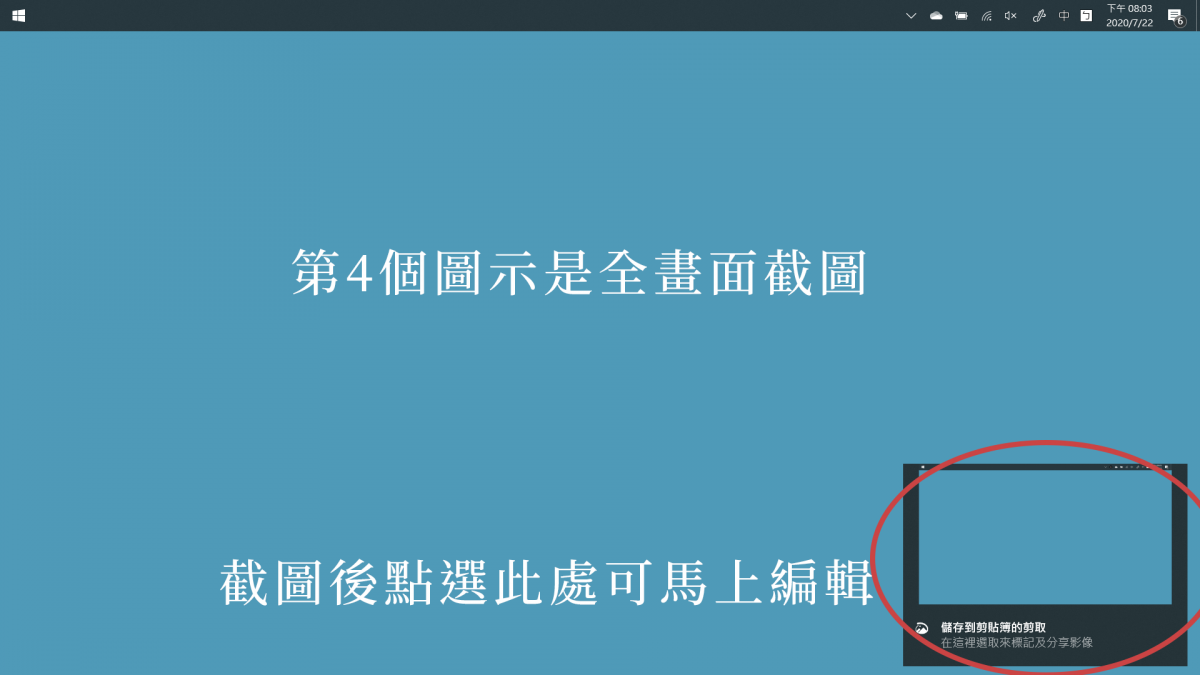
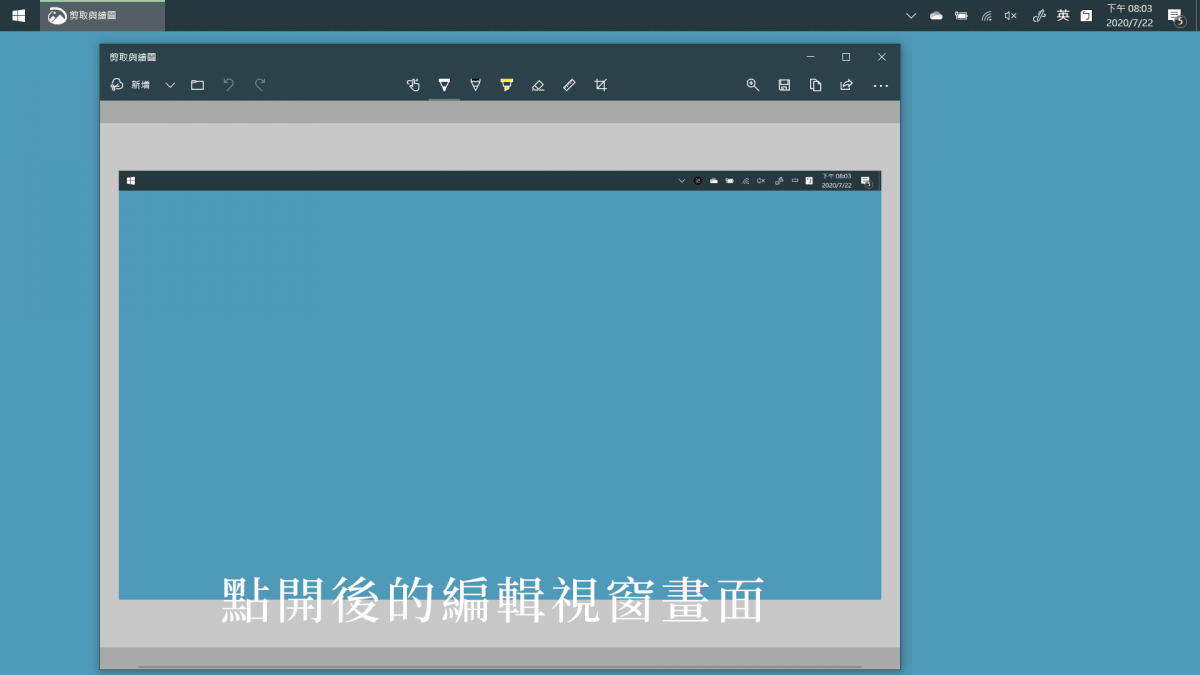
▼The screenshot result will be pre-stored in the clipboard. You can directly paste it with Ctrl+V, including sending it to LINE and E-MAIL. You can also edit it first and then save it.
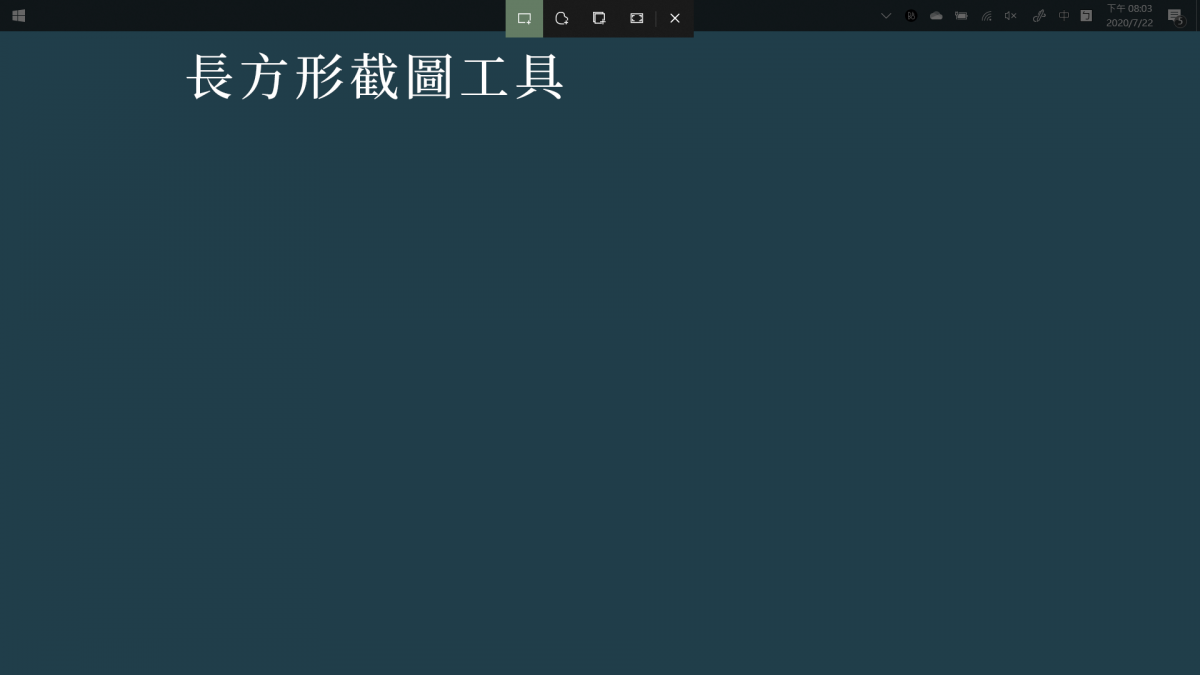
Rectangular screenshot
▼The one on the far left is a rectangular screenshot.
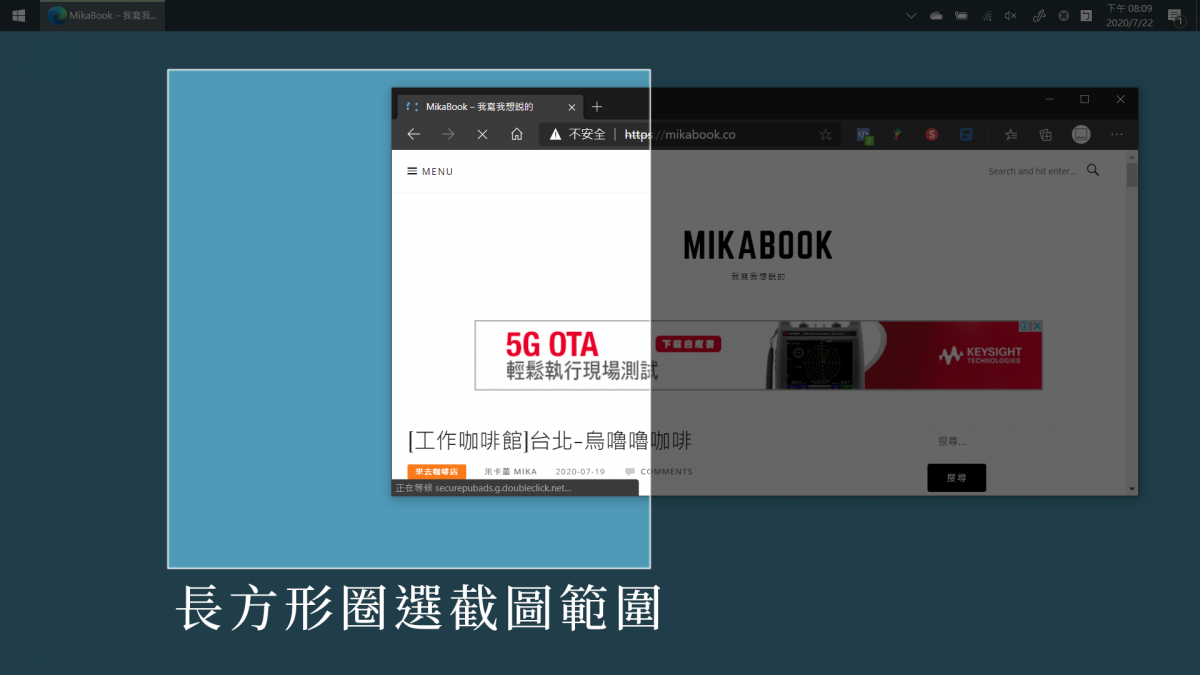
▼It’s a very intuitive frame selection.
Hand drawn polygon screenshot
▼The second one from the left is where you can draw a polygonal screenshot of the desired screenshot range.
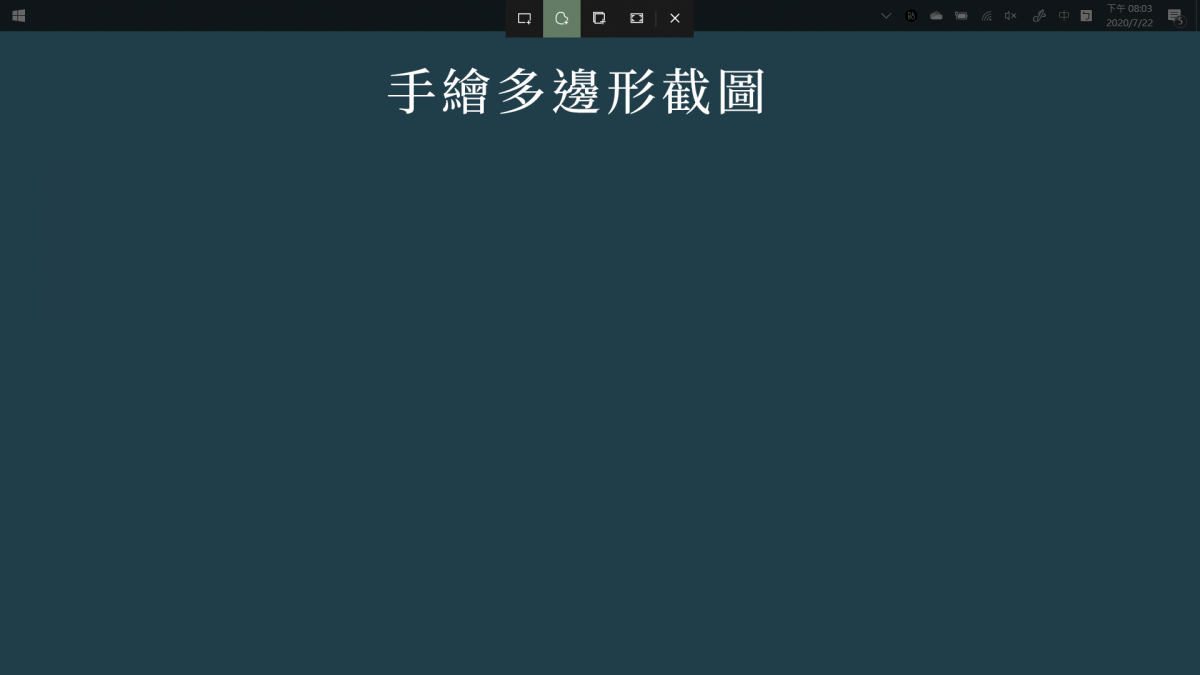
▼Just a very casual circle.
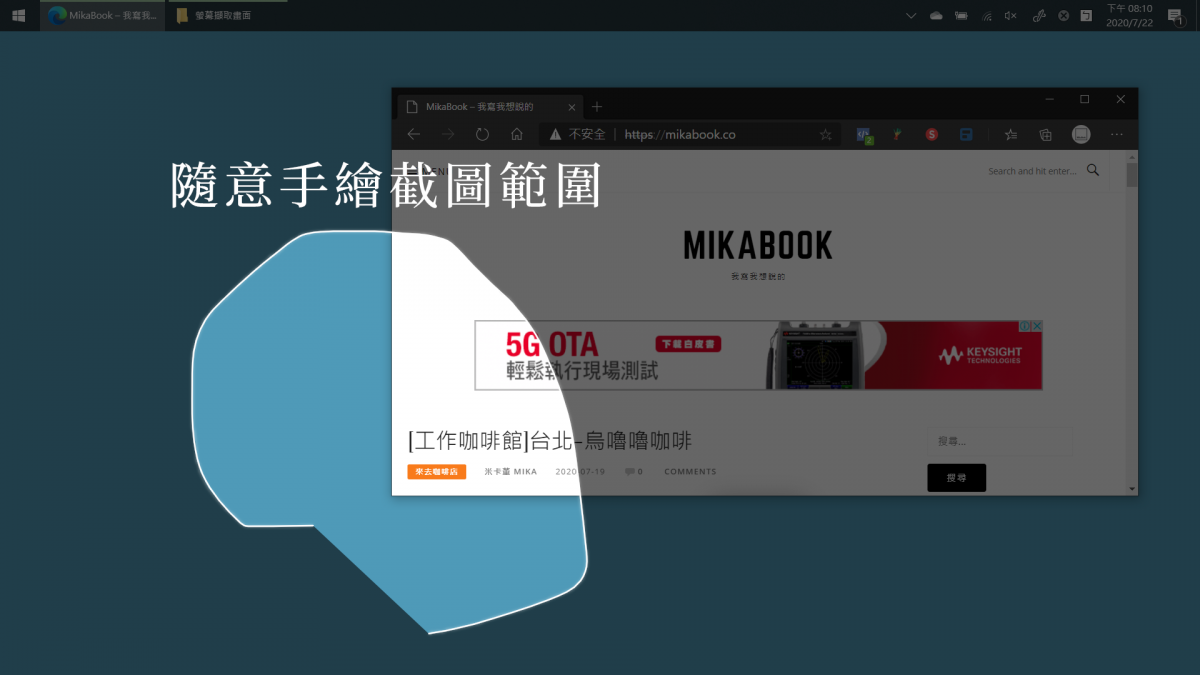
▼The lower right corner is a screenshot.
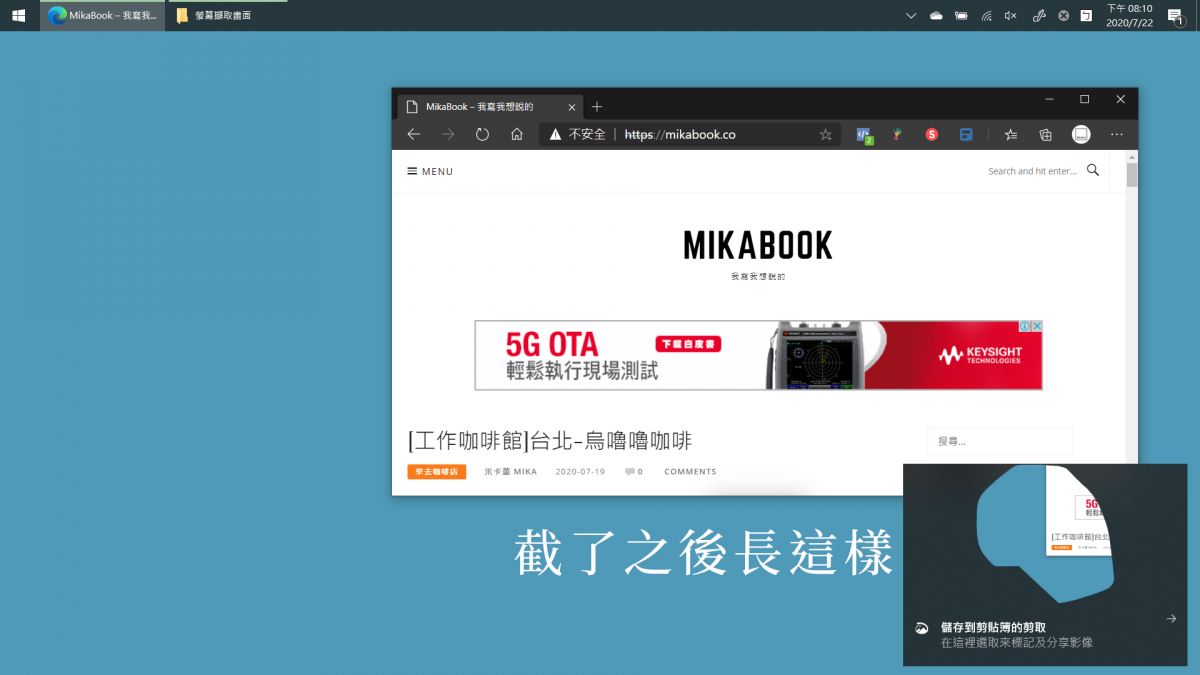
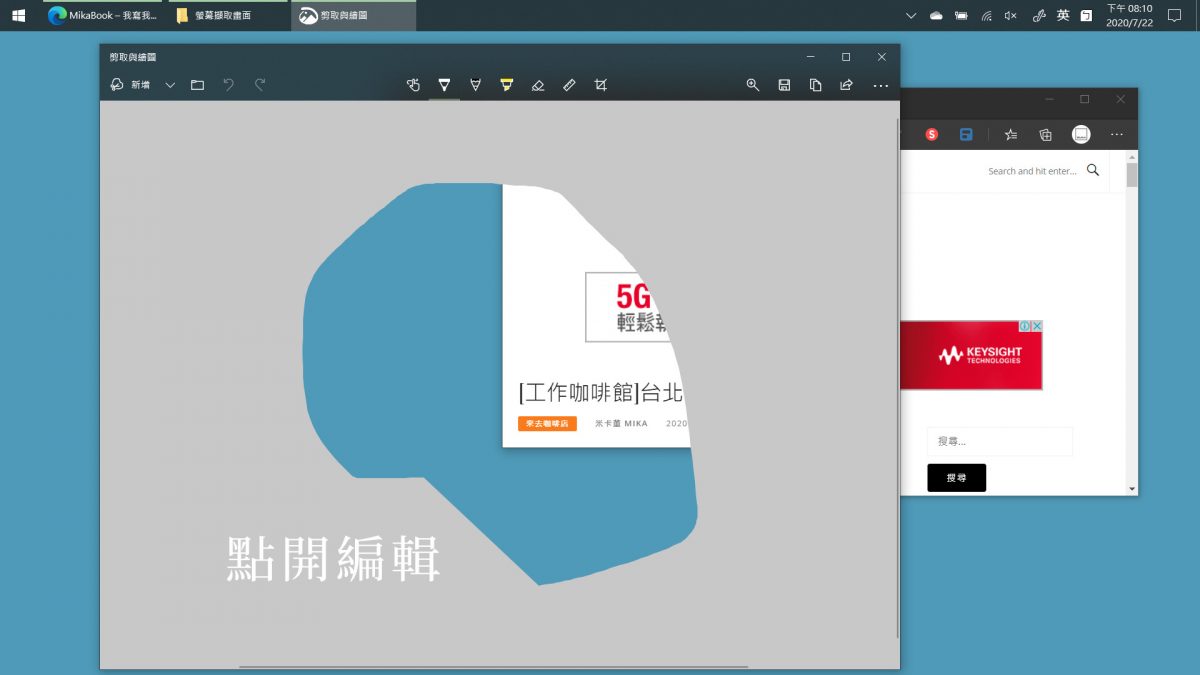
▼You can edit it immediately after clicking it, which is very convenient.
Window screenshot
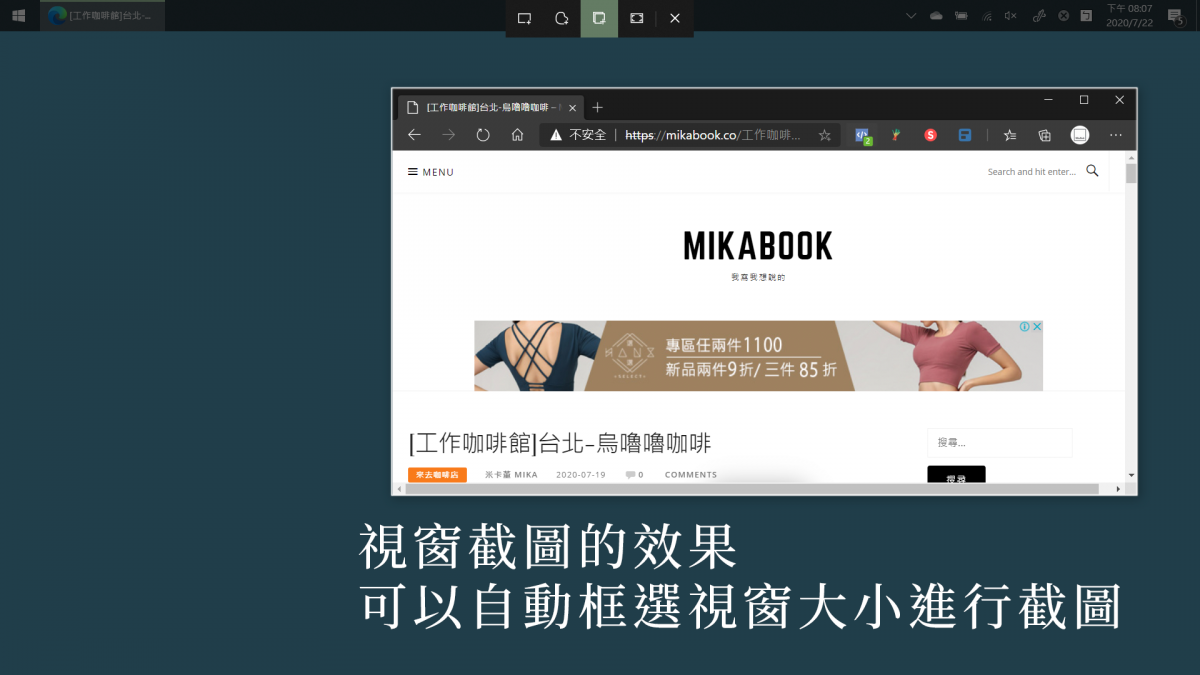
▼Windows 10 also has a built-in function that can take screenshots of windows, that is, you can take a complete screenshot of a specific application without having to memorize it afterwards.
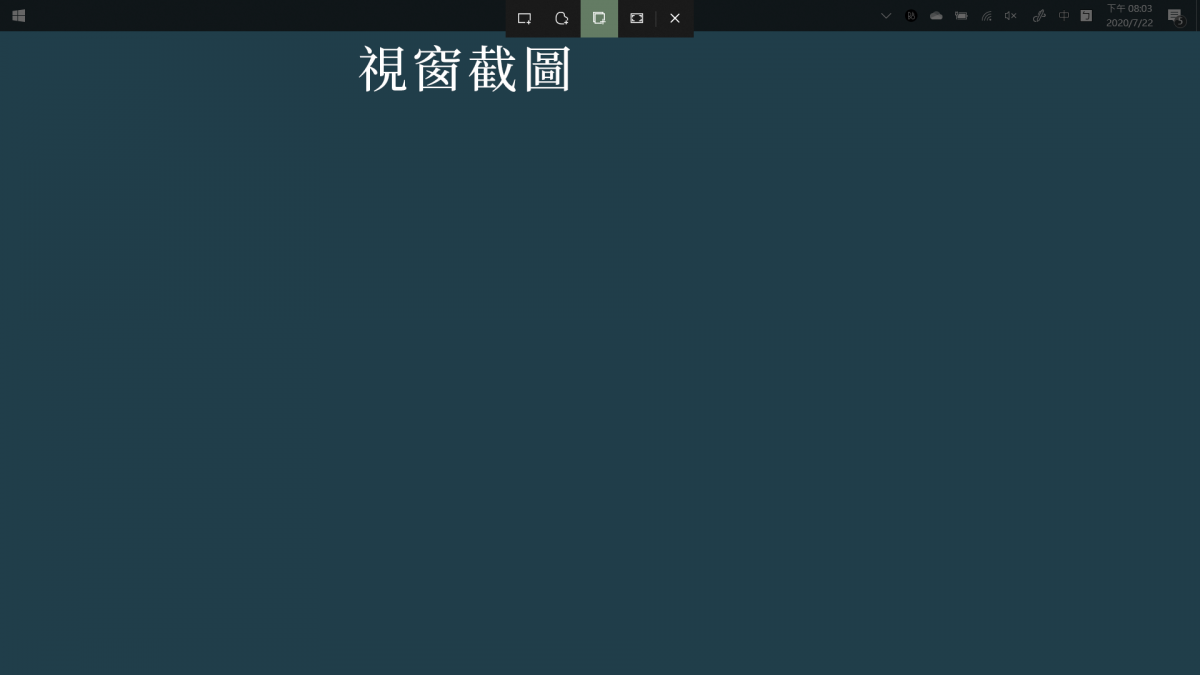
▼You can specify to only capture a specific window that is open.
Conclusion
Built-in snipping tool in Windows 10After taking a screenshot, it will be saved to the clipboard by default., that is, you can go to any location you want to paste, such as Word, Power Point, Excel, Photoshop, Line, Messenger, Skype, E-mail, etc., and directly press Ctrl + V to paste. There is no need to paste it somewhere and then save a new file or go to a folder to open it. It is very, very convenient.
If you need to edit the content of the screenshot, such as drawing highlights, arrows, text, etc., the system will also prompt you to click to start editing. This operation logic is very similar to the concept of editing immediately after taking a screenshot on a mobile device. After editing is completed, you can directly save it as a new file. Quite convenient.
The progress of Windows 10 is actually obvious. For ordinary households and individual users, if they do not encounter any compatibility issues with development software or commercial software, there is really no need to fight for Win 7 for another 10 years. While you don’t know why you can still upgrade for free, upgrade the operating system to Windows 10!
For more experiences, tips, and gossip, please read“Mikabook”
Source: KOCPC Chinese