


We have introduced previouslyChange iPhone wallpaper with one clickAlthough the method is very convenient, you still have to operate it yourself (click it) and it is not fully automatic. In fact, as long as it is combined with the automatic operation setting, you can truly realize the function of automatically changing the wallpaper on your iPhone every day. When you get up and turn on your iPhone every day, you will see a different wallpaper. You can even set it to “Turn on low power mode” to automatically change the wallpaper. Let’s teach you how to do it.
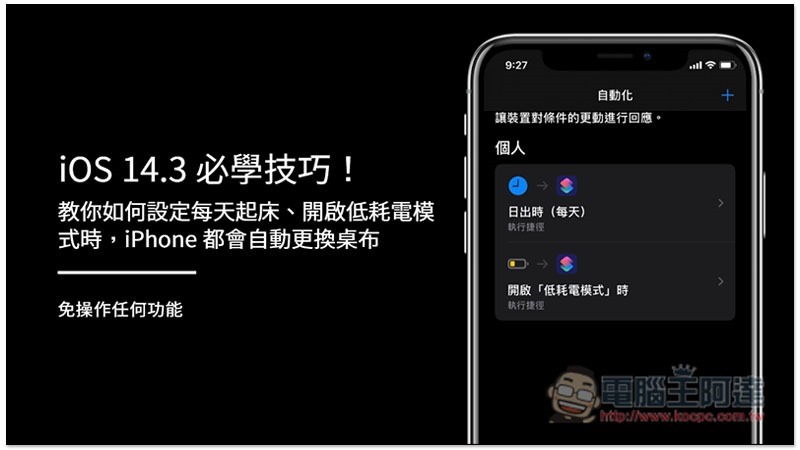
How to implement the real daily automatic iPhone wallpaper changing function?
Step 1: Download the Shotcuts Shortcuts App
If you don’t have the Shortcuts app installed on your iPhone yet, pleaseClick here to download from App Store。
Step 2: Install the “Dynamic Wallpaper” shortcut script
Already installed before”Automatically change tablecloths with one click” For those who like scripts, you can skip this step because the shortcut actions are similar. This script was specially remade by me for this tutorial article.
Click me to go to the installation page of the dynamic wallpaper script, scroll down and click “Add untrusted shortcut”:
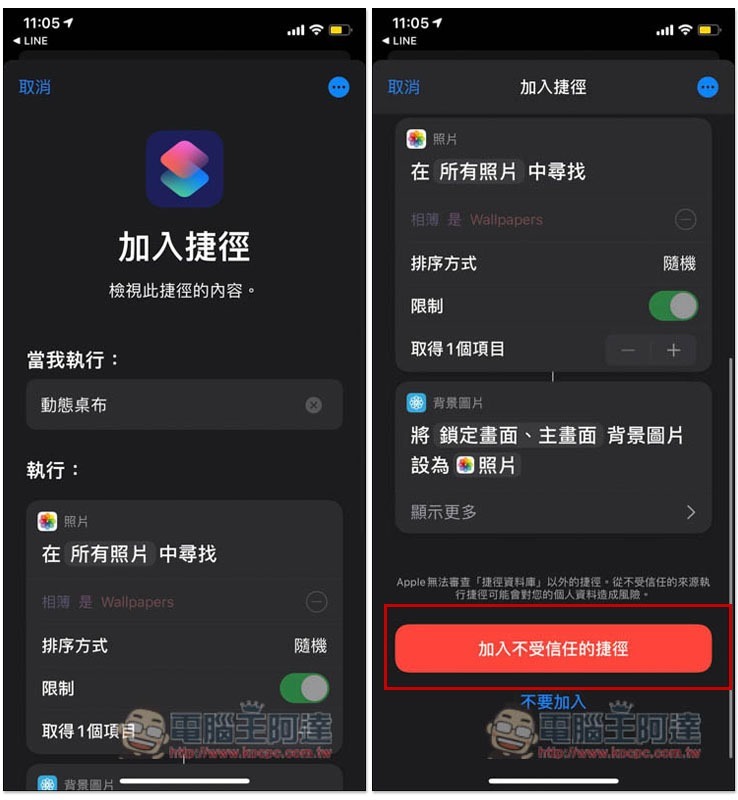
After the installation is complete, this dynamic wallpaper script will appear in all your shortcut lists. At this time, you need to set something. Click on the upper right corner…, then press Wallpapers and point to the album where you store the wallpaper. If you don’t know how to create a wallpaper album,Please refer to this article. Want to know what useful free wallpaper websites and apps are available for iPhone?In this article we have compiled the 5 best models currently:
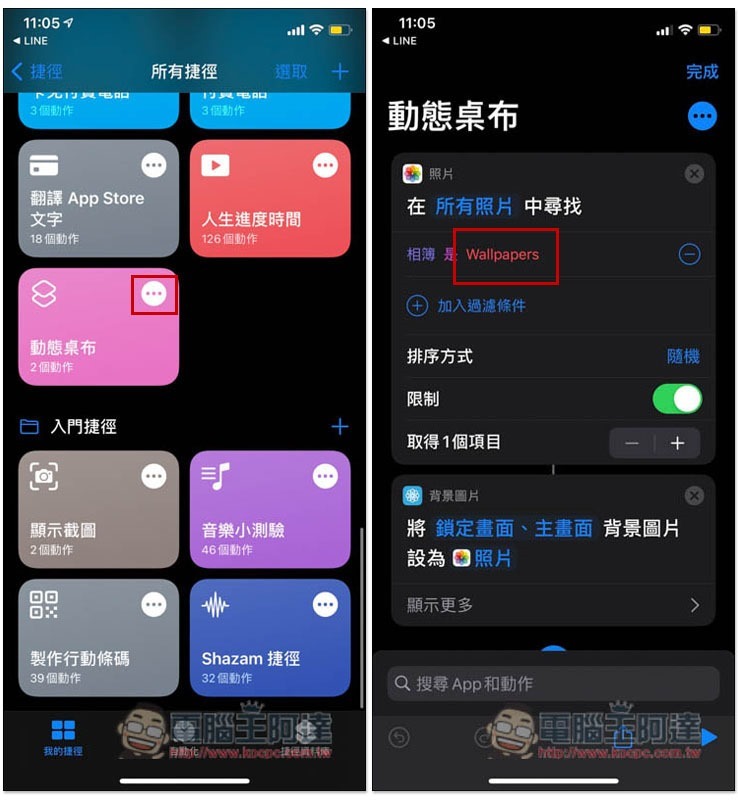
Step 3: Set up automated operations
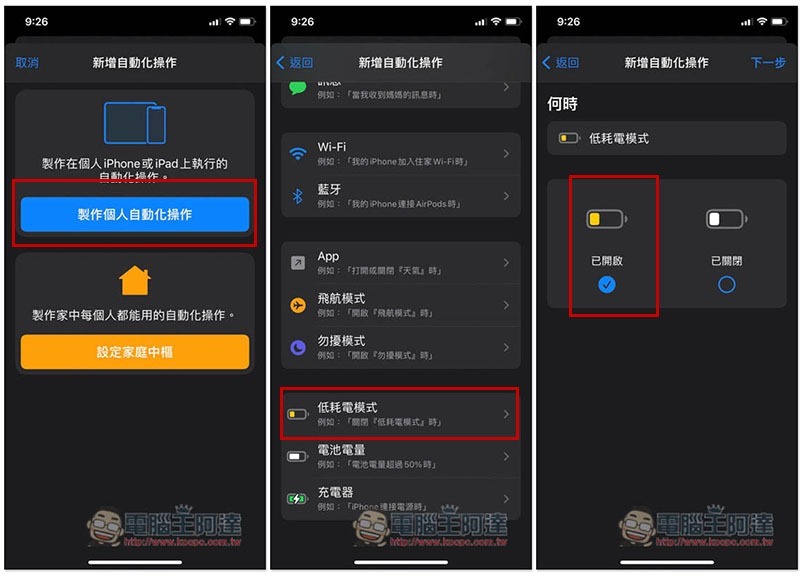
Please click the Automation menu at the bottom of the Shortcuts App and click “Create Personal Automation”:
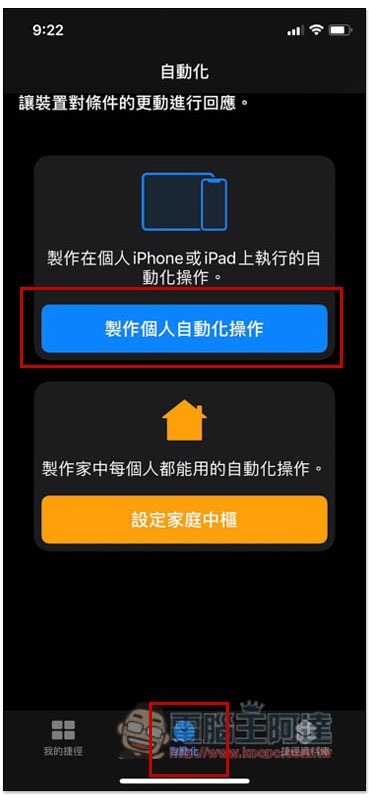
Here I will first demonstrate the setting steps for the iPhone wallpaper to automatically change when you wake up every morning.
Click “Specific time” and you can specify a specific time, such as 6:00 am, but I personally prefer the sunrise method, so I choose sunrise –> sunrise:
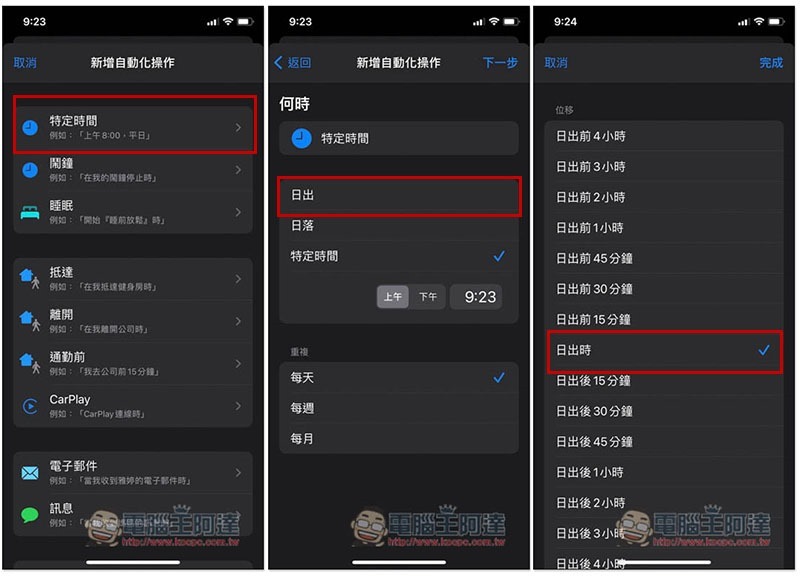
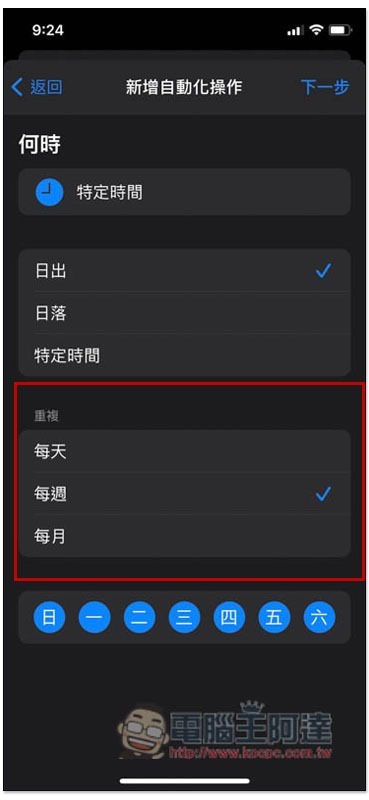
The repetition below can be set to be executed daily, weekly, or monthly. In the weekly part, you can also specify the time you want from Monday to Sunday:
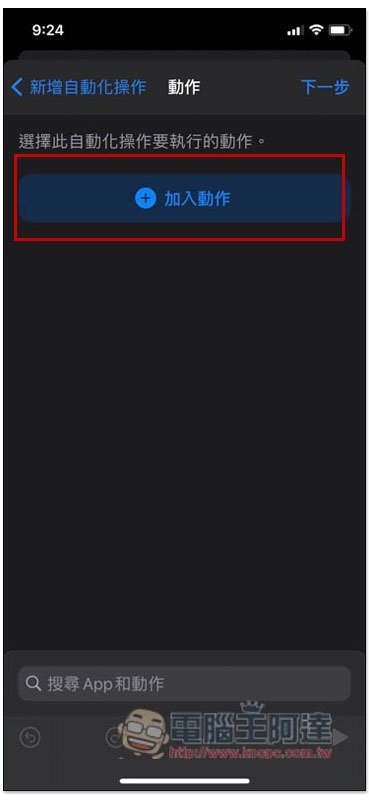
Then click “Add Action”:
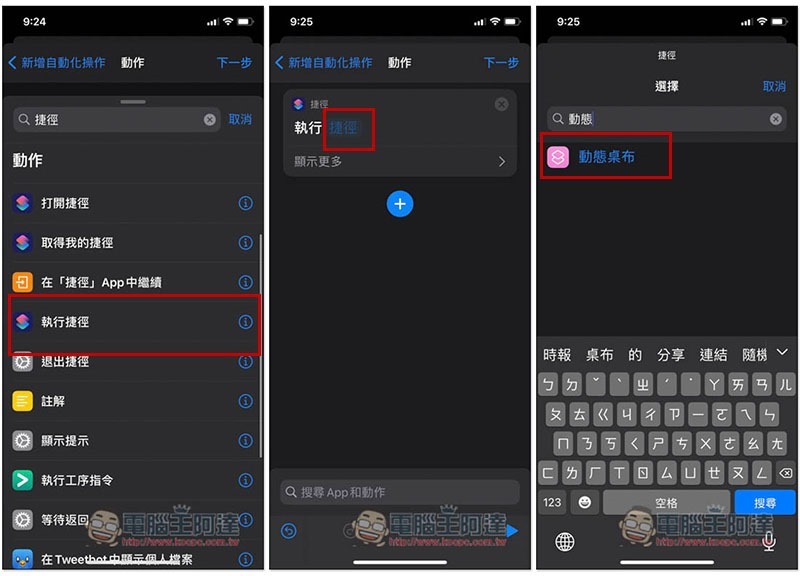
Search for the shortcut. In the action menu below, you can find “Execute shortcut”, then click the shortcut and select the “dynamic wallpaper” you just installed (or automatically change the wallpaper with one click):
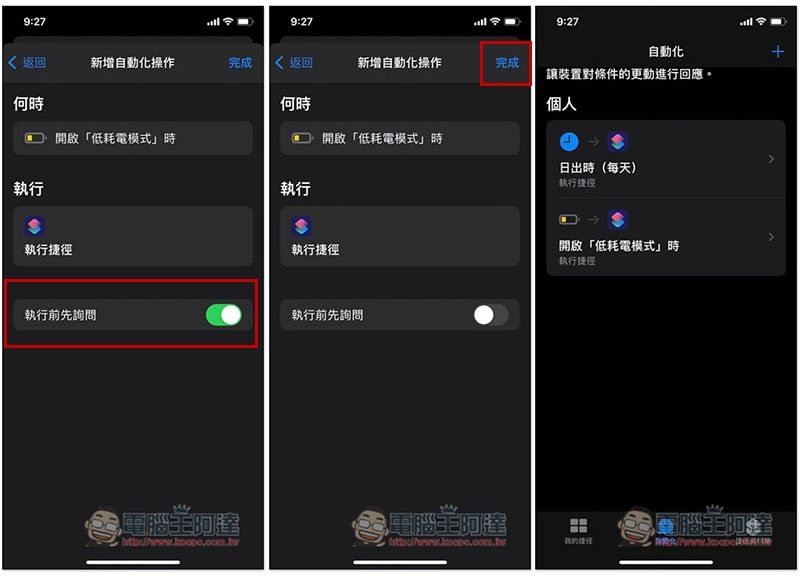
Then it is recommended to turn off the “Ask before executing” below, so that your consent will not be required every time it is executed, and full automation cannot be achieved. If there is no problem, press the upper right button to complete:
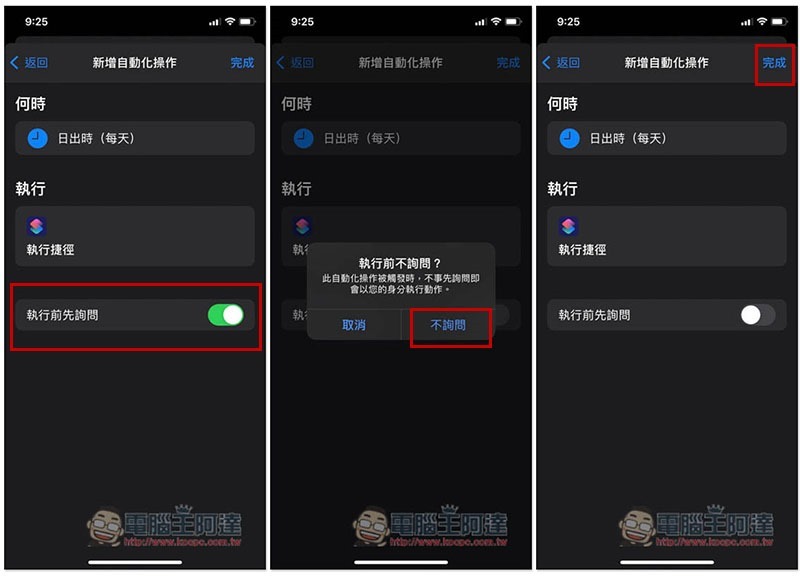
That’s it! In the future, when you get up at sunrise every morning, you will see a different wallpaper when you open your iPhone:
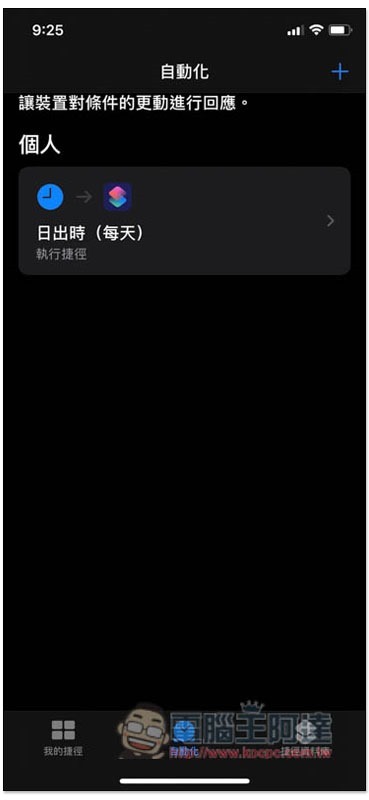
Turn on “Low Power Mode” to automatically change the tablecloth
There are many conditions that can be set in automated operations, such as Wi-Fi, Bluetooth, and when opening an app. Here I will demonstrate the low power consumption mode.
Click the same button to create a personal automation operation, select “Low Power Mode”, specify the method you want, turn it on or off, I chose to turn it on:
Click “Add Action”, select “Execute Shortcut”, and click “Shortcut”:
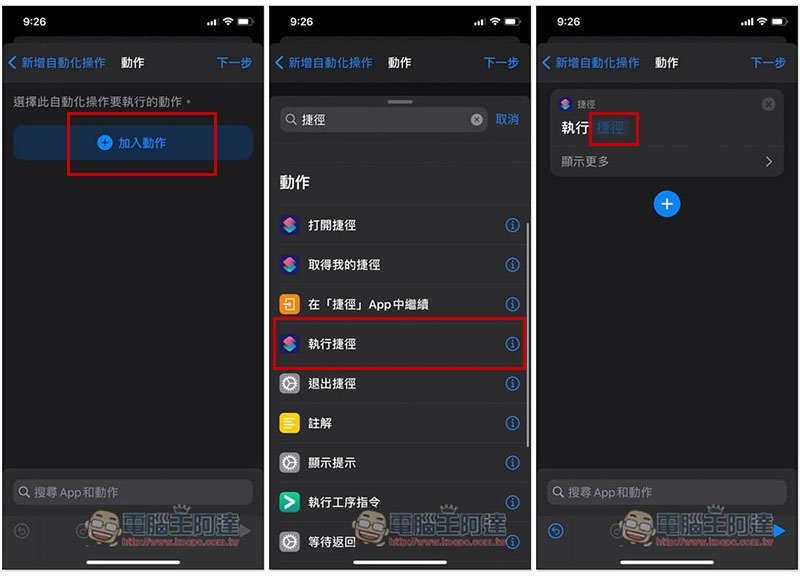
Choose the dynamic wallpaper you just installed or automatically change the wallpaper with one click:
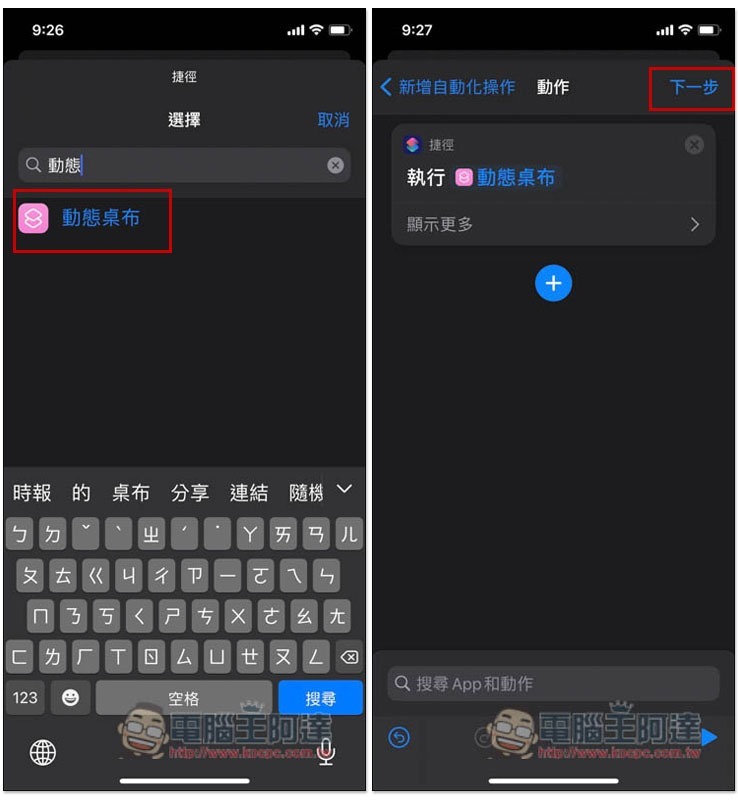
Turn off Ask before executing and click Finish:
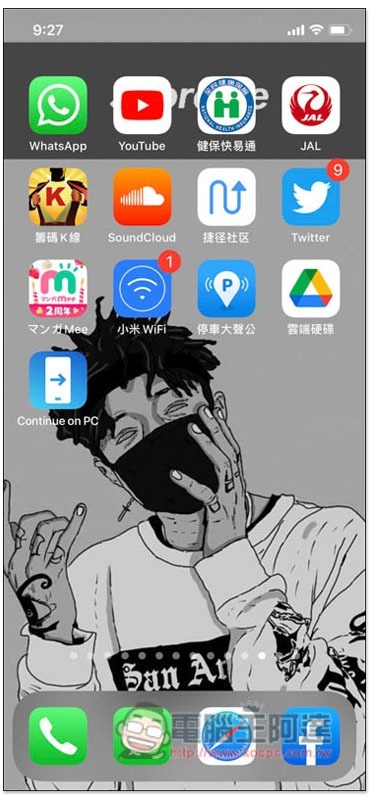
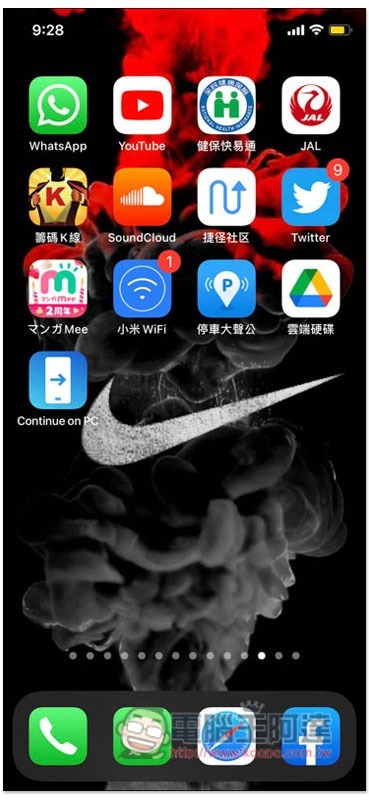
The picture below is my original iPhone wallpaper:
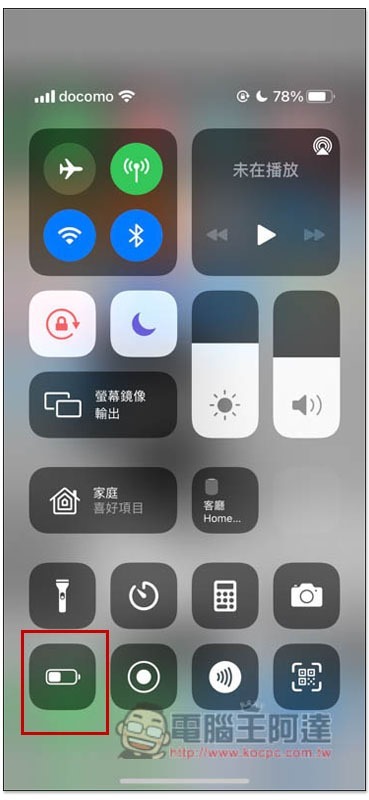
Slide open Control Center and turn on Low Power Mode:
The tablecloth was immediately changed to another one:
in conclusion
In addition to automatically changing the wallpaper, this setting can also automate other scripts. It depends on how you want to play. It is very easy to use and recommended to everyone.
Supplementary information
- Shortcut App download page:App Store
- Dynamic wallpaper script installation page:Click here to go
Source: KOCPC Chinese