


Many iPhone users set alarms to remind themselves to wake up through the built-in Clock App of iOS. However, starting from iOS 14, the built-in sleep scheduling function of the Health App also has a “wake up alarm” function. In the past, when users used the Clock App to set a normal alarm, the alarm volume was synchronized with the system and could not be adjusted independently. However, as long as the sleep alarm is used in the Sleep App, the most suitable volume can be set for the alarm, thus reducing the tragedy of missing the alarm due to system settings!
Tips for independently adjusting the alarm volume in iOS 14: no need to synchronize with the system volume, no longer afraid of missing the alarm sound
I believe that those who use the built-in Clock App of iOS to set alarm clocks are already familiar to many iPhone users. However, sometimes it is inevitable that we will miss the alarm clock in the morning because of the volume setting of the mobile phone system. After all, the volume cannot be adjusted independently in the general alarm clock settings.
If you have also updated your iPhone to iOS 14 (iPad users have updated to iPadOS 14), you can use the built-in wake-up alarm function of the Today’s Sleep App.
First, we open the Sleep App and select “Sleep” on the browsing page. If you have set the sleep function before, you can also click “Sleep” directly on the summary page to enter the sleep function page:
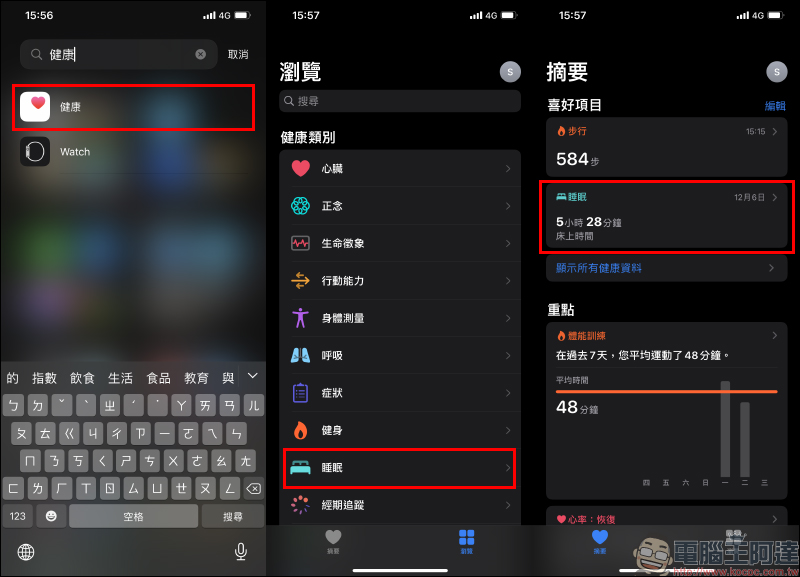
The average wake-up time of users will be sorted out on the sleep page. If you are using it for the first time, just click “Start” on the screen. You can then start setting your sleep schedule, such as bedtime and wake-up time. If you want to set a wake-up alarm, click “Add” under “Your Schedule” to add a new wake-up time schedule, or click “Edit” to adjust the already set schedule.
While setting the bedtime and wake-up time, you can also adjust the wake-up alarm volume:
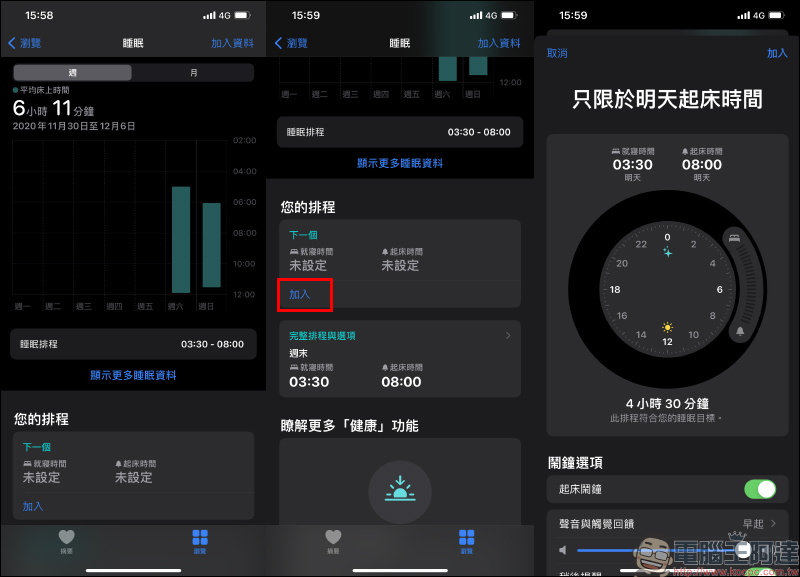
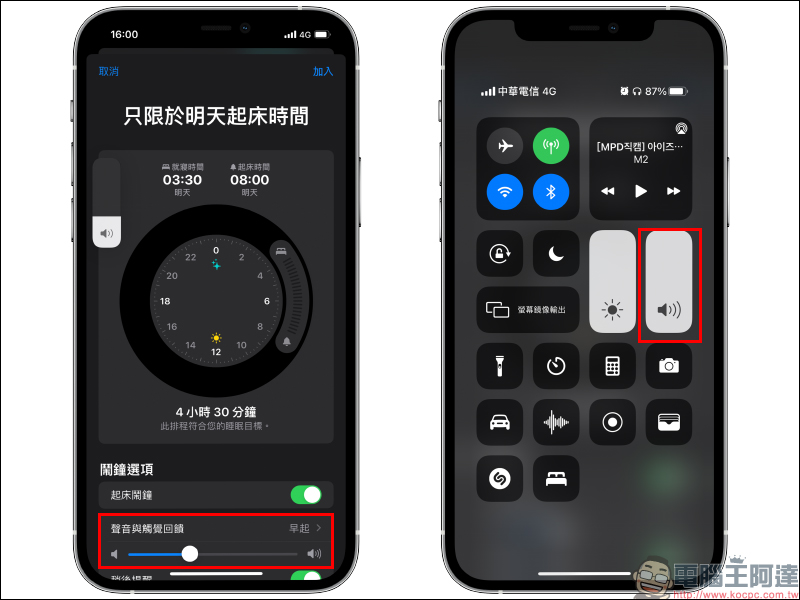
When the user adjusts the volume of the wake-up alarm clock, although the volume control panel on the left side of the screen will be displayed simultaneously, in fact, only the volume of the “wake-up alarm clock” is adjusted at this time. It can be seen that the system volume remains unchanged:
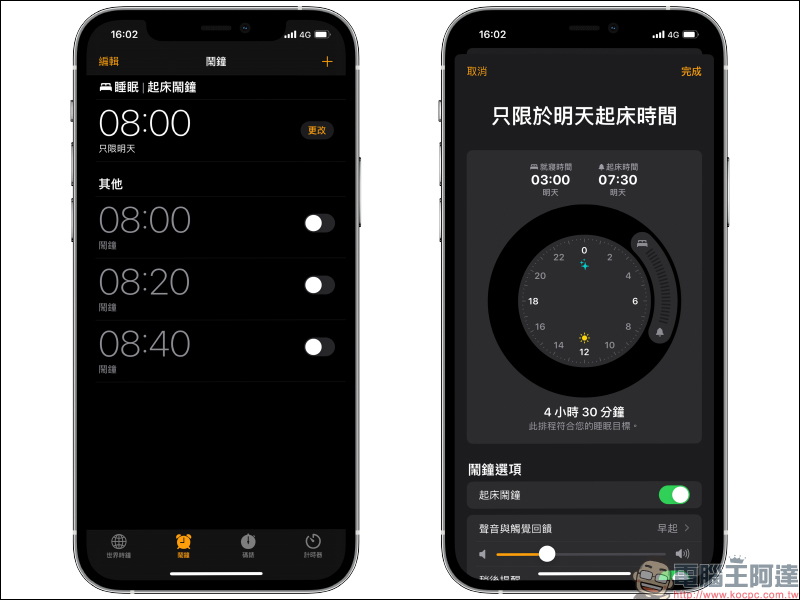
If you find it troublesome to adjust the wake-up alarm time, volume and other settings every time afterwards, users can also change the settings directly in the “Wake-up Alarm Clock” in the Clock App after setting the wake-up alarm:
Further reading:
Memoji Christmas dress-up instruction, how to play with Santa hats and red masks!

Source: KOCPC Chinese