


With the launch of the iPhone 12 series this year, there are many old iPhone users who are upgrading to full-screen bangs for the first time or new users who are buying iPhones for the first time. However, sharp-eyed people may find that on iPhone full-screen models with bangs, a white line will appear in the upper right corner of the screen when the screen is unlocked. The white line will disappear after unlocking. Today, let’s share the purpose of the white line and how to turn it off!

iPhone app tips: What is the line in the upper right corner of the iPhone screen? How do I turn it off? (teaching)
For new users who are using iPhones with full-screen bangs for the first time (such as iPhone X / XS / XR / XS Max / 11 /11 Pro / 11 Pro Max and iPhone 12 /12 mini / 12 Pro / 12 Pro Max), they will inevitably worry that they accidentally got the machine or that there are bugs in the iOS system.
If you see this white line under the battery icon in the upper right corner of the screen, don’t worry too much! Because it is actually like the Home bar at the bottom of the screen. It is a prompt guidance function designed for this type of full-screen iPhone, reminding users that they can pull down from this position to open the “Control Center” prompt.
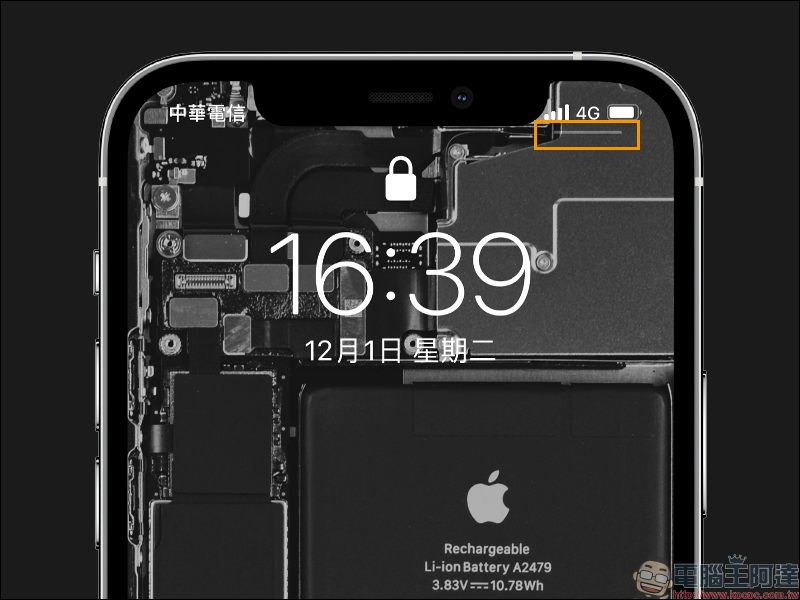
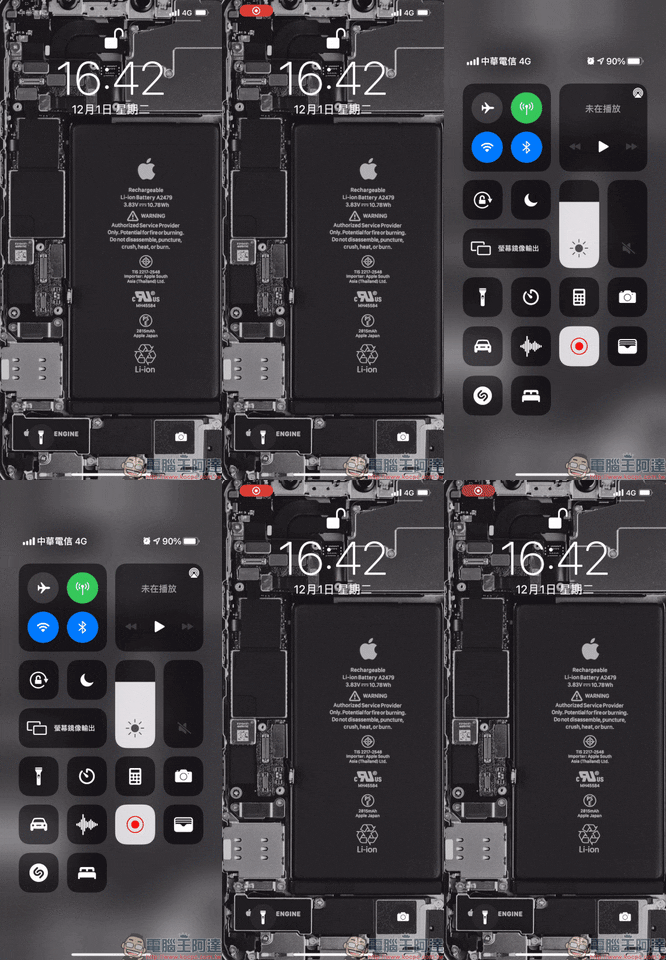
When the screen wakes up and displays this white line, you can pull down from this position to open the Control Center:
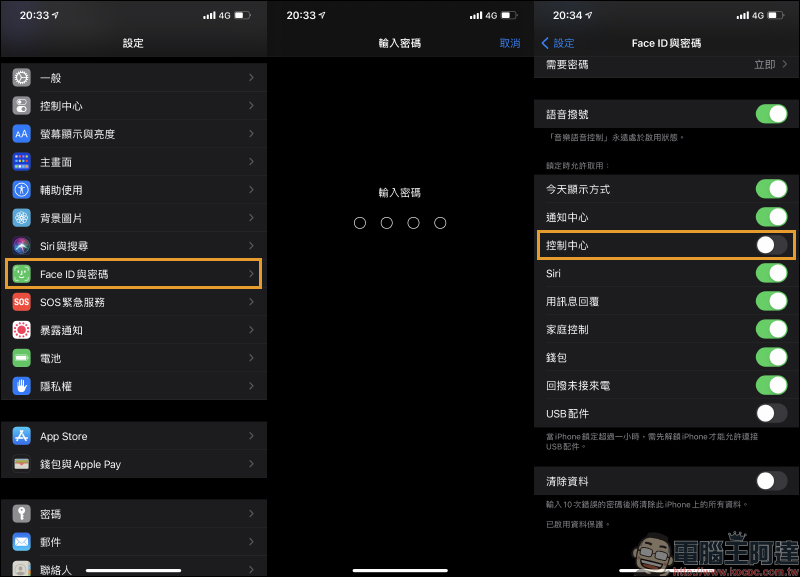
If you are already familiar with this operation method, feel that the white line display on the lock screen is a bit unsightly, or do not want your phone to wake up the screen and cause accidental touches when the phone is in your pocket, let me share how to turn it off! First open “Settings” and find “Face ID and Password”, then enter the iPhone lock password, enter the page and turn off the “Control Center” option:
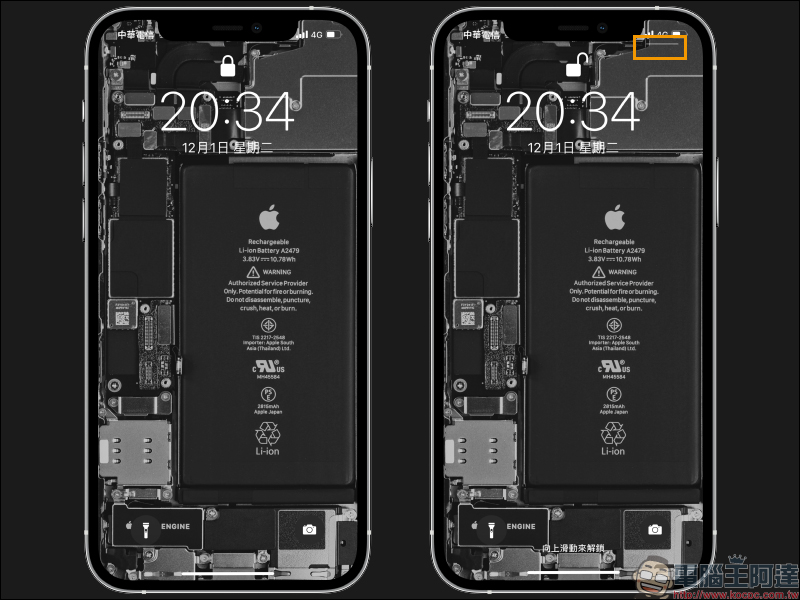
You can find that after turning it off, there will be no white line in the upper right corner of the lock screen. At the same time, after closing the Control Center settings, the Control Center cannot be opened through the pull-down method as long as the screen is not unlocked. The white line will not appear until the screen is unlocked, and then you can pull down to open the Control Center:
Although this little trick may not be discovered by many old users who have used iPhone X to the current iPhone 12 series, it is better to learn it later than not knowing it all the time! The author personally believes that after this function is turned off, in addition to the aesthetic difference of losing a white line on the lock screen, the real help is to reduce accidental touches. After all, many people arrange various application tools in the control center, and it can easily cause some trouble if you accidentally turn it on.
Further reading:
Google Calendar supports iOS 14 desktop gadgets (settings tutorial)

iOS 14 application tips: Display incoming call contact photos in “full screen” (setting tutorial)

Source: KOCPC Chinese