


Stored in your phone are a few black-and-white photos of your parents when they were young, or yellowed old photos left behind by your grandparents, and you’ve always wished they could be turned into color. Now you don’t need to know how to edit photos, nor do you need to give instructions to… AI Just open a webpage, upload a photo, and after a few seconds you’ll see old photos get recolored, with even the blurred details restored.
Recently, there have been many built on Google Gemini Among the interactive AI tools on the platform, there’s a free AI tool called GPhoto Remaster that is specifically designed toOld photo“Rejuvenation.” It not only automatically colorizes images but also performs restoration, with a workflow so simple it has virtually zero learning curve—perfect for anyone wanting to create a digital copy of old family photo albums.
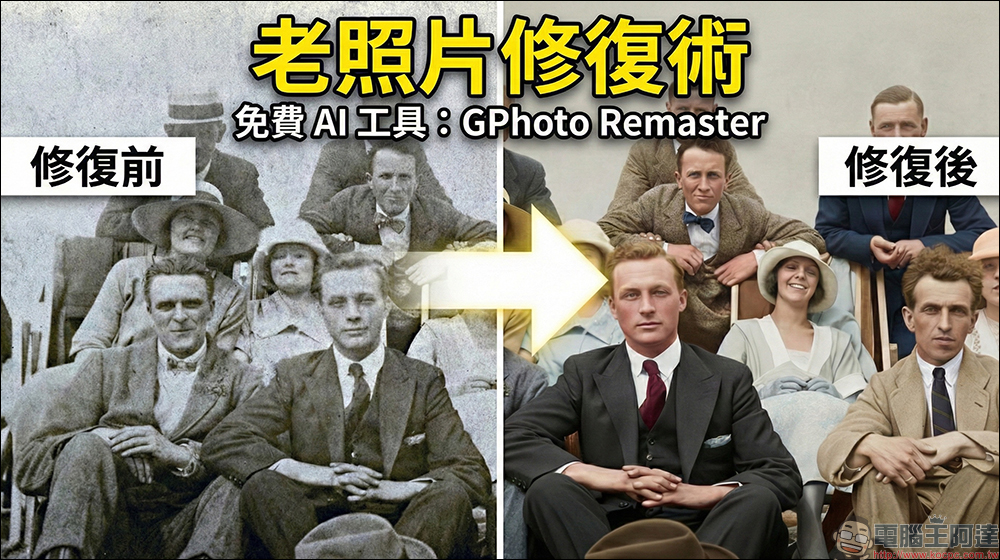
GPhoto Remaster: One-Click Old Photo Restoration! Auto Colorization Using Gemini 2.5 Flash AI
Recently, AI tools based on Google Gemini have been proliferating, with features expanding from chat and image generation to various practical utilities. Compared to traditional AI services that require entering multiple prompts, many tools now feature interactive interfaces, allowing general users without technical expertise to easily handle image processing tasks.
GPhoto Remaster is one of the more interesting services. It was created byThe Carefree NestA free image editing tool made by 」 that specializes in automatic colorization and restoration of old photos, powered by Google Gemini 2.5 Flash technology. Simply put, you just upload black and white, yellowed, or even slightly blurry photos, and the AI will automatically analyze the content, add realistic colors to people and backgrounds, while fixing details to make the entire photo look clearer and more natural.
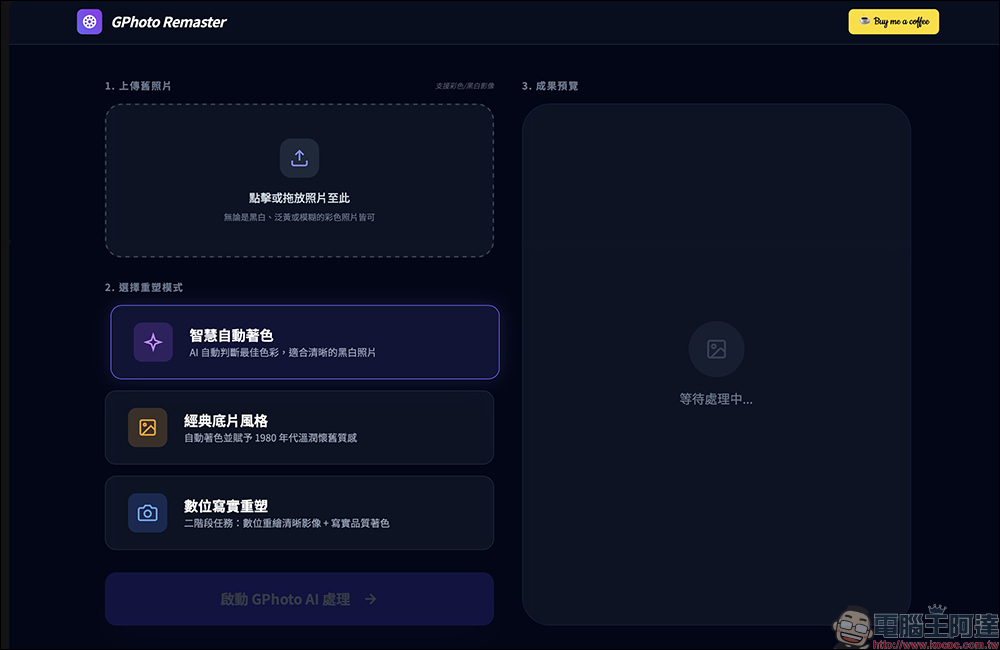
How do I use GPhoto Remaster to restore photos?
This service is built on Gemini Canvas technology. You just need to log in with your Google account to use it—no additional registration required, and there are no hidden fees. There is a daily usage limit, which is actually sufficient for people who only occasionally restore a few old photos. The interface is also quite intuitive, and you can directly perform intelligent auto-colorization with virtually no settings to adjust. The operation steps can roughly be divided into three steps.
Step 1: Upload a photo
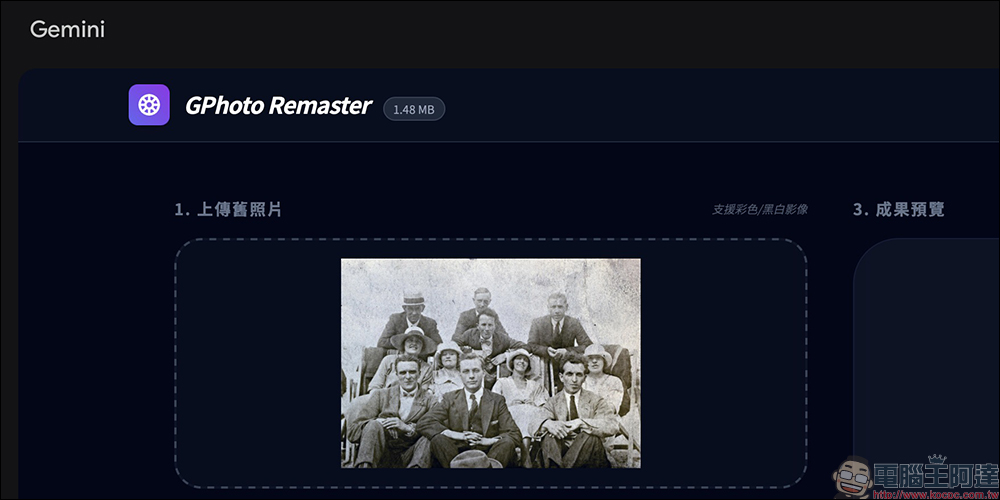
After opening the GPhoto Remaster webpage, you can click to select files directly, or drag photos onto the screen to complete the upload.
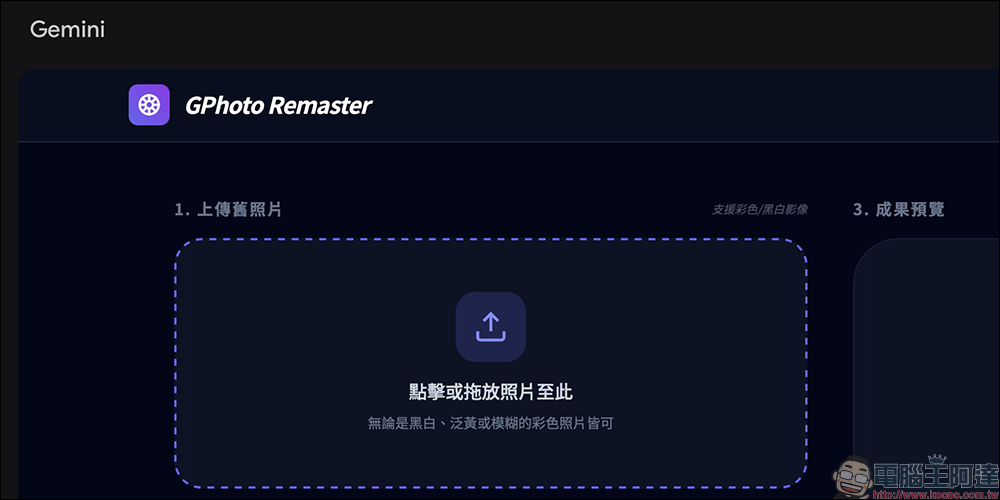
Whether it’s black and white photos, yellowed old photos, or faded color photos, feel free to toss them in and give it a try.
Step 2, Select a Reshaping Mode
Reshaping section, offering three different styles here:
- Smart Auto Coloring:
AI will determine the most suitable color scheme, ideal for clear black and white photos. - Classic Film Style:
When auto-colorizing, it also adds a slightly 1980s-style nostalgic tone, giving it more of an old photo feel. - Digital Realism Reimagined
Adopts two-stage processing: first digitally redraws the image to enhance clarity, then applies realistic-style coloring, ideal for photos that are already quite blurry.
If you’re not sure which to pick, just stick with the default Smart Auto Color. The AI will automatically determine the best color scheme based on your photo’s content. If the result isn’t quite what you wanted, just switch to another mode and run it again.

Step 3: Launch GPhoto AI Processing
After clicking “Start GPhoto AI Processing”, the system will analyze and generate results through Gemini.
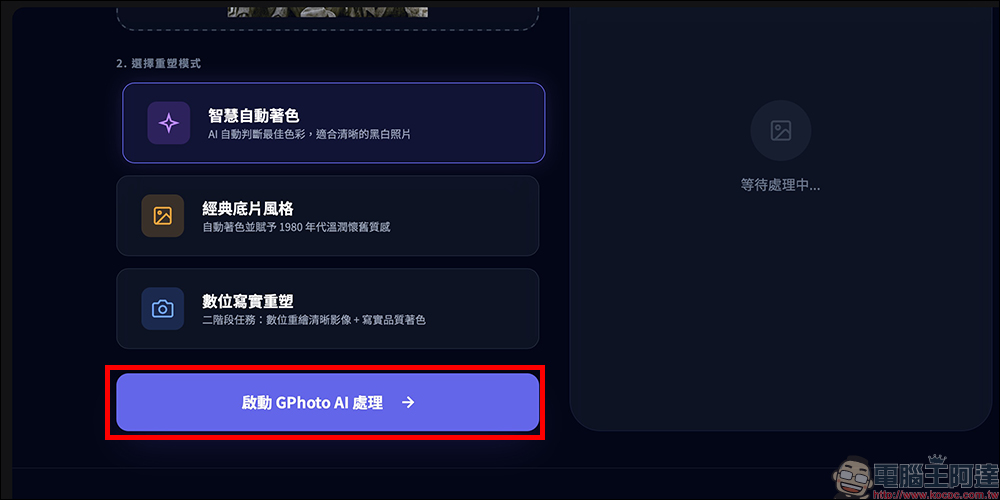
It’s quite fast—usually you can see the preview in just a few seconds. Once it’s done, click “Save Retouched Photo” to download.
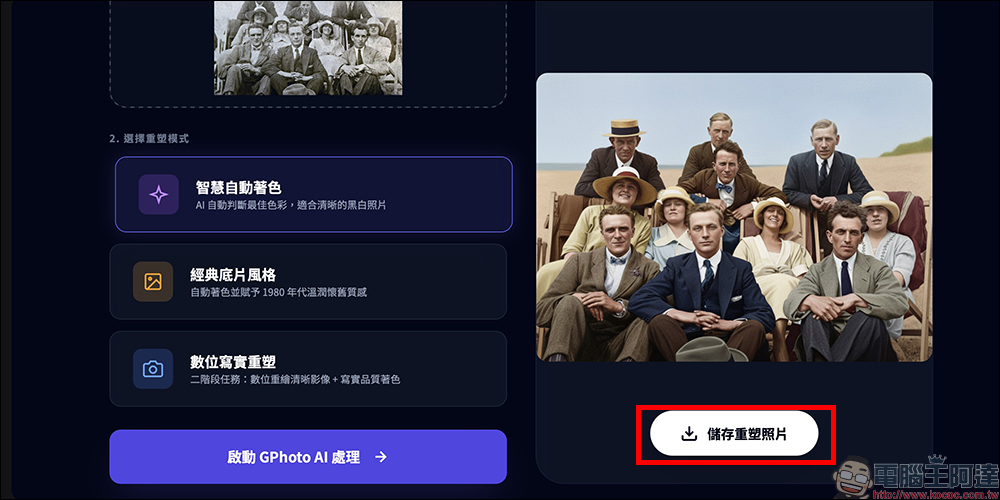
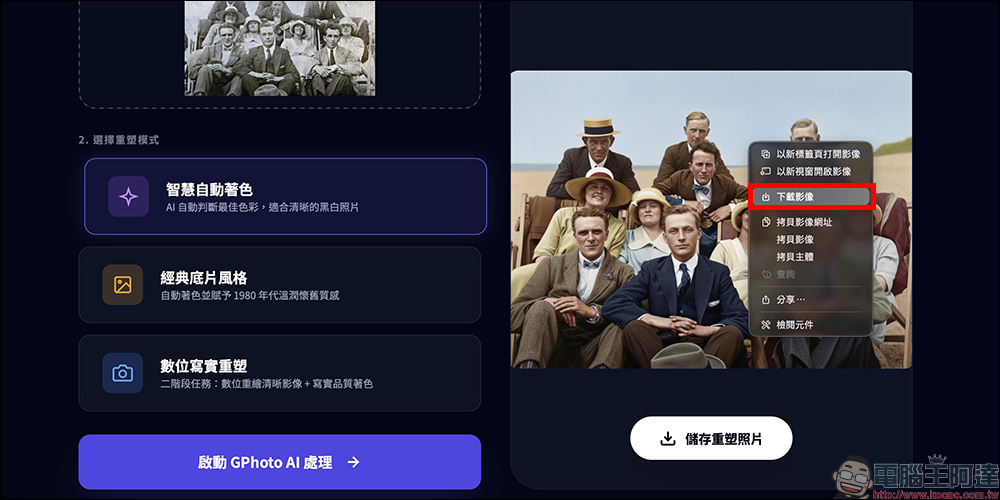
There’s a minor issue to be aware of – some users may find that pressing save doesn’t trigger a successful download, and the screen may even revert to the pre-processing state. As a temporary workaround, after generating the preview image, right-click on the image and select “Save image as.”
If you find that the file won’t open after downloading, just add the file extension yourself, such as .jpg, .png, or .webp, and it will display normally.
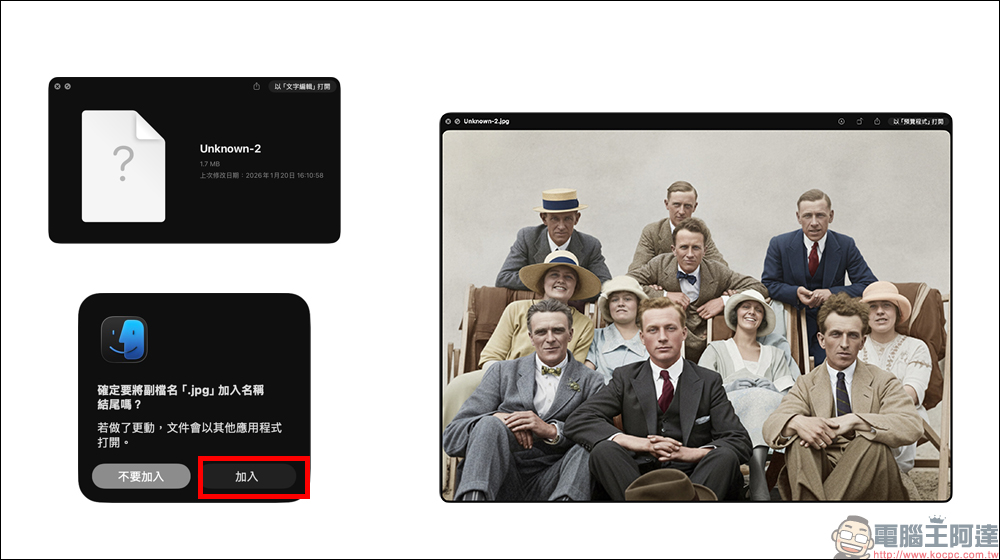
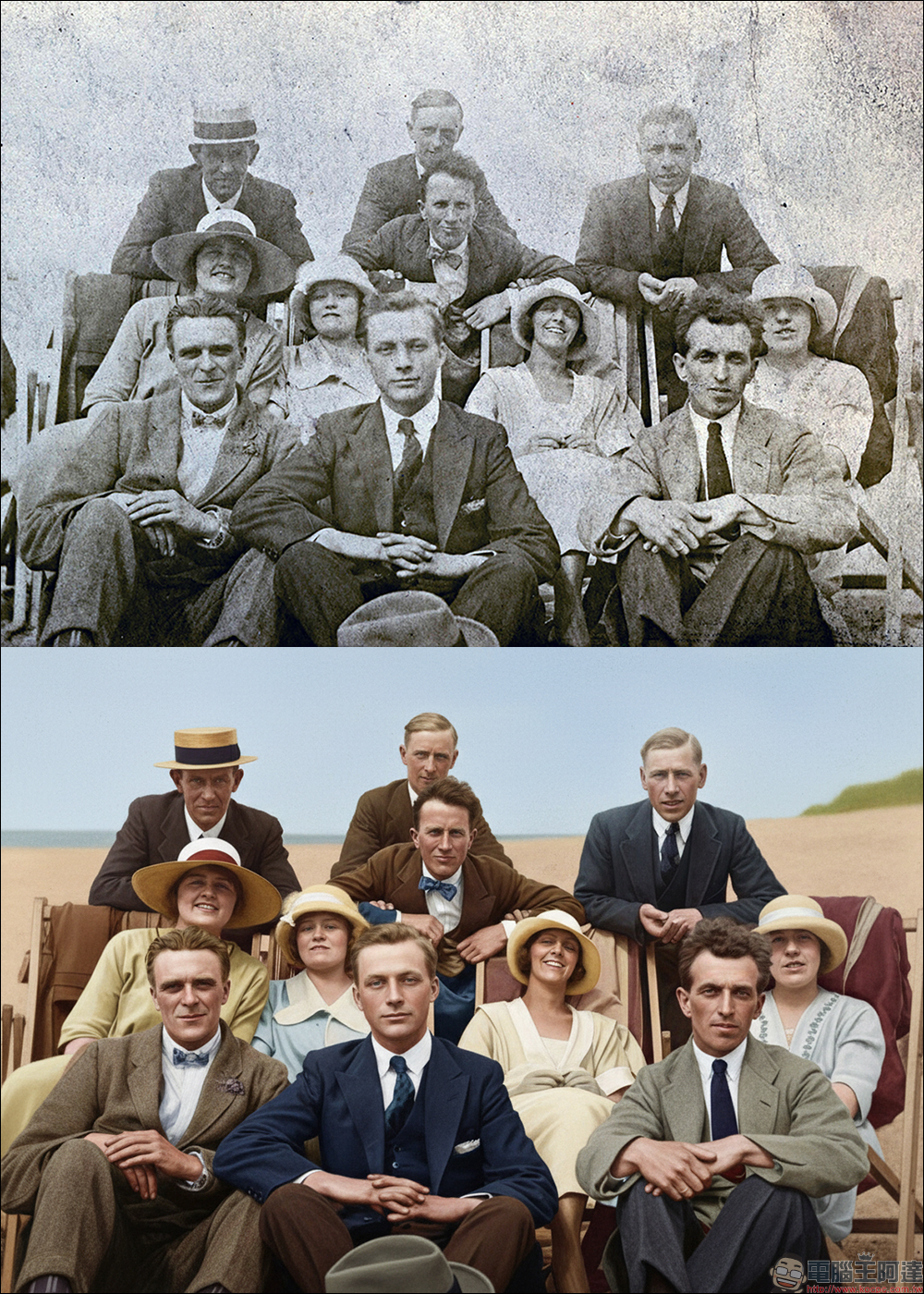
Based on actual results, GPhoto Remaster handles skin tones and clothing colors quite naturally, without producing overly exaggerated color combinations. While the background restoration still shows some AI artifacts, the overall visual quality has improved significantly compared to the original blurry old photos. For those who want to quickly create a color version of their commemorative photos, it’s quite practical.
GPhoto Remaster
Conclusion
If you have a stack of yellowed old photos at home, or black and white pictures of your elders from their youth saved on your phone, and you don’t want to learn photo editing software just for a few images, GPhoto Remaster is really worth trying out. It requires no prompts, the interface is straightforward, and a few clicks are all it takes to colorize and restore photos—very user-friendly for everyday users. While the results aren’t quite at professional restoration level, as a free tool it’s already good enough to make old photos look beautiful and full of warmth again. Take some time to digitize those precious memories, and you might be pleasantly surprised.
Further Reading:
Source: KOCPC Chinese