


Many people will definitely want to see a different wallpaper every day after opening their iPhone. We have introduced many free iOS Wallpaper App, so you should have plenty of free wallpapers. Although the built-in wallpaper setting in iOS is not difficult, it still requires a few steps. This article will recommend a very convenient shortcut script: “Automatically change wallpaper with one click”. Click on the home screen and lock screen wallpaper and it will automatically change to a new one. This means that you only need to click this shortcut every day to get a new wallpaper. You can even click it several times a day. If you don’t like it, just change it.

Recommended shortcut script for iOS 14: Automatically change the wallpaper with one click
Before I start the introduction, let me remind you that the “Set Background Image” action in the iOS 14 shortcut has not yet been added to the official version. However, the iOS 14.3 Beta version has appeared, so for now, only friends who have upgraded to iOS 14.3 Beta can use it. When the official version of iOS 14.3 is launched, people who have not applied for the beta version should be able to use it.
- One-click automatic change of wallpaper shortcut script installation link:Click here to go
- Shortcut App download page:Click here to go
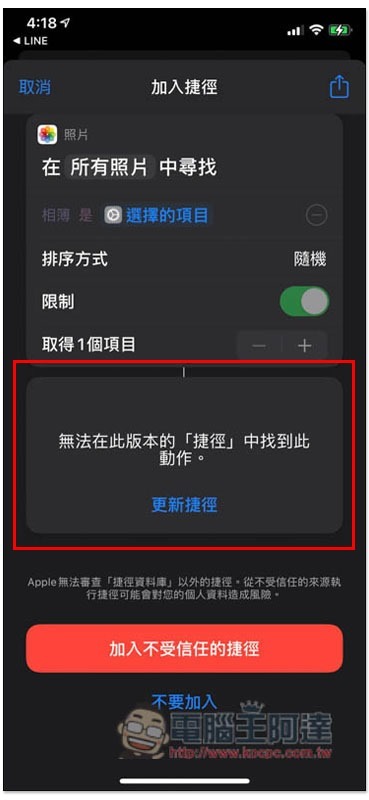
The picture below is the screen that will appear for those who are still on the official version of iOS 14.2. The bottom shows “This action cannot be found in this version of “Shortcuts”:
People who have upgraded to iOS 14.3 Beta will see it normally:
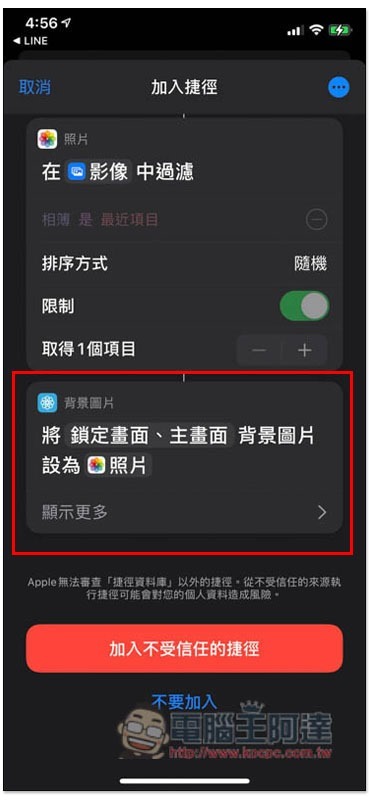
After adding the “One-click automatic wallpaper change” shortcut script, a “Want to access your photos” message will pop up when you click on it for the first time. Remember to click “OK”:

Then please click the upper right corner… Function:

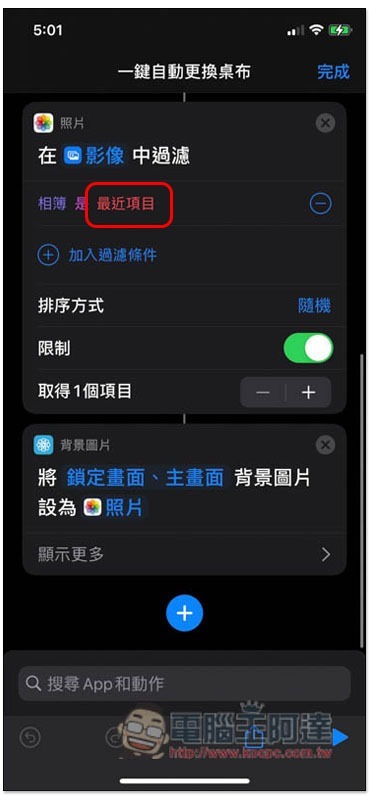
Currently, the album that automatically changes the wallpaper is “Recent Items”, which is all the photos in your album. If you want to specify a certain album, please click “Recent Items” under the photo action:
The screen will list the photo albums created on your iPhone:
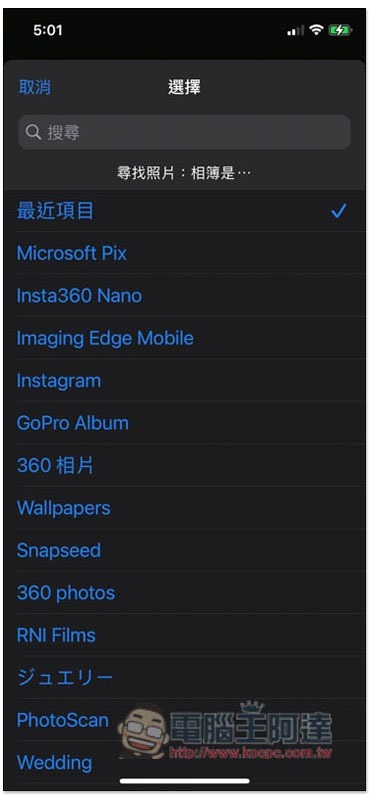
After setting, click this shortcut, and photos will be automatically selected randomly from the “specified album” and set as the wallpaper for the home screen and lock screen:

How to add this shortcut to the home screen?
It’s a bit troublesome to have to enter the shortcut app every time you change the wallpaper, so you can put this shortcut directly on the home screen and turn it into an app, and you can change it by clicking it in the future.
Click the … option in the upper right corner:

You will see the “Add to Home Screen” function:
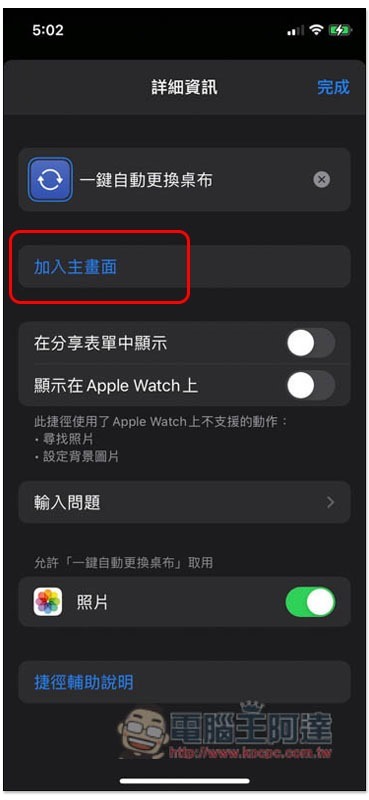
If necessary, you can also change the name and image, and then click “Add” in the upper right corner:
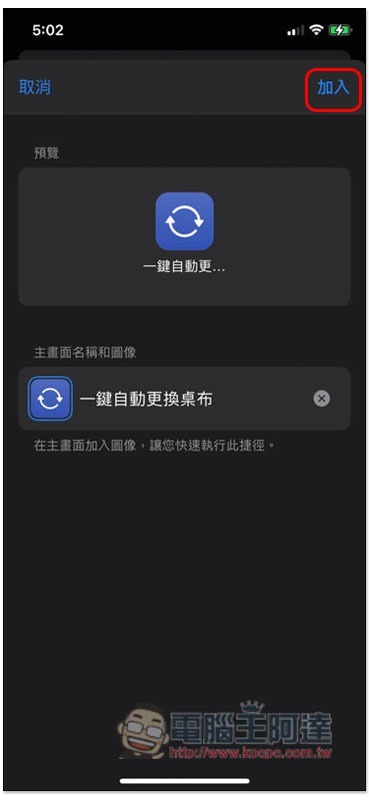
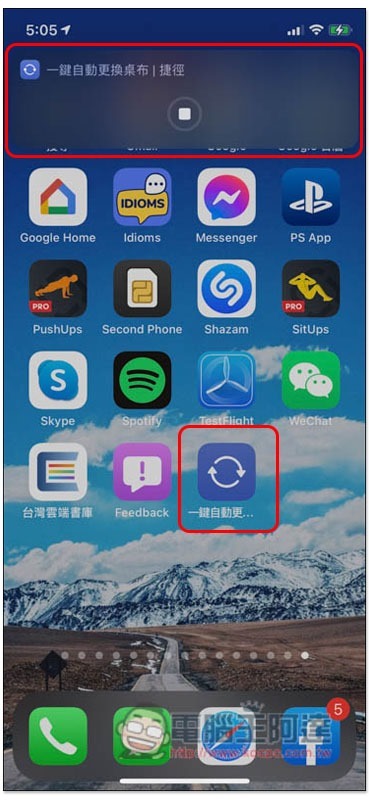
will appear on the iPhone home screen. After clicking it in the future, the progress of automatically changing the tablecloth will pop up above:
How to create a photo album?
If you still don’t know how to create a photo album, here is a quick explanation. After opening the iOS photo, click Select in the upper right corner:

Check the photos or pictures you want to add to the “Automatically change wallpaper” album, and then click the share icon in the lower left corner:
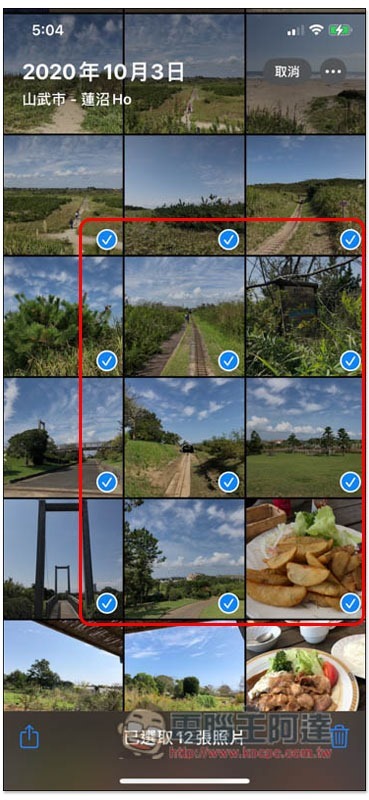
You can see “Add Album” in the menu:
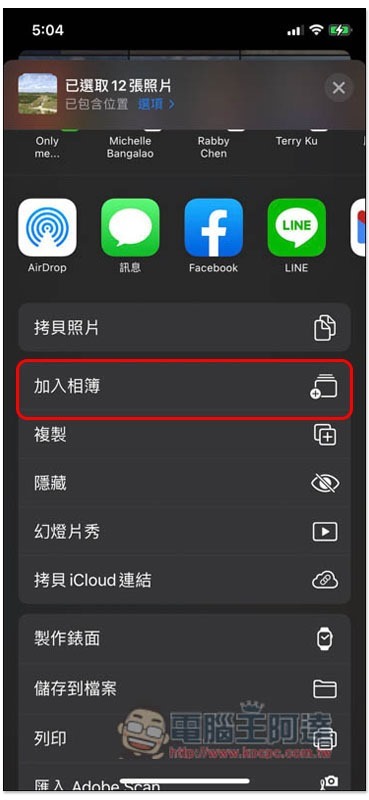
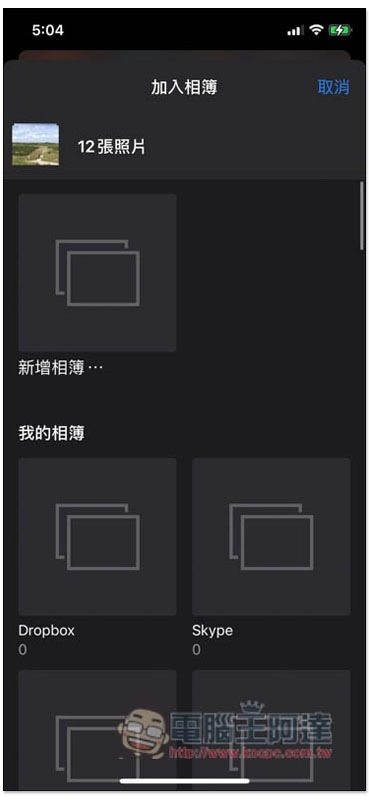
You can add a new album or add an existing one:
Supplementary information
- One-click automatic wallpaper change script installation link:Click here to go
- Shortcut App download page:Click here to go
Source: KOCPC Chinese