


Now that iOS 14 has been officially launched for some time, many people must have gradually become familiar with the operation methods and functions of iOS 14. iOS desktop gadgetsAre you waiting for new features? We have introduced a number of practical iOS 14 desktop gadgets before, and recently more and more daily-use apps can also use desktop gadgets. Yesterday (9th), the latest version update of LINE Pay App also officially supports iOS 14 desktop gadgets.
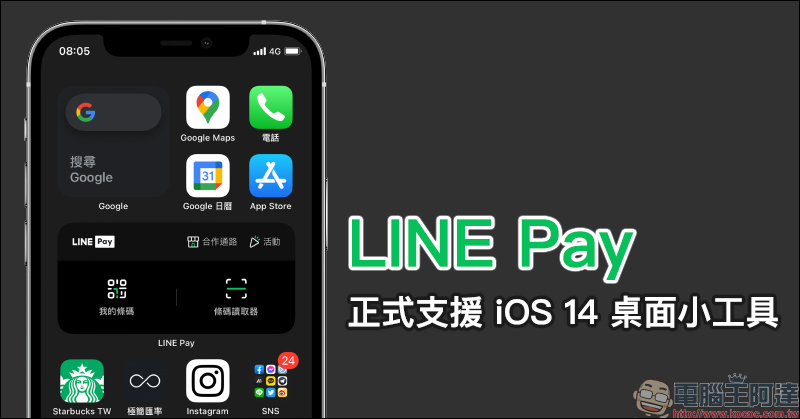
LINE Pay App update: officially supports iOS 14 desktop gadgets, allowing for faster checkout, better control of cooperation channels, and event discounts!
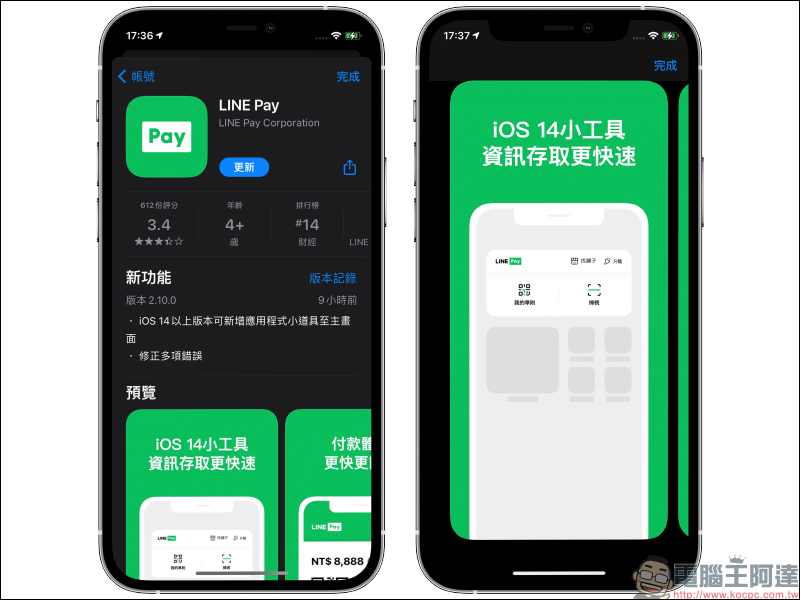
Although before the official launch of the iOS 14 desktop widget of the LINE Pay App, LINE Pay actually already had the iOS desktop widget function. However, the widget at that time could only be placed on the widget page and could not be placed anywhere on the iOS 14 home screen. With the version update yesterday (9th), iOS 14 desktop gadgets were added, officially replacing the original gadget function.
LINE Pay’s new desktop widget has also been optimized for the interface design, allowing users to make faster payments at checkout, while also allowing users to check partner channels and current promotions with one click.
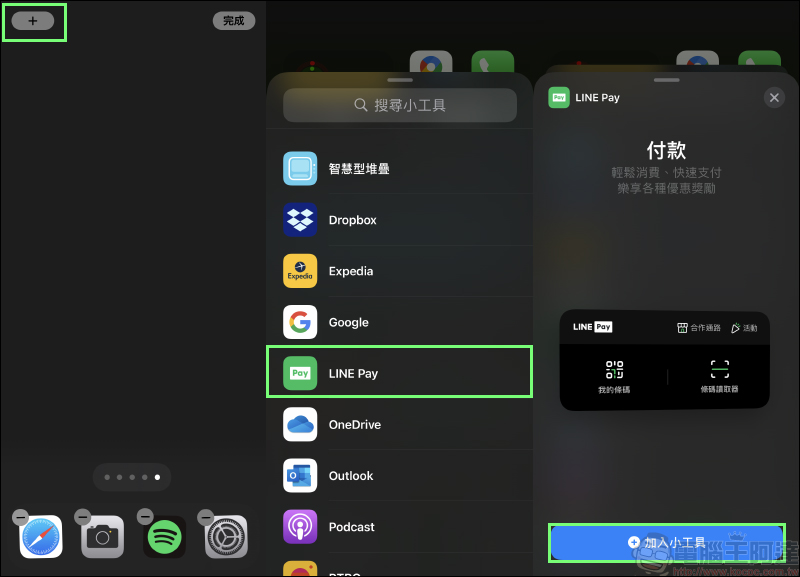
After downloading the LINE Pay App, first enter the edit home screen page and click the “+” in the upper left corner of the screen to add a desktop gadget. Select LINE Pay in the gadget list and click the “Add Gadget” button to add the gadget to the iOS 14 home screen.
If you have downloaded the LINE Pay App but do not see LINE Pay in the list of new widgets, it is recommended to open the LINE Pay App first and then follow the steps to add a desktop widget.
After completing the addition, you can use the LINE Pay widget on the iOS 14 home screen! LINE Pay’s new desktop gadget interface is quite simple and has all the functions you need most when using LINE Pay. When using LINE Pay to make a checkout payment, users select “My Barcode” to provide the checkout barcode and electronic invoice barcode to the store to scan to complete the payment action; selecting “Barcode Reader” is suitable for some payment methods that provide QR Code barcodes for consumers to scan the barcode and enter the payment amount.
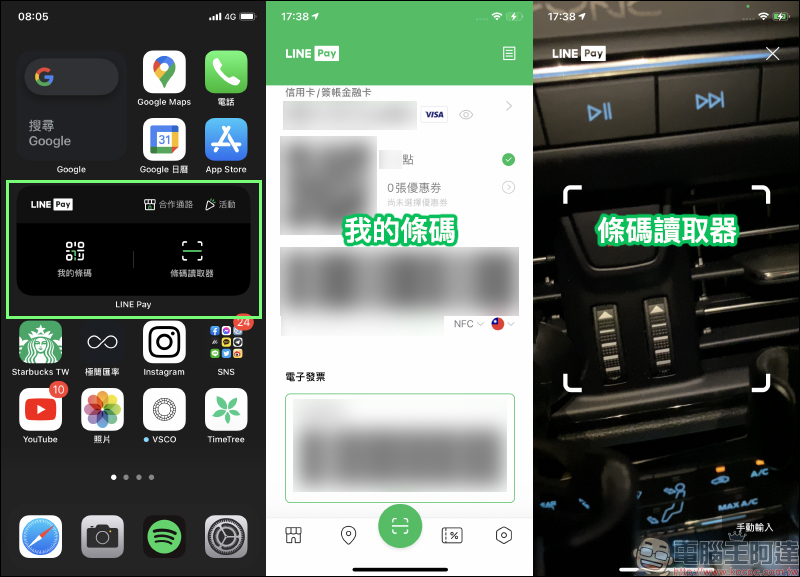
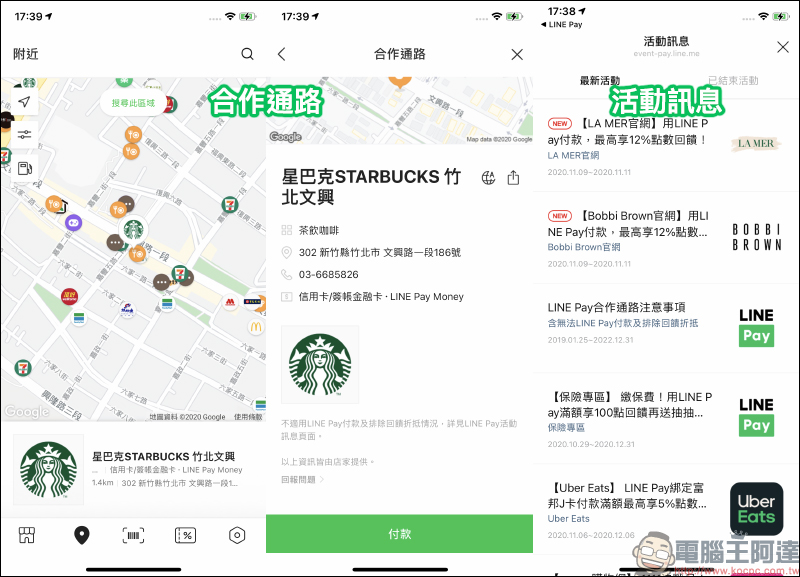
Sharp-eyed readers will probably also notice that there are two buttons “Partnership Channels” and “Activities” above the desktop gadget of LINE Pay. This is very convenient for those who want to know which cooperation channels near their location can use LINE Pay! Users can view the business information and payment methods of nearby stores through the map. The most convenient thing is that they can also click the “Pay” button directly on the cooperative channel page to enter the LINE Pay payment page.
In addition, you can quickly learn about the latest LINE Pay activities on the “Activity Information” page.
LINE Pay App download:Click here to download (iOS version|App Store)
Further reading:
iPhone Lock Screen Camera/Flashlight Button Disabling Tip
Stay on top of real-time news on your iPhone home screen, try the Google News iOS gadget!
Source: KOCPC Chinese