


When taking personal photos or group photos, passers-by often happen to be in the frame, especially in some well-known scenic spots. If you want to have photos that are not affected by others, you can only retouch them through post-production, but this is not the case for everyone. If you are using an iPhone, then this article will recommend a pretty good free Photo Retouch App. You can easily remove unwanted objects and people with just the movement of your fingers. It supports not only photos but also videos.
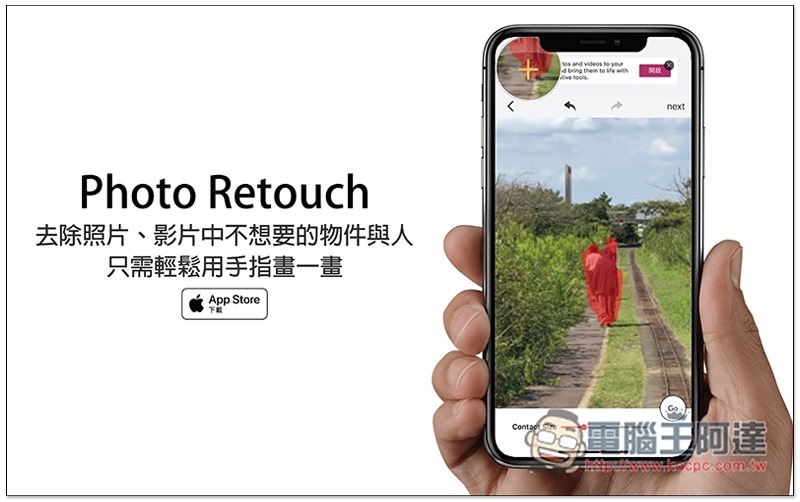
Photo Retouch removes unwanted objects and people from photos and videos
We have previously introduced a TouchRetouch In comparison with the paid version of the app, TouchRetouch is more powerful, and the background after application is more natural, but Photo Retouch is not bad either. As long as the picture is not too complicated or the object is too big, you can basically get good results.
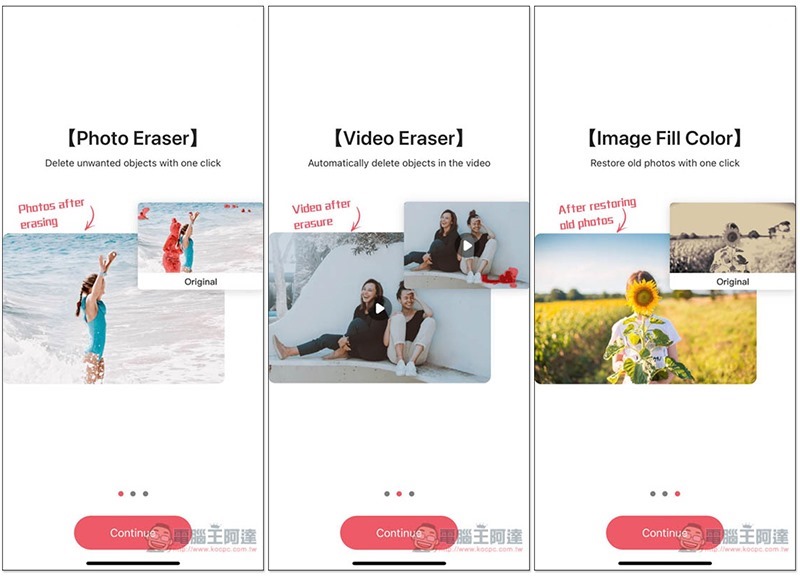
In addition to removing objects from photos or videos, Photo Retouch also provides other photo editing functions, such as filters:
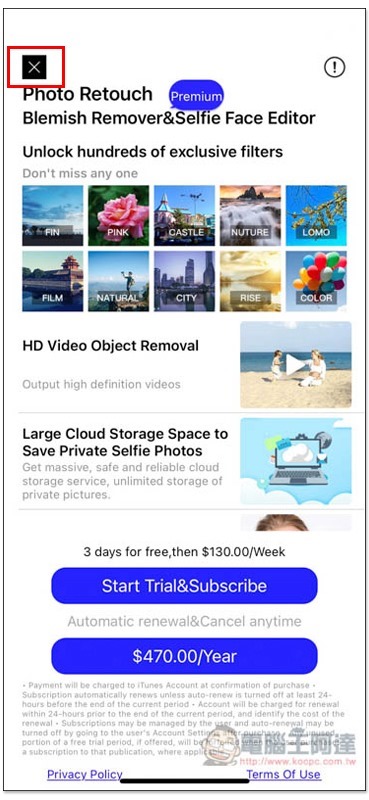
When this screen appears, remember to click the X in the upper left corner to close it. Do not click Start Trial or NT$470 / Year below. Many features can be used in the free version:
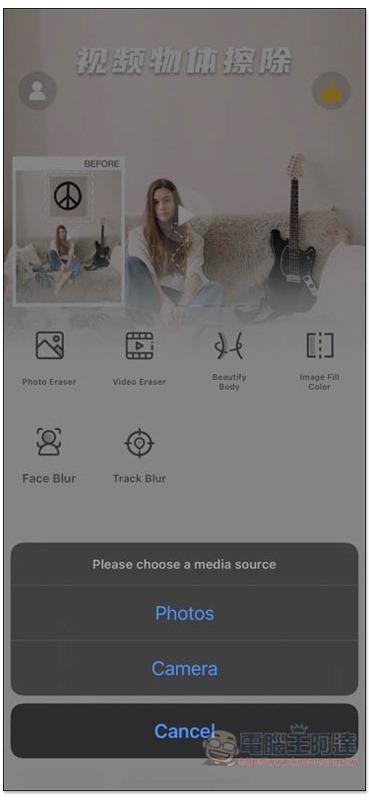
There are also body sculptures, face mosaics, tracking mosaics, etc. The objects to be removed are the first two, Photo Eraser is for photos, and Video Eraser is for videos:
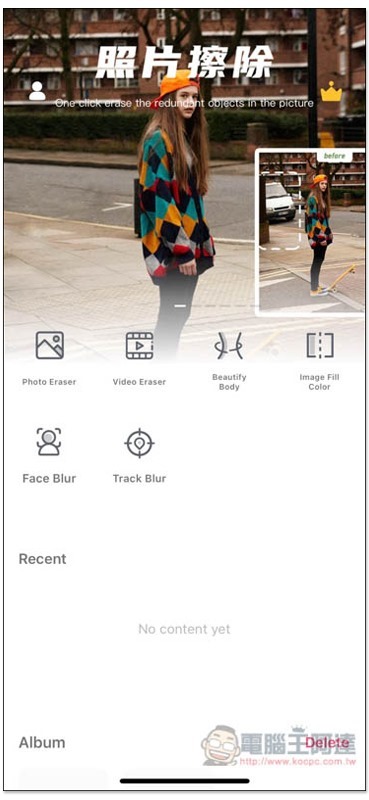
Taking photos as an example, you can import them from your iPhone photo album or take photos directly:
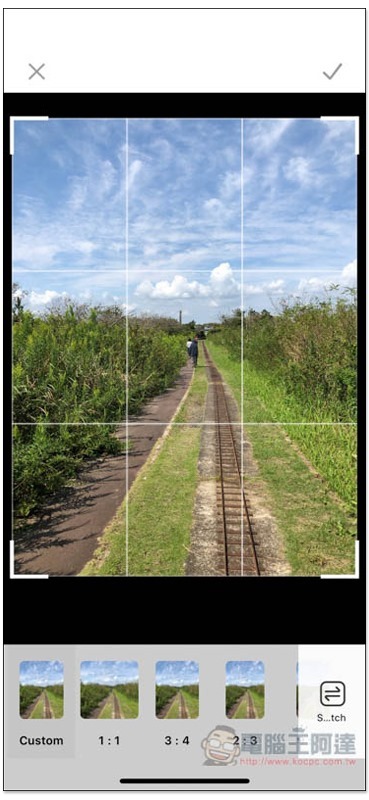
You will be asked to set the photo size first. If you do not need to change it, just click the check icon in the upper right corner:
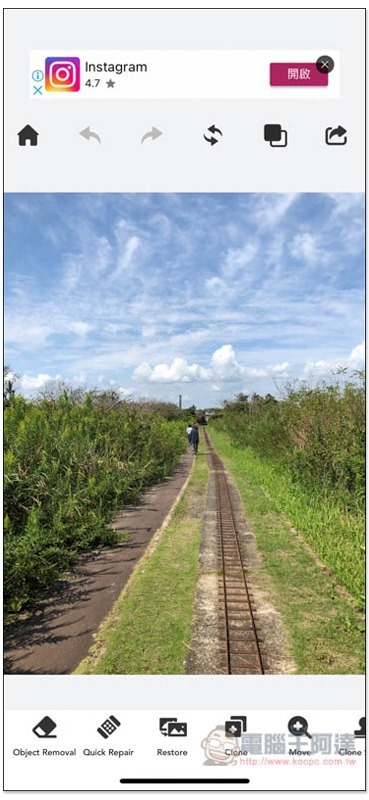
Then you will enter the post-production interface. The main menu is at the bottom. The first Object Removal is to remove the object. Quick Repair. My test effect seems to be similar to removing the object:
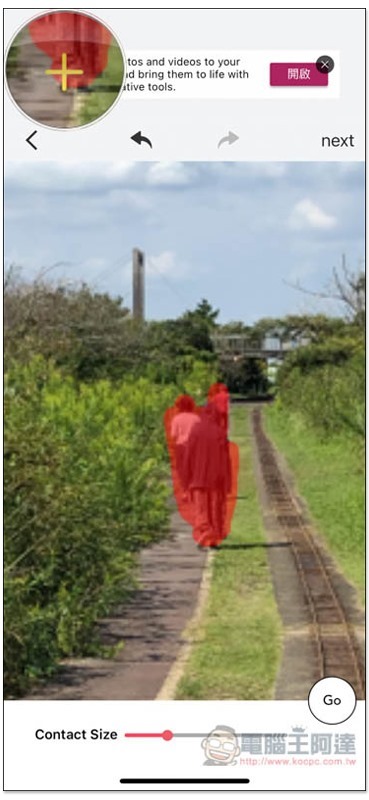
After entering the Object Removal function, use your fingers to draw the object you want to remove. You can adjust the brush size below and zoom or move it with two fingers: After drawing, press Go at the bottom right of the photo:
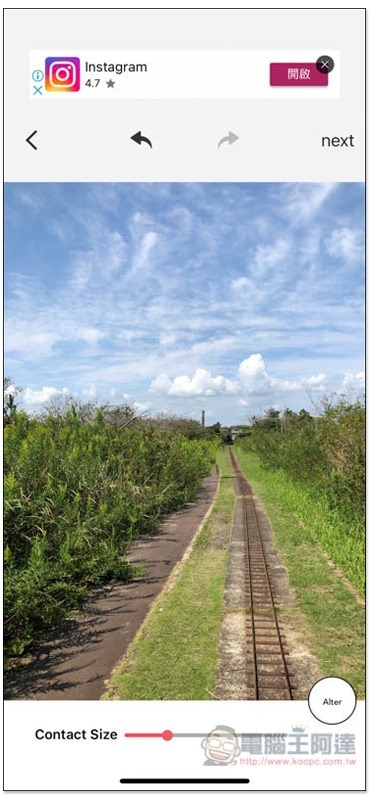
The object is removed! If you feel that the effect is not very good, you can click After in the lower right corner and another effect will be read:
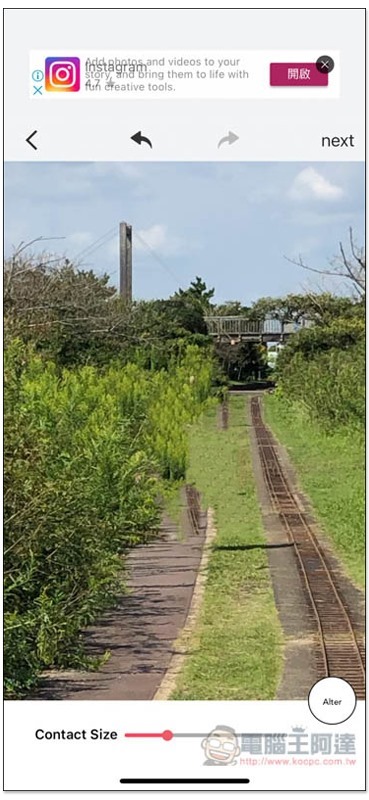
As shown below:
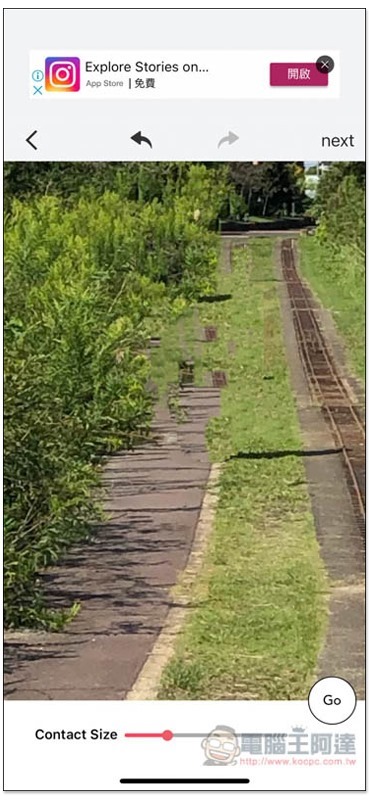
Although the effect does not feel very natural, if the object you want to remove is very small, like the person in my photo, there are almost no flaws in the entire picture. If you don’t look at the original picture, you won’t be able to tell what’s wrong:
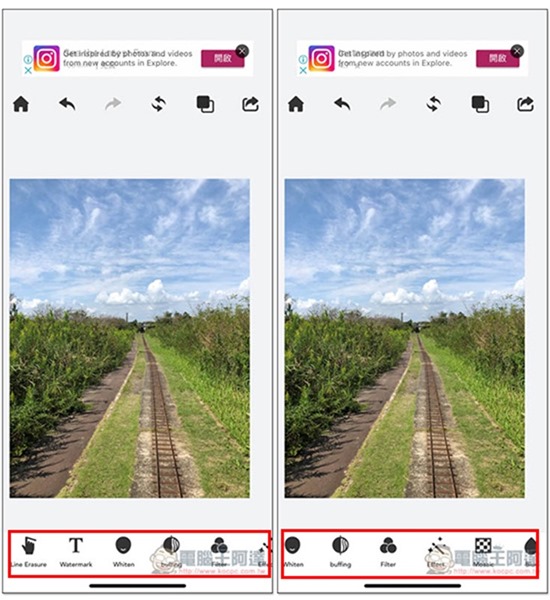
Swipe back on the bottom menu to find more tools, such as: Watermark, Filter, Effect, Blur, etc.:
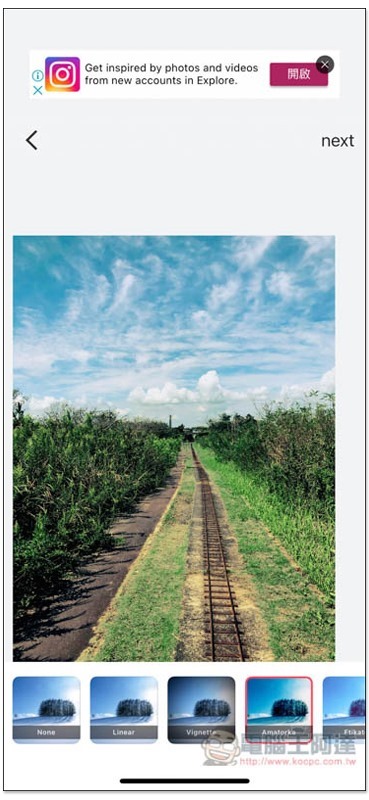
There are quite a few filter effects to choose from, and they all feel good:
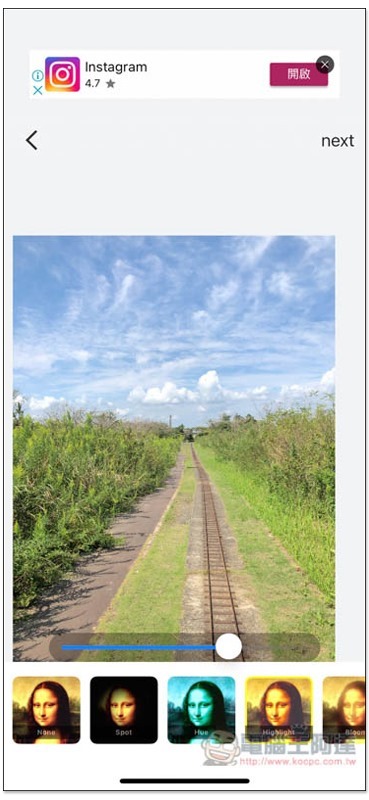
There are also many effects provided, and the intensity can be adjusted:
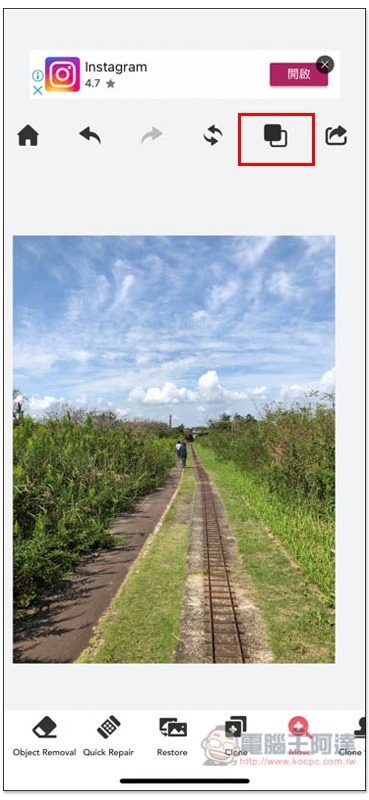
Click the black and white box in the upper right corner to view the original image. Once you have no problem, click the share icon on the right:
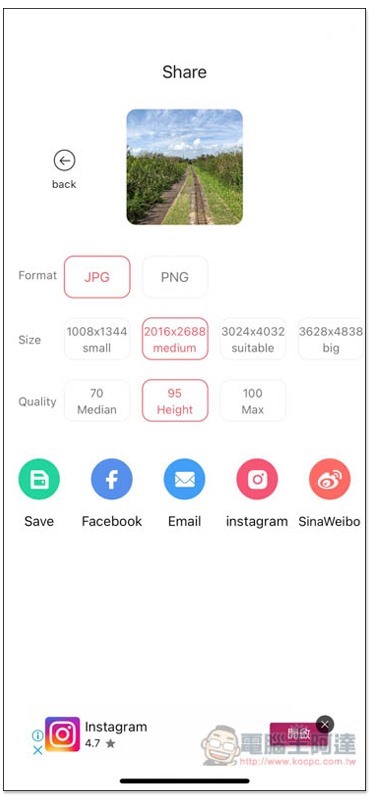
Select the format (JPG or PNG), size and quality you want to save, and press Save to save it to the iPhone photo album, or share it directly to social platforms:
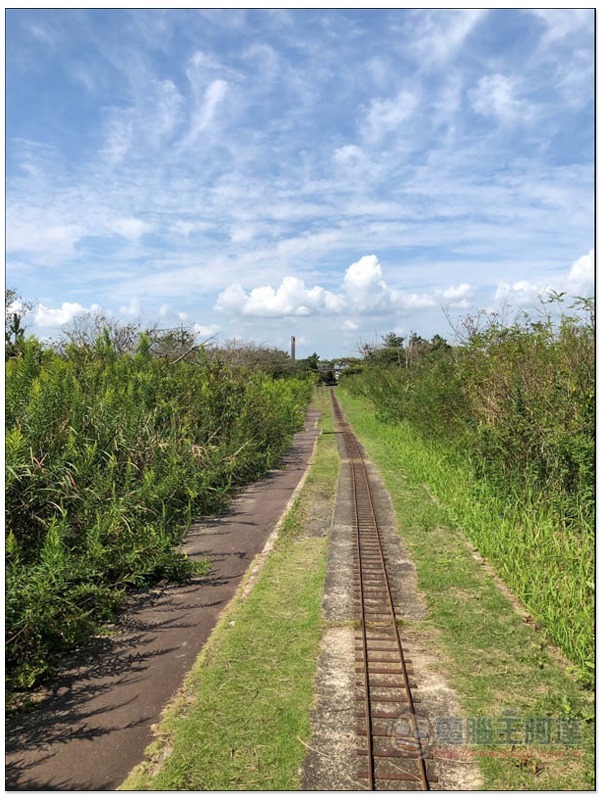
Below is a sample photo after exporting. I only removed the objects and did not apply any filters, effects or other post-production:
Supplementary information
- App name: Photo Retouch
- Nature: Free
- Download page:App Store
Source: KOCPC Chinese